1
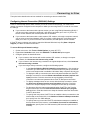
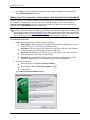
Configuring CuteFTP
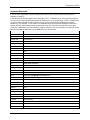
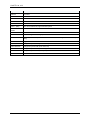
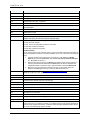
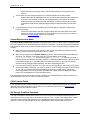
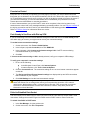
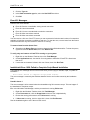
Keyboard Shortcuts
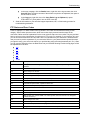
If you are more comfortable using the keyboard than the mouse, numerous keyboard shortcuts are
available in CuteFTP.
In the table below (and elsewhere in this user guide), "ALT+" indicates that you are to press and hold the
ALT key on your keyboard while simultaneously pressing one or more other keys. "CTRL+" indicates that
you are to press and hold the CTRL (Control) key on your keyboard while simultaneously pressing
another key. For example, "CTRL+SHIFT+D" indicates that you are to press and hold the Control Key
and the Shift key, while simultaneously pressing the D key (to move items down the list in the queue).
These key combinations are used instead of using the mouse to click in the interface. For example, press
ALT+F to activate the File menu; press CTRL+C to copy selected text.
Key
Function
Backspace
Move to parent folder
Number Pad +
Group select
Number Pad -
Group deselect
Number Pad *
Invert selection
Tab
Moves focus between tabs (documents) in the active pane group
Delete
Delete selected object
Esc
Cancel transfer
F1
Help
F2
Rename
F3
Find next
F4
Switch between Site Manager and Local Drives tabs
F5
Refresh active pane
F8
Display folder information
F9
Cancel transfer
Alt+Enter
Folder, file, or site properties
Alt+Up Arrow
Move to parent folder
Alt+F7
Display Global Options dialog box
Alt+0
Toggle show Site Manager /Local Pane view
Alt+1
Toggle show Queue /Log Pane
Alt+2
Hide or display individual log window (same as F12)
Alt+Q
Exit
CTRL+A
Select All
CTRL+C
Copy
CTRL+D
Change remote folder
CTRL+E
Execute file
CTRL+F
Find
CTRL+J
Launch Connection wizard
CTRL+M
Make new folder
CTRL+N
New FTP Connection
CTRL+O
Open (new document)
CTRL+Q
Add current path as new bookmark
21