1
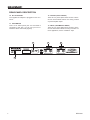
FRONT-PANEL DESCRIPTION
6. OUTPUT LEVEL CONTROL
This rotary control sets the level going to the amplifier
or mixer from the output of the DFX256.
1. INPUT LEVEL CONTROL
The input level control sets the level going into the
DFX256. You should set the level so that Peak indicators only flash RED occasionally.
7. POWER SWITCH
This switch turns the power of the DFX256 on/off.
When the power is off, the DFX256 will be in signal
bypass position automatically i.e. this feature allows
the direct signal to pass through the DFX256 even
when the power is not switched on.
2. MIX (DRY / WET) CONTROL
This control sets the balance between the unaffected signal coming through the inputs and the effects
being generated by the DFX256 i.e. the balance of
wet (effect) and dry (no effect) sounds. By keeping
the Mix somewhere in the center, a blend of dry and
wet signal can be achieved.
8. SIGNAL INDICATORS
These 2 small LED indicators, located within the digital
effect display, show when either the left or right inputs
are receiving a signal (the left LED indicates when the
left input is receiving a signal, the right indicates when
the right receives a signal). When the LCD display
(above these indicators) flashes “C”, the signal in the
left or right channel is excessive (ie. clip), and should
be reduced to keep the audio’s integrity.
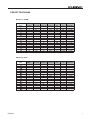
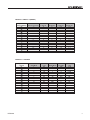
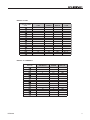
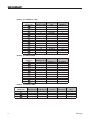
3. EFFECT MODES CHART
This chart shows you what 256 effect modes are in
the DFX256.
4. LED DISPLAY
This 7-segment display indicates the current effect
program in Program mode. When the display shows
the letter “C” flashing, this means either the right
or left input signals are too high and should be reduced.
9. LOAD INDICATOR
This small LED indicator, located within the digital effect display, will flash when users are previewing different effects (when turning the program select knob).
When a new program is loaded, this LED will stop
flashing.
5. PROGRAM SELECT KNOB
Turning this control will allow users to ‘preview’ the
different digital effects. Pushing it in will load the preset. If this control is not pushed within a few seconds
of changing the effect, the DFX256 will automatically
revert back to the previously loaded effect. When
this control is held down for a few seconds, the digital effects b will be bypassed. Holding it down again
will reactivate the effects. When selecting the Tap
Delay effect (T1 - T6), pushing the Program Select
control will allow users to adjust the delay time. The
time between the final two presses will be calculated
and used as the delay time.
2
4
DFX256
5
6
7
9