1
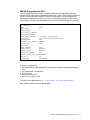
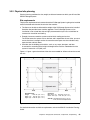
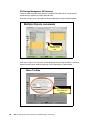
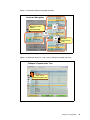
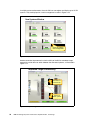
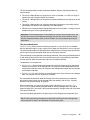
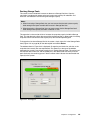
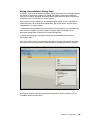
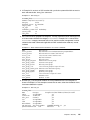
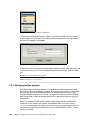
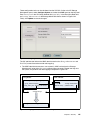
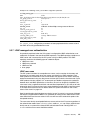
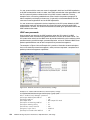
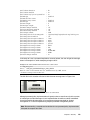
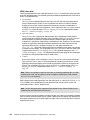
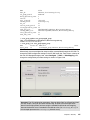
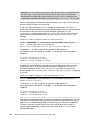
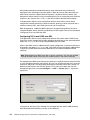
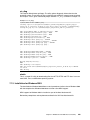
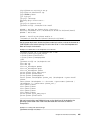
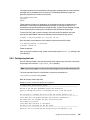
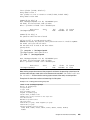
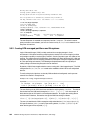
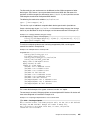
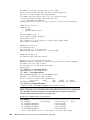
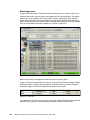
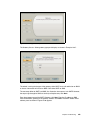
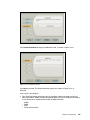
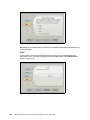
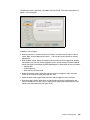
Example: A-10 Testing LDAP over SSL using ldapsearch command # /usr/bin/ldapsearch -x -H “ldaps://xivhost1.xivhost1ldap.storage.tucson.ibm.com:636” -D 'CN=xivtestuser1,CN=Users,DC=xivhost1ldap,DC=storage,DC=tucson,DC=ibm,DC=com' -w pass2remember -b 'CN=Users,DC=xivhost1ldap,DC=storage,DC=tucson,DC=ibm,DC=com' dn: CN=xivtestuser1,CN=Users,DC=xivhost1ldap,DC=storage,DC=tucson,DC=ibm,DC=com objectClass: top objectClass: person objectClass: organizationalPerson objectClass: user cn: xivtestuser1 description: Storage Administrator distinguishedName: CN=xivtestuser1,CN=Users,DC=xivhost1ldap,DC=storage,DC=tucs on,DC=ibm,DC=com ... # search result search: 2 result: 0 Success The URI format used with “-H” option specifies that LDAPS (LDAP over SSL) must be used on port 636 (LDAP secure port). SUN Java Directory SSL configuration This section illustrates the use of an SSL protocol for communication with the SUN Java Directory. Creating SUN Java Directory certificate request To configure SSL for SUN Java LDAP Directory, you must create a certificate request (CER), have CER signed by a CA, import the signed certificate into the local keystore, import a CA certificate as a trusted root CA, and then restart the LDAP server for the new configuration to take effect. Generating a SUN Java Directory server certificate request To generate a certificate request using SUN Java Web Console tool: Point your web browser HTTPS port 6789, in our example “https://xivhost2.storage.tucson.ibm.com:6789”. Login to the system and select “Directory Service Control Center (DSCC)” application and Authenticate to Directory Service Manager. Select Directory Servers xivhost2.storage.tucson.ibm.com:389 Security Certificates Request CA-Signed Certificate. Fill out the certificate request form. Sample of certificate request form is shown in Figure A-13. Appendix A. Additional LDAP information 375