1
TRAIN TRACK User Manual
EMAIL REPORTS
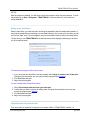
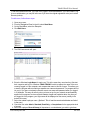
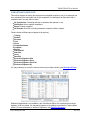
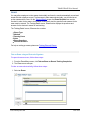
The program allows you to email reports to supervisors, employees, or to a list of recipients. In order
to be able to send email to supervisors or employees, you must first enter the email addresses and
associate the correct employees with each supervisor.
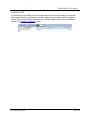
For emails that are sent automatically, please see Automated Email .
You may also export any report to a standard file format (i.e. Excel ® or as a text file) and then send it
to any email recipient. For more information, please see Export.
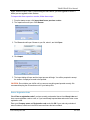
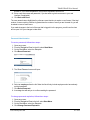
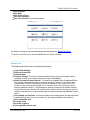
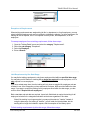
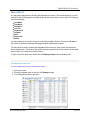
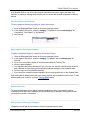
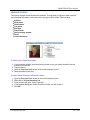
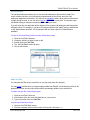
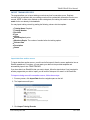
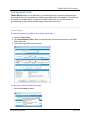
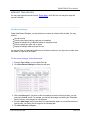
To set up supervisors and employees for email reports, follow these steps:
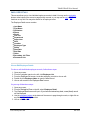
1. Open the Employee Detail screen to the correct employee record.
2. Select the Supervisor.
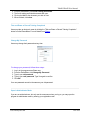
3. Select the category "Employee Info" and the sub-category "HR".
4. Enter the email address.
5. Navigate to the next record and repeat step 2 to 4.
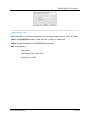
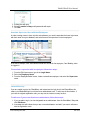
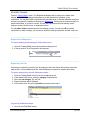
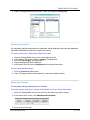
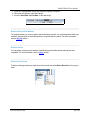
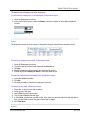
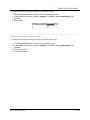
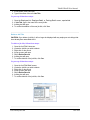
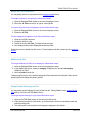
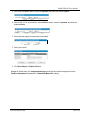
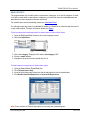
To email reports to supervisors, follow these steps:
1.
2.
3.
4.
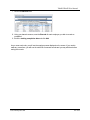
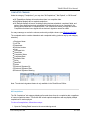
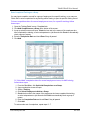
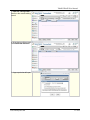
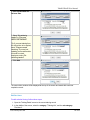
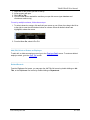
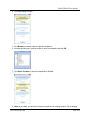
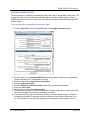
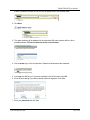
Open the Report Menu, Export/Email tab.
Click To Supervisors Only.
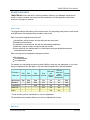
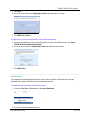
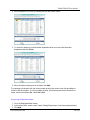
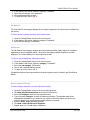
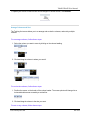
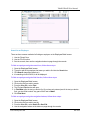
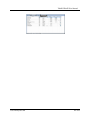
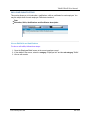
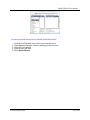
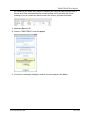
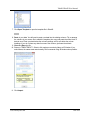
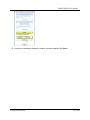
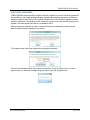
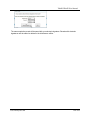
A box will open listing each supervisor, and the trainings due for their subordinates.
Click Send to Selected Supervisor or Send to All Supervisors.
Note: Some versions of Outlook may require you to verify each email being sent.
www.LibertyLabs.com
142 / 164