1
SET UP YOICS TO VIEW YOUR CAMERA
REMOTELY ANYWHERE ANYTIME
Powered by
™
STEP 4
BASIC INSTALLATION GUIDE
Time: 10 Minutes
NOTE: By default, the LNE3003 IP Camera is enabled for Yoics™ easyconnect remote access.
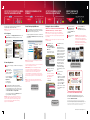
A: Yoics Sign-up
a
From DigiViewer, click Settings, Remote Access and then click
Register with Yoics at the bottom right of the Yoics section.
b
On the log-in website
page, enter the required
personal information
in the fields and click
Register.
Did you know?
Powered by
Hand Tools Skills - Easy
- Computer
Quicktime Player is required for Remote Viewing using Yoics.
http://www.apple.com/quicktime/download/
Depending on your browser
security settings, you can
use the “remember me”
check option and the next
time you will log in to Yoics
from this browser it will
remember user name and
password till you restart
your computer.
B: Camera Registration
a
On your Yoics account page, Click Yes on the Security Pop-up
Window.
b
Your new Camera is
detected and becomes
available to be added to
your Yoics account.
From the LOREX pop-up
window click Complete
Registration.
The Register New
Devices page opens.
c
VIEWING YOUR CAMERA VIA THE
INTERNET
You need to provide the LOREX Camera two different
registration names (The first will register your camera to
stream using web browser the second is to be able to view
using iPhone™/iPod touch™). Enter a name for the camera
in the Yoics Device Name. Click Register Now.
STEP 5
™
B ASIC INSTALLATION GUIDE
Time: 10 - 30
Minutes
Browse to http://lorex.yoics.com and log in using the user
name and password you created in Step 4, section b. Under
My Stuff, click the camera you want to view.
You may be prompted to install QuickTime or asked to enter
the Username and Password (default admin, admin) to login
to the camera.
Time: 10 Minutes
STEP 6
B A S I C I N S TA L LATIO N G U I D E
Hand Tools Skills - Easy
- Computer
Setting up the Camera to be Wireless
CAMERA must be PLUGGED INTO YOUR ROUTER BEFORE STARTING
THE WIRELESS SETUP. Steps 1 - 3 should to be completed.
NOTE: By default, the Wireless feature in the camera is disabled. If the
wireless connection is set up with encryption, you will be asked to provide
the encryption key. Wi-Fi wireless encryption supports only WEP open mode
key (64 & 128bit).
Time: 10 Minutes
STEP 7
a
From DigiViewer, click
Settings, Wireless and
then select Enabled when
scrolling down the Wireless
Mode option.
c
a
Using the Safari browser,
go to http://lorex.yoics.
com and log in using
your Yoics username and
password.
b
Click the camera you
want to view.
The Camera will scan for
available wireless network.
Workww
NOTE: Number of simultaneous connections possible to the camera
depends on Internet bandwidth.
You can share the camera with other Yoics users. Refer to the provided
manual on the http://www.yoics.com website.
EXPERT OPTION: If you have an external (WAN) static IP address
or you have registered with the free LOREX DDNS service, you
can configure your router to port-forward the incoming Internet
connections to the camera. Use the static IP address or your
customized lorexddns.net URL in the address field of your browser to
access your camera. Yoics registration is not required when using this
option. For more details, please refer to the instruction manual on the
CD.
NOTE: For security reasons change the default admin password
login to the camera. For more details, please refer to the instruction
manual on the CD.
Congratulations! Your
camera is now set-up for
remote viewing on any PC
b
Highlight the network you
want the camera to be
connected to.
If the wireless connection
is set up with encryption,
Please provide the
encryption key.
Click Connect.
Click OK on the pop-up
warning.
Wait approximately one
minute to allow the camera
to complete connection to the
wireless router. Go back to
DigiConsole (Step 2) and click
Find till you see the same
camera listed twice. Remove
the network cable and
continue to Step 6, section d.
If the camera is not listed
twice go back to Step 6,
section a, select Wireless
Mode: Disable. Wait till
camera is done updating,
then repeat Step 6, section a
again.
d
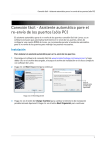
3. Double-click the camera to
launch DigiViewer in your
browser.
Skills - Easy
c
Enter the username and
password to log in to the
camera (default admin, admin).
OPTION: In newer versions of iPhone™
/iPod Touch™, you can bookmark the Yoics
website for quick access. Alternatively
create a shortcut on the application screen
for easy access. Check the reference
materials that came with your iPhone™ /
iPod touch™ for feature details.
Congratulations! Your camera is
now set-up for remote viewing on
your iPhone™ or iPod touch™.
Warehouse
1. Close the Internet
Browser
2. Go back to the
DigiConsole screen, right
click on the shown camera
and select Refresh. (If
DigiConsole was closed
earlier, run the software
again and click Find).
Tools
,
NOTE: Wireless cameras require a power source to operate. Use the included
camera power adaptor.
Office
LNP5220E, LNP5320E,
LND7220V, LNZ9320W
Day Care
LNE3003, LNP5220E
LNE3003 , LNP5220E,
LND7220V
Restaurant
Convenience Store
LND7220V, LNE3003
LNP5220E, LND7220V
Home Office
PROTECT EVERYTHING
THAT MATTERS
Add wired or wireless network cameras to
expand the “Envelope of Protection” for your
business, your home and your family
Drive Way / Parking Lot
LNP5320E, LNB6300V
Front Door
LNE3003
Nursery
LNE3003
LNE3003
Backyard
LNP5320E, LND7220V
It’s all on the Web www.lorexcctv.com
If the camera does not appear Under “My Stuff”, Press F5
on your keyboard to refresh the page.
OPTION: If you prefer to view your camera remotely more often, for
epitomized viewing, from the DigiViewer main menu, click Settings
and then click Device Setup. From the Video Streaming pull-down
menu, selecting the last option to change the video streaming
quality to a lower network bandwidth.
REMOTE VIEWING WITH
i Phone™ / iPod touch™
BASIC INSTALLATION GUIDE
Hand Tools Skills - Easy
- Computer
Remote Viewing using Web Browser
a
SET UP YOUR CAMERA ON THE
WIRELESS LOCAL NETWORK
For detailed setup information, please refer to your
User’s Manual. For additional information, please visit
our website www.lorexcctv.com
Congratulations! Your
camera is now set-up to
work Wireless.
Information in this document is subject to change without notice. As our products are subject to continuous
improvement, Lorex Technology INC. and our subsidiaries reserve the right to modify product design, specifi cations
and prices, without notice and without incurring any obligation. E&OE © 2009 LOREX. All rights reserved.
iPhone™, iPod touch™, Yoics™, and MSN™ are registered trademarks of their respective companies, registered in
the United States and other countries. iPhone™ and iPod touch™ are not included in this package.
LNE3003 Quick Setup Guide - English - R2