1
Controlling via the control panel
(Operation common to Area zoom
mode and Vector dragging mode)
Panning, tilting and zooming by
specifying the area (Area zoom
mode only)
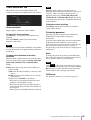
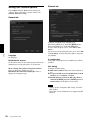
You can operate the camera direction, zoom, and focus
by using the control panel for the monitor image
currently displayed.
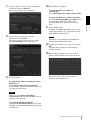
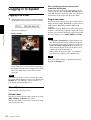
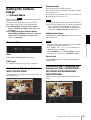
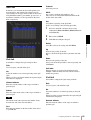
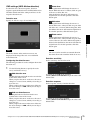
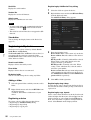
Click and hold the left button of the mouse on the
monitor image, and drag the mouse diagonally to draw a
red frame around the portion you want to enlarge. The
camera moves so that framed portion is positioned at the
center of the display and is zoomed in.
Operating the Camera
Note
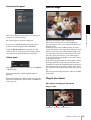
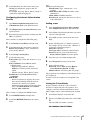
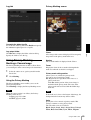
Pan/Tilt control
Click the arrow button in the direction in which you
want to move the camera. Keep it pressed to move the
camera continuously.
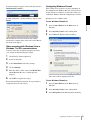
To return to the home position, click
.
When the specified area is zoomed in, the center may be
shifted or some portion of the image may appear out of
the monitor image section. In this case, click the point
you want to move to the center or click the arrow button
on the camera control panel.
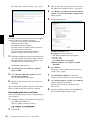
Zoom control
Click
to zoom out, and click
to zoom in.
Zooming continues while the button remains pressed.
Panning and tilting by dragging the
screen (Vector dragging mode
only)
Panning and tilting by clicking the
monitor image (Area zoom mode
only)
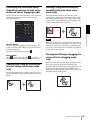
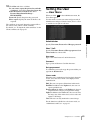
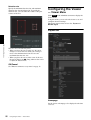
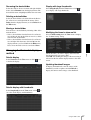
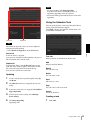
When you click on the starting point on the image and
drag to the end point, the camera pans/tilts in the
direction of the arrow from the starting point to the end
point. The speed of operation is determined by the
length of arrow. Releasing the button on the mouse stops
the panning/tilting of the camera.
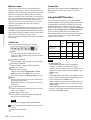
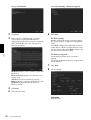
Click on the monitor image, and the camera moves so
that the clicked portion is positioned at the center of the
display.
Configuration of Main Viewer
25