1
Dfine 2.0 User Guide
Chapter 9: Filter Interface Settings
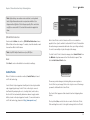
Default Appearance
Load Based on EXIF Data
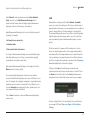
Default Appearance sets the brightness of the area surrounding the
image in the Preview.
This option searches the Default Profiles Path for saved profiles with
the same camera and ISO combination as the active image. If Dfine
2.0 cannot find a matching profile, or if the current image does not
contain EXIF information, it will apply an Auto Profile.
• Light Gray
• Medium Gray
• Dark Gray
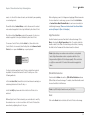
Auto Profile Load Behavior
The Auto Profile Load Behavior setting lets you specify how Dfine
2.0 applies profiles to images. This setting enables you to save time
by setting it according to how you interact with Dfine 2.0.
Enabling one of the automatic methods lets Dfine 2.0 automatically
apply the appropriate noise reduction profile to each image of a
batch process.
Do Nothing
When Do Nothing is selected, Dfine 2.0 does not measure image
noise and requires that you select either the Automatic or Manual
method of noise measurement.
Auto Profile Image
The Auto Profile Image option sets Dfine 2.0 to automatically profile
every image that is opened, thus saving time.
Use Last Profile
With this option enabled, Dfine 2.0 applies the same noise
reduction effect that was applied to the last image processed.
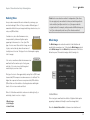
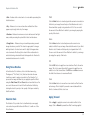
Default Profiles Path
Click on the Browse button to specify the folder in which Dfine 2.0
saves profiles. (This is also the folder that Dfine 2.0 searches when
Load Based on EXIF Data is enabled.)
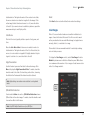
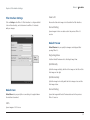
After Clicking OK
This option lets you specify how Dfine 2.0 filters are applied to
images.
Note: This option is valid only within Photoshop or Photoshop
Elements serving as Dfine 2.0’s host.
Apply the Filtered Effect to the Current Layer
This option applies Dfine 2.0 to the layer that was active when Dfine
2.0 was launched.
Apply the Filtered Effect to a Separate Layer
Choose this option to always apply Dfine 2.0 to a separate layer. Use
of this option and saving the final image in a layered format ensures
the preservation of original image details. Enabling this option
increases file size and may increase image processing times.
36