1
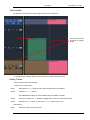
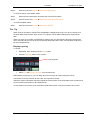
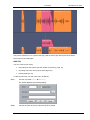
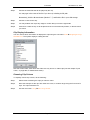
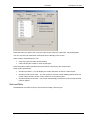
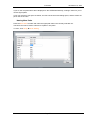
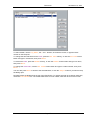
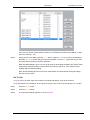
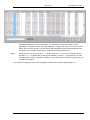
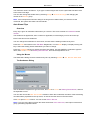
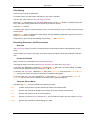
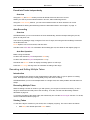
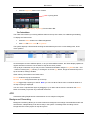
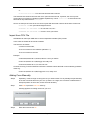
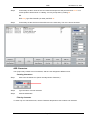
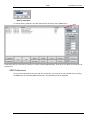
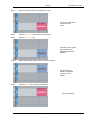
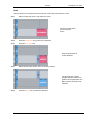
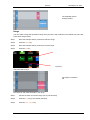
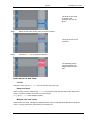
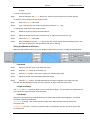
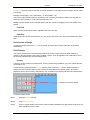
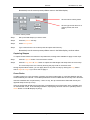
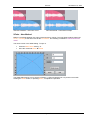
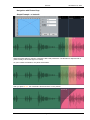
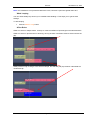
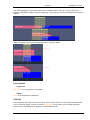
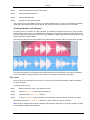
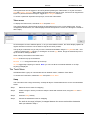
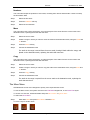
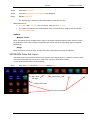
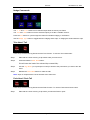
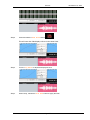
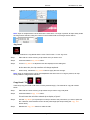
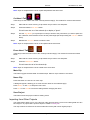
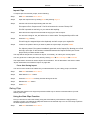
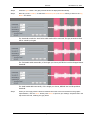
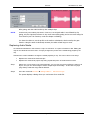
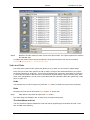
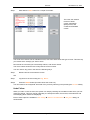
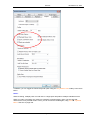
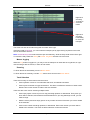
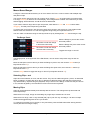
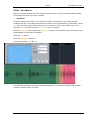
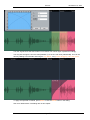
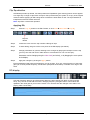
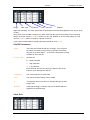
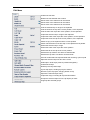
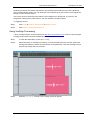
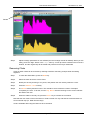
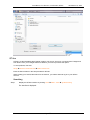
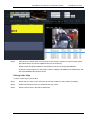
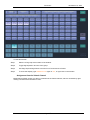
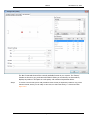
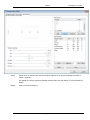
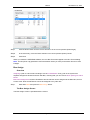
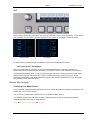
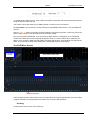
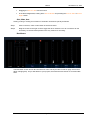
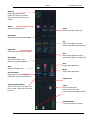
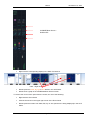
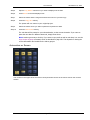
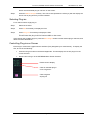
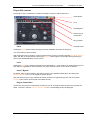
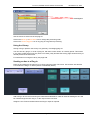
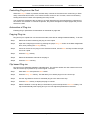
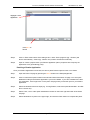
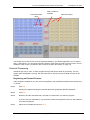
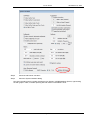
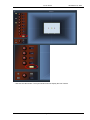
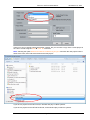
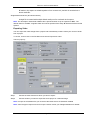
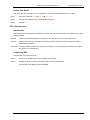
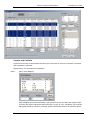
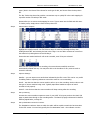
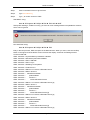
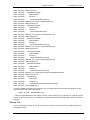
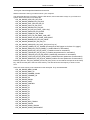
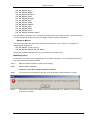
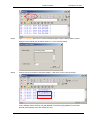
AUTOMATION November 13, 2014 Step 2 Press the Target soft key until “both” is selected. Step 2 Edit audio in the usual ways, and all enabled automation data for the sections of track you are editing will also be edited. Note: When a range is selected, automation data is cut, copied and pasted for the entire range, whether or not clips are present. Undoing the audio edit will also undo the automation change. Copy Project Segment This command in the Edit Menu copies all audio and automation data, on all channels in the system, from a range to the cursor position. To do this: Step 1 Make a range around the segment you want to copy. Step 3 Locate to the sync point in the range, which corresponds to the place you want to paste the segment. For example, choose a scene change or notable event, which will be easy to locate at the destination. Step 4 Click Edit Copy Project Segment This copies the specified range into the clipboard, including all clips and automation. Step 5 Locate to the timecode/event where you want to paste. Step 6 Paste the clipboard using any of the following: Click Edit Paste Press Enter on the Xstream panel Type Ctrl-v on a qwerty keyboard The audio from all tracks will be copied (whether selected or not), plus the automation from all signal paths and all parameters (whether enabled or not). You can also use this command to copy a project segment from an import project and paste it into the main workspace. Import Automation from Another Project The Import Menu can be used to bring audio clips in from another project. This is described in the section “Importing Clips from Other Projects” on page 134. It can also be used to import mix automation. The procedure is as follows: Step 1 Hold down Mode and press Import Step 2 Press the open soft key, choose a file from the Open dialog and click OK. This opens the Import File (i.e. the one from which you will import) Step 3 Press the Mix soft key. This will cause a new menu to be displayed in the Pad. Step 4 Press the Select Mix soft key. This will cause the names of the available Mix files to be displayed in the Pad. Page 250