1
Getting Started
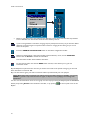
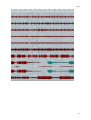
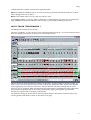
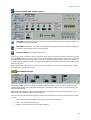
direction). Note that the green Jog light on the console underneath the SADiE screen will be lit in
this mode.
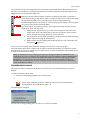
A further push of JOG will light the green Shuttle LED; moving the wheel will scrub the audio
underneath the timeline at a fixed speed and this speed is determined by the amount and direction
you've turned the wheel.
While scrubbing quickly look at scrubbing the VTR. There's a special 9-pin control feature, which
allows you toggle on/off the audible scrubbing of SADiE's Playlist, whilst still scrubbing the 9-pin
device. The reason for having this function is that SADiE's audio may not be able to play at the sort of
speeds that VTR's can achieve at their maximum scrub speed (which often approaches 16 or 20X).
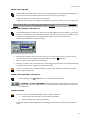
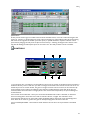
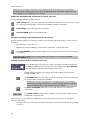
Press GRABTIME on the Hardware controller while in jog or shuttle, and SADiE's audio will turn
off; this is very useful for quick locating the video (and continuing to view it) if you have a fair distance
to move. Press GRABTIME again to revert to normal picture-and-SADiE scrubbing. The name of
this button does not obviously describe its function!
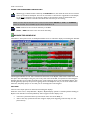
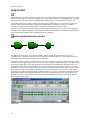
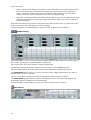
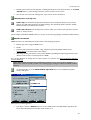
Clicking with the mouse in the white area of the time bar (notice that the exact time you are pointing
to is indicated by the mouse time display), will locate to that position (but not the 9-pin VTR yet).
Double-clicking with the mouse in the white area of the time bar will locate and start playback
immediately from the selected position. When you are ONLINE, the mouse double click locates the
VTR first. Thus double-clicking is the same as locating with the wheel, then pressing SHIFT then
PLAY.
On the keyboard, you can press "Home" to jump to the beginning of the first entry, or "End" to jump to the
end of the last entry.
Pressing the PREVIOUS or NEXT hardware controller buttons will select the previous (or next)
entry and place the timeline at the beginning of that entry. Thus pressing these keys repeatedly will
roll the timeline through each entry in turn.
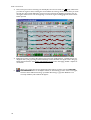
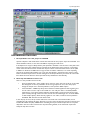
You can now play back the EDL by pressing PLAY, (or SHIFT then PLAY when you are ONLINE, in order
to locate the VTR first) or using the keyboard spacebar (which duplicates Play and Stop functions). Notice the
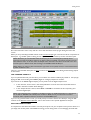
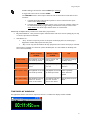
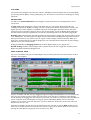
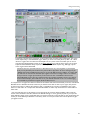
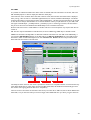
current-time cursor moving left to right across the Playlist, (which will scroll automatically), and the currenttime display in the Transport Controls or hardware controller reflecting the EDL time in the time bar at the
top of the Playlist. Single-click anywhere in the time bar to stop playback.
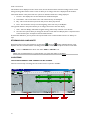
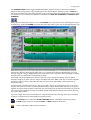
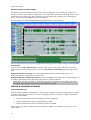
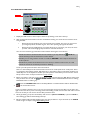
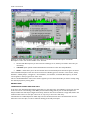
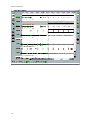
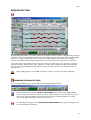
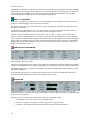
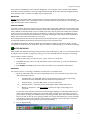
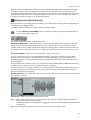
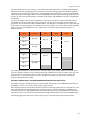
To access points not currently in the window, scroll the display by using the Scrollbar along the
bottom of the Playlist. You can single click or hold down the arrow buttons, or click in the bar
either side of the moving box. When the system is playing back it will override scrolling in order to
keep the current time in view. (Scrollbars are a standard Windows feature; see the user manual
Appendix A - Windows Basics, or the Windows help file.)
Practice getting around the Playlist to play different sections. Other ways of locating to given points are
covered in Using the Playlist.
ARRANGING THE EDL
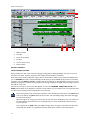
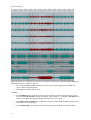
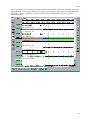
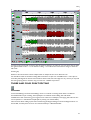
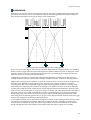
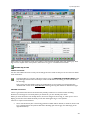
Set the zoom level so that all three Entries are in view. Assume for now that the piece you called "Voice" is in
sync with the picture, and your task is to move the other clips to appropriate positions. Thus for now, don't
move "Voice" from it's sync position. There is no real purpose to the movements you are about to do except
to show it can be done.
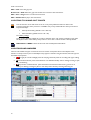
For the sake of this tutorial, it's best to take the 9-pin device off line until you wish to play anything.
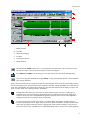
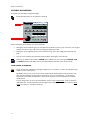
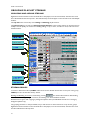
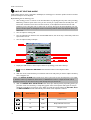
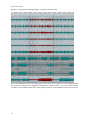
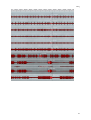
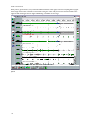
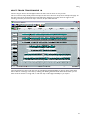
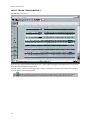
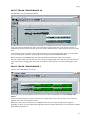
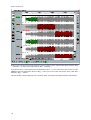
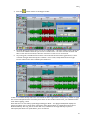
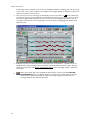
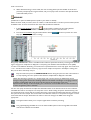
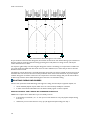
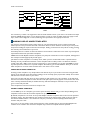
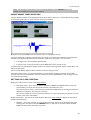
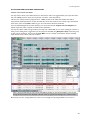
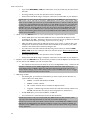
Click on the Entry "Music" to select it. It will turn red. You can now drag it with the mouse to a later
location in the EDL and drop it after "SFX".
29