1
Importing Symbols with Designer
Note: If you are using Micrografx DRAW, you use the Import option in
the File menu to import the symbols. Refer to your DRAW manual
to learn how to use the Import option.
To import symbols using Designer:
1.
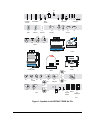
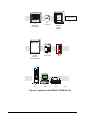
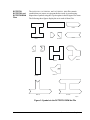
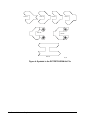
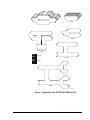
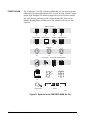
In Designer, select the ClipArt option from the File menu. When the
ClipArt dialog box appears, select the file containing the symbols you
want to use, and click OK. Then, select the symbols you want to use
from the file, and click OK again. The symbols appear on your screen.
2.
Use the Designer text tool to add a string of text to the symbol. The
string of text will be replaced by dynamic data when you bind the
symbol to an FMS item and view it in Metasys. If the text string is
already included, and it is placed in the proper position, skip this step.
If the text string and the symbol are combined as one item, and you
want to reposition the text, select the item, and use the Break Apart
option in the Arrange menu to break the text and symbol apart. Then
reposition the text, and go to Step 3.
Make sure that there is enough room so that the dynamic data does not
overlap onto another symbol. The dynamic data is the text you choose
to include with the symbol in the Bind dialog box (i.e., Status, Name,
Description, and Value/Units). For example, type an X beneath the
symbol. After the symbol is bound to an FMS item and viewed as a
drawing in Metasys, the X is replaced by the object’s current status,
name, description, and/or value/units. There must be enough room for
the text, or it may be difficult to read.
3.
Select both the symbol and the text, and use the Combine command in
the Arrange menu to combine the text and symbol into one item.
(If the symbol is imported from one of the Metasys art files, the text
and symbol are already combined.)
4.
Assign each symbol in the drawing a unique Symbol ID using the
Symbol ID option in the Edit menu.
Once the drawing is created, save it with the FMS item’s name, including
the .DRW, under the FMS item’s directory.
Feature Software—Graphics
21