1
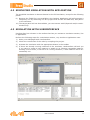
4.2 SIMPLIFIED SIMULATION WITH APPLICATION
The simplified simulation is almost identical to the full simulation, except for the following
points:
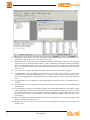
6) Because the TGSX file is not available in the Catalog, Application will self-generate a
temporary one by examining the PLC project and its TGT and IMG files, and pass it
to the simulator.
10) The target panel will not be available, you can interact with I/O panels and/or watchwindow only.
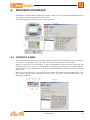
4.3 SIMULATION WITH USERINTERFACE
UserInterface has a button in the toolbar that lets you activate a simulation session, like
in Application.
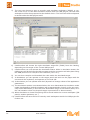
Perform the following steps for a simulation session, very similar to Application ones:
1) Write your HMI pages with UserInterface.
2) Check the correctness of the code by compiling the project.
3) Activate the simulation with the appropriate button in the toolbar.
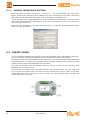
4) If there are already running instances of the simulator, UserInterface will ask you
if you want to create a new instance or attach to an existing compatible instance,
showing a list of them; if there are no running instances, a new instance will be automatically run.
user manual
9