1
AxiCal
Week View
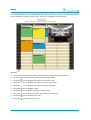
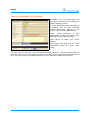
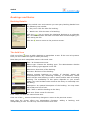
The week being displayed is mentioned in the top-left corner.
Click the
icon to display one week earlier.
Click the
icon to display one week later.
Click the
icon to display the current week.
If you click [Log out], then you're logged out of the booking system
and you're directed back to the login screen.
When you select a diary and click the ">>" button, AxiCal will show
the selected diary.
Click the
icon to display the diary in the month view.
Click the
icon next to a date to display the diary in the day view
at the given date.
Click the
icon to add a booking or edit a note.
Click the
icon to edit or remove the booking or the note.
Click the time of a booking to see the booking details.
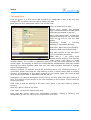
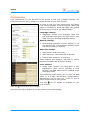
Work schedules are shown in a simplified way: you can only see
whether or not a work schedule is assigned on a daily basis by
means of the background color.
Month View
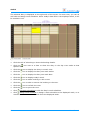
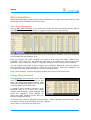
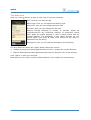
The month being displayed is mentioned in the top-left corner.
Click the
icon to display one month earlier.
Click the
icon to display one month later.
Click the
icon to display the current month.
If you click [Log out], then you're logged out of the booking system
and you're directed back to the login screen. When you select a
diary and click the ">>" button, AxiCal will show the selected diary.
Click the
icon to display the diary of the corresponding week in the week view. Click a
day to show the day view.
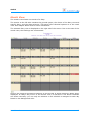
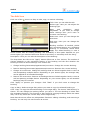
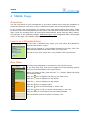
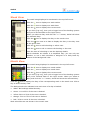
The background color indicates how much time of a day is booked:
▪
White: No bookings added this day.
▪
Green: 1% to 25% of the time is booked.
▪
Yellow: 26% to 50% of the time is booked.
▪
Orange: 51% to 75% of the time is booked.
▪
Red: 76% to 100% of the time is booked.
Work schedules are not shown in the month view.
User Manual
23