1
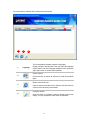
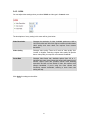
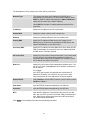
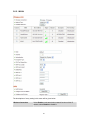
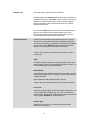
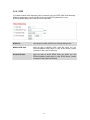
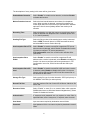
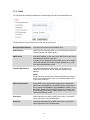
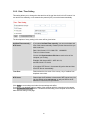
SSID
Input the SSID of the wireless access point you wish to connect. It
should be less than 32 alphanumerical characters.
When you select a wireless access point above, it’s SSID will be
filled in this field automatically. However, if the SSID is not
displayed (the wireless access point you selected choose to hide
it’s SSID), you have to know it’s SSID and input it here, or you will
not be able to connect it.
Channel
Select the radio channel you wish to use here. When network type
is Infrastructure, the radio channel is auto-selected according to
the channel that wireless access point uses. You can only select
the channel number when network type is Adhoc.
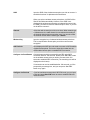
Wireless Key
Input the encryption key of selected wireless access point here.
This is required when access point you wish to connect uses
encryption.
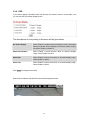
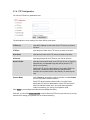
Self PinCode
Here displays the WPS pin code used to connect to WPS-enabled
wireless access points. You have to input this number into the
WPS enabled access point to establish WPS connection.
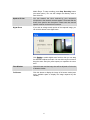
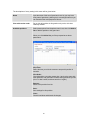
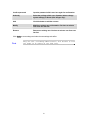
Configure via Push Button
Click this button and this camera will enter PBC-style WPS
connection state for 120 seconds. Please push ‘Start PBC’ button
on the wireless access point you wish to connect within 120
seconds to establish WPS connection (The remaining time will be
displayed on the button).
If connection can not be established after 120 seconds, you’ll be
prompted by a message box, and you can press ‘Start PBC’
button to try again.
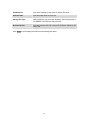
Configure via PinCode
If you have wireless access point’s WPS PIN code, you can input
it here and press Start PIN button to start to establish PIN-style
WPS connection.
51

![Internet Camera - [ [ [ ANSEL ] ] ]](http://vs1.manualzilla.com/store/data/005837536_1-ce302c6b28431aa03d9b92e65549b72a-150x150.png)