1
Operating Manual for CCT772 & CCT771 Video Tardis Manual
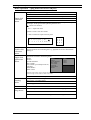
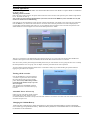
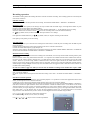
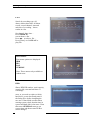
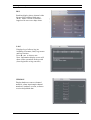
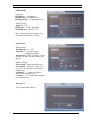
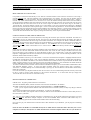
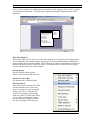
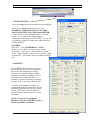
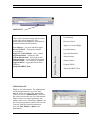
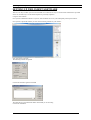
Now fill in the required info in the pop-up dialogue box. Select the Type of file being
searched. This can be a schedule recorded file (Record), an Alarm record file (Alarm) or a
motion detect file (Motion). Now enter date and time of start of selected incident in the From
boxes, the end of the selected incident in the To boxes and the selected channel. Press Search
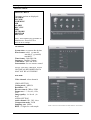
and a list of the files found will be displayed in the Result screen. If only the From date and
time is entered the Result screen will display all files for a 24 hour period from the time
entered. The display will show only 15 files per page. Press Page Up or Page Down to scroll
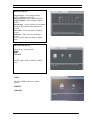
through pages of files found. Now double click the selected record and the file will be played.
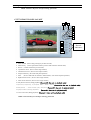
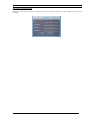
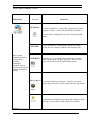
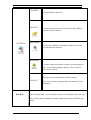
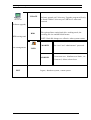
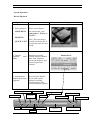
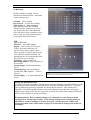
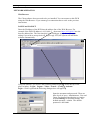
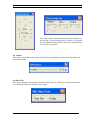
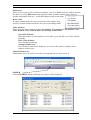
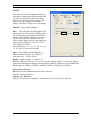
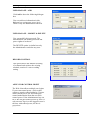
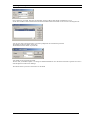
During the playback, you can operate the buttons in the playback bar like save record, stop
save, capture picture, full screen. During playback on the video screen, the video displays the
channel number, time and data flux of the record.
Save record stop save
capture picture
full screen
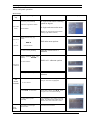
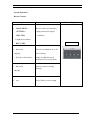
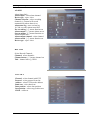
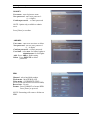
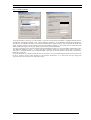
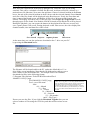
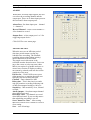
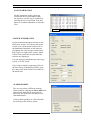
At the same time you can also perform a download to the C: drive on your P.C.
by pressing the Download button.
The filename will be downloaded to the PC under the default drive C:/ or
drive/folder set on installation. Note that the file dialogue box allows you to
enter a name for the downloaded file - for example Fred. The filenames
downloaded will be in the following format:
C:/Program Files/Software Tools/DVR365/download/Fred20060823113025[1].mpg
*Note: Different versions of the software may produce
Fred-20060823113025[1].mpg
.MP4, .dav or .mpg files. You can only playback these file/s
Fred = saved file name
using the DVR365 Client or Player software as the files are
encrypted. The Player software downloaded from our
2006
website will allow you to re-record these files as AVI files
08 = Month
for use with MS Media Player. MS Media Player will need
the correct CODEC downloadable from the Microsoft
23 = Day
Website.
11 = Hours
30 = Minutes
25 = Seconds
[1] = file number
.mp4 = File Type *
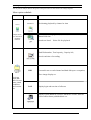
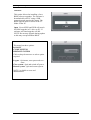
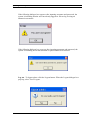
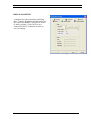
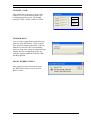
Ensure you save the files. If you click the Download Together box you can
select a number of files using the CTRL key and data will be written to one
file.
42