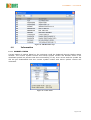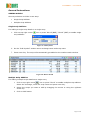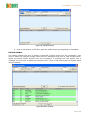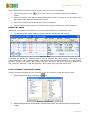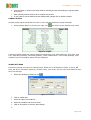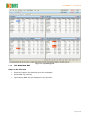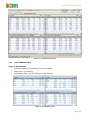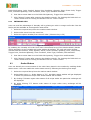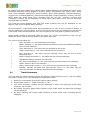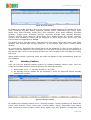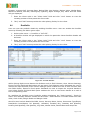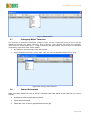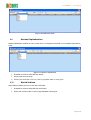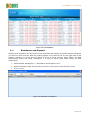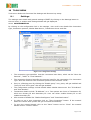
1
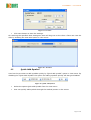
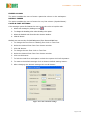
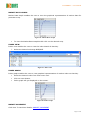
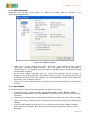
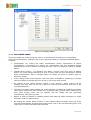
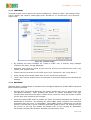
inet PROMPT – User Manual Figure 116: Exchange Window 10.1.4 CUSTOMIZE ORDER This menu deals with customizing the orders. It include various divisions for customizing orders like Confirmation, Change order screen, Show all trades in, Pooling and Default Order Location. Confirmation: By Ticking the Order Confirmation, Online confirmation & Cancel Confirmation, A message box asking for conformation will get displayed before submitting the order or before canceling the order. Also it includes the option to disable Offline. Change Order Screen: By selecting the option “convert 0.00 Price limit at Market Order” The order placed with Price as 0.00 in Limit order will get converted to market Order automatically. Also it includes option to change the focus in product type on selection change. In the change order screen FO part, We have option to disable or enable qty or lot also have the option to change the focus to qty or lot in the order screen. By clicking on the "Order Pooling" Option in the "pooling", Order pooling can be enabled. Pool size also can be set in prior by entering the required pool size in the corresponding field. The option to Retain Order details has to be specified if needed. By enabling the option retain order details the order details such as Client Code, Symbol name, Quantity and Price while placing order can be retained and the details will get generated automatically while placing order. Option to show all trades in intraday position and trade by trade information in trade summary exist for dealers alone. By setting the correct Order Location in the "Default Order Location" field, the client code will automatically generate that preset client code in the corresponding field. Thus client have to enter the remaining part alone. Page 69 of 78