1
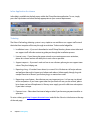
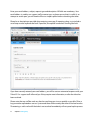
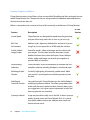
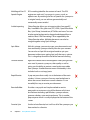
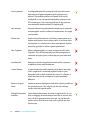
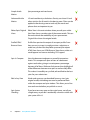
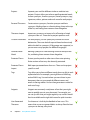
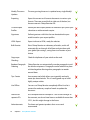
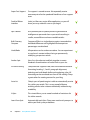
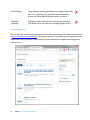
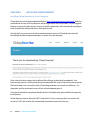
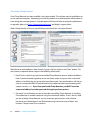
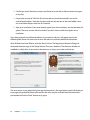
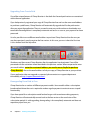
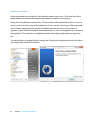
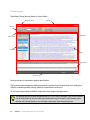
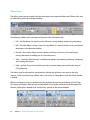
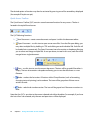
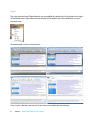
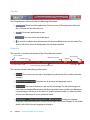
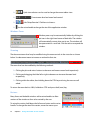
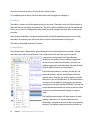
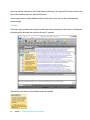
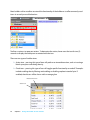
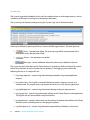
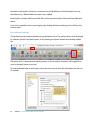
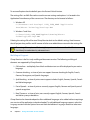
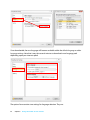
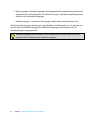
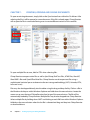
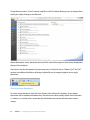
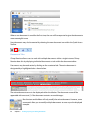
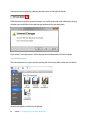
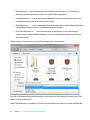
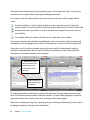
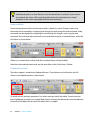
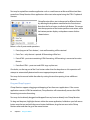
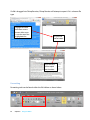
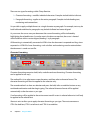
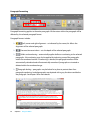
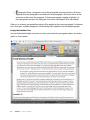
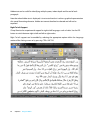
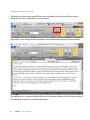
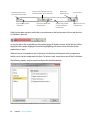
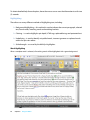
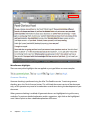
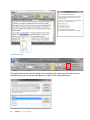
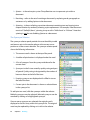
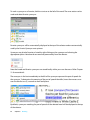
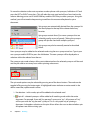
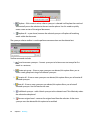
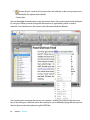
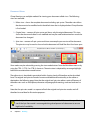
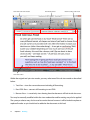
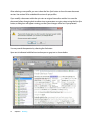
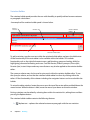
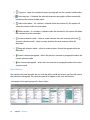
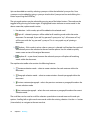
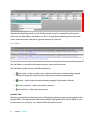
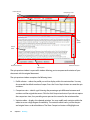
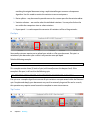
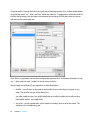
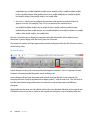
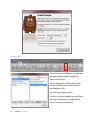
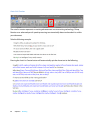
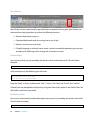
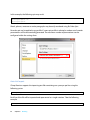
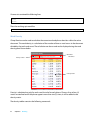
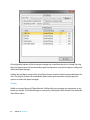
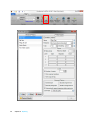
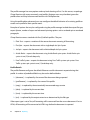
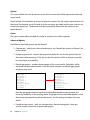
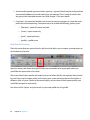
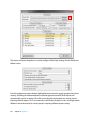
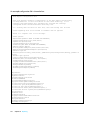
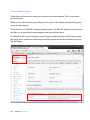
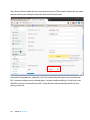
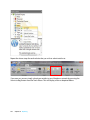
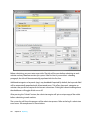
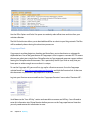
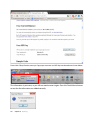
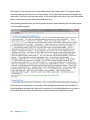
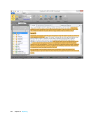
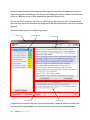
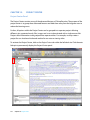
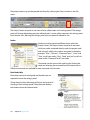
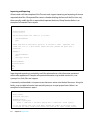
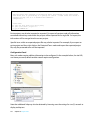
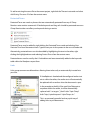
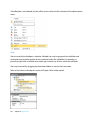
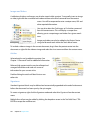
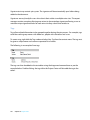
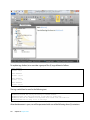
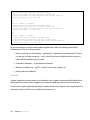
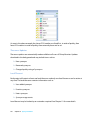
Spin can be added to words by selecting synonyms within the individual synonym lists. New synonyms may be added by typing a synonym into the New Synonym text box and clicking the … button or pressing the ENTER key. The spin mode options may be selected by pressing one of the below buttons. The mode can be toggled off by pressing the button again. A highlighted button indicates an active mode. In the above screenshot, replace mode is active. No selection – in this mode, spin will be added to the selected word. Spin all – selected synonyms will be added to all matching words within the entire document. For example, if you add “my personal” synonym to “my”, all instances of “my” will be spun with the “my personal” synonym. This is a very quick way of spinning a document. Replace – if this mode is active, when a synonym is selected it will replace the word and automatically move the selection to the next word or phrase. Use this mode to quickly create a new version of the original document. Replace all – as per above, however the selected synonym will replace all matching words within the document. The rapid rewrite toolbar also contains the following features: Sentence selection mode – select to create variations for each sentence within the document. Paragraph selection mode – select to create variations for each paragraph within the document. Previous sentence/paragraph – selects the previous sentence or paragraph based on the current selection mode. Next sentence/paragraph – selects the next sentence or paragraph based on the current selection mode. The scroll-bars can be used to scroll the selection up and down to reveal more multi-word spin options. Scrolling left or right reveals more words within the existing selection. Use the >>> button (shown below) to navigate to the next word set. 76 Chapter 9: Rewriting