1
19
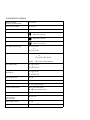
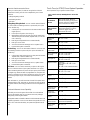
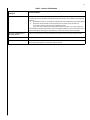
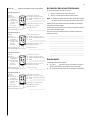
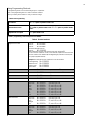
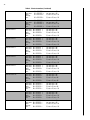
Table 1. Device Specific Sensor Test Procedures (Continued)
Device
Test procedure
Touchpad Display*
Wireless Touchpads
Press the Bypass key.
y TOUCHPAD nn OK
Keychain Touchpads
Press and hold the two assigned panic buttons simultaneously
for 3 seconds.
y POLICE PANIC OK
y AUXILIARY PANIC OK
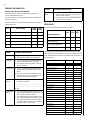
Panic buttons
Press and hold the appropriate panic button(s) for 3 full seconds.
y SENSOR nn OK
Door/window
sensor
Open the secured door or window.
y SENSOR nn OK
Smoke detector
Press and hold the test button until the system sounds transmission beeps.
y SENSOR nn OK
Motion
detector
Avoid the motion detector view for 5 minutes, then enter its
view.
y SENSOR nn OK
Rate-of-Rise Heat
Detector
Rub your hands together until warm, then place one hand on
the detector for 30 seconds.
y SENSOR nn OK
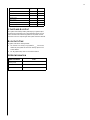
Shock sensor
Tap the glass twice, away from the sensor. Wait at least 30 seconds before testing again.
y SENSOR nn OK
Glass guard sensor
Tap the glass 3 or 4 inches from the sensor.
y SENSOR nn OK
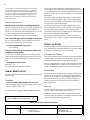
• If you need more time to complete testing, restart the timer by pressing 8 + Code + 3.
• Check to see that all sensors have been tested by pressing ‚. Touchpads display a list of untested sensors.
• You will know that you have finished testing when touchpads display, “SENSOR TEST OK.”
3. Disarm to Level 1 to exit Test Mode. (See “Arming Your System” on page 5.)
*
If sensor text was programmed, it will be included in the sensor test display.
Phone Communication Test
After the test has started, the arming level can be changed to Level
1—Disarm, then to Level 2—HOME or Level 3—AWAY, as desired.
To perform a phone communication test:
1. Contact the central monitoring station to inform them that
you want to test the phone communication of your system.
2. Disarm the system.
3.
Press 8 + System or Partition Master Code + 2. The touchpad displays “✽PHONE TEST.”
On alphanumeric touchpads:
• If the phone test is successful, the touchpad display
returns to a normal text display.
• If the phone test is unsuccessful, the touchpad displays
“SYSTEM PHONE TEST ALARM,” then, “MEMORY,” and
finally (after eight failed attempts), “PHONE FAILURE
ALARM MEMORY.”
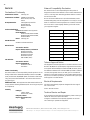
Testing Sirens
The purpose of this weekly test is to verify that the panel is activating sirens with the appropriate warning sounds.
To perform an alarm siren warning sound test:
1. Contact the central monitoring station to inform them that
you will be activating alarms and they should not dispatch
authorities.
2. Activate alarms of each type (fire, police, auxiliary), one at a
time.
3. Listen for the appropriate siren sound when each alarm is
4.
activated (see “System Alarm Sounds” on page 10).
Contact the central monitoring station to inform them that
you are finished activating alarms.
TROUBLESHOOTING
Your security system uses a variety of different alarm sirens, status
beeps, and trouble beeps to communicate with you. The next few
pages describe the different sounds and what they mean. Try to
familiarize yourself with the differences. You will hear some sounds
each time you tell your security system to do something like arm or
disarm. Some sounds you will hear only when there is a problem
with the system, like a low battery. Other sounds you will only hear
in an emergency. Getting to know your system sounds allows you
to react quickly and appropriately.
Trouble Beeps and Trouble Messages
Trouble beeps are a series of five short beeps, once a minute.
When your system detects a problem, it lets you know by sounding
trouble beeps from touchpads and sirens and by trouble messages
on touchpad displays.
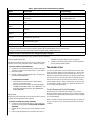
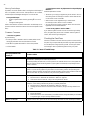
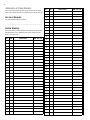
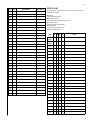
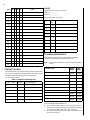
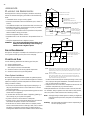
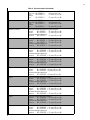
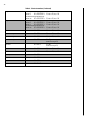
Table 2 on page 20 lists the causes of trouble beeps, the visual display you can expect to see, and possible solutions for the trouble
condition.