1
User Manual - Lan Drive File Server -Allcam - World of Portables http://www.allcam.biz
Overview
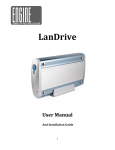
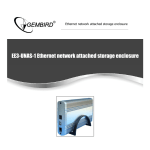
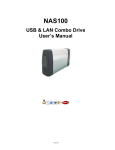
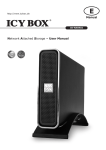
The LanDrive enclosure adds the convenience of network-attached storage to homes and in
small businesses, providing you a central storage location for your data and letting you
share data across your network.
At the first glance
What’s in the Package
z LanDrive main unit
z LanDrive vertical stand
z Securing screws
z Network cable (category 5)
z USB cable
z Power Adapter
z User Guide
Minimum System Requirements
z Apple Safari; Linux Mozilla; Internet Explorer 5.x; Netscape 6.2.x & up
z Windows XP/2000/Me/98se, Mac OS 10.3.x or above, Linux
z 3.5” IDE UMDA Hard drive formatted to FAT32 format
-1-
Lan Drive File Server Sales info: http://www.allcam.biz/products/lan_drive.html
User Manual - Lan Drive File Server -Allcam - World of Portables http://www.allcam.biz
Hardware Installation
A. Remove the two screws on the back of the enclosure
with a Philips screwdriver.
B. Loosen the four screws on the surface of the unit.
These screws will be used later to minimize the gap
between the heat sink and your hard drive.
C. The plastic bracket should slide out effortlessly. Insert
your hard drive, connect the IDE and power cable
from the enclosure accordingly.
Please ensure that your hard drive jumper setting is
configured at Master.
D. Secure your hard drive to the bracket with the four
screws that are included in the package.
E. Reverse the procedure by re-inserting the bracket to
the aluminum casing and securing all the screws that
was previously removed.
Congratulations, you have completed the hardware
installation
-2-
Lan Drive File Server Sales info: http://www.allcam.biz/products/lan_drive.html
User Manual - Lan Drive File Server -Allcam - World of Portables http://www.allcam.biz
Connecting the LanDrive to your Computer
The LanDrive is a multifunctional hard drive enclosure. In addition to being a network
storage device, you can also use it as a standalone external hard drive via the USB
interface.
Max OS X
Driver installation is not required for systems using Mac OS 10.1.2 or above. Simply
connect the LanDrive using the included USB cable and access the data by clicking the
“Untitled” HDD icon located on your Desktop.
Windows XP & Windows ME
Driver installation is not required for Windows XP and Windows Me. Simply connect the
LanDrive using the included USB cable and access the data via “My Computer”.
Windows 98 (Download Drivers)
To utilize the USB connectivity, please visit the following URL for to download the driver:
http://www.usbex.com/landrive
Please ensure that you install the device driver before connecting the USB port. When you
complete the driver installation, reboot your computer, connect the LanDrive to your
computer and access the data via “My Computer”
You can also access data in the LanDrive connecting it directly using the Ethernet cable with your
computer. The LanDrive will have a default IP of 169.254.0.1 when connected directly.
Connecting to your Network
Connect the power adapter to the back panel of the LanDrive and plug the other end to a
wall outlet or power strip. Connect the network cable to the LAN port on the back of the
LanDrive and the other end of the network cable to a port on your hub, switch or router.
The Ethernet port on the LanDrive is Auto-MDI/MDIX, which means you can connect it using either
a crossover or a direct network cable.
-3-
Lan Drive File Server Sales info: http://www.allcam.biz/products/lan_drive.html
User Manual - Lan Drive File Server -Allcam - World of Portables http://www.allcam.biz
Configuring the LanDrive
The LanDrive features a web-based control interface to manage your settings. If you are
using an operating system other than Windows, please refer to next section labeled “Other
Operating Systems”.
Open your web browser and enter http://Storage or
http://Storage-XXXX in the URL address field. You
can also enter the IP address of the LanDrive.
Enter the default login information:
Username: admin
Password: admin
For security purposes, your login information can
be changed via the web control interface.
When two new LanDrives are simultaneously connected to your network, you need to distinguish
between the two by typing “http:// Storage-XXXX” with their unique MAC address. Please refer to the
sticker on the rear panel for the address and replace XXXX with the last four digits of the MAC
address.
For example if your LanDrive’s MAC Address is 00-14-3F-AA-01-68, you will need to enter
“http://Storage-0168” in the URL address bar.
Configuring the LanDrive (Other Operating Systems)
When you are planning to perform administrative tasks from a different operating system,
you will need to input IP address of the LanDrive in the browser URL address bar.
If you do not know the IP address of the LanDrive, you will have to do this additional
procedure. You will need to connect the LanDrive directly to your computer, input the
default IP address 169.254.0.1 in the browser URL address bar to access the web control
panel.
-4-
Lan Drive File Server Sales info: http://www.allcam.biz/products/lan_drive.html
User Manual - Lan Drive File Server -Allcam - World of Portables http://www.allcam.biz
Upon a successful login, you will see the following screen.
An overview description of the functions on the left menu bar:
Status
Shows the data related to your LanDrive such as networking status
and hard drive information. You may also edit administration and file
language settings here.
IP Config
Allows you to manually configure the IP address of the LanDrive
Maintenance
Perform firmware upgrade, reboot or reset the LanDrive
SMB Server
Configure the Samba feature of LanDrive for the home/office network
file sharing capabilities. You can also create/remove folders and their
share permissions.
FTP Server
Configure the FTP features of the LanDrive. You may add/remove
users and their permissions.
Disk Utility
Perform hard drive maintenance routines such as Scandisk and
Format.
-5-
Lan Drive File Server Sales info: http://www.allcam.biz/products/lan_drive.html
User Manual - Lan Drive File Server -Allcam - World of Portables http://www.allcam.biz
Status – System Information
The welcome screen displays the IP
address, firmware version and the hard
drive information such as the hard drive
type and storage space available.
The administrator may change the web
control panel login information in here.
You may also change the default
hostname of your LanDrive here. Keep in mind that after you change the hostname, you will
need to use it to access your LanDrive. For example, if you changed your hostname to
“FileServer”, please type “http://FileServer” to access the Web Control Panel after you
submitted your changes.
The Language setting is used to recognize files with characters other than English. If you
have trouble reading your files on the LanDrive, please select the appropriate language.
When you reset the LanDrive, either by the hardware switch or through the web control panel, all
the settings will return to the default setting including the hostname. The default hostname will
remain as Storage-XXXX (where XXXX is the last four digits of the MAC address).
IP Configuration
The administrator may use this option
to manually define the IP address of the
LanDrive. If the hub/router/switch in
your network has a DHCP server, then
the LanDrive will automatically be
assigned an IP address.
The LanDrive can also act as a DHCP server when one is not present in your network. The default
IP of the LanDrive in DHCP server mode is “169.254.0.1” and any device that is linked to the
network containing will be assigned an IP of “169.254.0.x” automatically.
-6-
Lan Drive File Server Sales info: http://www.allcam.biz/products/lan_drive.html
User Manual - Lan Drive File Server -Allcam - World of Portables http://www.allcam.biz
Maintenance
The administrator can perform
maintenance tasks on the LanDrive
here.
Update the firmware only if you are
experiencing problems with your
LanDrive. New firmware files are
available to download from our website:
http://www.usbex.com/landrive
After updating the firmware or resetting to factory defaults, please make sure that you restart the
LanDrive and refresh your browser.
Samba Administration
Samba enables the core function of the
LanDrive which is network file sharing.
This option allows the administrator to
determine the folders/directories to be
shared.
In here, you can create, rename and delete folders/directories in your LanDrive. All the
folders/directories in the root directory that were previously in your hard drive before it was
installed in the LanDrive will also be shown in the “Folder List”.
The arrow keys in the middle are used to determine if the selected folder/directory is to be
shared. Password protection for each shared folder can also be implemented.
When creating folders/directories through the web control panel, please use only English
alphabets.
-7-
Lan Drive File Server Sales info: http://www.allcam.biz/products/lan_drive.html
User Manual - Lan Drive File Server -Allcam - World of Portables http://www.allcam.biz
FTP Configuration
Abbreviated from File Transfer Protocol,
FTP enables file exchange between
computers on the Internet. The
LanDrive can work as a stand-alone FTP
server when it is assigned a static IP.
Anonymous FTP is disabled by default.
The administrator can determine if the
users have read or write permission and the “Home Directory” will be the folder/directory
the anonymous user can access upon logging in.
The Account List displays the current FTP user accounts, the administrator can add new
users, modify their permissions, temporary disable users and delete users.
Disk Utility
If you have installed a new hard drive in
the LanDrive that is not formatted, this
will be the place to format it to the
FAT32 format.
Since the LanDrive supports power
management, you can also determine
the time the hard drive have to be inactive in order for the LanDrive to enter sleep mode.
The Scan Disk function can be used to detect potential problems with the hard drive. Click
on the refresh button to display the scandisk result.
-8-
Lan Drive File Server Sales info: http://www.allcam.biz/products/lan_drive.html
User Manual - Lan Drive File Server -Allcam - World of Portables http://www.allcam.biz
Access Files from the LanDrive – Windows
In Windows, the data can be accessed by searching for the LanDrive in the “Network
Neighborhood” (as a computer with the name “Storage”). Or you can access the data in the
LanDrive with the following instructions.
The follow screenshots are taken from a PC running Windows XP SP2 and may vary slightly
from your computer screen.
Click on the Windows Start button, select
“Run” from the menu and a dialogue box
as shown will appear.
Type “//storage” in the field and click “OK”.
If you change the LanDrive hostname, you will need to replace the word “storage” with it. For
example, if you changed your hostname to “FileServer”, please type “\\FileServer” instead.
The Windows Explorer will appear and you should be able to see all the folders that were
previously selected to be shared under “SMB Server” in the control panel. Clicking on the
corresponding folder will reveal the files in that folder.
-9-
Lan Drive File Server Sales info: http://www.allcam.biz/products/lan_drive.html
User Manual - Lan Drive File Server -Allcam - World of Portables http://www.allcam.biz
Access Files from the LanDrive – Mac OS
If the client computer is an Apple Macintosh running Mac OS, they will have to follow the
procedure below to mount each shared folder as an SMB share to access the data.
The follow screenshots are taken from a iMac running OS 10.3.x and may vary slightly from
your computer screen.
Under Finder, select
Go >> Connect to
Server
or use the hotkey
<Command +K>
The dialogue box
“Connect to
Server” will appear.
Type
“smb://storage”
and click the
Connect button.
If you change the LanDrive hostname, you will need to replace the word “storage” with it. For
example, if you changed your hostname to “FileServer”, please type “smb://FileServer” instead.
The next dialogue
screen will
prompt you for
the folder that
you will like to
access. Select it
and click the OK
button.
-10-
Lan Drive File Server Sales info: http://www.allcam.biz/products/lan_drive.html
User Manual - Lan Drive File Server -Allcam - World of Portables http://www.allcam.biz
You might be prompted to enter a password, unless a password was previously assigned in
the control panel, you can leave it blank. After a successful mount, a network folder icon will
be created based on the folder you selected as shown.
-11-
Lan Drive File Server Sales info: http://www.allcam.biz/products/lan_drive.html
User Manual - Lan Drive File Server -Allcam - World of Portables http://www.allcam.biz
Frequently Asked Questions
1.
The LanDrive displays error messages / crashes during the file transmission?
Please ensure you update patches for your operating system frequently. The latest
firmware for the LanDrive is also available to download from our website at:
http://www.usbex.com/landrive
2.
Does the LanDrive support power management?
Yes, when there isn’t any hard drive activity within fifteen minutes, the LanDrive will
power down to reduce power consumption. The sleep time can be configured via the
web control panel.
3.
How does the LanDrive achieve its data sharing capabilities?
Utilizing the SMB (Server Message Block) protocol, the LanDrive allows any computer
client that supports TCP/IP, NetBuei or IPX/SPX to share files. The built-in FTP server
also allows any clients with internet connectivity to access the LanDrive.
4.
What is the size limitation for the LanDrive?
The LanDrive support LBA (48-bit Logical Block Addressing) which in theory includes all
hard drives from 32 gigabytes to 2 terabytes.
5.
Why the LanDrive only support FAT32 format?
As a cross platform file server, FAT32 format is compatible with all major operating
systems (Windows/Mac OS/Linux). The only drawback of a FAT32 format is the single
file size limitation of 4 gigabytes.
6.
How does the LanDrive DHCP service work?
The LanDrive functions as a DHCP(Dynamic Host Configuration Protocol) server when
it does not detect the presence of other DHCP servers in its network. DHCP is an
Internet protocol for automating the configuration of computers that use TCP/IP by
automatically assigning IP addresses.
7.
What are the naming limitations of the files located in the LanDrive?
The maximum length of a folder/directory/file name is 12 characters. Invalid
characters such as “* \ : " < > . ? /” may not be used.
8.
What kind of hard drive is compatible with the LanDrive?
The LanDrive supports 3.5” Ultra DMA/ATA hard drives which are mostly manufactured
after 1998. Below is a list of manufacturer websites you can refer to for more
information on the hard drive you own.
http://www.westerndigital.com
y Western Digital
http://www.hitachigst.com
y IBM/Hitachi
http://www.samsung.com
y Samsung
http://www.seagate.com
y Seagate
http://www.maxtor.com
y Maxtor
-12-
Lan Drive File Server Sales info: http://www.allcam.biz/products/lan_drive.html