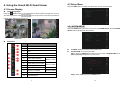
1
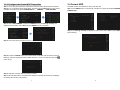
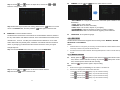
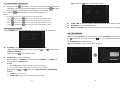
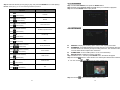
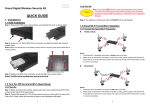
Step 3: Use the and buttons to adjust value, and use the and CAMERA: Use the and buttons to select camera 1~4 first. buttons to change setting items. Step 4: After finishing the system time setting, please use the cursor to the MONTH item, and then press the - ADD CAMERA: To configure the Grand Wi-Fi Transmitter (refer to 3.3.2 for more information). - V-FLIP: Flip the video vertically. - H-MIRROR: Mirror the video horizontally. - FREQ: Adjust to 50 or 60Hz, depend on your lighting. - ENVIRONMENT: Optimum parameter for indoor or outdoor condition. - MD SENSITIVITY: HIGH or LOW modes for triggering motion detection. button to move the button again to save and exit. WIRELESS: To set the wireless channel. LANGUAGE: To set system language. The Grand Wi-Fi Quad Viewer can broadcast on several different channels, similar to the way radio stations use different channels. In the United States and Canada, these 4.2.2 RECORD channels are 1, 6 and 11. Just like you’ll sometimes hear interference on one radio The Grand Wi-Fi Quad Viewer supports three recording modes: MANUAL, MOTION station while another is perfectly clear, sometimes one wireless channel is clear than DETECTION and SCHEDULE. others. Try changing your Grand Wi-Fi Quad Viewer channel to see if your signal Notice: strength improves. 1. Schedule Record is a top priority for recording. The Manual Record or Motion Detection Record cannot stop or effect to the planned Schedule Record. Step 1: Press the ENTER button when the cursor moves to WIRELESS. 2. The Manual Record or Motion Detection Record applied depends on which is the last event by keypad. 4.2.2.1 MANUAL RECORD Directly press the (REC) button on the remote controller/ panel button under Quad view, all the 4 cameras will start recording. Or press the (REC) button under single view, and the specific camera will start recording. Press the (REC) button again to stop recording. Notice: Step 2: Use the Step 3: Press the and buttons to select the wireless channel. button to save and exit. 11 1. While record is trigged, the Recording icon will indicate on the status bar. 2. A short cut to record specific camera under Quad view. - Press and then press (REC), only CH1 will start recording. - Press and then press (REC), only CH2 will start recording. - Press and then press (REC), only CH3 will start recording. - Press and then press (REC), only CH3 will start recording. 12