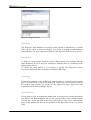
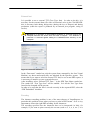
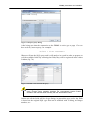
1
version 1.0
Giulio Toffoli
iReport
User manual
Copyright © 2004-2005 by Giulio Toffoli. All rights reserved.
iReport User manual
2
Introduction
Summary
1 Introduction····························································································8
What is iReport?.............................................................................................8
Features ..........................................................................................................8
iReport Community........................................................................................9
Acknowledgements ......................................................................................10
2 Getting started ·····················································································11
Requirements................................................................................................11
Download .....................................................................................................11
Compile iReport ...........................................................................................12
Start and base configuration.........................................................................12
Create a JDBC connection ...........................................................................14
The first report..............................................................................................15
Command line options .................................................................................19
3 Basic notions of JasperReports·························································21
JasperReports ...............................................................................................21
The report life cycle .....................................................................................21
Jrxml sources and jasper files ......................................................................22
Data sources and print formats.....................................................................25
Compatibility between versions ...................................................................26
Expressions ..................................................................................................27
A simple program.........................................................................................28
4 Report structure ··················································································30
Bands............................................................................................................30
Title..........................................................................................................31
Page header..............................................................................................31
Column header.........................................................................................31
Group header ...........................................................................................31
Detail .......................................................................................................32
Group footer ............................................................................................32
Column footer..........................................................................................32
3
iReport User manual
Page footer...............................................................................................32
Last Page footer.......................................................................................32
Summary..................................................................................................32
Background..............................................................................................32
Report properties ..........................................................................................33
Columns...................................................................................................34
Advanced options.........................................................................................36
Scriptlet....................................................................................................36
More… ....................................................................................................37
Title on a new page option ......................................................................37
Summary on a new page option...............................................................39
Floating column footer option.................................................................39
Print order ...............................................................................................39
Print without data (when no data) ...........................................................40
i18n ..........................................................................................................40
Resource Bundle Base name ...................................................................40
Characters encodings of the XML source files .......................................41
5 Report elements ··················································································42
Insert and select elements in the report ........................................................43
Positioning and elements order ....................................................................45
Manage elements with the elements tree .....................................................48
Basic attributes .............................................................................................49
Graphic elements..........................................................................................51
Line..........................................................................................................52
Rectangle .................................................................................................52
Ellipse ......................................................................................................52
Image .......................................................................................................53
Text elements ...............................................................................................56
Static text .................................................................................................57
Text field .................................................................................................57
Subreport ......................................................................................................61
Special elements...........................................................................................62
Chart ........................................................................................................62
Barcode....................................................................................................62
Hyper Links..................................................................................................63
Reference.................................................................................................64
LocalAnchor ............................................................................................64
LocalPage ................................................................................................64
RemoteAnchor.........................................................................................64
6 Fonts·····································································································66
The font ........................................................................................................66
External font ............................................................................................67
Encoding..................................................................................................67
Use of Unicode characters.......................................................................68
Report font ...................................................................................................68
7 Fields, parameters and variables ·······················································69
Fields ............................................................................................................69
Registration of fields of a SQL query......................................................70
Registration of the fields of a JavaBean ..................................................72
4
Introduction
Registration of the fields for a JRExtendedBeanDataSource..................72
Fields and textfield ..................................................................................73
Parameters ....................................................................................................74
Use of parameters in a query ...................................................................75
Passing parameters from a program ........................................................75
Built-in parameters ..................................................................................77
Variables ......................................................................................................77
Built-in variables .....................................................................................79
8 Bands and groups ···············································································80
Bands............................................................................................................80
Groups ..........................................................................................................81
9 Subreport ·····························································································86
Create a subreport ........................................................................................86
Link of a subreport to the parent report .......................................................87
Passage of the parameters........................................................................87
To specify the datasource ........................................................................88
To specify the subreport ..........................................................................89
A step by step example ................................................................................89
Return parameters ........................................................................................96
10 Datasources ·······················································································98
Datasources in iReport .................................................................................99
JDBC connection .......................................................................................100
ClassNotFoundException ......................................................................101
URL not correct.....................................................................................102
Parameters not correct for the connection .............................................102
To work with the JDBC connection ......................................................102
Fields registration ..................................................................................102
The JRDataSource interface.......................................................................103
JavaBean set datasource .............................................................................104
Fields of a JavaBean set datasource ......................................................106
XML DataSource .......................................................................................108
Registration of the fields .......................................................................111
XML datasource and subreport .............................................................113
CSV DataSource ........................................................................................116
Registration of the fields .......................................................................117
JREmptyDataSource ..................................................................................117
To implement a new JRDataSource ...........................................................118
To use a personalized JRDataSource with iReport ....................................120
JavaBean Extended datasource ..................................................................122
11 Internationalization··········································································124
Resource Bundle Base Name .....................................................................124
Retrieval of localized strings......................................................................126
Formatting messages ..................................................................................127
Deploy of localized reports ........................................................................128
12 Scriptlet ····························································································129
The JRAbstractScriptlet class ....................................................................129
Scriptlet handling in iReport ......................................................................131
Deployment of reports that use scriptlets...................................................133
5
iReport User manual
13 Template···························································································134
Template structure......................................................................................134
Using a custom template ............................................................................137
14 Charts ·······························································································139
Creation of a simple chart ..........................................................................139
Series ..........................................................................................................144
Automatic series ....................................................................................146
Manual series.........................................................................................146
Types and properties of the charts .............................................................148
Pie Chart ................................................................................................150
Pie3D Chart ...........................................................................................150
Bar .........................................................................................................150
Bar3D ....................................................................................................153
Line........................................................................................................153
Area .......................................................................................................153
15 Plugins and additional tools···························································155
Plugin configuration XML file...................................................................156
The it.businesslogic.ireport.plugin.IReportPlugin class............................157
Plugin Massive compiler............................................................................160
Plugin Text Wizard ....................................................................................161
16 Solutions to common problems·····················································163
Printing a percentage..................................................................................163
Count occurrences of a group ....................................................................164
Split the detail ............................................................................................166
Insert a page break .....................................................................................167
Crosstab reports..........................................................................................169
Retrieving data using multiple connections ...............................................170
How to use a Stored Procedure ..................................................................171
Appendix A –GNU General Public License ········································172
The GNU General Public License..............................................................172
Preamble ................................................................................................172
Terms and Conditions for Copying, Distribution, and Modification ....173
NO WARRANTY .................................................................................176
Appendix: How to Apply These Terms to Your New Programs ..........177
Appendix B – DTD definitions ·····························································178
jaspereport.dtd ............................................................................................178
iReportProperties.dtd .................................................................................181
iReportPlugin.dtd .......................................................................................181
iReportFilesList.dtd....................................................................................182
Appendix C – iReport and JasperReports versions ··························183
Index ······································································································184
6
Introduction
7
iReport User manual
1
1 Introduction
What is iReport?
iReport is an OpenSource program that can create complex reports which can use
every kind of java application through JasperReports library. It is written in 100%
pure java and it is distributed with its source codes according to the GNU General
Public License.
Through an intuitive and rich graphic interface, you can create any kind of report in
a simple and quick way. iReport permits people, who are taking confidence with
this technology, to pull down all difficulties about learning the XML syntax of
JasperReports and for skilled users who already know this syntax, to save much
time during the development of very elaborate reports.
This guide refers to the 0.4.1 version of iReport, but a great portion of this
information is directly applicable to all versions following the 0.2.0 release. The
previous versions of 0.2.0 are not written in Java, but in Visual J++; they only work
with MS Windows systems and their development stopped after the release of
version 0.2.0.
My commitment is to keep this guide as up-to-date as possible with future iReport
versions; however everything which is described and explained here may not apply
to the oldest versions.
Features
The following list describes some of the most important features of iReport:
•
8
99% support of JasperReports XML tags
Introduction
•
•
•
•
•
•
•
•
•
•
•
•
•
•
•
•
•
•
•
WYSIWYG Editor for the creation of reports. It is complete tools for
drawing rectangles, lines, ellipses, textfields, labels, charts, subreports, bar
codes,…
Built-in editor with syntax highlighting for writing expressions
Support for Unicode and non latin languages (Russian, Chinese, Japanese,
Korean,…)
Browser for document structure
Integrated report compiler and exporter
Support for all databases accessible by JDBC
Virtual support for all kinds of DataSources
Wizard for creating reports automatically
Support for subreports
Backup feature of source files
Support for document templates
TrueType fonts support
Support for localization
Extensibility through plugs-in
Integrated support for scriptlets
Support for charts
Management of a library of standard objects (numbers of pages,…)
Drag ‘n drop
Unlimited Undo/ Redo
The iReport developers’ team is composed by many skilled and experienced
programmers who come from every part of the world. They work daily to add new
functionality and fix bugs.
iReport Community
The iReport web site is http://ireport.sourceforge.net; the site of the project is
http://www.sourceforge.net/projects/ireport. For any question and request for help,
there are two discussion forums in English:
Help: this is the place where you can send requests for help and technical questions
about the use of the program;
http://sourceforge.net/forum/forum.php?forum_id=217623
Open Discussion: this forum is for sending comments, discussing implementation
choices, and proposing new functionalities.
http://sourceforge.net/forum/forum.php?forum_id=217622
If you can’t solve your problem using these two forums, you request for help using
a special tracking system which is available to this address:
http://sourceforge.net/tracker/?group_id=64348&atid=507164
No guarantee is offered for a prompt reply, but the requests are usually satisfied
within a few days’ time. This service is free. However, if you use it, we invite you
9
iReport User manual
to donate to the project. If you need information concerning the commercial
support, you can write to [email protected].
Please send bug notices to the following address:
http://sourceforge.net/tracker/?group_id=64348&atid=507163
In the project site, there is a system to send requests for enhancement (RFE). There
is also the ability to suggest patches and integrative code.
In order to be always up-to-date about the development of the program, you can
join the mailing list of the project at this address:
http://lists.sourceforge.net/lists/listinfo/ireport-questions
All members of iReport team keep in serious consideration all suggestions, criticism
and advice coming from the users’ community.
Acknowledgements
iReport contains code and ideas from many people. Though I run the risk of
forgetting somebody, I would like to thank the following people for their
contribution to this project: Teodor Danciu, Alexander, Andre Legendre, Craig B
Spengler, David Walters, Egon R Pereira, ErtanO, G Raghavan, Heiko Wenzel,
Kees Kuip, Octavio Luna, Peter Henderson, Vinod Kumar Singh, Wade Chandler,
Erica Pastorello and all reviewers.
10
Getting started
2
2 Getting star ted
In this chapter we’ll see what the requirements are for using iReport, the way to
obtain the binary distribution and the sources, and how to compile and install it.
Requirements
iReport needs Sun Java 2 SDK 1.4 or newer; in order to compile jasper files it is
necessary to install the complete distribution of Java 2 (JDK), not only a Runtime
Environment (JRE). If you want to compile iReport sources, you should install
Jakarta Ant version 1.6 or newer.
As for hardware, like all java programs, iReport eats a lot of RAM and so it is
necessary to have at least 256 Mb of memory and about 20 Mb of free space on
disk.
Download
It is possible to download iReport from the Project Page on SourceForge where you
can
always
find
the
last
released
iReport
distribution
(http://sourceforge.net/projects/ireport). Three different distributions are available:
iReport-x.x.x.zip
iReport-x.x.x.tgz
iReport-x-x-x-src.zip
This is the official binary distribution in zip format.
This is the official binary distribution in tar gz
format.
This is the official distribution of sources in zip
format.
x.x.x represents the version number of iReport. Every distribution contains all
needed libraries from third parties necessary to use the program and additional files,
such as templates and base documentation in html format.
11
iReport User manual
If you want a more up-to-date version of sources, you can access directly the CVS
repository. In this case it is necessary to have a CVS client (such as cvs, jCVS or
WinCVS).
If you have the cvs executable for command line, write this:
cvs -d:pserver:[email protected]:/cvsroot/ireport login
and then all on the same line…
cvs -z3 -d:pserver:[email protected]:/cvsroot/ireport
co iReport2
In this way the CVS client will download all the iReport files in repository into the
local computer, with also documents, libraries and all that is useful to compile the
full project.
As for the use of other CVS clients, the SourceForge site contains many guides
which explain in detail how to use CVS to check out a project.
Compile iReport
The distribution with sources contains a build.xml file which is used by Jakarta Ant
to compile and start iReport and/or to create different distributions of the program.
Download iReport-x.x.x-src.zip, unzip it into the directory of your choice, for
example c:\devel (or /usr/devel on unix system). Open a command prompt
or a shell, go to the directory where archive was uncompressed, go to the iReport
directory and write:
C:\devel\iReport-0.3.2>ant iReport
The sources, which stay in the src directory, will be compiled into classes and
iReport will start immediately.
Start and base configuration
If you preferred downloading iReport binary version, uncompress the downloaded
archive into the directory of your choice, for example c:\devel (or
/usr/devel on a unix system). Open a command prompt or a shell, go to the
directory where archive was uncompressed, go to the iReport directory and write:
C:\devel\iReport-0.3.2>iReport.bat
or on unix:
$ ./iReport.sh
(in this case, it should be preceded by a “chmod +x” if the file is not executable.)
12
Getting started
On the first execution, iReport will create a directory named “.ireport” in the user’s
home directory. Here the personal settings and the configuration of the program are
saved. If it is not possible to create this folder, this could cause undesirable affects
in the program and it may not be possible the configuration. In this case it could be
necessary to create the directory manually.
Before proceeding to the program configuration, it is necessary to copy
tools.jar file, normally presents in the lib directory of Sun JDK, into the
iReport lib directory. The absence of this file can produce some exceptions during
the compilation of a report (carried out by using classes contained in this java
library). On MacOS X the tools.jar file does not exist, but there is the classes.jar
file that contains the required classes to compile.
The iReport initial configuration consists of: setting up the programs to run for
viewing the produced documents according to their file formats; selecting the
language to use; and where to store compiled files. Other configuration settings will
be explained subsequently. In order to proceed to the configuration, run iReport and
select the menu Options → Tools. The window in figure 2.1 will be opened.
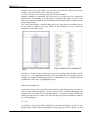
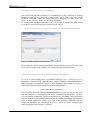
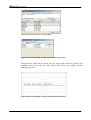
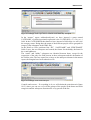
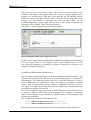
Figura 2.1 Options window – General options
Select the language you prefer and go to tab “Compiler.”
.
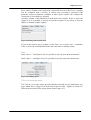
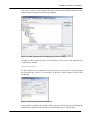
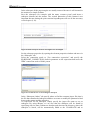
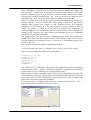
Figura 2.2 Options window – Compiler options
In the tab “Compiler” you can set where iReport stores jasper files that are
compiled. By default, iReport uses the current directory as destination for compiled
13
iReport User manual
files. Often it is useful to specify a specific directory for saving compiled files; this
directory is usually the same in which the source of the report is located. In this
case, check “Use the reports directory for compiles” checkbox.
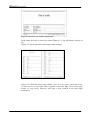
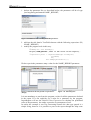
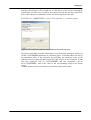
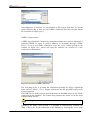
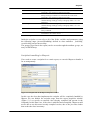
Figura 2.3 Options window – external programs
Complete the configuration by specifying the external programs to use with
different output formats of reports and the editor to use for modifying XML source.
Restart iReport to set all chosen options.
Test the configuration by creating a new blank report (menu File → New
Document), and confirming all features proposed for the new report. Then click on
the Run button
on the toolbar. If everything is ok, you will be prompted to save
the report in a jrxml file, and a corresponding jasper file will be created and a
preview of a blank page will appear. This means that iReport has been installed and
configured correctly.
Create a JDBC connection
The most common datasource for filling a report is typically a relational database.
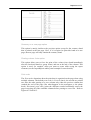
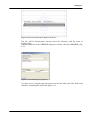
Next, we will see how to set up a JDBC connection in iReport. Select the menu
Datasource → Connections/Datasources and click on the New button in the
window with the connections list. A new window will appear for the configuration
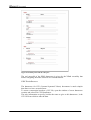
of the new connection (Figure 2.4). In the new frame, write the connection name
(i.e. “My new connection”) and select the right JDBC driver. iReport recognizes
URL syntax of many JDBC drivers. You can automatically create the URL by
entering the server address and database name in the corresponding boxes and press
the Wizard button. To complete the connection configuration, enter the username
and password for the access to the database. If you want to save the password,
select the “Save password” checkbox.
Attention! iReport saves password in clear text! If you do not want to save
them, do not select the “Save password” checkbox..
14
Getting started
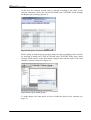
Test the connection by pressing the Test button. It is better to test the connections
before saving and using them.
Figura 2.4 Create a JDBC connection
iReport is shipped with only the JDBC driver for the MySQL database and
HSQLDB. If during the test there is a ClassNotFound error, it is possible that there
is no JAR archive (or ZIP) in the classpath which contains the selected database
driver. Without closing iReport, copy the JDBC driver into the lib directory and
retry; the new JAR will be automatically located and loaded by iReport. In chapter
10, we will explain extensively all the configuration modalities of the datasources.
At the end of the test, press the Save button to store the new connection.
In this way we have created a new datasource, so we have to tell iReport to use it as
a predefined datasource. Select from the menu “build → Set active connection”
item.
Figura 2.5 List of the available datasources
Then select our connection from the list and press the OK button (Figure 2.5). From
now on iReport will use this connection for every operation which needs an access
to the database (in particular the acquisition of the fields selected through SQL
query and prints creation).
The first report
Now that we have installed and configured iReport, and prepared a JDBC
connection to the database, we will proceed to create a simple report using the
Wizard.
For it and for many other following examples, we will use HSQL Database Engine
(HSQLDB), a small relational database written in Java and supplied with a JDBC
driver. To be able to use it, copy the hsqldb.jar file into the libs directory (this file
15
iReport User manual
the database driver and it is already present in all the iReport distributions from the
0.3.2 version). In order to know more about this small jewel, please visit the
HSQLDB project site at this address http://hsqldb.sourceforge.net.
In order to set up the database connection used in this example (supplied with the
handbook), use the following parameters:
Proprieties
Value
Name
JDBC Driver
JDBC Url
Username
Password
Northwind
org.hsqldb.jdbcDriver
jdbc:hsqldb:c:/devel/northwind/northwind
sa
Table 2.1 Connection parameters
At the end of the configuration, set Northwind as the active connection (Build →
Set active connection).
Select the menu “File → Report Wizard”. This loads a tool for the step by step
creation of a report.
Figure 2.6 Wizard – Query insertion
Insert in the text area a SQL query in order to select data that will go to fill your
report, for example:
select * from customers order by country
…and press Next. The clause order by is important to the following choice of the
grouping. We will discuss the details later. iReport will read the fields of the
customers table and it will present them in the following screen (Fig. 2.7).
16
Getting started
Figura 2.7 Wizard - Report fields selection
Select the fields you wish to include and press Next. Now that we have selected the
fields to put in the report, you will be prompted to choose what fields you wish to
group by (if any) (Fig. 2.8)…
Figura 2.8 Wizard - Groupings
Using the wizard, It is possible create until four groups. Others can be defined
afterwards. (in fact it is possible to set up an arbitrary number of groupings).
We will define a simple grouping on the COUNTRY field (Fig. 2.8).
The next step of the wizard allows you to select the print template, which is a model
that can be used as base for the creation of the report. With iReport some very
simple templates are supplied, and we will see how to create some new ones. For
the moment it is enough to know that there are two types of templates: the tabular
templates, in which every record occupies one line like in a table; and the columnar
templates, in which the fields of the report are displayed in column.
17
iReport User manual
Figura 2.9 Wizard - Choice of the template
For the first report select a tabular template, in particular the classicT one (T means
tabular).
Once you have chosen the template, press Next. The last screen of the wizard will
appear and it will tell you the outcome of the operation. Press Finish to create the
report which will be viewed in the iReport central area, ready for execution.
Before being able to execute the final print, you will have to save the report source
created trough the wizard and compile it. These operations can be done all at once
by pressing the
button (Run report using a connection) that is on the toolbar.
Figura 2.10 iReport main window
After you press the Run report using a connection button, you will be asked for the
name under which to save the file. Save the file with the name report1.jrxml.
In the console that is in the part below of the main window, some messages will
appear. They will tell you about what is happening: the report will be compiled,
created and finally “exported”.
18
Getting started
Figura 2.11 The first report in PDF format
At the end of the operation, if everything is ok, the report will be shown in the
default program for opening PDF files. The PDF format is the predefined format of
export.
Command line options
It is possible to specify some start up parameters on the command line. All
parameter are not case sensitive. They can be truncated cut until they remain not
ambiguos (for example the option –ireport-home can be specified as –i; no other
options starts with the letter "i"; in this way the command line interpreter will
consider –i as a not ambiguous truncation of the –ireport-home option).
The Boolean options can be specified using both the contracted form –opzione and
the extensive form –opzione=true or –opzione=false according to the necessity.
It is possible to obtain the options list by writing:
iReport.bat -?
or
./iReport.sh -?
The following table explains the different available options. It refers to the iReport
0.4.1 version, and it may not be complete regarding successive versions.
Option
Description
-config-file < filename>
Specifies the filename for loading an alternate
configuration. The file is never changed from
iReport, which will save an eventual modified
configuration in the canonical directory, that is the
user home /.ireport
19
iReport User manual
-ireport-home <dir>
-temp-dir <dir>
-user-home <dir>
-version
Specifies the program directory.
Specifies the directory where temporary files will be
saved.
Specifies the user home. The predefined directory is
the one stored into the “user.home” system property.
Using this option, iReport will print in output the
version and it will go out immediately.
Table 2.2 Command line options
If Ant is used, it is not possible to specify these options directly from the command
line, but it will be necessary to modify the build.xml file adding the <arg> tags
useful to the java task which runs iReport.
20
Basic notions of JasperReports
3
3 Basic notions of JasperRepor ts
JasperReports
The heart of iReport is an open source library named JasperReports, developed and
maintained by Teodor Danciu, a Rumanian developer. It is the most widely
distributed and powerful free software library for report creation available today.
In this chapter we will illustrate JasperReports’ base concepts for a better
understanding of how iReport works.
The JasperReports API, the XML syntax for report definition, and all the details for
using the library in your own programs are documented very well in a handbook
named “The JasperReports Ultimate Guide.” The handbook sells for a nominal fee
(currently about $35). Other information and examples are directly available on the
official site at http://jasperreports.sourceforge.net.
Unlike iReport, which is distributed according to the GPL licence, JasperReports is
issued with the LGPL licence, which is less restrictive. This means that
JasperReports can be freely used on commercial programs without buying very
expensive software licences and without remaining trapped in the complicated net
of open source licences. This is fundamental when reports, created with iReport,
have to be used in a commercial product: in fact, programs only need the
JasperReports library to produce prints, which works as something like a runtime.
Without the right commercial licence (available upon request), iReport can be used
only as a development tool, and it cannot be part of a program that is not distributed
with the GPL licence.
The report life cycle
The report life cycle is very similar to one of a java class. In Java, this is described
by a source file, that is, a file with a java extension, written according to its
language rules. The source is compiled through the compiler, creating a class file
with a .class extension. When the class is used, it is loaded into memory and
instanced by the java interpreter; during execution the attributes will be emphasized.
21
iReport User manual
Similarly, a report is described by a source file, in XML format as defined by the
DTD (jasperreport.dtd, version 0.6.3 is listed in Appendix B). In library version
0.5.3 the official extension of these source files has become .jrxml (i.e.
JasperReports XML); it replaces the generic .xml extension. These source files are
compiled to create a jasper file. A jasper file (.jasper extension) is a kind of
predefined report, exactly like a java class is the “mould” for the instance of an
object. The jasper file is loaded in a runtime by your application. It is joined to
records coming from a datasource in order to create a print, which can be exported
in the desired format (e.g. pdf or xls).
Therefore, it is possible to define two distinct action groups: those that have to be
executed during the development phase (design and planning of the report, and
compilation of a jasper file source), and those that have to be executed in a runtime
(loading of the file and production of the print).
Jrxml sources and jasper files
As already explained, a report is described by an XML file according to the
definitions found in the DTD (jasperreport.dtd). This source file is defined by a
series of sections, some of them concerning the report’s physical characteristics,
such as the dimension of the page, the positioning of the fields, the height of the
bands, etc…; and some of them concerning the logical characteristics, such as the
declaration of the parameters and variables, the definition of a query for the data
selection, etc…
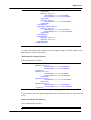
Simplifying a lot, it is possible to outline the sections of a jrxml source, as follows:
Report main characteristics
Property (0,+)
Import (0,+)
Global font (0,+)
Parameters (0,+)
SQL query (0,1)
Fields (0,+)
Variables (0,+)
Groups (0,+)
Group header
Group header elements (0,+)
Group footer
Group footer elements (0,+)
Predefined bands
Predefined bands elements
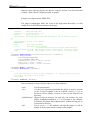
Here is a jrxml file example:
<?xml version="1.0" encoding="ISO-8859-1" ?>
<!-- Created with iReport - A designer for JasperReports -->
<!DOCTYPE jasperReport PUBLIC "//JasperReports//DTD Report Design//EN"
"http://jasperreports.sourceforge.net/dtds/jasperreport.dtd">
<jasperReport
22
Basic notions of JasperReports
name="untitled_report_1"
columnCount="2"
printOrder="Vertical"
orientation="Portrait"
pageWidth="595"
pageHeight="842"
columnWidth="266"
columnSpacing="0"
leftMargin="30"
rightMargin="30"
topMargin="20"
bottomMargin="20"
whenNoDataType="NoPages"
isTitleNewPage="false"
isSummaryNewPage="false">
<property name="ireport.scriptlethandling" value="2" />
<queryString><![CDATA[select * from customers]]></queryString>
<field name="CUSTOMERID" class="java.lang.String"/>
<field name="COMPANYNAME" class="java.lang.String"/>
<background>
<band height="0" isSplitAllowed="true" >
</band>
</background>
<title>
<band height="46" isSplitAllowed="true" >
<staticText>
<reportElement
mode="Opaque"
x="145"
y="6"
width="245"
height="34"
forecolor="#000000"
backcolor="#FFFFFF"
key="element-1"
stretchType="NoStretch"
positionType="FixRelativeToTop"
isPrintRepeatedValues="true"
isRemoveLineWhenBlank="false"
isPrintInFirstWholeBand="false"
isPrintWhenDetailOverflows="false"/>
<textElement textAlignment="Center"
verticalAlignment="Top" rotation="None" lineSpacing="Single">
<font fontName="Arial"
pdfFontName="Helvetica" size="24" isBold="false" isItalic="false"
isUnderline="false" isPdfEmbedded ="false" pdfEncoding ="Cp1252"
isStrikeThrough="false" />
</textElement>
<text><![CDATA[This is the title]]></text>
</staticText>
</band>
</title>
<pageHeader>
<band height="0" isSplitAllowed="true" >
</band>
</pageHeader>
<columnHeader>
<band height="0" isSplitAllowed="true" >
</band>
</columnHeader>
<detail>
<band height="19" isSplitAllowed="true" >
<textField isStretchWithOverflow="false"
pattern="" isBlankWhenNull="false" evaluationTime="Now" hyperlinkType="None" >
<reportElement
mode="Opaque"
x="1"
y="1"
width="264"
height="18"
forecolor="#000000"
backcolor="#FFFFFF"
key="element-2"
stretchType="NoStretch"
positionType="FixRelativeToTop"
isPrintRepeatedValues="true"
23
iReport User manual
isRemoveLineWhenBlank="false"
isPrintInFirstWholeBand="false"
isPrintWhenDetailOverflows="false"/>
<textElement textAlignment="Left"
verticalAlignment="Top" rotation="None" lineSpacing="Single">
<font fontName="Arial"
pdfFontName="Helvetica" size="10" isBold="false" isItalic="false"
isUnderline="false" isPdfEmbedded ="false" pdfEncoding ="Cp1252"
isStrikeThrough="false" />
</textElement>
<textFieldExpression
class="java.lang.String"><![CDATA[$F{COMPANYNAME}]]></textFieldExpression>
</textField>
</band>
</detail>
<columnFooter>
<band height="0" isSplitAllowed="true" >
</band>
</columnFooter>
<pageFooter>
<band height="0" isSplitAllowed="true" >
</band>
</pageFooter>
<summary>
<band height="0" isSplitAllowed="true" >
</band>
</summary>
</jasperReport>
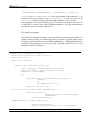
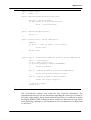
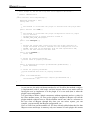
Listing 3.1 A simple jrxml file example
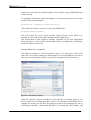
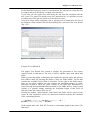
Figure 3.1 shows the print result from the example in Listing 3.1. In reality, the
code of Listing 3.1, produced with iReport, is much more longwinded than
necessary. This is because iReport does not produce optimised code (e.g omitting
attributes with predefined default values).
Figura 3.1 Print resulting from the Listing 3.1
Reducing the XML code, however, would not change the report’s final result or
execution speed.
24
Basic notions of JasperReports
During compilation (done through some JasperReports classes) of the jrxml file, the
xml is parsed and loaded in a JRBaseReport object. JRBaseReport is a rich data
structure which allows one to represent the exact xml contents in memory. All of
the parsed expressions are loaded and the java class source is produced. This
source, which extends the JRCalculator, is compiled by means of a normal java
compiler and the class created on disk is loaded as a byte buffer. Starting from the
initial JRBaseReport, a
JasperReport class is instanced (it extends the
JRBaseReport class), and the JRCalculator class byte buffer, previously loaded, are
stored in a compileData field of this new class. The JasperReport class that you
have obtained, is serialized into the jasper file which is then ready for loading at
any given time.
The JasperReports speed is due to the fact that all of the report’s formulas are
compiled into java native bytecode and the report structure is verified during
compilation, not runtime.
Data sources and print formats
Without the possibility of filling a print through some dynamically supplied data,
the most sophisticated and appealing report would be useless.
JasperReports allows one to specify fill data for the print in two different ways:
through parameters and datasources, which are presented by means of a generic
interface named JRDataSource.
CSV
File
Jasper
JRDataSource
JasperReports
Engine
Run and export
PDF,
HTML,
XML, XLS,
CSV,...
HashMap
param1 = value1
param2 = value2
...
Diagram 3.2 Datasources and parameters in the creation flux of a report.
An entire handbook chapter is dedicated to datasources, where it is explained how
they can be used in iReport and how it is possible to define custom datasources (in
the case that those supplied with JasperReports are not right for your requirements).
The JRDataSource allows to read a set of records which are organized in tables
(lines and columns).
25
iReport User manual
JasperReports is able to fill in a report using, instead of an explicit datasource, a
JDBC connection (already instanced and opened) to whichever relational database
on which a sql query (which is specified in the report) will be carried out.
If the data (passed through a datasource) is not sufficient, or if it is necessary to
specify particular values to condition its execution, it is possible to produce some
name/value couples to “transmit” to the print motor. These couples are named
parameters and they have to be preventively “declared” in the report. Through the
fillManager it is possible to join a jasper file and a datasource in a JasperPrint
object. This object is a metaprint which can create a real print after having been
exported in the desired format through appropriate classes which implement the
JRExporter interface.
JasperReports puts at your disposal different predefined exporters like those for
creating pdf, xls, cvs, xml, html, etc…files. Through the JRViewer class it is
possible to view the print directly on the screen and to print it.
Compatibility between versions
When a new version of JasperReports is distributed, usually some classes change.
These modified classes typically define the report structure. So in order to avoid
conflicts among reports that are compiled with libraries of different versions,
JasperReports associates a SerialVersion (in reality it is inherited from the
JasperReport class) with every compiled jasper file, which identifies the exact
library version used for the compilation. If you execute a print loading a jasper file,
which has a SerialVersion different from that one supported by the used library, an
error will occur. It may be similar to the following:
java.io.InvalidClassException:
net.sf.jasperreports.engine.base.JRBaseReport; local class
incompatible: stream classdesc serialVersionUID = 406, local class
serialVersionUID = 600
net.sf.jasperreports.engine.JRException: Error loading object from
InputStream
Caused by: java.io.InvalidClassException:
net.sf.jasperreports.engine.base.JRBaseReport; local class
incompatible: stream classdesc serialVersionUID = 406, local class
serialVersionUID = 600
However, the “old” report sources can be compiled with newer library versions than
that with which the sources were first compiled with: this is because the newer
versions usually only introduce new tags which are not compulsory, without
modifying the XML general structure.
The migration from a JasperReports version to a following one is substantially
painless and it can quickly be executed thanks to the iReport plugin named massive
compiler which allows one to carry out a massive compilation of all reports within a
directory structure, keeping a safety copy of the already existing jasper files.
We will talk about the massive compiler in the chapter that is dedicated to the
plugins.
26
Basic notions of JasperReports
Expressions
All of the formulas in JasperReports are defined through expressions. An expression
is a java instruction which has an object as a result.
Expression examples are the following:
•
•
•
•
“This is an expression”
new Boolean(true)
new Integer(3)
(($P{MyParam}.equals(“S”)) ? “Yes” : “No”)
Non valid expression examples are the following:
•
•
•
3 + 2 * 5
true
(($P{MyParam} == 1) ? “Yes” : “No”)
In particular the first and the second expressions are not valid because they are of a
primitive type (int in the first case and boolean in the second case). While the
third expression is not valid because it assumes that the MyParam parameter (we
will explain the $P{...} syntax shortly) is a primitive type and that it can be
compared through the == operator with an int, but this is not true.
The expression return type is determined by the context. For example if the
expression is used to determine the moment when an element has to be printed, the
return type will be Boolean. Similarly, if I writing the expression which
underlines a numerical field, the return type will be an Integer or a Double.
Within the expression I can refer to the parameters, variables and fields, which are
defined in the report using the syntax summarised in Table 3.2.
Syntax
Description
$F{name_field}
$V{name_variable}
$P{name_parameter}
$P!{name_parameter}
It specifies the name_field field (F means Field)
It specifies the name_ variaile variable
It specifies the name_parameter parameter
It is a special syntax used in the report SQL query to
indicate that the parameter does not have to be dealt
as a value to transfer to a Prepared Statement, but
that it represents a little piece of the query.
Table 3.2 Syntax for referring to the report objects
Fields, Variables and Parameters always represent objects (they can assume the
null value) and their type is specified at the moment of their declaration. After
the 0.6.2 JasperReports version, a new type $R{name_resource} syntax has been
introduced. It is used for the localization of strings (we will talk about them in the
chapter dedicated to internationalisation).
Often an expression can be insufficient for defining the return object. For example,
if you want to print a number in Roman figures, or give back the name of the
weekday in a particular data, it is possible to transfer the elaborations to an external
class method, which is declared as static, as follows:
27
iReport User manual
MyFormatter.toRomanNumber( $F{MyInteger}.intValue() )
toRomanNumber is a MyFormatter class static method, which takes an int as
a unique item (the conversion from Integer to int is done by means of the
intValue()method) and gives back the number Roman version in a lace.
This technique can be used for many aims, for example too extrapolate the text of a
CLOB field, or to add a value into a HashMap parameter. This operation cannot be
executed by means of a simple expression.
A simple program
We finish this introductory chapter about JasperReports proposing an example of a
simple program (Listing 3.2) which shows how to produce a pdf file from a jasper
file using a special datasource named JREmptyDataSource. JREmptyDataSource is
a kind of empty datasource. The test.jasper file, which the example refers to, is the
compiled version of Listing 3.1.
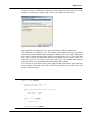
import net.sf.jasperreports.engine.*;
import net.sf.jasperreports.engine.export.*;
import java.util.*;
public class JasperTest
{
public static void main(String[] args)
{
String fileName = "/devel/examples/test.jasper";
String outFileName = "/devel/examples/test.pdf";
HashMap hm = new HashMap();
try
{
JasperPrint print = JasperFillManager.fillReport(
fileName,
hm,
new JREmptyDataSource());
JRExporter exporter = new
net.sf.jasperreports.engine.export.JRPdfExporter();
exporter.setParameter(
JRExporterParameter.OUTPUT_FILE_NAME,
outFileName);
exporter.setParameter(
JRExporterParameter.JASPER_PRINT,print);
exporter.exportReport();
System.out.println("Created file: " + outFileName);
28
Basic notions of JasperReports
}
catch (JRException e)
{
e.printStackTrace();
System.exit(1);
}
catch (Exception e)
{
e.printStackTrace();
System.exit(1);
}
Listing 3.2 JasperTest.java
29
iReport User manual
4
4 Repor t str ucture
In this chapter we will analyse the report structure; we will see which parts compose
it and how they behave in comparison with data to print.
Bands
A report is defined by means of a “type” page. This is divided into different
horizontal portions named bands. When the report is joined with data to run the
print, these sections are printed many times according to their nature (and according
to the rules which the report author has set up). For instance, the page header is
repeated at the beginning of every page, while the detail band is repeated for every
single elaborated record.
The “type” page is divided into nine predefined bands to which new groups are
added. In fact, iReport manages a heading band (Group header) and a recapitulation
band (Group footer) for every group.
Figure 4.1 Predefined bands of a document (the background and the lastPageFooter bands are
not shown)
A band is always as wide as the usable page width (right and left margins
excluded). However, its height, even if it is established during the design phase,
can vary during the print creation according to the contained elements; it can
30
Report structure
“lengthen” towards the bottom of page in an arbitrary way. This typically occurs
when bands contain subreports or text fields that have to adapt to the content
vertically. Generally, the height specified by the user should be considered “the
minimal height” of the band. Not all bands can be reorganized dynamically
according to the content, in particular the Column Footer, Page Footer and Last
Page Footer.
The sum of all band heights (except for the background) has to always be less than
or equal to the page height minus the top and bottom margins.
Title
This is the first visible band. It is created only once and is able to be printed on a
separate page. With a little bit of astuteness, you can take advantage of this
capability in order to simulate a page break using subreports (we will see how a
little bit later). As regards the admitted dimensions, it is not possible to exceed,
during design time, the report page height (top and bottom margins are included). If
the title is printed on a separate page, this band height is not included in the
calculation of the total sum of all band heights, which has to be less than the page
height,
Page header
This band allows one to define a page header. The height specified during the
design phase, usually does not change during the creation process (except for the
insertion of vertically resizable components, such as textfields that contain long text
and subreports). The page header appears on all printed pages in the same position
defined during the design phase. Title and Summary bands do not include the page
header when printed on a separate page.
Column header
This band is printed at the beginning of each detail column. The column concept
will be explained in a little while. Usually, labels containing the column names of
the tabular report are inserted in this band.
Group header
A report can contain zero or more group bands, which permit the collection of detail
records in real groups. A group header is always accompanied by a group footer
(both can independently be visible or not). Different properties are associated with a
group. They determine its behaviour from the graphic point of view. It is possible to
always force a group header on a new page or in a new column and to print this
band on all pages if the bands below it overflow the single page (as a page header,
but a group level). It is possible to fix a minimum height required to print it: if it
exceeds this height, the group band will be printed on a new page (please note that a
value too large for this property can create an infinite loop during the print), etc…
We will discuss groups in greater detail later on in this chapter.
31
iReport User manual
Detail
A detail band corresponds to every record which is read by the datasource that feeds
the print. In all probability, most of the print elements will be put here.
Group footer
This band completes a group. Usually it contains fields to view subtotals or
separation graphic elements, such as lines, etc…
Column footer
This band appears at the end of every column. Its dimensions are not adjustable (not
even if it contained resizable elements such as subreports or text fields with a
variable number of text lines).
Page footer
This is the page footer. It appears on every page where there is a page header. Like
the column footer, it is not resizable.
Last Page footer
If you want to make the last page footer different from the other page footers, it is
possible to use this special band. If the band height is 0, it is completely ignored and
the layout established for the common page will be used also for the last page. It
first appeared in the 0.6.2 JasperReports version.
Summary
In other systems this section is named Report footer. It allows one to insert fields
concerning total calculations, means, or whatever you want to insert at the end of
the report.
Background
This band appeared for the first time in the 0.4.6 JasperReports version. It was
introduced after insistent requests from many users in order to be able to create
watermarks and similar effects (such as a frame around the whole page). It can have
a maximum height equal to the page height.
32
Report structure
Report properties
Now that we have seen the individual parts that comprise a report, we will proceed
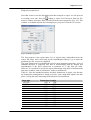
to creating a new one. Press the
button or select New Document from the File
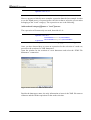
menu: a window will open. Here you will fill in the report properties (Fig. 4.2). This
window is recallable anytime by selecting Report properties from the View menu.
Figure 4.2 Report properties
The first property is the report name. It is a logical name, independent from the
source file name, and is used only by the JasperReports library (e.g. to name the
produced java file a report is compiled).
The page dimensions are probably the report’s most important properties. A list of
standard measures is proposed. The unit of measurement used by iReport and
JasperReports is the pixel (which has a resolution of 75 dpi, dots per inch).
However, it is possible to specify the report dimensions using units of measurement
that more common, such as centimeters, inches or millimeters.
Table 4.1 lists the standard measures and their dimensions in pixels. Just because
the dimensions management is based on pixels, some rough half adjusts can take
place viewing the same data using different units of measurement.
Page type
LETTER
NOTE
LEGAL
A0
A1
A2
A3
A4
A5
A6
A7
A8
A9
Dimensions in pixel
612
540
612
2380
1684
1190
842
595
421
297
210
148
105
x
x
x
x
x
x
x
x
x
x
x
x
x
792
720
1008
3368
2380
1684
1190
842
595
421
297
210
148
33
iReport User manual
A10
B0
B1
B2
B3
B4
B5
ARCH_E
ARCH_D
ARCH_C
ARCH_B
ARCH_A
FLSA
FLSE
HALFLETTER
_11X17
LEDGER
74
2836
2004
1418
1002
709
501
2592
1728
1296
864
648
612
612
396
792
1224
x
x
x
x
x
x
x
x
x
x
x
x
x
x
x
x
x
105
4008
2836
2004
1418
1002
709
3456
2592
1728
1296
864
936
936
612
1224
792
Table 4.1 Standard print formats
By modifying width and height, it is possible to create a report of whatever size you
like. The page orientation option, landscape or portrait, in reality is not meaningful,
because the page dimensions are characterized by width and height, independently
from the sheet orientation. However, this property can be used by certain report
exporters.
The page margin dimensions are set by means of the four entries on the Page
Margin tab.
Columns
As we have seen, a report is divided into horizontal sections: bands.
The page, which composes the report, presents portions which are independent from
the data (such as the title section, or the page footers), and other sections which are
printed only if the number of data record to print is different from zero (such as the
group headers and the detail). These last portions can be divided into vertical
columns in order to take advantage of the available space on the page.
In this context the concept of column can be easily confused with that of “field”. In
fact, the column does not concern the record fields, but it does concern the detail
band. This means that if one has a record with ten fields and a table view is desired,
ten columns are not needed. However, the elements will have to be placed correctly
to have a table effect. Ten columns will result when long record lists (that are
horizontally very narrow) are printed. In the following figures two examples are
shown. The first shows how to set up the values for a single column report on an A4
sheet.
34
Report structure
Figure 4.3 Settings for a single column report
The number of columns is 1 and its width is equal to the entire page, except for the
margins. The space between columns is not meaningful, in this case, so it is zero.
Figure 4.4 Structure of a single column
report
Figure 4.5 Result of a single column print
As you can see in Figure 4.5, most of the page is not used. If multiple columns are
used, the report look would be better. Figure 4.6 shows the dimensions used for a
two column report.
Figure 4.6 Settings for a two columns report
In this case, in the “Columns”, as in columns number, field we have inserted 2.
iReport will automatically calculate the maximum column width according to the
35
iReport User manual
margins and to the page width. If you want to increase the space between the
columns, just increase the value of the Spacing field.
As we see in Figure 4.8, the page space is now better utilized.
Multiple columns are commonly used for prints of very long lists (for example the
phone book). Functionally, it is important to remember that when you have more
than one column the width of the detail band and of linked bands is reduced to the
width of the column.
The sum of the margins, column widths and every space between columns, has to
be less than or equal to the page width. If this condition is not verified the
compilation can result in error.
Figure 4.7 Structure of the three columns
report
Figure 4.8 Result of a two columns print
In Figures 4.5 and 4.7 the useful page areas for the setting report elements (fields,
images, etc…) are highlighted in white. The parts which are not utilizable, such as
margins and columns following the first one (which have to be considered like the
continuation of this one) are highlighted in grey.
Advanced options
Up to now we have seen only basic characteristics concerning the layout. Now we
will see some advanced options. Some of them will be examined thoroughly and
explained in every detail in the following chapters, and some of them will be fully
understood and used in a useful way only after having acquired familiarity with the
use of JasperReports.
Scriptlet
A scriptlet is a java class whose methods are executed according to specific events
during report creation, like the beginning of a new page, the end of a group, etc. For
36
Report structure
those who are familiar with visual tools, such as Ms Access or Ms Excel, a scriptlet
can be compared with a module in which some procedures associated with
particular events or functions recallable in other report contexts (for example the
expression of a text field) are inserted.
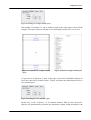
An entire chapter of this handbook is dedicated to the scriptlet. In the scriptlet tab
(Figure 4.9) it is possible to specify an external scriptlet (a java class) or activate
iReport’s internal scriptlet support.
Figure 4.9 Setting of the Scriptlet class
If you do not want to use a scriptlet, set the Don’t use scriptlet class... combobox
value, or leave the textfield blank where the class name is usually written.
More…
In the “More...” tab(Figure 4.10) it is possible to specify some print instructions.
In the “More...” tab(figure 4.10) it is possible to specify some print instructions.
Figure 4.10 Adding options
Title on a new page option
The Title on a new page option specifies that the title band is to be printed on a new
page, which forces a page break at the end of the title band. Figures 4.12 and 4.13
show the print results of the report shown in the Figure 4.11.
37
iReport User manual
Figure 4.11 Structure of a columnar simple report
In the editor the print is always the same (Figure 4.11); the title band is always on
top.
Figure 4.12 shows the print result using default settings.
Figure 4.12 Default print of the title band
Figure 4.13 shows the print result with the “Title on a new page” option set to true.
As one can see, no one other band is printed on the title page, not even the page
header or page footer. However, this page is still counted in the total pages
numeration.
38
Report structure
Figure 4.13 Print with the title band on a new page
Summary on a new page option
This option is utterly similar to the previous option except for the summary band
that is printed as the last page. Now, if it is required to print this band on a new
page, the new page will only contain the summary band.
Floating column footer option
This option allows one to force the print of the column footer band immediately
after the last detail band (or group footer) and not at the end of the column. This
option is used, for example, when you want to create tables using the report
elements (see the JasperReports tables.jrxml example for more details).
Print order
The Print order determines how the print data is organized on the page when using
multiple columns. The default print order is Vertical, that is, the records are printed
one after the other passing to a new column only when the previous column has
reached the end of the page (like what happens in the newspaper or the phone
book). Horizontal print order prints the different records horizontally across the
page occupying all of the available columns before passing to a new line. Refer to
Figures 4.14 and 4.15.
39
iReport User manual
Figure 4.14 Print with a vertical order
Figure 4.15 Print with a horizontal order
The prints in these two figures should clarify the concept. As one can see, the
names are printed in alphabetical order. In Figure 4.14 they are printed in vertical
order (filling in the first column and then passing to the following column), and in
Figure 4.15 they are printed in horizontal order (filling all columns horizontally
before passing to the following line).
Print without data (when no data)
When to the print number is supplied an empty data set (or the SQL query
associated to the report gives back no records), an empty file is created (or a stream
of zero byte length is given back). This default behaviour can be modified by
specifying what to do in the case of absence of data (that is when no data). Table
4.2 summarizes the possible values and their meaning.
Option
Description
NoPages
Default; the final result is a empty buffer.
BlankPage
It gives back an empty page
AllSectionsNoDetails It gives back a page constituted by all the bands
except for the detail (detail band)
Table 4.2 Print types in absence of data
i18n
The following sections define the parameters that can be set on the “i18n” tab.
Resource Bundle Base name
The Resource Bundle base name is a parameter used when you want to
internationalise a report. The Resource Bundle is the set of files that contain the
translated text of the labels, sentences and expressions used within a report in each
defined language. A language corresponds to a specific file. The base name
represents the prefix through which you can find the file with the correct translation.
In order to reconstruct the file name required for a particular language, some
language/country initials (e.g._it_IT, for Italian-Italy) and the .properties extension
40
Report structure
are added to this prefix. We will explain internationalisation in greater detail in
chapter 11.
Characters encodings of the XML source files
The default format for saving source files is UTF-8. However, if you want to use
some characters which need particular encoding in the XML, it is necessary to
specify the correct charset.
The UTF-8 manages all accented letters and the euro. Other common charsets are
listed in the encoding combobox (“ISO-8859-1” is widely used in Europe).
41
iReport User manual
5
5 Repor t elements
In this chapter we will explain the main objects which can be inserted into a report
and which are their characteristics.
With “element” we mean graphic object, such as a text or a rectangle. Unlike what
happens with word processor, in iReport the concept of paragraph, table or page
break does not exist; everything is created by means of elements which can contain
text, create tables when they are opportunely aligned, and so on. This approach is
that which is adopted by the most of report tools.
The “basic” elements offered by the JasperReports library are seven:
- Line
- Rectangle
- Ellipse
- Static text
- Text field (or simply Field)
- Image
- Subreport
Through the combination of these elements it is possible to produce every kind of
print.
In addition to them, iReport provides two special elements based on the Image
element: the chart and the barcode.
Every kind of elements have some common properties such as the height, the width,
the position, the band to which they belong, etc… and other specific properties of
the element (for example the font or, in the case of a rectangle, the thickness of the
border). It is possible to group the elements in two macrocategories: the graphic
elements (line, rectangle, ellipse, image) and the text fields (labels and textfield).
The subreports represent a separate kind of element and because of the complexity
of their use, we will deal with them in a separate chapter.
The elements are inserted into bands. In particular every element is associated
indissolubly to a band. If the element is not completely contained into the band
42
Report elements
which is part of, the report compiler will return a message that informs us about the
wrong position of the element; the report will be compiled in any case and in the
worst case, the “out of band” element will not be printed.
Insert and select elements in the report
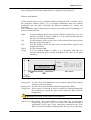
In order to add an element to a report, select one of the tools present on the toolbar
(figure 5.1).
Ellipse tool
Arrow tool
Rectangle tool
Line tool
Subreport tool
Static text tool
Image tool
Round rectangle
tool
Barcode tool
Chart tool
Text field tool
Table 5.1 Tools for the elements creation
The arrow tool is used for doing all the most important operations on the elements
(selecting, etc…) and its activation switch off an other active tool.
When you have chosen the element to insert, press the mouse left button on the
band where you want to insert the element and draw a rectangle dragging the mouse
downward on the right. By leaving the mouse button, a new element will be created
and it will be selected automatically. The new element will also appear in the
elements browser on the right of iReport desktop.
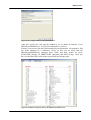
Figure 5.1 The elements tree or elements browser (highlighted in red)
43
iReport User manual
By doing a double click on the mouse right button on the element or by selecting
the menu View→Element Properties, it is possible to open the element properties
window (figure 5.2).
Figure 5.2 Element properties
This window is organized in severl tabs. The “Common” tab contains the properties
commons to every kind of element, the other tabs are specific of each kind of
element.
It is possible to select more elements at the same time by using the arrow tool and
drawing a rectangle which will contain, even only in part, the elements to select.
The selection area is highlighted with a pink rectangle.
Alternatively, it is possible select more than one element at the same time keeping
pressed the “Shift” key and clicking with the mouse over all interested elements.
The primary element of the selection is highlighted with a grey frame with blue
corners (figure 5.4), while the secondary elements are highlighted with a frame
having grey corners (figure 5.5).
Figure 5.3 No selected
element
Figure 5.4 Primary selection
Figure 5.5 Secondary
selection
The first element of a multiple selection is the primary element of the selection.
In order to resize an element, it is necessary to move the mouse cursor on one of
the corners or on one of the selected element sides: click and drag the mouse in
order to arrange its dimension as you wish. For a more careful resize, it is possible
to specify the element dimensions directly in the properties window. If more than
one element is selected at the same time, the resizement of one element produces
the resizement of all the other elements.
Moreover it could be useful to enlarge the report by using the zoom tool which you
find on the tool bar (figure 5.6).
44
Report elements
Figure 5.6 The zoom tool
It is possible to select a zoom percentage from the combo box (fig. 5.6) or to write
directly the zoom value which you wish (expressed in percentage and without the
final ‘%’ character).
Warning! During the positioning or the resizement of the elements, it is advised
to use integer zoom factors (such us 1x, 2x, 4x, etc...) in order to avoid
approximation errors.
Positioning and elements order
An element is moved by using the mouse: by clicking on the element, it is selected
and it is possible to drag it in the wished position. In order to be able to obtain a
greater precision in the movement, it is possible to use the arrows keys thanks to
which the element will move one pixel at a time. The same operation, effectuated
by keeping pressed the shift key, will produce a movement of the element of 10
pixel.
Even if there is a little resistance to the movement, it could be useful to disable the
elements dragging through the mouse by selecting the menu Edit→Disable
elements mouse move.
The menu View→Show grid activates the grid which can be used as a reference for
the positioning of the different elements. It is also possible to put into action the
elements fixing to the grid option through the menu Edit→Snap to grid.
Figure 5.7 The elements positioning grid
When the number of elements to organize into the report increases, it is possible to
use several tools which can be recalled both from the menu Format and from the
contextual menu viewable by pressing the right mouse button after having selected
45
iReport User manual
the interested elements. The most of these functionalities needs a selection of more
than one element. In this case, the primary element of the selection is taken as
reference for the operation to do. In the table 5.2 the formatting functionalities are
summarized.
Operation
Description
It aligns the left sides to that of the primary
element.
Align right
It aligns the right sides to that of the primary
element.
Align top
It aligns the top sides (or the upper part) to that of
the primary element.
Align bottom
It aligns the bottom sides to that of the primary
element.
Align vertical axis
It centres horizontally the selected elements
according to the primary element.
Align horizontal axis
It centres vertically the selected elements
according to the primary element.
Align to band top
It sets the top value at 0.
Align to band bottom
It puts the elements in the position at the bottom
as much as possible according to the band to
which it belongs.
Same width
It sets the selected elements width equal to that of
the primary element.
Same width (max)
It sets the selected elements width equal to that of
the widest element.
Same width (min)
It sets the selected elements width equal to that of
the most narrow element.
Same height
It sets the selected elements height equal to that
of the primary element.
Same height (max)
It sets the selected elements height equal to that
of the highest element.
Same height (min)
It sets the selected elements height equal to that
of the lowest element.
Same size
It sets the selected elements dimension to that of
the primary element
Center horizontally
It puts horizontally the selected elements in the
(band based)
centre of the band
Center vertically
It puts vertically the selected elements in the
(band based)
centre of the band
Center in band
It puts the elements in the centre of the band
Center in background It puts the elements in the centre of the page in
the background
Join sides left
It joins horizontally the elements by moving them
towards left
Join sides right
It joins horizontally the elements by moving them
towards right
HS →Make equal
It distributes equally the horizontal space among
elements
HS →Increase
It increases of 5 pixel the horizontal space among
elements (by moving them towards right)
HS →Decrease
It decreases of 5 pixel the horizontal space among
elements (by moving them towards left)
HS →Remove
It removes the horizontal space among elements
by moving them towards left
Table 5.2 Formatting functionalities
Align left
46
Sel.
mult.
√
√
√
√
√
√
√
√
√
√
√
√
√
√
√
√
√
√
√
Report elements
The elements can be overlapped; it is possible to bring to front or to send back the
elements by using the formatting functions Bring to front and Send to back . The zorder is given by the order with which the elements are inserted into the report. The
disposition can be viewed in the elements tree, where the elements are viewed in
every band from the lowest to the highest.
As we have already said, an element is always linked to the belonging band. If the
element is partly or completely out of the belonging band, it will be highlighted
with a red frame (only for the text elements), in order to indicate that the position is
not valid. For other kinds of element, the wrong position is highlighted in the
elements tree or during the selecting phase with the frame red corners.
Figure 5.8 Elements which are put in a wrong position
If an element partly covers one other element, the corners are highlighted with
green colour; while if this element hides completely the other element, the corners
are highlighted with pink colour.
Figure 5.9 Element band setting
Moving an element from a band to an other, iReport changes automatically the
belonging band. To specify a different band, use the first combo box present in the
element properties window (figure 5.9).
If two or more elements are selected, only the common properties are visualized. If
the values of these properties are different, the viewed value will be blank (usually
47
iReport User manual
the field is shown empty). By specifying a value for a particular property, this will
be applied to all selected elements.
Manage elements with the elements tree
The elements tree allows to localize and select the report elements easily and with
precision.
Figure 5.10 The elements tree
The report is outlined with a tree structure: the main nodes are the bands
(represented by the symbol of a folder); into the bands there are the elements of
which the symbol, the name and the coordinates are viewed; also they are situated
into the band.
With a double click on an element it is possible to open the properties window of
the selected object. Also a contextual menu is associated to the elements (it is
viewable by pressing the mouse right button and only after having selected at least
one element): beyond to the usual functions of copy and paste, there are two
particular functions, move up and move down, by means of it is possible to modify
the z-order (that is the position from the depth point of view) of an element into the
specific band.
Figure 5.Properties window of the bands
If the node with the band name is selected, the contextual menu changes proposing
the band properties operation with which it is possible to approach to the band
properties (figure 5.11).
48
Report elements
The meaning of all the bands characteristics is explained in the charter 8.
Basic attributes
All the elements have a set of common attributes presented in the “common” tab in
the properties window (figure 5.2). It concerns information about the element
positioning into the page: following the different attributes are written and
described.
The coordinates and the dimensions are always expressed in pixel considering a 72
pixel per inch resolution.
Band
It is the belonging band of the element. All the elements have one of it
and their position is always linked to it. The element positioning has
always to be made into this band;
It is the distance of the top left corner of the element from the top of the
band the element belongs to;
It is the distance of the top right corner of the element from the left
margin of the band;
It is the element width;
It is the element height; in reality it is a minimum value that can
increase during the print creation according to the value of the other
attributes;
Top
Left
Width
Height
(0,0)
Band top
Top
Element
Height
Band
Band bottom
Left
Width
Left margin
Table 5.3 Element positioning
Foreground It is the colour with which the texts are printed, and the lines and the
elements corners are drawn;
Background It is the colour with which the element background is filled;
Transparent If this option is selected, it allows to make the element transparent;
the transparency regards the parts which should be filled with the
background;
Warning! Not all export formats support the transparency.
Remove Line When Blank This option allows to take away the vertical space
occupied by an object, if this is not visible; the element visibility is
determined by the value of the expression contained in the Print
When Expression attribute; thinking about the page as a grid where
49
iReport User manual
the elements are put, the line which the element occupies, is that
where it is put;
Element A
Table 5.4 Element A line
the table 5.3 highlights the element A line; in order to really remove
the line, all the elements, that share also only a little portion of the
line, have to be null (that is they have not to be printed);
Print in first whole band this option assures that an element is printed in the next
page (or column) if the band overflow the page (or the column); this
type of guarantee is useful when the Print repeated values is not
active;
Print when detail overflows this option allows to print the element in the following
page or column, if the band is not all printable in the present page or
column;
Print repeated values
this option determines if to print or not to print the
element when its value is equal to that which is used in the previous
record;
Position type it determines how the top coordinates have to be considered in the
case that the band is changed. The three possible values are:
- FixRelativeToTop it is the predefined position type; the coordinate
values never changes;
- Float the element is progressively pushed towards the bottom by the
previous elements that increase their height;
- FixRelativeToBottom the element maintains costant the distance
from the bottom of the band; usually it is used for the lines which
separate the records;
Print when group changes
in this combo box all report groups are presented;
if one of them is selected, the element will be printed only when the
expression associated to the group changes, that is when a new break
of the selected group is created;
Key
it is the element name, it has to be univocal into the report (iReport
proposes it automatically), and it is used by the programs which need
to modify the field properties at runtime;
Stretch type this attribute allows to define how to vary the element height during
the print elaboration; the three possible values are:
- No stretch it is the predefined changing type and it imposes that the
element
height
should
keep
equal;
-RelativeToBandHeight the element height is increased proportionally
50
Report elements
to the increasing of the band; it is useful for vertical lines which
simulate the table borders;
- RelativeToTallestObject this option imposes to the element to
modify its height according to the deformation of the nearest element:
it is also used with the element group, that is a element group
mechanism which is not managed by iReport;
Print when expression
it is a java expression like those described in the chapter
3 and must returns an Boolean object; besides to the elements, this
expression is associated the bands too. If the expression returns true,
the element is hidden . A null value implicitally identifies an
expression like new Boolean(true) which will print the element
unconditionally.
Graphic elements
The graphic elements are drawing objects such as the line and the rectangle; they do
not show data generally, but they are used to make prints more readable and
agreeable from the aesthetic point of view. All kinds of elements share the
“Graphics element” tab into the properties window.
Figure 5.11 Graphic elements card
Pen
it is the thickness with which you draw lines and frames; the possible
values are:
- None the thickness is null, it allows to inhibit the drawing of lines
and frames;
- Thin lines and frames will be drawn usinf the thinnest available
line;
- 1Point lines and frames will be 1 pixel thick;
- 2Point lines and frames will be 2 pixel thick;
- 4Point lines and frames will be 4 pixel thick;
- Dotted lines and frames will be drawn with an hatch;
51
iReport User manual
Fill
it is the modality to fill the background; the only admitted value is fill,
which is the complete filling.
Line
In JasperReports a line is defined by a rectangle of which line represents the
diagonal.
Figure 5.12 TopDown line element
Figure 5.13 Line direction
The line is drawn with the Foreground colour and with the Pen thickness.
Line direction it indicates which of the two rectangle diagonals represents the line;
the possible values are TopDown (see figure 5.13) and BottomUp.
Rectangle
The rectangle is usually used to draw frames around other elements. The border is
drawn with the Foreground colour with the Pen thickness. The background is filled
with the Background colour if the element has not been defined as transparent.
The peculiarity of the rectangle in JasperReports it is the possibility to have rounded
corners. The rounded corners are defined by means of the radius attribute, that
represents the curvature with which you draw the corners, expressed in pixel.
Figure 5.14 Rectangle element
Figure 5.15 Rectangle element properties
Ellipse
The ellipse is the only element that has no own attributes. As for the rectangle, the
border is drawn with the Foreground colour and with the Pen thickness. The
background is filled with the Background colour if the element has not been defined
as transparent.
The ellipse is drawn into the rectangle that is built up on the four sides that are
tangent to it.
Figure 5.16 Ellipse
52
Report elements
Image
The image is the most complex graphic object: it can be used to insert raster images
(such as GIF, PNG, JPEG, etc...) into the report, but it can be also used as a canvas
object, a kind of box where you can draw: the image element is used, for example,
to draw charts and bar codes.
Figure 5.17 Image
Figure 5.18 Line direction
It is possible to use a own rendering class by using the
net.sf.jasperreports.engine.JRRenderable interface. An ipertextual link (“Hyper
Link” tab) can be associated to an image element. We will analyse the ipertextual
links tab at the end of this chapter.
The image characteristics are set up in the “Image” tab.
Image Expression it is a java expression. Its result is an object defined by the Image
Expression Class attribute; on the grounds of the return type, the
way the image is loaded changes;
Image Expression Class it is the expression return type.
The table 5.4 summarizes the values that the Image Expression Class can adopt and
it describes how the Image Expression result is interpreted.
Type
Interpretation
java.lang.String
A string is interpreted like a file name; JasperReports will try
to interpret the string like an absolute path; if no file is found,
it will try to load a resource from the classpath with the
specified name.
Right expressions are:
“c:\\devel\\ireport\\myImage.jpg”
“it/businesslogic/ireport/icons/logo.gif”
java.io.File
It specifies a File object to load as an image.
A right expression could be:
new java.io.File(“c:\\myImage.jpg”)
java.net.URL
It specifies the java.net.URL object. It is useful when you
have to export the report in HTML format.
A right expression could be:
new java.net.URL(“http://127.0.0.1/test.jpg”)
53
iReport User manual
It specifies a java.io.InputStream object which is ready for
reading; in this case we do not consider that the image
exists and that it is in a file: in particular we could read the
image from a database and return the inputStream for
reading.
A right expression could be:
java.io.InputStream
MyUtil.getInputStream(${MyField})
It specifies a java.awt.Image object; it is probably the
simplest object to return when an image has to be created
dynamically.
A right expression could be:
java.awt.Image
MyUtil.createChart()
It
specifies
an
object
that
uses
net.sf.jasperreports.engine.JRRenderable interface.
Table 5.5 Expression types to localize an image
JRRenderable
the
In the examples we have just explained, MyUtil represents an invented class. If you
want to use an external class by calling a static method to run particular
elaborations, it is necessary to use it with the package it belongs to (for example
it.businesslogic.ireport.util.MyUtil) or to specify its package in the import (menu
Show→Import directives in the report). The methods we explained in the examples
are static, but when we will talk about the variables, we will see how to instance a
class at the beginning of the print and how to use it into the expressions.
By using fields, variables and parameters into the Image Expression it is possible to
load or to produce images in a parametric way (like it would happen, for example,
for the detail of an illustrated catalogue where every product is associated to an
image).
Scale Image
it defines how the image has to adapt to the element dimension;
the possible values are three:
- Clip the image dimension is not changed;
- FillFrame the image is adapted to the element dimension
(becoming deformed);
- RetainShape the image is adapted to the element dimension by
keeping the original proportions;
Figure 5.19 Scale clip
Using cache
Figure 5.20 Scale FillFrame
Figure 5.21 Scale
RetainShape
this option allows to keep the image into the memory in order to
use it again if the element is printed newly; the image is kept in
cache only if the Image Expression Class is set to
java.lang.String:
Vertical alignment this attribute defines the image vertical alignment according to
the element area; the possible values are:
the image is aligned at the top;
- Top
- Middle the image is put in the middle vertically according to
the element area;
- Bottom the image is aligned at the bottom;
54
Report elements
Horizontal alignment
this attribute defines the image horizontal alignment
according to the element area; the possible values are:
- Left
the image is aligned to the left;
- Center the image is put in the centre horizontally according
to the element area;
- Right
the image is aligned to the right;
Evaluation time
it defines in which creation phase the Image Expression has to
be processed; in fact the evaluation of an expression can be done
when the report engine “encounters” the element during the
creation of the report or it can be also postponed in some
particular cases: for example, if you want to calculate a subtotal.
The evaluation time is a very interesting functionality and it is
well explained in the JasperReports manual. The possible values
are:
- Now
evaluate immediately the expression;
- Report evaluate the expression at the end of the report;
- Page
evaluate the expression at the end of the page;
- Column evaluate the expression at the end of this column;
- Group evaluate the expression of the group which is
specified in Evaluation group;
Evaluation group see Evaluation time.
For the image element (and for the text elements) it is possible to visualize a frame
or to define a particular padding for the four sides. It is a space between the element
border and its content. Border and padding are specified in the “border” tab and
they are properties that have been introduced from the JasperReports 0.6.3.
Figure 5.22 The "border" card, it is common to images and text elements
It is possible to select type and colour of the border to draw for every side of the
element. The border types are:
- None
- Thin
- 1Point
- 2Point
thickness null, it allows to not print the border line;
line of minimum thickness;
thickness of one pixel;
thickness of 2 pixel;
55
iReport User manual
- 4Point
- Dotted
thickness of 4 pixel;
line of minimum thickness and dotted;
A simple preview of the graphic effect produced by the selected border is
visualized in the centre of the border tab.
Text elements
Like the graphic elements, also the elements that allow to view the text have a
common properties tab: it is the font tab (figure 5.24).
Figure 5.23 The "font" card, it is common to all the text elements
In the “font” tab are set the properties of the text shown in the element, so not only
the font (dimension and type of the character), but also the text alignment, the
eventual rotation and line space.
Report font
it is the name of a preset font. From it will be taken all the
character properties; the presets fonts are defined at report level
and it is possible to manage them by selecting the menu
View→Report fonts;
Line spacing
it is the interline value; the possible values are:
- Single
single interline (predefined value);
- 1_1_2
interline of one line and a half;
- Double
double interline;
Horizontal align it is the text horizontal align according to the element;
Vertical align
it is the text vertical align according to the element;
Rotation
it allows to specify how the text has to be printed; the possible
values are:
the text is printed normally from left to right and
- None
from the top to the bottom;
- Left
the text is rotated of 90 degrees anticlockwise, it
is printed from the bottom to the top and the horizontal and
56
Report elements
vertical alignments follow the text rotation (for example, the
bottom vertical alignment will make to print the text along the
rectangle right side that delimits the element area);
- Right
the text is rotated of 90 degrees clockwise from
the top to the bottom and the horizontal and vertical alignments
are set according to the text rotation;
Figure 5.24 The 3 different rotation effects
The other characteristics of the font tab are explained in the chapter 6 which is
completely dedicated to the Font.
The text element properties can be modified also by using the text toolbar (fig.
5.25).
Figure 5.25 Toolbar for modifying the textfields
Static text
The static text is used to show a non-dynamic text in the report. The only parameter
that distinguishes this element from a generic text element is the static text tab
where the text to view is specified: it is a normal string, not an expression, and so it
is not necessary to write it between double apices for respecting the conventions of
the java syntax.
Figure 5.26 Static text element
Figure 5.27 Static Text card
Text field
A text field allows to print the value of a java expression. The simplest case is the
print of a string (java.lang.String) coming from an expression like this:
“Hello World!”
In this case the result is exactly a static field created with a little bit more of work,
because the string of the example is an expression of constant value; in reality the
57
iReport User manual
use of a java expression to define a text field content allows to have a very high
control on the produced text. JasperReports does not directly associate the data to
print to particular text elements (like it happens in different tools of the report where
the text element rappresents implicitly the value of a database field): the values of
the different fields of the records, that are made available by the datasource, are
stored in objects named fields and they are called in the expressions by means of the
syntax we explained in the chapter 3.
At the same way for the images, an hypertextual link can be associated also to the
textfields and it is defined by the HyperLink tab.
Figure 5.28 Textfield element
Figure 5.29 Text Field card
Textfield Expression Class
it specifies the return type of the field expression;
the possible values are many, they include all the java objects
which comprehend the SQL types and some classes for the
manage of the dates. In the following table all the selectable
types are listed.
Type
java.lang.Object
java.lang.Boolean
java.lang.Byte
java.util.Date
java.sql.Timestamp
java.sql.Time
java.lang.Double
java.lang.Float
java.lang.Integer
java.io.InputStream
java.lang.Long
java.lang.Short
java.math.BigDecimal
java.lang.String
Table 5.6 Expression types for the textfield
In this list also the java.lang.Object type is included. It can be
used if no one of the other types is applicable to the associated
data.
58
Report elements
Evaluation time
it determines in which phase of the report creation the Textfield
Expression has to be elaborated;
Evluation group it is the group to which the evaluation time is referred if it is set
to Group;
Stretch with overflow
when it is selected, this option allows the text field to
adapt vertically to the content, if the element is not sufficient to
contain all the text lines;
Blank when null it allows to avoid the text “null” print when the field expression
return a null object;
Pattern
it allows to specify a string to use with a Format class that is
right for the type specified in Textfield Expression Class.
JasperReports is able to format dates and numbers; the following tables summarize
with some examples the letters and their meaning for the creation of patters of data
and numbers.
Letter
Date components
Examples
G
Era designator
AD
y
Year
1996; 96
M
Month in year
July; Jul; 07
w
Week in year
27
W
Week in month
2
D
Day in year
189
d
Day in month
10
F
Day of week in month
2
E
Day in week
Tuesday; Tue
a
Am/pm marker
PM
H
Hour in day (0-23)
0
k
Hour in day (1-24)
24
K
Hour in am/pm (0-11)
0
h
Hour in am/pm (1-12)
12
m
Minute in hour
30
s
Second in minute
55
S
Millisecond
978
z
Time zone
Pacific Standard Time; PST; GMT-08:00
Z
Time zone
-0800
Table 5.7 Letters to create a pattern for the dates
Here there are some examples of formatting of dates and timestamp:
Dates and Time Pattern
Result
"yyyy.MM.dd G 'at' HH:mm:ss z"
2001.07.04 AD at 12:08:56 PDT
"EEE, MMM d, ''yy"
Wed, Jul 4, '01
"h:mm a"
12:08 PM
"hh 'o''clock' a, zzzz"
12 o'clock PM, Pacific Daylight Time
"K:mm a, z"
0:08 PM, PDT
"yyyyy.MMMMM.dd GGG hh:mm aaa"
02001.July.04 AD 12:08 PM
"EEE, d MMM yyyy HH:mm:ss Z"
Wed, 4 Jul 2001 12:08:56 -0700
"yyMMddHHmmssZ"
010704120856-0700
Table 5.8 Letters to create a pattern for the dates
Symbol
0
#
.
Location
Number
Number
Number
Localized?
Yes
Yes
Yes
Meaning
Digit
Digit, zero shows as absent
Decimal separator or monetary decimal separator
59
iReport User manual
,
E
Number
Number
Number
Subpattern
boundary
%
Prefix or suffix
\u2030
Prefix or suffix
¤ (\u00A4) Prefix or suffix
;
Yes
Yes
Yes
Yes
Minus sign
Grouping separator
Separates mantissa and exponent in scientific
notation. Need not be quoted in prefix or suffix.
Separates positive and negative subpatterns
Yes
Yes
No
Multiply by 100 and show as percentage
Multiply by 1000 and show as per mille
Currency sign, replaced by currency symbol. If
doubled, replaced by international currency
symbol. If present in a pattern, the monetary
decimal separator is used instead of the decimal
separator.
'
Prefix or suffix No
Used to quote special characters in a prefix or
suffix, for example, "'#'#" formats 123 to "#123".
To create a single quote itself, use two in a row: "#
o''clock".
Table 5.9 Symbols to create a pattern for the numbers
Here there are some examples of formatting of numbers:
Dates and Time Pattern
Result
"#,##0.00"
1.234,56
"#,##0.00;(#,##0.00)"
1.234,56 (-1.234.56)
Table 5.8 Letters for create a pattern for the dates
Figure 5.30 Text Field card
Thanks to the “create” button (fig. 5.29) it is possible to open the editor of pattern
by means of it the formatting of numbers, dates, currency, etc.. is simplified.
Textfield Expression
it is the expression that produces the value to print; it has
to return an object of the same type declared in Textfield
Expression Class;
It is possible to transform a StaticText in a Textfield by selecting it and pressing the
F3 key.
In order to change quickly the expression of one or more generic text elements,
select them and press F2.
60
Report elements
Subreport
The subreport is an element that is able to contain in it an other report that is created
starting from a jasper file and feed by a datasource that is specified in the subreport
properties.
Following the subreport characteristics are briefly illustrated. However, because of
the complexity of this subject, we will deeply explain the subreports in an another
chapter.
Figure 5.31 Subreport element
Figure 5.32 Subreport card (1)
Figure 5.33 Subreport card (2)
Parameters Map Expression
it identifies an expression which is valuated at
runtime; the expression must return a java.util.Map; this map
contains some couples name/object that will be passed to the
subreport in order to value its parameters;
Connection/Datasource expression
it identifies the expression that will return
at runtime a JDBC connection or a JRDataSource used for fill in
the subreport;
Using cache
it specifies if to keep or not to keep into the memory the data
structures of the specified subreport in order to make quicker the
following loading in case of reuse of it;
Subreport expression
it identifies the expression that will return at runtime a
Subreport expression class object. According to the return type,
the expression is valuated in order to recover a jasper object that
has to be used to produce the subreport;
Subreport parameters
this table allows to define some couplet name/expression
that are useful for value dynamically the subreport parameters
by using calculated expressions.
61
iReport User manual
Special elements
Besides the primitive elements provided by JasperReports, iReport supplies two
“complex” elements with their custom properties and rendered using an Image
element.
Chart
For all the details regarding the charts, see chapter 14.
Barcode
This element allows to create and print dynamically a value in the form of barcode.
Figure 5.34 Barcode element
Figure 5.35 Barcode card
Type
it specifies the type of barcode which will have to be printed.
The possible values are listed in table 5.9.
Barcode types
2of7
3of9
Bookland
Codabar
Code128
Code128A
Code128B
Code128C
Code39
EAN128
EAN13
GlobalTradeItemNumber
Int2of5
Int2of5
Monarch
62
Report elements
NW7
PDF417
SCC14ShippingCode
ShipmentIdentificationNumber
SSCC18
Std2of5
Std2of5
UCC128
UPCA
USD3
USD4
USPS
Table 5.9 Barcode types
Checksum
it specifies the code of control of the barcode has to be printed
or has not to be printed; this modality is supported only by some
types of barcode;
Show text
it specifies if the text represented by the barcode has to be
printed or has not to be printed;
Barcode Expression
it is the expression valuated at runtime that expresses the
value to represent by means of the barcode; the return type has
to be always a string;
Evaluation time e Evaluation group
they have the same meaning adopted in the
Image element.
Hyper Links
The image and textfield elements can be used both as anchor into a document, and
as hypertextual links towards external sources or other local anchor. An anchor is a
kind of “label” that identifies a specific position into the document.
The hypertextual links and the anchors are defined by means of the Hyper Link tab
(fig. 5.35). This is divided in two parts. In the superior part there is a text area
through which it is possible to specify the expression that will be the name of the
anchor. This name can be referenced by other links.
The inferior part is dedicated to the link definition towards an external source or a
position into the document.
JasperReports allows to create five types of hypertextual links: Reference,
LocalAnchor, LocalPage, RemoteAnchor and RemotePage. Through the Hyperlink
target it is possible to specify if the exploration of a particular link has to be made
into the current window (it is the predefined setting and the target is Self), or into a
new window (Blank target).
Warning! Not all export formats support the hypertextual links.
63
iReport User manual
Figure 5.37 HyperLink card
Reference
The Reference link indicates an external source which is identified by a normal
URL and it is ideal to point, in example, to a servlet to manage record drilldown
functionalities. The only expression required is the Hypelink Reference Expression.
LocalAnchor
To point to a local anchor means to create a link between two locations into the
same document. It can be used, for example, to link the titles of a summary to the
chapters they refer to.
To define the local anchor it is necessary to specify the Hyperlink Anchor
Expression which will have to produce an anchor valid name.
LocalPage
If instead of pointing to an anchor, you want to point to a specific current report
page, it is necessary to create a LocalPage link. In this case it is necessary to specify
the pointed page number by means of the HyperLink Page Expression (the
expression has to return an Integer object).
RemoteAnchor
If you want to point to a particular anchor that is present in an external document,
you will use the RemoteAnchor link. In this case the URL of the pointed external
file will have to be specified in the Hyperlink Reference Expression field and the
name of the anchor will have to be specified in the Hyperlink Anchor Expression
field.
64
Report elements
RemotePage
This link allow to point to a particular page of an external document. In this case
too, the URL of the pointed external file will have to be specified in the Hyperlink
Reference Expression field and the page number will have to be specified by means
of the HyperLink Page Expression.
65
iReport User manual
6
6 Fonts
Fonts describe the characteristics (shape and dimension) of text. In JasperReports it
is possible to specify the font properties for each element. Moreover it is possible
to define a set of global fonts named “report font” and associate them to an text
element. This global font will then be used for the text contained in the element.
The font
Usually a font is defined by four basic characteristics:
- Font name (font family)
- Font dimension
- Attributes (bold-faced, italics, underlined, barred)
If the report has to be exported to PDF, JasperReports needs some additional
information, that is:
PDF Font Name
PDF Embedded
PDF Encoding
This is the name of a predefined PDF document font.
This is a flag that specifies if a font, of “external TTF” type,
should be included in the PDF file or not.
This is a string that specifies the name of the encoding to be
used for the character coding.
If the report is not exported to PDF format, the font used is the one specified in font
name and enriched with the specified attributes. In the case of a PDF document, the
PDF Font name identifies the used font and it's attributes ( bold-faced, italics, etc..).
Other attributes are ignored since they are inherented from the specified PDF font.
66
Fonts
External font
It is possible to use a external TTF (True Type font). In order to do this, it is
necessary for the external fonts (file with .ttf extension) to be in the CLASSPATH:
this is necessary both during design time (during the use of iReport) and during
production (when the report is produced by an external java program, swing or
servlet).
Warning! It is necessary to avoid adding hundred's of TrueType fonts to the
classpath because this slows down the start of iReport. For Windows in
particular it is advised against adding the %WINDIR%\fonts directory to the
classpath.
Figure 6.1 Global font definition
In the “Font name” combo box only the system fonts, managed by the Java Virtual
Machine, are shown and usually they are inherited by the operative system. This
means that if you want to select an external TTF font, to use in non-PDF reports, it
is necessary to install it on your system before use.
After installing, select “External TTF Font...” in the PDF Font Name combo box.
The combo box “True Type font” will be enabled. In it all the True Type fonts
found in the classpath will be present.
In order to be sure that the font is viewed correctly in the exported PDF, select the
“PDF Embedded” checkbox.
Encoding
The character encoding problem is one of the most obscure of JasperReports; in
particular this problem occurs when you have to print in PDF format. So it is very
important to choose the right PDF encoding for the characters.
The encoding specifies how the characters have to be interpreted: in Italy, for
example, if you want to print correctly the accents (such as è, ò, a, ù, etc...) it is
67
iReport User manual
necessary to use the CP1252 encoding (Western European ANSI aka WinAnsi).
However some JVM versions do not support the encoding (versions before 1.4), but
they need the Cp1252 encoding (the only difference is the “p” written in lower
case).
iReport has a rich set of predefined encoding types in the combo box to select for
the character coding.
If you have some problems with reports of non-standard characters in PDF format,
make sure that all the fields have the same encoding type and verify the charset
used by the database from which the report data is read.
Use of Unicode characters
It is possible to use the Unicode syntax in order to write non-standard characters
(such as the Greek, Cyrillic and Asian characters); the Unicode code has to be
specified in the expression that identifies the field text. For example if you want to
print the euro symbol, it is possible to use the Unicode \u20ac character escape.
Warning! The expression “\u20ac” is not simple text, it is a Java expression that
identifies a string containing the € character. If we write this text into a static text
element, “\u20ac” will appear, the value of a static field is not interpreted as a
java expression (this only happens with the textfields).
Report font
To define a set of global fonts, select “Report fonts” from the “View” menu. This
will open a window for managing the global fonts. The inserting scheme of a new
global font is viewed in figure 6.1.
To use a global font in a textfield, select it from the “Report font” combo box
(figure 5.23).
iReport does not manage in a optimal way the “report font”. Limiting itself to set
the property values of the selected report font to the selected element and to copy all
the attributes of the global font to the text element. In fact the global fonts were
born with the aim to economize the XML source, by avoiding having to specify all
the font characteristics for every single field. Since this work is completely
automated in iReport, the optimizing has little importance. However, because of
this, the attempt to centralize the report fonts managing is bypassed, because, if
present, JasperReports uses the attributes specified at element level and they are
always specified by iReport. More simply, if a global report font is used in a text
element, its characteristics are saved with the text element and essentially overrides
the global report font.
At the moment it is not possible to define a set of fonts to be used in more than one
report.
68
Fields, parameters and variables
7
7 Fields, parameters and variables
In a report there are three groups of objects that can store values: the fields, the
parameters and the variables. These objects are used in the expressions, they can
change their value during the print progression and they are typed, that is all these
objects have a type which correspond to a java class such as String or Double.
Fields, parameters and variables have to be declared in the report in order to be
used. By selecting from the main menu “View” we find, among the others, the
“Report fields” (that is the fields), “Report variables” and “Report Parameters”
submenus. Each of these three submenus allows us to view the window for
managing all these objects (figure 7.1).
Figure 7.1 Fields, Variables and Parameters
Through this window it is possible to declare, modify and remove fields, variables
and parameters.
Fields
A print is commonly created starting from a data source: the data sources in
JasperReports are always organized in a set of records which are composed by a
series of fields exactly like the results of an SQL query.
69
iReport User manual
In the window in figure 7.1, in the “Fields” tab, the declared fields are viewed. In
order to declare a field, press the “new” button and a window as in figure 7.2 will
appear.
Figure 7.2 New field
The fields are identified by a name, by a type and by a facultative description. It is
not possible to choose the field type in an arbitrary way. If the field type is not
present among the predefined types, it is possible to declare the field as
java.lang.Object and cast it to the required type in the expressions where the field is
used. In an expression you can refer to a field by using the syntax:
$F{<field name>}
So,
if
you
want
to
deal with the
it.businesslogic.Person object, write:
MyPerson
field
such
as
a
((it.businesslogic.Person)$F{MyPerson})
The number of fields in a report could be really high (also reaching reaching the
hundreds). For this reason in iReport different tools exist for the declaration of
fields retrieved by particular datasources typologies.
Registration of fields of a SQL query
The most widely used tool is the one which allows us to declare or record the fields
of a SQL query in order to use them in a report. To do this it is necessary first of all
to open the ReportQueryDialog (pressing the
button).
The window for the query definition will appear. It will be used to fill the report (if
the report is really created starting from a SQL query).
70
Fields, parameters and variables
Figure 7.3 Report Query Dialog
After being sure that the connection to the DBMS is active (go to page 15 to see
how to do it), insert a query, for example:
select * from customers
iReport will run the SQL query and it will analyse its result in order to propose to
you the available fields. By selecting the fields, they will be registered in the values
window (fig.7.4).
Figure 7.4 Fields retrieved from the query
Warning! To register the fields, it is necessary to select them from the list; if the
query contains some mistakes, deselect the “Automatically Retrive Fields”
checkbox and read the fields manually with the “Read fields” button.
In this case all the fields will be of type String: in general the type set for the fields
is based on the original SQL type that can be matched with a String, an Integer
number, etc...
71
iReport User manual
Registration of the fields of a JavaBean
One of the most advanced features of JasperReports is the possibility to manage
datasources that are not based on a simple SQL query. This is the case of the
JavaBean collections where the record concept is substituted by that of the java
object. In this case the “fields” are the object attributes.
By selecting the JavaBean Datasource tab, it is possible to register the fields which
are read by a specified java object, in this case the object:
it.businesslogic.ireport.examples.beans.AddressBean
Figure 7.5 Fields registered by a JavaBean
By pressing the “Read javabeans attributes” button after having specified the name
of the class to analyse, the attributes are extracted and presented as fields.
Registration of the fields for a JRExtendedBeanDataSource
To create a print starting from a JavaBean collection, it is necessary to use a
datasource (shipped with JasperReports) named JRBeanCollectionDataSource.
iReport provide an extended version of this datasource that permit to declare as
fields values retrieved with subsequent method calls like this:
person.getAddress().getStreet()
We are talking about the JRExtendedBeanDataSource. Later we will see the exact
way this datasource is functioning, but in the “JavaBean Ext Datasource” tab there
is a tool similar to that seen for the introspection of a JavaBean. This tool doesn’t
return a plain list of the available attributes for the explored JavaBean, but permits a
more in depth exploration using a tree view where primitive attributes (like the
strings and numbers) are represented by leaves, others are more complex types
(other bean) that can be further exploded.
72
Fields, parameters and variables
The way to reach a specific data in the Bean is stored in the field description with a
syntax similar to that used for the java packages.
Figure 7.6 Fields registered from a JavaBean in an extensive version
In order to add a field to the list, it is necessary to select a tree node and press the
“Add field(s)” button.
Fields and textfield
To print a field in a text element, it is necessary to set correctly the expression and
the textfield type, and if it is necessary, to define a correct pattern for the field
formatting.
Figure 7.7 Element properties for the field print.
It is possible to automate the setting of the expression and of the type by draging the
field from the fields list into the desired report band (drag ‘n’ drop feature).
73
iReport User manual
Parameters
The parameters are values that usually are passed to the report from the program
which creates the print and they can be used both to guide particular behaviours
during the running phase (such as the application of a condition in a SQL query),
and to supply additional data to the print context such as an Image object
containing a chart or a string with the report title.
As with the fields, the parameters are also typed and they have to be declared at
design time. The parameters types can be arbitraries.
Figure 7.8 New parameter
At the moment the property “is for prompting” is not used by iReport and it is not
relevant for the aim of the print: it represents a mechanism introduced by
JasperReports to allow to the applications to identify the parameters of which the
value is required directly by the user.
In an expression we refer to a parameter by using the syntax:
$P{<parameter name>}
The parameters can assume a default value that will be used if the application does
not pass to the report an explicit value for the parameter. Remember that the
parameters (as the variables) are java objects, so it is not possible to use for the
default value an expression like this
0.123 (Wrong expression)
to value i.e. a parameter of type Double, but it is necessary to create an instance of
the Double object in this way:
new Double(0.123) (Right expression)
74
Fields, parameters and variables
Use of parameters in a query
As already said, a possible use of the parameters is to filter a SQL query. Suppose
you want to print information about a particular customer identified by their Id (not
known at design time). Our query will become something like:
select * from customers
where CUSTOMERID = $P{MyCustomerId}
where MyCustomerId is a parameter declared as Integer. JasperReports will
transform this query in:
select * from customers where CUSTOMERID = ?
and it will run this SQL using a Prepared Statement by passing the
MyCustomerId value as query parameter. If you want to avoid this kind of
parameters managing, it is possible to use the special syntax:
$P!{<parameter name>}
that allows us to replace the parameter name in the query with its value. For
example, if we have a parameter named MyWhere of which value is “where
CUSTOMERID = 5”, a query like
select * from customers
$P!{CUSTOMERID}
during the execution will be transformed into:
select * from customers
where CUSTOMERID = 5
Passing parameters from a program
The parameters are passed from a program “caller” to the print generator through a
class that extends the java.util.Map interface.
Consider the code listed on the page 27, in particular the following lines:
...
HashMap hm = new HashMap();
...
JasperPrint print = JasperFillManager.fillReport(
fileName,
hm,
new JREmptyDataSource());
...
fillReport represents a key method of all the JasperReports library and it allows to
create a print by passing as parameter the jasper file name, a datasource (in this
case a dummy datasource, the JREmptyDataSource) and a parameters map that in
this example is empty and represented by a java.util.HashMap object.
To use in the report a parameter that contains for example the title of our report
(like it is shown in the figures 7.10 and 7.11), we have to proceed in this way:
75
iReport User manual
1. declare the parameter like we described before; the parameter will be of type
java.lang.String and named NAME _REPORT;
Figure 7.9 Definition of the NAME_REPORT parameter
2. add into the title band a TextField element with the following expression: $P{
NAME _REPORT}
3. modify the program code in this way:
...
HashMap hm = new HashMap();
hm.put(“NAME_REPORT”,”This is the title of the report”);
...
JasperPrint print = JasperFillManager.fillReport(
fileName,
hm,
new JREmptyDataSource());
We have put in the parameters map a value for the NAME_REPORT parameter.
Figure 7.10 Print of the title passed as a parameter
(design)
Figure 7.11 The final print
It is not mandatory to pass from the program a value for all the parameters declared
in the report. If is not explicitly set a value for a parameter by the program,
JasperReports will use the Default Value Expression to calculate the predefined
value of the parameter; the empty expression is synonymous of null.
In reality the example is not very interesting because the data type passed is a
simple string, however it is possible to pass to the report through the Map some
76
Fields, parameters and variables
objects much more complex such as an image (java.awt.Image) or the instance of a
datasource usable to feed a particular subreport. Moreover it is important to fill a
parameter with an object having the same type of the declared type for the same
parameter, otherwise a ClassCastException will be thrown.
Built-in parameters
JasperReports provides some built-in parameters (they are internal to the reporting
engine), which are readable, but not modifiable from the user. These parameters are
presented in table 7.1.
Built-in parameters
REPORT_PARAMETERS_MAP
REPORT_CONNECTION
REPORT_DATASOURCE
REPORT_SCRIPTLET
It is the java.util.Map passed to the fillReport method and
it contains the parameters values defined by the users.
It is the JDBC connection passed to the report when the
report is created through a SQL query.
It is the datasource used to create the report when it is
not used a JDBC connection.
It represents the scriptlet instance used during the
creation; if no scriptlet has been specified, this parameter
focuses on an instance of
net.sf.jasperreports.engine.JRDefaultScriptlet
Table 7.1 Built-in parameters
Variables
The variables are objects used to store the results of calculations such as subtotals,
sums, etc...
Figure 7.12 Declaration of a variable
As the fields and the parameters, the variables are typed, that is it’s mandatory to
declare the java type of which they are instances of (the Variable Class Type).
77
iReport User manual
The figure 7.12 shows the window for the creation of a new variable. See the
meaning of each field.
Variable name
it is the name of the variable; in a similar way to what happens
for fields and parameters, in the expressions we refer to a
variable through the following syntax:
$V{<variable name>}
Variable Class Type
also the variables, as the parameters, do not have
restrictions regarding the object type that they can assume; in
the combo box there are the most common types such as
java.lang.String and java.lang.Double;
Calculation Type it indicates the type of a predefined calculation of which the
result has to be stored by the variable; the predefined value is
“Nothing” that means “don’t perform any calculation
automatically”; JasperReports perfoms the specified calculation
changing the variable’s value for every new record that is read
by the datasource: to perform a calculation of a variable means
to evaluate its expression (Variable Expression); if the
calculation type is nothing, JasperReports will assign to the
variable the value which resulted from the evaluation of the
variable expressions; if a calculation type differs from nothing,
the expression result will represent a new input value for the
chosen calculation and the variable value will be the result of
this calculation. The calculation types are the following:
Calculation
types
It does no kind of calculation type; it is used when the calculation is
intrinsic into the expression that is specified from the user and that
will be valuated to each new record.
Count
It counts how many times the expression result is different from
null; do not confuse it with sum that makes real sums based on the
expression numerical value.
Sum
It adds to each iteration the expression value to the variable current
value.
Average
It makes the arithmetic average of all the expressions received in
input.
Lowest
It returns the value of the lowest expression received in input.
Highest
It returns the value of the highest expression received in input.
StandardDeviation
It returns the standard deviation of all the expressions received in
input.
Variance
It returns the variance of all the expressions received in input.
System
It makes no kind of calculation and the expression is not evaluated;
in this case, the report engine keeps only in memory the last value
set for this variable; it can be used to store the calculation result
performed for example using a scriptlet.
Table 7.2 Calculation types for the variables
Nothing
Reset Type
78
it specifies when a variable value has to be reset to the Initial
Value or simply to null; the variable reset concept is
fundamental when you want to make some group calculations
Fields, parameters and variables
such as subtotals or averages; the reset types are listed in table
7.2.
Reset types
None
Report
The Initial Value Expression is always ignored
The variable is initialised only once at the beginning of the report
creation by using the Initial Value Expression
Page
The variable is initialised again in each new page
Column
The variable is initialised again in each new column (or in each
page if the report is composed by only one column)
Group
The variable is initialised again in each new group (the group we
refer to is specified in Reset Group)
Table 7.3 Variables reset types
Reset Group
it specifies the group that determines the variable reset if the
Group reset type is selected.
Custom Incrementer Factory Class
it is the name of a java class that increases
the JRIncrementerFactory interface, useful to define operations
such as the sum for non-numerical types;
Variable Expression it is the java expression that identifies the input value of the
variable to each iteration;
Initial Value Expression it is an expression of which evaluation produces the
variable initial value.
Built-in variables
As for the parameters, JasperReports puts at the user disposal some built-in
variables (that are directly managed by the reporting engine), they are readable, but
not modifiable by the user. These variables are presented in table 7.4.
Built-in variables
PAGE_NUMBER
COLUMN_NUMBER
REPORT_COUNT
PAGE_COUNT
COLUMN_COUNT
<group name>_COUNT
It contains the current number of pages. At “Report” time
this variable will contain the total number of pages
It contains the current number of columns
Current number of records that have been processed
Current number of records that have been processed in
the current page
Current number of records that have been processed
during the current column creation
Current number of records that have been processed for
the group specified as variable prefix
Table 7.4 Built-in variables
79
iReport User manual
8
8 Bands and groups
In this chapter we will explain how to manage bands and groups by using iReport.
In the chapter 4 we explained the report structure, and we have seen how the report
is divided in bands, horizontal portions of page that are printed and modified in
height according to the band properties and content. Here we will se how to use the
groups, how to create some breaks in the report, how to manage subtotals etc...
Bands
JasperReports divides a report in seven main bands and the background (eight bands
in total). To these other two bands are added, the group footer and the group header.
button it is possible to enter to the list of bands present in the
By pressing the
report (figure 8.1).
Figure 8.1 Bands list and properties
Through this window it is possible to modify the main properties of a band, its
height, expressed in pixel (Band Height), the possibility for the band to be break if
it is overflow from the page (Split allowed) and the Print When Expression, that is
an expression the must return a Boolean object and of which valuation determines
the print. In this case the empty expression represents implicitally the expression:
80
Bands and groups
new Boolean(true)
and it involves that the band is always printed. Into the expression it is possible to
use fields, variables and parameters, by paying attention to produce as a result a
Boolean object.
Even if it is specified esplicitly, the band height can increase if one or more
elements it contains grows vertically (it can happen for textfield elements of which
contents exceed the specified dimensions or for the subreports). JasperReports
guarantees that the band height is never inferior to that specified.
In order to resize a band it is possible to use the bands window (figure 8.1), setting
directly a value for the band in the band height field, or to use the mouse by moving
the cursor on the inferior margin of the band and dragging it toward the bottom or
the top of the page (figure 8.2).
A double click on the inferior margin allows to resize the band by adapt the height
to the content.
Figure 8.2 Movement of the inferior margin of a band
If one or more consecutive bands have zero height, it is possible to increase its
dimension by keeping press the Shift button and to move towards the bottom the
inferior margin in the band that precedes it.
By moving an element from a band to an other, the band to which the element is
associated, is changed automatically.
Groups
The groups allow to group the records of a report in order to create some ruptures.
A group is defined through an expression. JasperReports evaluates this expression:
a new group begins when the expression value changes.
We will explain the use of the groups through an example created step by step.
Suppose to have a list of people: we want to create a report where these people’s
names are grouped on the grounds of the initial letter of the name (like in a phone
book). Run iReport and open a new empty report. Take the data from a database by
using a SQL query (a JDBC connection to the Northwind database must be already
configured and tested). The first thing you have to think to is the order of record
selection: JasperReports makes no order of records coming from a datasource; for
this reason when you think about a print containing some groups, you have to order
the records yourself in a right way. We will use the SQL query:
select * from customers order by CONTACTNAME
81
iReport User manual
In this way the selected records will be ordered according to the name of the
selected customers. Select the CONTACTNAME and COUNTRY fields through
the Report Query Dialog (figure 8.3).
Figure 8.3 The query extract the ordered records
Before going on with the group creation, make sure that everything works correctly
by inserting in details the CONTACTNAME and COUNTRY fields (move them
from the fields window to the detail band): compile and create the report. The result
should be similar to that of the figure 8.5.
Figure 8.4 The report without groups
To make things a bit more hard, we have divided the detail in two columns (see
page 33).
82
Bands and groups
Figure 8.5 Test of a preliminary print
Go on with the data grouping: through the
window of the report groups managing.
“groups” button you can enter in the
Figure 8.6 Groups list
Press the New button and insert a new group named for example “Initial”.
Figure 8.7 Group properties
A group is identified by several properties:
Group Name
it specifies the group name; the name will be used to name the
two bands associate to the group: the header and the footer;
Start on a new column
if this option is selected, it allows to force a column break
at the end of the group (that is at the beginning of a new group);
83
iReport User manual
if in the report there is only one column, a column break become
a page break;
Start on a new page
if this option is selected, it allows to force a page break at
the end of the group (that is at the beginning of a new group);
Reset page number this option allows to reset the number of pages at the beginning
of a new group;
Print header on each page
if this option is selected, it allows to print again
the group header on all the pages on which the group content is
printed (if the content requires more than one page for the print);
Min height to start new page
if different from 0, JasperReports will start to
print this group in a new page, if the available space is inferior
to that minimum specified; usually it is used to avoid the
division through a page break of texts composed by more fields
that we wan’t divide (such as the title followed by the text of a
paragraph);
Group Expression it is the expression that JasperReports will valuate to each
record; when the expression changes in value, a new group is
created; if this expression is empty, it is equal to null: in this
case the result is a single group header and a single group footer
respectively after the first column Header and before the last
columnFooter;
Group Header Band Height it is the band height representing the group header: as
for all the bands, it is possible to modify this value also from the
bands window (figure 8.1);
Group Footer Band Height it is the band height representing the group footer: as for
all the bands, it is possible to modify this value also from the
bands window (figure 8.1);
In our example we name the group “Initial” (referring to the initial of the name) and
we will tell it to start a new column (selecting the Start on a new page option). Our
expression has to return the first letter of the name; an expression like this...
$F{CONTACTNAME}.substring(0,1)
could be not sufficient to do what we want, because no one guarantees us that the
CONTACTNAME field is not null and as lenght greater or equal than one: in fact in
the first during the expression evaluation will be thrown a NullPointerException,
and in the second case an ArrayOutOfBoundException. We have to test these two
conditions with an expression like this:
( ($F{CONTACTNAME} != null && $F{CONTACTNAME}.length() > 0) ?
$F{CONTACTNAME}.substring(0,1) : "")
We have used the java constraint:
( condition ) ? value1 : value2
that return value1 if the condition is true and value2 if the condition is false.
In particular if CONTACTNAME is null or its length is 0, it is returned an empty
string, otherwise it is retuned the first character of the name.
84
Bands and groups
Added the new group, in the design window two new bands appear: InitialHeader
and InitialFooter. Insert in the InitialHeader band a textfield with the expression
used for the group (figure 8.8).
Here the final result (figure 8.9)...
Figure 8.8 Layout of the report
Figure 8.9 The final result in PDF
The number of possible groups contained into a report is arbitrary, a group can be
contained in a parent group and contain other children groups. The result is a groups
list.
It is possible to change the priority of a group respect to another group through the
“Move Up” and “Move Down” buttons present in the groups list frame(fig. 8.6).
To change the priority of a group means also to change the position of the bands
composing it. More is the priority, more the group bands are far from the detail
band.
85
iReport User manual
9
9 Subrepor t
The subreports represent one of the most advanced functionalities of JasperReports
and they make possible the realization of very complex prints. The aim is to be able
to insert a report into another report created with modalities similar to the first one.
We have seen that to create a print we need three things: a jasper file, a parameters
map (it can be empty), and a datasource (or a JDBC connection). In this chapter we
will explain how to pass these three objects to the subreport through the parent
report and by creating dynamic connections that are able to filter the records of the
subreport on the grounds of the parent’s data. Then we will explain what tricks can
be adopted to give back to the parent report information regarding the subreport
creation.
Create a subreport
As we have already said, a subreport is a real report composed of its own XML
source and compiled in a jasper file. To create a subreport means to create a normal
report. You have to pay attention only to the print margins that usually are set to
zero for the subreports. The horizontal dimension of the report should be as large as
the element where it will take place into the parent one. It is not necessary that the
subreport element be exactly as large as the subreport, however in order to avoid
unexpected results, it is always better to be precise.
In the parent report it is possible to insert a subreport using the subreport
tool;
what is created is an element similar to the rectangle. The subreport element
dimensions are not really meaningful because the subreport will occupy all the
necessary space without begin cut or cropped. We can think as if the subreport
element only defines the position of the top left corner to which align the subreport.
86
Subreport
Link of a subreport to the parent report
To link the subreport to the parent one means to define three things: how to recover
the jasper object that implements the subreport, how to feed it with data and how to
set the value for the subreport parameters. All this information is defined through
the subreport properties (figure 9.1 e .9.2).
Figure 9.1 Subreport properties
Figure 9.2 Other subreport properties
The properties are divided into two tabs: Subreport and Subreport (Other).
Passage of the parameters
Just as a print invoked from a program using the method fillReport, a parameters
map is passed during the subreports creation; in reality this map is managed directly
by the reporting engine, but you have the possibility to insert parameter name/object
pairs into this map at runtime. The Parameter Map Expression is probably the
method least used to set the values of the subreport parameters, but is the first
property of the subreport element encountered in the properties window; it allows
you to define an expression of which result has to be a java.util.Map object. Using
this method it is possible, for example, to pass to the master report (from our
program) a parameter containing a Map, and then to pass this Map to the subreport
by using as expression the name of the parameter (for example $P{myMap} ) that
contains the map. It is also possible to pass to the child report the same parameters
map that was provided to the parent by using the built-in parameter
REPORT_PARAMETERS_MAP: in this case the right expression will be
$P{REPORT_PARAMETERS_MAP}. If you leave this field blank, a void map will
be passed to the subreport (this is not true if we define some subreport parameter
values as we’ll see soon). The limitation of this mechanism is the immutability of
the parameters passed in the map. In order to get around this limitation,
JasperReports allows you to define some parameter name/object pairs where the
value of each object can be created through an expression. You can see the
Subreport parameter table in figure 9.2. Also in this case the interface is quite selfexplanatory: by using the Add button it is possible to add a new parameter that will
feed the parameters map of the subreport.
87
iReport User manual
Figure 9.3 Subreport properties
The parameter name has to be the same as the one declared in the subreport. The
names are “case sensitive”, that means capital and small letters make the difference.
If you make an error typing the name, or if the inserted parameter has not been
defined, no error is thrown (but probably you would ask why something is not
working...).
The expression is a classic JasperReports expression where it is possible to use
fields, parameters and variables. The return type has to be congruous to the
parameter type declared in the subreport, otherwise there is an exception of
ClassCastException at runtime.
One of the most common uses of the “subreport parameters” is to pass the key of a
record printed in the parent report in order to execute a query in the subreport with
which you can extract the referred records (report headers and lines).
To specify the datasource
To set the subreport datasource means to tell JasperReports how to retrieve data to
fill the subreport. There are two big datasource groups: JDBC connections and
Datasource.
Using JDBC to fill the report makes the use of the subreport simple enough. In this
case the Connection Expression defines a java.sql.Connection object that is already
linked to the database. It is possible to pass this already opened connection through
the parameters map explicitly, but the simplest thing is to use the predefined
REPORT_CONNECTION parameter containing the connection passed to the
method fillReport from the calling application. By using a Connection Expression,
it is a foregone conclusion that the report will be created starting from the SQL
query contained in the subreport.
The use of a datasource is more complex: in fact it is a simple set of records and
there is not a concept comparable to that of the JDBC connection. In this case it is
possible to pass the datasource that will feed the subreport through a parameter; the
REPORT_DATASOURCE built-in parameter is not helpful because it is not usable
to fill a subreport.
However the use of an expression allows some kind of freedom for the production
of the datasource.
A datasource is in general a “consumable” object that is usable for feeding a report
only once; so a datasource passed as a parameter will satisfy the needs of only one
subreport. So therefore the parameter technique is not suitable when every record of
88
Subreport
the master report has got its own subreport of detail (unless that in the master there
is only one record). When we explain the Datasource we will see how this problem
is easily solvable by using custom datasources.
To specify the subreport
To specify what “.jasper” file to use to create the subreport, we must set the
Subreport Expression. The type of object returned from this expression has to be
selected from the combo box that precedes the expression field (see figure 9.2). The
possible types and their semantic meaning are listed in table 9.1.
Possible return types of the Subreport Expression
It represents the jasper file preloaded in a
JasperReport object
java.io.InputStream
It is an open stream of the jasper file
java.net.URL
It is an URL file that identifies the location of the
jasper file
java.io.File
It is a file object that identifies the jasper file
java.lang.String
It identifies the name of the jasper file
Table 9.1 Possible return types of the Subreport Expression
net.sf.jasperreports.engine.JasperReport
If the expression is a string, it uses the JRLoader class to load the file starting from
the specified location, in particular the string is at first interpreted as URL, in case
of MalformedURLException the string is interpreted as a physical path to a file: if
the file does not exist, the string is interpreted as a java resource. This means that if
you refer to a file, the string has to contain the absolute path where it is, or you have
to put your jasper files in the classpath and refer to it using a java resource path.
A step by step example
Let’s put into practice what we saw in the previous paragraph. We want to print an
orders list with each order’s detail rows. Use a JDBC connection (to the database
Northwind): the three used tables are, Orders, Customers and “Order Details”.
Open an empty report. Select the
report:
button and insert the query for the parent
select * from orders
From the available fields list choose only ORDERID, ORDERDATE and
CUTOMERID so that you simplify the example. Press OK button: the three fields
will be registered automatically in the report (fig. 9.4 and 9.5).
89
iReport User manual
Figure 9.4 Selection of the report master fields
Figure 9.5 The selected fields are registered among the report fields
Drag the three fields into the detail, save the report with a name as you like (for
example master.jrxml) and test this simple print before proceeding with the
subreport (fig. 9.6).
Figure 9.6 The selected fields are registered among the report fields
90
Subreport
Figure 9.7 Test of the report master
Next we will construct the first subreport to display the information about the
customer of each order (CUSTOMER).
In the same way we have constructed the report master, prepare this second report
by adding to the parameters list the “CUSTOMERID” parameter, type
java.lang.String. The query of this subreport will use this parameter and it will be:
SELECT * FROM CUSTOMERS WHERE CUSTOMERID = $P{CUSTOMERID}.
Figure 9.8 The query of the first subreport (customers.jrxml)
In order to correctly read the query fields, it is necessary to associate a default value
for the parameter (for example the empty string “”)).
Figure 9.9 Design of the subreport
91
iReport User manual
In the subreport all the page margins are usually removed because it will inserted in
the master as a simple element.
Save the subreport (for example with the name customers.jrxml) and insert a
subreport element into the master. The vertical dimension of this element is not
important because during the print creation JasperReports will use all the necessary
vertical space (9.10).
Figure 9.10 The subreport element. The height is not meaningful
Set the subreport properties by opening the element properties window and move in
the “Subreport” tab.
Select the connection mode to “Use connection expression” and specify the
$P{REPORT_CONNECTION} built-in parameter as the expression that stores the
JDBC connection used to fill the parent.
Figure 9.11 Connection to use for feeding the subreport
In the “Subreport (Other)” tab specify where to find the customer.jasper file (that is
the file that contains the subreport) and how to create or modify the parameters bind
between the master and the subreport.
As expression for the subreport, simply specify the jasper file name to use as
subreport. By using iReport, we are sure that the subreport will be found by
specifying only its name without an absolute path because the directory where the
subreport is stored, will be automatically added to the CLASSPATH and so
92
Subreport
therefore the subreport will be found not as a file but as a java resource through the
ClassLoader. In other cases it could be necessary to specify the directory path where
there is the subreport as parameter and to specify an expression like this:
$P{PATH_TO_SUBREPORTS} + java.io.File.separator + “customers.jasper”.
Figure 9.12 Location of the jasper file and parameters bind of the subreport
In order to extract the customer’s data and to view them in the subreport, we have to
fill the CUSTOMERID parameter of customers.jasper. To do that, add a new line in
the parameters table of the subreport by specifying the parameter name of the
subreport and its expression that creates the value to give to the parameter. In this
case the parameter will be CUSTOMERID and the expression will be
$F{CUSTOMERID}, that is the value of the corresponding field in the master
report.
Compile master.jrxml and customers.jrxml and run the parent report.
93
iReport User manual
Figure 9.13 The print with the first subreport
If everything is ok, you should obtain something like that in the figure 9.13.
Proceed with the second subreport to view the detail of the order. Once again start
from an empty report, remove the margins, define the parameter linked to the
master; in this case the ORDERID parameter declared as java.lang.Integer, and
insert the query for the selection of the order detail rows: select * from
orderDetails where ORDERID = $P{ORDERID}
Figure 9.14 Query for the second subreport
Set the height of the not used bands to zero (all except for the detail) and insert in
the detail band the fields we want print (fig. 9.15).
Figure 9.15 Design of the second subreport
Add the subreport to the master and specify the file name of the new subreport and
the binding for the ORDERID field.
94
Subreport
Figure 9.16 The second subreport added to the master
The file will be details.jasper (having saved the subreport with the name of
details.jrxml).
Add the parameter of the ORDERID subreport with the value $F{ORDERID} (fig.
9.17).
Figure 9.17 Second subreport properties
You have just to compile again the master and run the final print. The final result
should be something like that in the figure 9.18.
95
iReport User manual
Figure 9.18 The final report with the filled subreport
Return parameters
JasperReports don’t provide an explicit mechanism to return parameters from a
subreport to the parent at the end of the subreport filling process. However this
functionality could be useful in many situations, for example when you want to
print in the parent the total number of records processed in the subreport, or to
return the result of a particular elaboration executed in the subreport.
In JasperReports all expressions must return an object; for this reason expressions
like “x = y”(that is an assignment) are not permitted; moreover the parent report and
subreport do not share parameters and variables fillable from the subreport and
viewable from the parent. It is necessary to think about a trick to avoid both these
problems. In reality, the solution is simpler than what you might think: the aim is to
use a java.util.HashMap parameter to share a memory location between the parent
and the subreport. Passing this parameter to the subreport, we will fill the HashMap
by putting values we want to give back with predefined map keys. In this way we
do not give a new value to the parameter (that is not possible), but we will modify
the content of the HashMap, which can be done.
You now have to find a way to execute an instruction like this:
((java.util.HashMap)$P{ReturnValues}).put(“PROCESSED_RECORDS”,
$V{REPORT_COUNT} )
This expression does not produce values. So you have to use an external class that
expose a method able to produce the same result of the expression and that returns
an arbitrary value.
The code of a simple class that can do what we need is the follow:
96
Subreport
public class ReportHelper {
public static boolean addMapValue(Object map,
String key,
Object value)
{
if (key == null || value == null) return false;
((java.util.HashMap)map).put(key,value);
return false;
}
}
The class is simple: it exposes only one static method addMapValue that allows to
fill a key in a HashMap by producing a value of Boolean return (constantly false).
To use the proposed method and obtain the desired result, we can add to the report
(for example in the summary) a dummy element (i.e. a line) and set its
printWhenExpression to:
new Boolean ( ReportHelper.addMapValue($P{ReturnValues},
“PROCESSED_RECORDS”,
$V{REPORT_COUNT} ) )
Do not worry too much about the element type because this will be never printed
because addMapValue always returns the boolean value “false”.
Choosing the right position of the “hidden” element into the report allows us to
choose when and how many times the addMapValue must be executed.
97
iReport User manual
10
10 Datasources
A datasource is the source from which JasperReports takes data to print. There are
two types of datasources: a JDBC connections to a relational database on which
SQL queries are executed, and the objects that extend the JRDataSource interface,
that, as we will see, allows us to manage particular data such as XML documents or
an array of JavaBean.
The ability to retrieve the data to print from a relational database (through a SQL
query) makes the reports creation extremely simple, because it is possible with a
mouse click to “register” the query fields as report fields (without having to specify
the name and the type of each single field). iReport is able to interact directly with
every database that provides a JDBC driver and puts at your disposal a wizard for
the complete creation of a report starting from a SQL query.
When it is not possible to access data through JDBC (or when you do not want
JasperReports to interacts directly with the database), it is necessary to use a
JRDataSource (that means JasperReports Data Source), which is an interface that
allows access to data as if they are structured in tables and organized in lines and
columns (the lines are named records of the datasource and the columns are the
record fields).
The JDBC connections or the JRDataSource are not create by JasperReports, but by
the application that invokes the report generation. The program will pass to the
fillReport method of JasperReports an opened connection to a database (a
java.sql.Connection object) or the instance of a JRDataSource due to fill the report.
In the first case, JasperReports will use the supplied JDBC connection to execute
the SQL query specified in the report (obviously this query is defined only if you
want to print the report by using this method). The result of the query (typically a
java.sql.ResultSet object) is contained in a special JRDataSource named
JRResultSetDataSource. In this way JasperReports associates the data to print with
a JRDataSource object, which represents the generic interface used by this library
for managing the data to print.
In this chapter, we try to clarify the different types of JRDataSource that are at our
disposal and how they can be used in iReport. Moreover we will see how to extend
JRDataSource; sometimes extending a datasource allows us to exceed some
98
Datasources
limitations of JasperReports, such as the absence of a direct support for cross tab
reports.
Datasources in iReport
iReport allows us to manage and configure different types of datasources to fill the
reports. These datasources are stored in the iReport configuration and activated
when needed.
The types of datasources that you can use are:
-
JDBC connection
XML DataSource
JavaBean Collection Datasource
CSV DataSource
Custom DataSource
The JDBC connections are opened and passed directly to JasperReports during the
report generation. The XML DataSource allows us to take data from an XML
document. A CSV DataSource allows you to open a CSV (comma separated values)
file for use in a report. JavaBean Collection Datasource and Custom DataSource
allow us to print the data using purposely written java classes.
The datasources are managed through the menu “Datasource → Connections /
Datasources“ (fig. 10.1), which opens the configured connections list.
Figure 10.1 List of the configured datasources
Technically a connection and a datasource are different objects (the first need
always a relational database, but the second represents a simple interface to access
data structured in an arbitrary form). However from now on we will use these two
words synonymously.
Even if we keep an arbitrary number of datasources ready to use, iReport works
always with only one source or connection. To set the “active” datasource, select
from the main window the menu “Build → Set the active connection” and select the
desired datasource from the prompted list (fig. 10.2).
99
iReport User manual
Figure 10.2 List of the available datasources
If no datasource is selected, it is not possible to fill a report with data. To use the
report Wizard it has to have an active JDBC connection (the only one that allows
the execution of a SQL query).
JDBC connection
A JDBC (Java Database Connectivity) connection allows us to use as a datasource a
relational DBMS (or more in general whatever is accessible through a JDBC
driver). To set a new JDBC connection, press the “New” button present in the
window on figure 10.1, which will open the interface for creation of a new
connection (or datasource).
Figure 10.3 Creation of a JDBC connection
The first thing to do is to name the connection (possibly by using a significant
name, such as “Mysql – Test”). iReport will always use the specified name to refer
to this connection.
The JDBC Driver field is used to specify the name of the JDBC driver to use for the
connection to the database. The combo box proposes the names of all the most
common JDBC drivers.
Warning! iReport only ships with the JDBC drivers for Mysql and HSQLDB.
Thanks to the JDBC URL Wizard, it is possible to automatically construct the
JDBC URL to use for the connection to the database by inserting the server name
100
Datasources
and the database name in the correct textfields. Press the Wizard button to create the
URL.
Insert username and password to access the database. By means of a checkbox it is
possible to save the password for the connection.
Warning! iReport saves the password in clear text in the configuration file
located in (<USER_HOME>/.ireport/config.xml).
If the password is empty, it is better if you ask to save it.
Once you have inserted all the data, it is possible to verify the connection by
pressing the “Test” button. If everything is ok, the following dialog window will
appear:
Figure 10.4 Connection to the DB successfully tested
At the end of the test, remember to set the created connection as “active
connection” to use it.
In general the test can fail for a lot of reasons, the most frequent are:
- ClassNotFoundException
- URL not correct
- Parameters not correct for the connection (Database not found, user or password
wrong, etc...)
ClassNotFoundException
This exception occurs when the required JDBC driver is not present in the
CLASSPATH. For example, suppose we wish to create a connection to an Oracle
database. iReport has no driver for this database by default, but we could be
deceived by the presence of the oracle.jdbc.driver.OracleDriver driver in the JDBC
drivers list shown in the window for creating new connections. In reality, by testing
the connection, the program will throw the ClassNotFoundException.
Figure 10.5 Driver error not found
What we have to do is to add to the CLASSPATH (which is where the JVM search
for classes) the JDBC driver for Oracle, which is a file named classes12.zip (or
101
iReport User manual
classes11.zip for older versions). As iReport uses its own Class Loader, it will be
enough to copy into the iReport lib directory the file classes12.zip and perform the
test again without restarting the program.
The lib directory is the right place to insert jar archives (with jar or zip extension).
If the driver is not in jar version, but it is shipped as an uncompressed directory (for
example a com directory containing the hierarchy of all driver classes), the most
correct place to dynamically add those classes to the CLASSPATH is to copy the
driver directory into the classes directory (present in the home of iReport).
URL not correct
If a wrong URL is specified (for example due to a typing error), nothing will
happen when pressing the “Test” button. In reality a StackOverflowError exception
is thrown (the stack trace is printed on the standard error on the console or the shell
from which iReport was started).
In this case, if possible, it is better to use the URL wizard to build the JDBC URL
and to try again.
Parameters not correct for the connection
The less problematic error case is that where you try to establish a connection to a
database with the wrong parameters (username or password not valid, database
specified nonexistent, etc...). In this case the same database will give back a
message; it will be more or less explicit about the failure of the connection.
To work with the JDBC connection
When the report is created by using a JDBC connection, the user specifies a SQL
query to extract from the database the records to print. This connection can be also
used by a subreport or, for example, by a personalized lookup function for the
decoding of a particular data. For this reason, JasperReports puts at our disposal a
special parameter named REPORT_CONNECTION of java.sql.Connection type that
can be used in whatever expression with the syntax used for the parameters
$P{REPORT_CONNECTION}
This parameter contains exactly the java.sql.Connection class passed to
JasperReports from the calling program.
The use of JDBC or SQL connections represents the simplest and easiest way to fill
the report. The details about how to create a SQL query are explained in the chapter
11.
Fields registration
In order to be able to use the SQL query fields in the report, it is necessary to
“register” them (it is not necessary to register all the selected fields, those
102
Datasources
effectively used in the report are enough). For each field it is necessary to specify
name and type. The following table shows the mapping of the SQL types to the
corresponding java types.
SQL type
JAVA object
CHAR
String
VARCHAR
String
LONGVARCHAR
String
NUMERIC
java.math.BigDecimal
DECIMAL
java.math.BigDecimal
BIT
Boolean
TINYINT
Integer
SMALLINT
Integer
INTEGER
Integer
BIGINT
Long
REAL
Float
FLOAT
Double
DOUBLE
Double
BINARY
byte[]
VARBINARY
byte[]
LONGVARBINARY
byte[]
DATE
java.sql.Date
TIME
java.sql.Time
TIMESTAMP
java.sql.Timestamp
Table 10.1 Table of conversions of the SQL and JAVA types
In the table the BLOB and CLOB types do not appear and other special types such
as ARRAY, STRUCT, REF, etc... These types cannot be managed automatically by
JasperReports (however it is possible to use them by declaring them generically as
Object and by managing them by writing support static methods. The BINARY,
VARBINARY and LONGBINARY types should be dealt with in a similar way.)
The real possibility to convert a SQL type in a Java object depends on the used
JDBC driver.
For the automatic registration of SQL query fields iReport uses a mapping a little
bit more simplified than that proposed in the table.
The JRDataSource interface
Before proceeding with the exploration of the different datasources put at your
disposal by iReport, it is necessary to understand how the JRDataSource interface
works. Every JRDataSource must implement these two methods:
public boolean next()
public Object getFieldValue(JRField jrField)
103
iReport User manual
The first method is useful to move a virtual cursor to the next record: in fact we said
that data shown by a JRDataSource are ideally organized in tables. The next method
returns true if the cursor is positioned correctly to the subsequent record, false if
there are no available records.
Every time that JasperReports executes a next, all the fields declared in the report
are filled and all the expressions (starting from those associated with the variables)
are calculated again; subsequently it will be decided if to print the header of a new
group, to go to a new page, etc… When next returns false, the report is ended by
printing all final bands (group footer, column footer, last page footer and the
summary). The next method can be called as many times as there are records
present (or represented) from the datasource instance.
The method getFieldValue is called by JasperReports after a call to next with a true
result. In particular, getFieldValue is executed for every single field declared in the
report (see chapter 7 for the details about how to declare a report field). In the call a
JRField object is passed as a parameter; in it is the name of the field of which you
want to obtain the value, the type of java object that you expect is given back by the
call and the field description (used sometimes to specify information useful at the
datasource to extract the field value).
The type of return value of the getFieldValue method has to be adequate to that
declared in the JRField parameter, except for when a null is returned. The possible
types of return values are: java.lang.Object, java.lang.Boolean, java.lang.Byte,
java.util.Date,
java.sql.Timestamp,
java.sql.Time,
java.lang.Double,
java.lang.Float,
java.lang.Integer,
java.io.InputStream,
java.lang.Long,
java.lang.Short, java.math.BigDecimal, java.lang.String. If java.lang.Object is
requested as a type of return, the method can return an arbitrary type. This is the
case where a datasource is not composed of lots of single typed fields (as so
happens for the records of a database), but by only one field represented from a java
object and used in the expressions through a cast: in the chapter 7 a
it.businesslogic.Person field had been presented as example; it was used with the
syntax:
((it.businesslogic.Person)$F{MyPerson})
because the field type is known to the interpreter of the expressions simply as
Object.
JavaBean set datasource
This datasource allows us to use some JavaBeans as data to fill a report. In this
context a JavaBean is a java class that shows a series of “getter” methods that are
methods like
public <returnType> getXXX()
where <returnType> (the return value) is a generic java class or a primitive type
(such as int, double, etc...).
104
Datasources
In order to create a connection of this type, select from the first combo box of the
window of a datasource creation (fig. 10.6) the “JavaBean set datasource”.
Figure 10.6 Creation of a JDBC connection
Once again the first thing to do is to specify the name of the new datasource.
The JavaBean set datasource uses an external class (named Factory) to produce
some objects (the JavaBean) that constitute the data to pass to the report. Enter your
java class (of which complete name will be specified in the Factory class field) that
has a static method to instantiate different JavaBeans and to return them as a
collection (java.util.Collection) or an array (Object[]). The method name and the
return type have to be specified in the other fields of the window.
Let’s see how to write this Factory class. Suppose that your data are represented by
Person objects; following is the code of this class, that shows two fields: name (the
person’ s name) and age.
public class Person
{
private String name = "";
private int age = 0;
public Person(String name, int age)
{
this.name = name;
this.age = age;
}
public int getAge()
{
return age;
}
public String getName()
105
iReport User manual
{
return name;
}
}
Your class, that we will name TestFactory, will result to be something similar to
that follows:
public class TestFactory
{
public static java.util.Collection generateCollection()
{
java.util.Vector collection = new java.util.Vector();
collection.add(new
collection.add(new
collection.add(new
collection.add(new
collection.add(new
collection.add(new
Person("Ted", 20)
Person("Jack", 34)
Person("Bob", 56)
Person("Alice",12)
Person("Robin",22)
Person("Peter",28)
);
);
);
);
);
);
return collection;
}
}
Your datasource will represent five JavaBeans of Person type.
The parameters for the datasource configuration will be:
Factory name: TestFactoryDataSource
Factory class: TestFactory
Method to call: generateCollection
Return type: Collection of JavaBean
Fields of a JavaBean set datasource
The peculiarity of a JavaBean set datasource are the fields that are exposed through
the getter methods. This means that if the JavaBean has a getXyz() method, so xyz is
a record field (that is composed by the bean).
In our example, the Person object shows two fields: name and age; register them in
the fields list respectively String and Integer.
Create a new empty report, open the values window and add the two fields.
106
Datasources
Figure 10.7 Register the JavaBean Person fields
Move the fields into the detail and run the report. In figure 10.8 our report is shown
during the design, while the following figure shows the result of the print filled with
JavaBean set.
Figure 10.8 Design of the report filled with JavaBean Person
107
iReport User manual
Figure 10.9 The final result
XML DataSource
From the 0.4.0 version, iReport supports the datasource for XML documents
applied by JasperReports. The previous versions to the 0.4.0 supported a particular
version of this datasource developed by the team of iReport. Because of the greater
flexibility of the version applied with JasperReports, the old implementation has
been left.
A XML document is typically a tree structure that need not necessarily be a table.
For this reason it is necessary to make the datasource know how and what nodes of
the XML documents have to be selected and presented as record. To do this an
XPath (XML Path Language) expression is used; through it a node set is defined.
The XPath specifics are available at the web page http://www.w3.org/TR/xpath.
Some examples will be useful to help to know how to define the nodes selection.
Consider the XML file that is in table 10.2. It is a hypothetical address book where
different persons appear; they are grouped in categories. At the end of the categories
list a second list of the favourites objects appear.
In this case it is possible to define different node set types. The choice should have
to be always determined from how you want to organize the data in the report.
<addressbook>
<category name="home">
<person id="1">
<lastname>Davolio</lastname>
108
Datasources
<firstname>Nancy</firstname>
</person>
<person id="2">
<lastname>Fuller</lastname>
<firstname>Andrew</firstname>
</person>
<person id="3">
<lastname>Leverling</lastname>
</person>
</category>
<category name="work">
<person id="4">
<lastname>Peacock</lastname>
<firstname>Margaret</firstname>
</person>
</category>
<favorites>
<person id="1"/>
<person id="3"/>
</favorites>
</addressbook>
Table 10.2 XML of example
To select only the people container in the categories (that are all the people in the
addressbook), use the expression:
/addressbook/category/person
The returned nodes will be 4:
<person id="1">
<lastname>Davolio</lastname>
<firstname>Nancy</firstname>
</person>
<person id="2">
<lastname>Fuller</lastname>
<firstname>Andrew</firstname>
</person>
<person id="3">
<lastname>Leverling</lastname>
</person>
<person id="4">
<lastname>Peacock</lastname>
<firstname>Margaret</firstname>
</person>
Table 10.3 Node set with expression /addressbook/category/person
If you want to select the people appearing in the favourites node, the expression to
use is:
/addressbook/favorites/person
The returned nodes will be 2:
109
iReport User manual
<person id="1"/>
<person id="3"/>
Table 10.4 Node set with expression /addressbook/favorites/person
Here we propose a little bit more complex expression than the last example in order
to see the Xpath power of expressiveness: the idea is that to select the person nodes
belonging to the “work” category. The expression to use is the following.
/addressbook/category[@name = "work"]/person
The expression will return only one node, that with id = 4:
<person id="4">
<lastname>Peacock</lastname>
<firstname>Margaret</firstname>
</person>
Table 10.5 Node set with expression /addressbook/category[@name = "work"]/person
Once you have learned how to create an expression for the selection of a node set,
proceed to the creation of a XML datasource.
Open the window for the creation of a new datasource and select the “XML File
datasource” connection.
Figure 10.10 Creation of a XML file datasource
Besides the datasource name, the only information to insert is the XML file name to
elaborate and the XPath expression for the nodes selection.
110
Datasources
Registration of the fields
In the case of a XML datasource, the definition of a field in the report needs,
besides the type and the name, a particular expression inserted as a field description.
As the datasource aims always to one node of the selected node set, the expressions
are “relative” to the present node.
To select the value of an attribute of the present node, the following syntax is used:
@<name attribute>
For example to define a field where to store the id of a person (attribute id of the
node person), it is sufficient to create a new field, to name them with a whatever
name and to set the description to:
@id
In a similar way it is possible to get to the child nodes of the present node. For
example, if you want to refer to the lastname node, child of person, use the
following syntax:
lastname
To move to the parent value of the present node (for example to know the category
name to which a person belongs), use a little bit different syntax:
ancestor::category/@name
The “ancestor” keyword indicates that you are referring to a parent node of the
present node, in particular you are referring to the first parent of category type, of
which you want to know the value of the name attribute.
Now, let’s see everything in action. Prepare a simple report with the registered
fields as in table 10.6.
Field name
Description
ID
@id
LASTNAME
lastname
FIRSTNAME
forname
CATEGORY
ancestor::category/@name
Table 10.6 Table of conversion of the SQL and JAVA types
Type
Integer
String
String
String
Position the different fields into the detail band (as in figure 10.11). The XML file
used to fill the report is that shown in table 10.2. The Xpath expression for the node
set selection specified in the definition of the connection is:
/addressbook/category/person
The final result is viewable in figure 10.12.
111
iReport User manual
Figure 10.11 Design of the report of test for the XML file datasource
Figure 10.12 The final print
112
Datasources
XML datasource and subreport
A node set allows you to identify a series of nodes that represent, from a
JRDataSource point of view, some records. However, when the XML document is
very complex, it may be necessary to see other node sets that are in the main nodes.
Take into consideration the following XML, that is a little bit modified version of
the document presented in table 10.2, to which, for each person node, we have
added the hobbies node containing a series of hobby nodes, and one or more email
addresses.
<addressbook>
<category name="home">
<person id="1">
<lastname>Davolio</lastname>
<firstname>Nancy</firstname>
<email>[email protected]</email>
<email>[email protected]</email>
<hobbies>
<hobby>Music</hobby>
<hobby>Sport</hobby>
</hobbies>
</person>
<person id="2">
<lastname>Fuller</lastname>
<firstname>Andrew</firstname>
<email>[email protected]</email>
<email>[email protected]</email>
<hobbies>
<hobby>Cinema</hobby>
<hobby>Sport</hobby>
</hobbies>
</person>
<person id="3">
<lastname>Leverling</lastname>
<email>[email protected]</email>
</person>
</category>
<favorites>
<person id="1"/>
<person id="3"/>
</favorites>
</addressbook>
Table 10.7 Complex XML example
What we want to produce is a document more elaborate than those we have seen
until now: of each person we will view the e-mail addresses list and the hobbies.
To obtain such a document it is necessary to use the subreports, in particular you
will need a subreport for the e-mail addresses list, one for the hobbies and one for
the favourite people. What most interests us is to understand how to produce the
new datasources to feed the subreport. For this aim the JRXmlDataSource exposes
two extremely useful methods, the method
public JRXmlDataSource dataSource(String selectExpression)
113
iReport User manual
and the method
public JRXmlDataSource subDataSource(String selectExpression)
The difference between the two is that the former values the expression of nodes
selection referring to the document root node, the latter values this expression
starting from the selected node.
Both methods are used in the DataSource Expression of the subreport element to
produce dynamically the datasource to pass to the subreport. The most important
thing is that this mechanism allows us to make the datasource production, but also
the expression of the nodes selection dynamic.
In our case, the expression to create the datasource that will feed the subreport of
the e-mail addresses will be:
((net.sf.jasperreports.engine.data.JRXmlDataSource)
$P{REPORT_DATA_SOURCE}).subDataSource("/person/email")
which says: “starting from the present node (person) give me back all the email
nodes direct descendants of person”.
The expression for the hobbies will be equal, except for the way of the nodes
selection:
((net.sf.jasperreports.engine.data.JRXmlDataSource)
$P{REPORT_DATA_SOURCE}).subDataSource("/person/hobbies/hobby")
The report master fields are declared as in table 10.6. In the subreport we have to
refer to the present node value, so the fields expression will be simply a point (.).
Figure 10.13 The present record value
Proceed with building our three reports: addressbook.jasper, email.jasper and
hobby.jasper.
114
Datasources
Figure 10.14 Design of the report master with the email and hobby subreport
In the “master” report, addressbook.jrxml, we have inserted a group named
CATEGORY, of which associated expression is the CATEGORY ($F{CATEGORY})
field. In the CATEGORYHeader band we have inserted a field where we will view
the category name. Doing that, the name of the different people will be grouped for
category (like it happens in the XML file).
In the detail we have positioned the “ID”, “LASTNAME” and “FIRSTNAME”
fields. Lower, the two subreports are located, the former for the hobby, the latter for
the e-mail addresses.
The “email” and “hobby” subreports are identical between them, except for the
expression of the only one field present in these subreports and the declaration of
the field to print. The two reports are as large as the subreport element in the master
report, the margins have been reduced to zero.
Figure 10.15 Design of the email subreport
Compile and execute... If everything is ok, we will obtain the print shown in figure
10.16, where you can see very well the groups of the people in the home and work
categories and the subreports associated to every person of the list.
115
iReport User manual
Figure 10.16 Final print with the subreport
The real powerful of the XML datasource is given by the XPath versatility that
allows navigating the nodes selection in a refined manner.
CSV DataSource
The datasource for CSV (Comma Separated Values) documents is much simpler
than those we have seen until now.
To create a connection based on a CSV file, open the window of a new datasource
creation and select File CSV DataSource.
The only information to specify, besides the name to give to this datasource, is the
CSV file from which to take the data.
116
Datasources
Figure 10.17 Configuration of a CSV DataSource
The implementation of this datasource is really simple, so we will use it as example
in the next paragraph where we will see how to implement a datasource.
However this ease reflects the scarce adhesion to the CSV specifics: in fact the
datasource does not support multi-line records, does not manage the apices and the
sequences of escape, and it assumes that the character of separation of the different
fields is the “;” character. Independently from all its limits, this datasource is
extremely useful both from the didactic point of view and to quickly make tests in
absence of a database to that you can ask with a query.
Registration of the fields
In this type of datasource all the fields are String and they can be registered with the
“COLUMN_n” name where n is the number of the field (the minimum value of n is
1). This means that if you have a CSV field with three fields, for example:
Davolio;Nancy;[email protected]
Fuller;Andrew;[email protected]
Peacock;Margaret;[email protected]
The first field name will be COLUMN_1, the second COLUMN_2 ,etc...
JREmptyDataSource
JasperReports
puts
at
your
disposal
a
special
datasource
named
JREmptyDataSource. It is the datasource used to create a report when the
button
is pressed. The prerogative of this source is that to return true to the next method for
a number of record (for default only one), and to return always null to every call of
the getFieldValue method. It is like to have some records without fields, that is an
empty datasource.
The two constructors of this class are:
public JREmptyDataSource(int count)
public JREmptyDataSource()
117
iReport User manual
The first one allows to indicate how many records to return, the second one sets the
number of records at one.
To implement a new JRDataSource
Sometimes the JRDataSource supplied with JasperReports cannot satisfy
completely its needs. In these cases it is possible to write autonomously a new
JRDataSource. This operation is not complex: in fact all that you have to do is to
create a class that implements the JRDataSource interface (table 10.8) that exposes
two simple methods: next and getFieldValue.
Package net.sf.jasperreports.engine;
public
interface
JRDataSource
{
public
boolean
next()
throws
JRException;
public Object getFieldValue(JRField jrField) throws
JRException;
}
Table 10.8 The JRDataSource interface
The next method is useful to move the records represented by the datasource. It has
to return true if a new record to elaborate exists, false in the contrary case.
If the next method has been called positively, the getFieldValue method has to
return the value of the requested field (or null if the requested value is not findable
or it does not exist). In particular the requested field name is contained in the
JRField object passed as parameter. Also JRField is an interface through which it is
possible to get the three information associated to a field: the name, the description,
and the java type that represents it (we have listed these three types in the paragraph
about the JRDataSource of this chapter).
Now we will proceed to write our personalized datasource. The idea is a little bit
original, you have to write a datasource that explores the directory of a filesystem
and returns the found objects (file or directory). The fields we will make manage to
our datasource will be: the file name, that we will name FILENAME, a flag that
says if the object is a file or a directory, which we will name IS_DIRECTORY, and
the file size, if available, that we will name SIZE.
There will be two constructors for our datasource: the former will receive as a
parameter the directory to scan, the latter will not have parameters (and will use the
present directory to scan).
Just instantiated, the datasource will look for the file and the directory present in the
indicated way, filled the array files.
The next method will increase the index variable that we will use to keep a trace of
the position reached into the array files and it will return true until we reach the end
of the array.
import net.sf.jasperreports.engine.*;
import java.io.*;
public class JRFileSystemDataSource implements JRDataSource
118
Datasources
{
File[] files = null;
int
index = -1;
public JRFileSystemDataSource(String path)
{
File dir = new File(path);
if (dir.exists() && dir.isDirectory())
{
files = dir.listFiles();
}
}
public JRFileSystemDataSource()
{
this(".");
}
public boolean next() throws JRException
{
index++;
if (files != null && index < files.length)
{
return true;
}
return false;
}
public Object getFieldValue(JRField jrField) throws JRException
{
File f = files[index];
if (f == null) return null;
if (jrField.getName().equals("FILENAME"))
{
return f.getName();
}
else if (jrField.getName().equals("IS_DIRECTORY"))
{
return new Boolean(f.isDirectory());
}
else if (jrField.getName().equals("SIZE"))
{
return new Long(f.length());
}
// Field not found...
return null;
}
}
Table 10.9 The JRDataSource interface
The getFieldValue method will return the file requested information. Our
implementation does not use the information regarding the return type expected by
the caller of the method, but it assumes that the name has to be returned as String,
the flag IS_DIRECTORY as Boolean object, and the file dimension as Long object.
In the following paragraph we will explain how to use our datasource in iReport and
we will test it.
119
iReport User manual
To use a personalized JRDataSource with iReport
For iReport a datasource is personalized when a specific graphic interface for its use
is not applied. We could say that the datasources are all personalized except for:
-
JRXmlDataSource
JRBeanArrayDataSource
JRBeanCollectionDataSource
In fact all these are managed automatically by iReport.
For all the other datasources, a special connection is put at your disposal; it is useful
to use whatever JRDataSource by using a sort of “driver” that instantiates the
JRDataSource specific that you want to use. These “drivers” are simple java classes
that have the aim to test a datasource or to feed the report as if this is executed by a
particular program.
The idea that is behind this kind of driver is the same we have seen for the
JavaBean set datasource: it is necessary to write a java class that through a static
method creates the datasource and returns it.
For example if you want to test the JRFileSystemDataSource we have examined in
the previous paragraph, it will be necessary to create a simple class like that shown
in table 10.10.
import net.sf.jasperreports.engine.*;
public class TestFileSystemDataSource
{
public static JRDataSource test()
{
return new JRFileSystemDataSource("/");
}
}
Table 10.10 Class for the test of a personalized datasource
This class, and in particular the static method that will be called, will execute all the
necessary code for instancing correctly the datasource. In our case we have created
a new JRFileSystemDataSource object by specifying as way to scan the directory
root (“/”).
Now that we have defined the way to obtain a JRDataSource, prepared and ready to
be used, create the connection through which it will be used.
Open the window of a new connection creation, select the “Custom JRDataSource”
typology and set as datasource name “Test FileSystemDataSource” (or whatever
other name you wish).
120
Datasources
Figure 10.18 Configuration of a Custom DataSource
After this, specify the class and the method to use to obtain an instance of our
JRFileSystemDataSource: TestFileSystemDataSource and test.
Prepare a new report with the fields managed by the datasource. No method to find
the fields managed by a datasource exists. In this case we know that the
JRFileSystemDataSource manages three fields and their names an types:
FILENAME (String), IS_DIRECTORY (Boolean) and SIZE (Long). Once you
have created the fields, insert in the report detail and run the print.
Figure 10.19 Result of the print fed by the JRFileSystemDataSource
121
iReport User manual
The print has been created show above. The report has been divided in two
columns, in the band of the column header the File name and Size tags have been
inserted. As specified three fields have been declared, the FILENAME and the
SIZE have been inserted directly in the detail. Then two laid on images have been
inserted, one representing a document, the other an open folder. In the
PrintWhenExpression of the image element that is put in the foreground, the
expression: $F{IS_DIRECTORY} has been inserted.
The image 10.20 shows the image of the design window.
Figure 10.20 Design window for the report of fig. 10.19
In this case the class that has instantiated the JRFileSystemDataSource datasources
was very simple. However it can happen to have more complex classes, it is the
case where the datasource is obtained by calling an Enterprise Java Bean, or for
example by calling WebService...
JavaBean Extended datasource
iReport supplies a particular datasource named JavaBeanExtended DataSource, that
represents an evolution of the datasource for some JavaBean put at your disposal by
JasperReports. The difference between the two is that this datasource is able to
move to fields present in subclasses, so that it is possible, for example, to print the
“Street” field of an hypothetical bean “Address” contained in the bean “Person”.
The figure 10.21 shows the tool that allows to find fields from a particular bean and
to facilitate the drilling of the objects.
The selected attributes can be registered as fields. iReport saves the necessary way
to find the particular field in the field description. For example a description
Address.Street suggests to the datasource to find the date by effectuating the calls
getAddress().getStreet().
The available constructors for this datasource are:
public JRExtendedBeanDataSource(Vector beans)
public JRExtendedBeanDataSource(Object[] beans)
Both request some objects that represent the records managed by the datasource.
122
Datasources
Figure 10.21 Design window for the report of fig. 10.19
This builder has been thought of for the expression to use for feeling a subreport.
Suppose that the Person object has a getHobbies() method of which return type was
a carrier of Hobby objects, the necessary expression to feed the subreport where to
print the hobby should be:
new JRExtendedBeanDataSource((java.util.Vector)$F{Hobbies})
with Hobbies declared as java.lang.Object.
123
iReport User manual
11
11 Inter nationalization
JasperReports 0.6.2 introduced some new features for report internationalization.
Internationalizing a report means making all static text set at design time (like
labels, messages, etc...) adaptable to the Locale options used to build the report: the
report engine will print the text using the most appropriated available translation.
The text translations in the different languages supported by the report are stored in
particular resource files named Resorurce Bundle.
In this chapter we are dealing moreover with the built-in function msg() and how
it’s possible to “localize” very complex sentences created dynamically.
Resource Bundle Base Name
When a report is internationalized, it’s necessary to locate all locale dependent text,
like labels and static strings. A key (a name) is associated with every text fragment,
which is used to recall these fragments. These keys and the relative text translation
are written in special files (one per language), as shown in Table 11.1.
Title_GeneralData=General Data
Title_Address=Address
Title_Name=Name
Title_Phone=Phone
Table 111.1 Resource file sample
All files containing this information have to be saved with the “.properties” file
extension. The effective file name (i.e. the file name without the file extension and
the language/country code - that we will see soon) represents the report Resource
Bundle Base Name (e.g. the Resource Boundle Base Name for the resource file
i18nReport.properties is i18nReport). At execution time, the report engine will look
124
Internationalization
in the classpath for a file that has as a name the Resource Bundle Base Name plus
the “.properties” extension (so in the previous example it will look for a file named
exactly i18nReport.properties). If this file is found, it will be the default resource
from which is read the localized text.. The resource bundle base name has to be
specified in the “i18n” tab in the report properties window (see page 40).
When it is required to print using a specific locale, JasperReports looks for a file
starting with the resource bundle base name string, followed by the relative
language and country code relative to the requested Locale. For example,
i18nReport_it_IT.properties is a file that contains all locale strings to print in
Italian, by contrast i18nReport_en_US.properties contains the translations in
American English. So it’s important to always create a default resource file that will
contain all the strings in the most widely used language and a set of language
specific files for the other languages.
The default resource file does not have a language/country code after the Resource
Bundle Base Name and the contained values are used only if there is no resource
file that matches the requested Locale or if the key of a translated string is not
present in that file.
The complete resource file name is composed as follows:
<resource bundle base name>[_language code[_country code[_other code]]]
Here are some examples of valid resource file names:
i18nReport_fr_CA_UNIX
i18nReport_fr_CA
i18nReport_fr
i18nReport_en_US
i18nReport_en
i18nReport
The “other code” (or alternative code), that is the rightmost one after the language
and the country code ( “_UNIX” in the above example) is commonly never used for
reports, but it is a way to identify very specific resource files.
iReport has the ability to manage resource files for report localization by itself. The
only conditions are that the resource files be located in the same directory where the
jrxml source file is located, and that the resource bundle base name is equal to the
jrxml source file name (extension excluded).
To access the list of available resource files for a report, select the menu “View →
Internationalization” and then “Localization files”.
Figure 11.1 Window to manage resource files
125
iReport User manual
From this window you can create, modify or remove all the resource files of a
report.
Figure 11.2 Setting the postfix for a new resource file name.
To create a new “locale” file, it’s necessary to duplicate the default one and specify
the postfix (language/country code) to add after the base name to form the complete
new resource filename: the postix must follow the rules shown previously (for more
details about the language and country codes, and about the resource file names in
general, please refer to the Java documentation).
The content of a selected file can be edited by pressing the “Modify file” button.
Figure 11.3 Modify of a resource file
To save a modified resource file, you have to press the “Save” button explicitly,
because the file is never saved automatically.
Retrieval of localized strings
There are two ways to retrieve the localized string for a particular key inside a
JasperReports expression: you can use the built-in str(“key name”) function or you
can use the special syntax $R{key name}. Resource keys are not transformed into
java variables during the report compilation as are fields, variables and parameters:
this permits the use of arbitrary names for resource keys, without following the
rules used for java variables (so it is possible, i.e., to use the character dot “.” inside
126
Internationalization
thess names). Anyway, it is better not to use the character space “ “. Here is an
expression sample to retrieve a localized string:
$R{text.paragraph1}
This expression will be converted to the text associated with the key
“text.paragraph1” using the most appropriate available translation for the selected
locale.
Formatting messages
The JasperReports internationalization support is based on the one provided by java.
One of the most useful features is the function msg, which is used to build messages
using arguments dynamically. In fact, msg uses strings as “patterns”. These patterns
define where arguments, passed as parameters to the msg function, must be placed.
The arguments position is expressed using numbers between braces: The program
extracted {0} as a random number. The zero specifies where to place the value of
the first argument passed to the msg function. The following expression:
msg($R{text.paragraph1}, $P{number})
uses the string referred to by the key text.paragraph1 as the pattern for the
call to msg. The second parameter is the first argument to be replaced in the pattern
string. If text.paragraph1 is the string The program extracted {0} as a
random number, and the value for the report parameter “number” is “100”, then
the printed text becomes: The program extracted 100 as a random number.
The reason for using patterns instead of building messages like this dividing it into
substrings translated separately [The program extracted] {0} [as a random
number], is that sometimes the second approach is not possible. Localizers won't be
able to create grammatically correct translations for all languages (e.g. for
languages in which the verb appears at the end of the sentence, etc...).
It’s possible to call the msg function in three ways (see table 11.2)
public String msg(String pattern, Object arg0)
public String msg(String pattern, Object arg0, Object arg1)
public String msg(String pattern, Object arg0, Object arg1, Object arg2)
Table 11.2 The msg function
The only difference between the three calls is the number of passed arguments.
127
iReport User manual
Deploy of localized reports
The necessary first step before deploying a localized report, is to be sure that all
properties files, containing the translated strings, are present in the classpath..
JasperReports looks for resource files using the getBoundle method of the
ResourceBundle java class. To learn more in depth about how this class works visit
the site http://java.sun.com/docs/books/tutorial/i18n/ where all the main concepts
about how Java supports internationalization are fully explained.
128
Scriptlet
12
12 Scriptlet
A scriptlet is a java class used to execute special elaborations during the print
generation. The scriptlet exposes a set of methods which are invoked by the
reporting engine when some particular events, like the creation of a new page or the
end of processing a detail row, occur.
In this chapter we will deal with how to write a simple scriptlet and how to use it in
the report. We will see how iReport handles scriptlets and what shrewdness is
useful when deploying a report using this kind of functionality.
The JRAbstractScriptlet class
To implement a scriptlet we have to extend the java class
net.sf.jasperreports.engine.JRAbstractScriptlet. This class exposes all abstract
methods to handle the events which occur during the report generation and provides
data structures to access all variables, fields and parameters present in the report.
The simplest scriptlet implementation is provided directly by JasperReports: it is the
class JRDefaultScriptlet, which extends the class JRAbstractScriptlet and
implements all the required abstract methods with a void function body.
package net.sf.jasperreports.engine;
/**
* @author Teodor Danciu ([email protected])
* @version $Id: JRDefaultScriptlet.java,v 1.3 2004/06/01 20:28:22
teodord Exp $
*/
public class JRDefaultScriptlet extends JRAbstractScriptlet
{
public JRDefaultScriptlet() { }
public void beforeReportInit() throws JRScriptletException
129
iReport User manual
{
}
public void afterReportInit() throws JRScriptletException
{
}
public void beforePageInit() throws JRScriptletException
{
}
public void afterPageInit() throws JRScriptletException
{
}
public void beforeColumnInit() throws JRScriptletException
{
}
public void afterColumnInit() throws JRScriptletException
{
}
public void beforeGroupInit(String groupName) throws
JRScriptletException
{
}
public void afterGroupInit(String groupName) throws
JRScriptletException
{
}
public void beforeDetailEval() throws JRScriptletException
{
}
public void afterDetailEval() throws JRScriptletException
{
}
}
Table 12.1 JRDefalultScritplet.
As you can see, the class is formed by a set of methods with a name composed
using the keyword after or before followed by an event or action name (Detail Eval
or PageInit). These methods map all of the events that can be handled by a scriptlet.
They are summarized in the following table.
Event/method
Description
Before Report Init
This is called before the report initialization (i.e. before all
variables are initialized)
This is called after all variables are initialized
This is called when a new page is created, before all variables
having resetType “Page” are initialized.
This is called when a new page is created and after all variables
having resetType “Page” are initialized.
This is called when a new column is created, before all variables
After Report Init
Before Page Init
After Page Init
Before Column Init
130
Scriptlet
After Column Init
Before Group <x> Init
After Group <x> Init
Before Detail Eval
After Detail Eval
having resetType “Column” are initialized; this event is not
generated if the columns are filled horizontally.
This is called when a new column is created, after all variables
having resetType “Column” are initialized; this event is not
generated if the columns are filled horizontally.
This is called when a new group <x> is created, and before all
variables having resetType “Group” and group name “<x>” are
initialized.
This is called when a new group <x> is created, and after all
variables having resetType “Group” and group name “<x>” are
initialized.
This is called before a detail band is printed and all variables are
newly evaluated.
This is called after a detail band is printed and all variables are
evaluated for the current record.
Table 12.2 Report events
Inside the scriptlet we can refer to all of the fields, variables and parameters using
the following maps (java.util.HashMap) defined as class attributes: fieldsMap,
variablesMap and parametersMap.
The groups (if present in the report) can be accessed trough the attribute groups, an
array of JRFillGroup.
Scriptlet handling in iReport
If we need to create a scriptlet for a certain report, we can ask iReport to handle it
for us transparently.
Figure 12.1 Scriptlet tab on the Report Properties window
In this case the class that implements the scriptlet will be completely handled by
iReport. We can disable the scriptlet usage from the report properties window
(Figure 12.1) or specify an external class (already compiled and present in the
classpath). In this latter case, if the class is modified and recompiled, iReport would
not be able to use this most recently compiled version, due to the java class loader
that caches the class in memory.
131
iReport User manual
If the scriptlet is handled internally by iReport, when the report is compiled, a new
class with the same name as the report, followed by the postfix “Scriptlet.java” is
created. For example, if you have a report named test, the generated scriptlet file
will be named testScriptlet.java.
The scriptlets generated using iReport don’t directly extend JRAbstractServlet.
Instead they extend a top level class named IreportScriptlet, which is present in the
it.businesslogic.ireport package. Besides the various methods for handling events,
this new class provides some new useful features to work with data series (see
chapter 14); other features will be added in future versions of iReport. Please note
that if you want to use the charting support provided by iReport, you have to use the
internal support for scriptlets too.
In iReport a scriptlet can be modified by selecting the menu “View → Scriptlet
Editor”. The scriptlet source file is handled independently from the main report
source file, so you have to save it yourself by pressing the “Save” button every time
you change it (see Figure 12.2).
Figure 12.2 The scriptlet editor
The editor window shows all scriptlet methods/events in a combobox placed at the
top of the form. On the left are shown all of the java objects accessible from the
scriptlet code. By double-clicking a desired object the code to access it is generated.
It is possible to insert import directives, new methods and class members for the
scriptlet selecting the item “<imports and global declarations>” from the combobox.
Many times accessor methods used in expressions are put in the scriptlet. Suppose,
for example, that you need to print a number using the Roman notation
(I,II,III,IV,...). In this case, it is possible to add a method to the scriptlet to convert
an integer number into a string that represents the number written in Roman
notation. Something like this:
public String numberToRoman(int myNumber)
132
Scriptlet
The syntax to execute this conversion, calling the method inserted in the scriptlet, is
as follows:
((it.businesslogic.ireport.IReportScriptlet)$P{REPORT_SCRIPTLET}
).numberToRoman ( < my number >)
Please note that we require an explicit cast to call the method numberToRoman
because the reporting engine sees this $P{REPORT_SCRIPTLET} as a generic
scriptlet.
In
this
example
we
assume
that
the
class
it.businesslogic.ireport.IReportScriptlet contains a method named
numberToRoman. In reality this is not true, there isn’t a numberToRoman method in
this class. You have to cast the REPORT_SCRIPTLET to your real scriptlet class
name:
((MyScriptletClassName)$P{REPORT_SCRIPTLET}).numberToRoman
my number >)
(
<
Deployment of reports that use scriptlets
When a report with a scriptlet is compiled, the scriptlet is compiled in the same
directory where the generated jasper file for this report will be stored. iReport adds
this directory to the classpath by default. In this way the scriptlet class will be
directly visible from java and the report will be filled without problems.
However, when the report is deployed (i.e. in a web application), the scriptlet is
often forgotten and the reporting engine throws an error when filling the report. So,
it is necessary in this case to put the scriptlet class in the application classpath. If the
scriptlet extends the class IReportScriptlet, you have to add the class
it.businesslogic.ireport.IReportScritplet to the classpath too (this class is released
under LGPL license).
133
iReport User manual
13
13 Template
One of the most useful tools of iReport is the wizard for creating reports using
templates, a kind of pre-built model to use as a base for new reports. In this chapter,
we will explain how to build custom templates and how to add them to those
already available.
Template structure
A template is a normal jrxml file. When a new report is created using the wizard,
the jrxml file of the selected template is loaded and modified according to the user
choices.
There are two types of templates: the columnar type and the tabular type. The
former creates a group of lines for every single record composed by a static text
(label) that displays the field names, and a textfield that displays the field value (fig.
13.1).
Figure 13. 1 Columnar template
134
Template
Alternatively, the tabular type shows all records in table-like view. (fig. 13.2).
Figure 13.1 Tabular template
As we said, the templates are jrxml files (the extension used for it is simply xml)
and they are located in the templates directory. iReport recognizes from the name if
a file contains a columnar or a tabular template: if the file name ends with T, it will
be used as tabular, while if it ends with C, it will be interpreted as columnar.
Here it is a list of templates shipped with iReport;
File
Report type
classicC.xml
classicT.xml
classic_landscapeT.xml
graycC.xml
grayT.xml
gray_landscapeT.xml
Table 13.1 Templates shipped with iReport
Columnar report
Tabular report
Tabular report
Columnar report
Tabular report
Tabular report
The wizard permits the creation of up to four groups (a Group Header and Group
Footer is associated with each group). These groups will be created in the produced
final file only and only if during the wizard execution the user asks for grouping
data by using one or more criteria. Using the wizard you can choose only a field
name as criteria.
By opening classicC.xml file, it is possible to see and understand how a template is
structured. In this file you will find four groups: Group1, Group2, Group3 and
Group4, for which the title band (group header) and the group footer are visible.
The columns band is hidden (because for columnar reports this band is not useful)
and in the detail there are static text labels used as template label for every future
field as on figure 13.1, and a textfield containing the real field. The text (or the
expression dealing with textfield) associated with the text elements has to follow the
simple wizard specifications, in particular each group can contain as many graphic
elements you want and a static text element containing simply this text:
GnLabel
135
iReport User manual
n represents the group number in which the text element is placed, and a textfield
element containing the following special expression:
GnField
This element will contain the value used as group expression.
Figure 13.2 Columnar template
The detail must contain at least a static text element with text
DetailLabel
and a textfield element with expression
DetailField
The wizard replicates these two elements, creating as many static text/textfield pairs
as there are in the selected fields for the report.
All the other bands can contain whatever elements; these bands will be reproduced
as they are in files generated starting from the template.
The design of a tabular report template is very similar. The figure 13.4 shows how
the classicT.xml appears in the design window.
Once again there are four groups. Before them there is the column header, where it
is necessary to insert a static text to use as model for the columns labels.
In the detail band there is only the DetailField element that will be used as a model
for all the columns.
136
Template
Figure 13.3 Tabular report
The templates can not be compiled: this is because expressions contained in the
textfields are not valid java expressions.
Using a custom template
So, let’s see how to create and use a custom template. The shortest way is to open
one of the already existing templates, choosing the one that is closer to what we
want. At this point we have to edit the report to how we prefer, by changing the
existing elements properties or adding and removing other elements.
Figure 13.4 A custom template
In order to use the template, you have to put it in the templates directory.
Remember to use the .xml file extension. In the case of the figure 13.5 we have
named the file testC.xml. You have always to add a C or a T as last letter of the
name before the extension.
137
iReport User manual
If everything is ok, by executing the wizard, it is possible to see the new template in
the templates list for columnar report (figure 13.6).
Figure 13.5 The new template appears in the available template list.
However, you may notice that our new custom template does not have a preview
image available. It is possible to associate a preview image to the template by
inserting in the templates directory an image in gif format of maximum dimensions
150x150 pixel named exactly as the template (in the case of the previous example:
testC.gif).
Figure 13.6 The new template with the preview image
The figure 13.7 shows the wizard window that displays the preview for our new
template. The preview image derives from a screenshot taken by a report created
using the new template.
The use of a template increases the productivity relative to the development of
prints that share a common graphic setting.
If you develop a very sophisticated template and you want to share it with other
users, send it as patch to the iReport web site.
138
Charts
14
14 Char ts
JasperReports doesn’t natively support an element to display charts: they have to be
produced separately, using one of the many java open-source libraries to generate
charts and displayed as images using an image element. The idea is very simple,
however to produce a chart at run-time requires a good knowledge about
JasperReports programming, and it is necessary to use a scriptlet to collect the data
that will be displayed in the charts.
With the 0.4.0 version, iReport makes up for this void with the chart tool. This tool
allows the building of a chart by configuring the main properties and retrieving data
to print in the chart, simplifying the user’s life a lot. The charts creation is entirely
delegated to the open-source library named JFreeCharts (version 0.9.21) developed
by David Gilbert of Object Refinery Limited. iReport supports only a few of the
chart types put at our disposal by JFreeCharts, and only a few of the charts
properties, but it allows the creation of clear reports having a great graphic impact.
Creation of a simple chart
In this paragraph we will learn the chart tool by building step by step a report
containing a Pie3D chart; then we will analyse all the details regarding the chart
management.
In the example we will use the datasource Northwind on HSQLDB.
Create a new empty document. Open the
query window and write:
select SHIPCOUNTRY, COUNT(*) AS ORDERS_COUNT from ORDERS
group by SHIPCOUNTRY
139
iReport User manual
Figure 14.1 Query of the report
The idea is to produce a chart to display the sales in the different countries. Confirm
our query with OK: iReport will register the query selected fields. Place the fields in
the detail, by dragging them from the objects library (fig.14.1).
Figure 14.2 The report with the SHIPCOUNTRY field.
Reset the bands exceeding height (except for the summary and the detail).
Select the chart tool and place a new chart in the summary.
140
Charts
Figure 14.3 We have positioned the chart in the summary.
iReport will inform us about the need to enable the internal scriptlet handling: you
will say yes. From the charts window select Pie3D and select the OK button. You
will be in the situation described on figure 14.2.
At this point configure the chart. Open the element properties window (double click
on the element), move in the “Chart” tab and select the “Edit chart properties”
button.
Figure 14.4 Chart tab
The charts managing window will appear (it is the same appeared at the moment of
the chart element creation, fig.14.5 ).
141
iReport User manual
Figure 14.5 Chart type card
This window is organized in three tabs: Chart type, Data and Chart details. The
first tab allows the selection of the chart type to use: every chart needs data
organized in series; the series needed by a chart are listed at the Series field in the
chart information box.
Warning! Every time you select a different chart type, any information inserted
into the Data and Chart details tabs is lost.
In our case we will need a series of labels (Labels) and only one series of numbers
(Serie1).
So move to the Data tab. You will find a table with two lines ready to receive the
two series name that will satisfy the needs of the chosen chart (fig. 14.6).
.
Figure 14.6 Data card
There are lots of ways to create a series. For the moment we will use the simplest:
we will leave that iReport manages it for us. Select the “Report series” button to
access the window for managing the series of the report (fig. 14.5).
142
Charts
Figure 14.7 Series of the report
Create a new series with the “New series” button. The window on fig. 14.8 will
appear. Specify the series name, set the “Reset When” to <none> and specify the
field expression of which you want to generate the series. In our case we will have a
series of strings for SHIPCOUNTRY and a series of entire numbers (Integer) for
Series1.
Figure 14.8 Series definition
In order to use the expressions editor, press the left mouse button over the
expression editor and select “Use texteditor”.
Once you have added the two series, come back to the window on figure 14.6 and
select the new series by the two combo box: choose the SERIE_COUNTRY as the
Labels series and the SERIE_ORDERS_COUNT for the Serie1.
Confirm the modifications to the chart, save the file and start the report with the
button. The result is visible on figure 14.9.
143
iReport User manual
Figure 14.9 Final print of the chart
Series
A series represents a group of values that can be some strings or numerical values.
Every chart needs two or more series of data in order to visualize something
significant. When you select a chart type (fig. 14.5), the frame on window bottom
specifies what series are necessary for the chosen charts. If you have a Pie chart (a
chart similar to the one seen in the example of the previous paragraphs), you need
two series, named Labels and Series1: the former will contain the labels of the
different chart “slices”, the latter the value represented by the slice. Usually when
the label of the series is “Labels”, iReport expects that the series is composed by a
set of String objects, otherwise by Numeric objects (such as Double or Integer). All
the series associated to a same chart have to have the same elements number.
A series is a simple java vector (java.util.Vector). It is possible to let iReport build
automatically through the scriptlet for one or more series (we have seen it in the
previous paragraph); if you want to have more control in the series creation (for
example when you want to create charts in different places of the report), it is
144
Charts
possible to manage the series manually by using some functionalities put at your
disposal by the IReportScriptlet class.
IReportScriptlet provides a method to get the series content: getSerie(). The
expression to print the series content in a textfield is the following:
""+((it.businesslogic.ireport.IReportScriptlet)
$P{REPORT_SCRIPTLET}).getSerie(“<seriesName>”)
The getSerie method returns a java.util.Vector object that we will convert in String
through the concatenation of the empty string.
The figure 14.10 shows an example of use of the getSerie: during each iteration, the
series object value and the values contained in it is printed.
Figure 14.10 Print of the values contained in a series
145
iReport User manual
Automatic series
The automatic series are those completely managed by iReport. The only thing the
user has to think of is the definition of an expression representing the value for
which you want to produce a series. For example if you want to collect all the
values assumed by a field, the expression for the series will be something like:
$F{MyField}
where MyField is the field name.
To create an automatic series, select the menu View → Report Serie. In this way it
is possible to get to the list of the series declared in the report. Press the New series
button to create the new series and follow the suggested directions shown in the
example at the beginning of the chapter.
An automatic series stores a values number equal to the number of the rows read by
the datasource and filled starting from the last series reset. If the “Reset when”
value for the series is equal to <none>, at the end of the report the series will
contain exactly an element number equal to the records number present in the
datasource. “Reset when” can be equal to <none> or to a report group name: in this
case the series is reset every time the group expression changes.
Manual series
If the automatic series creation mechanism is not suitable to create the collection
that interests us (for example you want to create a series of group subtotals), it is
possible to manually fill some series. A series is only a simple Vector: the
IReportScriptlet puts at your disposal two methods to manage the Vector that will
represent your series. The methods are:
public Boolean addValueToSerie(String serieName, Object value)
public Boolean resetSerie(String serieName)
The former allows you to add a value to the specified series, the latter allows you to
remove all the values contained in a series.
Both the methods return a Boolean object that is always False. In JasperReports it is
not possible to execute arbitrary java instructions (like that necessary to feed a
series) without using a scriptlet. However, in the following we show a much used
trick to avoid this limitation. The idea is to insert in the report a fake element that
will never printed out: in the “printWhenExpression” of this element there will be
the code to execute that will return a Boolean object of value False. Here is a
possible expression:
((it.businesslogic.ireport.IReportScriptlet)
$P{REPORT_SCRIPTLET}). addValueToSerie(“TEST”,”ciao”)
The result of this expression is a Boolean object with value false, but when you use
the addValueToSerie method the adding of a new element (in the specific case of
the string “ciao”) to the “TEST” series will be initialized. The manual series have to
146
Charts
be declared nowhere; they are created, if nonexistent, at the first run of the
addValueToSerie method.
Now, let’s see a simple example and simulate for the moment the functioning of an
automatic series manually; create an empty document and set as query
SELECT * FROM ORDERS;
Of the different fields of the table ORDERS, we want to collect the assumed values
of the SHIPCITY field in the records and to store the sequence in a series named
“TEST”. Insert in the detail a little line (line element) and set the
PrintWhenExpression of this element to:
((it.businesslogic.ireport.IReportScriptlet)
$P{REPORT_SCRIPTLET}).addValueToSerie("TEST",$F{SHIPCITY})
Select also the “Remove line when blank” property so that JasperReports behaves
as if the inserted line element does not exist.
In the summary insert a text element where you will display the created series. To
do that, use the expression for the series print, by specifying as name “TEST”:
""+((it.businesslogic.ireport.IReportScriptlet)
$P{REPORT_SCRIPTLET}).getSerie(“TEST”)
The result will be a series of blank details and at the end of the report, the entire
cities list associated with the selected orders will be printed.
In general, an element will be added to the series specified when JasperReports
evaluates the printWhenExpression where the call to the addValueToSerie method
has been inserted, that is when the fake element containing this
PrintWhenExpression is encountered by the reporting engine; in the example, this
element is represented by the line placed in the detail band. By positioning the same
element in a different band (for example the page footer) my series would have
been different (in particular it should have been composed by elements of the last
line of each page). Besides allowing precise control on when to add an element to a
series, the use of an expression to add the value allows a condition for this adding;
consider for example the following expression:
new Boolean(
($F{SHIPCITY} != null && $F{SHIPCITY}.length() > 3) &&
(((it.businesslogic.ireport.IReportScriptlet)
$P{REPORT_SCRIPTLET}).addValueToSerie("TEST",$F{SHIPCITY})
.booleanValue()))
that is, by using a simplified example...
new Boolean(
<expression> && false )
Where <expression> is:
($F{SHIPCITY} != null && $F{SHIPCITY}.length() > 3)
147
iReport User manual
and FALSE is the usual call to the addValueSerie method. As the two expressions
(<expression> and FALSE) have to be both true to return true, if the JVM verifies
that <expression> results false, it will not proceed with the evaluation of the second
expression by avoiding to execute the addValueSerie method and it will return
false.
As the series are identified by a simple string, the series number defined in a report
is arbitrary.
The “ghost” element trick for the execution of the addValueSerie can be used to
reset the series values by calling the resetSerie() method.
These calls are present among the formulas presented in the expression editor
(callable from the context menu of the fields where it is possible to insert a java
expression (fig.14.11).
Figure 14.11 Expression editor: formulas for the manual managing of series
Types and properties of the charts
iReport allows to manage six different chart types, each of them is defined by a
number of properties, some of them common to all the chart types, some other of
the single typologies.
If the series represents the data to draw the chart, the properties allow to modify its
aspect and they are modifiable from the “Chart Details” tab in the chart properties
window (fig. 14.12).
148
Charts
Figura 14.12 Chart properties
The following table summarizes the properties common to all charts.
Charts basic properties
Width
Height
Zoom
Chart title
Subtitle
Title position
It is the chart width in pixel; usually it is equal to the element width
It is the chart height in pixel; usually it is equal to the element height
It is a factor that determines the image quality that represents the
chart: the predefined value is 2, that is the chart image that is
produced will be 2 times Width and 2 times Height
It is the chart title; if it is not specified, the chart will not have title
It is the chart subtitle; if it is not specified, the chart will not have
subtitle
It represents the title position according to the chart; the possible
values are: Top, Bottom, Left and Right and the position they
represent is shown on figure:
T
B
It is the chart background colour (included the part where title,
legend, etc…are drawn)
It is the chart background colour (it is the area compressed among
the chart axes)
Antialias
It specifies if to use or not to use the antialias
Show tooltips
It specifies if to visualize or not to visualize the tooltip, that are the
yellow labels saying the value of a particular chart point (or slice
speaking about pie charts)
Show legend
It specifies if to visualize or not to visualize the legend
Table 14.1 Charts basic properties
Chart
Background
Plot Background
149
iReport User manual
Pie Chart
The Pie Chart is the most simple chart present in iReport. It allows to visualize the
data of a numerical series (Serie1) with a series of labels (Labels).
It has no specific property besides the properties common to all the charts.
Figure 14.13 Pie Chart
Pie3D Chart
The Pie Chart 3D is equal to the Pie Chart , but it is drawed using a threedimensional effect.
Figura 14.14 Pie Chart
Pie3D chart properties
Depth factor
Foreground Alpha
It represents the pie chart height value (on fig.14.14 the value
0.2 has been used)
It is the chart transparency percentage (on fig.14.14 the value
0.33 has been used)
Bar
In iReport all the charts, except for Pie Chart (simple and 3D), use as data structure
for the chart creation the CategoryDataset, that is a group of series of values
grouped in categories. For this reason for the Bar chart, as for other charts, three
series of values are required: Values, Categories and Series. They are interpreted
in the following way: every value in Values is associated to a series and to a
150
Charts
category. If you want only one group of values, the series has to be the same and
change the category:
Valore
1.0
4.0
3.0
5.0
5.0
7.0
7.0
8.0
Serie
Serie 1
Serie 1
Serie 1
Serie 1
Serie 1
Serie 1
Serie 1
Serie 1
Categoria
C1
C2
C3
C4
C5
C6
C7
C8
If you keep the category constatnt and change the series you will have only one
label (the category value) and a colour for each series:
Valore
1.0
4.0
3.0
5.0
5.0
7.0
7.0
8.0
Serie
Serie 1
Serie 2
Serie 3
Serie 4
Serie 5
Serie 6
Serie 7
Serie 8
Categoria
Type 1
Type 1
Type 1
Type 1
Type 1
Type 1
Type 1
Type 1
151
iReport User manual
If you want to visualize more series of different categories you will have to indicate
for each value the belonging series and the categories...
Valore
1.0
4.0
3.0
5.0
5.0
7.0
7.0
8.0
Serie
Serie 1
Serie 2
Serie 3
Serie 4
Serie 1
Serie 2
Serie 3
Serie 4
Categoria
Type 1
Type 1
Type 1
Type 1
Type 2
Type 2
Type 2
Type 2
In general the pair (Value, Category) identifies the value of the axe Y and a label on
the axe X. The series allow to define different values for a same category.
Bar chart properties
Plot orientation
Bars orientation; the predefined value is vertical as in the
previous examples; here is an example of horizontal plot:
Foreground Alpha
It is the chart transparency percentage (useful speaking
about coloured background)
Label for the values axe
Label for the categories axe
Value label
Category labela
152
Charts
Bar3D
The Bar3D chart has the same characteristics of the Bar, except for the threedimensional aspect.
Figure 14.15 Bar3D chart
Line
The line chart is penalized by the use of CategoryDataset because this last one don’t
works with coordinates x,y but with values on the axe Y and “categories” on the axe
X.
Figure 14.16 Bar3D chart
As for the bar chart, to every series corresponds a colour, and the lines are broken in
“categories” without a numerical significant.
This problem will be solved with the introduction for the Line Chart of the
XYDataset in future iReport releases.
The Line chart has the same additional properties of the bar chart.
Area
The last one is the area chart. It works exactly as the Line chart but the area between
the axe X and the line is completely coloured. Through an opportune choice of the
Foreground Alpha properties, it is possible to make the chart very picturesque.
153
iReport User manual
Figure 14.17 Area chart
At the moment iReport manages a little part of the potentialities of JFreeChart: the
charts characteristics are destined to be more and better managed in the future
releases of iReport.
154
Plugins and additional tools
15
15 Plugins and additional tools
It is possible to extend iReport functionalities by means of plugins, external
application modules designed to execute the various tasks, like to position elements
using particular criteria or to compile a jasper file and to put it in a BLOB database
field.
Plugins are loaded when iReport starts and are accessible by selecting the menu
“Plugins” (fig. 15.1).
Figura 15.1 Plugin Menu
Figura 15.3 Plugin Configuration
Figura 15.2 Configure Plugin
By selecting the menu “Tools → Plugin configuration” it is possible access the
plugin list to configure them. (fig. 15.3).
Each
plugin
is
created
by
extending
the
abstract
class
it.businesslogic.ireport.plugin.IReportPlugin and writing an XML file containing
the plugin deployment directives. The class (or the jar that contains it) must be
present in the classpath and the XML must be placed in the plugin directory in the
iReport’s home directory. All XML files in this directory are processed to start up
the corresponding plugins.
155
iReport User manual
iReport comes with two plugins, the Massive compiler and the Text Wizard besides
a simple “Hello World!” plugin provided as sample.
Plugin configuration XML file
The plugin configuration XML file, used as the deployment descriptor, is really
simple (here is the DTD that describes their tags) .
<?xml version="1.0" encoding="UTF-8"?>
<!-Document
: iReportPlugin.dtd
Created on : 19 maggio 2004, 8.09
Author
: Giulio Toffoli
Description: This DTD define the XML descriptor for an iReport plugin.
-->
<!-iReportPlugin is the root element.
ATTRIBUTES:
name
The name of plugin
class
The class that extends
it.businesslogic.ireport.plugin.IReportPlugin
loadOnStartup If true, the plugin will be instanced on iReport startup
hide
If true, this plugin will be not visible on plugin menu
-->
<!ELEMENT iReportPlugin (Author?,Description?, IconFile?)>
<!ATTLIST iReportPlugin
name NMTOKEN #REQUIRED
class NMTOKEN #REQUIRED
loadOnStartup (true | false) "false"
hide (true | false) "false"
configurable (true | false) "false">
<!ELEMENT Author (#PCDATA)>
<!ELEMENT Description (#PCDATA)>
<!-Icon file should be a file in the classpath i.e. com/my/plug/in/icon.gif
Is used as optional icon for menu.
Dim: 16x16
-->
<!ELEMENT IconFile (#PCDATA)>
The root element is iReportPlugin and here are their attributes:
It is the plugin name;
It is the java class that implements the plugin; it must be present
in the classpath together with all required classes; if a jar is
needed to run the plugin, you have to put it in the iReport’s lib
directory;
loadOnStartup iReport keeps in memory one and only one instance for each
plugin: setting this attribute to true it is possible to force iReport
to instance the plugin when iReport starts, without waiting for an
invocation by the user;
hide
If it is set to true, this attribute can hide the plugin (it will be
hidden in all the menu entries related to this plugin);
name
class
156
Plugins and additional tools
configurable
If set to true, iReport will enable the button “Configure” for this
plugin in the window shown on figure 15.3.
If you want, you can specify the author name for a plugin (tag Author, not used at
this time), a small plugin description (tag Description) and a 16x16 pixel icon that
will be used for the menu (tag IconFile): since the icon file is loaded as java
resource, the value for this tag must be a path in the classpath (e.g.
/it/businesslogic/ireport/icons/menu/new.gif).
Below is the XML file used to activate the “Example 1” plugin shipped with
iReport.
<iReportPlugin
name="Example 1"
class="it.businesslogic.ireport.plugin.examples.HelloWorld"
loadOnStartup="false"
hide = "false"
configurable = "true">
<IconFile>/it/businesslogic/ireport/icons/menu/new.gif</IconFile>
<Description>
This example shows how to create a very simple
plugin for iReport.
</Description>
</iReportPlugin>
To disable a plugin, you have to remove the XML file from the plugin directory (or
simply change its extension to something different from .xml).
The it.businesslogic.ireport.plugin.IReportPlugin class
The most difficult part related to the creation of a plugin is to program it. You have
to create a new java class that extends the abstract class
it.businesslogic.ireport.plugin.IReportPlugin. This one contains two “entry points”;
they are the methods configure and call; the first is invoked only if the plugin is
labelled as “configurable” and more exactly when the user hits the button
“Configure” visible on figure 15.3, the second one is invoked when the user selects
the plugin name from the menu on figure 15.1.
Here is the class IReportPlugin source code.
package it.businesslogic.ireport.plugin;
import it.businesslogic.ireport.gui.MainFrame;
/**
* This class must be extended by all iReport plugin.
* To install a plugin into iReport, put the plugin xml in the plugin
* directory of iReport.
* See plugin documentation on how to create a plugin for iReport
*
157
iReport User manual
* This is the first very simple interface to plugin. I hope to
* don't change it, but we can't say what it'll happen in he future...
*
* @author Administrator
*/
public abstract class IReportPlugin {
MainFrame mainFrame = null;
String name = "";
/**
* This method is called when the plugin is selected from the plugin menu
*/
public abstract void call();
/**
* This method is called when the plugin configuration button on plugin
* list is selected.
* Configuration file of plugin should be stored in
* IREPORT_USER_HOME_DIR/plugins/
*/
public void configure(){}
/**
* Retrive the plugin name. Please note that the plugin name must be
* unique and should be used as filename for the configuration file if
* needed. This name can be different from the name specified in XML,
* that is the name used for the menu item.
*/
public String getName(){
return name;
}
/** Getter for property mainFrame.
* @return Value of property mainFrame.
*
*/
public it.businesslogic.ireport.gui.MainFrame getMainFrame() {
return mainFrame;
}
/** Setter for property mainFrame.
* @param mainFrame New value of property mainFrame.
*
*/
public void setMainFrame(
it.businesslogic.ireport.gui.MainFrame mf) {
this.mainFrame = mf;
}
}
As you can see, the only real abstract method is call. In effect, the method configure
is implemented (with a void body) and this because there is not much sense in
forcing the user to implement it in the plugin if it is not used (that is when the
plugin is not configurable).
It is good idea to define a plugin constructor without arguments and set a value for
the class attribute name. As soon as the plugin is instanced, iReport will call the
plugin method setMainFrame to fill the attribute mainFrame, that is a reference to
the core class of iReport: through this class you can access reports, you can
compile, you can modify the iReport configuration, etc...
Now we will focus on the method call. We have already talked about the fact that
iReport creates and keeps in memory only one instance of each plugin: this means
158
Plugins and additional tools
that the method call is not thread safe. This suggests to us that the class that extends
IReportPlugin should be a kind of container for the real plugin; the method call
should be the only entry point to run the plugin code. At this point it’s possible to
describe two types of plugins: the ones that have a single persistent instance, that
survive between two consecutive plugin calls, and the other ones that use multiple
“volatile” instances, that burn and die when the plugin code ends: in this case the
call method is implemented to create a new instance of the core plugin class each
time the plugin is executed.
The following listing represents a simplified example of how a plugin with
persistent instance should work.
public class MyPlugin extends IReportPlugin {
MyPluginFrame frame = null;
Public MyPlugin()
{
setName(“my sample plugin”);
}
/**
* This method is called when the plugin is selected from the plugin menu
*/
public t void call()
{
if (frame == null)
{
frame = new MyPluginFrame();
}
if (!frame.isVisible()) frame.setVisible(true);
}
}
The example MyPluginFrame class is the core of this plugin and it is shown any
time the user selects this plugin from the menu. The Massive compiler plugin works
in this way. The plugin window can be opened and closed many times, but the
MyPluginFrame is never deallocated and it keeps its state untouched.
If you have to create a new different instance of the plugin core class each time the
plugin is executed, the call method must be converted in something like this:
public class MyPlugin extends IReportPlugin {
Public MyPlugin()
{
setName(“my sample plugin”);
}
/**
* This method is called when the plugin is selected from the plugin menu
*/
public t void call()
{
MyPluginFrame frame = new MyPluginFrame();
frame.show();
}
}
159
iReport User manual
In this case, when the user starts the plugin, a new window of type MyPluginFrame
will be opened.
To complete information related on Plugins, we will present some pieces of code
useful to interact with iReport:
MainFrame mf = MainFrame.getMainInstance();
This instruction returns a reference to the object MainFrame;
mf.getActiveReportFrame();
This call returns the active report window (JReportFrame), from which it is
possible to retrieve the report object using the method getReport().
The development of new plugins is strongly supported. If you have suggestions
about this topic, or wish to have clarifications on how to implement a new plugin,
do not be afraid to contact me.
Plugin Massive compiler
The Massive compiler is a tool to compile a large set of jrxml source files at the
same time. It’s useful for when you want migrate to a new JasperReports version: in
this case, to avoid version conflicts, you have to recompile all your old sources.
Figure 15.4 The Massive compiler
When the plugin is started, a window to select the files to compile appears. You
have to input or select using the button “browse” the directory in which the files to
compile are stored (you can force the plugin to search in the subdirectories too by
checking the checkbox “Search Sub Directories”). Pressing the “find” button, will
160
Plugins and additional tools
list all found files having a .jrxml or .xml extension. We only have to select the files
to compile and press the button “Compile selected file(s)”.
If you want you can replace files still having the old .xml file extension with the
new .jrxml. If a .jasper file already exists for a particular file, it is possible to create
a backup copy of the old one before to create the new report.
If an error occurs while compiling a file, a warning icon is displayed to the left of
the filename. With a double click on the offending file, you can see the error details
(fig. 15.5).
Figure 15.5 Compilation error details
Plugin Text Wizard
The plugin Text Wizard was created to simplify the generation of text reports
(reports based on characters.) The aim is build a tabular report with labels and
fields.
When you start the plugin, it determines the width of the opened report and converts
this width in chars. By pressing the button “Check for fields widths”, the list that
contains the available report fields is refreshed. To the right of the fields names,
there are two other columns; the first contains the maximum number of visible
characters needed to show the entire content of the field (this information is
retrieved using the ResultSetMetaData returned by the JDBC driver); in the second
column it is possible change manually the maximum length of this field: all
characters after this value will be cut off.
Pressing the button “Add elements” adds labels and fields will be placed in the
report. In each Textfield it will set an expression needed to truncate the contained
value, something like this:
( (($F{XYZ}!=null) && ($F{XYZ}.length() > 50)) ?
$F{XYZ}.substring(0,50) : $F{XYZ})
In the sample above the field, XYZ can have a maximum length in the print of 50
characters.
161
iReport User manual
Figura 15.6 The plugin Text Wizard
If the field value length will be greater than 50 characters, it will be truncated.
162
Solutions to common problems
16
16 Solutions to common problems
In this chapter we will deal with how to solve some common problems related to
using iReport and JasperReports; they are problems frequently posted by users on
the iReport forum and problems for which the JasperReports official documentation
does not provide a clear solution.
Printing a percentage
Often one needs to display in a report the value of a field and the percentage of this
value with respect to the others. Consider the rows in the table 16.1.
A
Bananas
Oranges
Strawberries
Table 16.1
B
C
10
25
15
20%
50%
15%
In this case the percentages inserted in the C column represent the percentages
respective to the values in the B column calculated using the following formula:
C = (ΣB*100) / B
(1)
where
ΣB = the sum of all values of the B column
Despite this formula looking like a quite simple way to calculate the percentage, the
formula (1) does not calculate correctly in JasperReports. This is because the
formula uses values that are not yet available at the time the formula is calculated;
in particular the value ΣB is obtained only at the end of the report, when all records
have been processed. However, you do have available the value of B only during
the elaboration of the record for which you are calculating (1).
163
iReport User manual
There is not a simple solution for this problem. The only way is to precalculate the
totals needed to determine the percentages (in the previous sample the value ΣB).
When you have precalculated the value you need, you can pass it to your report as
parameter. At this point the formula (1) will become something like this:
new Double(($P{TOTAL_OF_B}.doubleValue()*100)/$F{B}.doubleValue())
where TOTAL_OF_B will be the parameter name containg your precalculated
value.
Count occurrences of a group
Each group in JasperReports is associated with an expression. During the report
generation, as soon the expression value changes, a new group occurrence starts.
Sometimes one must count the number of groups (count how many times the value
of the group expression changes.) To do this, a variable is needed: we will name it
GRP_COUNT; the basic idea is to increment this variable if and only if the variable
<group name>_COUNT is equal to 0. <group name>_COUNT is a built-in
variable provided by JasperReports and it contains the current number of processed
record for the group named <group name>. Since for a certain group the variable
<group name>_COUNT is equal to 0 only once, GRP_COUNT will contain
exactly the number of group occurrences.
Figura 16.1 Design of a report with a group
In the example on figure 16.1 we have a simple report created using the query
“select * from customers order by country” and the expression
associated to the group COUNTRY is the field: $F{COUNTRY}.
Declare the variable GRP_COUNT as follow:
Class: java.lang.Integer
Calculation type: Count
164
Solutions to common problems
Reset type: Report
Variable expression: (($V{COUNTRY_COUNT}.intValue() == 0) ? "" : null)
The expression says this: if you are evaluating the first record (the record number
zero) for the current group instance, then return something of not null, else return
the null value. Since we chose Count as the calculation type, the variable
GRP_COUNT will be incremented only when the expression value is not null, that
is when the first record of the current group is evaluated.
Figure 16.2 Definition of the GRP_COUNT variable
To display this value in a textfield you have to set the evaluation time of the
element expression to the group for which you are counting occurrences, in our
example the COUNTRY group (fig. 16.3).
Figure 16.3 Definition of the textfield to display the GRP_COUNT variable
165
iReport User manual
Figure 16.4 In each black frame the group occurrence is display
On figure 16.4 you can see the result print. In the blank frames, the group instance
number is displayed.
If the field evaluation time is set to “Report”, the total number of group occurrences
will be printed.
Split the detail
Sometimes it is useful to split the detail into more bands. The aim could be to
display a specific detail band instead of another one when some conditions happen.
These conditions must be tested by using the band PrintWhen Expression.
It is possible to have an arbitrary number of detail bands creating new groups that
use a group expression that changes in value on each record. You can use as an
expression a primary key field of the record or a counter variable. In this way,
besides in the detail band, you will have for each record a group header and group
footer, usable in the same way you use the detail band.
On figure 16.5 the report design is visible for which the detail band is hidden to
leave space for the header bands of a couple of new groups, for which the used
group expression is the same: the record primary key.
166
Solutions to common problems
Checking the “Start on a new page” option for the first group, we can force a page
break for each record.
Figure 16.5 A split detail band
Insert a page break
JasperReports does not provide a way to insert a page break in a band. This means
that if you have to present the detail on more that one page, you have to work a bit.
In the following example, we will split the detail into two pages: in the first we
want display the code and the name of a customer, in the second one we will print
the customer address.
To complete the sample, we will print each record on a new page: in this way what
we expect is to have two entire pages per record.
Let’s go step by step. First we will create a group in a blank report, we specify as
group expression the $V{REPORT_COUNT} variable and check the “Start on a
new page” group flag: we get in this way a page break between each record. Now
we have to divide the detail. To do it we will use a subreport without using any
connection or datasource (we have to set the Connection property for the subreport
element to “Don’t use connection or datasource”). Prepare the subreport by creating
a simple blank document with margins set to zero.
Figura 16.6 Detail on two pages: title and summary
167
iReport User manual
Set to zero the height of all bands too (title band and summary band excluded). In
the report properties of this report used as a subreport we have to select the option
“Title on a new page” and set the value of “When no data” to AllSectionNoDetail.
All field values coming from the master report will be passed as parameters; so we
have to declare all needed parameters. In our sample, we only need these four fields:
-
CUSTOMERID
COMPANYNAME
CITY
REGION
So put in the report all the textfields you need. Please note that all elements inserted
in the title band are printed on the first page that composes the detail, otherwise
elements put in the summary band will be printed in the second page.
Go back to the master report and insert the subreport in the detail band.
Figure 16.7 The master report
We have to fill the subreport parameters with the right expressions in the master
report (more exactly, we have to fill the subreport parameter table in the “Subreport
(Other)” tab, see figure 16.8).
Figure 16.8 Subreport connection
168
Solutions to common problems
Compile both master and subreport and run the print. If all was fine, you should see
pages like to ones on figure 16.9.
Figura 16.9 Detail split into more pages
Crosstab reports
JasperReports does not support crosstab reports, which are reports with a dynamic
number of row and columns.
A sample recordset of a crosstab report is the following table that displays an annual
invoice divided by product for all the available years:
Prodotto/anno
Fragole
Lamponi
2003
900
400
2004
950
500
2005
1000
600
The number of years displayed is not predictable and depends by the extracted data
In this situation, the most common solution for this kind of reports is to fix a
maximum number of columns to display and manually fill a datasource (e.g.
JRJavaBeanArrayDataSource) to organize exactly what we want for the values of
each row. In this way we can make strong assumptions about the data that will
come.
If the report provides a number of columns greater than required (e.g. the report can
display information related to the last five years, but you have data relative only up
to three years ago), it is your job add fake values for absent fields in the datasource
putting as field value a null or a blank string or a dash character (-).
169
iReport User manual
Retrieving data using multiple connections
Sometimes you need to retrieve data from more than a single database at the same
time. To achieve this, the solutions depends a lot on what you want exactly. Usually
to execute multiple queries, subreports are used. Since you have to say what
connection a subreport must use, you can set a different connection expression for
each subreport. You can pass alternative connections to use in the report as
parameters.
If it is not possible to keep the data separated retrieved by different databases using
subreports, you have to implement a “lookup” method, i.e. using a static class, or
adding it to the report scriptlet. This lookup method will be used to retrieve data
from an arbitrary database.
The following sample represents a simple lookup class to decode the name of a
country given a country code. The method is passed an already opened JDBC
connection and the code to decode as parameters.
Public class LookUp {
public static String decodeState(java.sql.Connection con, int code)
{
java.sql.Statement stmt = null;
java.sql.ResultSet rs = null;
try {
stmt = con.createStatement();
rs = stmt.executeQuery(
"select STATE_NAME from STATES where code=" + code );
if (rs.next())
{
return rs.getString(1);
}
return "#not found!";
} catch (Exception ex)
{
return "#error";
} finally {
if (rs != null)
try { rs.close(); }
catch (Exception ex2) {}
if (stmt != null)
try { stmt.close(); }
catch (Exception ex2) {}
}
}
}
Calling this method, passing as arguments different database connections, you can
get a report filled using data coming from different databases.
170
Solutions to common problems
How to use a Stored Procedure
JasperReports does not permit the use of stored procedures to retrieve data to print.
To avoid this limitation you can execute a store procedure before running the report.
Retrieved data using the store procedure can be inserted into a temporary table on
which you can perform a query, or if they are few, you can pass it to the report as
parameters. At the end, the temporary table can be dropped.
If your store procedure is able to return a ResultSet, you can wrap it in a datasource
using a JRResultSetDataSource too.
171
iReport User manual
Appendix
A
Appendix A –GNU General Public License
iReport è distribuito nei termini della GNU General Public License. Altre tipi di
licenze vengono offerti in caso di necessità.
The GNU General Public License
Version 2, June 1991
Copyright © 1989, 1991 Free Software Foundation, Inc., 675 Mass Ave,
Cambridge, MA 02139, USA.
Everyone is permitted to copy and distribute verbatim copies of this license
document, but changing it is not allowed.
Preamble
The licenses for most software are designed to take away your freedom to share and
change it. By contrast, the GNU General Public License is intended to guarantee
your freedom to share and change free software--to make sure the software is free
for all its users. This General Public License applies to most of the Free Software
Foundation's software and to any other program whose authors commit to using it.
(Some other Free Software Foundation software is covered by the GNU Library
General Public License instead.) You can apply it to your programs, too.
When we speak of free software, we are referring to freedom, not price. Our
General Public Licenses are designed to make sure that you have the freedom to
distribute copies of free software (and charge for this service if you wish), that you
receive source code or can get it if you want it, that you can change the software or
use pieces of it in new free programs; and that you know you can do these things.
To protect your rights, we need to make restrictions that forbid anyone to deny you
these rights or to ask you to surrender the rights. These restrictions translate to
certain responsibilities for you if you distribute copies of the software, or if you
modify it.
For example, if you distribute copies of such a program, whether gratis or for a fee,
you must give the recipients all the rights that you have. You must make sure that
they, too, receive or can get the source code. And you must show them these terms
so they know their rights.
172
Appendix A –GNU General Public License
We protect your rights with two steps: (1) copyright the software, and (2) offer you
this license which gives you legal permission to copy, distribute and/or modify the
software.
Also, for each author's protection and ours, we want to make certain that everyone
understands that there is no warranty for this free software. If the software is
modified by someone else and passed on, we want its recipients to know that what
they have is not the original, so that any problems introduced by others will not
reflect on the original authors' reputations.
Finally, any free program is threatened constantly by software patents. We wish to
avoid the danger that redistributors of a free program will individually obtain patent
licenses, in effect making the program proprietary. To prevent this, we have made it
clear that any patent must be licensed for everyone's free use or not licensed at all.
The precise terms and conditions for copying, distribution and modification follow.
Terms and Conditions for Copying, Distribution, and Modification
This License applies to any program or other work which contains a notice placed
by the copyright holder saying it may be distributed under the terms of this General
Public License. The "Program", below, refers to any such program or work, and a
"work based on the Program" means either the Program or any derivative work
under copyright law: that is to say, a work containing the Program or a portion of it,
either verbatim or with modifications and/or translated into another language.
(Hereinafter, translation is included without limitation in the term "modification".)
Each licensee is addressed as "you".
Activities other than copying, distribution and modification are not covered by this
License; they are outside its scope. The act of running the Program is not restricted,
and the output from the Program is covered only if its contents constitute a work
based on the Program (independent of having been made by running the Program).
Whether that is true depends on what the Program does.
You may copy and distribute verbatim copies of the Program's source code as you
receive it, in any medium, provided that you conspicuously and appropriately
publish on each copy an appropriate copyright notice and disclaimer of warranty;
keep intact all the notices that refer to this License and to the absence of any
warranty; and give any other recipients of the Program a copy of this License along
with the Program.
You may charge a fee for the physical act of transferring a copy, and you may at
your option offer warranty protection in exchange for a fee.
You may modify your copy or copies of the Program or any portion of it, thus
forming a work based on the Program, and copy and distribute such modifications
or work under the terms of Section 1 above, provided that you also meet all of these
conditions:
You must cause the modified files to carry prominent notices stating that you
changed the files and the date of any change.
You must cause any work that you distribute or publish, that in whole or in part
contains or is derived from the Program or any part thereof, to be licensed as a
whole at no charge to all third parties under the terms of this License.
173
iReport User manual
If the modified program normally reads commands interactively when run, you
must cause it, when started running for such interactive use in the most ordinary
way, to print or display an announcement including an appropriate copyright notice
and a notice that there is no warranty (or else, saying that you provide a warranty)
and that users may redistribute the program under these conditions, and telling the
user how to view a copy of this License. (Exception: if the Program itself is
interactive but does not normally print such an announcement, your work based on
the Program is not required to print an announcement.)
These requirements apply to the modified work as a whole. If identifiable sections
of that work are not derived from the Program, and can be reasonably considered
independent and separate works in themselves, then this License, and its terms, do
not apply to those sections when you distribute them as separate works. But when
you distribute the same sections as part of a whole which is a work based on the
Program, the distribution of the whole must be on the terms of this License, whose
permissions for other licensees extend to the entire whole, and thus to each and
every part regardless of who wrote it.
Thus, it is not the intent of this section to claim rights or contest your rights to work
written entirely by you; rather, the intent is to exercise the right to control the
distribution of derivative or collective works based on the Program.
In addition, mere aggregation of another work not based on the Program with the
Program (or with a work based on the Program) on a volume of a storage or
distribution medium does not bring the other work under the scope of this License.
You may copy and distribute the Program (or a work based on it, under Section 2)
in object code or executable form under the terms of Sections 1 and 2 above
provided that you also do one of the following:
Accompany it with the complete corresponding machine-readable source code,
which must be distributed under the terms of Sections 1 and 2 above on a medium
customarily used for software interchange; or,
Accompany it with a written offer, valid for at least three years, to give any third
party, for a charge no more than your cost of physically performing source
distribution, a complete machine-readable copy of the corresponding source code,
to be distributed under the terms of Sections 1 and 2 above on a medium
customarily used for software interchange; or,
Accompany it with the information you received as to the offer to distribute
corresponding source code. (This alternative is allowed only for noncommercial
distribution and only if you received the program in object code or executable form
with such an offer, in accord with Subsection b above.)
The source code for a work means the preferred form of the work for making
modifications to it. For an executable work, complete source code means all the
source code for all modules it contains, plus any associated interface definition files,
plus the scripts used to control compilation and installation of the executable.
However, as a special exception, the source code distributed need not include
anything that is normally distributed (in either source or binary form) with the
major components (compiler, kernel, and so on) of the operating system on which
the executable runs, unless that component itself accompanies the executable.
174
Appendix A –GNU General Public License
If distribution of executable or object code is made by offering access to copy from
a designated place, then offering equivalent access to copy the source code from the
same place counts as distribution of the source code, even though third parties are
not compelled to copy the source along with the object code.
You may not copy, modify, sublicense, or distribute the Program except as
expressly provided under this License. Any attempt otherwise to copy, modify,
sublicense or distribute the Program is void, and will automatically terminate your
rights under this License. However, parties who have received copies, or rights,
from you under this License will not have their licenses terminated so long as such
parties remain in full compliance.
You are not required to accept this License, since you have not signed it. However,
nothing else grants you permission to modify or distribute the Program or its
derivative works. These actions are prohibited by law if you do not accept this
License. Therefore, by modifying or distributing the Program (or any work based on
the Program), you indicate your acceptance of this License to do so, and all its
terms and conditions for copying, distributing or modifying the Program or works
based on it.
Each time you redistribute the Program (or any work based on the Program), the
recipient automatically receives a license from the original licensor to copy,
distribute or modify the Program subject to these terms and conditions. You may
not impose any further restrictions on the recipients' exercise of the rights granted
herein. You are not responsible for enforcing compliance by third parties to this
License.
If, as a consequence of a court judgment or allegation of patent infringement or for
any other reason (not limited to patent issues), conditions are imposed on you
(whether by court order, agreement or otherwise) that contradict the conditions of
this License, they do not excuse you from the conditions of this License. If you
cannot distribute so as to satisfy simultaneously your obligations under this License
and any other pertinent obligations, then as a consequence you may not distribute
the Program at all. For example, if a patent license would not permit royalty-free
redistribution of the Program by all those who receive copies directly or indirectly
through you, then the only way you could satisfy both it and this License would be
to refrain entirely from distribution of the Program.
If any portion of this section is held invalid or unenforceable under any particular
circumstance, the balance of the section is intended to apply and the section as a
whole is intended to apply in other circumstances.
It is not the purpose of this section to induce you to infringe any patents or other
property right claims or to contest validity of any such claims; this section has the
sole purpose of protecting the integrity of the free software distribution system,
which is implemented by public license practices. Many people have made
generous contributions to the wide range of software distributed through that system
in reliance on consistent application of that system; it is up to the author/donor to
decide if he or she is willing to distribute software through any other system and a
licensee cannot impose that choice.
This section is intended to make thoroughly clear what is believed to be a
consequence of the rest of this License.
175
iReport User manual
If the distribution and/or use of the Program is restricted in certain countries either
by patents or by copyrighted interfaces, the original copyright holder who places the
Program under this License may add an explicit geographical distribution limitation
excluding those countries, so that distribution is permitted only in or among
countries not thus excluded. In such case, this License incorporates the limitation as
if written in the body of this License.
The Free Software Foundation may publish revised and/or new versions of the
General Public License from time to time. Such new versions will be similar in
spirit to the present version, but may differ in detail to address new problems or
concerns.
Each version is given a distinguishing version number. If the Program specifies a
version number of this License which applies to it and "any later version", you have
the option of following the terms and conditions either of that version or of any later
version published by the Free Software Foundation. If the Program does not specify
a version number of this License, you may choose any version ever published by
the Free Software Foundation.
If you wish to incorporate parts of the Program into other free programs whose
distribution conditions are different, write to the author to ask for permission. For
software which is copyrighted by the Free Software Foundation, write to the Free
Software Foundation; we sometimes make exceptions for this. Our decision will be
guided by the two goals of preserving the free status of all derivatives of our free
software and of promoting the sharing and reuse of software generally.
NO WARRANTY
BECAUSE THE PROGRAM IS LICENSED FREE OF CHARGE, THERE IS NO
WARRANTY FOR THE PROGRAM, TO THE EXTENT PERMITTED BY
APPLICABLE LAW. EXCEPT WHEN OTHERWISE STATED IN WRITING
THE COPYRIGHT HOLDERS AND/OR OTHER PARTIES PROVIDE THE
PROGRAM "AS IS" WITHOUT WARRANTY OF ANY KIND, EITHER
EXPRESSED OR IMPLIED, INCLUDING, BUT NOT LIMITED TO, THE
IMPLIED WARRANTIES OF MERCHANTABILITY AND FITNESS FOR A
PARTICULAR PURPOSE. THE ENTIRE RISK AS TO THE QUALITY AND
PERFORMANCE OF THE PROGRAM IS WITH YOU. SHOULD THE
PROGRAM PROVE DEFECTIVE, YOU ASSUME THE COST OF ALL
NECESSARY SERVICING, REPAIR OR CORRECTION.
IN NO EVENT UNLESS REQUIRED BY APPLICABLE LAW OR AGREED TO
IN WRITING WILL ANY COPYRIGHT HOLDER, OR ANY OTHER PARTY
WHO MAY MODIFY AND/OR REDISTRIBUTE THE PROGRAM AS
PERMITTED ABOVE, BE LIABLE TO YOU FOR DAMAGES, INCLUDING
ANY GENERAL, SPECIAL, INCIDENTAL OR CONSEQUENTIAL DAMAGES
ARISING OUT OF THE USE OR INABILITY TO USE THE PROGRAM
(INCLUDING BUT NOT LIMITED TO LOSS OF DATA OR DATA BEING
RENDERED INACCURATE OR LOSSES SUSTAINED BY YOU OR THIRD
PARTIES OR A FAILURE OF THE PROGRAM TO OPERATE WITH ANY
OTHER PROGRAMS), EVEN IF SUCH HOLDER OR OTHER PARTY HAS
BEEN ADVISED OF THE POSSIBILITY OF SUCH DAMAGES.
176
Appendix A –GNU General Public License
END OF TERMS AND CONDITIONS
Appendix: How to Apply These Terms to Your New Programs
If you develop a new program, and you want it to be of the greatest possible use to
the public, the best way to achieve this is to make it free software which everyone
can redistribute and change under these terms.
To do so, attach the following notices to the program. It is safest to attach them to
the start of each source file to most effectively convey the exclusion of warranty;
and each file should have at least the "copyright" line and a pointer to where the full
notice is found.
(one line to give the program's name and a brief idea of what it does.) Copyright (C)
19yy (name of author)
This program is free software; you can redistribute it and/or modify it under the
terms of the GNU General Public License as published by the Free Software
Foundation; either version 2 of the License, or (at your option) any later version.
This program is distributed in the hope that it will be useful, but WITHOUT ANY
WARRANTY; without even the implied warranty of MERCHANTABILITY or
FITNESS FOR A PARTICULAR PURPOSE. See the GNU General Public License
for more details.
You should have received a copy of the GNU General Public License along with
this program; if not, write to the Free Software Foundation, Inc., 675 Mass Ave,
Cambridge, MA 02139, USA.
Also add information on how to contact you by electronic and paper mail.
If the program is interactive, make it output a short notice like this when it starts in
an interactive mode:
Gnomovision version 69, Copyright (C) 19yy name of author Gnomovision comes
with ABSOLUTELY NO WARRANTY; for details type `show w'. This is free
software, and you are welcome to redistribute it under certain conditions; type
`show c' for details.
The hypothetical commands `show w' and `show c' should show the appropriate
parts of the General Public License. Of course, the commands you use may be
called something other than `show w' and `show c'; they could even be mouse-clicks
or menu items--whatever suits your program.
You should also get your employer (if you work as a programmer) or your school, if
any, to sign a "copyright disclaimer" for the program, if necessary. Here is a
sample; alter the names:
Yoyodyne, Inc., hereby disclaims all copyright interest in the program
`Gnomovision' (which makes passes at compilers) written by James Hacker.
(signature
of
Ty
Coon),
1
April
1989
Ty Coon, President of Vice
This General Public License does not permit incorporating your program into
proprietary programs. If your program is a subroutine library, you may consider it
more useful to permit linking proprietary applications with the library. If this is
what you want to do, use the GNU Library General Public License instead of this
License.
177
iReport User manual
Appendix
B
Appendix B – DTD definitions
jaspereport.dtd
<?xml version="1.0" encoding="UTF-8"?>
<!ELEMENT jasperReport (property*, import*, reportFont*, parameter*, queryString?,
field*, variable*, group*, background?, title?, pageHeader?, columnHeader?, detail?,
columnFooter?, pageFooter?, lastPageFooter?, summary?)>
<!ATTLIST jasperReport
name NMTOKEN #REQUIRED
columnCount NMTOKEN "1"
printOrder (Vertical | Horizontal) "Vertical"
pageWidth NMTOKEN "595"
pageHeight NMTOKEN "842"
orientation (Portrait | Landscape) "Portrait"
whenNoDataType (NoPages | BlankPage | AllSectionsNoDetail) "NoPages"
columnWidth NMTOKEN "555"
columnSpacing NMTOKEN "0"
leftMargin NMTOKEN "20"
rightMargin NMTOKEN "20"
topMargin NMTOKEN "30"
bottomMargin NMTOKEN "30"
isTitleNewPage (true | false) "false"
isSummaryNewPage (true | false) "false"
scriptletClass NMTOKEN #IMPLIED
resourceBundle NMTOKEN #IMPLIED
>
<!ELEMENT property EMPTY>
<!ATTLIST property
name CDATA #REQUIRED
value CDATA #IMPLIED
>
<!ELEMENT import EMPTY>
<!ATTLIST import
value CDATA #REQUIRED
>
<!ELEMENT reportFont EMPTY>
<!ATTLIST reportFont
name NMTOKEN #REQUIRED
isDefault (true | false) "false"
fontName CDATA "sansserif"
size NMTOKEN "10"
isBold (true | false) "false"
isItalic (true | false) "false"
isUnderline (true | false) "false"
isStrikeThrough (true | false) "false"
pdfFontName CDATA "Helvetica"
pdfEncoding CDATA "CP1252"
isPdfEmbedded (true | false) "false"
178
Appendix B – DTD definitions
>
<!ELEMENT parameter (parameterDescription?, defaultValueExpression?)>
<!ATTLIST parameter
name NMTOKEN #REQUIRED
class NMTOKEN "java.lang.String"
isForPrompting (true | false) "true"
>
<!ELEMENT parameterDescription (#PCDATA)>
<!ELEMENT defaultValueExpression (#PCDATA)>
<!ELEMENT queryString (#PCDATA)>
<!ELEMENT field (fieldDescription?)>
<!ATTLIST field
name NMTOKEN #REQUIRED
class (java.lang.Object | java.lang.Boolean | java.lang.Byte | java.util.Date |
java.sql.Timestamp | java.sql.Time | java.lang.Double | java.lang.Float |
java.lang.Integer | java.io.InputStream | java.lang.Long | java.lang.Short |
java.math.BigDecimal | java.lang.String) "java.lang.String"
>
<!ELEMENT fieldDescription (#PCDATA)>
<!ELEMENT variable (variableExpression?, initialValueExpression?)>
<!ATTLIST variable
name NMTOKEN #REQUIRED
class NMTOKEN "java.lang.String"
resetType (None | Report | Page | Column | Group) "Report"
resetGroup CDATA #IMPLIED
calculation (Nothing | Count | Sum | Average | Lowest | Highest |
StandardDeviation | Variance | System) "Nothing"
incrementerFactoryClass NMTOKEN #IMPLIED
>
<!ELEMENT variableExpression (#PCDATA)>
<!ELEMENT initialValueExpression (#PCDATA)>
<!ELEMENT group (groupExpression?, groupHeader?, groupFooter?)>
<!ATTLIST group
name NMTOKEN #REQUIRED
isStartNewColumn (true | false) "false"
isStartNewPage (true | false) "false"
isResetPageNumber (true | false) "false"
isReprintHeaderOnEachPage (true | false) "false"
minHeightToStartNewPage NMTOKEN "0"
>
<!ELEMENT groupExpression (#PCDATA)>
<!ELEMENT groupHeader (band?)>
<!ELEMENT groupFooter (band?)>
<!ELEMENT background (band?)>
<!ELEMENT title (band?)>
<!ELEMENT pageHeader (band?)>
<!ELEMENT columnHeader (band?)>
<!ELEMENT detail (band?)>
<!ELEMENT columnFooter (band?)>
<!ELEMENT pageFooter (band?)>
<!ELEMENT lastPageFooter (band?)>
<!ELEMENT summary (band?)>
<!ELEMENT band (printWhenExpression?, (line | rectangle | ellipse | image |
staticText | textField | subreport | elementGroup)*)>
<!ATTLIST band
height NMTOKEN "0"
isSplitAllowed (true | false) "true"
>
<!ELEMENT line (reportElement, graphicElement?)>
<!ATTLIST line
direction (TopDown | BottomUp) "TopDown"
>
<!ELEMENT reportElement (printWhenExpression?)>
<!ATTLIST reportElement
key NMTOKEN #IMPLIED
positionType (Float | FixRelativeToTop | FixRelativeToBottom) "FixRelativeToTop"
stretchType (NoStretch | RelativeToTallestObject | RelativeToBandHeight)
"NoStretch"
isPrintRepeatedValues (true | false) "true"
mode (Opaque | Transparent) #IMPLIED
x NMTOKEN #REQUIRED
y NMTOKEN #REQUIRED
width NMTOKEN #REQUIRED
height NMTOKEN #REQUIRED
isRemoveLineWhenBlank (true | false) "false"
isPrintInFirstWholeBand (true | false) "false"
179
iReport User manual
isPrintWhenDetailOverflows (true | false) "false"
printWhenGroupChanges CDATA #IMPLIED
forecolor CDATA #IMPLIED
backcolor CDATA #IMPLIED
>
<!ELEMENT printWhenExpression (#PCDATA)>
<!ELEMENT graphicElement EMPTY>
<!ATTLIST graphicElement
stretchType (NoStretch | RelativeToTallestObject | RelativeToBandHeight)
#IMPLIED
pen (None | Thin | 1Point | 2Point | 4Point | Dotted) #IMPLIED
fill (Solid) "Solid"
>
<!ELEMENT rectangle (reportElement, graphicElement?)>
<!ATTLIST rectangle
radius NMTOKEN "0"
>
<!ELEMENT ellipse (reportElement, graphicElement?)>
<!ELEMENT image (reportElement, graphicElement?, imageExpression?,
anchorNameExpression?, hyperlinkReferenceExpression?, hyperlinkAnchorExpression?,
hyperlinkPageExpression?)>
<!ATTLIST image
scaleImage (Clip | FillFrame | RetainShape) "RetainShape"
hAlign (Left | Center | Right) "Left"
vAlign (Top | Middle | Bottom) "Top"
isUsingCache (true | false) "true"
evaluationTime (Now | Report | Page | Column | Group) "Now"
evaluationGroup CDATA #IMPLIED
hyperlinkType (None | Reference | LocalAnchor | LocalPage | RemoteAnchor |
RemotePage) "None"
hyperlinkTarget (Self | Blank) "Self"
>
<!ELEMENT imageExpression (#PCDATA)>
<!ATTLIST imageExpression
class (java.lang.String | java.io.File | java.net.URL | java.io.InputStream |
java.awt.Image | net.sf.jasperreports.engine.JRRenderable) "java.lang.String"
>
<!ELEMENT anchorNameExpression (#PCDATA)>
<!ELEMENT hyperlinkReferenceExpression (#PCDATA)>
<!ELEMENT hyperlinkAnchorExpression (#PCDATA)>
<!ELEMENT hyperlinkPageExpression (#PCDATA)>
<!ELEMENT staticText (reportElement, textElement?, text?)>
<!ELEMENT textElement (font?)>
<!ATTLIST textElement
textAlignment (Left | Center | Right | Justified) "Left"
verticalAlignment (Top | Middle | Bottom) "Top"
rotation (None | Left | Right) "None"
lineSpacing (Single | 1_1_2 | Double) "Single"
isStyledText (true | false) "false"
>
<!ELEMENT font EMPTY>
<!ATTLIST font
reportFont NMTOKEN #IMPLIED
fontName CDATA #IMPLIED
size NMTOKEN #IMPLIED
isBold (true | false) #IMPLIED
isItalic (true | false) #IMPLIED
isUnderline (true | false) #IMPLIED
isStrikeThrough (true | false) #IMPLIED
pdfFontName CDATA #IMPLIED
pdfEncoding CDATA #IMPLIED
isPdfEmbedded (true | false) #IMPLIED
>
<!ELEMENT text (#PCDATA)>
<!ELEMENT textField (reportElement, textElement?, textFieldExpression?,
anchorNameExpression?, hyperlinkReferenceExpression?, hyperlinkAnchorExpression?,
hyperlinkPageExpression?)>
<!ATTLIST textField
isStretchWithOverflow (true | false) "false"
evaluationTime (Now | Report | Page | Column | Group) "Now"
evaluationGroup CDATA #IMPLIED
pattern CDATA #IMPLIED
isBlankWhenNull (true | false) "false"
hyperlinkType (None | Reference | LocalAnchor | LocalPage | RemoteAnchor |
RemotePage) "None"
hyperlinkTarget (Self | Blank) "Self"
>
180
Appendix B – DTD definitions
<!ELEMENT textFieldExpression (#PCDATA)>
<!ATTLIST textFieldExpression
class (java.lang.Boolean | java.lang.Byte | java.util.Date | java.sql.Timestamp
| java.sql.Time | java.lang.Double | java.lang.Float | java.lang.Integer |
java.lang.Long | java.lang.Short | java.math.BigDecimal | java.lang.Number |
java.lang.String) "java.lang.String"
>
<!ELEMENT subreport (reportElement, parametersMapExpression?, subreportParameter*,
(connectionExpression | dataSourceExpression)?, subreportExpression?)>
<!ATTLIST subreport
isUsingCache (true | false) "true"
>
<!ELEMENT parametersMapExpression (#PCDATA)>
<!ELEMENT subreportParameter (subreportParameterExpression?)>
<!ATTLIST subreportParameter
name NMTOKEN #REQUIRED
>
<!ELEMENT subreportParameterExpression (#PCDATA)>
<!ELEMENT connectionExpression (#PCDATA)>
<!ELEMENT dataSourceExpression (#PCDATA)>
<!ELEMENT subreportExpression (#PCDATA)>
<!ATTLIST subreportExpression
class (java.lang.String | java.io.File | java.net.URL | java.io.InputStream |
net.sf.jasperreports.engine.JasperReport | dori.jasper.engine.JasperReport)
"java.lang.String"
>
<!ELEMENT elementGroup (line | rectangle | ellipse | image | staticText | textField
| subreport | elementGroup)*>
iReportProperties.dtd
<?xml version="1.0" encoding="UTF-8"?>
<!ELEMENT iReportProperties (iReportConnection*, iReportProperty*)>
<!ELEMENT iReportProperty (#PCDATA)>
<!ATTLIST iReportProperty
name NMTOKEN #REQUIRED
>
<!ELEMENT iReportConnection (connectionParameter*)>
<!ATTLIST iReportConnection
name NMTOKEN #REQUIRED
connectionClass NMTOKEN "it.businesslogic.ireport.connection.JDBCConnection"
>
<!ELEMENT connectionParameter (#PCDATA)>
<!ATTLIST connectionParameter
name NMTOKEN #REQUIRED
>
iReportPlugin.dtd
<?xml version="1.0" encoding="UTF-8"?>
<!-Document : iReportPlugin.dtd
Created on : 19 maggio 2004, 8.09
Author : Giulio Toffoli
Description: This DTD define the XML descriptor for an iReport plugin.
-->
<!-iReportPlugin is the root element.
ATTRIBUTES:
name The name of plugin
class The class that extends
it.businesslogic.ireport.plugin.IReportPlugin
loadOnStartup If true, the plugin will be instanced on iReport startup
hide If true, this plugin will be not visible on plugin menu
181
iReport User manual
-->
<!ELEMENT iReportPlugin (Author?,Description?, IconFile?)>
<!ATTLIST iReportPlugin
name NMTOKEN #REQUIRED
class NMTOKEN #REQUIRED
loadOnStartup (true | false) "false"
hide (true | false) "false"
configurable (true | false) "false"
>
<!ELEMENT Author (#PCDATA)>
<!ELEMENT Description (#PCDATA)>
<!-Icon file should be a file in the classpath i.e. com/my/plug/in/icon.gif
Is used as optional icon for menu.
Dim: 16x16
-->
<!ELEMENT IconFile (#PCDATA)>
iReportFilesList.dtd
<?xml version="1.0" encoding="UTF-8"?>
<!ELEMENT iReportFilesList (iReportFile*)>
<!ELEMENT iReportFile (#PCDATA)>
182
Appendix C – iReport and JasperReports versions
Appendix
C
Appendix C – iRepor t and JasperRepor ts versions
Riepilogo della versione di JasperReports presente nelle diverse versioni di iReport.
iReport 0.2.0
JasperReports 0.4.6
iReport 0.2.1
JasperReports 0.4.6
iReport 0.2.2
JasperReports 0.5.0
iReport 0.2.3
JasperReports 0.5.2
iReport 0.3.0
JasperReports 0.5.2
iReport 0.3.1
JasperReports 0.5.3
iReport 0.4.0
JasperReports 0.6.1
iReport 0.4.1
JasperReports 0.6.4
183
iReport User manual
A-Z
Index
184