1
Centronics
This menu is used to enable/disable the I/F Straps for Centronics
parallel interface. These are also known as hardware straps. See the
I/F Hardware Straps table in Appendix G on page 182 for hardware
strap descriptions.
I/F Type
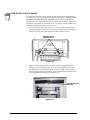
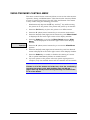
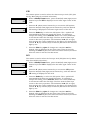
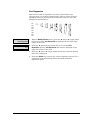
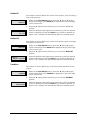
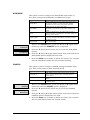
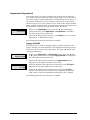
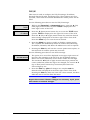
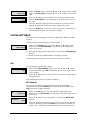
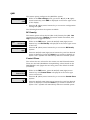
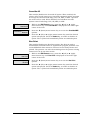
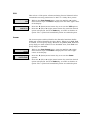
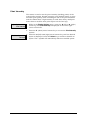
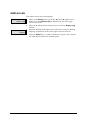
1. While in the I/F Type menu, press the ◄ (left) or ► (right) menu
browse key until Centronics is displayed in the lower right corner
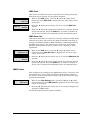
Centronics<
of the LCD.
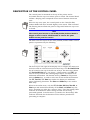
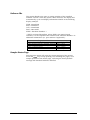
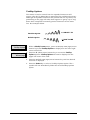
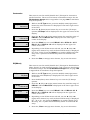
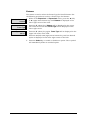
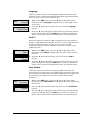
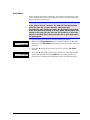
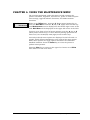
2. Press the ▼ (down) menu browse key to access the I/F Straps
options.) I/F Straps will be displayed in the upper left corner of the
display.
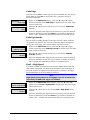
I/F Straps
H Bits 01-32
H Bits 01-32
H Bits 01-32
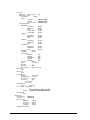
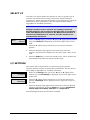
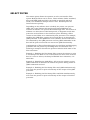
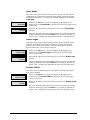
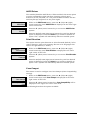
3. Press the ◄ (left) or ► (right) menu browse key until the range of
H Bits 01 – 32 or H Bits 33 - 64 is displayed in the lower right
corner of the display.
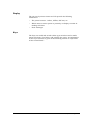
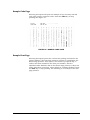
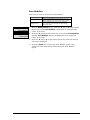
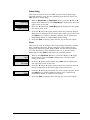
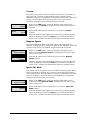
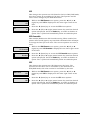
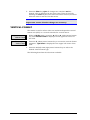
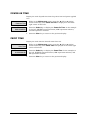
4. Press the Select key to access H Bits 01 –32 or H Bits 33 – 64. H
Bits 01 - 32 or H Bits 33 - 64 will be displayed in the upper left
01
corner of the LCD.
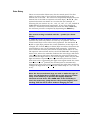
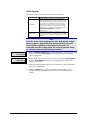
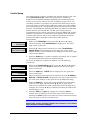
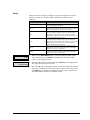
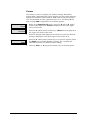
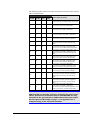
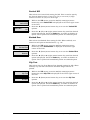
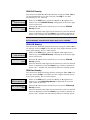
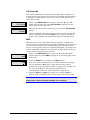
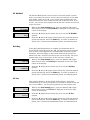
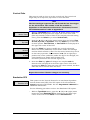
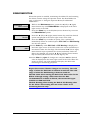
5. Depending on the H Bits menu selected, use the ◄ (left) or ►
(right) menu browse key until the desired H Bit strap is displayed
01<
(01-32 or 33-64.) Press the Select key to enable/disable an H Bit
strap. The < symbol will immediately follow an enabled H Bit
strap.
6. Press the Clear, or ▲ (up) menu browse, key to exit this menu.
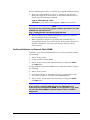
DP(Short)
This menu is used to enable/disable the I/F Straps for DataProducts
(Short Lines) I/O Card (optional interface card.) These are also known
as hardware straps. See the I/F Hardware Straps table on page 182
in Appendix G for hardware strap descriptions.
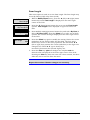
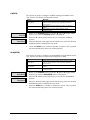
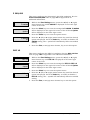
I/F Type
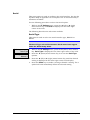
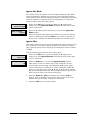
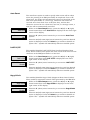
1. While in the I/F Type menu, press the ◄ (left) or ► (right) menu
browse key until DP(Short) is displayed in the lower right corner
DP(Short)
of the LCD.
2. Press the▼ (down) menu browse key to access the I/F Straps
options.
I/F Straps
H Bits 01-32
H Bits 01-32
H Bits 01-32
3. Press the ◄ (left) or ► (right) menu browse key until the range of
H Bits 01 – 32 or H Bits 33-64 is displayed in the lower right corner
of the display.
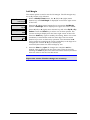
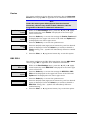
4. Press the Select key to access H Bits 01 – 32 or H Bits 33 – 64. H
Bits 01 - 32 or H Bits 33 - 64 will be displayed in the upper left
01
corner of the LCD.
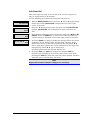
5. Depending on the H Bits menu selected, use the ◄ (left) or ►
(right) menu browse key until the desired H Bit strap is displayed
01<
(01 - 32 or 33 - 64.) Press the Select key to enable/disable an H
Bit strap. The < symbol will immediately follow an enabled H Bit
strap.
6. Press the, Clear or ▲ (up) menu browse, key to exit this menu.
GEK-00028C
83
Chapter 5. Using the Set Up Menu