1
6 Running the Application
Application Execution
At this point, we have made all necessary specifications for this sample
project to run. If this project needs to run in test mode (without connecting to
plant IMS), you should disable the Aspen CIM-IO Interfaces connection. Open
a Data Browser and go to the Setup | Specifications | CIM-IO sheet.
Select the Disable CIM-IO check box.
Close all Data Browsers and all user GUI forms in design mode. Then, follow
the instructions below.
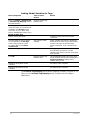
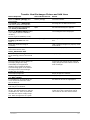
Run Model
Button Sequence
Title of Active Screen
Result
Click View menu |
Control Panel command.
Control Panel
Control Panel is displayed in Aspen OnLine
Client GUI window.
On Status sheet, in
steady-state detection
frame, click Load.
Steady-state detection program is loaded and
some command buttons are enabled.
Click Start in same
frame.
Steady-state detection program starts.
In Aspen OnLine engine
frame, click Load.
Aspen OnLine engine program is loaded.
Click Start in same
frame.
Aspen OnLine engine program starts.
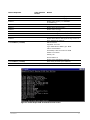
Click Engine tab in
Control Panel.
Note that heatxn1.bkp and heatxn2.bkp run
every 4 minutes alternately. These are
scheduled runs.
Click Run-Time User
GUI tab in Control Panel.
User GUI forms are listed in the list view. These
are run-time forms. The Session option is
Engine watch.
Select Interactive
option.
Now the Session option is Interactive..
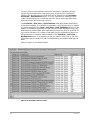
Double-click the Heatx1
form.
Contents
Heatx1 [run]
Displays the run-time Heatx1 GUI.
45