1
TX-8160_mst.book
7 ページ
2015年6月9日 火曜日 午後5時15分
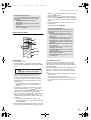
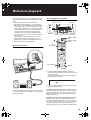
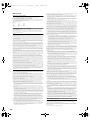
Names and functions of parts
It
De
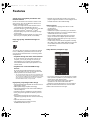
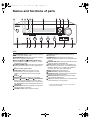
Front
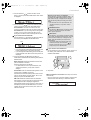
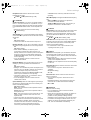
Í ON/STANDBY button: Press this button to turn the
unit on or put it in standby mode.
MENU/MEMORY button: Press this button to display
the menu or register a AM/FM station.
Playback (1)/Pause (;)/TUNING MODE button:
Press this button to playback (*), pause (*), or switch
the AM/FM tuning mode.
HYBRID STANDBY LED: Lights when any of Network
Standby, Bluetooth Wakeup, or Opt1 In Wakeup are
on.
Remote control signal receiver
ZONE 2/OFF button: For use when the unit is
connected with a pre-main amplifier or a power
amplifier in a separate room and sound is played
there.
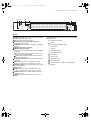
Display (> 8)
SETUP button: Used to display the setup menu.
Direction/4TUNING3/2PRESET1/ENTER button:
Move the cursor and confirms the selection. When
listening to AM/FM broadcasting, tune in to the station
with 4TUNING3 or select the registered station with
2PRESET1.
RETURN button: Returns the display to the previous
state during setting or operation.
VOLUME control: Used to adjust the volume.
PHONES terminal: Connect headphones with a
standard plug.
DIMMER button: Use this button to switch the
display’s brightness between normal, moderately dark
and dark.
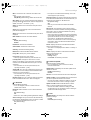
SPEAKER A/B button: Select the terminals to output
audio from between SPEAKERS A/B.
INPUT control: Selects the source to playback.Turn
the control to switch the source in the following order;
BD/DVD#CBL/SAT#PC#GAME#CD#PHONO#
TV/TAPE#AM#FM#NET#BLUETOOTH
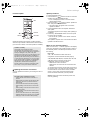
BASS control: Adjusts the bass level.
TREBLE control: Adjusts the treble level.
BALANCE control: Adjusts the audio output balance
between the left and right speakers.
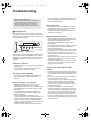
BGM 1/2/3/4 buttons: Preset your favorite Internet
radio or AM/FM radio stations.
USB port: A USB storage device is connected so that
music files stored in it can be played.
* Operate with USB storage device play or the home network
feature (DLNA, Home Media).
7