1
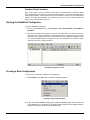
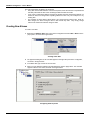
Starting the DataWorX Configuration
Selecting Languages
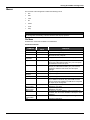
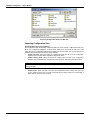
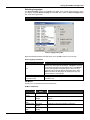
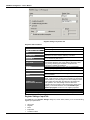
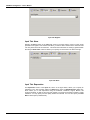
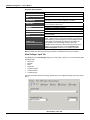
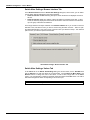
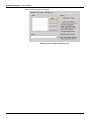
The Select Language function on the View menu allows you to choose which language to use in
your display. Choosing Select Language from the View menu opens the Select Language dialog
box, shown in the figure below.
NOTES
Language resource .dll is required for language switching.
Select Language Dialog Box
Define the parameters listed in the table below. Then click OK to return to the work area.
Select Language Parameters
PARAMETER
List
Installed Locales Only
Available Language
Translations Only
DESCRIPTION
Lists available languages. Depending on which item you have
selected, the view on the left will change. If English is checked,
the languages will appear as their English name. If Localized is
checked, the languages will appear with the native country in
parentheses (for languages with several dialects only). When
Native is checked, the languages are displayed the way they
would be written in that language.
If this is checked, local languages appear in the box.
Checking this box allows you to choose from available language
translations only.
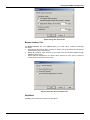
Go Menu
The Go menu commands are listed in the table below.
Go Menu Commands
COMMAND
Up One
Level
Next Item
Previous
Item
Expand Item
Collapse
Item
Page Up
SHORTCUT
KEYS
FUNCTION
Moves the cursor up one level in the tree control.
ALT+Down
Arrow
ALT+Up Arrow
Moves the cursor to the next item down in the tree
control.
Moves the cursor to the next item up in the tree view.
ALT+Left
Arrow
ALT+Right
Arrow
ALT+PgUp
Expands an item that contains a submenu.
Collapses an item that contains a submenu.
Moves the cursor up to the first item in the tree.
1.17