1
MixW RigExpert Tiny
CAT+PTT/CW
Version 1.3
User’s manual
IMPORTANT:
Read this manual carefully before
attempting to use
the MixW RigExpert Tiny device.
Table of contents
Description ................................................................................................ 3
Specifications ............................................................................................ 4
Driver installation guide (Windows XP, Windows 2000) ..................... 5
Driver configuration guide (Windows XP, Windows 2000) ................. 6
Driver installation guide (Windows 98) ................................................. 7
Driver configuration guide (Windows 98) ............................................. 8
Connecting computer and transceiver cables ....................................... 9
Setting up software to operate using MixW RigExpert Tiny .............. 9
Software setup example: MixW 2 .......................................................... 10
Software setup example: MMTTY and DX4WIN ............................... 11
3
MixW RigExpert Tiny
CAT+PTT/CW
USB Soundcard Transceiver
Interface
Developed by the MixW team, the RigExpert
Tiny is a revolutionary new sound card to
transceiver interface.
Combining complete
functionality, simplicity of use, excellent design and
low price, the RigExpert Tiny is perfect for all
digital modes and CW/Phone. Models built for
different transceivers like the Yaesu, Icom,
Kenwood and Ten-Tec are now available.
The RigExpert Tiny interface provides a CAT port (transceiver frequency and mode control using a computer), a
second serial port (PTT push-to-talk and/or CW output), as well as the soundcard-to-transceiver audio interface. The
transceiver and computer connections are made using pre-wired cables for your specific rig. The computer connection uses
the USB port, freeing up your serial (COM) ports for other needs. A separate power supply for the RigExpert Tiny interface is
not needed as it is powered by your USB port. Five LED's on the top panel display the device status, helping set up the
computer software and monitor functions during on-air operation.
The RigExpert Tiny interface is fully compatible with all amateur radio software running under Windows
98/ME/2000/XP/2003. Also supported are the Linux and MAC OS 8/9X operating systems. Software programs like DigiPan,
MixW, MMTTY, MMSSTV, EchoLink, Ham Radio Deluxe, DXBase and CQ-Log just to name a few are fully supported.
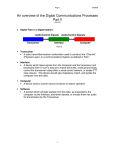
A block diagram of the RigExpert Tiny is shown to the left. The "heart" of
this unique interface is a dual-port USB converter chip. In this diagram, both ports
are set up to operate in serial mode. One of the ports transmits and receives the CAT
system data, while the other port drives the PTT and CW outputs. After the
RigExpert Tiny is connected to the computer and the drivers are installed, two serial
ports of your choosing (i.e. COM8 and COM9) are available for the software.
Two separate serial ports within the USB cable
are just one of the many unique features of the
RigExpert Tiny interface. The simultaneous use of two
separate programs is an important asset to you as seen in
the illustration to the right. One port operates the digital
mode (driving the PTT and CW outputs). The other
port controls your QSO logging software working with
the CAT system. The diagram shows the RigExpert
Tiny using the popular MMTTY and DX4WIN programs.
Two bi-directional voltage dividers are used in the audio signal I/O paths from the
computer to transceiver providing fast and error free audio transfer. All input and output lines are
fed through R/C filters to attain the highest interference and RFI suppression possible. The
computer to transceiver cable length is 2.5m (8'2"). Needless to say, all cables are fully shielded.
For technical questions and purchasing information, please contact
•
•
•
•
•
Victor, UT1UA (e-mail [email protected]) or Denis, UU9JDR (e-mail [email protected]) Ukraine, CIS, Baltic countries
Arkady, RN6AM (e-mail [email protected]) - Russia.
Yuri, VE3DZ (Canada, e-mail [email protected]) - Canada.
Konstantin, M0BDQ (England, e-mail [email protected]) -UK and Europe.
Glenn, W3GWW (USA, e-mail [email protected]) - USA
Our Internet page
http://www.mixw.net/RigExpertTiny/
Specifications
General functions
•
•
•
Transceiver CAT (Computer Aided Transceiver) serial port
Separate serial port with CW (Morse output) and PTT (Push-to-talk) output lines
Sound card audio interface
Computer connection
•
•
•
USB (Universal Serial Bus) connector
3.5 mm audio connectors for sound card input and output
Two or more MixW RigExpert Tiny devices may be connected to a computer simultaneously.
Please see the http://mixw.net/RigExpertTiny/faq.html page for details.
Transceiver connection
•
•
Pre-wired cables with connector to go directly to transceiver sockets, depending on MixW
RigExpert Tiny model
Total cable length (computer to transceiver): 2.5 m
CAT serial port characteristics
•
•
•
Baudrate: 300-115200 baud
Selectable stop bit and parity parameters
Electrical compatibility: RS-232, CI-V, TTL or inverted-TTL, depending on MixW RigExpert
Tiny model
PTT/CW serial port characteristics
•
•
•
PTT output is driven by RTS line
CW output is driven by DTR line
Electrical characteristics: open-collector outputs, max. 50 mA output
Sound card interface
•
1:10 resistor dividers at input and output lines
LED (Light-emitting diode) indicators on the top cover
•
•
•
•
•
“A” – blinks when CAT data is sent from computer to transceiver
“B” - blinks when transceiver replies a CAT command
“PTT” - push-to-talk indicator
“CW” - CW output indicator
“ON” - device power indicator
System requirements
•
•
•
Desktop or laptop Pentium computer with USB 1.1 or USB 2.0 compliant port
Windows 98/ME/2000/XP/2003 operating system
Linux or MAC OS 8/9/X supported (additional drivers required)
4
Driver Installation Guide (Windows XP, Windows 2000)
5
This guide describes Windows XP case. Windows 2000 setup is similar.
1. Insert the supplied disk (if available) into the drive.
5. Click Continue Anyway if you see "The software... has not
passed Windows Logo testing ..." pop-up window.
2. Plug the MixW RigExpert Tiny device into computer USB
port. The ON indicator should light up.
A Found New Hardware (MixW RigExpert Tiny
CAT+PTT/CW) window will pop up on the computer screen.
3. A few seconds later, the Found New Hardware Wizard will
start.
6. In the Completing the Found New Hardware Wizard window,
click Finish.
Select Install from a list or specific location (Advanced) and
click Next to continue.
4. In the next window, check Include this location in the search
and click Browse to browse for the drivers directory, then click
Next to continue.
7. Please repeat steps 4-6 when Windows finds MixW RigExpert
Tiny subdevices.
8. Continue with driver settings (see the next page) when you see
"Your hardware is installed and ready to use" message.
To uninstall the driver (if needed), please go to Control Panel
(Start button - Settings - Control Panel). Click Add or Remove
Programs icon.
Select MixW RigExpert Tiny CAT+PTT/CW Drivers from the list
and click Change/Remove button. It is necessary to unplug the
device during the uninstallation procedure.
Driver Configuration Guide (Windows XP, Windows 2000)
This guide describes Windows XP case. Windows 2000 setup is similar.
1. As a result of successful installation, you will see a
new pair of serial ports in the Device Manager (rightclick My Computer on the desktop, select Manage from
the menu, select Device Manager from the list on the
left side of the window, then open Ports (COM&LPT)
branch on the right).
4. Changing serial port numbers.
The serial port numbers are assigned automatically during driver
installation. If you need to change their values, open Device
Manager, right-click the RigExpert Tiny Serial Port (COMxx),
then select Properties from the menu. In the RigExpert Tiny
Serial Port (COMxx) Properties dialog, activate Port Settings
tab, then click Advanced button.
2. One of these new ports is a CAT port, and the other
one is PTT/CW port. To view the RigExpert Tiny serial
port assignment, please run the RETCOM program from
Start – Programs – RigExpert Tiny – Show RigExpert
Tiny serial ports:
In the newly-open Advanced Settings for COMx dialog, select a
new COM Port Number. (Please take into account that some
software can only work with COM1...COM8 ports, other may be
limited to COM1...COM4.)
3. Please write down these port numbers (from step 2)
on a piece of paper, like in this example:
CAT port: COM3
PTT/CW port: COM4
These numbers will be needed to set up your software.
Please leave all other settings unchanged. Click OK to apply the
new port number settings.
5. Additional settings.
In rare cases, it is required to increase or decrease USB Transfer
sizes in the Advanced Settings for COMx dialog for the PTT/CW
port (see the picture above).
It is only needed if you are experiencing problems with PTT or CW
outputs (for instance, delayed CW output, when “dit-dah” becomes
“dah-dah”). The default settings are OK in most cases.
Please re-plug the MixW RigExpert Tiny device for this change to
take effect.
6
Driver Installation Guide (Windows 98)
1. Insert the supplied disk (if available) into the drive.
7. Click Next when you see the "Windows is now ready to
install…" window.
2. Plug the MixW RigExpert Tiny device into computer USB
port. The ON indicator should light up.
3. A Found New Hardware (MixW RigExpert Tiny
CAT+PTT/CW) window will pop up on the computer screen.
4. A few seconds later, the Add New Hardware Wizard will
start. Click Next to continue.
8. In the ”Windows has finished installing…” window,
click Finish.
5. In the next window, select Search for the best driver for your
device and click Next.
9. Please repeat steps 4-8 when Windows finds MixW
RigExpert Tiny subdevices.
6. Check Specify a location and click Browse to browse for the
drivers directory, then click Next to continue.
10. Now the drivers are installed and are ready to be
configured (see the next page).
To uninstall the driver (if needed), please go to Control
Panel (Start button - Settings - Control Panel). Click
Add/Remove Programs icon.
Select MixW RigExpert Tiny CAT+PTT/CW Drivers from
the list and click Add/Remove button. It is necessary to
unplug the device during the uninstallation procedure.
7
Driver Configuration Guide (Windows 98)
1. As a result of successful installation, you will see a
new pair of serial ports in the Device Manager (rightclick My Computer on the desktop, select Properties
from the menu, then select Device Manager tab in the
System Properties dialog. Open Ports (COM & LPT)
branch in the device tree.)
4. Changing serial port numbers.
`
2. One of these new ports is a CAT port, and the other
one is PTT/CW port. To view the RigExpert Tiny serial
port assignment, please run the RETCOM program from
Start – Programs – RigExpert Tiny – Show RigExpert
Tiny serial ports:
In the newly-open Advanced Settings for COMx dialog, select
a new COM Port Number. Leave other settings unchanged.
The serial port numbers are assigned automatically during
driver installation. If you need to change their values, open
Device Manager, right-click the RigExpert Tiny Serial Port
(COMxx), then select Properties from the menu. In the
RigExpert Tiny Serial Port (COMxx) Properties dialog,
activate Port Settings tab, then click Advanced button.
3. Please write down these port numbers (from step 2)
on a piece of paper, like in this example:
CAT port: COM3
PTT/CW port: COM4
These numbers will be needed to set up your software.
5. Additional settings.
In rare cases, it is required to increase or decrease USB Transfer
sizes in the Advanced Settings for COMx dialog for the PTT/CW
port (see the picture above).
It is only needed if you are experiencing problems with PTT or
CW outputs (for instance, delayed CW output, when “dit-dah”
becomes “dah-dah”). The default settings are OK in most cases.
Please re-plug the MixW RigExpert Tiny device for this change to
take effect.
8
Connecting computer and transceiver cables
•
•
•
Once the drivers are properly installed and configured (see the corresponding guides above),
connect audio cables to your computer sound card. Plug the SPK connector into SPEAKER (or
LINE OUT) socket, and then plug MIC connector into MICROPHONE (or LINE IN) socket of
your sound card.
Turn off transceiver power, then connect remaining cables to the transceiver sockets according to
the cable labels.
Now turn on the transceiver. MixW RigExpert Tiny is ready to operate!
Setting up software to operate using MixW RigExpert Tiny
There are few settings that have to be done (or verified) in the software once the MixW RigExpert Tiny
device is plugged in and the drivers are installed.
(Please see the software setup examples on the following pages.)
CAT system
•
•
•
In the software, select a CAT port to match the MixW RigExpert Tiny Serial Port number
which appears in Device Manager (see the driver installation guide).
Set up baudrate, stop bits and parity parameters according to your transceiver manual.
RTS and DTR behavior is not significant, since MixW RigExpert Tiny does not use these
lines at CAT port.
PTT and CW outputs
•
•
•
•
In the software, select a PTT/CW port to match the MixW RigExpert Tiny Serial Port
number which appears in Device Manager (see the driver installation guide).
Set RST line to match the PTT output.
Set DTR line to match the CW output.
Baudrate, parity and other port settings are not significant.
Audio in/out
•
•
In the sound card software, select a sound card the device is connected to (some programs
can only work with so-called preferred sound card, which is selected via Control Panel, so
there is no such a selection there).
Adjust input and output volume using Windows Volume Control program. This procedure
is well-described in various documents and publications, and is better done when the
whole system is set up.
Important:
Please remember that since CAT and PTT/CW lines are located on two different COM ports, software
should also be set to use separate ports for CAT and PTT/CW outputs.
Also, please make sure the transceiver is set up properly. For Icom transceivers, check the CI-V address
to correspond the software setting. Switch Yaesu transceivers into the PKT mode if your MixW
RigExpert Tiny is plugged into the transceiver PACKET connector.
9
Software setup example: MixW 2
1. Perform audio in/out settings
1a. Go to Configure - Sound device setting menu.
10
2c. Review the additional settings:
PTT via CAT command, CW via CAT
command and CW out via soundcard should
be unchecked, since MixW RigExpert Tiny
provides "hardware" PTT and CW outputs.
AFSK in place of FSK should be checked, as
the device does not have FSK output.
2d. Change other settings according to MixW
manual, if you wish. Then click Details to configure
serial port.
1b. In the Sound Device Settings dialog, select
Computer soundcard as a device, then select Input
and Output. Usually, this will be Preferred
soundcard for both cases.
1c. Change other settings in this dialog according
to MixW 2 manual, if you wish.
2. Set up CAT system
2a. Go to Configure - TRCVR CAT/PTT menu to
open the PTT&CAT dialog.
2e. In the Serial Port dialog, select Port to match the
MixW RigExpert Tiny CAT Port (see the driver
installation guide to find out which port is a CAT
port), then set other parameters according to your
transceiver manual.
3. Set up PTT and CW outputs
3a. Go to Configure - Secondary PTT port - Port
settings menu.
3b. In the Serial port dialog, select Port to match
the MixW RigExpert Tiny PTT/CW Port (see the
driver installation guide to find out which port is a
PTT/CW port).
2b. Select your transceiver type and model.
3c. Uncheck Hardware flow control and select
RTS line as PTT and DTR line as CW. Other
settings have no effect with RigExpert Tiny.
Software setup example: MMTTY and DX4WIN
1. Perform audio in/out settings
1a. In MMTTY, go to Options –
Setup MMTTY menu.
1b. In the Setup MMTTY dialog,
select the Misc tab.
1c. Select the Device ID to match
the sound card the device is
connected to. Normally, this will
be -1 (default sound card).
1d. Select Sound as a Tx Port.
This setting will let MMTTY
transmit RTTY via the sound card.
2. Set up PTT and CW outputs
2a. In the Setup MMTTY dialog,
select the TX tab.
2b. Choose the Port in the PTT
area to match the MixW
RigExpert Tiny PTT/CW Port
(see the driver installation guide
to find out which port is a
PTT/CW port).
2c.
Perform
other
settings
according to the MMTTY manual,
if needed.
3. Set up CAT system
3a. In the DX4WIN software, go to File –
Preferences menu.
3b. In the Setup Parameters dialog, open the Radio
tab.
3c. Select your transceiver Type and parameters
according to the transceiver manual.
3d. Select COM Port to match the MixW
RigExpert Tiny CAT Port (see the driver
installation guide to find out which port is a CAT
port).
3e. Perform other settings according to the
DX4WIN manual, if needed.
11
Official distributors
•
USA & worldwide
Glenn Wetherell
Rig Technologies
61 Krouse Court
Aberdeen, Maryland 21001, USA
e-mail: [email protected]
web: www.rigexpert.com
•
Canada & worldwide
Yuri Onipko
Rig Expert Canada
66 Cavell Ave.
Toronto, ON, M8V 1P2, Canada
e-mail: [email protected]
web: www.rigexpert.net
•
UK, Europe & worldwide
Konstantine Kisselev
KMK UK Limited, England
e-mail: [email protected]
web: www.mixw.co.uk
•
Germany, Austria & Switzerland
Rudolf Piehler
e-mail: [email protected]
web: www.rigexpert.de
•
Russia & CIS
Arkady Grikurov
e-mail: [email protected]
•
Ukraine, CIS & Baltic countries
Victor Tkachenko
e-mail: [email protected]
web: ut1ua.narod.ru