1
Camera
Connectivity
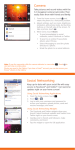
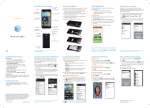
Take a Picture
1From the home screen, tap
Camera .
2Touch Shutter
to take the picture.
To adjust settings, tap the screen to
activate the setting options menu.
–P
hotos will automatically be saved
in Menu
> Gallery .
Send a Picture
1After the picture has been taken,
tap Share .
2Select your option to send the picture
and follow the on-screen prompts.
3To post immediately to social
networks, select
or .
Text Messaging
Email
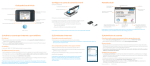
Connect a Bluetooth Headset
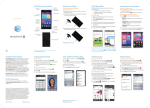
Send a Text Message
Set Up Email
1 From the home screen, tap Menu .
2Tap Settings > Wireless & networks >
Bluetooth settings.
3 Tap Bluetooth to activate.
4 Tap Scan for devices.
5Tap an available device, then tap
Pair to connect.
1Tap Messaging
from the home screen
or applications menu.
2 Tap New Message.
3Type in the telephone number or tap to
access the address book. Then tap the
contact name you wish to select, and Done.
4Tap Type to compose, and use the
keyboard to enter your message. Tap Send.
1From the home screen, tap Email
.
2Enter the email address and password of
the account you would like to set up and
tap Next.
3Enter the account and name as it will appear
on outgoing messages, then tap Done.
®
Connect to Wi-Fi
®
1 From the home screen, tap Menu .
2Tap Settings > Wireless & networks >
Wi-Fi settings.
3Tap Wi-Fi to activate the signal.
4Tap a network, enter the password if the
network is secured, then tap Connect.
Insert a Picture or Video
1While composing a message, press
Menu .
2 Tap Attach > Picture or Video.
3Tap an album and then the picture or video
in that album to attach it.
4 Tap Send.
Send Email
1 From the home screen, tap Email
.
2 Tap Compose Mail.
3Enter the email address or tap to access
the address book. Then tap the contact
name you wish to select and tap Done.
4Then tap the Subject field to enter a subject
and Compose Mail to enter email text.
5When complete, tap Send.
Note: To capture video, slide the mode switch
(in the top right corner) to Camcorder.
Note: Refer to documentation included with
your Bluetooth device for information on
pairing mode and password.
Please don’t text and drive.
Pay-per-use charges apply unless you have a
messaging plan.
Note: For Exchange ActiveSync®, contact your
IT administrator to help set up your corporate
Microsoft Exchange account. If you set up
a Gmail account, it will sync with your other
Google services like calendar and albums.
AT&T Services
Apps
Social Networking
Internet
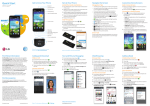
Access Android™ Market
Access Social Networking Apps
Access the Internet
1From the home screen, tap Market
.
2Use your existing Google™ account or create
one following the steps on the screen.
1From the home screen, tap .
2Scroll to the Facebook or Twitter app and
tap the application to open. If not logged in
already, set up your account or log in to your
existing account.
3Once logged in, you can access or share
updates, view and upload photos, send
and receive messages, and more.
1From the home screen, tap Web .
2Scroll up and down the screen to navigate
and tap links to open them. Double-tap on
the screen to zoom in; double-tap again
to zoom out.
3 To visit another Web site, tap Search ,
enter the Web site address, and tap .
Amazon Kindle™� Read Kindle books,
magazines, and newspapers right from
your mobile phone.
A
T&T U-verse® Live TV� Watch live,
on-demand & downloadable TV content
including ESPN Mobile TV, Fox News, and
more.
A
T&T Code Scanner� Scan barcodes you
find in magazines, in stores, and online
and see video clips, get coupons, or learn
more about your favorite products and
services!
AT&T NavigatorSM� Get voice-guided,
turn-by-turn driving directions and traffic
updates right on your phone!
Y
P®� Find restaurants, bars, businesses,
and more, whether around the corner or
across the nation.
Navigate Android Market
• From the marketplace, you will have multiple
options to select and search for apps and
games.
– Tap Apps to access apps by category.
– Tap Games to access games by category.
– Tap AT&T to access games and apps that
can be directly billed to your AT&T account.
• Tap to search the marketplace for a
specific game or app.
• Once installed, you will see a notification in
the Notification Bar. Open the app from this
notification or by tapping
and locating
the app.
Use Social Networking Widgets
• Widgets allow you to see information such
as tweets or status updates right on your
home screen without opening the full
application. From these widgets you can:
– Tweet or update your status.
– View news feed, tweets, or mentions.
– Open the full app.
Qik Lite: Video chat, record great
moments as they happen, and share your
videos with your friends.
M
ovies� Download and watch movies right
on your phone.
Note: For more AT&T apps, visit the AT&T tab
in Android Market.
AT&T U-verse Live TV requires mobile broadband
service and is not available in all areas. Data usage
and subscription charges may apply.
Note: A Google Checkout payment method is
required to purchase apps.
Note: This phone is preloaded with Facebook®
and Twitter® apps. Other apps are available for
download in Android Market.
Note: Tap Menu to view options such
as add a bookmark, open a new browser
window, and more.
Data charges may apply for Internet access.