1
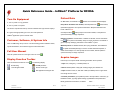
Quick Reference Guide – InfiMed i5 Platform for RF/DSA
5. Activate generator to acquire and save image(s) for current acquisition profile
7. Display thumbnails of acquired images along bottom of screen):
or work item.
6. Review and adjust image, if desired.
Export & Import Patient Data
See below.
1. Export to network: From Patient List window click
7. Repeat steps 4 - 6 until the study is complete.
patient open, click
8. Close patient.
to send to network.
2. Select Patient(s) or Study(ies) to export to network from new Network window.
3. Options: Process image
Review Images
Click on Review tab
. Or on Main Menu with
- Embed annotations
- Copy
- Anonymize
to examine patient’s images.
1. Images displayed: The three icons below Review Tab show display options:
(a) one image, (b) four images, (c) sixteen images. With multiple images on
screen, click or select target image; use Ctrl-click to select multiple images. Use
arrow icons above Review Tab to cycle.
1. Export to media (CD or DVD): From Patient List window click
Menu with patient open, click
. Or on Main
to export to media.
2. Select Patient(s) or Study(ies) to export to media from new Media window.
3. Options: Process image
Verify media
- Embed annotations
- Anonymize
- Erase existing content
2. Drag & drop selected image(s) to reference monitor
1. Print: Start with images from selected Study and Patient visible on screen.
3. Calibrate and enter measurement length or angle
2. Click Review Tab
4. Select which image will act as mask for DSA images
or for DSA /
3. From the Review Menu, select Printer
Roadmap images. Apply landmarking / re-registration tools.
5. Measure stenosis with Quantitative Coronary Analysis (QCA) tool
4. Add / remove image frames to be printed.
for DSA
5. Print selected frames.
images.
1. Import from CD or DVD: Open the patient list
6. Image modification:
Edge enhancement
Reverse polarity
Mark / unmark image for deletion
3. Put disc with patient data into drive.
[Slider] Adjust AIO Average Goal
4. On new Media Import window, select Patient and import Patient, import all
Zoom & pan (click-drag to pan)
Adjust brightness/contrast
Revert to acquired image
Adjust image shutters manually
Key image note
Add annotation or pointer
721-003-G1
Source Doc: 721-001-G1
2. On new Patient List window, click on Import Patient
Rev. A
patients, or select Study and import Study.
Page 2 of 2
ECN 4974, Software version 1.1.3721.33329
Date: 3/16/2010
-