1
Encompass LE
User Manual
Online Control Center
Single Site Login
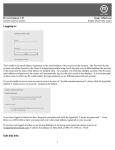
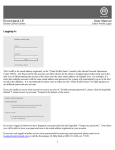
Logging in:
The UserID is the email address registered, or the serial number of the receiver at the location. The Password for the
account was either chosen by the owner/manager or assigned upon initial setup and is the only way of differentiating if
the client uses the same email address on multiple sites. I.e.: If a client has multiple accounts with the same email
address and password the system will automatically login to the first record in the database. It is recommended in these
cases to either use the serial number for login purposes or use different passwords per account.
If you are unable to access your account or receive an error of “invalid username/password“ please click the hyperlink
labeled “I cannot access my account” located at the bottom.
If you have logged in before but have forgotten your password click the hyperlink “I forgot my password.” From there
you will be able to have your password emailed to the email address registered on your account.
If you have not logged in before or are having difficulty in retrieving your password please email us at:
[email protected] or call the Encompass LE Help Desk at 800-331-3340 Ext: 75120.
1
Edit Site Info:
This screen allows you to update your information. Upon first signing into a new account you may notice x’s or invalid
information. This is used as a placeholder upon initial setup and we encourage you to update your site information so
we can better address any issues you have in the future.
Now Playing:
You will notice on the right side a “What’s Playing Now” link. Clicking on this link will direct you to the What’s
Playing Now page. From here you can select music programs and see the name and artist of what is currently playing.
This feature will also show the previous 10 songs that have played on that program. This feature is available for all
Muzak programs excluding Environmental.
2
Click the “Main” link located at the top left of the screen to return to the Main Menu.
NOTE: Navigation links can be found throughout the system. These are helpful for jumping back to the previous page
or menus within the system. The Help link is located in the top right corner, this gives you access to a dynamic help
document that will assist you throughout the system.
Click the “Continue to Receiver Settings page” on the Main Menu to begin the process of programming your
Encompass LE Receiver.
Modify Zones & Receivers
On this page you will see all of the zones at this location. A zone refers to areas of unique programming within the
same physical location. For every unique area of service within a site a different zone is needed.
Zones: (Local Site Only)
Zone names are limited to 16 characters and should describe the area the music is affecting (I.e.: Dining, Lobby, OnHold, Etc.).
If you have more than one zone and wish to change a particular zone, click “edit” beside the zone you wish to modify.
3
Modifying an entire site, all zones; including everything in use (checked), can be done by simply clicking the submit
button located at the bottom of the page.
Changing a single service within a zone can be accomplished by clicking “edit” beside the check box under the
appropriate column (i.e.: for simple program changes, click “edit” beside the check box located in the Program Select
column).
Important Note: A check mark only signifies that a section is being actively used. Do NOT uncheck options prior to
making a selection. This action will delete the data within that option. If the check mark is present on the Program
Select column and the check mark is removed, the receiver on that zone will revert back to an unauthorized status,
display AUTHORIZE VIA WEB OR NOC and the audio will begin changing between several programs every 30
seconds. In this case, the receiver will need to be reprogrammed.
4
Program Selection
Program Selection refers to the music programs available by using the program select buttons on the front of the
receiver. This selection can be made in by either clicking the check boxes beside the individual programs or by using
the “Select All Programs” button to check all the program boxes on the page. It will also check at the “Authorized
for All” check box which will automatically authorize any new additional program that Muzak adds to the Encompass
LE experience.
Hovering the mouse over the programs will reveal a popup box displaying the program description, energy level, target
audience/lifestyle and some examples of the Muzak Audio Architects skill in advising if the program you are viewing
fits your business. The programs are grouped under 15 different Genres of music styles to help you in making your
programming decisions.
5
The “Holiday” Genre contains two music programs. When these are not in use they display the Muzak program
number and “OFFAIR” (see image below). If selected within the control system they will be available on the receiver;
however between Holiday music broadcasts no music is transmitted on these programs. Selecting these and keeping
them active on the zone saves time and prevents you from having to re-enter the control system during every holiday
season. It is recommended if you wish to have holiday music during the year to have these selected. Holiday programs
include: Mardi Gras, Valentines Day, St. Patrick’s Day, Cinco De Mayo, Summer Fun, Independence Day,
Oktoberfest, Halloween, Veterans Day, Thanksgiving, Traditional Christmas and Secular Holiday.
Daypart Schedule
Daypart Scheduling or “Dayparting” allows you to program your receiver to change music (or mute and unmute your
music) at specific times of the day or have different music on different days of the week. It can also be used to start or
end a program on a specific date (such as pre-programming your music for a Holiday program). As a reminder ALL
receivers should remain powered on at all times, since Muzak’s receivers must be on to receive daypart commands.
Please note: All times in the control system are in Eastern Standard Time (EST) – please account for any
difference in your time zones when working with dayparting.
6
If you need your music to turn off and back on at specific times of the day, you can use the Daypart Schedule to
program a zone to Mute and Unmute. In the following example this receiver would mute audio each day of the week
at 9pm EDT. At 7am the following morning, the receiver will again play music.
Mute mode note: If the receiver is muted for any reason, the front display will read “MUTED BY NOC” and the
output will be silenced.
WARNING: If MUTE is used, don’t forget to set an UNMUTE for the time you wish the music to return.
If you would like to allow your site to be able to select between all the programs during some periods of the day use of
the “Authorize all ON/OFF” function will allow access to all programs by using the up/down buttons located on the
front of the Encompass LE receiver. Authorize all ON/OFF allows all available programs to be enabled on the receiver
during the specified ON period. This is useful if you have your site setup for one program during your business hours
but wish to have all programs available to you after hours. NOTE: Please remember to write a daypart to change the
music selection to your normal business hours program.
In the example below, the site determined that they would give their night crew access to all programs starting at
9:30pm. Then at 6am the programs would once again be restricted to the sites standard programming (City Lights)..
7
Special Holiday Dayparting:
Special attention needs to be paid to dayparting Holiday music for an extended period of time. The first daypart is set
to change to the Holiday program of your choice. Make sure that you check the day of the week to match the Start and
End Date that you desire your holiday program to start. Since the command only needs to be sent once to take your
receiver to the Holiday program, you only need to send these commands one time. Once on the holiday program, the
receiver will remain on this program until you send another daypart at the end of the holiday season to return to your
existing program. To accomplish this, create a dayparting command to return to the program at the end of the holiday
season, again only sending the command one day using the same start and end dates.
The following is an example of a simplified non-secular holiday setup. The dayparting to start the Holiday
programming is set to begin at 5:30am EST on 12/1/08. The start date for resuming the City Lights program is set to
begin 1/1/08 at 5:45am EST. The start & end date are the same because this only needs to send the dayparting
command once.
To have your daypart play until the start of the holiday season and return to your existing program you will need to add
an end date on the last day you want your existing dayparts to be scheduled. Create a daypart to start your holiday
program on the day and date you want to start with your holiday music. Then recreate the existing daypart with a Start
date to coincide with the day and date that you want to resume your existing daypart after the Holiday season.
When programming a receiver that has multiple programs selected on the Program Select screen it is often desirable to
have the Holiday daypart every day of the Holiday season as seen in the example below. Since the site can change the
program on the receiver this allows the site to start the day on the selected holiday program while still giving the site
the ability to select other programs if they choose.
8
A complete listing of the holiday programs and dates each program is available on our website at: www.muzak.com.
Please note these dates are sometimes changed prior to air but are a good representation of when special music
programs become available.
Are You Sure?
This page will present you with the information on each zone. Double check everything is correct, pay close attention
to the Zone name, if multiple zones exist and the “submit” button was used to edit you will need to confirm all zones.
Selecting the “Submit Changes” button will send the command to update the programming to the receiver, sometimes
referred to as a “refresh”. If the changes are incorrect select the “Return to Main” button, keep in mind any changes
that were just entered will be lost.
Please note, for more in-depth assistance, the Encompass LE Help Desk is available at 1-800-331-3340 Ext 75120.
9