1
Notes
f Setting the energy–saving mode
easily
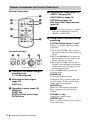
ECO MODE key
Energy-saving mode can be set easily.
Energy-saving mode consists of “Lamp
Mode,” “With No Input,” “With Static
Signal” and “Standby Mode.”
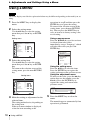
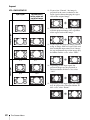
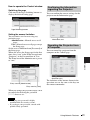
1 Press the ECO MODE key to display
the ECO Mode menu.
ECO Mode
ECO
User
:Sel
RETURN
Overview
*1: Use this key when inputting a
computer signal. But it may not be
used depending on the resolution of
the input signal.
*2: Use this key when inputting a
computer signal.You cannot use this
key when “Type A USB”, “Type B
USB” or “Network” is selected as the
input.
5 Press the V/v key to select the setting
value.
6 Press the ENTER key.
The screen returns to the User screen.
For details on ECO Mode settings, see
“Lamp Mode,” “Constant Brightness,”
“With No Input,” “With Static Signal”
and “Standby Mode” on the Connection/
Power menu (page 26).
Others
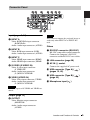
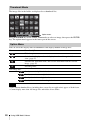
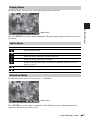
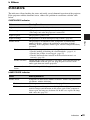
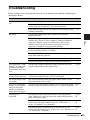
g Infrared transmitter
About remote commander operation
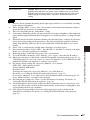
• Direct the remote commander toward the
remote control detector.
• The shorter the distance between the
remote commander and the projector is,
the wider the angle within which the
remote commander can control the
projector becomes.
• Make sure that nothing obstructs the
infrared beam between the remote
commander and the remote control
detector on the projector.
:Back
2 Press the V/v key or ECO MODE key
to select “ECO” or “User” mode.
ECO: Sets each mode to the optimum
energy-saving value.
Lamp Mode: Low
With No Input: Standby
With Static Signal: Lamp
Dimming
Standby Mode: Low
User: Sets each item of the ECO
Mode menu as you desire (go to
step 3).
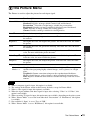
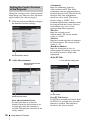
3 Select “User” then press the b key.
The setting items appear.
User
Lamp Mode
High
Constant Brightness
Auto Power Saving
ON
With No Input
With Static Signal
Standby Mode
Off
Lamp Dimming
Standard
:Sel
:Set
RETURN
:Back
4 Press the V/v key to select the item
then press the ENTER key.
Location and Function of Controls
7