1
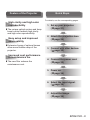
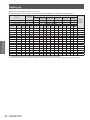
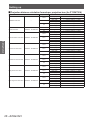
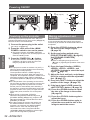
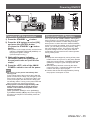
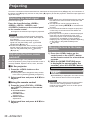
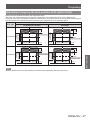
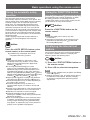
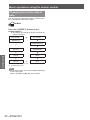
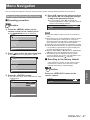
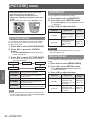
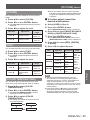
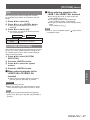
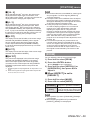
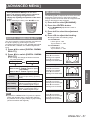
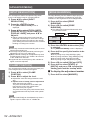
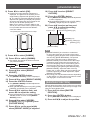
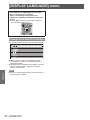
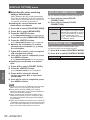
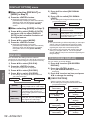
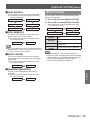
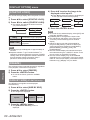
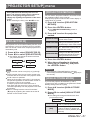
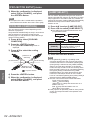
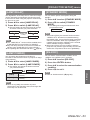
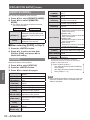
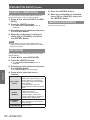
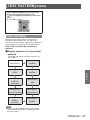
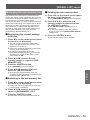
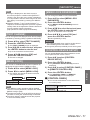
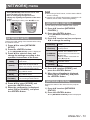
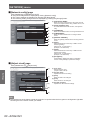
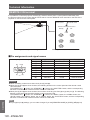
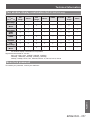
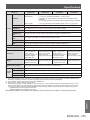
[DISPLAY OPTION] menu [STARTUP LOGO] You can set the logo display when the power is turned on. 4) Press ▲▼ to select the image to be displayed on the input B. z Press ▲▼ to select the image to be displayed at the right side of the screen (Input B). 1) Press ▲▼ to select [STARTUP LOGO]. [VIDEO] [S-VIDEO] [RGB1] z The setting will change as follows each time you press the button. [OFF] [DVI-D] [RGB2] 2) Press ◀▶ to switch [STARTUP LOGO]. [DEFAULT LOGO] [NONE] [USER LOGO] [DEFAULT LOGO] [NONE] The Panasonic logo is projected. No startup logo is projected. The picture registered by the user [USER LOGO] is projected. Note z The startup logo will disappear in approximately 15 seconds. z Separate software“Logo Transfer Software”is required to create and register the pictures of [USER LOGO]. Refer to the application software download from the website support information (http:// panasonic.net/avc/projector/software/). [FREEZE] The projected image is paused temporarily regardless of the playback of the external equipment. 1) Press ▲▼ to select [FREEZE]. Settings 2) Press the <ENTER> button. z To cancel the freeze, press the <MENU> button. [SIDE BY SIDE] (PT-DW730U only) Two different input signals can be displayed simultaneously. 1) Press ▲▼ to select [SIDE BY SIDE]. 2) Press the <ENTER> button. z Two images are displayed. Input A Input A 3) Press the <MENU> button. Input B z The [SUB INPUT SELECT] screen is displayed. 60 - ENGLISH 5) Press the <ENTER> button. Note z To cancel the two window display, select [OFF] and press the <ENTER> button. z [FREEZE] will be set against the input A side. z The adjustment and setting of the menu items cannot be performed during the two window display. z Values for the input A side will be applied for the [PICTURE] settings. (Values for both input A and input B will be applied for [CONTRAST], [BRIGHTNESS], [COLOR], [TINT], and [SHARPNESS].) z The two window display will maintain the aspect ratio selected using the <ASPECT> button on the remote control or the [ASPECT] setting. z The two window display may not be available depending on the combination of the input signals. Refer to “Two window display combination list (PTDW730U only)” ( page 101) for details.