1
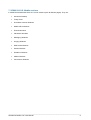
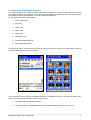
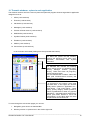
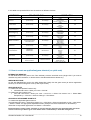
In this table are reported all links into the sections of different windows:
WINDOWS
STANDARD BAR
Left Buttons
Right Button
Office
(move arrows)
File manager
E-Books
(move arrows)
File manager
Calculation
(move arrows)
File manager
Messaging
(move arrows)
File manager
Imaging
(move arrows)
File manager
Communicorder P900 (or
Communicam P800)
Sound Recorder
File manager
Games
(move arrows)
Emulator button / File
manager
Emulators
FileManager
FileSearchPro
Games button
Utilities
(move arrows)
File manager
Opera browser
Netfront browser
SE default browser
Multi-media
Connections
AZURE AREA
Small Buttons
Install
Control Panel
Viewer (or PDF+ on P910)
Install
Control Panel
eBook
eBook Maker
Install
Control Panel
Calculator
Install
Control Panel
New SMS
Install
Control Panel
New SMS
Install
Control Panel
Music Player
Video Player
Solitarie / Install
Chess(P900/P910) / Control
Panel
Install
Control Panel
Escumm
Goboy
Frodo
Install
Control Panel
Stacker
Sync Remote
SIM Info
GPRS Data Log
Link to: Usb, Irda, BT
Directory tree
Yes
Yes
Yes
Yes
Yes
No
Yes
No
Yes
No
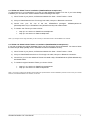
11. How to create an application/game shortcut (or quick note)
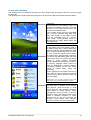
INTERACTIVE DESKTOP
On the Multi-function Bar (next to the Time indicator) click the small left arrow (single click if you want to
visualize only add note button, or double click to visualize add shortcut button too).
WINDOW SECTIONS
On the Sub-Standard Bar (next to the white Status Bar Label) click the green arrow (to add an application
shortcut) or the sheet with green arrow (to add a quick note).
ADD QUICK NOTE
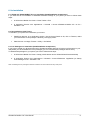
To create new note (default Tracker icon):
• click add note button > Write your note > Click OK
To create new note (custom icon):
• click add note button > Write your note > Click Icon > Select Use custom icon > Select Make
Transparency > Click OK > Select 01.Note.gif > Click Select
ADD APPLICATION/GAME SHORTCUT
To create new application/game shortcut:
click add shortcut button > Select Use custom icon > Click Next > Select an Application to link > Click Select
> Select in Folder: the appropriate alphabetical folder (example choose 6.PQR folder for QuickWord) >
Select the correspondent Application Icon Name > Click Select
Important: Before closing Tracker, remember to save the changes otherwise your application/game shoutcuts
will lost. To do this you have to go to: main Tracker menu > Click Desktop > Click Save changes now.
________________________________________________________________________________
XPX00/910 Mobile O.S. User Manual
13