1
m
Microsoft
®
Digital Image 2006
Suite Edition
Complete photo editing and organisation made easy
User’s
Manual
Microsoft
®
Digital Image Suite
®
User’s Manual
Information in this document, including URL and other Internet Web site references, is subject to change without notice. Unless otherwise
noted, the example companies, organisations, products, domain names, e-mail addresses, logos, people, places, and events depicted herein
are fictitious, and no association with any real company, organisation, product, domain name, e-mail address, logo, person, place, or event
is intended or should be inferred. Complying with all applicable copyright laws is the responsibility of the user. Without limiting the rights
under copyright, no part of this document may be reproduced, stored in or introduced into a retrieval system, or transmitted in any form or
by any means (electronic, mechanical, photocopying, recording, or otherwise), or for any purpose, without the express written permission
of Microsoft Corporation.
Microsoft may have patents, patent applications, trademarks, copyrights, or other intellectual property rights covering subject matter in this
document. Except as expressly provided in any written license agreement from Microsoft, the furnishing of this document does not give
you any license to these patents, trademarks, copyrights, or other intellectual property.
© 2005 Microsoft Corporation. All rights reserved.
Microsoft, Picture It!, and Windows are either registered trademarks or trademarks of Microsoft Corporation in the United States and/or
other countries.
This product contains images from PhotoDisc/Getty Images, Inc.; Dave Johnson, Tony Chor; Tim Hedlund; Charlotte Lowrie; David
Parlin; Tom Simmons; and Faith Szafranski.
This software is based in part on the work of the independent JPEG Group.
GIF decompression code, copyright 1990, David Koblas.
Portions of graphic filter software used with the permission of Eastman Kodak Company. Copyright © 1996 Eastman Kodak Company.
ImageStream Graphics & Presentation Filters Copyright © 1991-1996 ImageMark Software Labs, Inc. All Rights Reserved.
Graphic filters licensed from Access Softek, Inc. Copyright © 1996 Access Softek, Inc.
This product contains Macromedia Flash™ Player software by Macromedia, Inc., Copyright © 1996-2002 Macromedia, Inc. All rights
reserved. Macromedia, Flash, and the Flash Player logo are trademarks of Macromedia, Inc.
Portions of this product were created using LEADTOOLS Copyright© 1991-2002, LEAD Technologies, Inc. All rights reserved.
© 2000 Gina B. Designs, Inc., © Adjoa J. Burrowes/EthnoGraphics, © Alice Briggs Illustration, © Allport Editions, © Amberley Greeting
Card Company, © Antoinette Simmons Hodges/EthnoGraphics, © Athena Hampton/EthnoGraphics, © Betty Biggs/EthnoGraphics,
© Bonnie Zuponcic, © Carla Golembe/EthnoGraphics, © Cathy L. Schubert/EthnoGraphics. © Colors By Design, © Emma Raley, ©
Fish & Webster, © Fravessi Greetings, Inc., © Gary Craig, © Georgia Rettmer and Kimberly Rinehart, © Great Arrow Graphics, ©
Jay P. Morgan, © Jeanine M. Frazier/EthnoGraphics, © Jesus & Margaret Flores/EthnoGraphics, © Jim Z. Zhang/EthnoGraphics, ©
Joann Pecoraro/EthnoGraphics, © Joseph Polevoi/EthnoGraphics, © Karen Gutowsky, © Kay Erickson/EthnoGraphics, © Keith Henry
Brown/EthnoGraphics, © Kersti Wells, © Kiki Oberstenfeld de Suarez, © KOKO New York, © Kristin Elliott, © Kristin Nelson Tinker/
EthnoGraphics, © Larry LaBonte© Laura Schuman © Leeann Lidz/EthnoGraphics, © Linda G. Fisher/EthnoGraphics, © linneadesign.
com, © Lisa R. Foster/EthnoGraphics, © Liz Kahlenberg Bordow, © Lorie L. Clark/EthnoGraphics, © Madison Park Greetings, © MARAMI, © Marian Heath Greeting Cards, © Maril Delly/EthnoGraphics, © Marisela Godoy/EthnoGraphics, © Mark Downey/EthnoGraphics,
© ME GRAPHICS, © Northern Exposure, © NRN Designs Corporation, © Painted Hearts & Friends, © Palm Press, Inc., © Paula Doherty
2001, Advocate-Art © Penny Laine Papers, © Pinx A Card Co., Inc., © Rebecca Pavlenko, © Red Farm Studio, © Roobee, © Sally Martin
do Gastelum/EthnoGraphics, © Sandi Carpenter/EthnoGraphics, © Sara Schneidman, © Snafu Designs, © Socially Yours, © Steve
Haskamp, © Steve Katz, © Suzanne Tornquist/EthnoGraphics, © Xiaoxing Yu/EthnoGraphics, Bottman Design, Inc. © Chris RobertsAntieau, Bottman Design, Inc. © Paris Bottman, Fan Mail Greeting Card Co © Dona Rozanski, LARKSPUR GRAPHICS © Andie
Thrams, Off Ramp(TM), Silk Spiral Designs © G.B., Steve Lovi © 2000, TWENTY-FOUR CARROT, INC. ® © Jennifer Blomgren, ©
Andrea Beloff, © Dorothy Strait, © Carmel Bartz.
The names of actual companies and products mentioned herein may be the trademarks of their respective owners.
0505 Part No. X11-18612 EN
Contents at a Glance
Chapter 1: Installation ............................................................................ 1
Chapter 2: Welcome to Microsoft Digital Image Suite ...................... 7
Chapter 3: Opening and Importing Pictures ......................................11
Chapter 4: Microsoft Digital Image Suite Editor Basics ...................23
Chapter 5: Basic Touch-up ...................................................................37
Chapter 6: Advanced Picture Editing ..................................................51
Chapter 7: Batch Editing in the Mini Lab ...........................................77
Chapter 8: Adding Edges, Mats, and Frames ....................................83
Chapter 9: Creating Projects ................................................................87
Chapter 10: Saving and Printing Pictures ..........................................93
Chapter 11: Organising and Finding Pictures in
Microsoft Digital Image Library .................................. 105
Chapter 12: Taking Great Pictures ................................................... 123
Chapter 13: Successful Scanning .................................................... 163
Chapter 14: Optimising Your Monitor for Pictures ..........................173
Chapter 15: The Best of Tips & Tricks ............................................ 181
Index ..................................................................................................... 273
Table of Contents
Chapter 1: Installation .................................................................................................................................... 1
Starting Setup ............................................................................................................................................. 3
Completing the Installation Wizard ........................................................................................................... 4
Installation Folder Dialog Box ............................................................................................................ 4
Installation Options Dialog Box ......................................................................................................... 4
Special Circumstances ............................................................................................................................... 5
Upgrading from a Different Microsoft Digital Image Product .......................................................... 5
Reinstalling or Removing Microsoft Digital Image ........................................................................... 6
Chapter 2: Welcome to Microsoft Digital Image Suite................................................................................ 7
What You’ll Find in This Book .................................................................................................................. 9
Other Helpful Resources ............................................................................................................................ 9
Chapter 3: Opening and Importing Pictures ............................................................................................... 11
Importing Pictures...................................................................................................................................... 13
Launching the Import Pictures Wizard automatically ....................................................................... 13
Starting the Import Pictures Wizard manually................................................................................... 14
Opening Pictures for Editing ..................................................................................................................... 14
Using the file browser.......................................................................................................................... 14
Opening pictures from other cameras ................................................................................................ 17
Troubleshooting tips for opening pictures from a camera.................................................................. 18
Opening pictures from a scanner ........................................................................................................ 18
Opening a Photo Sent Through E-mail ...................................................................................................... 20
Opening a Picture from a Web Page .......................................................................................................... 21
Chapter 4: Microsoft Digital Image Suite Editor Basics ............................................................................ 23
Start-up Window ........................................................................................................................................ 25
Examining the Work Area.......................................................................................................................... 27
Image Formatting ....................................................................................................................................... 29
Changing picture size.......................................................................................................................... 29
Applying Text ............................................................................................................................................. 31
Help Resources ........................................................................................................................................... 32
Online Help ......................................................................................................................................... 32
Using the table of contents .................................................................................................................. 33
Using the index .................................................................................................................................... 33
Using the search .................................................................................................................................. 34
Product Tour ........................................................................................................................................ 34
Demonstration Videos......................................................................................................................... 35
Technical Support................................................................................................................................ 35
Chapter 5: Basic Touch-up ............................................................................................................................. 37
Adjusting Exposure and Lighting .............................................................................................................. 39
Correcting a Colour Cast............................................................................................................................ 40
Fixing Red Eye ........................................................................................................................................... 41
Straightening a Picture ............................................................................................................................... 42
Cropping ..................................................................................................................................................... 43
Using the rule of thirds ....................................................................................................................... 43
Using Smart Erase ...................................................................................................................................... 45
Removing Spots and Blemishes ................................................................................................................. 46
Removing Wrinkles.................................................................................................................................... 47
Adding Flash .............................................................................................................................................. 48
Reducing Backlighting ............................................................................................................................... 49
Chapter 6: Advanced Picture Editing ........................................................................................................... 51
Understanding Objects ............................................................................................................................... 53
Working with Composites ................................................................................................................... 53
Locked Objects .................................................................................................................................... 54
Selecting Objects with the Object Tool ............................................................................................... 55
Multiple Selection, Grouping, andFlattening Objects ............................................................................... 56
Multiple Selection ............................................................................................................................... 56
Grouping Objects ................................................................................................................................ 57
Flattening Objects ............................................................................................................................... 58
Automatic Flattening .......................................................................................................................... 58
Flattening Objects During Saving ...................................................................................................... 58
Using Selection Tools ................................................................................................................................. 59
The Marquee Tool ............................................................................................................................... 60
The Freehand Tool............................................................................................................................... 61
The Edge Finder .................................................................................................................................. 62
The Magic Wand ................................................................................................................................. 63
The Selection Brush ............................................................................................................................ 64
Editing and Copying Selected Areas ......................................................................................................... 65
Copying, Cutting, and Pasting Selections .......................................................................................... 65
Filters .......................................................................................................................................................... 66
Colour Effects ............................................................................................................................................ 67
Paint Effects ............................................................................................................................................... 68
Clone Brush ................................................................................................................................................ 70
Blending Brush ........................................................................................................................................... 71
Distortion Brush ......................................................................................................................................... 72
Using the Levels and Curves Tool ............................................................................................................. 73
Chapter 7: Batch Editing in the Mini Lab .................................................................................................. 77
Chapter 8: Adding Edges, Mats, and Frames .............................................................................................. 83
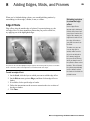
Edge Effects................................................................................................................................................ 85
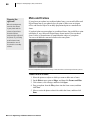
Mats and Frames ........................................................................................................................................ 86
Chapter 9: Creating Projects ......................................................................................................................... 87
Creating Photo Cards ................................................................................................................................. 89
Creating Calendars ..................................................................................................................................... 91
Chapter 10: Saving and Printing Pictures .................................................................................................... 93
Saving Pictures ........................................................................................................................................... 95
Saving Multiple Versions .................................................................................................................... 95
Choosing a File Format .............................................................................................................................. 96
Setting PNG Plus Options ................................................................................................................... 97
Saving for E-mail and the Web .................................................................................................................. 98
Printing Pictures ......................................................................................................................................... 99
Printing Single Pictures ...................................................................................................................... 99
Printing Multiple Pictures ................................................................................................................... 100
Selecting Print Quality ........................................................................................................................ 101
Selecting a Print Size .......................................................................................................................... 101
Choosing Photo Paper ......................................................................................................................... 102
Creating Long-lasting Prints ............................................................................................................... 102
Ordering Prints ........................................................................................................................................... 103
Chapter 11: Organising and Finding Pictures in Microsoft Digital Image Library ............................... 105
Opening Microsoft Digital Image Library................................................................................................. 107
Adding Pictures and Videos toMicrosoft Digital Image Library .............................................................. 108
Scanning for Pictures and Videos ....................................................................................................... 109
Adding Labels ............................................................................................................................................ 110
Finding Your Pictures................................................................................................................................. 112
Viewing by Label ................................................................................................................................ 112
Viewing by Folder ............................................................................................................................... 113
Viewing by Date .................................................................................................................................. 113
Using the Thumbnail Slider ................................................................................................................ 114
Showing Thumbnail Data........................................................................................................................... 115
Tiles View............................................................................................................................................ 115
Thumbnails View ................................................................................................................................ 115
Thumbnails with Text View ................................................................................................................ 115
Grouping Your Pictures.............................................................................................................................. 116
Showing the Table of Contents ........................................................................................................... 116
Using the Preview Pane .............................................................................................................................. 117
Burning Pictures to Disc ............................................................................................................................ 118
Archiving Pictures and Videos .................................................................................................................. 119
Editing and File Management from DigitalImage Library........................................................................ 120
Editing Pictures ................................................................................................................................... 120
Editing in Mini Lab............................................................................................................................. 121
Chapter 12: Taking Great Pictures ............................................................................................................... 123
About Digital Cameras ............................................................................................................................... 126
Photo Quality ...................................................................................................................................... 126
File Formats ......................................................................................................................................... 130
Using Zoom Features .......................................................................................................................... 131
Memory Cards, Disks, and Sticks ....................................................................................................... 132
Battery Life ......................................................................................................................................... 133
Using the Flash ........................................................................................................................................... 134
Automatic Flash .................................................................................................................................. 134
Red-Eye Reduction Flash .................................................................................................................... 135
Fill Flash .............................................................................................................................................. 136
Using Your Camera’s Manual Settings ...................................................................................................... 137
Exposure .............................................................................................................................................. 137
Exposure Compensation ..................................................................................................................... 139
Aperture .............................................................................................................................................. 140
Shutter Speed ..................................................................................................................................... 142
ISO Setting or Equivalent ................................................................................................................... 144
Setting the White Balance .................................................................................................................. 145
Using Automatic Modes on Your Camera ................................................................................................ 146
Macro Mode ........................................................................................................................................ 147
Action Mode ....................................................................................................................................... 148
Burst Mode .......................................................................................................................................... 150
Portrait Mode....................................................................................................................................... 151
Panoramic Mode ................................................................................................................................. 152
Using the Self-Timer................................................................................................................................... 153
Getting Yourself into a Picture ........................................................................................................... 153
Taking Long Exposure Shots .............................................................................................................. 153
Ten Tips for Great Pictures ........................................................................................................................ 154
1. Know Your Gear.............................................................................................................................. 154
2. Perfect Exposures ............................................................................................................................ 155
3. Capture a Moment in the Story ....................................................................................................... 156
4. Look for the Light ........................................................................................................................... 157
5. Follow the Rule of Thirds................................................................................................................ 158
6. Find a Unique Perspective............................................................................................................... 159
7. Bracket ............................................................................................................................................. 160
8. Analyse and Try Again ................................................................................................................... 161
9. Take Pictures Every Day ................................................................................................................. 161
10. Show Your Pictures to Other People ............................................................................................. 162
Chapter 13: Successful Scanning ................................................................................................................... 163
Types of Scanners....................................................................................................................................... 165
Flatbed Scanners ................................................................................................................................. 165
Film Scanners ...................................................................................................................................... 166
Preparing Pictures for Scanning ................................................................................................................ 167
Setting Resolution and Bit Depth ............................................................................................................... 168
Scanning Large Pictures ............................................................................................................................ 169
Five Tips for Buying the Right Scanner ..................................................................................................... 170
1. Get the Best Resolution You Can .................................................................................................... 170
2. Look for USB Connections ............................................................................................................. 170
3. Check the Dynamic Range .............................................................................................................. 170
4. Scan by the Batch ............................................................................................................................ 171
5. Be Realistic About Scanning Speed ............................................................................................... 171
Five Tips for Successful Scanning ............................................................................................................. 172
1. Keep Your Scanner and Originals Clean ........................................................................................ 172
2. Preview and Correct the Scan ......................................................................................................... 172
3. Scan at a High Resolution .............................................................................................................. 172
4. Choose the TIFF Format ................................................................................................................. 172
5. Convert Large TIFF Files to JPEG ................................................................................................. 172
Chapter 14: Optimising Your Monitor for Pictures .................................................................................... 173
Setting Screen Resolution .......................................................................................................................... 175
Setting Monitor Colour Quality ................................................................................................................. 176
Calibrating for Brightness, Contrast, ......................................................................................................... 178
and RGB Values.......................................................................................................................................... 178
Controlling Ambient Light ......................................................................................................................... 179
Chapter 15: The Best of Tips & Tricks ......................................................................................................... 181
How Photo Savvy Are You? ....................................................................................................................... 184
What Makes a Photo Good? ....................................................................................................................... 198
Weekend Photo Ideas.................................................................................................................................. 212
Six Easy Ways to Improve Your Photography ........................................................................................... 217
Six Digital Photo Problems ........................................................................................................................ 224
Winter Camera Care Tips ........................................................................................................................... 232
Tips for Online Auction Photos.................................................................................................................. 234
The Fast Track To Better Photos ................................................................................................................ 240
Photo Ops in the Most Unusual Places ...................................................................................................... 246
Fall Photos: Sharpen Your Eye for Colour and Composition .................................................................... 251
Digital Image Editing 101 .......................................................................................................................... 259
Index .................................................................................................................................................................. 273
C HAP TE R
Installation
1
1
Installation
3
Starting Setup
To install Microsoft Digital Image 2006 Suite Edition, you must be running
Windows 98, Windows Millennium Edition, Windows 2000, or Windows XP
or later. On Windows 2000 and Windows XP systems, you must have
administrative privileges. For information regarding privileges, please refer to
the operating system Help.
On most computers, Microsoft Digital Image setup will begin automatically
when you insert the Microsoft Digital Image CD into your disk drive.
To begin automatic setup:
1. Turn off any antivirus software that you’re using, and close any programs
that are running.
2. Insert the Microsoft Digital Image CD into your disk drive. The
Installation Wizard begins automatically.
If the above procedure does not start the setup process, you can start it manually.
To begin setup manually:
1. Turn off any antivirus software that you’re using, and close any programs
that are running.
2. Insert the Microsoft Digital Image CD into your disk drive.
3. Click Start, and then click Run.
4. If your CD-ROM drive is listed as letter D, type d:\setup.exe.
If your CD-ROM drive has a letter other than D, replace D with the
correct letter when you type the path.
5. Click OK.
The Installation Wizard begins.
Microsoft® Digital Image 2006 Suite Edition User’s Manual
4
Chapter 1: Installation
Completing the Installation Wizard
The Installation Wizard will show you a series of dialog boxes that provide
setup status and some installation preference options. For most users, the
default preferences will be appropriate. Information about the different setup
options is provided below.
Installation Folder Dialog Box
The Installation Folder dialog box allows you to choose where the program will
be installed on your computer. To install the program to a folder other than the
folder in the Installation folder box, do one of the following:
• Type a different path in the Installation Folder box.
• Click Change, select a folder in the Change Installation Folder dialog
box, and then click OK.
Note that some files will be installed to the Program Files drive even if you
choose to install the program to a different drive.
Installation Options Dialog Box
The Installation Options dialog box allows you to choose between Typical
installation and Full installation.
• Typical installation takes up less space on your hard drive, and is
recommended for most users. With Typical installation, you will have
to insert the Microsoft Digital Image CD in your CD-ROM drive to use
some of the projects and clip art while you are using the program.
• Full installation copies all of the Microsoft Digital Image projects and
clip art to your hard drive, so you will not have to reinsert a Microsoft
Digital Image CD while you are using the program. Look under
Description for the disk space required for this option.
Microsoft® Digital Image 2006 Suite Edition User’s Manual
Chapter 1: Installation
5
Special Circumstances
Upgrading from a Different Microsoft Digital Image Product
If you already have a Microsoft Digital Image product installed on your
machine, any one of several situations may occur when you try to install
another Microsoft Digital Image product:
• Previous versions If you have a Microsoft Digital Image product
previous to the 2006 edition already installed, installing a 2006 product
will make both programs available on your computer.
• Upgrade from another 2006 product You can install a Microsoft Digital
Image 2006 product that has more features than a 2006 product already
installed. The version of Microsoft Digital Image with fewer features
will be uninstalled automatically before the new installation begins.
Your pictures and projects will not be deleted.
• Blocked downgrade If you have a Microsoft Digital Image 2006 product
installed, you will not be able to automatically install a 2006 product with
fewer features. To install the version with fewer features, you must first
uninstall the version with more features.
Microsoft® Digital Image 2006 Suite Edition User’s Manual
6
Chapter 1: Installation
Reinstalling or Removing Microsoft Digital Image
If you are having problems running Microsoft Digital Image, reinstalling the
program may help it to run better on your computer.
You should not attempt to remove Microsoft Digital Image by deleting the
program files from your hard disk. Instead, use the Microsoft Digital Image
Installation Wizard to properly uninstall the program.
To remove or reinstall Microsoft Digital Image on Windows XP:
1.
2.
3.
4.
Log on to the computer as an administrator.
From the Windows Start menu, click Control Panel.
Click Add or remove programs.
From the list of installed programs, click the version of Microsoft Digital
Image you want to remove or reinstall.
5. Click Change/Remove.
The Installation Wizard opens.
6. Follow the instructions on the screen.
To remove or reinstall Microsoft Digital Image from Windows 98,
Windows 2000, or Windows Millennium Edition:
1. From the Windows Start menu, point to Settings, and then click
Control Panel.
2. Click Add/Remove Programs.
3. From the list of installed programs, click the version of Microsoft Digital
Image you want to remove or reinstall.
4. Click Add/Remove.
The Installation Wizard opens.
5. Follow the instructions on the screen.
Microsoft® Digital Image 2006 Suite Edition User’s Manual
C HAP TE R
Welcome to Microsoft
Digital Image Suite
2
2
Welcome to
Microsoft Digital Image Suite
9
Congratulations on your purchase of Microsoft Digital Image Suite. The suite
is composed of two programs: Microsoft Digital Image Suite Editor and
Microsoft Digital Image Suite Library.
Microsoft Digital Image Suite Editor provides a unique combination of robust
photo-editing tools and professional-quality photo projects. While easy to use,
Microsoft Digital Image Suite Editor offers powerful imaging technology that
puts you in control of editing and enhancing your photos. It provides advanced
editing features such as selection tools, Smart Erase, and the blending brush to
help you get professional editing results quickly and easily. When you’ve finished
editing your photos, it’s a simple process to automatically stitch together a
panorama from multiple pictures, create prints, or share your photos through email or a mobile device like a smartphone or PDA. You can even use your photos
in one of the professionally designed templates for letterhead, business cards,
Web photo albums, and more.
Microsoft Digital Image Suite Library is a powerful tool for organising, finding,
and viewing your pictures. You can use the program to locate your pictures using
folders or by browsing labels, flags, and ratings. You can view your pictures with
the Library’s full-screen slideshow viewer and even copy pictures to CD.
What You’ll Find in This Book
The Microsoft Digital Image Suite User’s Manual introduces you to some
important features in Microsoft Digital Image Suite: how to get images into
the program, edit images, add effects and borders, create projects, and print.
This book also provides an overview of some of the most important concepts of
digital imaging. You’ll find practical information about using digital cameras and
scanners, and optimising your monitor to work with photos.
The final section of this book offers a selection of articles on digital photography
with plenty of sound advice from professional photographers.
Other Helpful Resources
This User’s Manual is not an exhaustive resource for everything you can do
in Microsoft Digital Image Suite. For step-by-step instructions about all of the
program’s features and projects, check out the online Help system, available
from the Start-up Window or the Help menu. Or, for a demonstration of some
of Microsoft Digital Image Suite’s key features, watch one of the Demonstration
Videos.
Digital photography is exciting and fun, and Microsoft Digital Image Suite makes
it easy to get professional results. We’re confident that Microsoft Digital Image
Suite will be an enjoyable part of your digital-imaging experience.
Microsoft® Digital Image 2006 Suite Edition User’s Manual
C HAP TE R
Opening and
Importing Pictures
3
3
Opening and Importing Pictures
13
Microsoft Digital Image makes it easy to import and open your pictures
quickly. To import pictures from your camera or removable media to your
computer, use the Import Pictures Wizard. This wizard is designed to
streamline the file transfer process, allowing you to name the picture files and
destination folder. To open pictures for editing, use the file browser. The file
browser displays thumbnails of all your pictures, so you can quickly choose the
ones you want.
Importing Pictures
The Import Pictures Wizard is a convenient way to transfer pictures and video
clips from your digital camera, scanner, flash memory card, or some other
storage location to your computer.
Launching the Import Pictures Wizard automatically
Windows Millennium Edition and Windows XP can automatically detect
compatible cameras and other photo media such as photo CDs. This detection
should occur when you:
•
•
•
•
Connect a compatible camera to the computer and turn on the camera.
Connect a compatible scanner to the computer and turn on the scanner.
Connect a compatible card reader to the computer and insert media.
Insert a photo CD, DVD, or other storage media into a drive on the
computer.
This automatic detection feature is only available on computers running
Windows Millennium Edition or Windows XP.
To set Windows to launch the Import Pictures Wizard automatically:
1. Connect your compatible camera, scanner, or other device to the
computer, and then turn on the camera or device.
- or Insert the removable media into a drive or card slot on the computer.
2. When Windows detects the picture files, Windows will ask you what you
want to do with the pictures.
3. Click Import pictures to my computer using Microsoft Digital Image
Import Wizard.
4. Select the Always do the selected action check box.
5. Click OK.
6. Click the device you want to use, and then click OK.
Microsoft® Digital Image 2006 Suite Edition User’s Manual
14
Chapter 3: Opening and Importing Pictures
Starting the Import Pictures Wizard manually
If Windows does not automatically detect your device or other media, you can
start the Import Pictures Wizard manually.
To start the Import Pictures Wizard manually:
1. Start Microsoft Digital Image.
2. On the File menu, click Import Pictures.
3. Click the device you want to use, and then click OK.
- or –
1. Start Microsoft Digital Image Suite Library.
2. On the File menu, click Import Pictures and Videos.
3. Click the device you want to use, and then click OK.
Opening Pictures for Editing
With Microsoft Digital Image, you can open pictures for editing from a variety
of sources, including your computer, storage media, and most cameras and
scanners.
Using the file browser
You can use the file browser to locate your pictures and open them for editing.
The file browser can be used to open pictures from a large number of locations,
including the following:
• The hard drive on a computer.
• An external hard drive.
• A digital camera that is a USB Mass Storage Class device. (A USB Mass
Storage Class device works as a “virtual drive,” letting you browse and
open photos from the device as you would from a hard disk or floppy
disk.) Although you can open pictures from a camera in this way, you will
probably prefer to use the Import Pictures feature.
• A card reader.
• A USB drive.
• A photo CD or DVD.
• A floppy disk.
• A network location.
Microsoft® Digital Image 2006 Suite Edition User’s Manual
Chapter 3: Opening and Importing Pictures
15
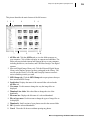
This picture identifies the main features of the file browser:
�
�
�
�
�
�
�
�
�
�� ��
1. All Files tab Click the All Files tab to view the folder structure on
your computer. Click a folder to display its contents and subfolders. The
folder structure includes internal and external drives on your computer,
including disk drives, card readers, and USB Mass Storage Class digital
cameras.
2. Microsoft Digital Image Library tab Click the Microsoft Digital Image
Library tab to find any picture you have catalogued in the Library. You
can also use the Library’s View By and Group By features to make it
easier to find the pictures you want.
3. MSN Groups tab Click the MSN Groups tab to open pictures that you
have stored on MSN Groups.
4. Look in box Displays the name of the current folder selected on the
All Files tab.
5. View menu Use this menu to change the way the image files are
displayed.
6. Thumbnail size slider Move the slider to change the size of the
thumbnails.
7. File name box Displays the file name of a selected thumbnail.
8. Files of type menu Use this menu to change the types of image files to
be displayed.
9. Thumbnails Small versions of your photos stored in the current folder.
10. OK Opens the selected thumbnails.
11. Cancel Closes the file browser without opening any photos.
Microsoft® Digital Image 2006 Suite Edition User’s Manual
16
Chapter 3: Opening and Importing Pictures
File formats
compatible
with Microsoft
Digital Image
Microsoft Digital Image
can open photo files
in any of the following
formats:
• Adobe Photoshop
(.psd)
• Enhanced Metafile
(.emf)
• EPS (.eps)
• FlashPix (.fpx)
To open pictures with the file browser:
1. If opening pictures from a USB Mass Storage Class camera, read your
camera’s documentation and make sure that you have installed the
camera’s software and drivers properly. Make sure your camera is turned
on and connected to your computer.
2. On the File menu, click Open.
3. Click the All Files tab.
4. In the Look in list, click the drive, folder, or network location that
contains the picture you want to open.
5. In the folder list, locate and open the folder or location that contains
the pictures.
Thumbnails of pictures in that folder appear in the right pane.
6. Select the picture you want to open. To select multiple pictures,
press CTRL as you click the thumbnails.
7. Click OK.
• GIF (.gif)
• Home Publishing
(.php)
• JPEG (.jpg)
• Kodak Photo CD
(.pcd)
• PC Paintbrush (.pcx)
• Picture It! (.png, .php,
.mix, .fpx)
• PNG (.png)
• RAW (.crw, .cr2, .tif)
• TIFF (.tif)
• Targa (.tga)
• Windows Bitmap
(.bmp)
• Windows Metafile
(.wmf)
Microsoft® Digital Image 2006 Suite Edition User’s Manual
Chapter 3: Opening and Importing Pictures
Opening pictures from other cameras
If your camera does not show up as a drive in the file browser, it is probably
designed to work using TWAIN or WIA support. For many cameras, Microsoft
Digital Image works with TWAIN and WIA and your camera’s software so that
you can open photos directly into Microsoft Digital Image.
To open photos from a camera that uses WIA support:
1. Make sure that you have installed all the drivers that came with your
camera.
2. Connect your digital camera to your computer, and then turn on the
camera.
3. On the File menu, click Import Pictures.
4. If more than one device appears in the dialog box, click the one that
represents your camera.
5. Click the pictures you want to import. If you want to import more than
one picture, press CRTL as you click the pictures.
6. Click Next.
7. The pictures are copied to the My Pictures folder on your hard drive.
17
Using your camera’s
software
Some digital cameras—
especially older models—
may not function as a
virtual drive or be TWAIN
or WIA compliant. For
these cameras, use the
software provided by
the camera to download
the photos to a folder
on your computer. Then
open them with the file
browser.
Microsoft® Digital Image 2006 Suite Edition User’s Manual
18
Chapter 3: Opening and Importing Pictures
About TWAIN
and WIA
TWAIN is interface
software that allows
communication
between a camera and
your computer. Many
digital cameras come
with a TWAIN driver.
WIA is a newer interface
that works similarly
to TWAIN, but often
provides more control
over the device. WIA is
compatible with TWAIN,
but is only available
on some computer
operating systems.
Troubleshooting tips for opening pictures from a camera
• Your camera must be connected and turned on before you start the digital
camera task, or it will not appear in the list of cameras and drives.
• If you’ve connected your digital camera to your computer, but can’t
see your pictures, make sure the connections are secure, the camera is
turned on, and the batteries are charged. The camera might not start
downloading if its batteries are low on charge. Some cameras are
equipped with an A/C adapter that you can use instead of batteries.
• If your camera does not appear in the list of cameras and drives, or if you
receive an error message when you click Download, start your camera
software from the operating system Start menu.
• For more information about downloading photos using the software
included with your camera, consult your camera’s manual.
Opening pictures from a scanner
Microsoft Digital Image supports two types of scanner formats: TWAIN and
WIA. If your scanner doesn’t use a TWAIN or WIA interface, you need to use
the software designed specifically for the make and model of your scanner.
Many scanner manufacturers provide free updates to their drivers on the Web.
To connect your scanner
1.
2.
3.
4.
Install the software that came with your scanner.
Turn off your scanner and computer.
Attach the connector cable from your scanner to your computer.
Turn on your scanner and computer.
Once the scanner is connected and recognised by your computer, you’re ready
to scan.
Microsoft® Digital Image 2006 Suite Edition User’s Manual
Chapter 3: Opening and Importing Pictures
19
To scan a photo with a flatbed TWAIN or WIA scanner:
1.
2.
3.
4.
Connect your scanner to your computer, and then turn on the scanner.
Place your picture on the scanner.
On the File menu, click Import Pictures.
If more than one device appears in the dialog box, click the one that
represents your scanner.
5. Depending upon the type of scanner you have, you will either see the
Scan Picture pane or the Import Pictures Wizard.
If you see the Scan Picture pane:
1. Select your scanner from the list.
2. Choose the Automatic Scan option from Click a scanning method.
3. Click Scan.
If you see the Import Pictures Wizard:
1. If you want to immediately open the scanned picture for editing, click
Open the picture for editing.
2. Click Next.
3. Select a place on your hard drive where the scanned picture will be stored
and specify a file format. The default JPEG format is usually an excellent
choice for scanned pictures.
4. Select a scanning method. Most of the time, you should choose
Automatic Scan to get a high quality, colour picture.
5. Click Next.
Microsoft® Digital Image 2006 Suite Edition User’s Manual
20
Chapter 3: Opening and Importing Pictures
Can this photo
be printed?
To find out if a photo
has enough resolution
to print, see the
“Selecting a Print Size”
section of the “Saving
and Printing Pictures”
chapter.
Opening a Photo Sent Through E-mail
Many friends and family members enjoy sending photos through e-mail.
When you receive photos through e-mail, you can save them to your computer
and then work on them with Microsoft Digital Image.
Many photos sent through e-mail are low-resolution photos, which are not
suitable for large prints. But low-resolution photos may be fine for online
viewing or printing at small sizes.
To open a photo sent through e-mail:
Use your e-mail program to save the photo to a folder on your computer.
Save the photo to a folder that will be easy for you to locate later, such as
the My Pictures folder.
1.
2.
3.
4.
In Microsoft Digital Image, click Open on the File menu.
The File Browser dialog box opens.
Click the All Files tab.
On the All Files tab, browse to the folder containing the photo, and then
click the folder.
5. Select the photo, and then click Open.
Microsoft® Digital Image 2006 Suite Edition User’s Manual
Chapter 3: Opening and Importing Pictures
Opening a Picture from a Web Page
When you surf the Internet, you may come across pictures that you would
like to use in your projects. Unless the Web site uses image protection, you
can capture these images and use them for your own projects. Keep in mind,
though, that even unprotected pictures may still have a copyright and you
should have the permission of the Web site owner before saving and using
pictures you find. Also, Web pictures are usually low resolution, so they may
not be suitable for printing. But you could still use the images in a project to be
viewed online.
To open a photo from a Web page:
21
Watch for
copyrights
Pictures you see
on the Web may be
copyrighted, so be
sure to read the site’s
legal information or get
permission from the
site’s owner before you
use an image.
1. Make sure that both Microsoft Digital Image and your Web browser are
open and running on your computer.
A button for each program appears in the taskbar at the edge of
your screen.
2. On the taskbar, click the button for your Web browser program.
3. In your Web browser, locate the Web page that contains the picture
you want.
4. Right-click the picture, and then click Copy.
5. On the taskbar, click the button for Microsoft Digital Image.
6. On the Microsoft Digital Image File menu, click New.
7. Select a canvas size, and then click Done.
A blank canvas opens in the workspace.
8. On the Microsoft Digital Image Edit menu, click Paste.
The new picture appears on the canvas.
Once the photo is opened in Microsoft Digital Image, you can edit it as you
would any other photo and save it to your computer.
Microsoft® Digital Image 2006 Suite Edition User’s Manual
C HAP TE R
Microsoft
Digital Image Suite
Editor Basics
4
4
Microsoft Digital Image Suite
Editor Basics
25
This chapter covers some of the fundamental aspects of Microsoft Digital
Image Suite Editor that you’ll need to get started. You’ll find information on the
Start-up Window, the work area, basic image manipulation, applying text, and
Help resources.
Start-up Window
The Start-up Window is a quick launching point to your pictures, Mini Lab,
projects, the Library, recently opened files, and Help.
By default, the Start-up Window opens every time you start Microsoft Digital
Image. After closing the Start-up Window, you can open it at any time from the
main work area by clicking the Start-up Window button in the Common Tasks
list. This diagram points out the main features of the Start-up Window.
�
�
�
�
�
�
�
�
� ��
1. Open Click this button to open the file browser, where you can open
photos from your hard drive, a network drive, a digital photo card reader,
a CD or DVD, or a floppy disk.
2. Import Pictures Click this button to import one or more pictures from a
digital camera, scanner, or other external storage device.
3. Microsoft Digital Image Suite Library Click this button to open the
Library, where you can find and organise your pictures.
4. Edit Multiple Pictures Click this button to open the Mini Lab. The Mini
Lab helps you perform routine editing tasks—such as rotating, resizing,
or adjusting colours—on multiple pictures at the same time.
Microsoft® Digital Image 2006 Suite Edition User’s Manual
26
Chapter 4: Microsoft Digital Image Suite Editor Basics
5. Create a Project Click this button to pick a project design. You’ll find
a variety of projects—such as calendars, greeting cards, and album
pages—designed to work with your photos. Projects are organised by
type and by theme.
6. Show on start-up check box Select this check box to have the Start-up
Window open every time you start Microsoft Digital Image.
7. Help links Click these links to go directly to resources that can help you
get the most out of Microsoft Digital Image and digital imaging.
• Take a Tour launches the product Tour.
• Demonstration Videos displays links to the different videos available.
• How to… displays a collection of image-editing lessons.
• Online Photo Tips links you directly to the digital photography
section of the MSN Photos Web site.
• Register Online links you to the registration page of the Microsoft
Web site.
8. Recent Files See thumbnails of the last four pictures that you have edited.
Click on one of the thumbnails to open that file.
9. More Files Click this button to open the file browser, where you can
open pictures from your hard drive, a network drive, a digital photo card
reader, a CD or DVD, or a floppy disk.
10. Close Click this button to close the Start-up Window and go to the main
work area.
Microsoft® Digital Image 2006 Suite Edition User’s Manual
Chapter 4: Microsoft Digital Image Suite Editor Basics
27
Examining the Work Area
Most of the picture-editing tasks you perform in Microsoft Digital Image will
be in the main work area. When you open Microsoft Digital Image and close
the Start-up Window, you see the main work area. The picture below identifies
the key elements of the Microsoft Digital Image work area.
� �
�
�
�
�
�
�
�
��
1. Menus
Menus provide access to all of the Microsoft Digital Image features.
The Help menu gives you access to the Help window, the Demonstration
Videos, and the Microsoft Digital Image Tour.
2. Toolbar
The toolbar contains shortcut buttons for single-click access to some of
the most common commands. To see the name of a toolbar button, hover
the mouse pointer over the button.
3. Workspace Toolbar
This toolbar contains buttons for the Common Tasks list, Stack, and Files
palette. You can create more room in the workspace by hiding any of
these tools.
4. Common Tasks list
The Common Tasks list is an easy way to locate features. This list
provides convenient access to some of the most common tasks, as well
as single-click access to the Mini Lab, project selector, and the Start-up
Window. All of the features found in the Common Tasks list—as well as
additional features—are also available in the menus.
Microsoft® Digital Image 2006 Suite Edition User’s Manual
28
Chapter 4: Microsoft Digital Image Suite Editor Basics
5. Workspace
The grey area represents the workspace, the area that the canvas sits
within. You can use the zoom controls to magnify or reduce the canvas
so that it covers more or less of the workspace.
6. Selection Tools
The selection tools allow you to isolate and work on a specific part
of the picture.
7. The canvas
The white area is called the canvas, and it represents the printable area
of the page. When you open a picture, the canvas is often not visible
since it is covered entirely by the picture. You can use the zoom controls
to magnify or reduce the canvas so that it covers more or less of the
workspace.
8. Zoom controls
The zoom controls magnify or reduce your photo so that you can see it in
more or less detail.
9. Stack
The Stack displays a thumbnail of each object in your picture. You can
rearrange the order of the objects by dragging thumbnails up or down
within the Stack.
10. Files palette
The Files palette displays a thumbnail of all of the currently open
pictures. You can switch your active picture by clicking a thumbnail in
the Files palette. You can also add a picture to the one you’re working on
by dragging the thumbnail from the Files palette to the canvas.
Microsoft® Digital Image 2006 Suite Edition User’s Manual
Chapter 4: Microsoft Digital Image Suite Editor Basics
29
Image Formatting
When you have a picture open on the canvas, there are a number of ways to
re-size or re-orient it.
Changing picture size
When you open an image onto the canvas, the on-screen representation of
the image is automatically sized so that it fills the workspace. As a result, a
high resolution image, such as 1600 x 1200 pixels, will appear on-screen just
the same size as a low resolution image that’s only 640 x 480 pixels. For this
reason, viewing a picture on the canvas is not a reliable way of judging an
image’s actual resolution.
Whenever you resize an image, consider these three factors:
• Image size, which is the size of the printed image.
• Pixel dimensions, which is how many coloured dots (pixels) make up
the picture.
• Resolution, which is the density of the pixels in the picture.
The image size is the product of the pixel dimensions multiplied by the
resolution. For example, if you have a picture made of 1200 x 1800 pixels and
print it at a resolution of 300 pixels per inch, it will print at a size of 4” x 6”.
Given this relationship, if you change one of the three settings, one of the other
settings will also have to change to keep the relationship equal. If you enlarged
the picture in the previous example from 4” x 6” to 8” x 12”—and you kept the
pixel dimensions the same—then the resolution would decrease from 300 pixels
per inch to 150 pixels per inch.
When you resize a picture, it is generally not a good idea to try to increase
or decrease the pixel dimensions since this reduces image quality. In most
cases, it’s not necessary to adjust the image size, since that can be handled
automatically during printing. For high-quality prints, it’s generally good to
keep the picture’s resolution at least 300 pixels per inch. But depending on
you printer model and the image quality you desire, you may be satisfied with
prints at only 150 pixels per inch. For Web use, 72 pixels per inch is usually
considered sufficient.
Microsoft® Digital Image 2006 Suite Edition User’s Manual
30
Chapter 4: Microsoft Digital Image Suite Editor Basics
To resize a picture:
1. On the Format menu, click Resize Image.
2. Click one of the following to lock the setting:
• Image size
• Pixel dimensions
• Resolution
3. Enter amounts for the settings you want to change.
4. Click Done.
Microsoft® Digital Image 2006 Suite Edition User’s Manual
Chapter 4: Microsoft Digital Image Suite Editor Basics
31
Applying Text
You can add text to any picture and easily change the text font, font colour, font
size, alignment, and emphasis. You start by adding a text box, and then you edit
the text in the box. A text box is its own layer on the Stack.
To add text:
1. On the Text menu, click Insert Text.
A text box appears.
2. Type your text. As you add text, the text box will automatically expand
vertically to fit all of your text.
3. To change the width of the text box, select the text box and drag one of
the side resize handles.
4. To move the text box, select it, hover the mouse pointer over the edge
of the text box until the move handle appears, and then drag the move
handle.
Once you’ve added the text, you can select the text to edit it. You can also select
the text and use the toolbar buttons to change formatting. When text is selected,
the following tools are available on the toolbar for formatting:
• The Font menu
lets you choose between 140 different
fonts.
• The Font Size menu
lets you choose font sizes from 8 to 620 points.
• The Font Colour button lets you choose from a standard palette of
colours or choose a custom colour.
• The Bold button adds bold formatting to the text.
• The Italic button adds italic formatting to the text.
• The Underline button underlines the text.
• The Alignment button has menu choices for Left, Right, Centre, and
Justify.
• The Bullets and Numbers button lets you apply or cancel formatting
for bulleted or numbered lists.
Microsoft® Digital Image 2006 Suite Edition User’s Manual
32
Chapter 4: Microsoft Digital Image Suite Editor Basics
Accessing Help
from the keyboard
You can access the
online Help system at
any time by pressing F1
on the keyboard.
Help Resources
There are multiple ways that you can learn more about using Microsoft Digital
Image. In addition to this User’s Manual, there is the online Help system, the
product Tour, and Demonstration Videos. The following sections describe the
types of information available.
Online Help
Microsoft Digital Image online Help is the most comprehensive of the Help
resources. It provides step-by-step instructions, overviews, troubleshooting
topics, technical support, and the “What’s wrong with this picture” diagnostic
tool. Help includes several ways to find information, including a table of
contents, a keyword index, and a full-text search of all Help topics.
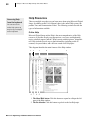
This diagram identifies the main features of the Help window.
�
�
�
�
�
�
�
�
�
1. The Show/Hide button Click this button to expand or collapse the left
pane of the Help window.
2. The Back button Click this button to go back to the last Help topic.
Microsoft® Digital Image 2006 Suite Edition User’s Manual
Chapter 4: Microsoft Digital Image Suite Editor Basics
33
3. The Options menu This menu has options to print a topic or to set
options such as Internet Options, where you can change the font size in
the Help window.
4. The Content Pane Displays the current Help topic.
5. The Close button closes the Help window.
6. The Contents tab displays the Help table of contents.
7. The Index tab lets you find keywords in the index list.
8. The Search tab finds topics that contain words that you enter.
9. The Favourites tab lets you save topics for quick access later.
To access online Help:
1. On the Help menu, click Microsoft Digital Image Help.
Using the table of contents
You can use the table of contents to locate information by subject. The table of
contents is a useful way to see all of the features available in each category of
features.
To use the table of contents:
1. In the left pane of the Help window, click the Contents tab.
2. To expand a book in the contents, click the plus sign next to it.
3. To display a topic, in the contents list, click the topic title.
Using the index
You can use the index when you are looking for information about a specific
term or keyword.
To use the index:
1. In the left pane of the Help window, click the Index tab.
2. In the Type in the keyword to find box, type the word you want to find.
3. In the results list, select the word you want to find, and then click Display.
Microsoft® Digital Image 2006 Suite Edition User’s Manual
34
Chapter 4: Microsoft Digital Image Suite Editor Basics
Using the search
You can use the search function to find all the topics in Help that contain a word
or combination of words.
To use the search:
1. In the left pane of the Help window, click the Search tab.
2. In the Type in the keyword to find box, type the word for which you
want to search, and then click List Topics.
3. In the Select topic to display list, select the topic you want to view,
and then click Display.
Product Tour
The Microsoft Digital Image Tour uses pictures, animations, and text to
demonstrate the most popular and useful features of the program.
To take the product tour:
1. On the Help menu, click Take a Tour.
The Tour opens, displaying icons to represent different categories of
features.
2. Click an icon.
A feature list appears on the left side of the window.
3. Click a feature.
Graphics and text appear that explain the feature.
4. Repeat steps 2-4 to learn about more features.
5. To close the Tour, click Close.
Microsoft® Digital Image 2006 Suite Edition User’s Manual
Chapter 4: Microsoft Digital Image Suite Editor Basics
35
Demonstration Videos
Demonstration Videos use animation and narration to show you how to use a
variety of image-editing features on your photos.
To watch a Demonstration Video:
1. On the Help menu, click Demonstration Videos.
The Help window opens to a topic about Demonstration Videos.
2. Click a video title link.
The Video player opens and the Video begins.
The Demonstration Videos are accompanied by complete, online tutorials that
let you walk through the tasks at your own pace. To open the online tutorial,
click the Written Tutorial button on the Video player.
Technical Support
The types of Technical Support resources available vary based on where you
live and how you obtained your Microsoft Digital Image product.
To view Technical Support information:
1. On the Help menu, click About Microsoft Digital Image Pro 2006.
2. Click Tech Support.
Microsoft® Digital Image 2006 Suite Edition User’s Manual
C HAP TE R
Basic Touch-up
5
5
Basic Touch-up
39
Almost all pictures can be improved with basic touch-up tools. Microsoft
Digital Image Suite Editor’s touch-up tools can be used to correct common
problems such as red eye, crooked pictures, lighting problems, or similar
distractions that can ruin a photo. In many cases, Microsoft Digital Image helps
you eliminate basic problems with just a few clicks.
Adjusting Exposure and Lighting
When you take a photo with an automatic camera, the camera’s automatic
exposure feature measures the available light and determines how much light
is required to take the photo. Sometimes, the exposure meter’s measurement is
slightly too low or too high, creating problems with the brightness and contrast
in the photo. Microsoft Digital Image provides tools to fix the exposure and
lighting.
Making a copy
to touch up
Never edit your only
copy of a picture.
Always make a copy or
choose Save As to save
the edited file with a
different name. If you
aren’t satisfied with the
results, you can always
start again from the
original.
To correct exposure and lighting:
1. On the Touch-up menu, click Exposure Auto Fix.
2. If you are not satisfied with the result, try fixing the contrast. On the
Touch-up menu, click Contrast auto fix.
3. If you are not satisfied with the results, fine-tune the settings. On the
Touch-up menu, click Exposure and Lighting.
4. Adjust the sliders to manually correct the exposure in the picture.
5. Click Done.
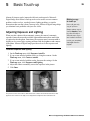
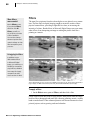
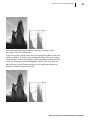
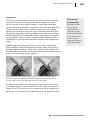
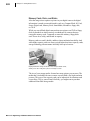
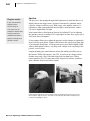
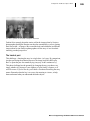
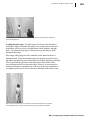
The picture on the left is both too dark and too low contrast. The Contrast auto fix tool was
applied to the version on the right, correcting both the brightness and contrast levels.
Microsoft® Digital Image 2006 Suite Edition User’s Manual
40
Chapter 5: Basic Touch-up
Setting the white
balance on a
digital camera
Many digital cameras
allow you to set the
white balance for
specific types of light,
such as sunlight,
incandescent, and
flash. Using this feature
can help reduce tint
problems in your
pictures.
Correcting a Colour Cast
When you take photographs, the source of the light can create a coloured cast
in the photo. We tend to think of light being white, but nearly every light source
has its own unique colour. For example, natural sunlight has a large component
of blue, while incandescent (tungsten) lights—including most household light
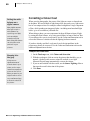
bulbs—give off a reddish or yellowish cast.
When taking a photo, you can compensate for these different colours of light
by setting the white balance, or by using special filters in front of the lens. But
if you end up with a cast in your pictures, use the Colour and Saturation tool to
correct the balance of colours to make the lighting look more natural.
If you have already used the Levels auto fix tool, the tint problems in the
picture may already be corrected. Use the Colour and Saturation tool to make
additional adjustments to the tint.
To adjust the colour cast:
Zooming in to
find grey
If there are no
significant areas of
neutral colour in your
photo, use the zoom
controls to magnify the
picture on the screen.
When you zoom in, you
might be able to use a
very small area of grey
to reset the colours in
the picture.
1. On the Touch-up menu, click Colour and Saturation.
2. With the eyedropper, click an area in the picture that should be grey or
neutral—in other words, not too colourful, too dark, or too light.
Microsoft Digital Image automatically corrects the colours.
3. If you are not satisfied with the results, use the Source Lighting slider to
fine-tune the overall colour tint of the picture.
4. Click Done.
Microsoft® Digital Image 2006 Suite Edition User’s Manual
Chapter 5: Basic Touch-up
41
Fixing Red Eye
Using your flash in low-light situations can give your subjects red, unnaturallooking eyes. The Fix Red Eye tool darkens the red spots in the eyes to reduce
or eliminate the redness.
To fix red eye:
1. On the Touch-up menu, click Fix Red Eye.
2. Use the pan and zoom controls to magnify your picture and focus on the
red eyes in the photo.
3. Click the red part of the eyes. You can click up to two eyes at once.
4. Click Red-eye Auto Fix.
The redness in the eyes is removed.
5. If necessary, you can use the Intensity of correction and Size of
correction sliders to fine-tune the effect, or repeat steps 3 and 4 until the
red is eliminated.
6. Click Done.
Microsoft® Digital Image 2006 Suite Edition User’s Manual
42
Chapter 5: Basic Touch-up
Straightening a Picture
If you took a photograph while unintentionally holding the camera at an
angle, the horizon or other straight lines will appear tilted. This tilt can be a
distraction in the picture, but is easily fixed with the Straighten Picture tool.
The Straighten Picture tool rotates the picture to make the horizon level.
To make the horizon level, the Straighten Picture tool rotates the picture on
the canvas. When rotated, part of the picture overlaps the edge of the canvas,
and these areas would be removed during printing. The rotation also creates
empty areas at the corners of the canvas. Fortunately, these problems are solved
by the Auto Crop feature which is part of the Straighten Picture tool. After
you straighten the picture, Auto Crop trims the edges of the picture so that it
becomes aligned with the canvas.
To straighten a picture with Auto Crop:
1. On the Format menu, point to Straighten Picture, and then click
Canvas.
2. Identify a line in the picture that should be straight (such as the horizon),
and then click one end of the line.
3. Click the other end of the line.
The picture is automatically straightened.
4. Make sure the Auto Crop check box is selected.
The area of the picture that will be cropped is shown in lightened colour
around the edges.
5. Click Done.
Microsoft® Digital Image 2006 Suite Edition User’s Manual
Chapter 5: Basic Touch-up
43
Cropping
Cropping is an easy way to improve the composition of a picture. For example,
if your picture has distracting background elements along the top, bottom, or
side, you can crop away these parts of the background to focus the attention on
the subject.
When you crop a picture, you are removing pixels, and therefore lowering the
effective resolution (although the dots per inch will stay the same). If you crop
a significant portion of the original, you’re limiting the extent to which you will
be able to enlarge the picture for printing. This is why it’s better to compose the
picture as best you can when you take it, rather than relying on heavy cropping
later.
Cropping a picture allows you to eliminate distractions and improve the composition.
Cropping your picture to a specific proportion lets you control exactly where
the picture will be cut. Otherwise, if your picture is not the same proportion as
the print size, some of the picture might be trimmed during printing to fit into
the printable area of the page.
Using the rule of thirds
When composing a photograph, many beginning photographers tend to centre
their subject directly in the middle of the frame. While this technique may be
the easiest way to get the subject in focus with a point-and-shoot camera, it is
not always the most interesting way to present the subject.
Most advanced photographers follow the rule of thirds when composing the
space inside a picture frame. The rule of thirds is used throughout the graphic
design world, because it helps to create balance between the subject and the
background. When you compose a picture according to the rule of thirds,
Microsoft® Digital Image 2006 Suite Edition User’s Manual
44
Chapter 5: Basic Touch-up
you mentally divide the frame into thirds both horizontally and vertically
(imagine a noughts and crosses grid), and place the point of interest on one of
the four spots where the lines intersect.
If the photo includes a person or animal, you can place the face on one of
the four points, looking towards the centre of the scene. If the photo includes
the horizon, it should run about one-third from the top or one-third from the
bottom, depending on whether the terrain or the sky is the centre of focus.
The cropped picture is a more interesting composition because it follows the rule of thirds.
To crop a picture using the rule of thirds:
1.
2.
3.
4.
On the Format menu, point to Crop, and then click Canvas.
Under Select a proportion, click a proportion.
Select the Show guidelines for the rule of thirds check box.
Click a starting point on your photo, and then drag the outline to the
opposite corner of the area to be cropped.
The guidelines show the cropped area divided into thirds vertically and
horizontally.
5. Move and resize the cropped area so a focal point in the picture is
positioned at one of the intersections of the guidelines.
6. Click Done.
Microsoft® Digital Image 2006 Suite Edition User’s Manual
Chapter 5: Basic Touch-up
Using Smart Erase
The Smart Erase tool helps you remove distractions from pictures. Smart Erase
can remove items such as telephone poles, power lines, or even strangers in the
background. In addition to removing the unwanted element, Smart Erase fills in
the area with colours and patterns from the surrounding areas. In many cases,
Smart Erase makes it hard to tell that the distraction was ever there.
45
Using Smart Erase
with the clone
brush
If you don’t get perfect
results right away with
Smart Erase, you can
use the clone brush to
clean up the background
to make it look more
natural. Learn more
about the clone brush in
the “Advanced Picture
Editing” chapter.
With the consistently patterned background in this picture, Smart Erase was able to do a
smooth job filling in the area over the distraction.
Since Smart Erase incorporates pixels from surrounding areas to fill in the
area that has been removed, the tool works best if the surrounding areas are
consistently patterned.
To use Smart Erase:
1. On the Touch-up menu, click Smart Erase.
2. Trace around the area you want to fill, releasing the pointer on the spot
where you began tracing.
3. Click Fill in.
4. To fill in additional areas, repeat steps 2 and 3.
5. Click Done.
Microsoft® Digital Image 2006 Suite Edition User’s Manual
46
Chapter 5: Basic Touch-up
Removing Spots and Blemishes
Whether you take portrait photographs or just informal snapshots, you usually
want to present your subjects in a flattering light. Many photos of people can
be enhanced by removing spots or blemishes from the original photo. Using the
Remove Spots or Blemishes tool, you click the spot or blemish, and the colour
from the surrounding pixels is used to paint over the discoloured area.
This tool is also useful for removing isolated specks of dust from a scanned
photo, or removing any other spots that detract from the photo.
With a few clicks of the Remove Spots or Blemishes tool, the blemishes disappear from the
picture.
To remove a spot or blemish:
1.
2.
3.
4.
On the Touch-up menu, click Remove Spots or Blemishes.
Zoom in on a spot or blemish.
To remove the spot or blemish, click it.
Click Done.
Microsoft® Digital Image 2006 Suite Edition User’s Manual
Chapter 5: Basic Touch-up
Removing Wrinkles
As with removing spots and blemishes, removing wrinkles is a good way
to enhance photos that contain close-ups of people. You can make skin look
smoother by removing crow’s feet around the eyes or other wrinkles on the
face. The Remove Wrinkles tool works by covering lines with the colour of
the surrounding pixels.
47
Removing curved
wrinkles
The Remove Wrinkles
tool can be used to
remove curved as well
as straight wrinkles.
For curved wrinkles,
break the wrinkle into
sections and correct
just one section at a
time. This might give
you better results than
using a wider circle.
The Remove Wrinkles tool was used on the picture on the right, eliminating wrinkles around
the eyes to make a more flattering portrait.
To remove wrinkles:
1. On the Touch-up menu, point to Other Photo Repair, and then click
Remove Wrinkles.
2. Click a circle that corresponds to the size of the wrinkle you want to
remove.
3. Click the picture at one end of the wrinkle, and then click at the other end
of the wrinkle.
The wrinkle disappears.
4. Repeat step 3 to remove other wrinkles in the photo.
5. Click Done.
Microsoft® Digital Image 2006 Suite Edition User’s Manual
48
Chapter 5: Basic Touch-up
Fine tuning the
lighting
If you need to make
further adjustments
after adding flash, you
can use the exposure
and lighting tools.
Adding Flash
In some lighting conditions, such as when the sun is low in the sky behind your
subject, your subject will be very dark compared to the light in the background.
Ideally, you could use your camera’s flash for this situation, illuminating your
subject as you take the photo. But if you forget to turn on your flash, or if your
subject is out of your flash’s range, your subject may come out too dark in the
photo.
In this situation, you can use the Add Flash feature to lighten the dark parts of
your photo, improving the exposure by imitating the light of a camera flash.
The Add Flash tool works by lightening the darkest pixels in your picture, and
also slightly increasing the contrast.
When the picture on the left was taken, the boats were out of the flash’s range, so the whole
foreground ended up in dark shadow. The Add Flash tool was used in the picture on the right to
lighten the foreground and bring out the detail.
To add flash to a picture:
1. On the Touch-up menu, click Exposure and Lighting.
2. Click Add Flash. Every time you click, the scene is brightened
by a small amount.
3. Click Done.
Microsoft® Digital Image 2006 Suite Edition User’s Manual
Chapter 5: Basic Touch-up
Reducing Backlighting
In some photos, the subject might be properly exposed, but parts of the
background might be overexposed. The Reduce Backlighting tool darkens the
lightest pixels, minimising the overexposure of the background.
49
Fixing severe
lighting problems
If the lighting problems
in your pictures are too
severe to be repaired
by using Add Flash or
Reduce Backlighting,
use the Levels and
Curves tool to apply
precise changes to
the picture’s shadows,
midtones, and
highlights.
The picture on the left lacks detail in the bright areas of the clouds, diminishing the beauty of
the sky. In the picture on the right, the Reduce Backlighting tool was applied, which darkens
the lighter pixels.
To reduce backlighting in a picture:
1. On the Touch-up menu, click Exposure and Lighting.
2. Click Reduce Backlighting. Every time you click, the scene is darkened
by a small amount.
3. Click Done.
Microsoft® Digital Image 2006 Suite Edition User’s Manual
C HAP TE R
Advanced Picture Editing
6
6
Advanced Picture Editing
53
After you have done general touch ups to your pictures, you may want to use
advanced editing tools for more precise editing or to apply special effects. The
selection tools and multiple-object composites give you the power to edit very
specific areas of your pictures. You’ll also be able to transform your pictures
with filters, colour and edge effects, and specialised editing brushes.
Understanding Objects
For many advanced photo-editing tasks, you’ll need to understand the concept
of objects. An object is a part of a picture that can be edited individually. For
example, when you add text to a picture, the text is a separate object from
the background image. When you edit the text—say, making the font colour
red—the background picture remains unchanged because it is a separate object.
Working with Composites
A picture that contains multiple objects is called a composite. The Stack helps
you work with composites by displaying each object separately. Using the
Stack, you can easily select any object. Make sure the Stack is showing in the
workspace when you are working with composites.
To show the Stack:
1. On the View menu, click Stack.
On the Stack, you’ll see a thumbnail representation of each object in the
composite. The top thumbnail represents the object that is the top layer in
the composite. The bottom thumbnail represents the background object in the
composite. Thus, the object that is lowest in the Stack may be at least partially
obscured in the composite by the objects on top of it.
You can change the order of the objects in the composite by dragging
thumbnails up and down the Stack. For example, dragging an object’s
thumbnail from the lowest position on the Stack to the top position will bring it
to the foreground of the composite.
Microsoft® Digital Image 2006 Suite Edition User’s Manual
54
Chapter 6: Advanced Picture Editing
Locked Objects
When you open any single-object picture, such as a picture you have taken with
your digital camera, the picture will, by default, be locked to its position on the
canvas. When an object is locked to the canvas, the Lock icon is shown next
to that object’s thumbnail on the Stack. This Lock icon indicates that you will
not be able to drag the object around on the canvas.
To lock or unlock an object:
1. Right-click the object’s thumbnail on the Stack.
2. Click Lock or Unlock.
Microsoft® Digital Image 2006 Suite Edition User’s Manual
Chapter 6: Advanced Picture Editing
55
Selecting Objects with the Object Tool
The Object tool
allows you to select one or more whole objects at a time.
With the Object tool, you can move, resize, and rotate selected objects by
dragging the object on the canvas or using the resize handles.
Each time you start Microsoft Digital Image, the Object tool will be selected by
default. You will be able to accomplish many different editing tasks by using
the Object tool as your only selection tool. Unlike the other selection tools, the
Object tool does not have an options palette.
To select an object with the Object tool:
1. Make sure that the Stack appears in the workspace.
on the toolbar.
2. Click the Object Tool button
3. On the Stack, click the object.
When an object is selected with the Object tool and not locked to the canvas,
object handles are displayed around the perimeter of the selection. Object
handles are yellow circles that you drag to resize and rotate the object.
To move, resize, or rotate an object with the Object tool:
1. Select the object with the Object tool as described above.
2. If the selected thumbnail has the Lock icon displayed, right-click the
thumbnail, and then click Unlock.
3. To move the selection, hold the cursor over the object until the move
handle
appears, and then drag the object on the canvas.
4. To resize the object proportionally, hold the cursor over one of the corner
object handles until the resize handle
appears, and then drag the resize
handle.
5. To stretch the object, hold the cursor over the top, bottom, or side object
handles until the resize handle appears, and then drag the resize handle.
6. To rotate the object, drag the rotate handle that is attached to the top of
the selection box.
Selecting an object allows you to edit it without affecting other objects on the
canvas. You can select an object by clicking it, either on the canvas or on the
Stack. If you want to select a small object or one that is hidden behind other
objects, it is often easiest to select it on the Stack.
Microsoft® Digital Image 2006 Suite Edition User’s Manual
56
Chapter 6: Advanced Picture Editing
Multiple Selection, Grouping, and
Flattening Objects
Microsoft Digital Image allows you to create composites that contain many
objects. While objects are separate, you can edit each one individually.
However, sometimes you may want to edit two or more objects at the same
time. There are three methods to join objects so that you can edit them together.
From least permanent to most permanent, the three methods for combining
objects are multiple selection, grouping, and flattening.
Multiple Selection
Multiple selection links objects temporarily. For example, if you wanted to
move three objects the same amount to the left, you could select the objects, and
then drag them together on the canvas. Then, as soon as you select a different
object to work on, the multiple-selected objects are no longer connected.
These three objects are a multiple selection, so they can be edited as a set and then
separated later.
To select multiple objects:
1. Make sure that the Stack is showing.
2. Pressing CTRL, click each thumbnail on the Stack until all of the objects
are selected.
3. To cancel the multiple selection, click any single object in the Stack.
Microsoft® Digital Image 2006 Suite Edition User’s Manual
Chapter 6: Advanced Picture Editing
57
Grouping Objects
Grouping objects allows you to edit multiple objects and then maintain the
grouped relationship while you do other tasks. The grouping relationship
is even preserved when you close a picture file saved in PNG Plus format.
Grouped objects can later be ungrouped and edited individually.
These three objects have been grouped, as indicated by the Group icon at the bottom of the
selection box.
To group objects:
1. Make sure that the Stack appears in the workspace.
2. Pressing CTRL, click each thumbnail on the Stack until all of the objects
are selected.
3. On the Edit menu, click Group.
4. To cancel the group, click the group on the Stack, and then on the Edit
menu, click Ungroup.
Microsoft® Digital Image 2006 Suite Edition User’s Manual
58
Chapter 6: Advanced Picture Editing
Flattening Objects
Flattening objects is a permanent action. If you will no longer need to edit
objects individually, you can flatten objects into a single object. This allows
you to work on the objects together and reduce the number of objects in
your composite. Also, many editing tasks cannot be performed on a multiple
selection. But if you flatten the objects together, they become a single object,
so you will be able to edit them together.
To flatten multiple objects:
1. Make sure that the Stack appears in the workspace.
2. Pressing CTRL, click each thumbnail on the Stack.
3. On the Edit menu, click Flatten Selected Objects.
Automatic Flattening
When working with objects that are multiple-selected or grouped, some editing
tasks—such as using advanced selection tools—will automatically flatten the
selected objects into a single object. Microsoft Digital Image will give you a
warning message whenever two or more objects will need to be flattened to
perform an editing function. When you see a warning message about flattening,
you can click Cancel to prevent the objects from being flattened.
Flattening Objects During Saving
When you save a composite picture in the PNG Plus file format, each object
is preserved separately. When you open the file again, you can edit each
individual object.
However, most file formats for images do not support multiple objects. So if you
save a picture in the JPEG format, for example, all the objects will be flattened
into a single object. Even if you open such a JPEG file in Microsoft Digital
Image, you will not be able to edit objects individually.
Microsoft® Digital Image 2006 Suite Edition User’s Manual
Chapter 6: Advanced Picture Editing
59
Using Selection Tools
Selection tools give you more control and more options for editing images.
They allow you to fix problems that exist in only part of the picture. You can
also use selection tools to create new objects that can be duplicated or pasted
onto other pictures.
Selection tools help you to isolate any part of a larger picture, which enables
you to:
•
•
•
•
Turn part of a picture into a separate object.
Apply filters or other effects to a limited area of a picture.
Duplicate part of an image within a picture.
Combine parts from two or more pictures.
The selection tools are located on the toolbar next to the Selection options
button. There are five selection tools available, and each one works well for a
specific editing scenario. Select the method that best fits your picture and your
intended use. In addition to the Object tool mentioned above, the other four
selection tools are:
•
•
•
•
•
Marquee tool
Freehand tool
Edge Finder
Magic Wand
Selection Brush
Microsoft® Digital Image 2006 Suite Edition User’s Manual
60
Chapter 6: Advanced Picture Editing
Anti-aliasing a
selection
Anti-aliasing means
that pixels on the edge
of the selection can
be partially selected.
This technique helps to
smooth the transition
between the selection
and the surrounding
area. Anti-aliasing is
useful when creating
composites.
Feathering a
selection
Like anti-aliasing,
feathering a selection
helps to smooth its
edges. But where antialiasing only affects
pixels directly on the
selection border, you
can feather a border of
up to 250 pixels around
the edge of the selected
area.
The Marquee Tool
The Marquee tool
helps you select part of an object in the shape of a
rectangle, circle, or other shape. This tool is useful for cropping objects or
pictures to a standard shape.
To make a selection with the Marquee tool:
1. Make sure that the Stack appears in the workspace.
2. On the Stack, click the object of which you want to make a partial
selection.
3. On the toolbar, click the Marquee Tool button .
4. If the Marquee Tool options palette is not visible in the workspace, click
the Selection button on the toolbar.
5. To keep the edges of the selection smooth, select the Anti-aliased check
box on the Marquee Tool options palette.
6. On the Marquee Tool options palette, click a shape for the marquee
selection.
7. To keep the marquee shape in a specific proportion, click Shape
proportions on the Marquee Tool options palette, and then enter
a height and width.
8. On the Marquee Tool options palette, choose whether you want to make
a new selection , add to the current selection , or subtract from the
current selection .
9. Drag the marquee pointer diagonally across the area you want to select.
10. To adjust the selection shape, click Adjust marquee on the Marquee
Tool options palette, resize or rotate the marquee shape, and then
click Done.
11. To feather the selection (to make it blend into the surrounding part of the
picture), click Feather on the Marquee Tool options palette, enter the
number of pixels that you want feathered around the edge, and then
click OK.
12. To select the opposite area, click Invert on the Marquee Tool options
palette.
Microsoft® Digital Image 2006 Suite Edition User’s Manual
Chapter 6: Advanced Picture Editing
61
The Freehand Tool
The Freehand tool
irregular shape.
helps you select part of an object by drawing an
1. Make sure that the Stack appears in the workspace.
2. On the Stack, click the object of which you want to make a partial
selection.
on the toolbar.
3. Click the Freehand Tool button
4. If the Freehand Tool options palette is not showing, click the Selection
button on the toolbar.
5. To keep the edges of the selection smooth, select the Anti-aliased check
box on the Freehand Tool options palette.
6. On the Freehand Tool options palette, click whether you want to make
a new selection , add to the current selection , or subtract from the
current selection .
7. On the picture, drag the pointer, and then click the starting point to
complete the selection.
8. To feather the selection (to make it blend into the surrounding part of
the picture), click Feather on the Freehand Tool options palette, enter
the number of pixels that you want feathered around the edge, and then
click OK.
9. To select the opposite area, click Invert on the Freehand Tool options
palette.
Microsoft® Digital Image 2006 Suite Edition User’s Manual
62
Chapter 6: Advanced Picture Editing
The Edge Finder
The Edge Finder
helps you select part of an object by tracing along welldefined edges. This tool is useful for cutting out or copying people or detailed
items in a picture.
1.
2.
3.
4.
5.
6.
7.
8.
9.
10.
11.
12.
Make sure that the Stack appears in the workspace.
On the Stack, click the object of which you want to make a partial selection.
on the toolbar.
Click the Edge Finder button
If the Edge Finder options palette is not showing, click the Selection
button on the toolbar.
To keep the edges of the selection smooth, select the Anti-aliased check
box on the Edge Finder options palette.
On the Edge Finder options palette, click whether you want to make a
new selection , add to the current selection , or subtract from the
current selection .
On the Edge Finder options palette, enter a value in the Width box. The
Width is the number of pixels away from the pointer that the Edge Finder
will try to detect an edge.
On the picture, click points along the edge of the item you want to select.
As you trace, make sure that the edge stays within the zone of the Edge
Finder.
To close the selection area, click the starting point.
To modify the selection, click Adjust edges, drag any point in the
selection marked by a square, and then click Done.
To feather the selection (to make it blend into the surrounding part
of the picture), click Feather on the Edge Finder options palette, enter
the number of pixels that you want feathered around the edge, and then
click OK.
To select the opposite area, click Invert on the Edge Finder options
palette.
Microsoft® Digital Image 2006 Suite Edition User’s Manual
Chapter 6: Advanced Picture Editing
63
The Magic Wand
The Magic Wand
lets you select parts of an object that are the same or
similar colours. The Magic Wand is useful for selecting a consistently coloured
area—a blue sky for example—without having to trace around it.
1.
2.
3.
4.
5.
6.
7.
8.
9.
10.
11.
Make sure that the Stack appears in the workspace.
On the Stack, click the object of which you want to make a partial selection.
on the toolbar.
Click the Magic Wand button
If the Magic Wand options palette is not showing, click the Selection
button on the toolbar.
To select only similarly coloured pixels that are connected to each other,
select the Contiguous check box. Also, selecting the Smooth Edges
check box reduces the jaggedness of your selection.
On the Magic Wand options palette, enter a value in the Tolerance
box. The Tolerance is the range of colours that will be included in the
selection.
On the Magic Wand options palette, click whether you want to make a
new selection , add to the current selection , or subtract from the
current selection .
On the picture, click the colour you want to select.
If the selection includes too much or too little of the area you want to
select, enter a different value in the Tolerance box, and then make
another selection.
To feather the selection (to make it blend into the surrounding part of
the picture), click Feather on the Magic Wand options palette, enter
the number of pixels that you want feathered around the edge, and then
click OK.
To select the opposite area, click Invert on the Magic Wand options
palette.
Microsoft® Digital Image 2006 Suite Edition User’s Manual
64
Chapter 6: Advanced Picture Editing
The Selection Brush
The Selection Brush
by “painting.”
1.
2.
3.
4.
5.
is a powerful tool for extending an existing selection
Make sure that the Stack appears in the workspace.
On the Stack, click the object in which you want to make a selection.
Use another tool to make a selection.
on the toolbar.
Click the Selection Brush button
If the Selection Brush options palette is not showing, click the Selection
button on the toolbar.
6. On the Selection Brush options palette, click to add to the current
selection .
7. On the picture, drag to paint your selection, fine-tuning and extending the
existing selection.
Microsoft® Digital Image 2006 Suite Edition User’s Manual
Chapter 6: Advanced Picture Editing
65
Editing and Copying Selected Areas
Using the advanced selection tools helps you to isolate a very specific area of
a picture for editing or copying. For example, if a picture has generally good
lighting levels, but a person’s face in a picture is in dark shadows, you can make
a selection of just the face, and then adjust the brightness and contrast only in
the selected area. And now that you can apply anti-aliasing and feathering to
the selection, your edits to the selected area can look natural since the edited
area will blend smoothly with the surrounding pixels.
Copying, Cutting, and Pasting Selections
Advanced selection tools also allow you to cut out or copy part of an object
to create a new object. These techniques allow you to trim a hole in a picture
or create a new object that can be pasted in the same picture or in a different
picture.
To cut a hole in an object:
1.
2.
3.
4.
Make sure that the Stack appears in the workspace.
On the Stack, click the object you want to cut a hole in.
On the toolbar, click a selection tool, and then select part of the object.
On the Edit menu, click Cut.
To copy and paste part of an object:
1.
2.
3.
4.
Make sure that the Stack appears in the workspace.
On the Stack, click the object you want to copy part of.
On the toolbar, click a selection tool, and then select part of the object.
On the Edit menu, click Copy.
The selection is copied to the clipboard.
5. If you want to paste the selection onto a different picture, open that
picture so that it is on the canvas.
6. On the Edit menu, click Paste.
The selection becomes a new object on the Stack.
Note: If you paste the selection onto the same picture that you copied it from,
the new object will be in the same position and may not look like a separate
object. But the new object will be visible on the Stack, and you can use the
object tool to move, resize, or rotate the new object.
Microsoft® Digital Image 2006 Suite Edition User’s Manual
66
Chapter 6: Advanced Picture Editing
More filters,
more control
On the Effects menu,
if you point to Filters,
and then click All
Filters, you will see
the complete selection
of filters available.
You can also change
advanced options and
control settings such as
filter transparency and
pressure.
Filters
The term filter originates from the coloured glass covers placed over a camera
lens. The first filters in digital imaging sought to mimic the results of these
physical camera filters, providing a slight shift in colour, or increasing the
intensity of colours. But the filters in Microsoft Digital Image can create many
other effects, from sharpening an image to making the picture look like a
painting or a mosaic.
Using plug-in filters
In addition to over
200 standard filters
in Microsoft Digital
Image, you can also use
Photoshop-compatible
plug-in filters, available
from many third-party
companies at retail
stores and on the Web.
Three different filters were used on the original picture (upper left): The Coloured Pencil filter
(upper right), the Watercolour filter (lower left), and the Film Grain filter (lower right).
To apply a filter:
1. On the Effects menu, point to Filters, and then click a filter.
Filters create a whole new look for your pictures. Many filters make the image
look less like a photograph and more like a drawing, painting, mosaic, or other
hand-created artwork. Filter-enhanced pictures can become an attractive focal
point of projects such as greeting cards and calendars.
Microsoft® Digital Image 2006 Suite Edition User’s Manual
Chapter 6: Advanced Picture Editing
67
Colour Effects
You can give a picture a new look by applying a colour effect. Turn a favourite
colour picture into an instant classic by changing it to black and white.
Or, apply the antique effect, which “ages” your picture by giving it an old
newspaper look. You can even turn it into a photographic negative.
To turn a colour picture to black and white, antique, or negative:
1. On the Effects menu, click one of the following:
• Antique
• Black and White
• Negative
Note: You can customise the exact appearance of your black-and-white picture
using the Black and White Effects tool on the Effects menu. Use this when
you want to take the time to change the overall tone of your picture to give it
a coloured hue (like Sepia, only based on any colour—not just brown). You can
also fine-tune the brightness and contrast of your black-and-white picture in
this way.
Microsoft® Digital Image 2006 Suite Edition User’s Manual
68
Chapter 6: Advanced Picture Editing
Paint Effects
With the Freehand paint brush, you can choose from several painting tools:
•
•
•
•
•
•
Paint brush
Airbrush
Pencil
Eraser
Highlighter
Chalk
Use these tools to add new colours to a picture.
To use the Freehand paint brush:
1.
2.
3.
4.
On the Effects menu, point to Paint Brush, and then click Freehand.
Click a painting tool, and then click a colour.
Click a brush size, and then paint by dragging on the picture.
Click Done.
You can paint with stamps to enliven your pictures with a rubber stamp effect.
Choose from a variety of stamp designs or make your own. Paint with a single
stamp design, or use multiple stamps on the same picture.
You can choose from a wide variety of stamps to customise any picture.
Microsoft® Digital Image 2006 Suite Edition User’s Manual
Chapter 6: Advanced Picture Editing
69
To paint with stamps:
1.
2.
3.
4.
On the Effects menu, point to Paint Brush, and then click Stamps.
Click a stamping style, and then click a stamp.
Click a stamp size, and then apply the stamp by clicking on the picture.
Click Done.
Microsoft® Digital Image 2006 Suite Edition User’s Manual
70
Chapter 6: Advanced Picture Editing
Cloning from a
different layer
When using the clone
brush, your starting
point must be in the
same object as where
you want to paint. To
clone from one object
to another, first group
the objects.
Clone Brush
The Clone brush is a sophisticated editing tool that allows you to paint with a
sample from another part of the image. Unlike the Airbrush tool that paints in a
solid colour, the Clone Brush allows you to paint gradations of colour or varied
textures.
The Clone Brush works very well when touching up a face or an area of skin.
For example, you can paint over a blemish with an area of clear skin copied
from another part of the face or body. Similarly, you can use the Clone Brush to
cover up distractions in the background of your picture. For example, you could
paint over power lines with a matching gradient of colour sampled from a clear
area of the sky.
The original picture on the left contained some trees in the lower-right corner of the frame.
The Clone Brush was used to cover the trees with a sample from a clear area of the sky.
To use the Clone Brush:
1.
2.
3.
4.
On the Stack, click the object you want to touch up.
On the Touch-up menu, click Clone Brush.
Click a brush size.
On your picture, click the spot from which you want to copy.
This spot—called the start position—is marked with a cross-hair while
you paint.
5. Move the circular pointer to the position you want to paint over.
6. Drag the circular pointer to paint. As you paint, keep an eye on the crosshair so that you don’t copy unwanted areas.
7. Click Done.
Microsoft® Digital Image 2006 Suite Edition User’s Manual
Chapter 6: Advanced Picture Editing
71
Blending Brush
The Blending Brush works similarly to the Clone Brush, but can give you
a more subtle, smoother effect. Like the Clone Brush, you select an area to
sample from. But when the sampled area is applied to the new area, the colours
are blended in with the colours of the surrounding area. The Blending Brush
works very well for touching up skin.
For touching up skin, the Blending Brush lets you cover up blemishes with colours and
patterns from clear areas of skin.
1.
2.
3.
4.
On the Stack, click the object you want to touch up.
On the Touch-up menu, click Blending Brush.
Click a brush size.
On your picture, click the spot from which you want to copy.
This spot—called the start position—is marked with a cross-hair while
you paint.
5. Move the circular pointer to the position where you want to paint with
the blending brush.
6. Drag the circular pointer to paint. As you paint, keep an eye on the crosshair so that you don’t copy unwanted areas.
7. Click Done.
Microsoft® Digital Image 2006 Suite Edition User’s Manual
72
Chapter 6: Advanced Picture Editing
Freeing up memory
The distortion brush
requires a lot of
computer memory,
especially if you drag it
across a wide area. To
speed up the processing
of the effect, try closing
other applications you
have running on your
computer.
Distortion Brush
The Distortion Brush lets you smear, bulge, shrink, or erase part of the picture.
When touching up a picture, you can use the Distortion Brush to diminish or
accentuate certain features in the picture.
The Distortion Brush can be used to make some funny or whimsical images.
To use the Distortion Brush
1.
2.
3.
4.
On the Stack, click the object you want to touch up.
On the Effects menu, click Distortion Brush.
Click an effect, and then click a brush size.
Do one of the following:
• Click on the picture to distort inside the circular brush area.
• Drag on the picture to distort a wider area.
5. Click Done.
Microsoft® Digital Image 2006 Suite Edition User’s Manual
Chapter 6: Advanced Picture Editing
73
Using the Levels and Curves Tool
Lighting problems in some photos need more precise adjustment than can be
achieved with any of the one-click auto fix tools. To achieve greater control, you
can use the Levels and Curves tool, which includes a histogram. The histogram
is a visual representation of the photo’s tonal range, or the distribution of the
pixels across the 256 degrees of brightness.
In the histogram, pictured below, the horizontal axis represents the range from
the darkest pixels (shadows) on the left to the lightest pixels (highlights) on the
right. For each point in the range along the horizontal axis, the height of the
graph represents the number of pixels at that degree of brightness. The example
below shows the histogram of a photo that has a concentration of pixels
between the shadows and the midtones, with very few pixels at the lighter end
of the range. An image with a histogram like this would look very dark and
have poor contrast.
For most photos, it’s best to have a fairly even distribution across the tonal
range, so there is contrast between the light and dark areas. The following
histogram example has the tones much more evenly distributed.
Microsoft® Digital Image 2006 Suite Edition User’s Manual
74
Chapter 6: Advanced Picture Editing
If you are not satisfied with the results of the automatic exposure adjustments,
you can use the manual controls in the Levels and Curves tool for more precise
control. This photo is a good candidate for using the Levels and Curves tool:
When you look at the histogram, you can see that the graph falls off sharply on
the right end of the range. This means that there are no very light pixels in the
photo. By adjusting the white point, you can broaden the tonal range to make
the photo more dynamic. This is accomplished by dragging the white point
slider to the first vertical rise in the graph.
Microsoft® Digital Image 2006 Suite Edition User’s Manual
Chapter 6: Advanced Picture Editing
75
These adjustments add greater contrast to the image by using a greater
percentage of the 256 available tones.
Finally, this picture could be improved by increasing the brightness in the rock,
which is in shadow. To do this, you can change the shape of the curve to make
just the shadows of the picture brighter. Click the diagonal line about one-third
of the way from the top to lock the highlights in place. Then click about onethird of the way from the bottom and drag it up to brighten the shadow and
midtones. The final image looks like this:
Microsoft® Digital Image 2006 Suite Edition User’s Manual
76
Chapter 6: Advanced Picture Editing
To adjust levels using the Levels and Curves tool:
1. On the Touch-up menu, click Levels and Curves.
2. Drag the Black point slider to the right until the vertical shadows bar on
the histogram meets the first vertical rise of the graph.
3. Drag the White point slider to the left until the vertical highlights bar on
the histogram meets the first vertical rise of the graph.
4. If the midtones need adjustment, do one of the following:
• To lighten the midtones, drag the curve up and to the left.
• To darken the midtones, drag the curve down and to the right.
5. To make lighting adjustments to a specific colour channel, click one
of the thumbnails and then use the levels and curves controls to make
adjustments to that channel.
6. Click Done.
Microsoft® Digital Image 2006 Suite Edition User’s Manual
C HAP TE R
Batch Editing
in the Mini Lab
7
7
Batch Editing in the Mini Lab
79
If you take pictures regularly, it can become time consuming to perform basic
editing to all of your pictures after you download them from your camera. Mini
Lab contains tools that can help you save time with routine editing that needs to
be done to many or all of the photos in a batch.
If you have a high-capacity storage medium in your camera, you might have
dozens, or even hundreds, of photos to download at once to your hard disk.
Some of these pictures may be excellent “keepers” that you will want to spend
some time editing carefully later on. But many of the photos only need a few
quick edits: changes such as rotation and resizing.
Opening each photo individually, performing basic edits, and then saving each
one could take a lot of time. Mini Lab lets you perform these routine editing
tasks to many photos at once. Mini Lab lets you select multiple photos to
perform numerous tasks, including:
•
•
•
•
•
•
•
Colour auto fix
Exposure auto fix
Camera phone auto fix
Rotate
Resize
Print
Save as (to save copies of the originals, change file format, and
rename files)
Microsoft® Digital Image 2006 Suite Edition User’s Manual
80
Chapter 7: Batch Editing in the Mini Lab
Mini Lab displays all of your open photos, and includes a list of editing options
that you can perform on multiple pictures. This diagram identifies the main
features of Mini Lab.
� � �
�
�
�
1. The Open more files button opens the file browser to let you find more
pictures to edit.
2. The editing options list shows all of the tasks available for batch editing.
3. File options let you save or print multiple photos.
4. The Workspace in Mini Lab contains thumbnails of all of your opened
pictures.
5. The Done button closes Mini Lab, keeping the photos open and
maintaining the changes you have made.
6. The Cancel button closes Mini Lab, undoing any unsaved changes.
Microsoft® Digital Image 2006 Suite Edition User’s Manual
Chapter 7: Batch Editing in the Mini Lab
81
To open Mini Lab from Microsoft Digital Image:
1. On the Touch-up menu, click Batch Edit in Mini Lab.
To open Mini Lab from the Library:
1. In the Thumbnail pane, select the pictures you want to edit.
2. On the Tasks menu, click Batch Edit.
When the Mini Lab starts, it automatically displays all pictures that were open
in the program. Select the pictures you want to edit, and then click one or more
editing tasks. The changes are applied automatically, but they are not saved
unless you choose Save As in the Mini Lab or save your pictures in Microsoft
Digital Image after exiting the Mini Lab.
Microsoft® Digital Image 2006 Suite Edition User’s Manual
C HAP TE R
Adding Edges,
Mats, and Frames
8
8
Adding Edges, Mats, and Frames
When you’ve finished editing a photo, you can add polishing touches by
surrounding it with an edge, a border, a mat, or a frame.
Edge Effects
Edge effects alter the outside edge of a photo. For portrait photos, try the
soft edge effect. To draw attention to photos that you post on a Web site,
try applying one of the highlighted edges.
The photo on the left has highlighted edges applied, which work great for photos on the Web
and in e-mail. The photo on the right has been enhanced with soft edges.
To add an edge effect:
1. On the Stack, click the layer to which you want to add the edge effect.
2. On the Effects menu, point to Edges, and then click an edge effect or
border.
3. If available, click a specific edge or border.
4. Follow the instructions on the screen to customise the size or colour of
the edge or border.
5. Click Done.
85
Shrinking a picture
to show the edge
effect
Some edge effects
appear only behind and
outside the picture. So if
your picture reaches the
edge of the canvas, you
might not be able to see
the edge effect when
you print it or save it to
the Web.
To make sure you can
see an edge you’ve
added, make sure the
object is not locked to
the canvas, and then
the press the CTRL key
while you drag in one of
the photo’s corner resize
handles. This will shrink
the photo proportionally
on the canvas, so that
the border lies within the
printable area.
Microsoft® Digital Image 2006 Suite Edition User’s Manual
86
Chapter 8: Adding Edges, Mats, and Frames
Choosing the
right mat
When choosing a mat,
consider the colours
in your photo and the
colours of your frame.
A mat should not
overpower the subject of
the photo. Try selecting
a soft-coloured mat
that matches one of
the photo’s secondary
colours.
Mats and Frames
If you plan to put a photo in a traditional photo frame, you can add a Microsoft
Digital Image mat to your photo before you print it. Mats create an elegant
effect, and can also help to fit an oddly-proportioned print to a standard-size
frame.
If you don’t plan to mount a photo in a traditional frame, but would like to print
and display it, use a Microsoft Digital Image frame instead. You can choose
from a variety of frame themes to complement the subject of your photo.
You can even add both a mat and a frame to the same photo.
Microsoft Digital Image has a wide variety of mats and frames to finish your favourite photos.
To add a mat or a frame:
1.
2.
3.
4.
Select the picture or object to which you want to add a mat or frame.
On the Effects menu, point to Edges, and then click Frames and Mats.
Click a theme, click a design, and then click Open.
Drag your photo from the Files palette into the frame or mat, and then
click Next.
5. Move or resize the photo so that it fits within the frame, and then click
Done.
Microsoft® Digital Image 2006 Suite Edition User’s Manual
C HAP TE R
Creating Projects
9
9
Creating Projects
89
A great way to present your pictures and share them with friends and family is
to create photo projects. Microsoft Digital Image offers a range of designs that
you can use to showcase your pictures. Choose from greeting cards, calendars,
business cards, and more.
Creating Photo Cards
Use your own photo to personalise a greeting card for a holiday, a party invitation, or any other occasion.
To open a photo card design:
1.
2.
3.
4.
5.
6.
7.
Open a photo and check to see that it appears on the Files palette.
On the File menu, click Create a Project.
On the All Types of Designs page, click Cards.
Click Photo Frame Cards.
Click a theme, click a design, and then click Open.
Follow the instructions on the screen.
To edit the inside pages, on the View menu, click Front of Card,
Inside of Card, or Back of Card.
Working with a
multi-page project
When working with a
project that has more
than one page (such
as a greeting card),
the multi-page palette
appears on the bottom
of the screen. This
palette lets you switch
between pages in the
project.
Once your card project is open, you can add your own text, photos, and clip art.
Since most printers cannot print to the edge of the page, the purple margins on
the edges of a card project represent the unprintable areas of the card.
Photo cards are either half-fold cards, which are larger cards printed on both
sides of the paper, or quarter-fold cards, which are smaller cards printed on only
one side of the paper.
Microsoft® Digital Image 2006 Suite Edition User’s Manual
90
Chapter 9: Creating Projects
A favourite golfing photo was used to create this half-fold card.
To change the fold style of a card:
1. On the Format menu, click Change Card Fold.
Microsoft® Digital Image 2006 Suite Edition User’s Manual
Chapter 9: Creating Projects
91
Creating Calendars
Calendars are a great way to showcase your favourite photos. Calendar projects
are available in the following formats:
A one-week calendar
A one-year calendar
A one-year calendar
These are the first three months of a 12-month calendar
Microsoft® Digital Image 2006 Suite Edition User’s Manual
92
Chapter 9: Creating Projects
To create a calendar project:
1.
2.
3.
4.
5.
6.
On the File menu, click Create a Project.
Click Calendars.
Click a calendar type.
Click a theme, click a design, and then click Open.
Set the start date for the calendar, and then click Next.
Follow the instructions on the screen to add a photo to your calendar,
and then click Next.
7. Move or resize your photo on the calendar. Use the corner resize handles
to resize the photo proportionally.
8. Click Done.
When you create a 12-month calendar, you can add different photos to each of
the 12 month pages.
To complete a 12-month calendar:
1.
2.
3.
4.
Complete the instructions above to create a 12-month calendar.
Open the photos you want so that they appear in the Files palette.
Use the multi-page palette to switch between pages in the project.
Drag photos from the Files palette into each of the 12 month pages.
Microsoft® Digital Image 2006 Suite Edition User’s Manual
C HAP TE R
Saving and
Printing Pictures
10
10 Saving and Printing Pictures
95
Saving Pictures
If you’re like most people, you can’t bear to throw photos away, even if they’re
imperfect. You probably have a large box or two filled with envelopes of old
negatives and photographic prints. Keeping track of all of your old prints and
negatives can be a formidable task.
Fortunately, digital photography makes saving, storing, and organising photos
much easier. However, there are some important things you should know about
saving your photos to make sure they’ll be in good condition whenever you
want to enjoy them.
Saving Multiple Versions
Once you’ve imported a photo from your camera to your computer and erased
it from your camera, your computer’s hard disk contains the only copy of that
photo. This original version should be treated like a film negative: You don’t
want to do anything to it that will alter the original content. Except rotation
to correct orientation or renaming the file, the original version should be left
alone.
When you want to edit a photo or add it to a project, you should always save
a copy of the original and work with the copy. That way, if you make some
editing changes that you regret later, you can always go back to the original,
make a new copy, and start over.
To make a copy of a picture:
1. Open the picture.
2. On the File menu, click Save As.
The Save As dialog box opens.
3. Click the folder where you want to save the copy of the original.
4. In the File name box, enter a name for the copy.
5. Click Save.
The Save As dialog box closes, with the new copy of the picture open in
the workspace.
Microsoft® Digital Image 2006 Suite Edition User’s Manual
96
Chapter 10: Saving and Printing Pictures
Choosing a File Format
Microsoft Digital Image allows you to save photos in a number of image file
formats. You can determine the best format for saving your photos based on
what you will use the photos for, compatibility with other computers, and file
size. To help you understand the difference between file formats, here are some
important characteristics of three common image formats:
• Microsoft Digital Image PNG Plus (.png) saves the individual objects
in your photo projects so you can edit them later. PNG offers lossless
compression, but not all computers have the software to open PNG files.
• TIFF (.tif) is a common format for cameras that produce lossless images.
TIFF does not support layers, but is a good format for saving important
photos, although the files are relatively large and take up a lot of space.
• JPEG (.jpg) is the most common format for images, since the files can
be opened on practically any computer. JPEG does not support layers.
Too much JPEG compression can reduce image quality, but JPEG is a
format that makes relatively small files that work well for most purposes,
especially for e-mail and the Web.
To save a photo in a specific file format:
1. On the File menu, click Save As.
The Save As dialog box opens.
2. In the Save as type box, click a file type.
3. Click Save.
Microsoft® Digital Image 2006 Suite Edition User’s Manual
Chapter 10: Saving and Printing Pictures
97
Setting PNG Plus Options
Only Microsoft Digital Image can read individual objects saved in PNG Plus
files. However, a PNG Plus file contains a flattened PNG version of the picture
that can be read by many other programs, including Internet Explorer. By
default, Microsoft Digital Image saves the flattened version of the picture at the
same size as the original, multi-object picture. But while this flattened version
of the picture allows the file to be opened by other programs, it does increase
overall file size.
If you don’t need to have a full-size, flattened version of the picture embedded
in each PNG Plus file, you can choose to save the flattened version of the
picture at a smaller size. Limiting the dimensions of the embedded file can
decrease the overall file size.
To limit the size of the embedded, flattened PNG file:
1. On the Tools menu, click Options.
2. Click PNG Plus options.
3. Click No Larger Than, and then enter values to limit the width and
height.
4. Click OK, and then click OK.
Microsoft® Digital Image 2006 Suite Edition User’s Manual
98
Chapter 10: Saving and Printing Pictures
Avoid sending large
photos in e-mail
Sending high-resolution
photos in e-mail may
cause problems for your
recipients. For example,
a single 5-megabyte
(MB), high-resolution
image will take over
20 minutes to download
on a 28.8-Kbps modem.
Also, some e-mail
programs limit the size
of attachments, and
may, for example, block
e-mail with attachments
larger than 1 MB.
Saving for E-mail and the Web
Unlike photos for printing, photos for e-mail and the Web work best if
they are relatively low resolution. Low-resolution photos, such as one that
is 440 x 330 pixels, move faster through dial-up modems, and they are the
right dimensions for viewing on most computer monitors.
To save a photo for e-mail or the Web:
1. On the File menu, point to Save a Copy For, and then click Save for
E-mail or Web.
2. Do one of the following:
• Click a picture size
• Set maximum dimensions
3. Click Save As.
The Save As dialog box opens.
4. Click the folder to which you want to save the photo.
5. In the File name box, type a file name, and then click Save.
Microsoft® Digital Image 2006 Suite Edition User’s Manual
Chapter 10: Saving and Printing Pictures
99
Printing Pictures
Printing Single Pictures
Microsoft Digital Image has a simple process for printing single images. When
using the single-picture printing task, one copy of the picture will print on the
page, and the picture will be centred on the paper.
To print a single picture:
1.
2.
3.
4.
5.
6.
Make sure your printer is turned on and connected to your computer.
On the File menu, click Print.
Under Select a printer, click the printer you want to use.
To specify printer settings, click Change printer settings.
Select the number of copies, and then select a print size.
Click an orientation, and then click Print.
Microsoft® Digital Image 2006 Suite Edition User’s Manual
100
Chapter 10: Saving and Printing Pictures
Printing from the
Library
Microsoft Digital
Image Library uses the
same printing tools as
Microsoft Digital Image.
To start the print task,
use the Thumbnail pane
to select the picture or
pictures that you want to
print. Then, on the File
menu, click Print.
Printing Multiple Pictures
Microsoft Digital Image has a wide variety of templates that allow you to print
multiple pictures on a page. You can print multiple copies of the same picture or
multiple pictures together at the same time.
Printing on a multi-photo sheet saves paper and is a convenient way to
create prints to give to family and friends.
To print multiple photos on the same page:
1. Make sure your printer is turned on and connected to your computer.
2. Open all the pictures that you want to print so that they are on the Files
palette.
3. On the File menu, click Print.
4. Under You can also, click Print multiple pictures or on special paper.
5. Under Select a printer, click a printer.
6. To specify printer settings, click Change printer settings.
7. Select a category of page layout, and then click an orientation.
8. Click a layout in the right pane, and then click Next.
9. Drag pictures from the Files palette onto the layout.
10. Click an option for fitting the selected picture to the area, and then
click Next.
11. Preview the page layout, and then enter the number of copies you want
to print.
12. Click Print.
Microsoft® Digital Image 2006 Suite Edition User’s Manual
Chapter 10: Saving and Printing Pictures
Selecting Print Quality
Most desktop printers are capable of printing in a range of qualities, from a
low-quality draft mode to a high-quality setting that requires more time and
uses more ink. Printer settings for quality and colour vary, but you may be
able to specify your paper type, ink type, dots per inch required, and colour
management preferences. Some printers have simplified printing options such
as “Good,” “Better,” and “Best.” Make sure to read your printer’s manual to
find out how to take advantage of these different settings.
To select print quality for your printer:
1. On the File menu, click Print.
2. Click Change printer settings.
Your printer’s dialog box opens.
3. Adjust your printer’s quality settings, and then click OK.
Selecting a Print Size
The quality of photo prints is directly related to the number of pixels in the
picture. A high-resolution picture contains a lot of detailed visual information,
and can be printed at larger sizes. For example, a picture whose dimensions
are 2048 x 1536 pixels (3.1-megapixels) would look good even when printed as
large as 8” x 10” on most printers.
A low-resolution picture has less detailed visual information, and
therefore cannot be printed in larger sizes. A picture with pixel dimensions
of 1280 x 960, for example, lacks the detail needed to fill an 8” x 10” print.
The result would be a grainy, pixelated image. But printing this picture at a
smaller size, such as 4” x 6”, would give you a sharp, detailed print.
As a general rule, try to print around 200 dots per inch (dpi). Take your
picture’s pixel dimensions and divide by 200 to see how large the print can be
in inches.
101
Installing printer
drivers
When adding a new
printer, make sure that
you install all the printer
software and drivers.
If you’re installing an
older printer, you may
be able to find updated
printer drivers on the
manufacturer’s Web
site.
Turning on colour
management
Check your printer’s
manual to see if
it offers colour
management. Colour
management can help
your printer to produce
colours that match the
ones on your monitor.
If your printer offers
colour management,
click Change picture
settings while
performing the Print
task. Your printer’s
dialog box will open,
and you can adjust
the settings for colour
management.
Microsoft® Digital Image 2006 Suite Edition User’s Manual
102
Chapter 10: Saving and Printing Pictures
Choosing Photo Paper
If you want your images to look like traditional photographs, choose paper that
is clearly labelled as photo paper. Photo paper comes in a range of thickness
and texture. Paper weight ranges from ordinary office-document weight to a
fairly heavy watercolour paper. If you choose a heavyweight paper, check your
printer’s manual to make sure that your printer can handle it.
The quality of the image will be affected by the kind of paper stock you choose.
As a rule, you’ll see the widest range of colours and get the deepest blacks
from paper that has been specially coated to accept inkjet inks. The range of
colours appears to be widest on the whitest papers. Glossy surfaces also create
the illusion of deeper blacks. However, if you’re going to display your prints,
glossy surfaces can cheapen the look of the work, and surface glare can make
the images more difficult to view.
Paper formulations also contribute greatly to resisting fading and colour
shifting. If you’re using “fade-resistant” or “archival” inks, look for coated,
acid-free papers that are also advertised as fade-resistant or archival.
Creating Long-lasting Prints
When buying supplies for your printer, check which types of ink and paper are
recommended by the manufacturer of your printer, and find out about the ink’s
lifespan rating. Some six-colour printers use inks specially formulated for long
life. When printed on high-quality heavyweight matt paper, photos from these
printers can last approximately 40 years before perceptible fading occurs.
Fade ratings are given as the amount of time before any colour shift in the
print can be seen by the naked eye. The actual time it would take for the
print to become unacceptably discoloured would be several times that. These
ratings are based on indoor exhibition under glass in an atmosphere that is
not chemically polluted. Ozone is especially harmful to dye-based printing
inks. Do not display these prints in rooms where oxygen tanks or electric air
fresheners are used—both produce high amounts of ozone.
Microsoft® Digital Image 2006 Suite Edition User’s Manual
Chapter 10: Saving and Printing Pictures
103
Ordering Prints
Order prints of your photos online and have the prints sent to you or your
family and friends. You can also use your photos to create a variety of photo
gifts.
To order prints and enlargements:
1. On the File menu in Microsoft Digital Image, click Order Professional
Prints.
2. Your Web browser should display a photo printing page. On the Web,
click Order Prints.
3. Follow the directions on this Web site to place your order for photo
prints. The pictures will be uploaded to the photo printing site, processed,
printed, and mailed to your home.
Microsoft® Digital Image 2006 Suite Edition User’s Manual
C HAP TE R
Organising and Finding
Pictures in Microsoft
Digital Image Library
11
11 Organising and Finding Pictures in
Microsoft Digital Image Library
Microsoft Digital Image Library is a powerful tool that helps you organise, find,
and archive your pictures and short videos. Microsoft Digital Image Library
does not store or make a copy of your pictures and videos. Instead, it stores
information about your pictures and videos, including a thumbnail version of
each picture, so you can conveniently organise and find them on your computer.
Microsoft Digital Image Library automatically tracks information about each
picture and video you add to the library, including the date the picture was
taken, file size, image size, and the folder where the picture is stored. You can
add labels, such as rating, keywords, or captions, to pictures and videos. Tools
like the Label Painter and the Preview pane make it easy to add labels to an
entire collection of pictures at one time.
Using the information you provide about each picture, Microsoft Digital Image
Library helps you locate your pictures and videos by using powerful filtering
and grouping. Even if you have many pictures taken over several years, you can
locate pictures that share the same keywords, dates, ratings, and more.
Microsoft Digital Image Library also makes it easy to archive your pictures
and videos on CDs or other media and copy pictures to CD so you can share
them. Microsoft Digital Image Library also allows you to make simple changes
to multiple pictures at the same time, such as basic editing in the Mini Lab,
rename, converting the file format, and batch resize.
Opening Microsoft Digital Image Library
The Microsoft Digital Image Library can be opened from the Windows Start
menu or from the Microsoft Digital Image Start-up Window or File menu.
107
Microsoft Digital
Image Library is
just a catalogue
Remember that
Microsoft Digital Image
does not copy your
pictures elsewhere
on your computer;
it simply creates a
catalogue of your
pictures. Don’t delete
the original pictures in
the My Pictures folder
(or elsewhere), thinking
that your pictures are
stored in Microsoft
Digital Image. If you
delete a picture from
its original location on
your computer, it will be
deleted from Microsoft
Digital Image Library
as well
Microsoft® Digital Image 2006 Suite Edition User’s Manual
108
Chapter 11: Organising and Finding Pictures in Microsoft Digital Image Library
Adding Pictures
from CDs or other
removable media
You can use Microsoft
Digital Image Library
to catalogue pictures
located on CDs or other
removable media. To
import these photos
into the Library, click
the Import button on
the toolbar to launch
the Import Pictures
Wizard.
Adding Pictures and Videos to
Microsoft Digital Image Library
Any pictures and videos you have in your My Pictures and My Videos
folders—and their subfolders—are automatically added to Microsoft Digital
Image Library’s database. You can also add pictures and videos from other
folders on your computer.
The first time that you open Microsoft Digital Image Library, the Welcome to
Microsoft Digital Image Library window will open to help you add pictures
and videos from folders other than the My Pictures and My Videos folders.
After the first use of the Library, you use the same process to add additional
pictures and videos to Microsoft Digital Image Library.
To add pictures and videos from a folder on your computer:
1. On Microsoft Digital Image Library’s File menu, click Add Pictures and
Videos to Library.
The Add Pictures and Videos to Library window opens. The folders
already catalogued in Microsoft Digital Image Library are displayed.
2. Click Browse.
3. Navigate to the folder containing the items you want to add, click the
folder, and then click OK.
4. Click Done.
Microsoft® Digital Image 2006 Suite Edition User’s Manual
Chapter 11: Organising and Finding Pictures in Microsoft Digital Image Library
Scanning for Pictures and Videos
Microsoft Digital Image Library can scan your computer’s hard disk drive to
locate items to add to Microsoft Digital Image Library. This feature is helpful
if you have pictures and videos stored in multiple locations or if you don’t
remember where your pictures are stored. The scanning process can take some
time if there are many picture files on your computer.
To scan for pictures and videos on your computer:
1. On Microsoft Digital Image Library’s File menu, click Add Pictures and
Videos to Library.
The Add Pictures and Videos to Library window opens. The folders
already catalogued in Microsoft Digital Image Library are displayed.
2. Click Scan.
3. In the Beginning Picture Scan dialog box, click OK.
The hard disk drive is scanned, and the folders containing pictures are
displayed.
4. Clear the check box next to any folder you don’t want to add.
5. Click OK, and then click Done.
109
Use Microsoft
Digital Image
Library for your
videos, too
If your digital camera
can capture videos in
addition to still pictures,
you can import, store,
organise, and view
those videos right along
with your pictures. To
view a video, doubleclick its thumbnail and
it will play in the Library.
Microsoft® Digital Image 2006 Suite Edition User’s Manual
110
Chapter 11: Organising and Finding Pictures in Microsoft Digital Image Library
Adding Labels
Adding labels to your pictures and videos is one of the most powerful ways to
organise and locate your pictures. Labels are bits of information that you apply
to your pictures—information that helps to identify the pictures. Labels do not
change the appearance of your pictures in any way; they are simply tiny bits
of information that get stored in the Library and associated with your pictures
and videos. There are a number of labels available in the Library, including the
following:
• People. Create People labels for friends and family, then click that
person’s label to find all the pictures of that person.
• Places. Label your pictures with Places that help you instantly find
photos you took last year in Tunisia or five years ago in Spain.
• Events. Use these labels to identify pictures by activities or occasions,
such as birthday parties or holidays.
• Keywords. You can turn any word or phrase into a keyword, making
it easy to label pictures any way you like. You’re not limited to the
people, places, events, or keywords that come with Microsoft Digital
Image, since you can add your own.
• Ratings. With a click, you can rate your pictures on a scale of one to
five. This can make it easy to find your best pictures.
• Flags. These little icons help you mark certain pictures for special
reasons. You can add the To Print flag to pictures you want to print for
a holiday greeting card, for instance.
Microsoft® Digital Image 2006 Suite Edition User’s Manual
Chapter 11: Organising and Finding Pictures in Microsoft Digital Image Library
111
Don’t forget that you can create your own labels to identify the subjects of your
pictures, and you can add multiple labels to each picture, or add the same label
to multiple pictures.
In addition, labels can have hierarchy (sometimes referred to as parent or child
labels). Imagine that you want to create labels to represent the members of your
family. You might want to create a subcategory in People called Family and
then add one label for each family member to that group.
Your labels can have sublabels. You can use this feature to help you organise
your labels into logical groups.
The Label Painter is a fast way to add multiple labels to pictures in Microsoft
Digital Image Library.
Applying labels with the Label Painter
1. On the Tools menu, click Label Painter.
2. If desired, add a new label by right clicking where you want it to appear
and clicking Create label. To create a label that is not a child of another
label, right click on the category (People, Places, Events, or Keywords)
that you want to place it in.
3. Click the label or labels you want apply to pictures. The label’s checkbox
is filled to show that it is ready to be painted onto pictures and videos.
4. Click the pictures you want to assign those labels to.
5. To close the Label Painter, click the close button on the Label Painter
title bar.
Microsoft® Digital Image 2006 Suite Edition User’s Manual
112
Chapter 11: Organising and Finding Pictures in Microsoft Digital Image Library
Finding Your Pictures
Once you have added your pictures to Microsoft Digital Image Library and
added some labels to your pictures, you can use the Library to quickly locate
pictures or browse your photo collection by any criteria you choose.
The left pane of Microsoft Digital Image Library is called the View By pane.
The View By pane allows you to filter the pictures displayed in the Thumbnail
pane.
If you are viewing by date or by folder, you can click the All Pictures and
Videos View at the top of the View By pane, so that all of your pictures appear
in the Thumbnail pane.
Viewing by Label
Viewing by labels is the most powerful way to use Microsoft Digital Image and
it might be the way you prefer to find and organise your pictures.
Use the View By pane to quickly find pictures with certain labels.
To view by label:
1. On the View By menu, click Label.
3. Click the labels that represent the pictures you are trying to find.
Pictures with those labels appear in the Thumbnail pane.
4. To deselect a label, click the label to clear its check box.
5. To find pictures with no labels assigned, click the Unassigned.
6. To view all pictures regardless of labels, click Folder on the View By
menu, and then click All Pictures View.
Microsoft® Digital Image 2006 Suite Edition User’s Manual
Chapter 11: Organising and Finding Pictures in Microsoft Digital Image Library
113
Viewing by Folder
Viewing by folder allows you to find your pictures based on where the pictures
are stored on your computer. Remember, Microsoft Digital Image Library
does not actually store pictures, it just remembers where they are located.
When viewing by folder, the folders shown mimic the folder structure on your
computer. When you click a folder or drive in the View By pane, only pictures
in that folder (and its subfolders) are displayed in the Thumbnail pane.
To filter by folder:
1. On the View By menu, click Folder.
2. In the folder structure, click a folder or drive.
Pictures in that folder are displayed in the Thumbnail pane.
3. To view pictures from all folders and removable media, click All Pictures
View.
Viewing by Date
Viewing by date allows you to filter your pictures based on the dates the
pictures were taken. You can set the filter to display pictures taken in a
particular year, month, or even a single day. When you click a year, month,
or date in the View By pane, only pictures taken during that timeframe are
displayed in the main viewing area.
To filter by date:
1.
2.
3.
4.
5.
On the View By menu, click Date.
Click a year to display the months within that year.
To display the days in a month, click a month.
To display the pictures from a particular day, click the day.
To view pictures from all dates, click All Pictures View.
Microsoft® Digital Image 2006 Suite Edition User’s Manual
114
Chapter 11: Organising and Finding Pictures in Microsoft Digital Image Library
Using the Thumbnail Slider
The thumbnail slider, in the upper right of the Thumbnail pane, allows you to
change the size of the thumbnails. With larger thumbnails, you must scroll more
to see all your pictures, but more detail is visible. With smaller thumbnails, you
can see more pictures at once.
You can adjust the size of the thumbnails in the Thumbnail Pane, but don’t forget that you can
see a large thumbnail just by holding the mouse pointer over a picture.
To use the thumbnail slider:
1. To increase the size of the thumbnails, do one of the following:
• Drag the slider to the right.
• Click the plus (+) button.
2. To decrease the size of the thumbnails, do one of the following:
• Drag the slider to the left.
• Click the minus (-) button.
Microsoft® Digital Image 2006 Suite Edition User’s Manual
Chapter 11: Organising and Finding Pictures in Microsoft Digital Image Library
115
Showing Thumbnail Data
There are three ways to view the thumbnails and their associated data in the
Thumbnail pane.
Tiles View
Along with the thumbnail, the tiles view displays:
•
•
•
•
•
•
Caption
Time and date taken
File size
Image size (pixel dimensions)
File name
Rating
Thumbnails View
The thumbnails view displays only the thumbnail with no data.
Thumbnails with Text View
The Thumbnails with text view displays the thumbnail and the field that the
pictures are arranged by.
To switch views in the Thumbnail pane:
1. On the View menu, click one of the following:
• Tiles
• Thumbnails
• Thumbnails with text
Microsoft® Digital Image 2006 Suite Edition User’s Manual
116
Chapter 11: Organising and Finding Pictures in Microsoft Digital Image Library
Make a Photo
Story
The Library includes a
powerful program for
turning your pictures
into compelling video
slideshows, complete
with music, captions,
and narration. To make
your own Photo Stories,
click Tasks and then
click Create a Photo
Story.
Grouping Your Pictures
You can group the pictures in the Thumbnail pane according to date, ratings,
labels, or other information.
Grouping by rating, for example, will separate all the one-star pictures into one
group, the two-star pictures into another group, and so on.
To group your pictures:
1. On the Group By menu above the Thumbnail pane, click a grouping
option.
Showing the Table of Contents
You can open the table of contents, which is hidden by default, to list all of the
groups currently in the Thumbnail pane. The table of contents is located along
the left of the Thumbnail pane. To see the pictures of a particular set, just click
the group in the table of contents.
To show the table of contents:
1. On the View menu, click Table of Contents.
Microsoft® Digital Image 2006 Suite Edition User’s Manual
Chapter 11: Organising and Finding Pictures in Microsoft Digital Image Library
Using the Preview Pane
The Preview pane, located under the Thumbnail pane, is a convenient way
to view and edit information about a picture or pictures. The Preview pane
displays the information about the pictures selected in the Thumbnail pane.
You can click any of the fields (except file size and image size) in the Preview
pane to edit the information.
To use the Preview pane:
1. In the Thumbnail pane, select the picture you want to preview. To select
multiple pictures, press CTRL while you click the thumbnails.
2. Click one of the following fields:
• File name will change the file name for all selected pictures. If more
than one picture is selected, the file names will be the base name that
you enter followed by a sequential number.
• Caption will apply the caption that you enter to all selected pictures,
replacing any previously associated captions.
• Date taken will change the date taken field for all selected pictures,
which is useful if your camera recorded incorrect dates. If the selected
pictures have more than one date taken, this field will appear as
Date Range.
• Labels opens the Labels Editor to add new labels to the selected
pictures; existing labels will not be deleted.
• Flags displays convenient labels that you can use as personal
reminders to edit, email, print, or perform other actions on indicated
pictures.
• Rating assigns a new rating to each selected picture, replacing any
pre-existing rating.
117
Showing the
Preview pane
The Preview pane can
be hidden from view to
make more room in the
Thumbnail pane. If the
Preview pane is hidden,
you can show it again by
checking Preview Pane
on the View menu.
Microsoft® Digital Image 2006 Suite Edition User’s Manual
118
Chapter 11: Organising and Finding Pictures in Microsoft Digital Image Library
Burning Pictures to Disc
Microsoft Digital Image Library allows you to copy pictures and videos directly
to CD so you can share them with other people or easily copy large quantities
of images to another computer. Your computer needs to have a CD-RW drive in
order to be able to burn pictures and videos to disc.
To burn pictures and videos to disc:
1. In the Thumbnail pane, select the pictures and videos that you want to
copy to disc.
2. On the Tasks menu, click Burn a Sharing Disc.
3. Follow the steps in the Burn Pictures Wizard to copy the selected
items to CD.
Microsoft® Digital Image 2006 Suite Edition User’s Manual
Chapter 11: Organising and Finding Pictures in Microsoft Digital Image Library
119
Archiving Pictures and Videos
One of Microsoft Digital Image Library’s most powerful features is the Archive
Pictures and Videos Wizard. Archiving your picture files can prevent the files
from being lost in the event of problems or damage to your computer’s hard
drive.
If you have limited hard drive space, archiving allows you to make more room
on the hard drive by transferring pictures to CDs or other media.
Within Microsoft Digital Image Library, you can set up reminders to archive
your pictures and videos. You can set these reminders to occur on a regular
basis, such as every month, or to occur after you have added a certain volume
of picture files.
To set the archive reminder interval:
1. On the Tools menu, click Options.
2. Click the Archive Settings tab.
3. Under Display the archive reminder, click a reminder setting.
You can begin the Archive Pictures and Videos Wizard by clicking Archive
when you see the Archive Reminder. Or, start the wizard at any time by
clicking the Archive button on the Microsoft Digital Image Library toolbar.
Once the Archive Pictures and Videos Wizard begins, you can choose from
four archiving options:
• Pictures and videos never archived before and any modifications not
archived.
• Pictures and videos never archived before.
• Pictures and videos selected when you entered the Archive Pictures and
Videos Wizard.
• All pictures and videos in Microsoft Digital Image Library.
The Archive Pictures and Videos Wizard will guide you through the archiving
process, allowing you to select an archive location, archive friendly name, and
other options.
Microsoft® Digital Image 2006 Suite Edition User’s Manual
120
Chapter 11: Organising and Finding Pictures in Microsoft Digital Image Library
Editing and File Management from Digital
Image Library
With its powerful organisational tools, Microsoft Digital Image Library is
an easy way to locate pictures in your collection. Once you have found the
pictures you want to work with, you can select those pictures for editing and
file management.
Editing Pictures
From Microsoft Digital Image Library, you can open pictures in a picture
editing program, perform your editing tasks, and then return to Microsoft
Digital Image Library.
To edit pictures:
1. In the Thumbnail pane, select the pictures you want to edit.
2. On the Tasks menu, click Edit.
The pictures open in the picture editing program.
3. Edit and save the pictures.
4. Close the picture editor.
Thumbnails in Microsoft Digital Image Library will be updated to show
your changes.
By default, Microsoft Digital Image Library will open the pictures to be edited
in Microsoft Digital Image. But you can set Microsoft Digital Image Library to
open a different photo editor.
To change the photo editor associated with Microsoft Digital Image
Library:
1. On the Tools menu, click Options.
2. Click the General tab.
3. Under Change picture editor, do one of the following:
• Click Use Microsoft Digital Image 2006 Editor.
• Click Use a different picture editor, and then locate the picture
editing program you want to use.
Microsoft® Digital Image 2006 Suite Edition User’s Manual
Chapter 11: Organising and Finding Pictures in Microsoft Digital Image Library
121
Editing in Mini Lab
Mini Lab allows you to perform the most common editing tasks to multiple
pictures at the same time. Some of these tasks include:
• Colour auto fix
• Contrast auto fix
• Rotate
• Crop
The Mini Lab you can access from Microsoft Digital Image Library is the same
Mini Lab you can access from Microsoft Digital Image.
To batch edit pictures in Mini Lab:
1. In the Thumbnail pane, select the pictures you want to edit.
2. On the Tasks menu, click Batch Edit in Mini Lab.
Mini Lab opens with the selected pictures.
3. For each batch-editing task, select the pictures you want to edit, and then
click an editing option.
4. Click a file saving option. You must save the files for the Mini Lab
changes to be saved.
5. Click Done.
Mini Lab closes and thumbnails in Microsoft Digital Image Library will
be updated to show your changes.
Batch File Management
Microsoft Digital Image Library has its own tools for batch file management.
These tools include batch rename, batch convert file format, and batch resize.
These file management options save you time when you need to perform the
same task on multiple files.
To begin batch file management:
1. In the Thumbnail pane, select the pictures you want to manage.
2. On the File menu, click one of the following:
• Batch Rename
• Batch Convert File Format
• Batch Resize
3. Follow the instructions on the screen.
Microsoft® Digital Image 2006 Suite Edition User’s Manual
C HAP TE R
Taking Great Pictures
12
12 Taking Great Pictures
No matter how polished and creative you are as a photographer, Microsoft
Digital Image is a valuable tool for helping you get the most out of your
pictures. With Microsoft Digital Image features, you can easily correct
common photo problems such as red-eye and overexposure. And you can use
features like filters and layers to create photos strikingly different from your
originals.
Although Microsoft Digital Image is a powerful photo-editing program, it’s
important to get the best photo you can at the time you take it. Microsoft Digital
Image can do a lot to correct minor problems with the originals, but certain
problems, such as severely blurred or underexposed photos, cannot easily be
fixed with computer software. And if you can develop your photography skills
to take higher-quality photos, you can spend your time doing creative photo
editing with Microsoft Digital Image, rather than fixing avoidable mistakes.
125
Opening photos
from your digital
camera
For information about
opening pictures
from your camera in
Microsoft Digital Image,
see the digital camera
section in the “Opening
and Importing Pictures”
chapter.
Many cameras available today offer a high degree of automation: just turn
the camera on and press the shutter, and the camera does the rest. While this
approach is quick and easy, it isn’t perfect in all situations. As a photographer,
you can learn to fine-tune the settings on your camera to gain greater control of
the camera and get the best possible photo for each situation.
Because of the range of cameras available—from basic point-and-shoot
models to professional SLR (single-lens reflex) cameras—this chapter cannot
cover specifics for all features available on all cameras. But it will provide a
foundation of photography concepts that are vital to taking consistently good
photographs.
The first section of this chapter contains information specific to digital cameras:
concepts such as resolution and compression that don’t have direct counterparts
in film photography. Later sections cover universal photography concepts that
apply to both film and digital cameras.
Microsoft® Digital Image 2006 Suite Edition User’s Manual
126
Chapter 12: Taking Great Pictures
About Digital Cameras
If you’re new to using digital cameras, several camera features might seem
foreign to you. Some of these features, such as digital zoom and compression,
do not exist with film cameras. But it’s important to understand what these
features do and when it’s appropriate to use them.
Photo Quality
A digital photograph is composed of tiny coloured squares called pixels (short
for picture elements). Like a mosaic, the pixels blend together to form a picture.
Each digital picture consists of a set number of pixels, ranging from a few
thousand to millions. When a digital camera takes a photo, it creates a digital
file that includes some number of pixels, each with a precise colour.
Pixels are not a set size, so they can shrink or enlarge depending on the size at
which the picture is printed or displayed. When a photo is enlarged too much,
the individual pixels become visible, making a jagged looking, poor-quality
photo.
The original photo on the left was saved at high resolution, and you can see sharp detail. The
photo on the right has been saved at such low resolution that you can see the individual pixels.
The number of pixels that make up a picture is the resolution. Resolution and
compression are key factors in determining the quality of a digital photo.
The following sections explain resolution and compression.
Microsoft® Digital Image 2006 Suite Edition User’s Manual
Chapter 12: Taking Great Pictures
127
Resolution
Resolution is one of the main factors that determine picture quality since it is
a measure of the total number of pixels that make up a photograph. Resolution
is sometimes expressed as the total number of pixels, such as 3 megapixels
(3 million pixels), or in pixel dimensions, such as 1600 by 1200 pixels (which
equals 1,920,000 total pixels, or 1.9 megapixels).
Resolution is important primarily because it determines how much you can
enlarge a picture. Everything else being equal, a 3-megapixel picture and a
320 pixel x 240 pixel picture look the same in a wallet-size print. But if you
enlarge those two pictures to 5” x 7” prints, the quality of the 320 x 240 picture
is very low: you can see the individual pixels. The 3-megapixel picture still
looks sharp at the larger size, since its pixels are still too small to be seen.
Resolution is also important because it determines file size. High-resolution
pictures contain colour information for many more pixels than low-resolution
pictures, so the files for high-resolution pictures can be significantly larger. File
size becomes an issue if you have limited storage on your camera or hard disk,
or if you need to send the picture through e-mail.
The following chart gives an estimate of file size and maximum print size
for various resolutions. The chart lists file sizes for JPEG format, which is
a common (but not the only) format for pictures. This is just a general guide to
file sizes—you might produce good printing results by using larger or smaller
files.
Dimensions
Total pixels
Approx. JPEG file size
(with slight compression*)
Maximum print size
320 x 240
76,800
23 KB
Web and e-mail
640 x 480
307,200
91 KB
Web and e-mail
1280 x 960
1,228,800
(1.2 megapixels)
363 KB
4” x 6”
1600 x 1200
1,920,000
(1.9 megapixels)
576 KB
5” x 7”
2,048 x 1,536
3,145,728
(3.1 megapixels)
970 KB
8” x 10”
3008 x 2000
6,016,000
(6 megapixels)
1.5 MB
11” x 14”
* Compression, which is explained in the following section, varies by camera, so you might
find different file size results.
Microsoft® Digital Image 2006 Suite Edition User’s Manual
128
Chapter 12: Taking Great Pictures
Megapixel rating
One of the main factors
in the price of a digital
camera is its megapixel
rating. The megapixel
rating indicates the
maximum number of
pixels (in millions) that
are captured by the
camera’s image sensor.
Instead of film, a digital camera uses an image sensor—usually a CCD
(charge-coupled device) or CMOS (complementary metal oxide semiconductor)
chip—to capture the visual information when you take a picture. The image
sensor on a simple, low-resolution camera might capture just over 76,000 pixels.
The image sensor on a high-quality digital camera might capture more than
6 megapixels. As you can imagine, the 6-megapixel camera can produce very
large, high-quality pictures (with very large files). The 76,000-pixel camera can
capture a relatively small number of pixels, so photo quality would be fair to
poor, even at small print sizes.
On many cameras, you can set the resolution at which the image sensor
captures the picture. As a general rule, always use the highest resolution
possible—you’ll get higher-resolution pictures that you can print in larger sizes.
However, in some cases you might want to lower the resolution so that the files
will be smaller. This allows you to store more photos on the camera’s storage
media, but you must sacrifice some quality for quantity.
Make sure to check your camera’s manual to find out what resolution you will
get from the photo-quality settings on your camera. Beware of settings that
offer “enhanced” or “interpolated” resolution. These features add extra pixels
not found in the original photo to product a higher-resolution picture, but might
reduce overall sharpness or quality.
Microsoft® Digital Image 2006 Suite Edition User’s Manual
Chapter 12: Taking Great Pictures
Compression
You’ve seen one way to reduce picture file size: lower the picture resolution.
You can also reduce file size by having the camera compress the picture
file as it saves the file to the camera’s memory. Compression consolidates
similar information in the picture, and discards some information. With JPEG
compression, for example, series of similarly coloured pixels are grouped
together and considered to be the same colour. In the code that makes up the
file, the colour information for these grouped pixels only has to be listed once
instead of hundreds, or even thousands, of times. This shortcut can reduce file
size considerably. Taken to extremes, a picture in highly compressed JPEG
format might be 95 percent smaller than the same photo in an uncompressed
format.
129
File size and
picture quality
Lowering resolution
and increasing
compression both
reduce file size and
picture quality. Bearing
this in mind, you can
use file size as a
rough way to judge the
overall visual quality.
Although compression does reduce file size, it also reduces visual quality.
Slight to moderate compression might not noticeably reduce picture quality,
but high compression produces visible areas of blotchy colour called artefacts.
Even with slight compression, artefacts become more pronounced each time the
photo is resaved and compression is applied.
The left photo has been saved with lossless compression, so all of the image quality is
retained. The photo on the right was saved with heavy JPEG compression—which is not
lossless—and the compression significantly reduced the image quality.
For important pictures that you want to print, it’s good practice to use little
or no compression. Or, if your camera offers it, you can take your photos in a
format, such as TIFF, that offers lossless compression. Lossless compression
reduces file size, but retains all of the photo quality once the photo is restored.
Microsoft® Digital Image 2006 Suite Edition User’s Manual
130
Chapter 12: Taking Great Pictures
File Formats
There are many file formats designed for digital pictures. Microsoft Digital
Image can work with JPEG, TIFF, RAW, and many other file formats. If your
camera allows you to choose file formats for your pictures, you can decide
which format to use based on your particular criteria: photo quality, file size,
or compatibility with other programs.
The JPEG format is the most common format for photos. JPEG files are
versatile, since they can accommodate over 16 million colours, can be
compressed, and can be viewed on almost any computer and in any Web
browser. To reduce file size, the JPEG format always uses compression,
although the degree of compression varies by camera. Experiment with the
compression settings on your camera to find a low-compression setting that
produces good or excellent results. Because JPEG uses some compression every
time a file is saved, many photo purists prefer formats like TIFF over JPEG.
The TIFF format provides an extremely accurate recording of digital-image
data. Some cameras can use a lossless compression method with TIFF. But even
with some compression, TIFF files are much larger than JPEG files for pictures
with the same resolution. For example, a single uncompressed 5-megapixel
TIFF image is larger than 10 MB. To work with pictures of that size, you need a
lot of memory on your computer and a high-volume storage disk.
Microsoft® Digital Image 2006 Suite Edition User’s Manual
Chapter 12: Taking Great Pictures
Using Zoom Features
A zoom lets you adjust the focal length of the lens, making your subject appear
closer to or farther from the camera. Some cameras have built-in adjustable
zoom lenses; others accommodate interchangeable zoom lenses of different
focal lengths.
Digital cameras might offer optical zoom or digital zoom. An optical zoom
feature uses the same principle as a zoom lens on a film camera: the lens itself
moves to change the focal length. In any of the zoom positions, the resulting
resolution is the same.
A digital zoom feature does not move the lens. Instead, the software inside the
camera crops the photo to make the subject appear closer. Because the pixels
are removed from the area that’s cropped out, the overall resolution is lower.
Many cameras offer a combination of optical and digital zoom. For best results,
use only optical zoom. Then, if necessary, use Microsoft Digital Image to crop
the photo to enlarge part of the scene.
131
Expand your
perspective
Zoom lenses are great
for capturing objects
you can’t get close to,
such as a ship sailing
in water far from the
shore. Use a zoom lens
to get close-up, candid
shots of people without
seeming intrusive or
conspicuous.
Both “digital zoom” and “enhanced resolution” features use interpolation
to add pixels to the original photo, a process that increases the overall size
or resolution. Interpolation assigns colours to the added pixels based on the
colours of the surrounding pixels. While these features technically do increase
the pixel count in a picture, they do not achieve the same visual quality as
a picture that has not been interpolated. If your camera has digital zoom or
enhanced resolution, test it and make sure you like the results before you use it
for important pictures. For true zoom capability and highest image quality, use
optical zoom.
Microsoft® Digital Image 2006 Suite Edition User’s Manual
132
Chapter 12: Taking Great Pictures
Memory Cards, Disks, and Sticks
After the image sensor captures a picture in your digital camera, the digital
information is stored on removable media, such as a CompactFlash, xD Card,
Secure Digital card, Memory Stick, SmartMedia, Microdrive, floppy disk,
or CD-R.
While you can still find digital cameras that store pictures on CD-R or floppy
disk, such models are almost entirely overshadowed by cameras that use
removable memory cards. Compared to removable memory, floppy disks
and CDs are slow, bulky, and limited in capacity.
Memory cards are small, durable, and have almost unlimited reusability. And
while higher capacity cards are always priced higher than lower capacity cards,
storage technology advancements invariably lower price barriers.
Buying additional storage media, like these CompactFlash cards,
allows you to take many more photos in a single session.
The size of your storage media dictates how many picture you can store. The
media that is included with some cameras can only hold a few high-resolution
pictures. This type of low-capacity card can be impractical for situations such
as travelling. To give yourself more flexibility, you might want to purchase
additional removable storage media.
Microsoft® Digital Image 2006 Suite Edition User’s Manual
Chapter 12: Taking Great Pictures
Battery Life
Compared to film cameras, many digital cameras use batteries at a surprising
rate. The LCD preview screen and the flash on the camera both put a heavy
drain on the batteries. And unlike some manual film cameras, digital cameras
cannot function without batteries or an AC power adapter.
To maximise the amount of time you can use your digital camera before
the batteries fail, you can buy rechargeable batteries, which last longer than
disposable alkaline batteries. Keep your spares charged so they’ll be ready
when you need them. If you are running low on power and don’t have a spare
battery, conserve remaining power by trying the following:
133
The best
rechargeable
batteries
Lithium-ion batteries
and nickel metal
hydride (NiMH)
batteries both work
very well with cameras,
providing excellent
power and convenience.
• Turn off your LCD screen and compose through the viewfinder.
• Turn off your flash so that it doesn’t fire automatically. Turn the flash on
only when you need it.
• Wait until you’re home to preview your photos.
Microsoft® Digital Image 2006 Suite Edition User’s Manual
134
Chapter 12: Taking Great Pictures
Upgrading
your flash
If your camera
supports an external
flash, consider buying
one, especially if you
take a lot of indoor
photos of people. An
external flash will give
you much more control
and often better
results.
The range of
your flash
Check your camera’s
manual to find out the
recommended range
for your flash. Most
on-camera flashes are
designed to illuminate
a subject that is 10
to 15 feet from the
camera. If the flash is
too close, your subject
might look too bright
or washed out in the
photo. If you’re too far
away, the flash won’t
provide enough light.
Using the Flash
Learning to use the flash is one of the easiest ways to get better pictures
both indoors and outdoors. Especially when you’re photographing people,
overpowering light from the flash can ruin the shot, often in ways that are
difficult to correct with picture-editing software.
Most cameras come equipped with a built-in flash. The flash might be
programmed to go off automatically when the camera senses that the flash is
needed. But relying on the camera’s judgment will not always give you the
best results. Built-in flashes can create harsh shadows, overexposed areas,
and unnatural-looking light.
Read your camera’s manual to learn what the recommended flash range is, and
to find out how to adjust different flash settings. Three of the most common
flash settings are outlined in the following sections.
Automatic Flash
Contrary to what you might think, you might be better off without your flash
in many situations. If you think the scene is too dark to take without a flash,
try increasing the ambient light by turning on lamps or opening the curtains.
On most digital cameras, you can increase the ISO equivalent setting, in effect
making the image sensor more sensitive to the available light, which allows you
to take pictures in low light without a flash.
Many newer cameras offer low-light modes and night-flash settings that
improve the quality of low-light photos. If your camera offers these options,
use them. Otherwise, always stay within the recommended range of the flash.
Microsoft® Digital Image 2006 Suite Edition User’s Manual
Chapter 12: Taking Great Pictures
Red-Eye Reduction Flash
One of the most common problems with flash photos of people and pets is
red-eye. This problem is caused by a flash located very close to the camera lens.
The light from the flash reflects off the blood vessels in the subject’s retina,
causing the pupils to look red. This problem occurs frequently in low-light
situations, when pupils are likely to be dilated. There are several things you can
do to help avoid red eyes in your photos:
• Increase the ambient light in the room. Turning on lights and opening up
the curtains reduces the size of your subjects’ pupils.
• Use your camera’s red-eye reduction setting. This feature fires preflash
bursts that help reduce the dilation of the pupils before the exposure.
• If you have an off-camera flash, move it away from the camera lens.
Then, even if your subjects’ pupils are dilated, the light comes from a
different angle and reduces or eliminates the red-eye effect.
135
Fixing red-eye with
Microsoft Digital
Image
If you end up with red
eyes in your pictures,
Microsoft Digital Image
makes it very easy to
remedy this problem.
For more information,
see the section about
removing red-eye in this
book’s “Basic Touch-up”
chapter.
Microsoft® Digital Image 2006 Suite Edition User’s Manual
136
Chapter 12: Taking Great Pictures
Fill Flash
You can use the fill flash setting to fill in deep shadow areas caused by bright
overhead light, or in a scene where the light is behind the subject.
In the left photo, the strong backlighting creates a shadow that covers the subject’s whole
face. For the photo on the right, fill flash was used to counteract the backlighting and keep
the shadows off the subject’s face.
If your flash is using the automatic setting, bright daylight can prevent it from
firing. Turn on the flash manually, or, if your camera has a fill-flash setting, turn
it on. If you see shadows on your subjects’ faces as you’re composing the shot,
fill flash is a good idea.
An alternative to using the fill flash is moving to a different place where
the light from the sun is diffuse and indirect, which produces a softer,
more flattering portrait light.
Microsoft® Digital Image 2006 Suite Edition User’s Manual
Chapter 12: Taking Great Pictures
137
Using Your Camera’s Manual Settings
In today’s camera marketplace, the lines between manual and automatic
cameras have become blurred. It used to be that manual cameras were 35mm
SLR (single-lens reflex) cameras with manual controls for focusing, aperture,
shutter speed, and film speed. On the other end of the spectrum were fully
automatic cameras with very limited controls, possibly only a shutter button.
For serious camera users, the manual SLR cameras were usually the best
option, since they offered so much control. The creative process was not left
to the automatic settings of a camera. Automatic point-and-shoot cameras
were good for novice photographers who didn’t want to worry about setting
the camera controls. Many automatic cameras could produce adequate or
even excellent photos without requiring knowledge of advanced photography
concepts.
While you can still find fully automatic and fully manual cameras, many of
today’s cameras offer different modes for different degrees of automatic and
manual control. For example, some SLR film cameras let you switch to an
automatic mode where the camera determines everything from focusing to
setting the aperture. Many compact digital cameras are designed to be used
primarily in automatic mode, but also allow you to switch to program and
manual modes to control exposure settings, like shutter speed and aperture.
With digital cameras, the adjustments that you make are often digital
approximations of the equivalent function in film cameras, as with shutter
speed or ISO. But the photographic result is the same. The following sections
provide an overview of the most important manual camera settings and
concepts.
Exposure
Exposure describes the amount of light that comes into your camera when you
take a picture. Setting the camera to the correct exposure is crucial to getting
the proper tones and colours in your pictures. Overexposure occurs when too
much light has reached the image sensor (or film in a film camera), which
decreases detail and causes the photo to look washed out. Underexposure
occurs when insufficient light has been let into the camera, and the picture
looks dim and murky.
Exposure is controlled by three factors: the aperture, the shutter speed, and the
ISO rating. Aperture is the size of the opening that lets light into the camera.
Shutter speed is how long light is allowed into the camera. ISO rating (the film
speed in a film camera) is the sensor or film’s sensitivity to light.
Microsoft® Digital Image 2006 Suite Edition User’s Manual
138
Chapter 12: Taking Great Pictures
The water glass analogy
When taking a picture, your goal is to achieve a perfect exposure. To create
the right exposure, you need to understand the relationship between the three
exposure factors: aperture, shutter speed, and ISO rating. Achieving perfect
exposure can be compared to filling a glass completely without spilling any
of the water. For a perfect exposure, the glass should become completely full
with no water spilling over. In this analogy, the tap symbolises the aperture:
the wider the tap is open, the faster the glass fills up. The time that the tap is
open represents the shutter speed: leaving it open longer lets more water into
the glass. To fill the glass to exactly the right level, the rate of flow must be set
according to the time the tap is open.
The third factor, ISO rating, can be equated to the size of the water glass.
A smaller glass, representing a faster ISO rating, fills up more quickly than
a larger glass, representing a slow ISO.
Understanding automatic exposure
As a photographer, you will come across a wide range of lighting conditions,
and each condition requires that you adjust your camera to different exposure
settings. For example, taking a photo on a beach on a sunny day calls for
different exposure settings than you would use on the same beach on a
cloudy day.
For many conditions, the camera’s automatic exposure setting gives you good
or even excellent results. But for some situations, the automatic exposure does
not perform as well.
Automatic exposure assumes that the scene you are photographing has a few
bright spots, many midtones, and a few dark areas. As the camera’s meter reads
the available light in your scene, it averages the light in the bright, middle, and
dark areas, and then calculates the exposure necessary to bring the average
level to a tone of medium brightness called middle grey.
Automatic exposure does not work well if your scene is dominated by large
sections of very light or very dark colours. A bright field of snow, for example,
has so much bright light that the automatic exposure lowers the brightness until
the snow looks grey. To work around this shortcoming, you can use exposure
compensation.
Microsoft® Digital Image 2006 Suite Edition User’s Manual
Chapter 12: Taking Great Pictures
Exposure Compensation
Some cameras have an exposure compensation feature that lets you manually
override the automatic exposure setting. Exposure compensation lets you adjust
the exposure with settings such as +2, +1, -1, and -2. A +1 setting, for example,
tells the camera’s automatic exposure system to make the middle tones brighter.
When taking a picture dominated by bright snow, increasing the exposure with
the +1 setting might correct the light level for the snow-filled scene. Your actual
results will vary according to your camera and the brightness of the day.
With bright snow in a scene, setting your camera’s exposure compensation
setting to +1 or +2 might help you to get the right exposure.
139
Increasing your
chances with
bracketing
If you’re not sure
what the best
exposure setting is, try
bracketing. Bracketing
involves taking
multiple photos of the
same scene. Start by
using the automatic
exposure, and then use
exposure compensation
to take additional
frames with increased
and decreased
exposure levels. With a
series of photos taken
at different settings,
there is a good chance
that one has perfect
exposure.
Microsoft® Digital Image 2006 Suite Edition User’s Manual
140
Chapter 12: Taking Great Pictures
Program modes
If your camera offers
program modes
for specific types
of pictures such as
portraits or action shots,
read your camera’s
manual to find out the
aperture settings used
for those modes.
Aperture
The aperture is the opening through which light passes to reach the film, or, in
digital cameras, the image sensor. Aperture is measured by f-number, where
a specific setting is called an f-stop. With f-stops, a low number, such as f/4,
represents a wider opening that lets in more light. A small aperture, such as
f/16, lets in significantly less light.
Some cameras have a fixed aperture that can’t be adjusted. If you’re adjusting
the aperture yourself, a setting of f/8 is a good place to start, since it gives you a
fairly wide zone of sharpness.
If your camera allows you to adjust the aperture, use the settings to regulate the
depth of field in your picture. Depth of field refers to the zone in your photo that
is in acceptably sharp focus. A wide aperture gives you a shallow depth of field,
while a small aperture allows a very deep zone—maybe even everything in the
picture—to be in focus.
Imagine pointing your camera down a railway line which goes all the way to
the horizon. With a wide aperture, like f/2.8, if you focus on a sleeper a short
distance away, only a few of the other sleepers are in sharp focus. With a
narrow aperture, like f/22, many more of the sleepers are in focus, even those
quite a distance from your main focal point.
A wide aperture will give you a short depth of field, as illustrated in the photo on the left,
where only the eagle is in focus. The photo on the right was taken with a small aperture,
so almost everything is in focus.
Microsoft® Digital Image 2006 Suite Edition User’s Manual
Chapter 12: Taking Great Pictures
141
For portrait photography, a wide aperture helps to limit the focus. Your
subject’s face is clear and sharp, but objects in the background are blurred. But
if you’re taking a holiday photo of someone posing in front of a monument, a
narrow aperture might be in order. With the narrow aperture, both the person
and the monument can be in focus in the same photo.
Of course, adjusting the aperture also affects how much light is let into the
camera. But if a specific depth of field is important for your shot, you might
want to switch to manual mode, set the aperture, and then set the shutter speed
to get the correct exposure level. Some cameras also offer an aperture priority
mode that automatically selects the correct shutter speed to produce the correct
exposure for the aperture you select.
Microsoft® Digital Image 2006 Suite Edition User’s Manual
142
Chapter 12: Taking Great Pictures
Shutter Speed
In most cameras, the shutter is the curtain in front of the film or image sensor
that is retracted for a precise amount of time to let light into the camera. Shutter
speed can be adjusted to let light into the camera for a longer or shorter amount
of time.
When determining the correct exposure for a picture, both shutter speed and
aperture must be considered in relation to each other. An increase in shutter
speed, which lessens the time the film is exposed to light, requires that you
widen the aperture to let in more light.
Shutter speeds are measured in fractions of seconds. In automatic mode,
many cameras will use a shutter speed of about 1/125th of a second. For action
photography, a very fast shutter speed, like 1/500th of a second, can help to stop
action and reduce blurring caused by movement of your subject.
The shutter speed determines whether you freeze the action or show motion blur.
On the other extreme, you might set the shutter to stay open for four seconds,
or even more for low-light night photography without a flash. But shutter speeds
slower than 1/30th of a second increase the likelihood that slight movements in
your hand while you take the shot will cause a blurred photo. To avoid camera
shake, mount your camera on a tripod or other firm surface for slow shutter
speeds.
Microsoft® Digital Image 2006 Suite Edition User’s Manual
Chapter 12: Taking Great Pictures
143
To accommodate the low light of this twilight scene, the camera
was mounted on a tripod and set to a slow shutter speed.
Some cameras offer a shutter priority mode that sets the aperture automatically
after you set the shutter speed. This can be useful if you’re in a situation where
shutter speed is more important than aperture, like when you’re photographing
a subject in motion.
Microsoft® Digital Image 2006 Suite Edition User’s Manual
144
Chapter 12: Taking Great Pictures
ASA versus ISO
If you have an older
camera, the film speed
dial might be labelled
ASA instead of ISO.
These film speed
ratings are the same,
and the ratings are
interchangeable.
Avoid sharpening
pictures that
have noise
Do not use the sharpen
feature in Microsoft
Digital Image on digital
photos with noticeable
noise; sharpening
accentuates the
inaccurate pixels.
ISO Setting or Equivalent
When taking pictures on film, you have the opportunity to select different types
of film for specific uses. Films are available in different speeds that are more
sensitive or less sensitive to light.
The film speed is measured by ISO number. A high-speed film, such as ISO
800, is ideal for low-light situations or action photography, since the film
requires less light to properly expose the photo. Slow-speed films, such as
ISO 100 or ISO 200, are good for photographing in bright daylight, since they
require a lot of light. If you plan on using the same roll of film for multiple
settings and light levels, ISO 400 film is a good compromise and does relatively
well in most situations.
Faster films generally produce grainier pictures than lower-speed films. Some
of the newer varieties of professional grade high-speed films produce a finer
grain structure, which is less noticeable.
Since digital cameras use an image sensor instead of film, there is no way to
actually change the film speed. However, many digital cameras provide the
digital equivalent of an ISO. Sometimes called the sensitivity setting, this
feature, in effect, allows you to change the ISO setting. For example, if you are
in a low-light situation, you can switch from ISO 100 to ISO 400.
With most digital cameras, setting the digital equivalent of the ISO setting to a
faster speed can introduce noise into the picture. Similar to the graininess from
high-ISO film, noise is pixels of random colour that mar the picture. Cameras
vary widely, so you should experiment with your digital camera’s ISO settings
and examine the results.
In low-light situations, consider turning off the flash and setting the camera
to a faster ISO setting. This might produce some noise in the picture. But that
result might be preferable to what you’d get by taking the photo at a slower ISO
setting with the harsh lighting of the on-camera flash.
Microsoft® Digital Image 2006 Suite Edition User’s Manual
Chapter 12: Taking Great Pictures
Setting the White Balance
Surprisingly, digital cameras do not automatically know what colours are in
your picture. Instead, your camera must figure out which colour in a scene
is white, and use that information to colour the rest of the picture. This is
called setting the white balance. To calculate the white balance, the camera
assumes the lightest spot in the picture is white, and adjusts the other colours
accordingly. Under most circumstances, this automatic function should prevent
an off-colour cast in your photos.
However, in some lighting conditions, the camera fails to correctly set the white
balance. If you’re taking pictures indoors, for example, incandescent lights
give off a yellowish or reddish glow. This colour is not really visible to the
naked eye, but often shows up in indoor pictures. To counteract this problem,
most digital cameras have pre-programmed colour balance settings that
compensate for different kinds of light. Typical settings include cloudy, shaded,
incandescent, flash, fluorescent, and sunny. These settings compensate for the
different colours of light likely to be present in those conditions, and should
produce pictures that require little or no colour correction. Read your camera’s
manual to find out about specific white balance settings it offers.
With film cameras, there is no way the camera itself can compensate for
different lighting conditions. But there are two ways you can compensate for
the coloured light:
• Use film designed for specific lighting situations. Tungsten-balanced
films, for example, help to neutralise the colour of tungsten or halogen
illumination.
• Use a filter on your camera lens. For example, if you’re using daylightbalanced film but want to take pictures indoors, you can use a bluecoloured filter to absorb the overriding yellows and reds of the indoor
incandescent lights.
145
Correcting tint in
Microsoft Digital
Image
If your picture has a
coloured cast from a
light source, correct
the problem with the
Colour and Saturation
tool.
Setting the white
balance manually
Some digital cameras
offer manual white
balance control. This
feature allows you to
set the white balance
by focusing on a pure
white object, such as
a piece of paper, and
then locking down the
white balance before
you take the photo.
Microsoft® Digital Image 2006 Suite Edition User’s Manual
146
Chapter 12: Taking Great Pictures
Using Automatic Modes on Your Camera
Many of the automatic cameras sold today—even some of the less expensive
models—have pre-programmed modes that are designed for special situations.
Sometimes called program modes, these modes automatically adjust your
camera to special settings designed specifically for things like macro
photography, action shots, portraits, panoramic mode, or picture series.
If you’re a beginning photographer and are not always confident enough to
adjust your camera’s manual settings, use the automatic modes to help you take
better pictures.
If your camera does not allow you to adjust settings manually, the automatic
modes might produce the most successful pictures in these situations.
The following sections describe the most common automatic modes available
on many digital and film cameras. Since the type and implementation of
automatic modes vary for each camera, read your camera’s manual for
availability and usage instructions.
Microsoft® Digital Image 2006 Suite Edition User’s Manual
Chapter 12: Taking Great Pictures
147
Macro Mode
Most cameras in automatic mode have trouble focusing on objects that are less
than 12 inches (30 centimetres) away. So when you’re taking close-up pictures,
for example, capturing a special piece from your coin collection, you need
to set your camera to macro mode. Macro mode adjusts the focal length to
accommodate the unusually short distance to the subject.
Macro mode usually reduces aperture, which widens the depth of field, and
increases the chances that the whole subject is in focus.
The camera’s macro mode was used to capture the fine detail of the jewellery.
When using macro mode, make sure to turn off the flash, since the flash does
not provide proper illumination at such close range. Tripods are a good way to
keep the camera steady for a close-up shot. If you don’t have a tripod, set the
camera on a firm surface, focus the picture, and then activate the shutter with
the self-timer.
Microsoft® Digital Image 2006 Suite Edition User’s Manual
148
Chapter 12: Taking Great Pictures
Action Mode
If you’re photographing subjects such as athletes, moving cars, or even
fast-moving children, a camera’s action mode helps keep your subject in
focus. The most significant characteristic of action mode is the faster shutter
speed of at least 1/500th of a second, which helps to freeze the action of your
moving subject. The action mode in most cameras also uses a wider aperture
setting (to offset the fast shutter speed), and multipattern light metering,
which compensates for overly bright and overly dark areas.
Action mode uses a fast shutter speed to freeze the action of a fast-moving subject.
When the lag
is a drag
Some digital cameras
have a much shorter
shutter lag than others.
You might want to
consider this factor
when buying your next
camera.
Digital cameras create a unique challenge for action photography: the time
lag between when you press the shutter button and the actual exposure. With
film cameras, pressing the shutter button causes the shutter to open virtually
simultaneously. But some digital cameras are much slower and you might have
to wait as long as a second before the picture is taken. When photographing
moving objects, one second can seem like an eternity.
One way to compensate for the shutter lag is to anticipate your shot. Imagine
you are photographing a runner with a camera that has a lengthy shutter lag.
(The shutter lag will not be highlighted on the camera’s packaging, but you
can figure it out through your own experience.) First, focus your camera on
a spot that the runner will cross in about 10 seconds. When the runner is
approximately one second away from your target spot, press the shutter button.
The exposure should occur just as the runner comes into your field of focus.
Microsoft® Digital Image 2006 Suite Edition User’s Manual
Chapter 12: Taking Great Pictures
149
Another way to photograph a moving subject is to pan your camera with the
action. While a stop-action photo freezes everything in the photo, panning
your camera keeps your moving subject in focus, but blurs the background. For
this effect, you do not want to use the action mode, because you do not want a
fast shutter speed. To accomplish this effect, follow your moving subject in the
viewfinder (or LCD screen) as it moves, but pan the camera so that your subject
remains in the same position in the frame. Your result won’t show the subject in
as clear a focus as stop action, but the blurred background helps to pronounce
the speed and movement of your subject.
Since the camera panned with the subject, the girl is in fairly sharp
focus and the background is blurred. This helps convey movement.
Microsoft® Digital Image 2006 Suite Edition User’s Manual
150
Chapter 12: Taking Great Pictures
Showing the
whole series
Microsoft Digital
Image offers Flipbook
animations as a
creative way to present
a series of pictures in
sequence.
Burst Mode
Burst mode is a feature that allows you to take a series of pictures in quick
succession. Many cameras include a burst mode that allows you to take
a series of pictures in quick succession, such as 3 frames per second for
up to five seconds.
Even on digital cameras with slow shutter lags, the burst mode still allows you
to take many frames in a short time span. The burst feature uses a buffer to
temporarily hold the information from the image sensor. After the maximum
number of frames is stored in the buffer, the camera processes each frame
separately and sends them to the removable storage media.
If your camera has a burst mode feature, you can use it to overcome the
slowness of the shutter lag. When photographing a child, for example, it can
be hard to get the child to pay attention for the few seconds that it takes to take
the picture. But with burst mode, you might be able to shoot 10 frames within
10 seconds. During those 10 seconds, you can encourage the child to talk, look
at the camera, and make different movements and expressions. It’s doubtful that
all 10 exposures will turn out to be great pictures, but you’re much more likely
to get at least one good shot than if you’d just taken a single frame.
Another great use of the burst mode feature is to take an action sequence.
Create a series of pictures of a golf swing, a child riding a bike, or a pet moving
across the yard. Then you can assemble the whole series in a slide show, or
mount the pictures together in a frame.
Microsoft® Digital Image 2006 Suite Edition User’s Manual
Chapter 12: Taking Great Pictures
Portrait Mode
For portraits and candid shots, using your camera’s portrait mode is a
convenient way to get good results. Portrait mode is set to use a relatively wide
aperture, creating a shallow depth of field. With only your subject in focus,
objects in the background are less distracting, and your subject dominates the
frame.
With a shallow depth of field, it’s crucial that you get your subject in sharp
focus. If your depth of field is so short that you can’t focus on every part of your
subject at the same time, focus on the subject’s eyes, and let hands and feet be
in less focus.
151
Reduces wrinkles
and blemishes!
The Diffuse Glow filter
available in Microsoft
Digital Image works well
when applied to portrait
photographs. The filter
simulates the effect of
using a soft diffusion
filter on your camera,
softening the photo
and minimising your
subject’s wrinkles or
blemishes.
Relaxing your
subject
For this portrait, the Diffuse Glow filter was applied in Microsoft Digital Image
to soften the focus.
For successful portraits, remember to fill the frame, and use a medium
telephoto lens (around 105mm, or zoomed about halfway between wide angle
and maximum telephoto). Keep the background very simple, unless you are
using objects in the background as context for your subject. If you are taking
pictures indoors, an off-camera flash or other light source works best.
An important
aspect of portrait
photography is to get
your subject relaxed
and comfortable for
the pose. Try using
conversation or other
pleasant distractions to
get your subject’s mind
away from the camera.
Microsoft® Digital Image 2006 Suite Edition User’s Manual
152
Chapter 12: Taking Great Pictures
Making Panoramas
with Microsoft
Digital Image
Even if your camera
doesn’t have a
panorama feature,
you can make your
own panoramas by
shooting a series of
overlapping pictures and
automatically combining
them using the
Panoramic Stitch tool.
Panoramic Mode
For landscapes, large groups of people, and other long horizontal shots, a
camera’s panoramic mode helps you compose the picture without too much
sky or ground in the photo. Panoramic shots have a different aspect ratio from
standard shots, meaning the width of the frame is proportionally much greater
than in a picture with a standard aspect ratio.
Some panoramic cameras take pictures with an aspect ratio of 4:11 (four units
tall by 11 units wide), compared to the aspect ratio of 3:4 for standard shots on
most digital cameras. As with the shape of a cinema screen versus a television
screen, the wider frame gives you some new creative territory when composing
your photo.
Switching your camera to panoramic mode gives you new compositional possibilities.
True panoramic cameras use a wide-angle lens to let you capture more width
of the scene by staying in the same position. Many cameras, including digital
cameras and APS cameras, offer a panoramic mode without a wide-angle lens.
Instead, the panoramic effect is achieved by simply cropping off the top and
bottom of the frame. This type of panoramic shot does give you a wider aspect
ratio, but not a wider angle. On some digital cameras, using the panoramic
mode means that each photo has fewer pixels (since the top and bottom are
cropped), so each panoramic shot takes up less space on your storage media.
Microsoft® Digital Image 2006 Suite Edition User’s Manual
Chapter 12: Taking Great Pictures
Using the Self-Timer
Many digital cameras, even inexpensive ones, come with a self-timer feature.
Some self-timers open the shutter after a preset amount of time, such as
10 seconds; others allow you to adjust the length of time before the shutter
fires. Either way, this fairly simple feature is great for getting yourself into
a photo and taking long exposure shots.
Getting Yourself into a Picture
To get yourself into a picture, plan where you want to position yourself for the
shot. Then set up the camera by putting it on a tripod, a table, or any other flat,
stable surface. With your camera in position, focus the camera on your subject,
which should be close to the position where you will stand for the picture.
153
Creating a
makeshift tripod
If you’re outdoors, try
propping the camera
on a rock or car roof.
Then fine-tune the
positioning by putting
the camera on a
jacket or other object
that you can shape
to adjust the camera
angle.
If your camera has autofocus, press the shutter halfway down to focus, press the
self-timer button, and then press the shutter all the way down. Then you’ve got
about 10 seconds to get yourself in position for the shot.
Taking Long Exposure Shots
Another great use of the self-timer is for exposures with a relatively slow
shutter speed. For speeds slower than 1/30th of a second, there is a good chance
the slight movements in your hands will cause blurring in your picture. Even
if you have very steady hands, the slight movement of your finger pressing the
shutter button can create movement. Using the self-timer will eliminate this
problem. By setting the camera on a tripod or firm surface and using the timer,
your hands don’t have to be anywhere near the camera while the shutter is open.
Microsoft® Digital Image 2006 Suite Edition User’s Manual
154
Chapter 12: Taking Great Pictures
Ten Tips for Great Pictures
The following 10 tips offer suggestions for developing your photography
approach, technique, composition, and habits. If you are an inexperienced
photographer, some of these tips might be new ideas for you. If you’re a
photography veteran, these tips might be a good reminder of things you
haven’t heard in a while.
1. Know Your Gear
Having command of your equipment is an important aspect of enjoying and
being successful with photography. As you get to know your gear and gain
confidence in a camera’s capabilities, the camera can become an extension of
yourself. When you have reached this level of competence, you can concentrate
more on the creative aspects of photography.
When you get a new camera, read the manual. With digital cameras especially,
operating the controls might not be intuitive, since many digital cameras’
controls must be accessed through menus on the LCD screen.
After you’ve read the manual and understand how and when to use your
camera’s features, go out and take a variety of pictures using the different
settings. Take some pictures outdoors and indoors, with the flash and without
the flash, with automatic settings and with manual settings. As you take
pictures, take notes to record the settings used for each picture. Later, look at
your photos and take note of both the settings that worked well and the settings
that produced poor results.
Missing a great photo because of worrying about technical issues is
frustrating. Spend time getting to know your gear and prepare for great photo
opportunities.
Microsoft® Digital Image 2006 Suite Edition User’s Manual
Chapter 12: Taking Great Pictures
2. Perfect Exposures
In a finished photo, exposure is something that you usually only notice when
it is wrong. A perfect exposure is not something that jumps out at you, but a
problem exposure definitely stands out. In an overexposed picture (caused by
too much light), the shadow areas are light, and the highlighted areas are almost
entirely white. In an underexposed picture, too little light has been let into the
camera, creating a photo that lacks detail, with filled-in shadow areas and dull
highlighted areas.
Special lighting situations can fool the built-in light meter in your camera.
If you want to start with the camera’s automatic exposure, use exposure
compensation to fine-tune the exposure. The following list describes some
common lighting problems and the recommended exposure compensation
for each:
• For a side-lit subject: increase exposure by one half of a stop.
• For a backlit subject: increase the exposure by one stop. Or step in close
and meter directly on the subject, step back and recompose, and then take
the picture at the reading you took on the subject. You can also switch to
spot metering.
• For a small dark subject against a bright background, or any subject in
a very bright scene: use exposure compensation of +1 to +3, or increase
exposure by one to two stops, for example, from f/8 to f/5.6 or f/4.5.
• For a small, light subject against a dark background: use exposure
compensation of -1, or decrease exposure by one stop, for example,
from f/8 to f/11.
155
Planning for the
imperfect
Learning to get the
perfect exposure takes
a lot of experience,
and no one gets it
right with every shot.
If you suspect the
lighting might make
it difficult to get the
correct exposure, you
can increase your
chances of success
by bracketing, as
explained in tip #7.
Microsoft® Digital Image 2006 Suite Edition User’s Manual
156
Chapter 12: Taking Great Pictures
3. Capture a Moment in the Story
Consider driving licence and passport photos. We think of these as
uninteresting and unrepresentative of how people usually look.
Why are these photos dull?
One problem with these photos (but certainly not the only problem) is that
they capture people out of their element, without context or a story. There are
no interesting details in the background to draw in the viewer, and the subject
often looks impatient or uncomfortable.
When you are the photographer, you can strive to capture people, events, and
places that tell a story. In addition to getting your subject to look natural and
not posed, details in front of the subject or in the background can stimulate the
imagination to re-create the story of the photo.
This photo captures the destruction of an earthquake just hours after the event. Since the
photo was taken before the rubble was cleared away, the photographer was able to capture
the many details of the scene that tell the story.
With enough of these details, and a strong relationship between your subject
and the other elements, the photo can suggest ideas that are not even in the
frame. You can take the old cliché “A picture paints a thousand words,” and
make it your goal to paint more than a thousand words with your photographs.
Microsoft® Digital Image 2006 Suite Edition User’s Manual
Chapter 12: Taking Great Pictures
157
4. Look for the Light
Many of the best pictures are taken early in the morning, late in the afternoon,
and at twilight. At these times the lighting is most dramatic.
Many pictures are shot in bright or moderately bright sunlight. This type of
light produces photos that closely match the way we remember seeing the
scene. That is part of the reason we respond to them with a positive sense of
familiarity.
However, colours photographed in the cooler light at twilight or in overcast
conditions, or in the warmer light of sunrise and sunset, offer a new perspective
on familiar colours and subjects, and provide a more creative backdrop for
photographs. Overcast and after-the-rain conditions, in particular, produce
richer, more saturated colours. For example, red leaves photographed against
a twilight backdrop, instead of in daylight, create a moody interpretation that
suggests a sense of mystery or drama.
For interior pictures, look for strong sources of natural light, as from a window
or a skylight. The glow of light coming from one direction can illuminate your
subject dramatically.
Microsoft® Digital Image 2006 Suite Edition User’s Manual
158
Chapter 12: Taking Great Pictures
Recomposing
a photo with
Microsoft Digital
Image
After a picture has
been transferred to
your computer, use the
crop tool in Microsoft
Digital Image to change
the composition. By
clipping away the edges
of the picture, you can
reposition your subject
to comply with the rule
of thirds.
5. Follow the Rule of Thirds
When composing a photograph, many beginning photographers always centre
their subject directly in the middle of the frame. While this technique might be
the easiest way to get the subject in focus with a point-and-shoot camera, it is
not always the most interesting way to present the subject.
Most advanced photographers follow the rule of thirds when composing the
space inside a picture frame. The rule of thirds divides the frame into thirds
both horizontally and vertically, and places the point of interest on one of
the four spots where these dividing lines intersect. The rule of thirds is used
throughout the graphic design world, because it helps to create balance between
the subject and the background.
To apply the rule of thirds, divide your scene into three sections horizontally and vertically.
Place the focal point of your photo on one of the intersections of the dividing lines.
Following the rule of thirds, the bicycle in this photo lies on the points where the dividing lines
intersect. The top of the dock also roughly follows the horizontal line that runs one-third down
from the top of the frame.
Microsoft® Digital Image 2006 Suite Edition User’s Manual
Chapter 12: Taking Great Pictures
159
If you have a person or animal in your picture, you can place the subject’s face
on one of the four points, looking towards the centre of the scene. If the horizon
is in a picture, it should run about one-third from the top or one-third from the
bottom, depending on whether the terrain or the sky is the centre of focus.
The rule of thirds is not an absolute law, and there have been many great
pictures taken that don’t abide by it. But the rule can be a great way to add
balance and interest to your pictures.
6. Find a Unique Perspective
You can challenge yourself to take original pictures that convey unique
perspectives. Rather than just pressing your shutter button as soon as you
have the urge to capture a scene, take some time to assess your camera angle,
proximity to your subject, and background elements. You might transform your
composition by taking one or more of the following simple steps:
• Get closer to your subject, to show more detail and eliminate distractions
in the background.
• Include just a portion of your subject in the frame.
• Take your original subject and place it in the background. Find a new
subject that adds context to the object in the background.
• Get lower to the ground, and point the camera up towards your subject.
• Move to a higher location, above your subject, so you are pointing down
when you take the photo.
For example, if you are travelling, your natural instinct might be to take
straightforward pictures of local monuments. But with this approach, you might
end up with the same lacklustre pictures taken by scores of other tourists before
you. And there would be a good chance that a nearby souvenir shop would sell
superior, professionally photographed prints and slides of the same monuments.
For that matter, you could have just stayed at home and ordered your photos
from a professional.
Use your imagination to compose some original, creative photos that you
won’t find anywhere else. Capture some of the local colour by photographing
a lively food vendor stationed near the monument, and the monument can be
the backdrop in your frame. Or use the self-timer to capture you and your
companion sampling the local fare that you’ve bought from the food vendor in
front of the monument.
Microsoft® Digital Image 2006 Suite Edition User’s Manual
160
Chapter 12: Taking Great Pictures
7. Bracket
The term bracket means to create exposures that are both lighter and darker
than the camera or light meter indicates. The idea is to second guess the purely
mechanical exposure meter, so that you get the right exposure.
If you’re taking photos of a sunset, a scenic vista, or a plant, you have the time
to bracket. With these subjects, you’re also likely to have a wider range of tones
to record than your camera can handle, especially if your subject is brightly lit.
So how do you bracket with an automatic camera? Most digital cameras, and
many automatic cameras, have an exposure compensation feature, sometimes
called the EV setting. If you set the exposure compensation for -1, the shot
is one stop underexposed (darker than normal). If you set the camera for +1,
the shot is one stop overexposed (lighter than normal). So you can bracket by
taking three pictures, one each at the -1, 0, and +1 settings.
Some cameras offer an automatic feature, which takes a range of photos, each
with a different exposure setting.
Even if your camera doesn’t permit you that much control (or if you don’t want
to take the time to change the exposure settings), another technique will give
you results similar to bracketing. To get a lighter exposure, aim your camera at
a darker portion of the subject, and then press the shutter button part way down
(until you begin to feel a little resistance). Next, without releasing pressure on
the shutter button, reframe your photo to include what you want, and then push
the shutter button all the way down to take the photo.
This technique will only work if pressing the shutter button halfway down
locks in the exposure, so you might want to check your camera’s manual to
be sure. You will also need to set the exposure on an object that is roughly the
same distance away from the camera as the subject. Otherwise, your subject
will not be in focus when you take the picture.
Microsoft® Digital Image 2006 Suite Edition User’s Manual
Chapter 12: Taking Great Pictures
8. Analyse and Try Again
Photography takes practice. And you will progress at a faster rate if some of
your practice time is focused on developing specific skills. One way to do that
is to analyse your pictures and then take them again.
When you get a chance to look at your pictures on a computer or as prints, you
can assess their quality of composition, lighting, exposure, and white balance.
Upon close inspection, you might realise that you placed your subject too close
to the centre of the frame, or that incandescent lights caused an orange glow.
The next time you’re taking pictures, take this same photo again, and make
adjustments for the problems you encountered before.
When you look at the results of your second round of pictures, you might find
that you got excellent results, or you might find that one of your adjustments
disrupted something else in the photo. Or maybe the different lighting
conditions of the different day made it more difficult to get the perfect
exposure.
To continue the exercise, photograph the same subject or scene on a regular
basis. You must always compensate for the differences in lighting each day, but
you can try new approaches to the composition. Learning to photograph the
same subject under different conditions or with a different approach gives you
valuable experience and ideas when you encounter new situations.
161
A quick check
with the LCD
One of the benefits of
digital photography is
that you can get a look
at your photos on the
LCD preview screen
right after you’ve taken
the shot. This feature
is great for a quick
analysis of the photo’s
composition, exposure,
and colour tone.
Because the preview
screen is so small,
however, it often does
not reveal problems
with focus.
9. Take Pictures Every Day
To become a talented and confident photographer, make photography part
of your daily routine. Fortunately, digital cameras have made it much more
convenient and inexpensive to take lots and lots of pictures. Once you’ve
purchased your digital camera, you can take as many photos as you want.
The only cost is for batteries and storage for your pictures.
The more you practise, the more confident you’ll become in your skills and in
your equipment. You’ll also develop the habit of keeping your camera close by,
and having it ready for photo opportunities. Train yourself to look for these
opportunities, and take advantage of them when they come to you. Some of
the world’s most memorable pictures were taken by amateur photographers
who happened to be in the right place at the right time. So to be ready to take
that once-in-a-lifetime shot, know how to use your gear, have your equipment
handy, and be on the lookout for great photo material.
Microsoft® Digital Image 2006 Suite Edition User’s Manual
162
Chapter 12: Taking Great Pictures
10. Show Your Pictures to Other People
Even when you are making great progress with your photography skills, it’s
easy to overlook the shortcomings in your own work. To continue improving
your abilities, show your photos to other people. Getting others’ opinions is an
invaluable learning experience.
Good pictures should be visually exciting to people, eliciting a “Wow, this is
great!” response. If you find that people are not very excited by your photos, ask
them what they think is missing, and what you could do to make them better.
You’ll be surprised what some people like and do not like about your pictures.
Find other photographers in your community. You can look at each others’ work
and give feedback. This kind of mutually beneficial arrangement also helps you
to develop your critical eye.
While it’s important to show your photos to others, remember that you are the
ultimate judge of your own work. Photography is an art and, as an artist, you
should establish your own voice and style. You don’t have to listen to every
piece of advice, and you might produce your best work by taking chances and
following your own instincts.
That said, photographs are made to be seen! As you improve you photography
skills, showing off your photos can be the best part.
Microsoft® Digital Image 2006 Suite Edition User’s Manual
C HAP TE R
Successful Scanning
13
13 Successful Scanning
165
A scanner is a useful tool for your digital photography projects. A scanner
generates a digital picture from any kind of flat object—a document, a photo,
pages from a book, a leaf—which you can then manipulate on your computer.
Even if you take all of your pictures in digital format, scanners allow you to
digitise things such as old photos, pages from books, negatives, and slides.
Once scanned, the digital pictures are rich raw material that can be edited,
incorporated into composites, printed, or posted on the Web.
Types of Scanners
If you’re thinking about buying a scanner, consider the two primary types
that are available for working with photographs. Flatbed scanners convert
photographic prints or other flat opaque objects into digital files. Film scanners
convert film negatives or 35mm slides into digital files.
Flatbed Scanners
For general-purpose scanning, a flatbed scanner gives you the most flexibility.
You can scan virtually any two-dimensional object: photographic prints, text
documents, kids’ crayon drawings, even objects like leaves and feathers. If you
have a flatbed scanner, you can buy a transparency adapter, an accessory that
allows you to scan slides, negatives, and transparencies.
Flatbed scanners with transparency adapters scan at lower resolutions than
dedicated film scanners. However, flatbed scanners are usually adequate
for occasional scanning of snapshots or amateur photos. If you plan to scan
only prints and other flat artwork, a 1200-dpi (dots per inch) flatbed scanner
should meet your needs. More information about scanner resolution and dpi
is available in the section later in this chapter titled “Setting Resolution and
Bit Depth.”
Scanning with
Microsoft Digital
Image
For information about
using your scanner
with Microsoft Digital
Image, see the scanner
section in the “Opening
and Importing Pictures”
chapter.
Quick multi-page
scanning
If you plan to scan
multi-page documents,
look for a scanner with
an automatic document
feeder (ADF), which
can save you a lot of
time on bigger scanning
jobs.
Microsoft® Digital Image 2006 Suite Edition User’s Manual
166
Chapter 13: Successful Scanning
Automatic dust and
scratch removal
Some high-end film
scanners include
automatic dust- and
scratch-removal
software. This option
can save a great deal of
time later, eliminating
the need to fix most
defects.
Film Scanners
If you need to scan negatives or slides on a regular basis, a film scanner
is the best option for the sharpest high-resolution results. Film scanners
generally have higher resolutions than flatbed scanners, producing images
at 2,000 or even 4,000 dpi. Since slides and negatives are so much smaller
than photographic prints, it’s crucial to be able to scan at a high resolution,
especially if you plan to make larger-size prints from the scans. If you scan a
slide at low resolution, you’ll have relatively few pixels to work with, limiting
you to making small prints of the scans.
If you don’t have a scanner that accepts film, you can pay a photo lab to scan
your best negatives or slides onto a CD-ROM. Negatives and slides can be
scanned to sizes suitable for making large, high-quality prints. Paying for
scanning services can be expensive, so if you have a lot of slides or negatives,
you’ll save money by buying a suitable scanner.
Microsoft® Digital Image 2006 Suite Edition User’s Manual
Chapter 13: Successful Scanning
Preparing Pictures for Scanning
The single biggest problem with scanning is poor scans caused by
contaminants, such as lint, dust, or other specks on your photos or flatbed
scanner’s glass plate. Some of these particles are barely visible before the
scan, but become noticeable spots in the final image. You can remove these
spots with Microsoft Digital Image, but eliminating the contaminants before
scanning is much faster and more effective.
You should regularly clean a flatbed scanner’s plate with an antistatic cloth,
which neutralises static electricity that attracts tiny particles. Dedicated
film scanners are more complex and can be difficult to clean, so follow the
manufacturer’s suggestions before you try cleaning the inside of a film scanner.
Make sure that your original image is also spotless. You should clean prints,
slides, and negatives with an antistatic brush, which is specially treated to repel
dust and dirt. You can find antistatic products at a well-stocked camera shop, or
by searching the Web. Antistatic accessories are far more effective at removing
dust than other products are. Cleaning with compressed air, for example, may
remove all visible dust, but leave behind small particles that might show up in
the digital image.
167
Installing your
scanner
When you install a
new scanner, carefully
follow the instructions
that accompanied
the device. Usually,
you need to install
the software before
connecting the scanner
to the computer.
Also, it’s usually a
good idea to restart
your computer after
installing the software,
even if the setup guide
doesn’t instruct you to.
Microsoft® Digital Image 2006 Suite Edition User’s Manual
168
Chapter 13: Successful Scanning
Setting Resolution and Bit Depth
When scanning a photo or other artwork, consider what you want to do with the
image file. Just as you would when taking photos with a digital camera, you’ll
need to weigh the benefits of image quality versus file size.
Resolution, usually expressed in dpi (dots per inch) with scanners, is the main
factor to consider. For superior images that will make large, exhibition-quality
prints, consider scanning at the highest dpi available. However, scanning large
images at such a high resolution can make very large files, which might be
a concern if you lack sufficient random access memory (RAM) or hard disk
space.
For scanning everyday prints that you do not plan to enlarge or crop, you
might want to set your scanner to scan at a lower resolution. Scanning at
300 dpi should give adequate results for images that you want to print. For
images that you want to send in e-mail or post to the Web, 72 dpi is sufficient.
Just remember that if you plan to crop or enlarge, you will need more pixels to
work with, so you should increase your scanning resolution accordingly.
Many scanners allow you to adjust the bit depth (sometimes called colour
depth). Bit depth is the range of colours the scanner is able to capture per pixel.
Scanner bit depths range anywhere from 24-bit on older models to 48-bit on
some newer models. A high bit depth ensures that the scanner captures the wide
range of colours in your photos.
Setting the bit depth higher than 24-bit may make image files larger than
necessary. Most image-editing programs (including Microsoft Digital Image)
cannot work with a bit depth higher than 24-bit. If you scan an image at the
32-bit setting, and then open it in Microsoft Digital Image, the photo is
converted to 24-bit automatically. The 24-bit level supports 16.7 million
distinct colours, which is usually more than adequate.
Microsoft® Digital Image 2006 Suite Edition User’s Manual
Chapter 13: Successful Scanning
Scanning Large Pictures
Scanning a large picture at high resolution requires a lot of RAM, or memory,
on your computer. The larger a picture is, the longer it takes to scan and the
more memory your computer requires to open it. If you are having trouble
scanning a large picture, try the following:
• Scan at a lower resolution. If you don’t plan to crop or enlarge the image,
300 dpi should be sufficient.
• Scan a smaller portion of the picture. See your scanner’s documentation
for specifics on how to crop and scan only part of a picture.
• Close programs that you’re not using to make more memory available for
the scanning task.
169
Adding RAM for
faster scans
If you repeatedly have
trouble scanning
larger images, you
might want to consider
adding more RAM to
your computer. At least
256 MB of RAM is
recommended. Adding
RAM can be fairly
inexpensive. Depending
on the configuration of
your system, you might
be able to increase
performance by
upgrading to 512 MB or
even 1 GB of RAM.
Microsoft® Digital Image 2006 Suite Edition User’s Manual
170
Chapter 13: Successful Scanning
Five Tips for Buying the Right Scanner
When buying a scanner, consider these factors to find a model that suits your
needs.
1. Get the Best Resolution You Can
A flatbed scanner’s optical resolution (the number of pixels that a scanner
“sees”) includes two numbers, such as 1200 x 2400 dpi. The first number is the
most meaningful, and the most useful when comparison shopping. The first
number indicates the number of lines the scanner can see vertically, which is
the highest resolution the scanner can achieve before interpolating (generating
extra pixels). The higher the resolution the scanner can achieve before it
interpolates, the better the resulting scan.
2. Look for USB Connections
Most modern scanners offer USB (Universal Serial Bus) connectivity, which
makes them easier to connect to computers, but not all USB ports are the same.
If your computer supports USB 2.0, you should consider using a USB 2.0
scanner, since it will transfer pictures to the computer many times faster than
older USB 1.1 connections. If your computer does not have a USB 2.0 port,
consider adding one (this is inexpensive to do). Some scanners also support
FireWire (IEEE 1394) connectivity, which is faster than USB1.1 but requires a
FireWire connection on your computer.
3. Check the Dynamic Range
Dynamic range (or D-range) refers to a scale of brightness values from pure
white to black. Dynamic range is indicated with a number from 0 to 4, with a
larger number indicating a wider range. A scanner with a wide dynamic range:
• Captures more detail in bright areas of an image.
• Differentiates between various shades of black.
• Creates less digital noise (pixels with inaccurate colour information) in
shadow areas.
If you want a scanner for digitising prints, a D-range of 2.3 is adequate. But if
you plan to scan negatives, you need a scanner with a range of at least 3. For the
best results from slides, consider a scanner with a D-range of 3.4 or higher.
Microsoft® Digital Image 2006 Suite Edition User’s Manual
Chapter 13: Successful Scanning
171
4. Scan by the Batch
If you’re considering a dedicated film scanner, check out models that allow
you to load a batch of negatives instead of loading them one at a time. Batch
scanning can save a lot of time.
5. Be Realistic About Scanning Speed
When reviewing the specs for various scanners, remember this: The quoted
scanning speeds are always optimistic and usually represent scanning at a
low resolution or low image quality. Expect much longer actual scan times,
especially for high quality pictures. Use the specs only for comparison
purposes.
Microsoft® Digital Image 2006 Suite Edition User’s Manual
172
Chapter 13: Successful Scanning
Five Tips for Successful Scanning
1. Keep Your Scanner and Originals Clean
Dust or lint on the scanner glass or on a photo will be picked up by the scanner.
An antistatic brush does a good job of clearing away even tiny particles that you
can’t see.
2. Preview and Correct the Scan
Scanner driver software generally allows you to adjust colour, contrast,
highlights, shadows, and other factors. Most scanner programs offer an
automatic enhancing feature that might improve brightness, contrast, and
colour balance. Preview your scan after using that control. If it seems perfect,
you might be ready for the final scan. However, think about cropping in the
preview to scan only the part of the picture that you need. This helps keep the
digital file size to a minimum.
3. Scan at a High Resolution
Any scanner can be used for quickly digitising photos into small, low-resolution
files. These are fine for online display or other Internet use. High-resolution
scanners can produce much larger image files, a valuable feature for making or
ordering oversized prints.
Lossless
compression
Microsoft Digital
Image can save files
in TIFF format using
a compression type
called LZW, which
makes image files
slightly smaller without
losing any data.
4. Choose the TIFF Format
Save any scanned image in TIFF format, as opposed to JPEG format. JPEG
format compresses files to a small digital footprint, but you lose information
every time you edit and resave a file. The TIFF format does not discard any
information, and also supports more colour data. If you have limited hard-disk
capacity, you can transfer large TIFF files to a CD-RW disc, and then delete
them from your computer.
5. Convert Large TIFF Files to JPEG
If you’ve scanned a high-resolution picture in TIFF format, the file may be
too large to upload to the Web in a reasonable amount of time. Open the file in
Microsoft Digital Image and save it with slight compression. The compressed
copy may be small enough to upload quickly enough.
Microsoft® Digital Image 2006 Suite Edition User’s Manual
C HAP TE R
Optimising Your
Monitor for Pictures
14
14 Optimising Your Monitor for Pictures
175
When working with digital photos on your computer, you rely on the monitor
to accurately display a photo’s colours, brightness, and contrast. But just how
accurate is your monitor? Unless you have recently calibrated your monitor
(that is, configured the monitor to display colours correctly), it might not
be displaying accurate colours. Even though the monitor can display digital
information, it is ultimately an analogue (that is, non-digital) device and
occasionally needs adjustment. If your monitor is not properly adjusted, any
changes you make could actually make a picture look worse when it’s printed
or displayed on a different monitor.
Imagine a monitor whose brightness level is too dim. When you view a
perfectly corrected picture on that monitor, the brightness level appears too low.
You could use Microsoft Digital Image or other software to manually adjust
the picture’s brightness to a level that looks good to your eye. But when you
print that picture or send it to a friend to view on another computer, the image
appears too bright, since your adjustments compensated for the inaccuracies
of your monitor. To avoid this problem, you should adjust and calibrate your
monitor so that it is accurate and optimised for viewing and printing pictures.
Setting Screen Resolution
Screen resolution is the setting that determines the level of detail displayed
on your monitor. A screen resolution of 800 × 600 pixels is usually the lowest
resolution available. But you can adjust screen resolution to show a higher level
of detail. When using Microsoft Digital Image, a higher screen resolution lets
you see more of your photos in the workspace; less of the screen is covered by
elements like the Stack and the Files palette.
The best screen resolution for a computer system depends on the limitations
of your monitor, the capabilities of your video adapter, and your personal
preference. You can experiment with different screen resolutions to find the one
that works best for you.
Expanding your
workspace
If you have an older
or small monitor, the
default setting may
be 800 × 600 pixels.
Increasing the screen
resolution increases
the size of the
Microsoft Digital Image
workspace.
To change the screen resolution on Windows 98, Windows
Millennium Edition, or Windows NT 4.0:
1. On the Tools menu in Microsoft Digital Image, click Display Settings.
2. Click the Settings tab.
3. Under Screen area, move the slider to change the screen resolution, and
then click OK.
4. If prompted, restart your computer.
Microsoft® Digital Image 2006 Suite Edition User’s Manual
176
Chapter 14: Optimising Your Monitor for Pictures
For more
information
For more information
about changing
display settings,
see your Windows
documentation.
Adjusting your
monitor’s controls
Refer to your monitor’s
documentation
for instructions for
adjusting the monitor’s
viewable area.
To change the screen resolution on Windows XP:
1. On the Tools menu in Microsoft Digital Image, click Display Settings.
2. Under Screen resolution, move the slider to change the screen resolution,
and then click OK.
3. If prompted, restart your computer.
When you adjust the screen resolution, you might notice that the viewable area
becomes off centre, too narrow, or too short. To centre or expand the viewable
area on the screen, use the monitor controls. These controls are usually located
on the front of the monitor directly below the screen. The controls can adjust
the width and height of the screen directly, or, on many models, the controls
open a graphical control screen with menu commands.
Setting Monitor Colour Quality
The monitor colour quality setting affects the number of colours the monitor is
capable of displaying. When viewing pictures, it’s optimal to have a high-colour
quality setting, such as 24- or 32-bit colour.
With a low-colour quality setting, such as 8-bit (256 colours), a monitor cannot
display all of the colours found in most pictures. Such a display setting badly
renders a picture containing a section of gradient colour, such as a sky that
becomes brighter towards the horizon. The colour transition from dark to
light appears uneven and jagged, because the monitor cannot display the fine
variations in colour.
A monitor with a low-quality colour setting cannot show the
complete range of colours found in most photographs.
Microsoft® Digital Image 2006 Suite Edition User’s Manual
Chapter 14: Optimising Your Monitor for Pictures
Increasing the colour quality setting on your monitor can significantly improve
the way pictures look on your screen. As with the screen resolution, colour
quality adjustments might be limited by your monitor type or video adapter.
To change the colour settings on Windows 98, Windows Millennium
Edition, or Windows NT 4.0:
1.
2.
3.
4.
On the Tools menu in Microsoft Digital Image, click Display Settings.
Click the Settings tab.
Under Colours, click a colour quality, and then click OK.
If prompted, restart your computer.
Colour quality in
Windows XP
If your computer is
running Windows XP, the
default colour quality
setting is at least 16-bit
colour.
How many colours
do you need?
To change the colour settings in Windows XP:
1.
2.
3.
4.
177
On the Tools menu in Microsoft Digital Image, click Display Settings.
Click the Settings tab.
Under Colour quality, click a colour quality, and then click OK.
If prompted, restart your computer.
Some monitors allow
you to adjust the colour
quality to 32-bit, but
that level might be
higher than you need.
Microsoft Digital
Image and most other
image-editing programs
convert 32-bit images to
24-bit colour. But with
more than 16 million
colours, the 24-bit
setting is adequate for
most circumstances.
Microsoft® Digital Image 2006 Suite Edition User’s Manual
178
Chapter 14: Optimising Your Monitor for Pictures
Adjusting the video
adapter
Some video adapters
allow you to make
adjustments to
brightness, contrast,
and RGB values through
the video adapter dialog
box.
Let your ink dry
before calibrating
Some printer inks
change colour slightly
during the drying
process, which can take
as much as eight hours.
If this is the case with
your printer, let the print
dry overnight before
calibrating your monitor.
Calibrating for Brightness, Contrast,
and RGB Values
When you adjust screen resolution and colour quality, you are telling your
computer’s video adapter how to send the signals to the monitor. But to adjust
brightness, contrast, and RGB (red, green, and blue) values, you make the
adjustments on the monitor itself using the monitor’s controls. These controls
are usually located on the front of the monitor directly below the screen.
The monitor’s controls can make adjustments directly, or, on many models, the
controls open a graphical control screen with menu commands. If you get stuck,
check your monitor’s manual for instructions for making these adjustments.
The simplest way to calibrate your monitor is to print photos, and then adjust
your monitor to match the prints.
To perform a simple monitor calibration:
1. Make sure that there is no bright light or reflective glare on your monitor
screen.
2. Set your monitor’s brightness and contrast controls at exactly the halfway
point. Do not reset these controls until specified in this procedure.
3. Open a picture in Microsoft Digital Image that’s familiar to you,
preferably an image with skin tones and a large area of medium grey.
4. Follow the instructions in your printer manual for printing a picture at the
best quality. If your printer allows, choose RGB as the printing method.
5. When the ink has thoroughly dried on the print, place it next to the image
on the monitor.
6. Use the brightness, contrast, and RGB controls on your monitor to make
the image on the monitor look as close to the print as possible.
Repeat this process each time you change printer settings, printing inks, paper
type, or printing resolution, since all of these variables can affect your printing
output. Also note the changes for each combination of variables.
Microsoft® Digital Image 2006 Suite Edition User’s Manual
Chapter 14: Optimising Your Monitor for Pictures
The simple monitor calibration described above assumes that the printer is
calibrated correctly. This assumption is fine if you always view your pictures
on the same monitor and print on the same printer. But when you upload your
pictures to a Web site for printing, or if you send your pictures to be viewed or
printed on other computers, you might find that the colours are not accurate.
For greater colour accuracy, you might want to invest in specialised calibration
instruments and colour management software. Available in camera shops and
on the Web, calibration tools help you get precise calibration for your monitor,
so you can generate pictures that look equally good on other systems.
Controlling Ambient Light
After you’ve gone to the trouble of calibrating your monitor, you can also
regulate the lighting in the room where you use your computer. In different
lighting situations, the same picture on the same monitor might look very
different. Sunlight, fluorescent light, and incandescent light all affect how your
eyes perceive the light coming from the monitor. To achieve consistent results,
make sure that you have the same amount and type of ambient light in the room
when you calibrate your monitor and use Microsoft Digital Image to adjust your
pictures for brightness, contrast, and colour.
179
Preserving your
settings
If you share your
computer with other
people, you might want
cover your monitor’s
controls with tape to
keep them in place
after you’ve calibrated
the monitor. Tape might
help the settings from
being unintentionally
changed. Just don’t
make it impossible to
change them when you
need to.
Decrease light for
best results
If you’re working in
a room with bright
ambient light, the
picture on your monitor
will seem to be less
vivid and have less
contrast, especially on
flat panel monitors or
laptop computers.
Microsoft® Digital Image 2006 Suite Edition User’s Manual
C HAP TE R
The Best of
Tips & Tricks
15
15 The Best of Tips & Tricks
183
When you’re looking to jump-start your photography, visit the Tips & Tricks
section of the MSN Photos Web site. Tips & Tricks features articles, interviews,
industry news, and tips about photography, as well as plenty of dynamic,
inspiring photographs.
In this section of the User’s Manual, we’ve selected some of the best articles
currently posted on Tips & Tricks. You can find these articles on the Web site,
photos.msn.com, along with full-colour versions of the accompanying photos.
The online versions of the articles also contain helpful links to related articles,
manufacturers’ Web sites, and other sites featuring great photos.
If you enjoy the articles here, check Tips & Tricks regularly for the most recent
articles, news about the latest gear, and photo tips for current seasons and
holidays.
Microsoft® Digital Image 2006 Suite Edition User’s Manual
184
Chapter 15: The Best of Tips & Tricks
How Photo Savvy Are You?
Online Mini-Course on Photography Basics
Text and photos by Charlotte K. Lowrie
Knowing the basics of photography is the key to getting the kind of photos you want.
For a quick review of the basics, take this quiz and test your photographic mettle.
(Photo taken at f/8, 1/100 sec., zoom lens set to 35mm on a digital camera.)
When was the last time you found yourself “in over your head” during a
discussion about photography? For most casual and occasional snapshooters,
the answer may be “every time the subject of photography comes up.” Most
people don’t want to think about the technical details of making pictures until
they begin tossing more images into the trash than they paste into the “brag
book.” This is when many people realize that they need know at least the basics
of cameras and photography to get consistently good pictures.
Or you may have had an introduction to photographic concepts at some point
along the way, but the fine points have faded over time.
Whichever camp you fall into, now’s a good time to see how photo savvy you
are. Just take the following quiz by matching the term to the correct definition.
Don’t worry if you don’t already know the fine points of exposure. The answers
give you the basic information, and, at the end of the quiz, you’ll learn how all
of the elements combine to create good exposures, and how you can use them
creatively.
Microsoft® Digital Image 2006 Suite Edition User’s Manual
Chapter 15: The Best of Tips & Tricks
185
What is ISO?
a) An abbreviation for Industry Standard Optics that determine the
resolution of your camera’s lens.
b) I am clueless. Should I care?
c) It indicates how sensitive the film is to light.
Correct answer: C. ISO and ISO equivalent settings on digital cameras are
numbers that indicate the film’s or digital image sensor’s sensitivity to light. In
other words, the amount of light required to make an accurate exposure. The
higher the ISO number, the more sensitive the film or sensor is to light, or the
less light will be needed to make a picture.
The ISO rating is encoded on film canisters. Most film cameras automatically read the code and
automatically set the ISO for you.
The ISO sequence runs as 20, 25, 32, 40, 50, 64, 80, 100, 125, 160, 200, 250,
320, 400 and so on up to 6400, although not all of these ratings are currently
in use. An easy way to think about ISO is to know that ISO 200 film (or the
equivalent digital setting) is twice as sensitive to light as the ISO 100 setting.
If you use ISO 200, the film or image sensor requires half as much light to
make an exposure as ISO 100 film. Photographers refer to film or ISO
settings as being slow (under ISO 200), fast (ISO 400 to 800), and very fast
(over ISO 800).
Films in the ISO 50 to 100 range are very slow, or they are the least sensitive to
light. Hence, they require a long exposure, or a “slow shutter speed,” to produce
a well-exposed image. For example, on a grey, overcast day using ISO 50 film,
you may need to use a 1/8 sec. shutter speed to photograph a landscape at f/16.
Examples of very fast film include those with an ISO of 1600 and 3200.
Because these films and settings are very sensitive to light, they require shorter
exposure times, or a faster shutter speed. On the same overcast day, you could
switch to ISO 1600 film and take the same landscape picture at f/16 with a
shutter speed of 1/250th sec.
Microsoft® Digital Image 2006 Suite Edition User’s Manual
186
Chapter 15: The Best of Tips & Tricks
Trivia The ISO numeric rating scale was established by the International
Organization for Standardization, which combined the older DIN, ASA/ANSI
systems for international use.
When you’re shooting with a fast film, you or the camera can select fast shutter
speeds that reduce the risk of a blurred image caused by subject motion. This
also allows you to make sharp pictures in low-light situations while handholding the camera. During the short exposure time, blur from movement does
not have time to register in the image.
On manual and older film cameras, you set the ISO using a ring or dial on the camera. On digital
cameras, you can set the ISO equivalent setting using an electronic menu.
What are the tradeoffs of using a fast film or setting versus a slow film or
setting? The tradeoffs include reduced sharpness and detail, less saturated
colour, and increased grain. Virtually all digicams have higher ISO settings
too; some set it automatically while others require you to set it.
In the case of digital cameras, a high “ISO equivalent” setting provides greater
sensitivity to light just as it does with film. At ISO 400 and higher settings,
image quality degrades especially by the increased signal noise, which appears
in pictures as digital grain.
How to set the ISO The vast majority of newer film cameras automatically read
the ISO code from the film cartridge, so you don’t have to set the film speed.
On older cameras, the ISO is set by rotating a dial on the camera’s “shoulder.”
This dial generally offers the full range of common ISO numbers from 25 to at
least 1600.
Microsoft® Digital Image 2006 Suite Edition User’s Manual
Chapter 15: The Best of Tips & Tricks
187
On a digital camera, the ISO equivalent is usually set using one of the camera’s
electronic menus or submenus. Some models set the ISO automatically, selecting
a higher ISO equivalent in low light for faster shutter speeds.
High-speed film, such as the ISO 3200 film used for this photo, tends to exhibit noticeable grain,
as shown here.
What is aperture?
a) The button you press to take the picture.
b) The size of the lens opening that determines the amount of light that strikes
the film or image sensor.
c) A technical term that has always confused me even when it’s been
explained to me, so I just ignore it.
Correct answer: B. The lens aperture, or opening, determines the amount of
light that strikes the film or digital image sensor to make the image. Either you
or the camera’s automatic system can control the size of the lens aperture, or
opening, by setting an f-stop. Changing the f-stop increases or decreases the size
of the lens opening.
Aperture is shown as f-stop numbers, such as f/2.8, f/4, f/5.6, f/8, and so on. The
smaller f-numbers, such as f/2.8, set the lens to a large opening that allows more
light to enter the camera. A large opening is often referred to as “wide” aperture.
A small opening is referred to as a “narrow” or “small” aperture and is indicated
with large f-numbers such as f/16. As you would expect, a small aperture allows
less light to enter the camera. To get a good exposure with a small aperture,
the amount of time the shutter stays open to let light into the camera must be
increased. Most cameras automatically adjust the shutter speed when they are set
in program or semi-automatic mode. If you’re shooting in manual mode or with
a manual camera, you set a longer shutter speed using a dial on the camera or an
electronic menu.
Microsoft® Digital Image 2006 Suite Edition User’s Manual
188
Chapter 15: The Best of Tips & Tricks
Although I shot with a narrow aperture (f/11) the telephoto lens (zoom lens set to 200mm on a
digital camera) reduced the depth of field in this photo.
Learning the jargon Switching to a wider aperture is also referred to as
“opening up.” Switching to a narrow aperture is referred to as “stopping down.”
How to change the aperture On Single Lens Reflex (SLR) cameras, you can
change the aperture using the aperture ring on the lens or a command dial on
the camera body that allows you to select an f-stop. Some compact cameras
have a control that allows you to select an f-stop using one of the camera’s
menus. In scene modes, such as portrait or landscape, the camera automatically
selects an aperture based on the available light and the mode.
On cameras with interchangeable lenses, you set the f-stop using an aperture ring.
You can choose among a range of apertures. You first select an f-stop
(aperture), and then you set the correct shutter speed to get a good exposure.
The camera’s light meter provides a signal in the viewfinder to indicate when
you the correct shutter speed and aperture combination are selected.
In automatic modes—a shiftable program or aperture-priority semi-automatic
mode—you select the f-stop (aperture) and the camera sets the shutter speed to
get the correct exposure.
Microsoft® Digital Image 2006 Suite Edition User’s Manual
Chapter 15: The Best of Tips & Tricks
189
Which aperture, or f-stop, should you choose? Your choice depends on two
factors. If you want to avoid blur from camera shake or subject motion, you
need to choose a wide aperture (smaller f-stop numbers) so that you get the
faster shutter speeds. Likewise, if you’re using a telephoto (long) lens and
hand-holding the camera, a wide aperture gives you a faster shutter speed that
translates into sharper pictures.
The second consideration in choosing an aperture is to control the depth of field
in your pictures. For more on that topic, go on to the next question.
Choosing a narrow aperture (in this case, f/10) and using a wide-angle lens (zoom lens set to
17mm on a digital camera), created sharpness throughout this image.
What is depth of field?
a) A term that indicates how much of a scene will be in reasonably
sharp focus.
b) The size of the area is that’s included within the scene.
c) The focal length of the lens that you’re using.
Correct answer: A. Depth of field is the zone of acceptably sharp focus in
front of and behind a subject. For example, a picture in which the background
is a soft blur has shallow or little depth of field. In another picture, both
foreground and background elements appear to be in focus has extensive depth
of field. Aperture is the main factor that affects depth of field.
In some situations, you want extensive depth of field. For example, in a scenic
photo, choose a narrow aperture; a large f-stop number such as f/16 or f/22 so
that much of the foreground and background will seem sharp in the photo. For
other situations, you’ll want shallow depth of field. For example, in a portrait
where you want the background to be blurred, choose a wider aperture, or a
smaller f-stop number, such as f/2.8, f/4, or f/5.6. The subject will be in sharp
focus, but the background will be soft, and less distracting.
Microsoft® Digital Image 2006 Suite Edition User’s Manual
190
Chapter 15: The Best of Tips & Tricks
Tip Remember that large numbers enlarge and small numbers shrink. In other
words, large f-numbers, such as f/22, enlarge the range of acceptably sharp
focus. Small f-numbers such as f/4 shrink the range of acceptably sharp focus
and help to blur the foreground and background.
When you choose a small aperture such as f/16, a longer shutter speed is
required to ensure that enough light reaches the film or sensor for a correct
exposure. With slower shutter speeds, camera shake or subject motion can
result in blurred pictures. If the shutter speed is slow, use a tripod, or switch to
a faster film or ISO setting that allows for faster shutter speeds. If you want to
freeze a moving subject, you’ll need to use a high ISO film.
While aperture is the most important factor that affects the range of acceptably
sharp focus in a picture, other factors also affect depth of field including:
• Camera-to-subject distance At any aperture (f-stop), the further you are
from a subject, the greater the depth of field will be. If you take a scenic
photo of a distant mountain, the foreground, midground, and background
may all be in acceptably sharp focus. If you take a head-and-shoulders
portrait, however, only your subject will be in very sharp focus.
• Focal length of the lens In simple terms, focal length determines how
much of a scene the lens “sees.” From the same shooting position, a
wide-angle lens sees more of the scene than a telephoto lens. In addition,
a wide-angle lens produces an extensive depth of field provided you are
not extremely close to the subject. In more technical terms, a wide-angle
lens or zoom setting has a 110-degree angle of view while a telephoto lens
may have only a 23-, 12-, or even 4-degree (narrow) view of the scene.
Because a long (or telephoto) lens or zoom setting (any lens or zoom
setting over 50mm), magnifies the subject, the depth of field is shallow
(depending on the camera-to-subject distance) so that often only the
subject is in very sharp focus.
Microsoft® Digital Image 2006 Suite Edition User’s Manual
Chapter 15: The Best of Tips & Tricks
191
To blur the background in this photo, I opened up to f/2.8. (Photo taken at 1/100 sec., zoom
lens set to 200mm on a digital camera.)
Telephoto lenses have a narrow range of view, and they compress perspective as shown in this
photo. (Photo taken at 1/160 sec., f/14, 300mm prime lens on a digital camera.)
What is shutter speed?
a) How fast a camera takes a picture.
b) How long the light is allowed to enter the camera.
c) How fast light travels from the lens to the shutter.
Correct answer: B. Shutter speed controls how long the curtain in the camera
stays open to let light from the lens strike the film or the digital image sensor.
The longer the shutter stays open, the more light reaches the film (at the
aperture you set).
Shutter speeds are shown in fractions of a full second. Common shutter
speeds (from slow to fast) are: Bulb (the shutter stays open until you close it
by releasing the shutter release button), 1 second, 1/2, 1/4, 1/8, 1/15, 1/30, 1/60,
1/125, 1/500, 1/1000, and so on.
Microsoft® Digital Image 2006 Suite Edition User’s Manual
192
Chapter 15: The Best of Tips & Tricks
How to set the shutter speed On fully controllable and manual cameras, you
can set the shutter speed using a dial on the camera, or by selecting it from a
menu. With single-use and some compact cameras, the camera automatically
selects the shutter speed based on the available light and the mode you’ve
chosen. If your camera offers several program modes, for example a sports
program mode, it will select the fastest shutter speed (based on the available
light) to freeze subject motion.
On manual and some older cameras, the shutter speed is set using a dial, such as the one
shown here.
When you increase or decrease the shutter speed by one full setting, it doubles
or halves the exposure. For example, twice as much light reaches the film at
1/30 sec. as at 1/60 sec. To assure correct exposure, you need to change the
aperture (f-stop) as you change to a longer or faster shutter speed. If you shoot
in program or automatic mode, the camera automatically adjusts the shutter
speed.
Shutter speed affects your ability to get a sharp image in low light while handholding the camera, and to freeze motion or show motion as blurred in a picture.
Microsoft® Digital Image 2006 Suite Edition User’s Manual
Chapter 15: The Best of Tips & Tricks
193
To freeze motion, I used a faster shutter speed, in this case, 1/100 sec. (Photo taken at f/4.5,
zoom lens set to 112mm on a digital camera.)
• Hand-holding limits As a guideline, never hand-hold a camera at a
shutter speed slower than the inverse of the focal length of the lens. For
example, if you’re shooting at a 125mm setting on a zoom lens, you want
a shutter speed of 1/125 sec. or faster to ensure a sharp picture. Another
helpful rule is to never hand-hold a camera at shutter speeds slower than
1/30th of a second.
• Freezing or blurring subject motion Shutter speed determines whether
you can freeze a moving subject or allow it to be blurred in the picture.
For example, you may want to freeze a basketball player in mid-air, but
show the motion of water cascading over a waterfall. As a very general
rule of thumb, to stop motion set the shutter speed to 1/125th of a second
or faster. To show motion as a blur, try 1/30th of a second or slower and be
sure to mount the camera on a tripod.
Equivalent exposures
Film or digital image sensors require a certain amount of light to make a
good exposure. As we’ve seen, two factors determine the amount of light that
makes the exposure: the size of the lens opening (aperture or f-stop) and the
shutter speed. Set a wide aperture and you can use a fast shutter speed. Enough
light will reach the film or image sensor to expose the image. But switch to a
small aperture (f-stop), and you must use a slower shutter speed to get a good
exposure.
Many combinations of aperture (f-stop) and shutter speed produce exactly the
same exposure; in other words, the same amount of light will expose the image.
For example, an exposure setting of f/22 at 1/4th second is equivalent to f/16 at
1/8th second, f/11 at 1/15, f/8 at 1/30th of a second, and so on. That’s because you
are decreasing the amount of exposure time as you change to a larger aperture.
Microsoft® Digital Image 2006 Suite Edition User’s Manual
194
Chapter 15: The Best of Tips & Tricks
Although this photo was taken at midday, the shaded area allowed me to reduce the shutter
speed enough to show the motion of the water as a blur. (Photo taken at 1/30 sec., f/5, zoom
lens set to 200mm on a digital camera.)
If you use a fully manual camera or operating mode, you must change the
shutter speed each time you change the aperture (f-stop). Or you must change
the aperture each time you change the shutter speed.
The light meter indicator in the viewfinder will remind you to adjust the
settings appropriately. In an Automatic mode, the camera will take care
of that step for you.
All in-camera light meters read the amount of light reflected from the subject.
They use this information to calculate the necessary exposure depending
on the ISO, aperture size, and the shutter speed. If you change the aperture,
the camera recalculates the amount of time needed for the exposure. Change
the shutter speed, and the camera’s meter determines what aperture (f-stop)
is required for a correct exposure. In a manual operating mode you set both
factors, using guidance from the light meter. You can try different apertures
and shutter speed combinations to create different effects in your pictures.
Tip Many people prefer to shoot in a semi-automatic mode such as aperturepriority mode. This mode gives them creative control over depth of field and
eliminates the need to constantly make manual adjustments to the shutter
speed. In this mode, you set the aperture (f-stop) for the depth of field that you
want and the camera automatically sets the appropriate shutter speed. Note that
in shutter-priority mode, you set the shutter speed and the camera automatically
set the appropriate aperture (f-stop). In either mode, the exposure always
remains the same of “equivalent.”
Microsoft® Digital Image 2006 Suite Edition User’s Manual
Chapter 15: The Best of Tips & Tricks
195
These equivalent exposures give you control over the depth of field in your
photo, and the ability to freeze or blur motion. For example, choose a wide
aperture and a fast shutter speed combination, and the picture will have a
shallow depth of field and motion will be frozen. This is often an ideal setting
for sports shots. With a small aperture and a slow shutter speed combination,
depth of field is increased but any subject motion will be shown as blurred in
the image. You can use this combination for creative effect or for pictures of
subjects that are not moving. For sharp pictures at long shutter speeds, mount
the camera on a tripod. Depending on your camera, you can choose from
among different exposure modes ranging from fully automatic to aperture
and shutter speed priority modes.
For this photo, I chose to use f/5.6 with a zoom lens set to 80mm which allowed me a shutter
speed of 1/500 sec.
Putting it all together
When you combine film speed, aperture, shutter speed, and the amount of light
in a scene, you have the essential elements of an exposure. On a bright, sunny
day you can select from many different f-stops and still get fast shutter speeds
to prevent image blur. There is little need to switch to a fast film for fast shutter
speeds at small apertures. A high ISO film is necessary only if you’re using a
telephoto lens and need very fast shutter speeds.
Microsoft® Digital Image 2006 Suite Edition User’s Manual
196
Chapter 15: The Best of Tips & Tricks
Choose an aperture that helps convey the story you want to tell. In this case, I didn’t want the
background to blur completely because it provided context for the photo. (Photo taken at
1/250 sec., f/6.3, zoom lens set to 175mm on a digital camera.)
As it begins to get dark, your choice of f-stop will be very limited with slow
films or ISO settings such as ISO 100 or ISO 200. You’ll need to use wide
apertures (f-stops) such as f/4 to get a fast shutter speed. Otherwise, your
images will show some blur from camera shake or subject movement. Switch to
a fast ISO 800 film or setting, however, and your options increase. Now you can
select smaller apertures (f-stops) such as f/8 or f/11 for greater depth of field.
The fast film or ISO setting allows you to shoot at fast shutter speeds to reduce
the risk of blurred images.
While many people prefer to shoot in a semi-automatic mode, I typically use Manual mode. This
picture was taken at 1/400 sec. at f/5.6 using a zoom lens set to 17mm on a Nikon D1X digital
camera.
Microsoft® Digital Image 2006 Suite Edition User’s Manual
Chapter 15: The Best of Tips & Tricks
197
While the basic elements of exposure and using them together may seem like
a lot to digest, you may find it easier to concentrate on one aspect at a time, for
example, aperture, and experiment by changing the f-stop to achieve different
effects. Your camera will tell you what shutter speed to set or it will set it for
you. Keep a log or look at the shooting information displayed with digital
images to see how changing the aperture affects the final image. Then move
on to experiment with different shutter speeds. If you have a digital camera,
it’s the greatest single tool you can have to learn photography quickly and
inexpensively.
Regardless of what type camera you have, the more pictures you take, the more
you learn; and the more you learn, the better your pictures will be.
Using a wide-angle lens helped increase depth of field in this photo.
(Photo taken at f/6.3, 1/80 sec., zoom lens set to 35mm on a digital camera.)
Microsoft® Digital Image 2006 Suite Edition User’s Manual
198
Chapter 15: The Best of Tips & Tricks
What Makes a Photo Good?
A Short Checklist for Evaluating Photo Quality
Text and photos by Charlotte K. Lowrie
What makes one or two photos rise to the top in a stack of 20, 30, or even
100 photos? The answer, despite what beginning photographers may imagine,
is not a secret known only to seasoned photographers and photo editors. Nor is
there a single element that makes a photo “good.” Rather there is a not-so-secret
checklist of criteria commonly used to evaluate images.
Having said this, I hasten to add that evaluation checklists vary by person,
and, like other judging criteria, there are always exceptions to the rules.
Furthermore, the lines separating the criteria very often blur. Photography is,
after all, subjective.
Despite these disclaimers, knowing the commonly accepted evaluation criteria
can give you a roadmap to getting better day-to-day photos, and a guide for
evaluating the final images.
Following is the evaluation list that I use when I review my images and evaluate
images for the MSN Photo of the Week images. In addition, I’ve included
sample questions for each checkpoint that you can use or adapt for evaluating
your photos.
By having a clear centre of interest along with subordinate elements that compliment the
subject, the viewer knows immediately what the photo is about.
Microsoft® Digital Image 2006 Suite Edition User’s Manual
Chapter 15: The Best of Tips & Tricks
199
Is there a clear centre of interest?
In a strong photo, the viewer can immediately identify the subject. While this
sounds like a no-brainer, a surprisingly high number of photos fail to clearly
identify the main subject. Instead, a complex montage of elements competes for
the viewer’s attention.
In a strong photo, the subject should dominate the image and form the viewer’s
first impression. If the subject is strong, the viewer’s eyes may move to explore
other areas of the image, but the eyes are drawn inevitably back to the subject.
Great examples of this point are pictures of sunsets, an ageless and popular
photo subject. While the colours and cloud formations of a sunset are dramatic,
they are seldom enough to create a compelling image. Beyond a quick, though
perhaps appreciative first glance, most sunset photos are quickly forgotten.
And in large numbers, they quickly become “ho-hummers.”
However, when the photographer adds an element that gives the sunset context
and interest, you have a sunset photo with impact, and one that is far more
likely to capture and retain the viewer’s interest. The sunset photo here includes
the activity of people enjoying the last moments of the day against the backdrop
of the dramatic late-day colour.
To evaluate your own photos for a strong centre of interest, try asking yourself
these questions. Or show the picture to a friend and ask your friend to honestly
answer the questions.
• When you look at the photo, what is the first thing you see? If you’re
evaluating your own image, is what you see first the subject you had in
mind for the photograph?
• What holds your eye the longest?
• Do other elements in the image compete with the subject for attention?
• Do technical aspects such as light and the direction of light, depth of field,
focus, and so on add to or detract from the subject?
Microsoft® Digital Image 2006 Suite Edition User’s Manual
200
Chapter 15: The Best of Tips & Tricks
The activity of people on the piers adds interest beyond the colours of the sunset.
Is the image composed well?
In a strong photo, there should be a sense of overall organization. While entire
books are written on composition, at the most basic level, composition is the
process of establishing a sense of order for the elements within an image.
The lines in this image not only create organization, but also lead the eye through the image.
Note Composition rules or guidelines are a helpful starting point, but they are
useful only as long as they enhance the overall image.
Microsoft® Digital Image 2006 Suite Edition User’s Manual
Chapter 15: The Best of Tips & Tricks
201
As a quick review, here are a few basic composition pointers.
• Fill the frame Filling the frame helps establish the centre of interest,
and, simultaneously, it helps exclude competing background details. You
can fill the frame by moving closer to the subject or by using a longer
focal length (or zooming in).
• Organize elements In composition, the rule of thirds is often used to
organize elements in a composition. This rule is derived from the Golden
Section or Golden Rectangle that divides a space, such as a photographic
frame, into equal segments to create pleasing proportions. In simple
terms, if you apply the rule of thirds in photography you simply imagine
a noughts and crosses pattern on the viewfinder. Then, when you place
the subject of the photo at one of the intersection points, the result is a
pleasing sense of order.
• Control the background A non-distracting background is a
compositional tool to help bring attention to the subject of the photo.
You can control the background by moving your position or moving the
subject to avoid background distractions and by using a wider aperture
(smaller f-stop) to blur the background. It’s a good practice to review
the entire scene and, when possible, eliminate or rearrange as many
distracting background elements.
• Keep it simple The fewer the elements in a photo, the stronger the
statement the image makes. Simplicity also helps prevent the viewer’s eye
from being distracted.
To evaluate the composition of your images, try asking these questions.
• Is there a sense of order and balance in the image that helps lead the eye
through the composition?
• Are elements included that do not contribute to the subject of the image?
• Are elements excluded that, if included, would have enhanced the subject
of the image?
• Do the depth of field, focal length (lens or zoom setting), lighting, angle,
and perspective enhance the composition?
• Does the crop enhance the composition?
Microsoft® Digital Image 2006 Suite Edition User’s Manual
202
Chapter 15: The Best of Tips & Tricks
Is the focus crisp and is the exposure appropriate?
With the exception of photos that either intentionally show motion or are taken
as soft-focus images (such as a portrait), tack-sharp focus is one of the first
things that everyone notices first about an image. Going a step further, the
centre of focus should be on the centre of interest of the subject. In other words,
if the picture is of a person, the focus should be on the person’s eyes. The
sharpest point of the picture should pinpoint what the photographer sees as the
most important aspect of the image.
The exposure (the combination of focal length [lens or zoom setting], aperture,
shutter speed, and ISO) should also enhance the intent of the photo. For
example, in a scene of an old building, did the photographer use exposure
controls to emphasize the age of the structure and perhaps the starkness of the
surroundings? To create this sense, a photographer can choose a moderately
wide-angle lens or zoom setting, use black-and-white mode (or film), choose
a higher ISO (or use a high-ISO black-and-white film) set a narrow aperture
(larger f-stop number), and choose a fast shutter speed (depending, of course,
on the light). This combination would produce sharp detail, visible grain or
digital noise to enhance the sense of antiquity, and increased depth of field to
emphasize the sense of loneliness.
On the other hand, if the image is a portrait of a person, I would look for quite
different exposure settings, for example, a low ISO, a wide aperture (small
f-stop number), and, depending on the light, a slower shutter speed. In this case,
the portrait would be little or no grain or digital noise and the narrow depth
of field would blur the background to emphasize the subject. (Of course, a
photographer might choose the opposite setting to achieve an entirely different
look.) The question is whether the exposure settings were planned to enhance
the image “design.”
Microsoft® Digital Image 2006 Suite Edition User’s Manual
Chapter 15: The Best of Tips & Tricks
203
Questions that can help you evaluate whether focus and exposure settings are
appropriate for an image include:
• Is the sharpest point in the image on the centre of interest of the subject of
the photo?
• Does the depth of field enhance the subject, mood, or look of the image or
does it distract from it?
• Does the focal length or zoom setting enhance the subject and message?
• Does the image have good overall contrast for the type image the
photographer intended?
• Does the colour appear natural and/or does it help set the mood of the
image?
• If the image is in colour, would it be stronger in black and white,
or vice versa?
The sharpest focus should be on the most important aspect of the subject. For pictures of
people, the sharpest focus point should be on the subject’s eyes.
Microsoft® Digital Image 2006 Suite Edition User’s Manual
204
Chapter 15: The Best of Tips & Tricks
Does the photo tell a story?
Most often, the difference between a photo you remember and one that you
quickly forget depends on whether the photo tells a story. As a viewer, I want to
see the story, and this is one of the most important evaluation points I look for
in other photographer’s images. It is also the element that I always try to include
in my images.
In strong photos, the story is revealed at first glance, and it is self-contained.
In the best images, the story evokes an emotional response from the viewer. I
believe it’s that emotional response that ultimately makes the image memorable.
Try asking these questions as you evaluate images to decide if the image tells a
story.
• At a minimum, does the photo make a statement that you can articulate?
• Does the photo elicit an emotion? In other words, can you relate to the
subject or the situation?
• What could be changed in the image to give it a stronger story or
message?
Photos that tell a story are always strongest, even if they fail to meet some of the other criteria.
Microsoft® Digital Image 2006 Suite Edition User’s Manual
Chapter 15: The Best of Tips & Tricks
205
Does the lighting enhance the subject and message?
Like the composition, lighting is a subject that is worthy of book-length
discussions. Whether in shooting or evaluating photos, light should be used to
its maximum potential to reveal what’s important in the image and to set the
overall tone of the photo.
In masterful hands, lighting is used selectively to focus attention on specific
areas of the subject while simultaneously de-emphasizing less important areas,
to guide leading the eye through the composition, and to establish the overall
mood and tone of the image by taking advantage of the different temperatures
(colours) of light.
Light is another “design tool” that can be used to enhance the overall mood and
intent of the image and subject. For example, when taking a portrait of a man,
a strong, unfiltered white side light may be appropriate because it emphasizes
the man’s rugged and angular features. On the other hand, a soft, warmcolour diffused light is more appropriate for a portrait of a woman because it
mirrors the delicate features of these subjects. And, of course, there are few
photographers who fail to take advantage of the superb colours of light during
sunrises and sunsets.
When evaluating the lighting merits of a photo, ask:
• Is the intensity and colour of light appropriate for the subject?
• Is the light too harsh, too contrasty, or is it too soft and too flat?
• Are all important aspects of the subject well lit, or could the lighting
be improved by using a flash, fill flash, reflector, or auxiliary light?
• Does the light help convey the overall message of the photo?
• In a colour photo, is the colour balanced or corrected for the light
temperature (in other words, the overall colour should be naturallooking). And if it isn’t, does the colour cast contribute to the photo?
The right angle and quality of light can transform everyday scenes and objects into photo
opportunities.
Microsoft® Digital Image 2006 Suite Edition User’s Manual
206
Chapter 15: The Best of Tips & Tricks
Is the approach creative?
In broad terms, I define “creative” as an image that goes beyond predictable
techniques and treatments. In more specific terms, the best creative images
show subjects through the photographers’ eyes and perspective. In other words,
the photographer reveals the subject in extraordinary ways: ways that the
viewer otherwise would not have seen.
Creative techniques and subjects can range from bringing abstract ideas
into a visual form, taking a concrete idea and making it abstract, relating or
associating unrelated concepts into a visual space, or, in short, taking a fresh
look at and lending the photographer’s unique thinking and vision any subject.
When evaluating the creativity of a photo, ask yourself:
• Does the photo disclose more about the subject, or show it in unexpected
ways?
• Does the photo relate visual elements in unusual and intriguing ways?
• Is the photo interesting and fresh, or is it just too weird for words?
A creative approach reveals the subject in uncommon ways.
Depending on the day, and depending on the photo, I may add other criteria to
my evaluation checklist, but I seldom delete one of these basic six points. In the
real world, I also know that if 10 people look at the same photo, approximately
five may give it good marks and five may give it low marks. Photography is, of
course, as subjective as individual taste.
Microsoft® Digital Image 2006 Suite Edition User’s Manual
Chapter 15: The Best of Tips & Tricks
207
But when everyone has had their say, the bottom line is that you now have
evaluation criteria so that you can evaluate your own work. If an image is your
best so far, enjoy the image and your achievement. Then go back in a month or
two and evaluate the image against the six basic criteria again. If it still passes
the test, frame it and hang it on the wall, and then go out and shoot a better
picture.
Photo opportunities can pop up anytime and anywhere. If you have your camera with you,
you can take advantage of scenes such as this.
Microsoft® Digital Image 2006 Suite Edition User’s Manual
208
Chapter 15: The Best of Tips & Tricks
Photo Challenge: Tell a Story
Take a Picture That’s Worth a Thousand Words
Text and photos by Charlotte K. Lowrie
The toughest challenge in photography is to tell a story in a single image.
In the MSN Photos article, “Beyond Pretty Pictures,” professional photographer
Paul Liebhardt describes what makes pictures truly great. According to
Liebhardt, if a picture doesn’t have meaning—if it doesn’t tell a story—the
image is just another pretty picture. And to tell a story, you must know the
subject well. For Liebhardt, this means spending time with the people and
places he photographs. “You have to give the viewer something that he sees that
makes him understand it all,” he explains. Even little things, no matter where
they are, can set the picture off, Liebhardt says.
Photographs are a powerful way to tell a story. I recently chatted with Leslie
Fratkin, a professional photographer based in New York City, who echoed
Liebhardt’s sentiments. For Fratkin, telling the story has meant helping those
who know the subject best tell their story.
Microsoft® Digital Image 2006 Suite Edition User’s Manual
Chapter 15: The Best of Tips & Tricks
209
This shot is symbolic of the Seattle earthquake aftermath.
Fratkin felt so strongly about the stories told in the images taken by Sarajevo
photographers during the Bosnian war that she committed five years to getting
their stories told—in images. She created the book and exhibition in which the
images taken by nine Sarajevo photographers tell the story of war from their
intensely personal perspective.
The hardest part
This challenge—shooting the story in a single shot—isn’t easy. By comparison,
it makes perfecting the technical aspects of an image look like child’s play.
But I’ve spent the past few months trying it anyway. And I continue to try.
This photo challenge has the potential for changing the way you shoot every
image, whether it’s pictures of your children, of your family, of nature, or of
still-life scenes. If you’re like me, you’ll think a lot about what telling the story
means. Remember that the key is to convey the meaning to viewers, to help
them understand what you understand about the subject.
Microsoft® Digital Image 2006 Suite Edition User’s Manual
210
Chapter 15: The Best of Tips & Tricks
Lessons along the way
Here are some of the things I’ve learned about using my camera to tell a story:
1. Most often, what you see in front of you is a pretty picture, but it isn’t
the story.
2. To understand the story, whether it’s small, large, humorous, or profound,
you have to contemplate, research, watch, and talk—but mostly listen.
I’ve spent time thinking, reading, and asking about the meaning of
people, trees, rivers, and places. I’ve gone back to the same place over and
over and gotten better and better (read: more meaningful) images with
each successive trip.
Children often present the best opportunities to tell visual stories.
3. Every so often, if you’re persistent enough, fate presents you with
“gimme” picture stories. This article features some of my “gimme”
images. To take advantage of the “gimme” shots, you have to have a
camera in your hands, and you have to react quickly. It is entirely possible
to miss the shot if you’re fumbling around getting ready to shoot.
4. Unlike pretty pictures, pictures that capture the essence of a subject can
have technical flaws and still be keepers. Though you may wish you
had every technicality nailed, it’s okay if the image is less than perfect
because it has the strength to stand on its own merit. In other words,
being off by an f-stop doesn’t diminish the story.
5. Shooting meaningful images is tough. Once I committed to this shooting
philosophy, I found myself making “deals” with myself—reminiscent
of the deals I make with myself while I’m on a diet or trying to stop
smoking. I tell myself that nature’s beauty tells its own story, and so it’s
okay just to shoot a pretty stream. And I still photograph beauty, but I
know that if I studied the stream, if I followed it to its source, there would
be a story—and there would be a very different picture.
Microsoft® Digital Image 2006 Suite Edition User’s Manual
Chapter 15: The Best of Tips & Tricks
211
6. There should be rules for shooting stories. I didn’t know the rules, so I
made up my own. For example, I consider it cheating to set up shots by
using unnatural props. In other words, if adding an object to a scene helps
tell the story, the object is only okay if it is part of the subject’s natural
context. But it’s not okay to carry props, like stuffed animals, in the car
and add them to a scene, such as a park bench.
7. Instead of shooting right away, I look around, get to know the place,
understand what’s happening, and look more closely at what I’m seeing.
I take as many pictures as always, but most of them are taken later rather
than sooner.
Waiting to find the story—to understand the story—is certain to frustrate
anyone who is inherently impatient or anxious to get images in the canister or
on the memory card quickly.
Your turn
If you have trouble getting started, start with your own story. Take pictures that
tell about you—what you do, what matters to you, or what you want to be or do.
Microsoft® Digital Image 2006 Suite Edition User’s Manual
212
Chapter 15: The Best of Tips & Tricks
Weekend Photo Ideas
What Else Is There to Photograph?
Text and photos by Charlotte K. Lowrie
Having trouble finding photo subjects? Try borrowing flower arrangements from your manager,
as I sometimes do, or try some of the ideas in this article.
When it comes to photos, there’s a pecking order in our group at the office.
Those with children, especially young children, are at the top of the photo
pecking order. Why, you might ask? The answer is that this group is the
enviable enclave with live-in photography subjects.
Next in the hierarchy are people with pets, preferably docile pets, trained or
caged pets, or pets with interesting personalities or habits—in other words,
pets that give you half a chance to get a few good shots.
On the third rung in the hierarchy are people involved in interesting sports.
With some sports—volleyball and baseball, for instance—it’s hard to
participate and take pictures simultaneously, but the result can be exciting
images. The downside, especially with slower-paced sports such as golf, is
that pictures can be dull and predictably repetitive. But any sport is better than
having no photo subjects at all.
The rest of us in the group sink ignominiously to the bottom of the heap. We’re
the ones who often drift aimlessly through the hallways in search of something
interesting to shoot.
Microsoft® Digital Image 2006 Suite Edition User’s Manual
Chapter 15: The Best of Tips & Tricks
213
The search for subjects
Finding photography subjects is a big challenge. In repeated attempts to cope
with this challenge, I have sent myself flowers to photograph, borrowed floral
arrangements from my manager, and begged colleagues to bring in their kids.
This is an example of photo subjects I recruited at the grocery store.
In fact, on rainy days, I sometimes go to buy groceries, but forget to pick up
what’s on the shopping list because I become engrossed in finding prize fruits
and vegetables to photograph. I carefully select each piece, rejecting specimens
with bruises or deformities, and walk away with three prize mushrooms, half a
dozen peppers, and a handful of well-chosen chillies. The checkout people have
stopped looking quizzically at the odd assortment of groceries, and, long ago, I
stopped feeling compelled to explain.
But I’ve recently learned that those of us at the office who have no on-location
photo subjects are not alone. There are other subjectless readers with cameras
in hand wondering, “What else is there to shoot?” Beyond the obvious and
easy-to-shoot subjects like relatives, friends, and local tourist attractions, what
do you shoot? In the best of all worlds, you would hope that whatever “it” might
be would also be interesting and inspiring.
Give yourself an assignment
The approach I described earlier of going to the grocery store is, admittedly,
a bit random. But randomness aside, my grocery-store, hardware-store, and
garage-sale approaches have forced me to “see” things more carefully than ever
before. I have spent hours photographing grocery-store mushrooms. Because
I have no built-in subjects, I’ve learned to look very closely at the things I’ve
found to photograph—even mushrooms.
Microsoft® Digital Image 2006 Suite Edition User’s Manual
214
Chapter 15: The Best of Tips & Tricks
However, if mushrooms don’t appeal to you, then one of the best ways to solve
the dilemma of what to shoot is to give yourself an assignment. For example,
shoot everyday objects and people from the perspective of a child. Do some
research for the assignment and find out how tall a three-year-old child is, and
then shoot from that height and that mental and emotional viewpoint. With
every assignment, work on techniques such as perspective, depth of field, and
macro photography. Experiment with different shutter speeds and focal lengths.
Here are some more ideas for finding interesting and inspiring photography
subjects.
People and things Public parks are ideal for photographing people and their
playthings. For example, parks are a great place to get shots of details on
a bicycle, sports equipment in a heap on the basketball court sidelines, the
silhouette of a child playing on the slide, or a boat floating lazily on the lake.
In the park and in public, always ask permission before you photograph people
and children—and even pets.
The park is a great place to find photo subjects.
Use your time in the park to work on techniques, such as low-light shooting,
panning, action shots, and cutaway shots. This is also a good place to use a long
lens, or to switch to telephoto mode, so that you can remain unobtrusive to the
activity going on in the park.
Still life Virtually anything you have around the house is fair game for a great
still-life photograph, from cut crystal to old brooms to nuts and bolts. Try
photographing a wine glass, a sandwich, fruits and vegetables, a piano keyboard,
musical instruments, game tables, and a meal on a platter. Portray life on a
miniature scale by photographing old dolls and toys. Arrange the subjects as an
artistic composition, and then experiment with using window light, a flash, a
flashlight, or household lamps. You’ll find that every subject presents different
shooting challenges such as lighting, composition, and texture.
Microsoft® Digital Image 2006 Suite Edition User’s Manual
Chapter 15: The Best of Tips & Tricks
215
Real life Tell a story. There is no more powerful use for a camera than for
telling a story. Photojournalists travel thousands of miles to tell stories of
international import. But you don’t have to go that far to tell the story of your
life, or the life of someone close to you. For example, one reader recently had
a photo epiphany—she decided to use her camera to tell the story of her aging
mother. Stories of life are close by, and they are powerful, compelling subjects
for photographers of all skill levels.
Controlling depth of field and using selective focus can produce interesting images that convey
information about the subject, such as the remoteness of this cabin in the woods.
Childhood memories Recall the activities and symbols that were special to
you during childhood, and try re-creating those memories photographically. For
example, if you had a tree swing, find a local tree swing, and then photograph
it in a way that evokes the emotions you recall feeling when you were a child.
Or, go back to a familiar place from childhood, and photograph it from your
childhood perspective. The hardest thing about making these images is infusing
them with the emotion and meaning you want to express.
Choose a single subject and photograph it repeatedly to help develop your technique and
personal style.
Microsoft® Digital Image 2006 Suite Edition User’s Manual
216
Chapter 15: The Best of Tips & Tricks
A word Pick a word and photograph it. For example, what does “lonely” look
like photographically? How would you photograph happiness, sadness, beauty,
energy, imagination, creativity, hope, or productivity? Use the palette of light to
help express the word—the golden quality of sunset, the rich pastels of sunrise,
and the harsh flat light of mid-day can all help characterize the word you’re
illustrating.
One just like that Find a picture from a book, magazine, or Web site that
you wish you’d taken, and then try to re-create the image. This is another
good way to learn about technique. Try to duplicate the light, the tone, or the
perspective—whatever it is that makes the image appealing. Then branch out
and create a similar composition of your own.
Whether you’re photographing mushrooms from the grocery store, or a
slice-of-life story, just taking pictures continually and consistently pays huge
dividends—not the least of which is to help you define your style and voice as a
photographer.
Microsoft® Digital Image 2006 Suite Edition User’s Manual
Chapter 15: The Best of Tips & Tricks
217
Six Easy Ways to Improve Your Photography
Fixing What New Gear Can’t
Text and photos by Charlotte K. Lowrie
Spending time figuring out what it takes to get better pictures can make a noticeable difference
in the quality of your photography.
In photography, there are two basic kinds of “stuff”: thinking stuff—the
way you take your photographs (planning, composing, and shooting)—and
gear stuff (cameras and accessories). While either kind of stuff can improve
your photography, most people like to think that new gear will be the magic
bullet that turns ho-hum shots into blue-ribbon winners. You know the kind
of rationale I’m talking about: “Get the latest and highest-megapixel camera,
and you’ll get better pictures.” That reasoning may work for truly antiquated
equipment, but new gear won’t fix how you take photographs.
I speak from experience. I just bought new gear stuff, and, sure enough, the
image quality—the resolution—jumped to astounding heights (and image file
sizes), but the kinds of images I got—the quality—didn’t change. Despite my
spending enough money to support a small army for a year, the bottom line
was that to get better pictures, I had to get better at taking them. It sounds
simplistic, but in the rush for new and better technology, it’s a point easily
overlooked.
So I spent two weeks of vacation figuring out the thinking stuff and came up
with a personal list of improvement techniques. The list evolved over the two
weeks, so some of these techniques have been more fully explored than others.
Although this is my personal list, I suspect you’ll find one or more of these
techniques useful in your photography.
Microsoft® Digital Image 2006 Suite Edition User’s Manual
218
Chapter 15: The Best of Tips & Tricks
Pushing the hand-holding limit at slow shutter speeds is one of the patterns
I determined to resolve.
1. Stop making the same stupid mistakes
Identify the problem I spent a reflective afternoon sorting through image
archives. Patterns emerged. Whether a result of time pressure or old habits,
I found that my lousy shots were all lousy in the same old, tiresome ways.
Granted, there is a lot to remember before pressing the shutter release button,
but, I finally had to ask, how many ways could I find to screw up what should
have been a good photo?
For example, one embarrassing pattern was my persistent “snapshot” tendency:
taking the obvious shot without exploring alternatives that could give the image
more impact and interest. Other patterns I noticed included:
• Obvious floundering with mixed-lighting scenes and scenes that
combined extreme lighting (very dark and very light areas in the scene).
• Pushing the limit on hand-holding the camera at slower shutter speeds,
and, what’s worse, routinely trying to rescue marginally sharp images on
the computer. Dumb, really dumb, since I own an adequate (though heavy
and cumbersome) tripod.
• Managing to either botch in-camera cropping (sort of the same thing as
not seeing the “real” picture) or focus to one side or the other of where the
focus should have been. I hate it when that happens, especially when it
happens on a regular basis.
Microsoft® Digital Image 2006 Suite Edition User’s Manual
Chapter 15: The Best of Tips & Tricks
219
Solve the problem I did some research on how to solve problems such as
mixed lighting and extreme lighting differences. I made a list of my problem
patterns on an index card, and then I put the index card on top of my camera
in my camera bag. I hate having little pieces of paper floating around, so I
knew this card would irritate me, which would force me to handle it—and read
it—before I began using the camera.
Now I try to see things in ways that give the viewer a sense of the subject or experience.
2. Compare your shots to those you wish you’d taken
Compare work with other photos The next afternoon I went through a stack
of magazines, books, and brochures that I’d been collecting. I found pictures
like the kind of shots I most often take, and then tore out the pictures or flagged
them. Then I got out my photo archive and matched up pictures by category.
For example, I stacked my nature shots alongside professional nature shots,
my still-life images next to professional still-life images, and so on. Then I
compared them side by side.
Try new approaches The goal of this exercise was to determine ways in which
I can improve my approach to specific types of photographs. Because I hate
copying anyone’s work, whether it’s a personal style or a standard technique,
I studied the differences between the shots I’d collected and my shots, looking
for variations that would give my photos more creative punch without copying
someone else’s methods. For each category of shots, I made an initial list of
impressions and ideas. I waited a couple of days, and then revised the list of
ideas. (For me, the waiting time is incubation, the time it takes me to refine
ideas.)
Microsoft® Digital Image 2006 Suite Edition User’s Manual
220
Chapter 15: The Best of Tips & Tricks
I chose one of the categories and experimented with the approach I envisioned. In
some cases, I realized quickly that I needed to do more research and experimentation.
In other cases, the approach just didn’t work. As of this writing, I continue to test and
revise the new approaches.
By the time I began shooting, I had a sense of the everyday activity of the market, including this routine
of throwing ice on the fish throughout the day.
3. Wait a long time before you start shooting
Understand why it’s good to wait The idea of waiting to shoot is something I’ve
known but haven’t practiced regularly, as was clear in some of my photos. Taking time
to get to know the subject, whether it is a location or a person, almost always produces
better photos than pointing and snapping a picture of the first subject that crosses the
viewfinder.
Be patient To break my pattern of taking obvious shots, I went to Pike Place Market
in Seattle one morning. Although I had the camera ready, I forced myself to walk
around and sit in various areas of the market and watch the activity. I chatted with
market vendors, munched a bagel and drank coffee, and watched some more. By
lunchtime, I had a sense of the market activity and flow, not to mention that, to my
delight, the light had changed from dull grey to moderately sunny.
I met people who allowed me to shoot from vantage points that I wouldn’t have had access to otherwise.
Microsoft® Digital Image 2006 Suite Edition User’s Manual
Chapter 15: The Best of Tips & Tricks
221
Instead of randomly shooting as I learned the scene or subject, waiting to shoot
gave me a clear sense of where and what the best pictures were. During the
getting-to-know-you time in Pike Place Market, I made new acquaintances
who were willing to let me shoot from vantage points that I wouldn’t have had
access to otherwise. Furthermore, I found that while I took the same number of
pictures, I concentrated on fewer locations and got better results.
Training myself to shoot quickly is still work in progress, but instinct produced this shot of girls
playing in the surf.
Microsoft® Digital Image 2006 Suite Edition User’s Manual
222
Chapter 15: The Best of Tips & Tricks
4. Shoot instinctively and quickly
Point and shoot now Although this seems to contradict my previous guideline,
I think of it as the complementary flip side of waiting to shoot. In any scene,
there are shots that I see in an instant from the corner of my eye or over my
shoulder as I walk away. There are also those “just right” shots that demand
no-hesitation shooting.
Shoot quickly Quick, instinctive shots are bread-and-butter images for news
and sports photographers, but instinctive shooting doesn’t come naturally to
me. To capture the spontaneous moments, I realized that I had to teach myself
to literally point and shoot, doing the best I could with settings and composition
without missing the shot. The results of my first instinctive shots were a mixed
bag. Certainly the images needed more work on the computer than my other
images. To get good quick shots, I have to know the camera controls inside
and out, backward and forward. While I’m still not good with quick shots, I
am practicing at home with a puppy who offers endless instinctive shooting
opportunities.
A third trip to the same location was the charm: The interesting lighting was
the element that had been missing in earlier shots.
5. Reshoot
Be your own critic As I reviewed my photos, I would look at a picture and
instantly know how I would shoot the image differently. While I regularly go
back to scenes to reshoot, it’s usually to get different lighting or to shoot from
a different vantage point or perspective. In reviewing my images, I most often
thought I’d like to change the composition, or focus on more specific aspects of
the scene or subject. In my self-review, I realized that time, experience, and an
evolving personal style all factored into my evaluation of how I’d reshoot the
picture.
Microsoft® Digital Image 2006 Suite Edition User’s Manual
Chapter 15: The Best of Tips & Tricks
223
Keep going back If the subject was worth shooting the first time, chances are
good that it’s worth shooting again, with and from a new perspective, from a
different angle or vantage point, and in different light. But more important, the
more often you go back and reshoot, the more you familiar you are with the
subject, and the better your images of it are.
6. Get a second opinion
Get input I’m fortunate to have at the office a number of avid photographer
friends who also have a great eye for photography. We regularly share photos
and exchange critiques. Through this ongoing exchange, I see images through
their eyes and look at each image more objectively. We discuss all aspects of
our images, such as different ways an image might be cropped for more impact
or how a different aperture would better convey the message.
This instinctive shot became one of my favourites.
Decide whom to ask If you have friends who enjoy photography, arrange a
time when you can go through a stack of each other’s photos and give honest
feedback and ideas. Or just ask around: Anyone with an eye for design,
composition, and style can give you valuable feedback. Even untrained friends
and family will see elements in your photos that you may not have noticed.
Almost all feedback provides valuable insight and ideas.
Has this self-evaluation made a difference for me? It has, even in the short
term. And I expect it will make a more noticeable change in the long term.
You may not want to spend vacation time (like I did) analyzing your photos,
but these ideas can be tried in an evening or a weekend. Whatever time you
have, invest it in your photography. I think you’ll find that it’s well worth the
time.
Microsoft® Digital Image 2006 Suite Edition User’s Manual
224
Chapter 15: The Best of Tips & Tricks
Six Digital Photo Problems
And How to Avoid Them
Text and photos by Charlotte K. Lowrie
Learning the peculiarities of a digital camera, such as setting the white balance
correctly, can save lots of computer time when you try to correct an image later.
You finally got a digital camera. Gut-level, you know that photographic nirvana
is now within your grasp. Now you have the power. You can see and correct
lousy shots on the spot. You can correct the flaws in your digital darkroom. You
smirk, thinking that you’ll never again pay for 36 weirdly tinted glossy prints
from the local photo lab. Never again will you slink out the door convinced that
you are the world’s only perpetual walking photographic failure.
But as images begin rolling off the digital camera and onto your computer’s
hard disk, the reality fairy appears, and nirvana’s glow begins to fade.
Regardless of how you shoot, some images have stark-white highlight areas. On
other images, the focus lists somewhere to the right of crisp. And on others it’s
clear that you have single-handedly invented previously unknown categories of
bizarre colour tints. You become deeply depressed.
Okay, maybe not deeply depressed, but at least way frustrated. But get a grip.
The message the reality fairy is trying to get across is that digital cameras, like
their film counterparts, present a unique a set of challenges. And nirvana is,
after all, elusive at best.
Microsoft® Digital Image 2006 Suite Edition User’s Manual
Chapter 15: The Best of Tips & Tricks
225
The truth is that, with a digital camera, you do have more power over your
images both when you take them and when you correct them. But unless you
want to spend long hours at the computer correcting problems, it’s prudent to
modify some of your shooting techniques for digital images.
Here are a few of the characteristic problems associated with digital cameras,
and tips on how to avoid them.
Getting to know the peculiarities of your digital camera
is the key to getting the best digital images.
1. Bizarre colours happen
Too green, too yellow, or too blue images most often mean that you didn’t set
the white balance before you took the picture. What, you may still be asking,
is a “white balance setting”? The white balance setting tells the camera the
type (specifically, the colour temperature) of the light you’re shooting in. In
turn, the camera looks at the setting you chose, and adjusts colours so that
white objects appear white in the final image. White balance settings are the
digital equivalent of choosing daylight versus tungsten film, or using colourcompensation filters.
For example, if you take a picture under fluorescent lights, and you neglect
to set the white balance to fluorescent, the picture will have an unattractive
green cast. If you take a picture under common household (tungsten or other
incandescent) light, the picture will have an equally unattractive yellow cast.
Indoor lighting isn’t the only problem. For example, the picture on the left
at the beginning of this article is an original picture with the white balance
incorrectly set to shade when, in fact, the picture was taken in bright sunlight.
Next is the same image with the best colour correction I could achieve on the
computer. While the second image is better, it is still not a keeper. The moral to
this story is that if you don’t set the white balance correctly, it can be difficult to
correct the colour in the best of image-editing programs.
Microsoft® Digital Image 2006 Suite Edition User’s Manual
226
Chapter 15: The Best of Tips & Tricks
In this picture, the white balance was set to tungsten,
and the colour balance in the image is accurate.
How to avoid it Many cameras have white balance settings that cover the
spectrum of different colour temperatures. If you don’t already know, learn
how to set the white balance on your camera. Usually the white balance setting
is displayed on the LCD as part of the current exposure information. You can
change it using the camera menus (for example, under the recording menu) or
camera settings. Once you know how to set the white balance, the trick is to
remember to set it to match the light before you take a picture.
Alternatively, you can set the white balance to automatic, and let the camera
calculate the temperature for you. Set to automatic, the camera will get it right
more often than not.
Some cameras also offer manual white balance settings. To manually set the
white balance, you point the camera at a white object that fills the entire frame,
and then take the picture. The camera adjusts the colour balance for the specific
scene. This is the most accurate method, and the one to use when you need the
assurance that colours will be accurately reproduced in the final image.
Note If you shoot in RAW mode, white balance settings can be set or adjusted
after the fact using the manufacturer’s RAW processing program.
2. Focus is fuzzy
Digital cameras, perhaps even more than conventional cameras, can produce
images with less-than-tack-sharp focus. Because many digital cameras are very
lightweight, holding them steady in the best light can be tricky.
In addition, some digital cameras still have the bothersome problem of shutter
lag, the interval between the time you focus and press the shutter release button,
and the time the exposure is complete. In that interval, the subject can move,
or you can inadvertently move the camera, thinking the exposure is complete,
either of which results in fuzzy, out-of-focus images.
Microsoft® Digital Image 2006 Suite Edition User’s Manual
Chapter 15: The Best of Tips & Tricks
227
In some otherwise hopeless images, you can, of course, claim the result was intentional,
along the lines of flexing of your creative muscles.
How to avoid it Some newer digital cameras have image stabilization features
to help overcome this problem. If your camera has this feature, be sure to use it.
If your camera doesn’t have image stabilization features, look for ways to
steady the camera. For example, take pictures using the viewfinder instead of
the LCD. Placing the camera up to your eye and having your arms close to your
body helps stabilize the camera. You can also use a lightweight monopod or
tripod, or you can sit the camera on a solid surface to take pictures.
Remember that what looks sharp in the LCD may not be sharp when you see it
at full size on the computer screen. Many cameras allow you to zoom the image
in the LCD. Get in the habit of using the LCD zoom to confirm whether the
focus is sharp.
Taking the time to zoom in the LCD image is impractical while you’re shooting
a rapid sequence of shots, for example, a child blowing out candles on a
birthday cake. For a quick sequence of shots, try using the burst or “best of the
series” option, if your camera offers it.
In addition, keep in mind that virtually all autofocus systems have difficulty
focusing on certain subjects. These include smooth and continuous tone
subjects, finely patterned objects, subjects with objects in front of them (such as
animals in a cage), and subjects that have little contrast with the background.
Microsoft® Digital Image 2006 Suite Edition User’s Manual
228
Chapter 15: The Best of Tips & Tricks
3. Don’t blow the details
White areas in the image that have no detail are called blown highlights. While
this problem isn’t confined to the digital camera arena, it is more prevalent with
digital images than with film. Blown-out highlights are most common in flash
pictures where the photographer was too close to the subject. But highlight
blowout can happen with almost any well-lit subject.
And just as with film images, if the camera does not record detail in an area,
highlight or shadow, no amount of image-editing (in this case, burning in) can
put in detail that was never recorded.
Highlight blowout is evident on the upper area of the train in this picture.
How to avoid it Some cameras offer a playback mode that highlights blownout areas as flashing areas. If your camera has this feature, use it. If you see that
the image has blown-out highlights, retake it, metering on the lightest area in
the scene.
If your camera doesn’t have this functionality, make it a habit to meter on the
lightest area of your primary subject, for example, a place where the light is
striking a surface directly. Then take the picture at the meter reading you get
for that area. Then take at least two more shots, decreasing the exposure in
each one. You can also combine multiple exposures on the computer to get
a perfect exposure.
Microsoft® Digital Image 2006 Suite Edition User’s Manual
Chapter 15: The Best of Tips & Tricks
229
There will always be scenes in which the lighting differences are too great for
both the light and dark areas of the image to be accurately exposed. In those
types of scenes, try to change your shooting position to lessen or eliminate the
amount of very light area or very dark area included in the frame.
For example, if you’re shooting a landscape scene that has a bright sky and a
darker foreground, tilt the camera up to have more sky in the frame, or down
to include more foreground (depending on which area is your primary subject).
Then meter for the area that is your primary subject.
4. Size does matter
If you have a limited supply of memory cards (and who doesn’t?), you may
choose to shoot at the medium- or low-resolution setting on the camera and
use high compression. This tactic certainly allows you to get more shots on
a memory card, but it doesn’t guarantee that you’ll be able to get the quality
enlargements you may later want from the images.
Although this picture was taken on a sunny day, I avoided blowing out the highlights by metering
for the lightest areas.
How to avoid it My approach is to set my camera on the highest resolution and
to review pictures frequently as I shoot, deleting pictures that I’m (absolutely)
certain I don’t want. However, if I’ve bracketed a series of shots, I make a
mental note to not delete any of those images. Also, since the price for memory
storage media is declining, it makes sense to pick up an extra storage card as
your budget allows.
Microsoft® Digital Image 2006 Suite Edition User’s Manual
230
Chapter 15: The Best of Tips & Tricks
5. Flash causes hot spots
The flash, onboard or external, can be either your best friend or your worst
enemy. The latter is most often the case. But because a digital camera offers
you unlimited free testing, there is no longer any reason to perpetuate this
problem.
Besides obliterating details you might like to maintain in the picture, built-in flash units also
cause hot spots, as shown in the area in front of the puppy, that are time-consuming and
frustrating to fix.
How to avoid it First, find the manual that came with the camera, and look up
the flash range the manufacturer recommends. Then test the flash range to get
a personal feel for the recommended distances. Instead of subjecting your child
or pet to the flash test shots, sit a household object like a pillow or a basket on a
chair, turn on the flash, and then take test shots standing at different distances
from the subject.
If images are too light, note how close you were to the subject and step back.
If the images have dark outer edges, or “flash fall-off,” step in closer to the
subject. Also look for obvious hot spots, and determine whether you need to
dial down the flash unit’s power (if your camera offers this option) or use a
diffuser (either homemade or commercial) on the flash unit.
Microsoft® Digital Image 2006 Suite Edition User’s Manual
Chapter 15: The Best of Tips & Tricks
231
6. Eerie patterns emerge
Moiré, (pronounced mwah-RAY), is a pattern of wavy or rippled lines created
when repetitive elements intersect. You can see this effect by looking through
two wire screens, and then rotating one slightly. You also can sometimes see a
moiré in newspaper photographs when the printer’s halftone screen intersects at
an angle that creates an eerie pattern.
The image sensors in most digital cameras are composed of a grid of lightsensitive cells. When you photograph repetitive patterns (bars, stripes, plaids,
and so on), an interference pattern, or moiré, can result. In addition, most
autofocus systems do not perform well with repetitive subjects.
What to do The most important step is to be aware that this can happen when
you take pictures of subjects that include repetitive patterns. You can vary the
focal length (zoom in and out), and vary the angle from which you’re shooting.
If you still get moiré in the image, try using the blur tool in your image-editing
program to lessen the moiré. Or try a descreening filter, if your image-editing
program has one.
While these tips may not instantly transport you to digital photography nirvana,
chances are good that you’ll be closer than you were before.
Microsoft® Digital Image 2006 Suite Edition User’s Manual
232
Chapter 15: The Best of Tips & Tricks
Winter Camera Care Tips
Text and photos by Charlotte K. Lowrie
For anyone who braves the frigid temperatures of winter to photograph some
of Nature’s spectacular winter scenes, it pays to ensure that you have adequate
protection for both you and your camera.
Here are a few tips to help you prepare for a winter photo session.
• The care and feeding of batteries Cold weather can shorten the life
of batteries anywhere from a barely noticeable reduction in power to
a sharply shorter life. Lithium batteries and the rechargeable Ni-MH
cells last longest in cold temperatures. Be sure to carry spare batteries
and keep them warm by stowing them in a warm, inside coat pocket.
If you opt to carry a chemical warmer, be aware that the warmers can
reach temperatures as high as 150-degrees Fahrenheit—far too high a
temperature for virtually all film and camera gear.
• Dress in layers, with a roomy, warm, weather-proof coat as the outer
layer. A roomy coat is a bonus because it allows you to tuck the camera
inside your coat as you move from one location to another.
• Wear gloves Besides keeping your fingers warm, gloves will prevent
your fingers from sticking to the camera lens or tripod/monopod legs in
very cold temperatures. You can layer gloves with a thin glove or glove
liner as the inner layer with heavier mitts over the liners. I sometimes
wear fingerless leather workout gloves as an inner glove in moderately
cold conditions. Also consider checking sporting goods stores for gloves
that feature fold-back fingertips.
• Buy or make a weather-proof cover for your camera Winter weather
conditions can range from fog, rain, and sleet, to blowing snow whether
it’s wet or dry snow. Various companies, including Domke, make
weatherproof covers for cameras. They are large enough to accommodate
the large SLRs and lenses, and they have an opening for the lens with a
pull tie to secure the cover. If you don’t want to invest in a ready-made
cover, you can fashion one from a heavy-gauge plastic freezer bag. To
secure the bag or bags around the camera and lens, you can use Velcro
straps sold at many grocery stores, or rubber bands. Between shooting
sessions, protect and warm your camera by putting it inside your coat or
gear bag. If you have a lens hood, use it in blowing sleet or snow to help
protect the lens.
Microsoft® Digital Image 2006 Suite Edition User’s Manual
Chapter 15: The Best of Tips & Tricks
233
• Protecting film In low-humidity conditions (around 45 percent relative
humidity), static electricity can build up on the camera’s pressure plate
and discharge when you advance the film. Film can be streaked or fogged
in these cases. To avoid static electricity, be sure to shoot in single-frame
mode. If your camera offers the option of switching from automatic to
manual film advance, switch to manual mode, and then advance the film
slowly.
• Rely on a zoom lens In cold conditions, you want to avoid handling icy
cold lenses. In extremely cold weather, a metal lens case can stick to your
fingers, and a plastic lens case could potentially break. Instead, mount a
zoom lens with the most versatile range to avoid changing lenses.
• Transition the camera between temperature changes As Peter Burian
recommends in The Joy of Winter Photography, when you first go
outdoors, allow your gear to cool down. Once you’re in the field, Burian
cautions against taking cold photo equipment into a warm or humid
vehicle or building for short periods. “If you do so, condensation will
form on the exterior of the camera and this moisture will freeze when you
return outdoors,” he says. “When you must take cold photo equipment
indoors, keep it inside a camera bag with the zippers closed tight,” he
adds.
In addition to these tips, be sure to follow general safety precautions and that
includes having the following.
•
•
•
•
•
•
•
•
•
•
•
•
Fully charged cell phone, spare battery, and car charger cord
Compass
Flashlight
Bottled water
Map
Notepad and pens
Blankets in the car
Small tool set
Non-perishable snacks
Masking tape or duct tape
Identification, passport, driver’s licence (as appropriate)
Watch
Winter offers some spectacular opportunities for photography that you can
enjoy even more when you are prepared for the weather. While this seems to be
a long list, as I’ve learned from experience, it’s better to know everything you
can take, and pare down the list based on the circumstances.
Microsoft® Digital Image 2006 Suite Edition User’s Manual
234
Chapter 15: The Best of Tips & Tricks
Tips for Online Auction Photos
Text and photos by Charlotte K. Lowrie
Photos for online auctions may not win photo contests, but they should be winners in the eyes
of potential buyers. By following a few simple tips, you can make your photos stand out on
cyberspace auction sites.
There is a hard-to-resist primal appeal to the idea of having a stranger pay
real money for stuff that is stacked to the rafters in guest-room closets, attics,
or garages. This appeal alone may explain the phenomenal growth of online
auction sites in the past few years. After all, who hasn’t whiled away a few
hours browsing through other people’s closet-stuff on the cyberspace equivalent
of the world’s largest garage sale?
Whether you’re buying or selling items, you know that pictures of the items
will maximize the appeal. Never mind that since potential buyers can’t examine
items, providing a descriptive photo can make or break the sale. Another reason
to include photos is that many auction sites will allow you to advertise your
item on additional areas of the auction site, such as the photo gallery.
You don’t have to be a pro to take pictures of the items you want to sell. In fact,
you don’t even have to have a digital camera. Just take pictures with your film
camera and have the film scanned at a photo lab or scan them yourself. With
some smaller items, you can place the items on a flatbed scanner to create the
image.
While you don’t have to be a pro to take the pictures, it is a good idea to keep
the following basic shooting tips in mind as you take the pictures.
Microsoft® Digital Image 2006 Suite Edition User’s Manual
Chapter 15: The Best of Tips & Tricks
235
Basic tips for taking pictures that sell
Auction photos do not have to be works of art. But they do need to answer
questions that a potential buyer might have. Photos should show what the item
looks like in accurate detail, reflect the colour and condition of the item, and show
the fine points, such as handcrafted details or the interior of the item. Sounds
relatively easy, right? It can be easy with a little preparation and a few tips.
Here are four basic guidelines to follow.
Use simple, uncluttered backgrounds To show off the item you’re selling,
create a makeshift studio next to a window or outdoors on a table, stand,
or chair. The area you choose should provide enough room for you to work
comfortably. Clear any items from the area that will not be included in
the photo.
Then use a cloth, a roll of inexpensive craft paper, or poster board for the base
and backdrop. From experience, I’ve learned that if you photograph items
outdoors, try to set up the table and backgrounds in an area where there is little
or no wind. Then tape the paper to the edge of the table to avoid having gusts of
wind turn over small items you’re photographing.
A clean, uncluttered background is easy to set up in a makeshift studio.
When you create the background, choose colours that will show off the items
you’re photographing. For example, if you’re photographing a crystal wine
glass, choose a background other than white.
Use even, diffuse lighting The goal of lighting in this case is to provide soft,
even light on the subject. Consider setting up your photography area next to
a window (for small items) or outside on an overcast day or in the shade. If
the area you’re working in has natural light coming from one direction, the
opposite side of the item may be dark and lack detail. You can bring a small
lamp in to fill in the darker area.
Microsoft® Digital Image 2006 Suite Edition User’s Manual
236
Chapter 15: The Best of Tips & Tricks
An on-camera flash can overexpose the subject, obliterating details
that a potential buyer would want to see.
You may be wondering why I haven’t mentioned using the on-camera flash. In
most cases, an on-camera flash creates harsh shadows around the subject, may
overexpose the details you want to show, and can create distracting reflections
as the light from the flash bounces back to the lens. If possible, use natural or
household lights to light the object.
Ensure tack-sharp focus The advantages of sharp focus are obvious, yet many
auction photos are blurry enough that it’s hard to tell what the item really looks
like. To get tack-sharp photos, the most important thing to know is the focusing
range of your camera. Be sure to read the manual before you begin shooting to
learn the focusing range, and then stay within the camera’s focusing range when
you take the photos. If the range doesn’t allow you to get close enough, switch
to the close-up mode on the camera, and then move in as close as the focusing
range allows.
To ensure crisp focus, stay within the focusing range of your camera.
Remember that the photos will be displayed on a low-resolution computer
monitor. That means you crop the image to make it larger using your imageediting program and the loss of resolution won’t be noticeable.
Microsoft® Digital Image 2006 Suite Edition User’s Manual
Chapter 15: The Best of Tips & Tricks
237
Note Many companies offer accessory lenses for digital cameras. If you often
sell items—especially small items such as stamps or coins—on auction sites,
you may want to invest in a close-up accessory lens. The lenses typically
require an inexpensive adapter ring that fits onto the camera’s built-in lens, and
then the close-up lens attaches to the adapter ring.
The most important point in getting crisp focus is to check the camera’s
in-focus indicator. Just because you pressed the shutter release half-way down
doesn’t mean the picture is in focus. Look for the in-focus indication in the
viewfinder before shooting.
Show colour accurately If you’re selling bone china, you don’t want a strange
green or blue colour tint in the photo. To avoid unwanted colour tints, be sure
you set the white balance on a digital camera to match the type of light. If
you’re shooting with film, buy film that is balanced for the light you’re shooting
in, or use the appropriate colour-correction filter. While you can make colour
corrections on the computer later, it saves editing time if you shoot using the
correct settings, film, or filter.
Additional tips Here are a few other tips you may find helpful.
• If you are using a digital camera, check your pictures on the computer
before you dismantle your studio. This saves time if any photo needs to
be retaken.
• If you’re using a digital camera, always meter for the lightest (highlight)
area in the scene. This means you should point the camera to the lightest
area, press the shutter release button halfway down, and then note the
exposure settings (the f/stop and shutter speed). Then use that exposure
setting to take the final picture. Except in instances when you use a flash,
this technique helps avoid highlight areas that appear white with no
visible detail in the final picture.
• To record small, fine details, put the camera on a copy stand (sold at photo
stores) or on a tripod and be sure to switch to macro mode.
Microsoft® Digital Image 2006 Suite Edition User’s Manual
238
Chapter 15: The Best of Tips & Tricks
If you don’t set the white balance appropriately on a digital camera, or use film
or a filter appropriate for the light, the image may have an unnatural colour tint.
This photo was taken under household light with the white balance set to “shade.”
Image editing
To edit the images in an image-editing program such as Microsoft Digital
Image Pro, begin by adjusting the overall tone and contrast. If the image has
an unwanted colour tint, you can correct it in any of several ways. If you used
a white backdrop, setting the white point on the lightest area of the white
background can sometimes correct the colour instantly. For example, in Digital
Image Pro, choose Adjust Tint from the Touch-up menu. Click an area in the
picture that should be white, and then click the lightest or brightest white area
in the image. Then click Done.
Or you can use the Tint Auto Fix option in Digital Image Pro. If you’re using
another image-editing program, try the Auto Colour option. From there, you
can make manual adjustments until the colour is accurate.
In this photo, the white balance was set to incandescent to match the light. Minor colour
adjustments were made in Digital Image Pro.
Microsoft® Digital Image 2006 Suite Edition User’s Manual
Chapter 15: The Best of Tips & Tricks
239
If your image-editing program offers Level or Curves adjustment tools and a
brightness and contrast tool, use the automatic or manual adjustments to tweak
the brightness and contrast of the image.
Then use the cloning tool to delete small imperfections such as dust, or use
the cloning tool to eliminate unwanted or distracting objects from the image.
If you clone large sections, be sure to resample, or set a new starting position,
frequently as you work. Frequent resampling gives the cloned area a more
realistic look.
Next, use the crop tool in your image-editing program to crop the image. You
can crop to eliminate empty space or distracting objects in the image. You may
want to leave a little space around the object as a visual frame.
Before you begin the final step in the process, be sure you check the guidelines
of the auction site. Many auction sites set a 50KB file size limit to ensure
quick page viewing for visitors. Depending on the image-editing program
you’re using, you can resize the image so the image file meets the file size
requirements of the auction site, or you can use the option to save the image
for the Web. The latter option takes the guesswork out of the sizing process
because it shows you, as you work, what the final file size will be for each of the
size options.
If you’re using Microsoft Digital Image Pro, just choose Save Special from the
File menu, then choose Save as a Web-ready Picture. Under Click a picture
size, choose an option that results in a file size (shown below the dropdown
box) that falls within the auction site’s guidelines. If you are not using Digital
Image Pro, look for the Image/Size or Resize command.
Storing auction photos
A picture, especially for an online auction, is certainly worth a thousand words.
If you’re selling a closet full of items online, you may quickly find that you
have hundreds of photos to store and track. Although MSN Photos does not
offer photo hosting for online auction photos, several other sites offer storage
services. For a list of sites that offer hosting services, go to the auction site and
search for a Help topic on submitting auction photos.
If you feel overwhelmed by the thought of overstuffed closets, attics, or
garages, consider how easy it is to sell the items on the auction sites. With a
little luck and some good pictures, you can be only days away from clutter-free
closets and a few extra dollars.
Microsoft® Digital Image 2006 Suite Edition User’s Manual
240
Chapter 15: The Best of Tips & Tricks
The Fast Track To Better Photos
Text and photos by Charlotte K. Lowrie
No time to study the fine points of photography? One or more of a few fast-track ideas can net
noticeable results in your photos. In this example, strong colour can make a big visual impact.
If you’re one of the millions of overscheduled, overwrought people who loves
photography but barely has time to read your mail much less time to read tomes
of technical information on the fine points of photography, take heart. You
can make an appreciable improvement in your photos with one or more simple
techniques that don’t require lots of reading or memorization.
Note I’m not suggesting that technical details such as precise exposure aren’t
important. I am suggesting that simple shooting techniques can make a big
difference in photos for those who are time-challenged.
So, if you fall into the ultra-harried category, just pick one of the following
suggestions and try it. Or pick two, or try them separately or together. The ideas
in this article are abbreviated for easy use. If you find a topic you particularly
enjoy, be sure to explore more on the subject in photography books, magazines,
and, of course, on MSN Photos.
Microsoft® Digital Image 2006 Suite Edition User’s Manual
Chapter 15: The Best of Tips & Tricks
241
1. Look for the light
When the subject of light is brought up, people expect to hear again the
advantages of shooting in the early morning hours or sunset and twilight hours.
Both of these times of day typically offer stunning light. However, you can use
this rule of thumb at any time of the day because “looking for the light” means
seeing unique compositions that are created by the way light illuminates a
scene and subject.
Practice noticing how light can play on objects. Light often creates patterns such as in this photo
where the eye is lead to a vanishing point by the light canopy, artificial lights, and the lighter
areas on the floor.
To use this technique, think of it as a guide. It will almost always show you a
vignette that is perfect to photograph. Once you see the vignette, watch how the
light paints the scene, revealing some detail here and concealing other details
elsewhere. Then notice how the shape and direction of light direct the eye,
and use this in your composition to move the viewer’s eye through the photo.
Of course, the colour (or temperature) of light will also define the colours of
the scene. Move around to see how the light separates and outlines the subject
against the background. Watching how light plays on parts of a scene is a good
habit that can often result in a worthwhile photo.
Tip If you’re shooting with a digital camera, take the meter reading on the
highlights in the scene and shoot using that exposure. If you’re shooting with
film, take a meter reading on a shadow area, and take the picture using that
exposure.
Microsoft® Digital Image 2006 Suite Edition User’s Manual
242
Chapter 15: The Best of Tips & Tricks
In this photo, I looked for light in an otherwise shaded scene. At the last minute, I saw the thin
shaft of light falling across the musician’s straw hat. The direction of the light conveniently
provided a subtle path leading to the musician’s face.
2. Look for colour
If you want to make a visual impact, look for bold colour and make it the
primary element of your photo. Further, use colour with intent in your photos.
All you need is a little background in colour basics.
The three primary colours are red, yellow, and blue. These are saturated,
dominant colours that make a big visual statement. And, quite obviously,
a brilliant blue sky makes a great backdrop for pictures.
Secondary colours are green, orange, and violet. Tertiary colours fall between
the primary and secondary colours. For example, yellow-orange falls between
yellow and orange, blue-violet falls between blue and violet, and so on.
To create eye-stopping photos, use complementary colours. Complementary
colours are opposite each other in the colour wheel, such as red/green,
blue/orange, and yellow/violet. When you place complementary colours next
to each other, they make each other appear brighter. And because these colours
are equal in value, combining complementary colours creates strong colour
contrast.
Microsoft® Digital Image 2006 Suite Edition User’s Manual
Chapter 15: The Best of Tips & Tricks
243
Bright, dominant colours, in this case, red and blue, not only create visual appeal, they also
create their own composition.
Given that colour has strong appeal, you might think that a photo with many
strong colours would create a more powerful photograph. That’s not usually
the case, however. A photograph with many strong colours can be distracting,
drawing the viewer’s eye from one colour to the next. Instead, compose the
photo so that one colour dominates, and then use the dominant colour to help
organize the photo and focus attention.
Related colours are next to each other on the colour wheel, and a series of three
or four adjacent colours is called analogous colours. Related and analogous
colours create harmony and are often used to lend a sense of atmosphere.
Colours can set or enhance the mood or atmosphere of an image and make
objects appear to advance or recede in the image. Colours such as red, orange,
yellow, red-violet, and yellow-green are warm and inviting, and they come
forward visually. Conversely, violet, blue, and green, are cool colours, and they
tend to recede visually. Colour intensity can also complement the subject. For
instance, pastel colours suggest tranquility; bright colours suggest activity,
while dark, shadowy colours suggest a sombre tone.
As you probably know, light at different times of the day has different
temperatures, or colours. For example, the early evening hours produce a much
warmer colour of light (3,000 to 4,500 degrees Kelvin) than midday sun (5,500
to 7,000 degrees Kelvin), and artificial light (a 100-watt incandescent bulb is
2,900 degrees Kelvin) creates even different colour variations. You can use the
colour variations of light creatively to enhance your images.
Tip To get saturated details in foliage or in a rich blue sky, and to help reduce
bright highlights when shooting into the light, use a polarizing filter. To balance
the bluish colour found when shooting in open shade, try using a warm-up filter
such as an 82A or B. If you’re shooting with a digital camera, you’ll get the best
colour by setting the white balance to match the light in the scene.
Microsoft® Digital Image 2006 Suite Edition User’s Manual
244
Chapter 15: The Best of Tips & Tricks
3. Just don’t say “cheese.”
If there is a universal photo convention, it must be having photo subjects say
“cheese” to get them to smile for a picture. While smiling is a good thing to
have subjects do for, say, a family portrait, almost all adults and children past
the age of crawling have perfected a “cheesy” camera smile that satisfies the
photographer but that lists far to right of genuine.
If you photograph people, try not to ask them to smile. Instead, photograph
them with natural expressions. Emphasizing “natural,” of course, means that
you’ll need to spend some time putting them at ease first.
Tip Natural expressions are fleeting. If you’re not prepared to shoot and you
say “wait, don’t move,” your subject may become self-conscious trying to hold
an expression or pose. Instead, just shoot whether you’re ready or not, and keep
shooting as you make the necessary camera adjustments. It’s much easier to
delete a bad digital picture or throw away a film print than it is to recapture
spontaneity and keep the subject engaged.
4. Avoid clichés
Cliché means a trite or overused expression or idea and, in this case, a “beenthere-seen-that” photo. This means you have to ditch the “I-want-to-take-apicture-just-like-that” mentality and break new visual ground both in the way
you look at scenes and in the way you use your photo gear.
Take the obvious shot, if you must, but don’t put the camera away. It’s often
only with time and patience that you discover different ways to “see” the
subject or scene. Walk around, think about how to put the scene or subject in a
more meaningful or interesting visual context for the viewer of the photo.
Certainly your camera gear gives you a world of creative options for going
beyond the obvious. For example, the subject matter of the photo of two young
girls playing in the surf is easily a cliché. However, because the compressed
perspective makes it appear as if the water will engulf the girls, the shot
escapes the mundane category. To get this effect, I used a telephoto lens and
shot from a high vantage point.
Tip Develop your own cliché meter. If you see a picture and think, “this looks
just like...”, then look again and ask yourself how you could express the scene
from a new point of view.
Microsoft® Digital Image 2006 Suite Edition User’s Manual
Chapter 15: The Best of Tips & Tricks
245
5. Do it with style
If you slavishly follow all the rules and guidelines for making good pictures,
you will doubtless end up with lots of nice photos. If, however, you want
something that sets your photos apart from others, then find and fine-tune
your personal style. Like your voice, your photographic style will make your
images immediately recognizable by those familiar with your work. For anyone
unfamiliar with your work, your personal style will distinguish your images
from those of other photographers.
While style admittedly is difficult to explain, it is perhaps the one characteristic that ultimately
pays the biggest dividends.
Developing a personal style is one of those things that is easier to write about
than it is to create. Style can be what you specialize in, your characteristic
approach to any subject, an element that you include in virtually every image,
a guideline you consistently and successfully break, a personal point of view,
humour, juxtapositions, a penchant for extreme simplicity, a passion for a
subject, or a stylized darkroom treatment.
Each suggestion in this article could easily merit its own article. However, if
you have limited time, any of these ideas should provide a jump-start to make
noticeable and positive changes in your photographs.
Microsoft® Digital Image 2006 Suite Edition User’s Manual
246
Chapter 15: The Best of Tips & Tricks
Photo Ops in the Most Unusual Places
Alleys and Other Worthwhile Detours
Text and photos by Charlotte K. Lowrie
Hidden from the incessant human need to clean up, alleys provide surprising photo
opportunities as nature and emerging artists use the space for artistic endeavours.
Are you bored going to the same places, taking the same monotonous pictures?
If you are, then it’s time to swerve off the beaten path and explore some
unlikely places and events that offer photo opportunities. Weekends are a great
time to take detours, because detours often take you out of the mainstream
crowd crush and give you space to do some creative exploration and shooting.
If you plan to detour at random, be sure to pack your camera bag with a full
complement of gear. Often the lighting and space you have to work in will be as
unconventional as the location. So at a minimum, pack the speedlight, a tripod
or monopod, and, if you’re shooting with a camera with interchangeable lenses,
a full focal range of lenses.
Microsoft® Digital Image 2006 Suite Edition User’s Manual
Chapter 15: The Best of Tips & Tricks
247
Alley art
Beautiful things can happen in alleys. Those narrow, dark, less-travelled
passageways provide a studio in which nature finds asylum from the incessant
human need to clean up. And left to her own devices, nature often draws
exquisite three-dimensional vignettes on canvases woven by time. Wherever
nature works undisturbed, there are bound to be photo opportunities.
On an overcast day in a dim alley, a flash added the extra light needed to make the faded
colours pop in this shot.
But why risk life and camera gear to schlep down dark alleys to photograph
nature? Why not go to a park or nature preserve? The difference between
photographing in alleys and, say, a meadow or woodland, is the unique
juxtaposition of man and nature. In alleys, nature works on abandoned
structures and objects to create photo opportunities that are far less predictable
than you’d get taking photographs in an arboretum or park.
More often than not, however, nature does not work alone in alleys. For aspiring
artists, alley walls provide expansive and affordable canvases. And predictably,
alleys have that “underground” appeal that nourishes the iconoclast’s
creative expression. It’s a sort of 21st century twist on Michelangelo’s Sistine
Chapel that today’s impassioned artists spend quiet, tireless predawn hours
transforming dingy brick walls into memorable and photogenic compositions.
And if you’re fortunate enough to find an alley where nature, artists, and
impassioned idealists have been very busy expressing themselves, consider your
detour to be a real find.
Microsoft® Digital Image 2006 Suite Edition User’s Manual
248
Chapter 15: The Best of Tips & Tricks
Location tips and notes Depending on the city, you may more readily find
this type of photo opportunity at highway underpasses or along the walls of
failing areas within large downtown cities. Exercise caution and good judgment
when entering alleys and other potentially unsafe locations. If you choose to
photograph the location, stay alert to activity around you, and always have your
cell phone handy.
Shooting tips and notes Because the lighting is often poor in alleys and
other out-of-the-way locations, use either your tripod or flash to ensure crisp
sharpness. If you’re shooting film, choose a high-speed film. In fact, this is
the perfect time to try out some of the new 1600 ISO films. Consider either
shooting black-and-white film or switching to black-and-white mode on your
digital camera.
Because the rusty gate provided enough context, I could use a tighter framing to isolate the
most interesting elements of this scene.
Think like a photo editor who wants to tell a story in three or four succinct
shots. This means you’ll want to look both for the detail and the overall
context the scene provides. Before you shoot, ask what you want the photo
to tell viewers. If the telling aspect of the scene is the contrast of the overall
location with the art or object, shoot from a wider perspective that includes
the surroundings in context. Then look closely for arresting details that can
complete the story, for example, a single broken door knob overgrown with
vines, a cat in the window, or a stray, discarded object that tells of former lives
and activity.
Microsoft® Digital Image 2006 Suite Edition User’s Manual
Chapter 15: The Best of Tips & Tricks
249
Image-editing suggestions Once you have your favourite images on the
computer, experiment with converting colour images to black-and-white or
sepia tone. Some images just seem made for this type of treatment. Always
make a copy of the original picture first, and save it in a lossless format, such
as TIFF. Then work on the copy—never on the original image. In addition,
try splitting images into sections to emphasize depth or repetition of shape or
pattern, or to simulate a panoramic perspective.
Relics and old stuff
Cities and towns choose to keep old stuff in both predictable and unpredictable
places. For example, old farm implements may be unceremoniously parked in
parking lots or abandoned cars by the roadside. Look for those places and think
of them as opportunities to create photos reminiscent of bygone eras.
A predictably great place to find relics is in antique shops. Abandoned farms,
run-down gasoline stations, and historical sites are usually good choices. But
always ask permission before you photograph in any store or on anyone’s
private property.
Strong side lighting from a nearby window created the warm atmosphere that I wanted for this
image.
Once you find the location, spend a few minutes walking around thinking:
about the time and place associated with the object, who might have owned
it, and how the object was used, what made it special or prized. Then look for
ways to translate your imaginings about the object into the image. Antique
stores often group objects from approximately the same period together.
Consider using nearby objects to convey a sense of time and context.
Microsoft® Digital Image 2006 Suite Edition User’s Manual
250
Chapter 15: The Best of Tips & Tricks
Shooting tips and notes The light you use to photograph antiques and relics
can help convey the sense of antiquity and enhance the atmosphere you’re
trying to create. You will likely have three lighting choices: flash, natural light,
or available (outdoor sunlight, or indoor tungsten or fluorescent) light.
If you’re shooting indoors and you decide to use a flash, be sure to use a
bounce flash. Direct flash almost always creates a harsh effect, along with
deep shadows. Also, if you’re shooting indoors, natural window light (if it is
available) is the best option. Try to shoot using side light—the light falls on the
subject from one side. If you choose to use available indoor light, be sure you
use your tripod to ensure rock-steady crisp sharpness. In tungsten light, the
warm tint often helps create the atmosphere you want.
Outdoors, consider using your flash to fill in shadow areas and add pop to what
may be dull, faded colours.
In almost every case, you’ll want to move in close to the subject to isolate it
from the contemporary surroundings. Try to frame the shots carefully to avoid
cropping later.
Whether you’re photographing alley art or antiques, veering off well-travelled
roads almost always provides nice rewards—including honing your eye for
unexpected photo opportunities, and adding some unexpected and interesting
photos to your collection.
Microsoft® Digital Image 2006 Suite Edition User’s Manual
Chapter 15: The Best of Tips & Tricks
251
Fall Photos: Sharpen Your Eye for Colour and
Composition
Limiting the number of colours and keeping the composition simple can help make fall photos
more vibrant.
As fall inevitably creeps across the summer landscape, it brings colour changes
vibrant enough to motivate even the most languid photo buffs into recording at
least a few frames of nature’s brilliant displays.
“Yeah, right,” you may say, yawning, “that’s what we need—yet more sweeping
landscape shots of red, yellow, and orange trees.”
Granted, anyone who’s been through more than a few autumns knows that
given the stunning show nature provides, colourful, postcard-like landscape
shots are a gimme. If you’re thinking “been there, done that,” then it’s time
to think about fall as an opportunity to develop your eye for colour and
composition. If you want fall images that resonate beyond the predictable fall
landscape shots, then you’ll have to get creative and use fall colour in less
predictable ways.
Microsoft® Digital Image 2006 Suite Edition User’s Manual
252
Chapter 15: The Best of Tips & Tricks
Look for details within the scene.
Colour contrast
To go beyond the obvious ho-hum tree-changed-colour shot, learn to use
colour contrast to its maximum potential. You can choose to use high or low
colour contrast, but use both with intent. High colour contrast is achieved by
using complementary colours in a composition. By definition, colours are
complementary if they form grey when combined in equal amounts. On a
colour wheel, complementary colours are opposite each other. So the primary
colours of light—red, blue, and green—have complementary colours: cyan,
yellow, and magenta, respectively.
Microsoft® Digital Image 2006 Suite Edition User’s Manual
Chapter 15: The Best of Tips & Tricks
253
Using complementary colours with intent creates striking images.
Using the complementary colours together creates images with striking contrast
or “pop.” This shot pops because it uses the complementary red-cyan colours.
The same shot against green foliage in the background would have much lower
contrast, and would become one of those nice, put-it-in-the-back-of-the-drawer
shots.
On the other hand, images with low colour contrast use either a single
colour or colours in the same family in the composition. Using low colour or
harmonizing contrast creatively and intentionally creates visually soothing,
tranquil images. For example, a macro shot in which the frame is filled with a
single fall blooming plant or berry is a low-contrast image, as is a frame filled
with billowy greyish-white fall clouds, or distant multihued blue mountain
ranges.
For low-contrast images to be effective, it’s important to have a strong focal
point in the composition, and to look for or create tonal differences that provide
depth and definition. For example, if you’re shooting a single-colour subject,
create or emphasize tonal differences by using side lighting and by playing up
shadows.
Microsoft® Digital Image 2006 Suite Edition User’s Manual
254
Chapter 15: The Best of Tips & Tricks
Colour and light
Many typical fall photographs are shot in bright or moderately bright sunlight.
This type of light produces images that closely match the way we remember
seeing the scene. That is part of the reason we respond to them with a positive
sense of familiarity.
However, fall colours photographed in the cooler range of light at twilight or
in overcast conditions, or in the warmer light of sunrise and sunset, offer a
new perspective on familiar colours and subjects, and provide a more creative
backdrop for photographs. Overcast and post-rain conditions, in particular,
produce richer, more saturated colours. For example, the same red leaves
photographed against a twilight backdrop create a more moody interpretation
that suggests a sense of mystery or drama.
Fading afternoon light provides just enough frontal lighting for the leaves.
Colour and composition
Looking at the spectacular array of fall colours, it’s often difficult to isolate
elements for a composition. And that’s where some fall pictures fail. As a
textbook rule, using more than two bright colours in a composition creates
visual confusion. (Okay, so no one tipped off Mother Nature to this rule.)
While grand, panoramic shots of colourful scenes may seem obligatory for fall
photo collections, images can be much more effective if you choose a single
colour as the focal point. Of course, this approach requires more time and study
amid the multitude of colours. If the single colour is not immediately obvious,
walk around the area for a while to study the colours and shapes. Soon, you’ll
be able to identify the most striking and interesting aspects of the scene that
you can then use as the primary compositional element in the image.
Microsoft® Digital Image 2006 Suite Edition User’s Manual
Chapter 15: The Best of Tips & Tricks
255
As you study a scene, progressively focus on the smaller details: Look for
what I call “designs within the design.” These smaller designs or arrangements
are microcosms of the overall scene, and they can provide endless shooting
opportunities. As you walk around, remember that when you emphasize
colour as a focal point, the overall composition should be simple. Find an area
or subject where you can eliminate competing and distracting elements from
the composition by zooming in (and, consequently, compressing perspective),
reducing depth of field by choosing a wider aperture (a smaller f-number), or
changing your shooting position.
The repetition of red in this photo helps unify the composition.
After you have a good sense of the composition you want, experiment with
different angles, focal lengths, and positions until you find the framing and
perspective that is most effective. Then, as you settle on a final composition,
observe how the primary colour is distributed or repeated throughout the entire
frame. Try to find an angle and framing that allows colour repetition to become
the unifying element in the composition.
Also, remember to try vertical formats. Because cameras are easier to hold in
a horizontal position, it’s easy to overlook the possibilities offered by a vertical
composition.
Microsoft® Digital Image 2006 Suite Edition User’s Manual
256
Chapter 15: The Best of Tips & Tricks
Last composition checklist
Before you take the picture, look at everything within the frame again. Then
ask yourself a series of questions.
• What more can you do to emphasize the textures, lines, and form of the
subject? For example, if the day is overcast, can you use a fill flash or an
off-camera side flash to enhance the texture and create depth? • Is the
frame filled? Or is there dead space that will be distracting, or competing
elements that add nothing to the image?
• Does what you see in the viewfinder communicate the message you want
to share with viewers?
This series of questions should provide enough of a pause to keep you clear of
the “predictable” fall photo rut.
A fill flash provided critical highlights in this shot.
Additional shooting and technical tips
In addition to colour and composition, standard shooting tips apply. Following
are a few to keep in mind.
• Pick the right film Choose a film that is known for reproducing rich
and saturated colours. If you prefer to shoot transparencies, many
photographers swear by Fujichrome Velvia for its sharpness and vivid
colour rendition. Kodak Ektachrome E-100S is also a favourite. When
shooting with transparency film, exposure latitude is tight, so be sure
to bracket your exposures. If you shoot negative film, many recommend
Kodak Royal Gold and Kodak’s VC-rated negative films rated at ISO
50 or 100.
Microsoft® Digital Image 2006 Suite Edition User’s Manual
Chapter 15: The Best of Tips & Tricks
257
• Make adjustments for digital Choose a slow (low) ISO value to
minimize noise (the appearance of “grain”) and to ensure sharpness
and colour saturation. Also, always set the white balance to match the
conditions. For example, if you’re shooting in shade or overcast light, set
the white balance accordingly.
• Take advantage of filters To eliminate reflections from water and
glass, saturate colours, and cut through haze, use a polarizing filter. For
landscapes with a bright sky and much darker terrain, use a graduated
density filter to bring the sky exposure closer to the exposure of the
terrain. Try an enhancing filter to increase the intensity of reds and
yellows in a scene. Enhancing filters, unlike polarizing filters, cause an
overall warm colour shift throughout the scene. Try an 81A, 81B, or 81C
warming filter to enhance warm fall colours and to counteract the blue
tint of overcast or shaded lighting conditions.
• Provide depth, scale, and distance For landscape shots, as well as other
shots, include one or more elements that provide a sense of depth, scale,
or distance. This may be as simple as including a rock in the foreground
or a pine cone next to a seasonal cluster of berries.
• Maximize depth of field To maximize depth of field especially in
landscape photographs, choose the smallest aperture (larger f-number)
possible and focus one-third of the way into the scene.
• Make red work for you Red is a visually dominant colour. If you
include red in a photograph, use it with intention to enhance the
composition and draw the viewer’s eye. If red is used unintentionally, it
will, of course, draw the viewer’s eye from the focal point.
• Know the message Know why you’re taking a picture. If you can
verbalize what’s compelling about the scene, chances are much better that
you can communicate that message to the viewer.
• Carry a card for quick backgrounds Carry a grey card or any neutralcolour card in your camera bag that you can use as a backdrop for macro
shots.
• Meter with polarizing filters If you use a polarizing filter to enhance
colour, be sure to take a meter reading from a midtone within the scene,
such as green foliage or grass. Then use that meter reading as the
exposure for the shot. This can help avoid possible overexposure due to
the polarizer.
• Add foreground elements When you take photographs in the warm
light of sunrise or sunset, try including shadowy foreground elements.
The contrast of the cooler, bluish illumination of the foreground increases
the contrast to the warm colours of the sky.
Microsoft® Digital Image 2006 Suite Edition User’s Manual
258
Chapter 15: The Best of Tips & Tricks
• Carry foul-weather gear If you decide to shoot in changeable fall
weather, be sure to carry foul-weather protection for you and your
camera.
• Be creative Try multiple-exposure images, turn the camera at an
unconventional angle, use a fast film, or crank up the ISO on a digital
camera and shoot in low light to create images with coarse grain or noise.
Then try adding a soft-focus or warm-up filter.
The most important tip
Okay, maybe I should have said this first, but it works just as well here. Before
you go out to shoot, think about what autumn means to you. Knowing what you
think—how you feel—is as important as the camera and gear you use and how
much you know about photography. Why? What you think translates directly
into what and how you take pictures. And, ultimately, what you think is what
will be the key that sets this series of fall photographs apart from “yet more
sweeping landscape shots of red, yellow, and orange trees.”
Microsoft® Digital Image 2006 Suite Edition User’s Manual
Chapter 15: The Best of Tips & Tricks
259
Digital Image Editing 101
Careful correction can make the difference between an image being a throwaway or a keeper.
Taking the picture is half of the fun of photography. The other half of the fun is
in the digital darkroom—getting that great finished image that you can’t wait to
show off to everyone who’s willing to look at it. “Yeah, right,” you say, “but I’m
not Ansel Adams, and I know nothing about editing pictures.”
While digital image editing often mirrors traditional “wet” darkroom picture
processing, you don’t have to have traditional darkroom experience to perform
everything from minor fixes to minor miracles in a short time with digital
images. And in many cases, you can save pictures you would have otherwise
thrown away.
Notice that I said “many,” not “all” cases. Regardless of the small miracles you
can perform, there will be some images that no amount of computer editing will
fix. Image-editing software is good, but, alas, far from perfect. For example, if
the detail is blown out of highlight areas, no amount of editing will put detail
into the area. You can use a cloning tool to paint in detail from a similar area,
but the process is tricky, tedious, and the results can look artificial.
Microsoft® Digital Image 2006 Suite Edition User’s Manual
260
Chapter 15: The Best of Tips & Tricks
Tone and colour adjustments made this image a standout for colour and contrast.
But, if you follow good darkroom process and practices, my bet is that you’ll
get more keepers than you thought possible. And, what’s more, you can polish
those exceptional images into a portfolio of “personal best” pictures that you’ll
be proud to share and print.
Following are tips and a suggested process for correcting digital images.
Before you start editing pictures
The first two best steps in image editing begin before you sit down at the
computer. From personal experience, I know that the most important image
editing steps are to:
• Learn your camera gear inside and out.
• Use your camera correctly when you take pictures.
Regardless of how much fun image editing is, you don’t want to spend time
on the computer correcting something that could have been corrected during
shooting. Rather, ensure that you use your image-editing time to perfect and
polish good pictures rather than salvaging images discoloured because the
white balance, ISO, or mode was incorrectly set.
Another important point is to know what you are correcting “to” or “for.” In
other words, what does a well-corrected picture look like? The following list
provides some of the basics for correcting photos. Not every item in the list will
apply to every picture, and, of course, there will be exceptions such as high
visual impact pictures in which many of the guidelines should be ignored, but
you can use it as a starting place for image editing.
Microsoft® Digital Image 2006 Suite Edition User’s Manual
Chapter 15: The Best of Tips & Tricks
261
• Good contrast. In black-and-white photos, this usually means white
whites and black blacks, and a good tonal range of greys. In a colour
photo that has no whites or blacks, then the goal is to have strong, vibrant
colour in the darkest colours and bright vibrant colour in the lightest
colours.
• Vibrant and/or realistic colours with no excessive colour casts caused by
improper settings for white balance or not using a colour correction filter
on film.
• Detail in both the shadows and highlights, or in the area (either highlight
or shadow) that is most important to the image overall.
• Natural skin tones if people are in the picture.
• Cropping that enhances the composition.
• An appropriate sharpening level.
This picture has many of the elements you look for when editing images: a good tonal range,
vivid colours, white whites, black blacks, and detail in the shadow areas.
The image correction process
For those new to image editing, the process of image correction generally
follows a sequence of adjustments that build upon each other. Following this
sequence often makes subsequent steps easier to complete, and it will help
avoid time-consuming mistakes that result in artificial-looking pictures.
A simple example is sharpening. In image-editing software, sharpening doesn’t
magically fix blurry focus. Instead, it makes existing focus appear sharper by
increasing the contrast of adjacent pixels typically where there are significant
colour changes, such as the edges.
Sharpening sounds like a good starting point for image editing, right? Not so.
As it happens, if you sharpen an image first, and then make other adjustments
such as burning (darkening an area) or dodging (lightening an area), the
subsequent editing can create unnatural-looking edges and pronounced halo
effects around objects in the picture.
Microsoft® Digital Image 2006 Suite Edition User’s Manual
262
Chapter 15: The Best of Tips & Tricks
Following a sequence or workflow in the digital darkroom not only helps you
avoid time-consuming mistakes, but also ensures that you work with a copy
of the image in as high a resolution as you can for as long as you can before
making the final edits such as cropping or resizing for printing.
Image correction process
1. Save and correct a copy of the original.
2. Adjust the tonal range.
3. Adjust the colour balance.
4. Dodge and burn.
5. Correct flaws such as dust, scratches, and red eyes.
6. Crop the image.
7. Size the image for printing, e-mail, and the Web.
8. Sharpen the image.
1 Save and correct a copy of the original. Before editing an image, always
save a copy of the original file in a lossless file format such as Tagged Image
File Format (TIFF or .tif) and work on the copy. Although you may have taken
the image in JPEG format, do not edit and continue to save the image in JPEG
format. JPEG files are small because they are compressed to save space on the
memory card and on your computer’s hard drive. However, during compression,
some of the image data is discarded.
If you’re working on a JPEG image and you periodically save it as a JPEG
as you work, the image will be recompressed, and bits of the image will be
discarded each time you save the file. While you may not notice a degradation
in the image on the screen, the more you save a JPEG, the more its resolution
will decline.
Instead, start by making a copy of the original image in a format such as TIFF.
TIFF files are significantly larger than JPEG because TIFF does not compress
files, and it does not discard bits of the picture. For this reason, TIFF is referred
to as a “lossless” format.
Also, keep your untouched original images, in whatever format you took or
scanned them, in a separate folder. That way you can always go back to the
original if image correction doesn’t go the way you want.
Note If you plan to use layers to make adjustments on your picture, you’ll
probably want to save the image in the image-editing program’s native file
format. For example, Digital Image Pro uses the .png file format. Saving
in the image-editing program’s format preserves the layers so you can make
adjustments later.
Microsoft® Digital Image 2006 Suite Edition User’s Manual
Chapter 15: The Best of Tips & Tricks
263
In this image the water has a greenish colour cast and the visual impact is diminished
by the wide-angle view.
2 Adjust the tonal range. The tonal range of an image is the distribution
from light to dark pixels within the image. In an average exposure the tonal
distribution will have a fairly even distribution of dark, midtone, and light
pixels. You adjust the tonal range of the picture to get the sharpest detail
throughout the image.
Most image-editing programs offer automatic and/or manual tonal-level
adjustment tools. Using the automatic option, the program typically chooses
the lightest and darkest pixels and distributes the midtone pixels proportionally.
This is a generalized approach to tonal adjustment, and it usually works
best on images that have average tonal ranges. However, on overexposed or
underexposed images, automatic tonal correction can not only overdarken or
overlighten pictures, but it can also introduce unwanted colour shifts or tints.
Colour correction renders a truer colour for both the water and the boy’s clothing,
and cropping focuses the viewer’s attention on the boy watching the fountain.
Microsoft® Digital Image 2006 Suite Edition User’s Manual
264
Chapter 15: The Best of Tips & Tricks
First try the automatic tonal adjustment. In Digital Image Pro, click Levels
Auto Fix or Exposure Auto Fix on the Touch-up menu. If the automatic
adjustment isn’t what you want, then adjust the tonal levels manually in the
Exposure and Lighting task by adjusting the sliders for Shadows, Midtones,
and Highlights.
Tip Try the automatic levels and colour adjustments first, because if the results
are good, they can save time in processing images. If you don’t like the results,
you can undo the changes and make the adjustments manually.
This original image was too dark overall.
Adjusting the tonal range brings out the
details and makes a more acceptable image.
Another good starting point for tonal adjustment is to set the white point and
black point. Setting the white point maps the lightest pixels in the image to
white and setting the black point maps the darkest pixels to black. Digital
Image Pro adjusts the intermediate levels proportionally, giving your picture a
better tonal range.
In Digital Image Pro, you set the white point by clicking Exposure and
Lighting on the Touch-up menu. Then click the white point dropper and click
a place in the photo that is white. Repeat the process with the black point slider.
If there is no white in the picture, try the Exposure auto fix button.
3 Adjust colour balance. In most image-editing programs, making a single
adjustment to a colour in the image will affect all of the colours in the image.
With a colour wheel, you can predict how a colour adjustment will affect the
other colour in the picture. Also, you can increase the amount of a colour by
decreasing the amount of the opposite colour on the colour wheel, and vice versa.
For example, to decrease a reddish cast in a picture, try increasing the amount of
green. To make the sky more blue, decrease yellow, its opposite colour.
Microsoft® Digital Image 2006 Suite Edition User’s Manual
Chapter 15: The Best of Tips & Tricks
265
Setting the white point was the starting point for making tonal corrections to this image. Be sure
to click the lightest white in the picture when you set the white point.
For general purposes, remember that the opposite of red is cyan (green/blue),
the opposite of green is magenta (bright pink), and the opposite of blue is
yellow. Typically, very small adjustments can make a big difference. Watch the
picture to see how the adjustment is affecting the entire image as you work.
Depending on the image-editing program that you use, there can be one or
many ways to adjust colour balance. In Digital Image Pro, the easiest way to
change the overall colour balance is by using Colour and Saturation.
Although vivid colours are good, you can
go too far. For example, this image is
unnaturally blue.
Although it may be difficult to see
at this size, adjusting the colour balance
creates more realistic colour casts for both
the sky and the water.
Tip The colour and saturation tools are especially useful in restoring faded
colours in old family photographs you’ve scanned.
Microsoft® Digital Image 2006 Suite Edition User’s Manual
266
Chapter 15: The Best of Tips & Tricks
4 Dodge and burn. In traditional, or “wet,” darkrooms, standard image
finishing includes darkening specific small areas of the image by increasing
exposure (burning in) or lightening other small areas by reducing exposure
(dodging). Burning in areas often reveals more detail or de-emphasizes less
important or distracting areas. Conversely, dodging can reveal details in overly
dark shadow areas.
In Digital Image Pro, on the Touch-up menu, click Other Photo Repair, and
then click Dodge and Burn Brush. Try using the Soft edge option and increase
the Brightness level to lighten (dodge) deep shadows. Use the same method,
but with an increased Contrast level, to darken (burn in) the lightest areas.
In this image, I used dodging and burning to minimize distracting reflections that appeared in
the man’s sunglasses.
Regardless of which tools you use, it’s a good idea to start with a low-intensity
setting and to choose a brush size that is smaller than the object you’re working
on. Also, know that you can always click Reset in Digital Image Pro to
immediately undo any changes you make.
5 Correct flaws. Scratches, dust, and lens flare are only a few of the many
flaws you can fix in an electronic darkroom. Some of the most affordable
image-editing programs automatically correct many of these errors. However, if
you’re willing to take the time, many such errors are better corrected by hand.
Microsoft® Digital Image 2006 Suite Edition User’s Manual
Chapter 15: The Best of Tips & Tricks
267
The cluttered background is distracting. It draws the viewer’s attention away from the subject.
One of the best tools for fixing flaws by hand is the cloning tool. It allows you to
paint one part of the picture into another part of the picture, or paint from one
picture to another. For example, you can paint over unwanted elements such as
light poles, or add elements such as trees or people.
To use cloning in Digital Image Pro, on the Touch-up menu, click Clone
brush. Select the brush size you want, and then click the starting area, or the
area you want to paint into another part of the picture. Each time you want to
begin using a different starting area, make sure to click Set new start position.
Tip When you use a cloning tool, take care to produce natural-looking results.
Use short paint strokes and click a new starting position often. When you repeat
the same starting point multiple times within an image, you are likely to create
a very artificial-looking pattern.
Other guidelines include matching the angle of light and the proportions
for cloned and original objects. In other words, don’t paint a shrub from a
shadowed area into a bright area of the image, and don’t clone a foreground
area into smaller background shrubbery.
Crop and size the image
6 Crop the image. The upside of cropping is that you can discard portions of
the image that you don’t want or that do not contribute to the image. You can
also centre attention on the subject. The downside of cropping is that it reduces
the overall size (and, therefore, the resolution) of the image, thus limiting how
much you can enlarge the image for printing. For this reason, it is always best to
do as much cropping as possible in the camera as you take the picture.
Microsoft® Digital Image 2006 Suite Edition User’s Manual
268
Chapter 15: The Best of Tips & Tricks
I cropped the image and cloned out the background distractions.
For example, if you crop out a third of an overall image, the resulting image may not have a high enough
resolution to print larger than 5” x 7”. To order an 8” x 10” enlargement from MSN Photos, the image must be at
least 1536 x 1024 pixels. And it follows that to get a poster-size enlargement, it’s a good idea to avoid cropping
the original image at all.
7 Size the image for printing, e-mail, and the Web. Assuming that by now you have a flawless version of a
picture, you can make copies of the final image and size each copy for the medium in which you want to print or
display it.
The following table provides the minimum image dimensions needed for each print size available from MSN
Photos.
Print size (inches)
Min. width (pixels)
Min. height (pixels)
4x6
800
600
5x7
1050
750
8 x 10
1536
1024
11 x 14
1750
1375
16 x 20 (poster)
2500
2000
18 x 24 (poster)
2500
2000
24 x 36 (poster)
2500
2000
30 x 40 (poster)
2500
2000
36 x 48 (poster)
2500
2000
Microsoft® Digital Image 2006 Suite Edition User’s Manual
Chapter 15: The Best of Tips & Tricks
269
For use in e-mail or on the Web The size you choose for images displayed
on a computer screen is determined by the size, settings, and resolution of
the monitors on which the image will be viewed (unlike for images you are
printing). It is important to make sure that the pixel dimensions of your image
are no larger than absolutely necessary for comfortable viewing. The only result
of making a file any larger than necessary is slow download times or rejection
by the receiving e-mail server.
People can change the resolution of their monitors to just about any of the
following resolutions, regardless of the size of their monitors. However, for
best readability of text, monitors most likely are set at a given resolution based
on the size of the monitor. For example, monitors in the 12-inch to 14-inch
range generally display 640 pixels horizontally and 480 vertically (640 x 480).
Fifteen-inch to 17-inch monitors are generally set to 800 x 600 pixels. Nineteeninch monitors generally display 1024 x 768 pixels. Larger monitors can display
different numbers of pixels, such as 1280 x 1024 pixels.
If you have a Web site, and you size an image as 640 x 480 pixels, the image
will fill the screen of a 13-inch monitor. Likewise, it will fill the screen of a
15-inch monitor that is set at 640 x 480; however, the pixels—and therefore
the image—will appear to be larger on the 15-inch monitor than on the 13-inch
monitor. But if the 15-inch monitor is set at 1024 x 768 pixels, the pixels that
make up the image—and therefore the image itself—will appear smaller.
Today, Web designers generally plan for a screen size of 800 x 600 pixels as the
most common denominator, which works for most monitors.
To size an image for online display, make a copy of the finished image, and then
change the size of the copied image to fit the screen. Set a size that will display
the image without crowding out the browser controls or the rest of the Web page
elements. For example, to size a picture to fit one-fourth of the total screen area
of a 13-inch monitor set to 640 x 480 pixels, set the size at 320 pixels wide.
Also remember that older computer monitors have a resolution of only 72 dots
per inch (dpi) while newer monitors have a resolution of 96 dpi. So again, a
high-resolution image does not necessarily mean a higher viewing quality on
computer monitors.
To size images for e-mail messages, the same principles apply, but remember
that some e-mail services set a maximum limit on the size of embedded or
attached files. The larger the picture, the larger the file size. As a general
guideline, you can size images between 325 and 400 pixels wide, at medium to
low compression, to have an acceptably sharp image and size within an e-mail
message.
Microsoft® Digital Image 2006 Suite Edition User’s Manual
270
Chapter 15: The Best of Tips & Tricks
From Personal
Experience
To make the most of
your time in the digital
darkroom, here is my
personal advice:
• In a series of similar
pictures, choose the
picture with the best
exposure, and work
on it. Others in the
series can be ignored
or worked on as you
have time.
8 Sharpen the image. In many image-editing programs, sharpening increases
the contrast of pixels around the edges of objects to increase the image
definition or sharpness. You must be very careful not to overdo sharpening.
Oversharpening produces a white or light-coloured “halo” along highly
contrasting edges, resulting in a look that is harsh and unnatural. Since tasks
such as cloning objects into an image affect the edges in the final image,
sharpening is best done as a last step. More important, the original sharpness of
an image is likely to diminish when the image is resized because the program
has to “guess” at which pixels to add or delete. So it’s best to sharpen the image
after all the retouching and scaling have been done.
• Keep the original
image open beside
the image you’re
working on so you can
track your progress
and the changes you
make as you work.
• Have a well-corrected
picture open or near
the computer and
refer to it as you work.
It’s easy to look at a
picture so long that
you lose a ‘reference’
point for the color
correction you want to
achieve.
• Save your work often.
• Back up your pictures
on CD or other
removable, secure
media.
An unsharpened image.
Sharpening improves the image.
Also, the results of sharpening can vary between printed images and screen
display. Experiment with your image-editing program to see what amount of
sharpening works best for printed images and on-screen images. If you are
going to print or output the same image to different destinations, make sure
the sharpened image is a copy of the original that has been scaled to the final
output size. Remember, never sharpen the original image.
How a histogram can help
If your scanner or digital camera offers the option of viewing an image’s
histogram (a snapshot of the tonal range of an image), you can tell from
the histogram whether the image has enough detail in a given area to make
computer corrections. The y (or vertical) axis of the histogram shows the
number of pixels assigned to any given brightness value. The histogram shows
shadow (darkest) pixels on the left, midtones in the middle, and highlight
(lightest) pixels on the right. The x (horizontal) axis shows the distribution
of pixels from dark to light throughout the image.
Microsoft® Digital Image 2006 Suite Edition User’s Manual
Chapter 15: The Best of Tips & Tricks
271
A high-key, or light, image will have the highest level of pixels on the right. A
low-key, or dark, image will concentrate pixels toward the left. An average-key
image will have the highest values toward the middle of the histogram. As you
shoot, check the histogram to ensure that you have a large area of detail and
good distribution across the range to make corrections later.
If your picture does not have a good tonal range, you’ll generally want to edit
the image to distribute the tones as evenly as appropriate for the type of image
you’re working with.
Final advice
With this process, you should be well on your way to getting sparkling images
that you’ll be proud to share and print. Keep in mind that you can overdo
adjustments so that the final image looks unnatural. When making adjustments,
try to remember the original scene, and then match your image to the colours
and tonal range you remember. The first pictures you correct will be the most
time consuming, but as you get the hang of it, you’ll find you spend less time at
the computer and more time shooting.
Microsoft® Digital Image 2006 Suite Edition User’s Manual
Index
273
Symbols
12-month calendars 91
24-bit vs. 32-bit colour 177
automatic object flattening 58
auto fixes
camera phone 79
A
B
action photography 148
adding
flash features 48
keywords 110
pictures to Microsoft Digital Image
Library 108
additional photography resources 183
adjust levels tool 73
Adobe Photoshop files 16
aging pictures with colour effects 67
ambient light 179
antique effects 67
antistatic products 167
aperture 140, 187, 189, 193
affecting depth of field 255
reducing 255
aperture priority mode 141
archival paper and inks 102
Archive Pictures Wizard 119
archiving pictures 119
artefacts 129
artwork effect 66
aspect ratio 152
auction site photos 234
AutoCAD files 16
automatic bit depth conversions 168
automatic camera modes
action 148
burst 150
macro 147
overview 146
panoramic 152
portrait 151
automatic document feeders (ADFs) 165
automatic dust and scratch removal 166
automatic exposure 138, 155
automatic flash 134
automatic media detections 13
automatic Microsoft Digital Image
setup 3
backing up pictures 119
backlighting 49, 136
balancing colours 40
batch editing 79, 121
batch file management 121
batch scanning 171
battery life 133, 232
bit depth 168
black and white, changing to 67
blemishes, removing 46
blending brush 71
blotchy colour 129
blown highlights 228
blue values 178
blurry. See focus, sharpening
BMP files 16
borders, adding 85
bracketing 139, 160
brightness. See exposure and lighting
correcting 39, 73
dynamic range 170
monitor adjustments 178
brushes
blending 71
clone 70
distortion 72
freehand 68
rubber stamp effects 68
buffers 150
burst mode 150
C
calendars 91
calibrating monitors 175
cameras
action shots 148
automatic modes 146
battery life 133
burst modes 150
close-up shots 147
compatibility 13
compression 129
digital 126, 224
file formats 130
flash 134
manual settings 137
opening pictures from 14, 17
overview 125
panoramic 152
photography tips 154, 217, 240
portraits 151
removable media 132
resolution 127
self-timers 153
winter photo sessions 232
zoom 131
camera phone auto fix 79
candid shots 222
cards, greeting 89
CDR files 16
CDs
archiving pictures 119
importing to Microsoft Digital Image
Library 108
opening pictures from 14
recommendations 132
scanning images to 166
centring screen viewable area 176
circles 60
cleaning images 167
cleaning scanners 167
close-up photography 147
cold temperature photo sessions 232
colour 145
complementary 252
contrasts 252
emphasizing as focal point 255
enhancing filters 256
including red in photos 257
polarizing filters 256
primary 252
shooting single-colour subjects 253
coloured casts 40, 145
coloured pencil filter 66
Microsoft® Digital Image 2006 Suite Edition User’s Manual
274
Index
colours
antique 67
applying colour effects 67
black and white 67
blending 71
digital camera tips 225
gradient colour sampling 70
Magic Wand 63
mats 86
monitor calibrations 178
monitor quality settings 176
photography tips 242
red eye 41
scanning 168
tint adjustments 40
white balance 40, 145, 225
colour and saturation 145
colour depth 168
colour management, printer 101
combining objects 56
CompactFlash card 132
compatibility, automatic detection 13
composites 53
composition 43, 200
checklist 255
techniques 255
compressed air 167
compressing files 129, 172
contaminants, glass plate 167
contrast
ambient light 179
correcting 39
monitor adjustments 178
controls, monitor 178
converting bit depth 168
converting file formats 121
copying original versions 95
copying picture features
blending brush 71
clone brush 70
Edge Finder 62
copyrights 21
CorelDraw files 16
creativity, evaluating 206
cropping pictures 43, 60
curves 73
customising picture viewing 112
cutting picture features 62
D
D-range 170
dark pixels 48, 73
dates
grouping pictures by 116
viewing pictures by 113
daylight 136
default colour quality setting 177
default photo editor 120
depth of field 140, 189
maximizing 257
reducing 255
detecting compatible media 13
device compatibility 13
Diffuse Glow filter 151
digital cameras
action shots 148
automatic modes 146
battery life 133
blown highlights 228
burst mode 150
close-ups 147
colours 225
compression 129
file formats 130
flash 134, 229
focus 226
manual settings 137
opening pictures from 14, 17
overview 126
panoramic 152
photography tips 154, 224
portraits 151
removable media 132
repetitive patterns 230
resolution 127, 229
self-timers 153
Microsoft® Digital Image 2006 Suite Edition User’s Manual
sensitivity setting 144, 185
zoom 131
digital photo card readers 14
digital zoom 131
display adapters 175, 177, 178
distortion brush 72
dpi (dots per inch) 168
drawing (artwork) effect 66
drivers 101
DRW files 16
dust 46, 166
DVDs
importing to Microsoft Digital Image
Library 108
opening pictures from 14
DXF files 16
dynamic range 170
E
e-mailed pictures 98, 168
edge effects 85
Edge Finder 62
editing pictures
blending 71
brightness 39
contrast 39
cropping 43
distorting 72
erasing 45
gradient colours 70
histograms 73
image-editing programs 238
Mini Lab 79, 121
opening 13
photo editor 120
red eye 41
textures 70
tint 40
touch-up tools 39
workspace area 175
editing picture information 117
emboss filter 66
EMF files 16
Index
enhanced resolution feature 131
enlargements, ordering 103
enlarging picture features 72
EPS files 16
erasing picture features 45
evaluating photo quality 198
EV setting 160
expanding screen viewable area 176
exposure 39
bracketing 256
meter readings 257
multiple 257
exposures 48, 137, 155, 193, 202
exposure and lighting 39
exposure compensation 139, 155, 160
eye redness 41, 135
F
f-stops 140, 187, 189, 193
facial expressions 244
facial touch ups 47, 70, 151
fade-resistant paper 102
file browser 14
file compression 129
file formats supported 16, 96, 130
file format conversions 121
file management options 121
file size 127
file transfers
archiving 119
importing 13
fill flash 136, 255
films 256
film cameras
action shots 148
aperture 140, 187
automatic exposure 138
automatic modes 146
burst mode 150
close-ups 147
exposure 137
exposure compensation 139
ISO setting 144, 185
overview 137
panoramic 152
photography tips 154
portraits 151
self-timers 153
shutter speeds 142, 191
white balance 145
film scanners 166
film speeds 144, 185
filter-enhanced pictures 66
filtering lighting colours 40
filtering pictures by
dates 113
folders 113
keywords 112
thumbnails 115
filters 256
Fix Red Eye tool 41
flags 117
flash 41, 48, 134, 229
FlashPix files 16
flatbed scanners
cleaning 167
opening pictures from 18
overview 165
flattened PNG files 97
flattening objects 58
flat opaque objects, scanning 165
Flipbook animations 150
floppy disks 14, 132
focus, sharpening 202, 226
folders
grouping pictures by 116
viewing pictures by 113
fold styles, card 89
formats supported 16, 96, 130
format conversions 121
foul-weather protection 257
FPX files 16
frames, adding 86
freehand brush 68
freehand tool 61
275
G
GIF files 16
glossy paper 102
gradient colour sampling 70
graininess 144
graphical control screens 178
green values 178
greeting cards 89
grey card 257
grouping objects 57
grouping pictures 116
H
half-fold cards 89
hand-created artwork effect 66
hard drive, opening pictures from 14
hiding screen items 116
high-colour quality settings 176
high-contrast images 252
high-quality printer settings 101
highlighted edges 85
highlights 73
high resolution pictures 101
high resolution scanning 168
histograms 73
holiday cards 89
Home Publishing files 16
hot spots 229
I
ideas, discovering photography 212
identifying pictures 110
image-editing programs 238
images
high-contrast 252
low-contrast 252, 253
multiple-exposure 257
image cleaning tips 167
image sensors 128, 144, 193
importing pictures 13, 108
incandescent lights 40
ink drying time 178
Microsoft® Digital Image 2006 Suite Edition User’s Manual
276
Index
Installation Wizard 4
installing Microsoft Digital Image 3
interpolation 131
invitations, personalised 89
irregular shapes 61
ISO setting 144, 185
J
JPEG files 16, 58, 96, 127, 172
K
keywords
grouping pictures by 116
overview 110
viewing pictures by 112
Keyword Painter 111
Kodak Photo CD files 16
L
landscapes 256, 257
larger print sizes 101
large picture scanning 169
LCDs 161
lenses, cold weather and 232
levels 73
levels and curves 73
light
side lighting 253
lighting 39
adjust levels tool 73
ambient 179
aperture 140, 187
automatic exposure 138
backlighting 49
blown highlights 228
bracketing 139, 160
colours 40
dark area adjustments 48
evaluating 205
exposure compensation 139
film speed 144, 185
flash 134, 229
incandescent 40
overview 137
photography tips 240
problems 39
red-eye 135
red eye 41
room conditions 179
shutter speed 142, 191
tips 157, 193, 228
white balance 40, 145, 225
light pixels 49, 73
linking objects 56
locating pictures
file browser 14
Microsoft Digital Image Library 107
overview 13
TWAIN support 17
WIA support 17
locations, selecting photography 212
locked objects 54
long exposure shots 153
lossless compression 129
loss prevention 119
low-colour quality settings 176
low-contrast images 252, 253
low-quality printer settings 101
low resolution pictures 101
low resolution scanning 168
LZW compression 172
M
Macintosh PICT files 16
macro
shots 257
macro mode 147
Magic Wand 63
manual camera settings
aperture 140, 187
automatic exposure 138
exposure 137
exposure compensation 139
ISO setting 144, 185
overview 137
shutter speeds 142, 191
water glass analogy 138
white balance 145
Microsoft® Digital Image 2006 Suite Edition User’s Manual
manual Import Pictures
Wizard starts 14
manual Microsoft Digital Image setup 3
marquee tool 60
mats, adding 86
maximizing depth of field 257
maximum print sizes 127
media, storage 13, 132
memory cards or sticks 132, 229
memory considerations 168
meter reading 257
microdrives 132
Micrografx Designer files 16
Microsoft Digital Image
file formats supported 16, 96, 130
installing 3
Microsoft Digital Image Library
adding pictures 108
archiving pictures 119
editing information 117
editing pictures 120
folders 113
grouping pictures 116
keywords 110, 112
labels 110
opening 107
overview 107
photo editors 120
Preview pane 117
printing pictures 100
Thumbnail pane 115
viewing pictures 112, 113
middle grey 138
miniature storage cards 132
Mini Lab 79, 121
MIX files 16
moiré 230
monitors
24-bit vs. 32-bit colour 177
ambient light 179
brightness 178
calibrating 175
colour quality settings 176
contrast 178
Index
overview 175
preserving settings 179
resolution 175
RGB values 178
month, viewing pictures by 113
mosaic effect 66
motion photography 148
moving picture features 55
MSN Photos Web site 103, 183
multimedia cards 132
multiple
keywords 111
objects edited 57
objects flattened 58
objects selected 56
pages scanned 165
pictures edited 79, 121
pictures printed 100
pictures selected 117
pictures taken in succession 150
picture versions 95
multiple-exposure 257
My Pictures folder 108
N
naming batches 121
naming pictures 110
natural facial expressions 244
natural light 40
negatives, scanning 165, 170
noise 144, 256, 257
number of pixels 127
O
objects
combining 56
consistently coloured areas 63
displaying separately 53
Edge Finder 62
flattening 58
freehand tool 61
grouping 57
handles 55
locked 54
marquee tool 60
moving 55
multiple selected 56
overview 53
preserving layers 58
object tool 55
odd-sized pictures, mats for 86
one-month calendars 91
one-week calendars 91
online auction photos 234
online print and gift ordering 103
opaque objects, scanning 165
opening pictures
cameras 17
file browser 14
overview 13
photo editor 120
scanners 18
troubleshooting 18
TWAIN support 17
WIA support 17
optical zoom 131
ordering prints and gifts 103
outdoor photo sessions 212, 217, 232
outside edges, photo 85
overcast conditions 254, 255, 256
overexposure 137
overriding automatic exposure
setting 139
P
painting (artwork) effect 66
painting pictures
blending 71
distorting 72
freehand 68
gradient colour sampling 70
rubber stamp effects 68
texture sampling 70
panorama 152
panoramic photography 152
panoramic stitch 152
277
paper options 102
PCD files 16
PCT files 16
PCX files 16
PC Paintbrush files 16
permanent object links 58
personalised cards 89
photographic prints, scanning 165
photography basics 184, 217, 240
photography subjects and locations 212
photo card readers 14
photo editors 120
photo paper options 102
photo projects 89
photo quality
aperture 140, 187
automatic camera modes 146
automatic exposure 138
compression 129
evaluation checklist 198
exposure 137, 155, 193
exposure compensation 139, 155
file formats 130
film speed 144, 185
flash 134
lighting 193
long exposures 153
manual camera settings 137
overview 125
red eye 41, 135
resolution 127
self-timers 153
shadows 136
shutter speeds 142, 191
storage media 132
story telling 204, 208
tips 154, 183
water glass analogy 138
white balance 145
zoom 131
PHP files 16
pictures
Microsoft® Digital Image 2006 Suite Edition User’s Manual
278
Index
archiving 119
colour effects 67
editing 120
filter-enhanced 66
formats supported 16, 96, 130
grouping 116
identifying 110
importing 13
opening 13
ordering prints and gifts 103
organising 107
scanning 165
viewing 112
pixels
cropping 43
histograms 73
interpolation 131
noise 144
overview 126
print sizes 101
resolution 127, 168
scanning 166
playback mode 228
PNG files 16
PNG Plus files 58, 96
portrait photography 85, 151
positioning camera and subjects 154
precise editing
blending 71
distorting 72
gradient colour sampling 70
texture sampling 70
preserving monitor settings 179
preserving object groups 57
preserving object layers 58
previewing scanned images 172
printers
colour management 101
drivers 101
quality settings 101
printing pictures
alignment on page 99
cropping 43
maximum sizes 127
multiple images 100
paper options 102
quality settings 101
resolution 127
single image 99
size 101
Microsoft Digital Image 100
prints, ordering 103
projects, creating photo 89
proportional cropping 43
proportional resizing 55
PSD files 16
Q
quality ranges, printer 101
quarter-fold cards 89
R
RAM 168
ratings, grouping by 116
real life photography 214
rechargeable batteries 133
rectangles 60
red-eye 135
reducing photo size 129
red eye 41
red values 178
reinstalling Microsoft Digital Image 6
reminders, archive interval 119
removable media 132
removing
blemishes 46
Microsoft Digital Image 6
picture features 62
scanner dust and scratches 166
spots 46
Microsoft® Digital Image 2006 Suite Edition User’s Manual
wrinkles 47
renaming batches 121
reordering objects 53
repetitive patterns 230
resizing
batches 121
Microsoft Digital Image
workspace 175
picture cropping 43
picture features 55
thumbnails 114
resolution
adjusting 175
cropping 43
digital cameras 229
e-mail quality 98
optimal 170
overview 127, 168
print size 101
recommendations 172
scanners 165
Web quality 98
RGB values 178
room lighting conditions 179
rotating picture features 55
rubber stamp effects 68
rule of thirds 43, 158
S
safety precautions, photography 232
sampling picture features
blending brush 71
clone brush 70
saturation 145
saving pictures 95
scanners
automatic enhancing 172
batching 171
bit depth 168
cleaning 167
Index
dynamic range 170
film 166
flatbed 165
large pictures 169
multi-page scanning 165
opening pictures from 18
optimising performance 172
overview 165
preparing pictures for 167
previewing image 172
purchasing 170
resolution 168, 170
speed 171
TIFF format 172
types 165
USB 170
scratch removal 166
screen settings
ambient light 179
brightness 178
colour adjustments 178
colour settings 176
contrast 178
overview 175
preserving settings 179
resolution 175
RGB values 178
viewable area adjustments 176
selection tools
Edge Finder 62
freehand 61
Magic Wand 63
marquee 60
object 55
overview 59
self-timer features 153
sending prints or gifts 103
sensitivity camera setting 144, 185
sepia tones 67
series, photo 150
setting
white balance 256
shadows 73, 136
sharpening pictures 66
sharp prints 101
showing screen items 116
shrinking picture features 72
shrinking picture to show edge 85
shutter lag 148
shutter priority mode 143
shutter speeds 142, 191
side lighting 253
single picture printing 99
size
batches 121
e-mails 98
file compression 129
flattened PNG files 97
Microsoft Digital Image
workspace 175
odd-sized pictures, mats for 86
picture cropping 43
picture features 55
prints 101, 127
storage media 132
thumbnails 114
skewing picture features 72
skin touch ups 47, 70, 151
slides, scanning 165, 170
SLR (single-lens reflex) cameras 137
smaller print sizes 101
small aperture 140, 187
SmartMedia card 132
Smart Erase tool 45
smearing picture features 72
snapshots, scanning 165
soft edge effect 85
special effects
colours 67
filters 66
279
freehand 68
stamps 68
speeds, scanner 171
spots, removing 46
Stack 53
stained glass filter 66
stamps, painting with 68
static electricity 167
still life photography 214
stitch 152
storage media 13, 132
story telling with photography 204, 208
stretching picture features 55
subjects, selecting photography 212
sunlight 136
sunsets 257
T
table of contents 116
temperature changes, cameras and 232
temporary object links 56
texture sampling 70
TGA files 16
thumbnails
objects 53
resizing 114
viewing options 115
Thumbnail pane
grouping pictures 116
hiding/showing items 116
view options 115
Preview pane 117
thumbnail slider 114
TIF files 16, 96
tiles view 115
time
archive intervals 119
monitor calibrations 178
shutter lags 148
viewing pictures by 113
Microsoft® Digital Image 2006 Suite Edition User’s Manual
280
Index
tint adjustments 40
touch-up tools 39
transferring files
archiving 119
importing 13
transparency adapters 165
tripod substitutes 153
TWAIN 17
two-dimensional scanning 165
U
underexposure 137
ungrouping objects 57
unlocking objects 54
unprintable card areas 89
upgrading Microsoft Digital Image 5
USB connectivity 170
USB Mass Storage Class devices 14
V
vertical formats 255
video adapters 175, 177, 178
viewable area, screen 176
viewing pictures by
dates 113
folders 113
keywords 112
overview 112
thumbnails 115
viewing picture information 117
viewing thumbnails 115
virtual drives 14
W
water glass analogy 138
weatherproofing camera gear 232
Web quality resolutions 98, 168
Web site photography articles 183
weight ranges, paper 102
Welcome to Microsoft Digital Image
Suite Library window 108
white balance 40, 145, 225, 256
WIA 17
wide aperture 140, 187
Windows Bitmap files 16
Microsoft® Digital Image 2006 Suite Edition User’s Manual
Windows Metafile files 16
winter photo sessions 232
wizards
Archive Pictures 119
Import Pictures 13
Installation 4
workspace area 175
wrinkles, removing 47
Y
year, viewing pictures by 113
Z
zoom 131, 233
zoom lens 255
M