1
Chapter 6: Advanced Picture Editing
67
Colour Effects
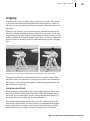
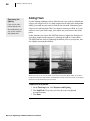
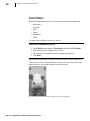
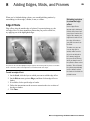
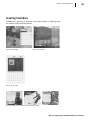
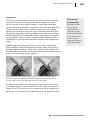
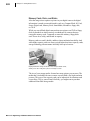
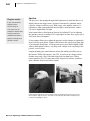
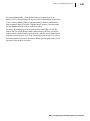
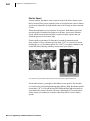
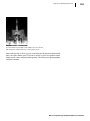
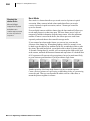
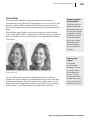
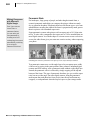
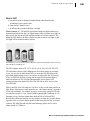
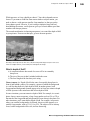
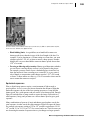
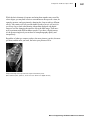
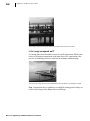
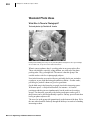
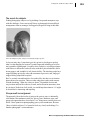
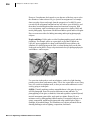
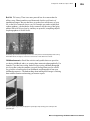
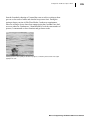
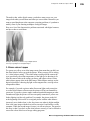
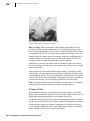
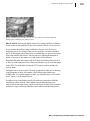
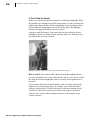
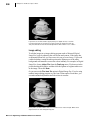
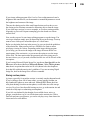
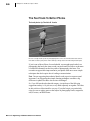
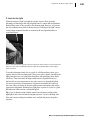
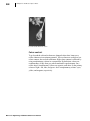
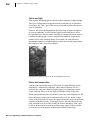
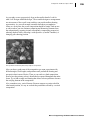
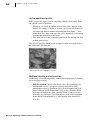
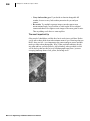
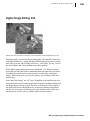
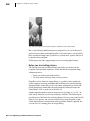
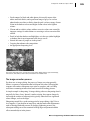
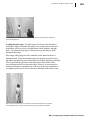
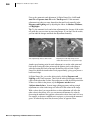
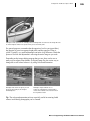
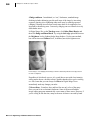
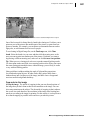
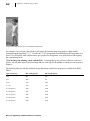
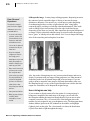
You can give a picture a new look by applying a colour effect. Turn a favourite
colour picture into an instant classic by changing it to black and white.
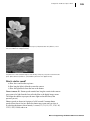
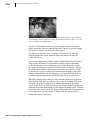
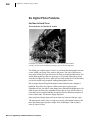
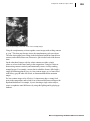
Or, apply the antique effect, which “ages” your picture by giving it an old
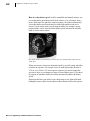
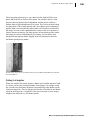
newspaper look. You can even turn it into a photographic negative.
To turn a colour picture to black and white, antique, or negative:
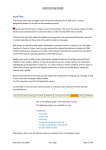
1. On the Effects menu, click one of the following:
• Antique
• Black and White
• Negative
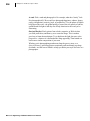
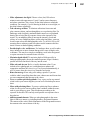
Note: You can customise the exact appearance of your black-and-white picture
using the Black and White Effects tool on the Effects menu. Use this when
you want to take the time to change the overall tone of your picture to give it
a coloured hue (like Sepia, only based on any colour—not just brown). You can
also fine-tune the brightness and contrast of your black-and-white picture in
this way.
Microsoft® Digital Image 2006 Suite Edition User’s Manual