1
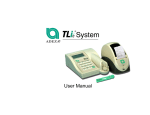
Santrax Electronic Visit Verification Fixed Visit Verification Device Financial Management Services Agency/ Consumer Directed Employer Visit Maintenance and Report Training 01/30/14 Agenda Introduction – Fixed Visit Verification (FVV) Calls in Santrax Visit Maintenance – Running FVV Reports This training presentation is for Electronic Visit Verification (EVV) FVV only. Additional EVV training materials can be accessed via the DADS EVV website at http://www.dads.state.tx.us/evv/training.html 2 What you will learn • How to identify FVV Device calls in Santrax Visit Maintenance. • How to identify the call times and visit verification numbers in Santrax Visit Maintenance. • How to run FVV Device reports in Santrax. 3 Agenda – Introduction FVV Calls in Santrax Visit Maintenance – Running Reports 4 Benefits of FVV • The FVV Device is used to capture in and out times of the attendant when a landline home telephone is not available for use. • When used correctly, visit maintenance should not be required to document FVV visits. • To limit time and effort for visit maintenance, providers should ensure all staff follow the FVV process. 5 FVV: What to expect in Santrax Visit Maintenance When FVV Device information is called in by the CDS Employee, there are several possible errors that could occur. These errors are corrected using Visit Maintenance. The Santrax Visit Maintenance module allows for editing visit information by designated users. This is covered in detail in the Santrax user manual via the DADS EVV site at http://www.dads.state.tx.us/evv/training.html **NOTE: Review Visit Maintenance on a daily basis. If corrections need to be made, Sandata recommends waiting until the following day. 6 FVV: What to Expect in Santrax Visit Maintenance When a Santrax call is received in which an FVV value has been entered, an FVV icon is displayed in the view column in Santrax Visit Maintenance. This icon appears as a green box with a light green button icon inside. 7 FVV: What to expect in Santrax Visit Maintenance If an FVV icon is clicked, a description of the call will appear in a pop up. It includes: • The first and second visit verification numbers (FVV Values). • The call in time and call out time. • The Caller (the CDS Employee) and Client/Individual associated with the call. 8 Visit Maintenance Process Reinforce that if the CDS Employee knows that there was a problem with entering visit information during the FVV Device call, the CDS Employee should contact their CDS Employer. If FVV Device visits have missing information or there are errors in the information, the CDS Employer will need to fill in the missing data or make corrections using Visit Maintenance. This is the same process that is used for missing or incorrect information in landline home telephone calls. Examples of missing or errors in data include: • Client ID is entered incorrectly. • Employee ID is entered incorrectly. • Multiple FVV calls are made. • Client ID and Employee ID are both entered incorrectly. • FVV Device In or Out values are entered incorrectly. 9 FVV Call-Invalid Client ID In the FVV call process, after pressing the star (*) key to indicate an FVV call, the CDS Employee will be prompted to enter the Client’s ID. "Please enter first Client ID." If the Client ID is entered incorrectly, the CDS Employee will hear the following prompt: “No FVV registered, please re-enter the client ID or press the pound key to continue.” • The CDS Employee should re-enter the correct Client ID, and will be prompted to continue the FVV call. • If the Client ID is not accepted after repeated attempts, the CDS Employee should hang up, contact their agency for the correct Client ID and try the call again. 10 Visit MaintenanceInvalid Employee In this example, a call was made to enter FVV values but the CDS Employee entered an incorrect Santrax ID. Once this unknown employee is identified and corrected, Memo Code 02 for Invalid ID-PCA Verified should be selected. 11 Visit MaintenanceUnknown/Invalid Client In this example, the CDS Employee entered an incorrect client ID for the individual receiving services, therefore, this is flagged in red as an example of an unknown client. The FVV icon will not be displayed. The CDS Employer should work with the CDS Employee to determine the reason for the unknown client and resolve by updating the client ID and adjusting pay hours accordingly. Use the appropriate memo code(s) to document the reason for the correction. CDS Employers should note actual hours worked in the free text field, for example 10:09AM – 10:34AM. 12 When the Client ID is entered incorrectly, or not at all, the time of the call (not the time of the visit) appears in Call Start. Visit MaintenanceUnknown Client and Employee • In this example, the CDS Employee entered an incorrect Santrax ID and was unable to enter a correct individual’s client ID therefore, both the client and employee are unknown and are flagged in red. • The CDS Employer will not see this visit recorded, and will need to contact their FMSA to correct the visit. • Only the FMSA will have the ability to view these types of visits for security reasons. Therefore, only the FMSA will be able to correct these types of visits. The FMSA should work with the CDS Employer to determine the reason for the unknown client/employee and then resolve in Visit Maintenance by correcting the unknown client/employee and adjusting pay hours accordingly. Use the appropriate memo code(s) to document the reason(s) for the correction and include the actual time worked in the text field. • Once corrections are completed, the visit can be viewed by the CDS Employer. 13 Visit MaintenanceMultiple FVV Calls In this example, FVV values were input by the CDS Employee for the same visit on different calls. Santrax will apply visit matching rules to automatically associate the FVV values with the correct visit, and no visit maintenance is required. If the matching rules do not determine a match, the CDS Employer will need to resolve any missing or unmatched call information in Visit Maintenance. 14 FVV CallIncorrect FVV Values • In the FVV call process, after entering the Client ID correctly, the CDS Employee will be prompted to enter the first FVV number: “Enter the first visit verification number.” This is the first number obtained from the FVV Device when the CDS Employee arrived at the individual’s home and will represent the time in. • If the FVV number is entered incorrectly, the CDS Employee will hear the following prompt: “Invalid visit verification number, please try again.” • The CDS Employee should re-enter the correct FVV number, and they will be prompted to continue the FVV call. • If the employee does not successfully enter the correct FVV Number, they should hang up and contact their CDS Employer to correct the visit using Visit Maintenance. 15 Visit MaintenanceMissing Call Out When a call was made to enter FVV values but the CDS Employee entered the second FVV value incorrectly, or not at all, the call end is missing and the call end box will be red. Pay hours must be manually entered and Memo Code 06 for Attendant failed to call in/out, individual verified attendant worked hours as entered should be selected. CDS Employers should note actual hours worked in the free text field, for example 07:07AM – 10:34AM. When the FVV icon is showing, the Call Start/End values represent the time of the visit (not the time of the call). 16 FVV Call No FVV Values Input • In the FVV call process, after entering the Client ID correctly, the CDS Employee will be prompted to enter the first FVV number: “Enter the first visit verification number.” This is the first number obtained from the FVV Device when the CDS Employee arrived at the individual’s home and will represent the time in. • If the CDS Employee does not enter both FVV numbers, they will hear the following prompt: “You have not entered any visit verification numbers, press 1 to return or press the # key to continue.” • The CDS Employee should enter the FVV numbers if known, and they will be prompted to continue the FVV call. • If the CDS Employee does not know or has not successfully entered the FVV Numbers, they should hang up, and contact their CDS Employer to correct the visit using Visit Maintenance. 17 Visit MaintenanceNo FVV Values Entered When a call was made to enter FVV values but the CDS Employee did not enter any values, the Call Start time will be clearly flagged in pink and there will be no FVV symbol on the visit line. This exception is referred to as an Unmatched Client Phone/ID. The CDS Employer should work with the CDS Employee to determine the reason for the missing FVV values and resolve in Santrax Visit Maintenance by adjusting pay hours accordingly. Use the appropriate memo code(s) to document the reason for the correction. CDS Employers should note actual hours worked in the free text field, for example 08:09AM – 08:34AM. When the FVV values are not entered at the time of the call, the time of the call (not the time of the visit) appears in Call Start 18 Missing FVV Device Data Correcting Pay Hours •To resolve visits where the CDS Employee did not call in or out, the CDS Employer must correct the Pay Hours. To do that, click once in the Pay Hours box and type the actual hours worked (and hit enter). The pay hours format must be input as 4 digits, add a 0 if less than 10 hours. Examples: 1 hour = 0100 1 hour 30 minutes = 0130 Manually corrected hours will appear in bold. Remember to add a Memo Code to give the reason for the correction and enter the actual hours worked in the free text field. 19 Agenda – Introduction – FVV Calls in Santrax Visit Maintenance Running FVV Reports 20 FVV Related Reports Here are the new reports related to FVV and a description of the content for each report: • • • 21 FVV Assignment Report: Displays the client, the FVV Device serial numbers and the date and time they were registered. FVV Call Listing Report: Displays client and employee information for all calls made using FVV values. FVV Registrations Report: Displays the serial number, client information, registration date and deactivation date for a date range. Running the FVV Assignment Report - Step 1 FMSA Only Step 1: To view the FVV Assignment Report, select Daily from the green menu bar at the top of the page. 22 Running the FVV Assignment Report - Steps 2, 3, and 4 FMSA Only Step 2: Check the box next to the FVV Assignment Report. Step 3: Choose the time and date range for the report. Step 4: Then select OK to view the report. 23 Running the FVV Call Listing Report - Step 1 FMSA Only Step 1: To view the FVV Call Listing Report select Date Range from the green menu bar at the top of the page. 24 Running the FVV Call Listing Report - Steps 2, 3, and 4 FMSA Only Step 2: Select the check box next to FVV Call Listing Report Step 3: Select the time and date range. Step 4: Select OK to view the FVV Call Listing Report. 25 Running the FVV Call Listing Report - Step 1 CDS Employer Only Step 1: To view the FVV Call Listing Report select Date Range from the green menu bar at the top of the page. 26 Running the FVV Call Listing Report - Steps 2, 3, and 4 CDS Employer Only Step 2: Select the check box next to FVV Call Listing Report Step 3: Select the time and date range. Step 4: Select OK to view the FVV Call Listing Report. 27 Viewing the FVV Call Listing Report • The report will appear in PDF format, which can be printed or saved to your computer. • Select the arrows to scroll through the pages. 28 Running the FVV Registrations Report - Step 1 FMSA Only Step 1: To view the FVV Registrations Report select Date Range from the green menu bar at the top of the page. 29 Running the FVV Registrations Report - Steps 2, 3, and 4 FMSA Only Step 2: Select the check box next to FVV Registrations Report. Step 3: Select the time and date range. Step 4: Select OK to view the FVV Registrations Report. 30 Viewing the FVV Registrations Report FMSA Only • The report will appear in PDF format, which can be printed or saved to your computer. • Select the arrows to scroll through the pages. 31 What you have learned In this presentation you have learned: • How to view FVV calls in Santrax Visit Maintenance. • How to review FVV Visit Maintenance. • The purpose of FVV Related Reports. • How to run and review FVV reports in Santrax. Should you have any questions contact Sandata at (855)781-2079. 32 FVV Training Access For additional FVV training, please access the additional training modules: FVV Overview Request Training (CDS): Overview and request process. FVV Install Call Training (CDS): FVV Device installation and call process. 33