1
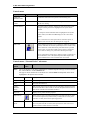
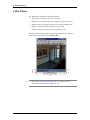
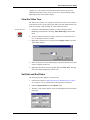
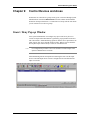
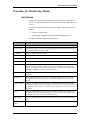
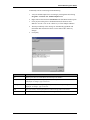
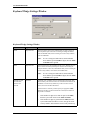
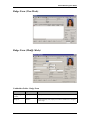
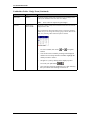
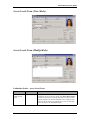
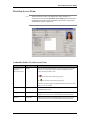
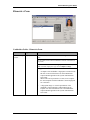
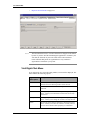
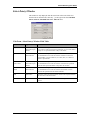
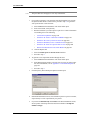
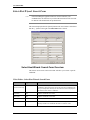
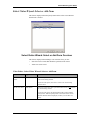
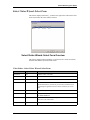
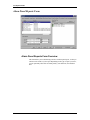
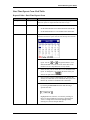
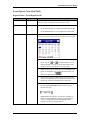
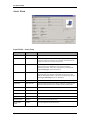
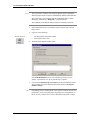
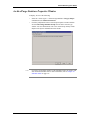
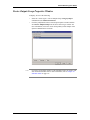
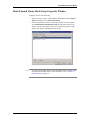
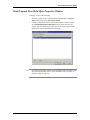
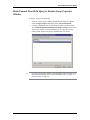
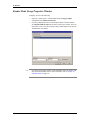
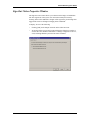
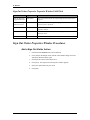
13: Badge Print Preview Window
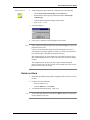
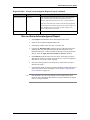
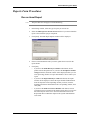
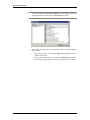
clicking [Print]. Skip to step 9. If you wish to exit the window without
printing, click [Cancel]. Otherwise continue on to the next step.
5.
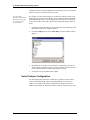
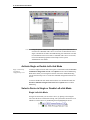
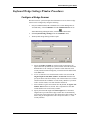
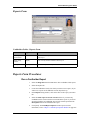
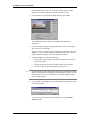
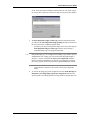
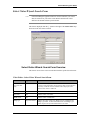
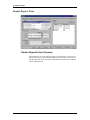
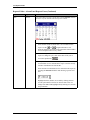
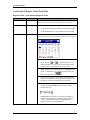
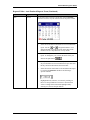
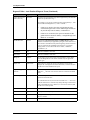
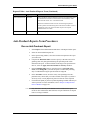
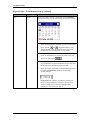
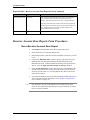
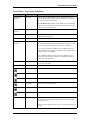
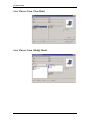
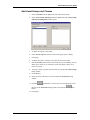
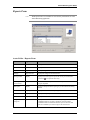
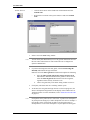
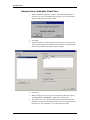
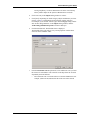
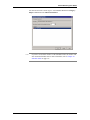
Click [Print Preview] to display the Badge Print Preview window.
The current badge displays along with cardholder data and printer
information.
6.
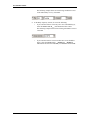
Use the [Next Page] and [Previous Page] buttons to view the next badge or
other side of a two-sided badge.
7.
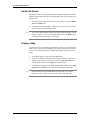
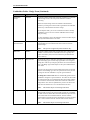
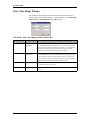
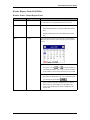
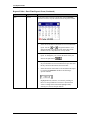
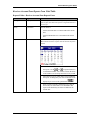
You can zoom in or out on the badge by changing the percentage value in the
Zoom box. A larger number displays the badge close-up, in more detail. A
smaller number will display more of the badge, in less detail.
8.
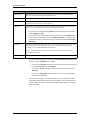
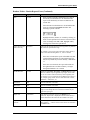
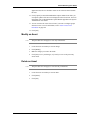
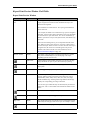
To print the badge(s), do one of the following:
Note:
•
Click [Print Current]. Doing so will print the badge that is currently in
the preview window.
•
Click [Print All] to print all of the badges that have been selected.
•
To exit from the window without printing, click [Close].
If a user attempts to print a badge that has already been printed the maximum
number of times then an error displays and the badge does not print. As with
other printing errors the user can continue on to the next badge if a batch
print is being performed.
9.
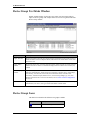
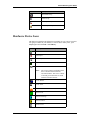
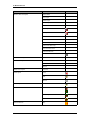
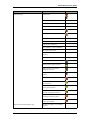
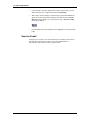
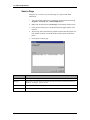
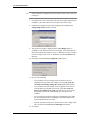
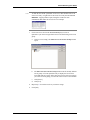
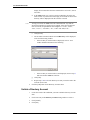
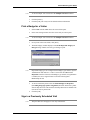
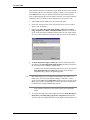
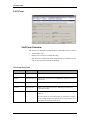
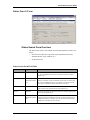
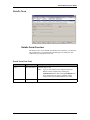
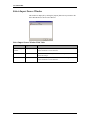
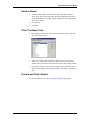
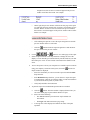
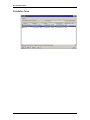
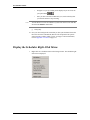
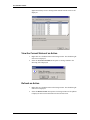
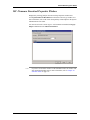
If you decided to print badges a status window displays to indicate the status
of the print operation.
A single print job entry represents all the badges selected in the Print
selection section.
190 — revision 105