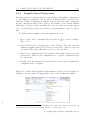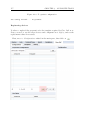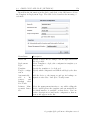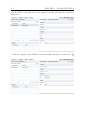
1
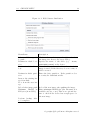
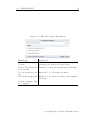
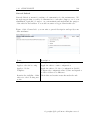
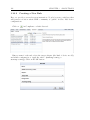
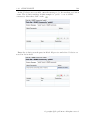
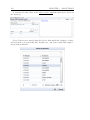
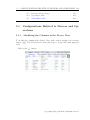
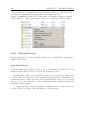
Net LineDancer
User Guide
Version 14.06
LogicVein, Inc.
www.logicvein.com
Mail: [email protected]
July 22, 2014
Introduction
Thank you for purchasing our product lines Net LineDancer v14.06 (hereafter
referred to as ”netLD ”). It reduces the effort of network device management and
also increases the robustness, security and high availability of your networks, and
we are very happy to help your job and to introduce you to such a product! To
achieve the maximum speedup in your office in the least cost of time, please take a
look at this introduction section first. It would be helpful how to read the manual
and which section you should read in order to get the information right away.
i
ii
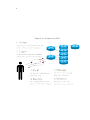
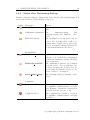
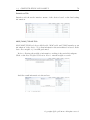
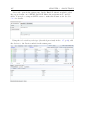
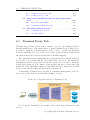
Figure 0.1.1: Features in netLD.
0.1. WHAT IS NETLD?
0.1
iii
What is netLD?
netLD is designed to help network engineers manage the configurations of the network devices e.g. routers or switches in their enterprises. Below is a brief summary
of what netLD can do. (they are mainly described in Basic Tools Section.)
• Automatic detection of network devices in your network. Once you specify
the range of IP addresses, you soon get the network devices as they are. This
is helpful when you jump into an awful situation such as there is almost no
reliable documentation on the device IP addresses and no one understand
the current state of your network.
• Grouping, automated login and backup. You can group the devices so that
the devices share the same login information within a group, and then you
can reduce the effort to log in to each device. Once you registered the login
information to the database, you can back up the configuration data in the
devices.
• Fast & intuitive & automated access to the properties of each device. You
can see, compare and restore the backed-up state of the devices in few clicks!
Current states of the devices are shown in icons and you can easily find which
device has a problem.
• If you have over the thousands of devices, you will find it painstaking to configure them because their configurations are almost the same but have small
variations such as IP addresses and device names. We provide a scalable
management method Smart Change on that purpose.
• And many other features, such as
– Producing a summary report.
– Automated detection and logging of changes in the configuration.
– Automated error reporting to the other Network Management Systems.
All of these features are described in this manual, and the above list is incomplete. As you proceed through the manual, you will find many other useful
features.
iv
0.1.1
Target Audience
The target audience of this manual is the network administrators with minimum
knowledge of managing the network devices such as routers and switches. We
assume you are already familiar with IP network, concept of configurations of the
devices, and sometimes CUI operation on both network devices and the server.
However please do not worry, you do not have to be the master of all methods of
managing the devices. We sometimes provide a helpful explanation even on the
basic knowledge if we think it is necessary. As you progress through the manual,
anyone new to the network management would get more familiar with what it is
all about.
0.1.2
About this manual
The manual is constructed as follows.
1. First, we give tutorial sections that describe the basic installation method
and the initial setup so that you can soon start managing the devices in your
networks.
2. Then we give a concise explanation of various original concepts in netLD,
for example, networks, credentials, etc, as well as most of the terms that we
use throughout the manual such as the names of the UI elements. If you feel
you are already good at those concepts you can skip this section.
3. Next, we proceed to the usage of the basic tools. They are easy to understand if you have a good understanding of some concepts and UI of netLD.
However, since the UI elements are designed to be intuitive enough, you
might already know how to use it even before reading this section.
4. We give further details of the advanced tools in our products such as terminal proxy, Smart Bridge or Zero-touch, which is necessary when you try to
manage the large networks under many customers or you have to reduce the
management effort on the remote networks.
5. The rest of the sections describe miscellaneous tools, tips, FAQs and default/internal data, which may sometimes help you solve the problem you
will encounter during the operations.
Note that you can start from any section, especially if you are already familiar with our products by testing the trial version. This manual is composed for
that purpose, and each section is composed so that it minimizes the dependencies
between the chapters.
0.1. WHAT IS NETLD?
v
If you need further assistance or technical support about Net LineDancer,
please fell free to contact below. We will be pleased to help you when you find
any errors or ambiguities in this manual, or any questions regarding them as well.
Please note that we are closed on weekends, national holidays, New Year and summer holidays in Japanese time. We accept e-mails for 24 hours but we will only
reply on those business hours. Thank you for your cooperation.
LogicVein, Inc. Technical Support
Mail:
[email protected]
Finally, note that the descriptions in this manual are based on the version and
the state of the websites on June 2014, and may be obsolete after some changes
happen. Also we do not guarantee all or part of the contents in this manual
maintain its accuracy.
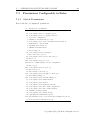
Contents
0.1
What is netLD? . . . . . . . . . . . . . . . . . . . . . . . . . . . . .
iii
0.1.1
Target Audience . . . . . . . . . . . . . . . . . . . . . . . .
iv
0.1.2
About this manual . . . . . . . . . . . . . . . . . . . . . . .
iv
1 Tutorial
1
1.1
Getting netLD
. . . . . . . . . . . . . . . . . . . . . . . . . . . . .
1
1.2
Installing netLD . . . . . . . . . . . . . . . . . . . . . . . . . . . . .
4
1.2.1
Instruction on Windows . . . . . . . . . . . . . . . . . . . .
5
1.2.2
Instruction on Linux family of OS . . . . . . . . . . . . . . . 11
1.3
Accessing the netLD Instance . . . . . . . . . . . . . . . . . . . . . 15
1.4
Login . . . . . . . . . . . . . . . . . . . . . . . . . . . . . . . . . . . 16
1.5
Initial configuration . . . . . . . . . . . . . . . . . . . . . . . . . . . 17
1.5.1
Adding the Devices . . . . . . . . . . . . . . . . . . . . . . . 18
1.5.2
Setting the Credentials . . . . . . . . . . . . . . . . . . . . . 19
1.5.3
Performing a Backup . . . . . . . . . . . . . . . . . . . . . . 21
1.5.4
Scheduling the Backups . . . . . . . . . . . . . . . . . . . . 23
2 netLD Basics
2.1
2.2
25
Basic controls and UI elements
. . . . . . . . . . . . . . . . . . . . 25
2.1.1
Panes . . . . . . . . . . . . . . . . . . . . . . . . . . . . . . 25
2.1.2
Menu and Submenu . . . . . . . . . . . . . . . . . . . . . . . 26
2.1.3
Subtabs and Subpane . . . . . . . . . . . . . . . . . . . . . . 26
2.1.4
Window . . . . . . . . . . . . . . . . . . . . . . . . . . . . . 26
Devices, Configurations and Backups . . . . . . . . . . . . . . . . . 29
2.2.1
Adapters . . . . . . . . . . . . . . . . . . . . . . . . . . . . . 30
vii
viii
CONTENTS
2.3 Credentials, Network Groups, Protocols . . . . . . . . . . . . . . . . 31
2.3.1
Network Group . . . . . . . . . . . . . . . . . . . . . . . . . 32
2.3.2
Protocols . . . . . . . . . . . . . . . . . . . . . . . . . . . . 33
2.4 Users and Roles . . . . . . . . . . . . . . . . . . . . . . . . . . . . . 34
2.5 Networks . . . . . . . . . . . . . . . . . . . . . . . . . . . . . . . . . 35
2.6 Service Management . . . . . . . . . . . . . . . . . . . . . . . . . . 35
3 Basic Tools
39
3.1 Credentials . . . . . . . . . . . . . . . . . . . . . . . . . . . . . . . 42
3.1.1
Dynamic Setting Strategy . . . . . . . . . . . . . . . . . . . 43
3.1.2
Static Setting Strategy . . . . . . . . . . . . . . . . . . . . . 46
3.1.3
Import from an Excel spreadsheet . . . . . . . . . . . . . . . 48
3.2 Users and Roles . . . . . . . . . . . . . . . . . . . . . . . . . . . . . 50
3.2.1
Creating a Role . . . . . . . . . . . . . . . . . . . . . . . . . 50
3.2.2
Creating a User . . . . . . . . . . . . . . . . . . . . . . . . . 51
3.2.3
Quick Password Change . . . . . . . . . . . . . . . . . . . . 53
3.3 Tools for Devices . . . . . . . . . . . . . . . . . . . . . . . . . . . . 54
3.3.1
Adding Devices . . . . . . . . . . . . . . . . . . . . . . . . . 54
3.3.2
Discover New Devices
3.3.3
Adding Devices Manually . . . . . . . . . . . . . . . . . . . 58
3.3.4
Editing and Deleting the Devices . . . . . . . . . . . . . . . 60
3.3.5
Searching Devices . . . . . . . . . . . . . . . . . . . . . . . . 60
3.3.6
Exporting and Importing the Inventory . . . . . . . . . . . . 62
. . . . . . . . . . . . . . . . . . . . . 56
3.4 Configuration and Backup . . . . . . . . . . . . . . . . . . . . . . . 64
3.4.1
Status Summary . . . . . . . . . . . . . . . . . . . . . . . . 65
3.4.2
Status after Performing Backup . . . . . . . . . . . . . . . . 66
3.4.3
Restoring the Configuration . . . . . . . . . . . . . . . . . . 67
3.4.4
Device Property . . . . . . . . . . . . . . . . . . . . . . . . . 67
3.4.5
Comparing the configurations . . . . . . . . . . . . . . . . . 71
3.4.6
Checking the Mismatch in startup-config and running-config
73
3.5 Tools Menu . . . . . . . . . . . . . . . . . . . . . . . . . . . . . . . 74
CONTENTS
ix
3.5.1
DNS Lookup . . . . . . . . . . . . . . . . . . . . . . . . . . 74
3.5.2
IOS Show Commands
3.5.3
IP Routing Table . . . . . . . . . . . . . . . . . . . . . . . . 76
3.5.4
Ping . . . . . . . . . . . . . . . . . . . . . . . . . . . . . . . 76
3.5.5
SNMP System Info. . . . . . . . . . . . . . . . . . . . . . . . 77
3.5.6
Interface Brief . . . . . . . . . . . . . . . . . . . . . . . . . . 77
3.5.7
Traceroute . . . . . . . . . . . . . . . . . . . . . . . . . . . . 78
3.5.8
Port Scan . . . . . . . . . . . . . . . . . . . . . . . . . . . . 78
3.5.9
Live ARP Table . . . . . . . . . . . . . . . . . . . . . . . . . 79
3.6
. . . . . . . . . . . . . . . . . . . . . 75
Change Menu . . . . . . . . . . . . . . . . . . . . . . . . . . . . . . 79
3.6.1
Command Runner . . . . . . . . . . . . . . . . . . . . . . . 80
3.6.2
Enable or Disable Interfaces . . . . . . . . . . . . . . . . . . 81
3.6.3
Login Banner (MOTD) . . . . . . . . . . . . . . . . . . . . . 81
3.6.4
Name Servers Manager . . . . . . . . . . . . . . . . . . . . . 82
3.6.5
NTP Servers . . . . . . . . . . . . . . . . . . . . . . . . . . . 82
3.6.6
Port VLAN Assignment . . . . . . . . . . . . . . . . . . . . 83
3.6.7
SNMP Community String . . . . . . . . . . . . . . . . . . . 84
3.6.8
SNMP Trap Hosts . . . . . . . . . . . . . . . . . . . . . . . 84
3.6.9
Syslog Hosts . . . . . . . . . . . . . . . . . . . . . . . . . . . 85
3.6.10 IOS Software Distribution . . . . . . . . . . . . . . . . . . . 85
3.6.11 Manage OS Images . . . . . . . . . . . . . . . . . . . . . . . 85
3.6.12 NEC WA Software Distribution . . . . . . . . . . . . . . . . 87
3.6.13 Retrieve OS Image Files . . . . . . . . . . . . . . . . . . . . 87
3.6.14 Add Static Route . . . . . . . . . . . . . . . . . . . . . . . . 89
3.6.15 Delete Static Route . . . . . . . . . . . . . . . . . . . . . . . 89
3.6.16 Users . . . . . . . . . . . . . . . . . . . . . . . . . . . . . . . 90
3.7
3.8
Job Management . . . . . . . . . . . . . . . . . . . . . . . . . . . . 92
3.7.1
Creating a New Job . . . . . . . . . . . . . . . . . . . . . . . 93
3.7.2
Status Indicators in Job History Subtab . . . . . . . . . . . 99
Report . . . . . . . . . . . . . . . . . . . . . . . . . . . . . . . . . . 100
3.8.1
Issuing a Report Manually . . . . . . . . . . . . . . . . . . . 105
x
CONTENTS
3.8.2
Scheduling the Reports . . . . . . . . . . . . . . . . . . . . . 106
3.9 Smart Change . . . . . . . . . . . . . . . . . . . . . . . . . . . . . . 108
3.9.1
Creating a Smart Change Job . . . . . . . . . . . . . . . . . 109
3.10 Compliance . . . . . . . . . . . . . . . . . . . . . . . . . . . . . . . 116
3.10.1 Various Rule-related tabs
. . . . . . . . . . . . . . . . . . . 117
3.10.2 Creating a New Rule . . . . . . . . . . . . . . . . . . . . . . 121
3.10.3 Policy tab . . . . . . . . . . . . . . . . . . . . . . . . . . . . 125
3.11 Draft Configuration . . . . . . . . . . . . . . . . . . . . . . . . . . . 131
3.11.1 Creating a Draft Configuration . . . . . . . . . . . . . . . . 131
3.11.2 Importing Configurations from Plain Texts . . . . . . . . . . 132
3.11.3 Comparing the Configurations . . . . . . . . . . . . . . . . . 134
3.11.4 Applying a Draft Configuration to a Device . . . . . . . . . 134
3.12 Change Advisor . . . . . . . . . . . . . . . . . . . . . . . . . . . . . 135
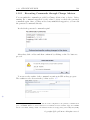
3.12.1 Executing Commands through Change Advisor . . . . . . . 136
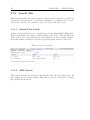
3.13 Search Tab
. . . . . . . . . . . . . . . . . . . . . . . . . . . . . . . 137
3.13.1 Switch Port Search . . . . . . . . . . . . . . . . . . . . . . . 137
3.13.2 ARP Search . . . . . . . . . . . . . . . . . . . . . . . . . . . 137
4 Advanced Tools
139
4.1 Terminal Proxy Tab . . . . . . . . . . . . . . . . . . . . . . . . . . 140
4.1.1
Available Commands . . . . . . . . . . . . . . . . . . . . . . 141
4.1.2
Setup the Terminal Proxy . . . . . . . . . . . . . . . . . . . 142
4.1.3
Login . . . . . . . . . . . . . . . . . . . . . . . . . . . . . . . 143
4.1.4
Terminal Proxy Log . . . . . . . . . . . . . . . . . . . . . . 145
4.1.5
Verifying the Log from Change History . . . . . . . . . . . . 146
4.1.6
Exporting the Log Files . . . . . . . . . . . . . . . . . . . . 147
4.2 Cisco Plug and Play (Optional) . . . . . . . . . . . . . . . . . . . . 148
4.2.1
Requirements for Using Cisco PnP Feature . . . . . . . . . . 150
4.2.2
Setting up a DHCP Server . . . . . . . . . . . . . . . . . . . 151
4.2.3
Template-Based Deployment . . . . . . . . . . . . . . . . . . 156
4.2.4
Importing the Replacement Values in Cisco PnP . . . . . . . 161
CONTENTS
xi
4.2.5
Cisco PnP Self-Recovery . . . . . . . . . . . . . . . . . . . . 163
4.2.6
Cisco PnP Specific Device Recovery . . . . . . . . . . . . . . 165
4.2.7
Distributing Configurations via 3G network and VPN-capable
Mobile Router . . . . . . . . . . . . . . . . . . . . . . . . . . 167
4.2.8
Deploying Configurations Prior to Sending the Devices to
Each Base . . . . . . . . . . . . . . . . . . . . . . . . . . . . 169
4.2.9
Deploying a Bootstrap . . . . . . . . . . . . . . . . . . . . . 170
4.3
4.4
4.5
Smart Bridge (Optional) . . . . . . . . . . . . . . . . . . . . . . . . 171
4.3.1
Installation . . . . . . . . . . . . . . . . . . . . . . . . . . . 172
4.3.2
Registering Smart Bridges to the Core Server . . . . . . . . 175
4.3.3
Adding a Network for a SB . . . . . . . . . . . . . . . . . . 178
4.3.4
Adding devices to a SB . . . . . . . . . . . . . . . . . . . . . 179
Integration with External Network Management Software . . . . . . 180
4.4.1
Interaction with SNMPc . . . . . . . . . . . . . . . . . . . . 180
4.4.2
Configuring SNMP Trap Send . . . . . . . . . . . . . . . . . 183
Real-time Change Detection . . . . . . . . . . . . . . . . . . . . . . 185
4.5.1
Configuring your devices . . . . . . . . . . . . . . . . . . . . 185
4.5.2
Operation Check . . . . . . . . . . . . . . . . . . . . . . . . 186
5 Miscellaneous
5.1
5.2
187
Configurations Related to Devices and Operations . . . . . . . . . . 188
5.1.1
Modifying the Columns in the Device View . . . . . . . . . . 188
5.1.2
Scheduler Filters . . . . . . . . . . . . . . . . . . . . . . . . 189
5.1.3
Device Tags . . . . . . . . . . . . . . . . . . . . . . . . . . . 191
5.1.4
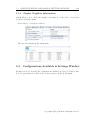
Display Neighbor Information . . . . . . . . . . . . . . . . . 194
Configurations Available in Settings Window . . . . . . . . . . . . . 194
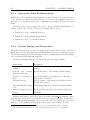
5.2.1
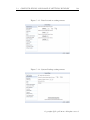
Setting the Data Retention policy . . . . . . . . . . . . . . . 195
5.2.2
System Backup and Restoration . . . . . . . . . . . . . . . . 195
5.2.3
Mail Server . . . . . . . . . . . . . . . . . . . . . . . . . . . 197
5.2.4
Changing the Data Directory in Operation . . . . . . . . . . 199
5.2.5
netLD RADIUS External Authentication . . . . . . . . . . . 199
5.2.6
Changing the Column Names of Custom Device Fields . . . 201
xii
CONTENTS
5.2.7
Launchers (URL Launchers) . . . . . . . . . . . . . . . . . . 201
5.2.8
Network Servers . . . . . . . . . . . . . . . . . . . . . . . . . 203
5.2.9
Software Update . . . . . . . . . . . . . . . . . . . . . . . . 205
5.3 Help Menu . . . . . . . . . . . . . . . . . . . . . . . . . . . . . . . . 206
5.3.1
FAQ . . . . . . . . . . . . . . . . . . . . . . . . . . . . . . . 206
5.3.2
Manual . . . . . . . . . . . . . . . . . . . . . . . . . . . . . 206
5.3.3
About . . . . . . . . . . . . . . . . . . . . . . . . . . . . . . 207
5.4 Yet Other Miscellaneous Operations . . . . . . . . . . . . . . . . . . 209
5.4.1
Security Certificate on Browsers . . . . . . . . . . . . . . . . 209
5.4.2
Software License Key . . . . . . . . . . . . . . . . . . . . . . 216
5.4.3
Resetting Client Settings . . . . . . . . . . . . . . . . . . . . 216
5.4.4
Upgrading netLD . . . . . . . . . . . . . . . . . . . . . . . . 218
5.4.5
Uninstalling netLD . . . . . . . . . . . . . . . . . . . . . . . 218
6 FAQ
221
6.1 Devices are not successfully discovered nor added to the device list . 222
6.2 Backup Fails! . . . . . . . . . . . . . . . . . . . . . . . . . . . . . . 222
6.3 The wrong IP address is displayed during the discovery . . . . . . . 223
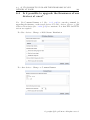
6.4 Is it possible to upgrade the firmwares of our devices at once? . . . 224
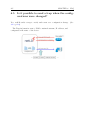
6.5 Is it possible to send a trap when the configurations were changed? 225
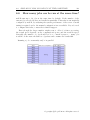
6.6 How many jobs can be run at the same time? . . . . . . . . . . . . 226
6.7 Error ”No connection-based protocol specified. . . ” occurs when I
try to run a change tool . . . . . . . . . . . . . . . . . . . . . . . . 227
7 Data
229
7.1 Port Usage . . . . . . . . . . . . . . . . . . . . . . . . . . . . . . . . 230
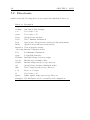
7.2 Directories . . . . . . . . . . . . . . . . . . . . . . . . . . . . . . . . 231
7.3 Permissions Configurable in Roles . . . . . . . . . . . . . . . . . . . 232
7.3.1
List of Permissions . . . . . . . . . . . . . . . . . . . . . . . 232
7.3.2
Permission vs Available Operations . . . . . . . . . . . . . . 233
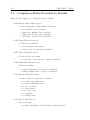
7.4 Compliance Rules Provided by Default . . . . . . . . . . . . . . . . 235
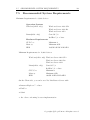
7.5 Recommended System Requirements . . . . . . . . . . . . . . . . . 236
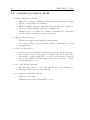
7.6 Updates in version 13.08 . . . . . . . . . . . . . . . . . . . . . . . . 237
7.7 The List of Available Device Adapters . . . . . . . . . . . . . . . . 238
7.7.1
Supported Device List - version14.06 . . . . . . . . . . . . . 239
7.7.2
IOS Software Distributing Exception . . . . . . . . . . . . . 242
7.7.3
Getting the Latest Adapter Information . . . . . . . . . . . 242
7.8 Contacts . . . . . . . . . . . . . . . . . . . . . . . . . . . . . . . . . 242
CONTENTS
xiii
8 Appendices
8.1
8.2
243
Cron tutorial . . . . . . . . . . . . . . . . . . . . . . . . . . . . . . 243
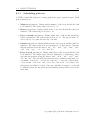
8.1.1
Scheduling patterns . . . . . . . . . . . . . . . . . . . . . . . 244
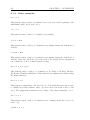
8.1.2
Some examples: . . . . . . . . . . . . . . . . . . . . . . . . . 245
Setting up Active Directory on Windows Server 2012 . . . . . . . . 247
8.2.1
Installation . . . . . . . . . . . . . . . . . . . . . . . . . . . 247
8.2.2
Configuration . . . . . . . . . . . . . . . . . . . . . . . . . . 248
Chapter 1
Tutorial
Now we give a tutorial that helps you install our products. This chapter forms a
full tutorial that is helpful when you first run the trial version of netLD. If you
have a full manual and a tutorial, the contents are going to be exactly the same,
so you can simply ignore the latter.
1.1
Getting netLD
For the users who first get this manual before getting the software, we provide a
brief introduction to our website. Please understand that the website appearances
are subject to changes. If you already have the software, you can safely ignore this
section.
Following the tutorial here, you can get a free trial version of NetLD. The
free version can later be upgraded to the full version by adding a license file.
Firstly, navigate on your Web browser (e.g. Google Chrome, Firefox, Internet
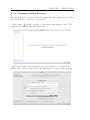
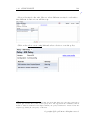
Explorer) to http://www.logicvein.com , shown in the following pages. Follow
the instruction in each figure and get the installer binaries which are usually named
as netld-Enterprise-<release-date>-<architecture>.
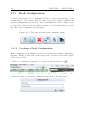
If you are using a machine with 32bit Operation System, we are very sorry to
inform you that netLD enterprise is not available for your system. You can alternatively get Net StreetDancer, the free version of the software where the maximum
number of devices is smaller than those available in netLD. To run netLD, make
sure you have the 64bit operation system.
1
1.1. GETTING NETLD
2
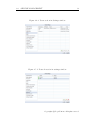
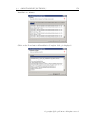
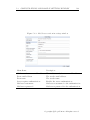
Figure 1.1.1: This is LogicVein support page. Navigate to the Product highlighted
in red.
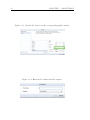
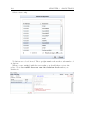
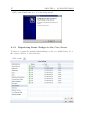
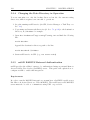
Figure 1.1.2: Click on the green Download button in the middle of the page.
C LogicVein.inc All rights reserved.
Copyrights ⃝
3
CHAPTER 1. TUTORIAL
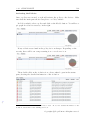
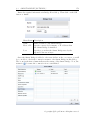
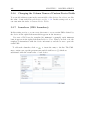
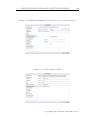
Figure 1.1.3: Finally, in this page, choose either Windows (64bit), Linux(64bit) or
alternatively Net StreetDancer (32bit).
1.2. INSTALLING NETLD
1.2
4
Installing netLD
Once you get the software, let’s install it! There are few notes before installing
the software.
1. First of all, the installation should be done by the user with Administrator
privilege (on Microsoft Windows). On Unix-like machines, you have to be
able to log in as root user (or sudoers if sudo is set up in the system). Login
again as the appropriate user.
2. Next, check the minimum requirements of the installation.
3. Third, check the install dependency and the programs that are simultaneously installed into the system and so on.
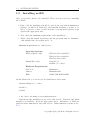
Minimum Requirements for 3,000 devices:
Operation Systems
Windows(64bit only)
Windows Server 2008 SP2
Windows Server 2008 R2
Windows Server 2012
Linux(64bit only)
Cent OS 5/6
RedHat 5/6 or later
Hardware Requirements
CPU Core
Minimum 4
Memory
Minimum 2GB
HDD
120GB 10K RPM RAID1
On the Client side, you can browse Net LineDancer Server with:
• Internet Explorer 7 or later
• FireFox
• Safari
or the other conforming browser implementation.
Platform specific installation notes follow this section. Windows and Linux
instruction is available. Read the appropriate pages. Instruction on Windows
platform starts immediately after this section. Linux instruction starts in Sec.
1.2.2.
C LogicVein.inc All rights reserved.
Copyrights ⃝
5
CHAPTER 1. TUTORIAL
1.2.1
Instruction on Windows
On windows, there is little or no software dependency on installing netLD. The
installer sets up everything needed at the same time. These are the list of automatically installed software:
• Adobe Flash Player v.10.3 or above. Installation is system-wide.
• Java7 SE Runtime Environment and ActivePerl. Installation is packagelocal, so it does not conflict with the system-wide installation of Java environment or ActivePerl.
Now we provide a screen-by-screen instruction of the installation of netLD. It
is straightforward if you are already familiar with standard installation process of
windows programs. However, few things to note: we require the Internet connection to automatically certificate your license key, or you are required to run an
additional process.
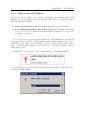
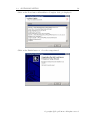
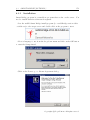
On the server, double-click on the netLD installer to start the installation.
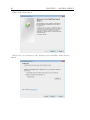
Select a language to use from the drop-down menu and click on the OK button
to start the Setup wizard.
1.2. INSTALLING NETLD
6
After selecting language to use, NetLD checks the port usage. Following error
message will show up if the installer find any applications using the required port.
Click on the Next button to go to License Agreement dialog.
C LogicVein.inc All rights reserved.
Copyrights ⃝
7
CHAPTER 1. TUTORIAL
License Agreement dialog. Press page down key to read the rest of the
agreement and click on the I Agree to continue.
Specify the install directory by clicking Browse. . . button. Click on the Next
button to continue.
1.2. INSTALLING NETLD
8
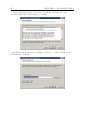
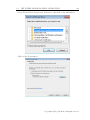
Choose the license. If you just want to try the trial version, choose Activate
Evaluation and enjoy 30-days trial. If you already paid for our product and have
a license key, choose Activate with existing License Key or License File.
If your environment is connected to the Internet, enter your serial number in
the Internet Activation Serial field and click on Next. Otherwise, get a license file
from us ([email protected]), choose that file and click on Next. Note that
the online serial authentication may fail under LDAP certification.
C LogicVein.inc All rights reserved.
Copyrights ⃝
9
CHAPTER 1. TUTORIAL
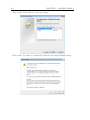
In the SSL Certificate dialog, enter the required information and click on the
Install button. Information entered here can be edited after the installation. See
Sec. 5.4.1 for details.
Installation continues.
1
NetLD authenticate the serial number via Internet, so the Internet connection is required in
order to activate it. Without Internet connection, you have to obtain a static license file from us.
Please contact [email protected] . Also, when we issue a license file, we require the MAC
Address of your server. MAC Address can be obtained by ipconfig /all (on windows CUI) or
ifconfig (on UNIX-like systems). If the server has multiple NICs, we require only one of them.
1.2. INSTALLING NETLD
10
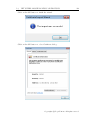
Click on the Next button if Installation Complete dialog is displayed.
Click on the Finish button to close the setup wizard.
C LogicVein.inc All rights reserved.
Copyrights ⃝
11
CHAPTER 1. TUTORIAL
1.2.2
Instruction on Linux family of OS
On linux-based systems, there are some software dependencies but they are automatically resolved by their package manager and our installation script. The
dependencies are:
• Java7 runtime (java-1.7-openjdk package and alike).
• openssl
• compat-expat1 (only needed on Cent OS 6.x)
Currently, only the systems with rpm are supported. These are for example
Fedora, Cent OS6, RedHat and so on. If the system supports up2date or yum,
the install dependencies are resolved automatically. If you find your system does
not have those package managers, please contact [email protected] . Note
that you also have to set up the network connection in order to get the dependent
packages from the remote rpm repositories.
We provide a self-containing installation binary named as netld-2013.08.0-x86 64.bin
(which may differ depending on the version). Before the installation, make sure
the binary has the executable flag on.
$ chmod +x netld-2013.08.0-x86_64.bin
If you have the superuser password, login as root and type as follows. Below,
$ means you are logged in as a regular user and # means you are now a superuser.
$ su
Password:
# sh netld-2013.08.0-x86_64.bin
then the installation starts. Alternatively, if your system has sudo installed
and you are one of sudoers, then you can also type:
$ sudo sh netld-2013.08.0-x86_64.bin
You will see the package manager downloads the dependent packages via the
Internet.
-----------------------------------------------------------Net LineDancer 2013.08.0 (r.20131127.1745) Installer
-----------------------------------------------------------java version "1.7.0_55"
Loaded plugins: fastestmirror, refresh-packagekit, security
-
1.2. INSTALLING NETLD
12
Loading mirror speeds from cached hostfile
* base: www.ftp.ne.jp
* extras: www.ftp.ne.jp
* updates: ftp.nara.wide.ad.jp
Setting up Install Process
...
...
=================================================================
Package
Arch
Version
Repository
Size
=================================================================
Installing:
netld
x86_64
2013.08.0-XXXXX /netld
154 M
Transaction Summary
=================================================================
Install
1 Package(s)
Total size: 154 M
Installed size: 154 M
Is this ok [y/N]:
As shown above, you will be prompted [y/N]. Answer y here. Installation
continues and finishes. After that, if you have ever installed netLD before, the
installer may ask you if you want to overwrite the certificate. If so, answer y.
Further description on SSL certificate is available in Sec. 5.4.1.
Verifying : netld-2013.08.0-20131127.1745.x86_64
Installed:
netld.x86_64 0:2013.08.0-20131127.1745
Complete!
A certificate has already been created for this
server. Would you like to overwrite it?
Overwrite [y/n]: y
Then you will be asked to enter some information to set up an SSL certificate.
Example information is shown below.
Net LineDancer clients use SSL to communicate with the
server. An SSL certificate must be generated for this
machine. The hostname field below must accurately reflect
the hostname for this server. Only ASCII characters
are supported.
Hostname (FQDN): logicvein.com
C LogicVein.inc All rights reserved.
Copyrights ⃝
13
CHAPTER 1. TUTORIAL
Organization Unit: lvi
Organization: lvi
City: kawasaki
State or Province: Kanagawa
Country Code [JP/KR/US]: JP
Finally, you will be asked for an license file. If you continue using netLD with a
trial license, just hit Enter. If you already have a license file, give the full pathname
to the file. After that, netLD service starts automatically.
Specify your internet activation serial or the location of
your license file. If you have neither, hit enter to skip.
Activation Serial or License File: /path/to/license.enc
Net LineDancer enabling redirection of FTP, TFTP and HTTPS
ports to host centos-virtual.
.
Starting Net LineDancer...
Open the browser and access https://localhost/. If your installation is
successful and the server starts without error, it would show the uncertified SSL
warnings, described in the next section.
1.2. INSTALLING NETLD
14
When you run into trouble
If you are using the virtualization software such as VirtualBox or VMware and run
netLD in the guest OS, you have to pay the special attention on how the network
device on the guest OS is emulated. If you match this situation and you have
trouble running netLD, below method might work for you:
• First of all, take a memo of your local IP address, for example 192.168.0.78.
• On a browser, try accessing the IP address (192.168.0.78) instead of localhost.
• If this does not work, see the log file.
– The log file is located in /usr/share/netld/, which is also the installation path.
– Below the directory, you will see netLD.log (via ls /usr/share/netld/.)
– Look into the log file and see the warning messages (via less netLD.log).
If you find java.net.UnknownHostException XXXX: XXXX: name or
service unknown or similar error messages, this is an system-dependent
problem.
∗ In this case, you have to resolve the name XXXX via /etc/hosts file
or via DNS.
∗ Let XXXX be centos-virtual for example. This is usually the
hostname of your machine (available via hostname command on
the terminal).
∗ Add the following line to the /etc/hosts:
<real host IP address> centos-virtual
If it is not the case for you, or it does not solve the problem, or if you are still
in trouble, contact [email protected] with the above log file attached. Our
professional support team is ready to fix things.
C LogicVein.inc All rights reserved.
Copyrights ⃝
15
1.3
CHAPTER 1. TUTORIAL
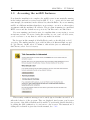
Accessing the netLD Instance
Now that the installation is complete, the netLD server is automatically running
in the background and you can access its GUI. To do so, open a web browser and
enter https://localhost/ in the address bar, then hit Enter. If you are running
netLD on a different machine than that you are trying to access it on, then replace
localhost with the machine’s IP address. The program is running as a standard
HTTP server and the default access port is 80, but this can be modified later.
If you are running a modern browser, it complains that you are trying to access
an insecure website. However clearly this website is your own local web server,
you do not have to worry that it could be any malicious website.
The browser in this example is Mozilla Firefox and you should click on Add
exception. The similar interface is provided in Microsoft Internet Explorer and
Google Chrome. On IE, select ”Continue to this website (not recommended)”.
On Chrome, select Proceed anyway.
This security certificate messages can be safely ignored in this case and do not
affect the behavior of the program. They are displayed just because your browser
is not aware of the SSL credential used by netLD. You can safely disable this dialog
by adding the SSL certification of your server to the browser. The instruction for
adding the credential is given later in the manual, Sec. 5.4.1.
1.4. LOGIN
1.4
16
Login
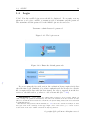
Voila! Now the netLD login screen should be displayed. For security reasons,
whenever you log in to netLD, you must provide a username and the password.
The username and the password for the initial login are shown below.
Username: admin Password: password
Figure 1.4.1: The login screen.
Figure 1.4.2: Enter the default passwords.
†2
If you are using the free trial version, the evaluation license expires in 30 days
after the first login. Similarly, if you have authenticated the license via a license
file, it expires in 30 days after the date issued. In order to upgrade from the free
version to the full version, you have to add a license file (Sec. 5.4.2).
2
IMPORTANT — please change the admin password later for more security. When you
cannot change the password immediately, disconnect the machine from the network at least.
(However, it still allows the attackers to sneak into the system using viruses sent via devises such
as USB flash drives.)
The instruction is given later in the manual, Sec. 3.2, but we also describe it briefly now: after
the login, click on the ”Settings” in the upper right corner of the screen, go to ”Users” section,
double-click on the user ”admin” and then modify its password.
C LogicVein.inc All rights reserved.
Copyrights ⃝
17
CHAPTER 1. TUTORIAL
1.5
Initial configuration
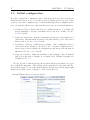
In order to gather the configuration data of the network devices in your network,
netLD needs to know how to access those devices. In this section, we give a brief
overview of how the configuration proceeds in netLD. After these configurations are
done, we gain the full access to the network devices via our convenient interfaces.
1. Adding the Devices. First, add devices to netLD inventory. You either add
devices manually or use the ”automatic device discovery” facility. See Sec.
3.3.1 for details.
2. Setting the Credentials. Register a username and the associated password of
each devise. This information is used every time netLD log in to the devices
under control. See Sec. 3.1 for details.
3. Performing a Backup. netLD creates backups of the configuration data of
each device in the inventory. It allows you to com-pare configurations between devices, detect changes in configurations and track down the history
afterward. See Sec. 3.4 for details.
4. Setup the Schedules. Make the schedules of the back-ups. We recommend
that you would take a backup on a regular basis. Further description is
available in Sec. 3.7.
We also provide a built-in Startup Wizard that will show up when you logged
in to netLD the first time. This wizard can be suspended at any time and also
invoked later again. To access the wizard, find Inventory section in the upper-right
menu bar and click on it to navigate to Run Startup Wizard.
Startup Wizard can be accessed from here.
1.5. INITIAL CONFIGURATION
1.5.1
18
Adding the Devices
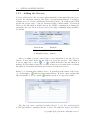
You can add devices to the inventory either manually or automatically, but now we
describe the automatic method only. First, open up Startup Wizard. You will see
2 input areas, IP Address/CIDR and Community String. IP Address and CIDR
specify the target range of the IP Addresses with a subnet mask. Community
String is the information netLD uses in the SNMP communication during the
automatic discovery. In most devices, the (read-only) community string is public
by default.
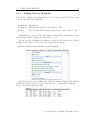
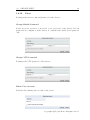
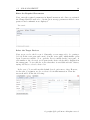
Menu Items
Example
IP Address/CIDR
192.168.0.1/24
Community String public
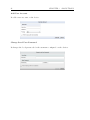
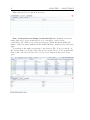
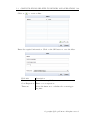
Once you think you have entered the correct information, try the Discover
button. A new table shows up and tells you about the progress. The leftmost
or
, which indicates some information is
icons are supposed to show
missing. However this is expected, because we have not yet entered the credential
information. Credential information is described in the next section.
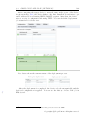
Figure 1.5.1: Results after adding a device. Icons indicates the status of the device
e.g. in this figure,
indicates successful addition. However, users reading this
tutorial usually do not see much
usually, and it is an expected results!
The discovery can be run later (described in Sec. 3.3.1.) If you already have
a CSV spreadsheet containing the list of device IP addresses, Import from Excel
C LogicVein.inc All rights reserved.
Copyrights ⃝
19
CHAPTER 1. TUTORIAL
option might be useful. The specification of the spreadsheet columns is available
in Sec. 3.3.6.
1.5.2
Setting the Credentials
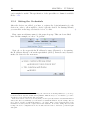
After the devices are added, you have to register the login information for the
devices in order to allow netLD to freely login the devices. In Startup Wizard,
you can click on the large Credentials icon to do this.
†3
First, enter an arbitrary name for the network group. This can be modified
later. In this example, we chose ”LogicVein”.
Next, choose if you specify the IP address by range (Dynamic) or by entering
the IP address directly or from the spreadsheet (Static). In most cases, Dynamic
method is better for the new users.
3
Clicking on the above icons will change the current tab in Startup Wizard, so you can go
back and forth at any time in this Startup Wizard. This allows you to, for instance, go back to
Add Devices section and run the discovery again.
If the devices are not detected correctly, then you can repeatedly add the credential information
and try the discovery. Similarly, you can add the credential information, try the backup, discover
more devices, add the credential information . . . (looping). These cycles iteratively improve the
information accuracy and the completeness in the database. Note that, during discovery and
backup, the device configurations are not modified and it is safe to run these operations again
and again.
1.5. INITIAL CONFIGURATION
20
Enter the login information to each devices.
In VTY Username and VTY password area, enter the CUI login username and
the password used during the SSH (or telnet) connection. If the devices have both
the secret password and enable password, enter the secret password. If only the
enable password is available on the device, enter the enable password.
†4
You can add multiple Network Groups. Also, you can register multiple Credentials and IP ranges per each group. The concepts like Network Groups and
Credentials are described in detail in the later chapter (Sec. 2.)
4
Credential feature is available outside of Startup Wizard just as Adding devices is. You can
change the value in Inventory → Credentials. Further description is available in Sec. 3.1.
C LogicVein.inc All rights reserved.
Copyrights ⃝
21
1.5.3
CHAPTER 1. TUTORIAL
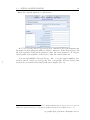
Performing a Backup
When enough number of devices are added to the inventory, perform the first
backup by clicking on Run Backup button.
1.5. INITIAL CONFIGURATION
22
The backup status of each device is indicated with an icon. Successful backup
shows a green
icon, Credential error shows a yellow
icon, Failure shows a
red
icon and so on. Details are described in the later section Sec. 2.2.
Usually you might fail to get the complete backup of all devices in the first
time due to some wrong configurations on your network devices. However, this
is a good example showing that managing the devices is difficult and requires the
considerable efforts. Now that you have netLD, you no longer have to worry about
this issue.
In order to increase the number of devices which are successfully backed up,
quickly review the following conditions on each device where the backup has failed.
• Go back to the previous section and check if the registered credentials (Username, Password, Community, etc.) are consistent with the information on
the devices.
• Back to the previous section and check if no network groups are using the
same range of IP addresses.
• Required protocols (e.g., telnet, ssh, etc.) are already enabled on the device.
In order to do this, you have to manually log in to each device via CUI and
change the configurations. The required protocols are listed in Sec. 7.1.
• Certain ports for those communications are not blocked neither by any firewalls nor by any antivirus software. The list of TCP/UDP ports used by
netLD is available in Sec. 7.1.
• Check if your devices are supported. The available device adapter list is in
Sec. 7.7.
If the program is not able to perform a backup even though the above conditions
are met, please get the log file through the following steps and send it to our support
office ([email protected]).
1. Take a memo on the devices whose backup fails.
2. Click on the Close button in the bottom-right of the Startup Wizard dialog.
3. Find the Help section in the menu bar located in the upper right corner of
the screen.
4. Navigate through Help → About → Adapter Logging.
5. Enter the IP addresses of the devices in IP/CIDR field. Check on Enable
recording of adapter operations and click on the OK button.
6. Perform a backup for those devices.
C LogicVein.inc All rights reserved.
Copyrights ⃝
23
CHAPTER 1. TUTORIAL
7. The log file is exported to C:¥Program Files¥Net LineDancer¥scratch
¥logs (on Windows Server).
8. If you are already done with SMTP server setting, you can:
(a) Select Help menu located in the upper right corner of the screen and
select About option.
(b) Click on the Send Log and enter your e-mail address in Your E-Mail
field, and click on the OK button.
In order to setup the SMTP server, see Sec. 5.2.3. Otherwise, you can simply
send an email to [email protected] with the log file.
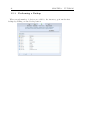
1.5.4
Scheduling the Backups
Now you got the first backup successfully! Then why not make it run the backup
on the regular basis? Always keeping track of all the configurations is critical for
the robustness and the security of your network.
Figure 1.5.2: Scheduling a backup.
Creating a periodical schedule of backup jobs is quite easy. Just go to the next
tab and create a Backup job. In Run daily at, you can specify which time of the
day you want to perform the backup. In netLD, the scheduled tasks are called
jobs. The options available in Startup Wizard are quite limited compared to what
can be done in Jobs tab. The full feature of job scheduling is described in Sec.
3.7.
You can also specify a neighbor jobs, in which netLD acquire the neighbor
information from each of the network devices. Same as the backup jobs, only
the daily schedules can be created in this Startup Wizard. However, in-depth
configuration can be made afterward.
1.5. INITIAL CONFIGURATION
24
If you need further assistance or technical support about Net LineDancer, please
fell free to contact below. We will be pleased to help you when you find any
errors or ambiguities in this manual, or any questions regarding them as well.
Please note that we are closed on weekends, national holidays, New Year and
summer holidays in Japanese time. We accept e-mails for 24 hours but we will
only reply on those business hours. Thank you for your cooperation.
LogicVein, Inc. Technical Support
Mail:
[email protected]
C LogicVein.inc All rights reserved.
Copyrights ⃝
Chapter 2
netLD Basics
In this chapter, we define the several basic concepts and names that are used among
this manual, from just the terms of UI elements to the concepts that generalizes
the differences between the devices. Descriptions in this manual depend on the
definitions in this section, but since most of them follow the usual conventions,
knowledgeable users can safely ignore this section, partly or completely.
2.1
Basic controls and UI elements
In this section, we define the names of the various UI elements in brief.
2.1.1
Panes
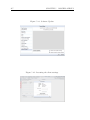
Panes are the divided parts of the entire area of the browser. Horizontal and
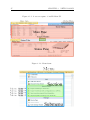
vertical division is possible, and the things in both sides are called so. Fig. 2.1.1
shows an example of the common netLD web-based GUI.
The most frequently used panes are the main pane and the status pane. One
of those panes can be hidden via the small triangle buttons in the middle. Both
panes have multiple tabs.
Please keep in mind that they are independent. Therefore, you can keep showing the lower status pane as it is, while you switch the main pane to another tab.
This helps the multitasking, e.g., adding the elements in the upper pane into the
list in the lower pane, while you are configuring a feature in the other tab in the
upper pane. This technique is called Tab Switching Technique and described in
Creating a New Job section (Sec. 3.7.1).
25
2.1. BASIC CONTROLS AND UI ELEMENTS
2.1.2
26
Menu and Submenu
Fig. 2.1.1 also shows the global menu and the tools menu. Tools menu is a menu in
the Devices Tab, highlighted in light blue. The global menu is highlighted in brown
as well. You can access the Server Settings Window (or just settings window) and
so on.
Fig. 2.1.2 shows how a menu is composed. If you click on the each item of the
menu then a submenu will pop up. submeny may contain several sections which
works as separators. Finally, there are several items between sections separators.
In this manual, we indicate a menu item A in submenu B by B → A. We use
the similar notation if the element is located in section C e.g. B → C → A.
2.1.3
Subtabs and Subpane
In the previous figure Fig. 2.1.1, you would notice that the lower pane is again
divided vertically. In Fig. 2.1.3, this is called Subpanes. Also, one of the subpane in
the right has its own tabs, and we refer to it as just ”tabs” or sometimes ”subtabs”
when we have to clarify.
2.1.4
Window
Windows are the UI elements that individually pops up in the browser. Small
windows are also called dialogs. The most common windows appear in this manual
is the Server Settings window, shown in Fig. 2.1.4. It is often called as just settings
window.
C LogicVein.inc All rights reserved.
Copyrights ⃝
27
CHAPTER 2. NETLD BASICS
Figure 2.1.1: A screen capture of netLD Main UI.
Figure 2.1.2: Menu items.
2.1. BASIC CONTROLS AND UI ELEMENTS
28
Figure 2.1.3: Subtabs and Subpanes
Figure 2.1.4: Server Settings window. It has various menus on the left side and
the settings can be modified on the right. The changes made in this window is
immediately applied when you click on the ”OK” button to close the window.
If you click on the ”cancel” button, then it discards the changes and closes the
window.
C LogicVein.inc All rights reserved.
Copyrights ⃝
29
2.2
CHAPTER 2. NETLD BASICS
Devices, Configurations and Backups
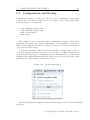
Next, we describe the interfaces for configuring the devices. Fig. 2.2.1 shows
the Devices Tab, the primary tab for handling and watching the devices. If you
double-click on the rows, then the status pane shows the Device Property (Sec.
3.4.4) and the backup history.
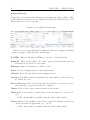
Figure 2.2.1: Device View.
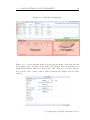
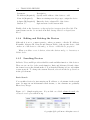
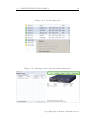
Backup Status The status icons changes upon the device backup or when a
compliance error is signaled. It is highlighted in pink in the figure.
Device View All devices in the inventory are listed here. As stated above,
you can check the configurations stored/backed up in the server by doubleclicking on each device. It is highlighted in green.
Intuitively, each element in the Device View corresponds to one network device
such as CISCO switches and routers. The amount of information in the table
varies among the device vendor. For example, netLD does not show the serial
number for Apresia devices.
On Device View, you can click on the device to select it. Just as in the common
file manager software, you can select multiple devices by pressing Shift key or
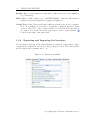
Control key while clicking on the device. When you press Shift, the range of rows
are added into the selection. When you use the Control key the clicked row is
added into the selection. This is useful when you apply a single operation on
many devices, and most table-like views in netLD provide the same feature.
If you have already through the tutorial and successfully run the backup, the
icons .There are many other icons and
Backup Status should contain some
the details are described in the later section (Sec. 3.4).
2.2. DEVICES, CONFIGURATIONS AND BACKUPS
30
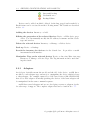
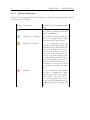
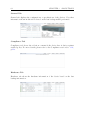
Successful backup
Credential error
Backup Failure
Devices can be added, modified, deleted, backed-up, tagged and searched for.
Each feature can be accessed from the following menu. The details are described
in Sec. 3.3.
Adding the devices Inventory → Add.
Editing the properties of the selected devices Device → Edit device properties. You can manually modify the IP address, hostname and the device
type and vendors.
Delete the selected devices Inventory → Manage → Delete device.
Back up Device → Backup.
Search the inventory for devices via the Search bar.
incremental-search interface.
It provides a useful
Manipulate Tags on the selected devices Device → Associate/Dissociate tags,
Inventory → Manage → Device Tags. The Tag information can be used during the search.
2.2.1
Adapters
An Adapter basically means the model and the OS of the device. netLD has a
module for each adapter type and use it to manipulate the device which belongs
to that adapter. For example, many Cisco IOS based devices (like CISCO2500)
have Cisco IOS adapter. Generally speaking, the devices of the same adapter can
be manipulated in the same command sequence.
netLD has several adapters and we are developing even more adapters for the
broader range of support. The complete adapter list can be found in Sec. 7.7.
C LogicVein.inc All rights reserved.
Copyrights ⃝
31
CHAPTER 2. NETLD BASICS
2.3
Credentials, Network Groups, Protocols
A Credential is the login/security information of each device. You have to give
the information to netLD in order to let it access the device. Information can be
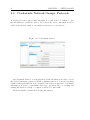
added in Credentials window, accessible via Inventory → Credentials.
Figure 2.3.1: Credentials window.
In Credentials window, you should enter all the information needed to access
the devices (username, password, SNMP community and etc.). You can leave them
blank if certain information is not required, but if there is any lack of credential
information, it leads to login failure and every operations fail, e.g. reading and
writing information, backup or compare would not be successful.
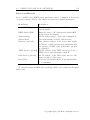
Each Credential contains the following information:
2.3. CREDENTIALS, NETWORK GROUPS, PROTOCOLS
32
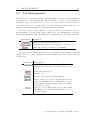
Entry
Description
VTY Username/password
The username/password required by the login
shell on each network device. The login shell can
be one of ssh and rlogin remote terminal. Note
that VTY stands for virtual tty console.
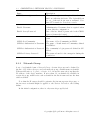
Enable Username
Administrative Username that is required when
you modify the configuration.
Enable Secret/Password
One of the two kinds of passwords for the CISCO
devices (former the better)
These correspond to each field in the SNMP datagram.
SNMP Get Community
The name of Get Community in SNMP.
SNMPv3 Authentication Username The name of Authorization Community defined
in SNMPv3.
SNMPv3 Authentication Password
The community’s login password defined in SNMPv3.
SNMPv3 Privacy Password
The password used for the encryption during the
connection.
2.3.1
Network Group
A set of credentials forms a Network Group. A network group can be defined by
the list of IP Address Ranges, and each network group contains many credentials.
When netLD tries to log in to a device, it looks up the network group that the
IP address of the device matches. If more than one credentials are available in
a network group, netLD tries each credential in the list in turn and use the first
valid credential.
Note that the IP ranges should be pairwise disjoint among network groups, or
the incorrect credential might be applied to the devices. It leads to the backup
failure.
In the initial configuration, there is only network group Default.
C LogicVein.inc All rights reserved.
Copyrights ⃝
33
CHAPTER 2. NETLD BASICS
2.3.2
Protocols
Protocols specify the measure to connect the devices. Just as credentials, protocols
used by netLD can be customized in Inventory → Protocols.
For each protocol, you can define several network groups defined by an IP
range, just like in Credentials. It might be misleading, but network groups for
credentials and for protocols are not associated by its name. They are named
independently and no relevance is detected.
In each network groups, you can specify the list of protocols that is used for
the given IP range. The list is tried upon connection from top to bottom. In
Credentials window we specified the login information, while in protocols window,
instead, we specify the connection protocols information.
Initially only the Default network group exists, and it is used by default. The
input interface is almost the same as that of Credentials window.
Figure 2.3.2: Protocols window.
In each input field,
• Enable the checkbox if the protocol could be used during the backup and
other operations. In the Default network group, all protocols are checked by
default.
• Up/down arrow buttons move the order in the list and change the priority
of the protocol. netLD tries to use the protocol of the top priority. If it fails,
then it tries to connect with the protocol of the next priority.
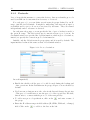
• To add a new protocol specification, click on the
the group.
and enter a name of
• Enter the IP address ranges in Add address (IP, CIDR, Wildcard, or Range)
field. Click on the
to add it to the list on the left.
2.4. USERS AND ROLES
2.4
34
Users and Roles
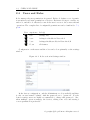
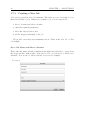
Roles manage the user permissions in general. Each role defines a set of permissions such as read/write permissions on devices. Each user belongs to exactly one
such role, and the role effectively controls the user’s access to those networks and
operations. The complete list of configurable permissions can be found in Sec. 7.3,
p.232.
User experience
Role(s)
0 yr
backup only
2 yrs
backup & schedule in Network A
5 yrs
backup,schedule,modify in Networks A,B
15 yrs
all features
Configuration on the users and the roles can be done primarily on the settings
window.
Figure 2.4.1: Roles section in Settings window.
In the factory configuration, only the Administrator role is available and there
is only one user named ”admin”, with the password set to ”password”. For the
better security, users are highly recommended to change this password. Also,
when multiple operators manage the devices, adding some roles and setting a
correct permission is preferable.
C LogicVein.inc All rights reserved.
Copyrights ⃝
35
CHAPTER 2. NETLD BASICS
2.5
Networks
Network in netLD is a way to partition and manage the large inventory. Each Network has its own inventory, credentials and protocols. Users can create networks
and switch between networks as long as they have the permission to access these
networks. This is different from Network Groups – they have no relevance at all.
Rather, Networks are often closely tied to the Smart Bridge (SB) feature. Using
SB, remote local networks with independent IP space can also be represented as
a network. For example, it can manage the remote LANs in a different floors and
buildings in just the same way as managing the normal inventory.
You can assign the access permission to each user, i.e. you can control which
sets of network devices they can read and write. This is available in the Users
section in the Settings window. Details about Networks and Smart Bridge is
described in Sec. 4.3.
2.6
Service Management
netLD consists of two parts: the server program running in the background and
the web-based GUI. In order to access the GUI, you first have to launch the server
program.
netLD service starts automatically just after the installation. Also, it is launched
every time after the system boot. You can start or stop the service manually either
by clicking on the netLD icon in Windows’ Task Bar or via Service Manager.
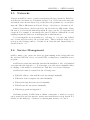
netLD service must be restarted in the following cases;
• When IP address of the netLD server was changed manually,
• When new device adapters was added manually,
• When backed up files was restored manually,
• When license file was renewed manually,
• When its program was upgraded.
On Linux systems, NetLD daemon (Linux counterpart of windows’ service)
can be started/stopped via service start netld and service stop netld. For
details, see the man page of service by entering man service on console.
2.6. SERVICE MANAGEMENT
36
Figure 2.4.2: Users section in Settings window.
Figure 2.5.1: Network section in settings window.
C LogicVein.inc All rights reserved.
Copyrights ⃝
37
CHAPTER 2. NETLD BASICS
Figure 2.6.1: Background Service and GUI concept.
Figure 2.6.2: This is the Task Bar Icon of netLD.
Figure 2.6.3: Right-click on the icon and the menu appears, then start/stop the
service.
2.6. SERVICE MANAGEMENT
38
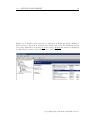
Figure 2.6.4: netLD service can also be managed in Windows Service Manager.
Select Services option from Configuration menu, and select Net LineDancer from
Name list. After the action list ( Stop the service, Restart the service) is displayed
for the selected service, select the action to perform.
C LogicVein.inc All rights reserved.
Copyrights ⃝
Chapter 3
Basic Tools
In this chapter, we mainly provide a screen-by-screen instructions per purpose.
For important and large features, we also provide the instructions to the concepts
of those tools.
Contents
3.1
3.2
3.3
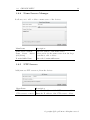
3.4
Credentials . . . . . . . . . . . . . . . . . . . . . . . . . . 42
3.1.1
Dynamic Setting Strategy . . . . . . . . . . . . . . . . .
43
3.1.2
Static Setting Strategy . . . . . . . . . . . . . . . . . . .
46
3.1.3
Import from an Excel spreadsheet . . . . . . . . . . . .
48
Users and Roles . . . . . . . . . . . . . . . . . . . . . . . 50
3.2.1
Creating a Role . . . . . . . . . . . . . . . . . . . . . . .
50
3.2.2
Creating a User . . . . . . . . . . . . . . . . . . . . . . .
51
3.2.3
Quick Password Change . . . . . . . . . . . . . . . . . .
53
Tools for Devices . . . . . . . . . . . . . . . . . . . . . . . 54
3.3.1
Adding Devices . . . . . . . . . . . . . . . . . . . . . . .
54
3.3.2
Discover New Devices . . . . . . . . . . . . . . . . . . .
56
3.3.3
Adding Devices Manually . . . . . . . . . . . . . . . . .
58
3.3.4
Editing and Deleting the Devices . . . . . . . . . . . . .
60
3.3.5
Searching Devices . . . . . . . . . . . . . . . . . . . . .
60
3.3.6
Exporting and Importing the Inventory . . . . . . . . .
62
Configuration and Backup . . . . . . . . . . . . . . . . . 64
3.4.1
Status Summary . . . . . . . . . . . . . . . . . . . . . .
65
3.4.2
Status after Performing Backup . . . . . . . . . . . . . .
66
3.4.3
Restoring the Configuration . . . . . . . . . . . . . . . .
67
3.4.4
Device Property . . . . . . . . . . . . . . . . . . . . . .
67
3.4.5
Comparing the configurations . . . . . . . . . . . . . . .
71
3.4.6
Checking the Mismatch in startup-config and runningconfig . . . . . . . . . . . . . . . . . . . . . . . . . . . .
73
39
40
3.5
3.6
3.7
3.8
3.9
Tools Menu . . . . . . . . . . . . . . . . . . . . . . . . . . 74
3.5.1
DNS Lookup . . . . . . . . . . . . . . . . . . . . . . . .
74
3.5.2
IOS Show Commands . . . . . . . . . . . . . . . . . . .
75
3.5.3
IP Routing Table . . . . . . . . . . . . . . . . . . . . . .
76
3.5.4
Ping . . . . . . . . . . . . . . . . . . . . . . . . . . . . .
76
3.5.5
SNMP System Info. . . . . . . . . . . . . . . . . . . . .
77
3.5.6
Interface Brief . . . . . . . . . . . . . . . . . . . . . . .
77
3.5.7
Traceroute . . . . . . . . . . . . . . . . . . . . . . . . .
78
3.5.8
Port Scan . . . . . . . . . . . . . . . . . . . . . . . . . .
78
3.5.9
Live ARP Table . . . . . . . . . . . . . . . . . . . . . .
79
Change Menu . . . . . . . . . . . . . . . . . . . . . . . . . 79
3.6.1
Command Runner . . . . . . . . . . . . . . . . . . . . .
80
3.6.2
Enable or Disable Interfaces . . . . . . . . . . . . . . . .
81
3.6.3
Login Banner (MOTD) . . . . . . . . . . . . . . . . . .
81
3.6.4
Name Servers Manager
. . . . . . . . . . . . . . . . . .
82
3.6.5
NTP Servers . . . . . . . . . . . . . . . . . . . . . . . .
82
3.6.6
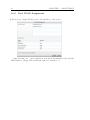
Port VLAN Assignment . . . . . . . . . . . . . . . . . .
83
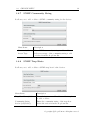
3.6.7
SNMP Community String . . . . . . . . . . . . . . . . .
84
3.6.8
SNMP Trap Hosts . . . . . . . . . . . . . . . . . . . . .
84
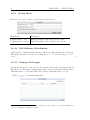
3.6.9
Syslog Hosts . . . . . . . . . . . . . . . . . . . . . . . .
85
3.6.10 IOS Software Distribution . . . . . . . . . . . . . . . . .
85
3.6.11 Manage OS Images . . . . . . . . . . . . . . . . . . . . .
85
3.6.12 NEC WA Software Distribution . . . . . . . . . . . . . .
87
3.6.13 Retrieve OS Image Files . . . . . . . . . . . . . . . . . .
87
3.6.14 Add Static Route . . . . . . . . . . . . . . . . . . . . . .
89
3.6.15 Delete Static Route . . . . . . . . . . . . . . . . . . . .
89
3.6.16 Users . . . . . . . . . . . . . . . . . . . . . . . . . . . .
90
Job Management . . . . . . . . . . . . . . . . . . . . . . . 92
3.7.1
Creating a New Job . . . . . . . . . . . . . . . . . . . .
93
3.7.2
Status Indicators in Job History Subtab . . . . . . . . .
99
Report . . . . . . . . . . . . . . . . . . . . . . . . . . . . . 100
3.8.1
Issuing a Report Manually
. . . . . . . . . . . . . . . . 105
3.8.2
Scheduling the Reports . . . . . . . . . . . . . . . . . . 106
Smart Change . . . . . . . . . . . . . . . . . . . . . . . . 108
3.9.1
Creating a Smart Change Job . . . . . . . . . . . . . . . 109
3.10 Compliance . . . . . . . . . . . . . . . . . . . . . . . . . . 116
3.10.1 Various Rule-related tabs . . . . . . . . . . . . . . . . . 117
C LogicVein.inc All rights reserved.
Copyrights ⃝
41
CHAPTER 3. BASIC TOOLS
3.10.2 Creating a New Rule . . . . . . . . . . . . . . . . . . . . 121
3.10.3 Policy tab . . . . . . . . . . . . . . . . . . . . . . . . . . 125
3.11 Draft Configuration . . . . . . . . . . . . . . . . . . . . . 131
3.11.1 Creating a Draft Configuration . . . . . . . . . . . . . . 131
3.11.2 Importing Configurations from Plain Texts . . . . . . . 132
3.11.3 Comparing the Configurations . . . . . . . . . . . . . . 134
3.11.4 Applying a Draft Configuration to a Device . . . . . . . 134
3.12 Change Advisor . . . . . . . . . . . . . . . . . . . . . . . 135
3.12.1 Executing Commands through Change Advisor . . . . . 136
3.13 Search Tab . . . . . . . . . . . . . . . . . . . . . . . . . . 137
3.13.1 Switch Port Search . . . . . . . . . . . . . . . . . . . . . 137
3.13.2 ARP Search . . . . . . . . . . . . . . . . . . . . . . . . . 137
3.1. CREDENTIALS
3.1
42
Credentials
In this section, we show the process of adding credentials manually, or using data
in a spreadsheet and so on. Let’s start with the brief overview on how we should
set up credentials and network groups.
If the number of credential information is limited, then a single Network Group
might be enough for you. In this case, the same credential set is applied to all
devices in the inventory. Just enter the required information to access the devices
in the Credentials window.
However, in some cases, the number of credentials gets quite large and it might
be practically impossible to manage them. In this case, you might have to divide
the credentials into several network groups.
Starting from the version 11.04, netLD provides two ways to add credential sets,
called the Dynamic setting strategy and the Static setting strategy. In Dynamic
setting strategy, you assign a range of IPs and a set of credentials of each network
group. In Static setting strategy, you specify the credentials for the devices one
by one. Registering credential information can be done by hand or by reading a
Microsoft Excel spreadsheet. We also generate an empty static credentials Excel
template for convenience.
C LogicVein.inc All rights reserved.
Copyrights ⃝
43
3.1.1
CHAPTER 3. BASIC TOOLS
Dynamic Setting Strategy
Here we show how to set up a network group in Dynamic setting strategy. First
open Tools Menu → Inventory → Credentials.
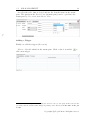
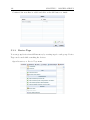
Click on the
in the lower left, or click on the button in the center. This
empty screen is shown only at the first visit.
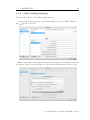
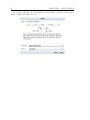
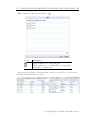
Enter a new name of the network group. Select Dynamic - Credentials by
CIDR, Range, Wildcard and click on the OK button to create a network group.
3.1. CREDENTIALS
44
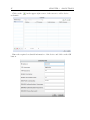
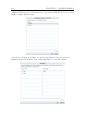
Enter the range of IP addresses specifying the devices in Add address IP,
CIDR, Wildcard, or Range field. Click on the
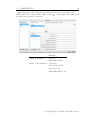
on the right. The address will
be added into the table on the left.
Example
Single IP Address
10.0.0.1
2001:0DB8:AC10::
Range of IP Addresses 192.168.0.*
10.0.0.1-10.0.0.100
192.168.0.1/24
2001:0DB8:AC10::/64
C LogicVein.inc All rights reserved.
Copyrights ⃝
45
CHAPTER 3. BASIC TOOLS
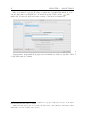
After you entered a proper IP range, register the credential information. You
can set upto three credentials for one network group. Click on the
just
under the Credentials field and enter a name of the new credential set.
†1
Repeat these steps until all groups and credentials are added to the list. Click †2
on the OK button to finish.
1
If more than two credential sets are available for a group, netLD tries each set on the list in
turn and uses the first valid credential.
2
Make sure that any groups do not share the same range of IP addresses. Otherwise, netLD
might fail to save the backup of the devices.
3.1. CREDENTIALS
3.1.2
46
Static Setting Strategy
Next, we show how to use Static setting strategy.
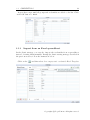
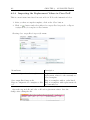
In the Static setting strategy, you should run the process by hand. Click on
the
in the lower left.
Enter a new name of the network group. Select Static - Credentials by specific
IP address. Click on the OK button to specify the credential set for the group.
C LogicVein.inc All rights reserved.
Copyrights ⃝
47
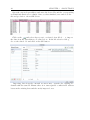
Click on the
credential.
CHAPTER 3. BASIC TOOLS
in the upper right corner of the screen to add a device
Enter the required credential information of the device and click on the OK
button.
3.1. CREDENTIALS
48
Repeat these steps until all groups and credentials are added to the list. Click
on the OK button to finish.
3.1.3
Import from an Excel spreadsheet
In the Static strategy, you can also import the credentials from a spreadsheet,
instead of setting them manually. During the Static setting strategy described in
the previous section, follow the instruction below:
Click on the
and then select Save empty static credentials Excel Template.
C LogicVein.inc All rights reserved.
Copyrights ⃝
49
CHAPTER 3. BASIC TOOLS
Open the exported spreadsheet and enter the device IPs and the corresponding
credential information accordingly. Once you have finished, save and close the
file and get back to the netLD screen.
Click on the
and select Import static credentials from Excel. . . to import
the data from the spreadsheet you edited above. In the file selection dialog,
choose the edited one and click on the OK button.
Importing data from the external resources may overwrite the existing credential with the same IP. Ensure there is no unacceptable conflict in IP address
between the existing data and the newly imported ones.
3.2. USERS AND ROLES
3.2
50
Users and Roles
Description on Users and Roles is described in Sec. 2.4, p.34. Briefly speaking,
each Role defines a set of available operations and a User has exactly one such
role. The list of operations to be restricted, such as reading and writing the
configuration (and more), are shown in Sec. 7.3.
In this section, we rather focus on the screen-by-screen instructions.
3.2.1
Creating a Role
Creating a Role is quite simple.
First, go to Setting window → Roles. Enter the name of the Role into the text
area and click on
.
C LogicVein.inc All rights reserved.
Copyrights ⃝
51
CHAPTER 3. BASIC TOOLS
Select the permission of the role by toggling the checkbox. If the toggle is on,
the permission to run the operation is granted to the user. Meaning of each
checkbox is available at Sec. 7.3, p.232.
3.2.2
Creating a User
Creating a Role is also simple.
Go to Setting window → Users Again. Click on the
below.
3.2. USERS AND ROLES
52
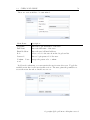
There are various fields to be customized.
Menu Items
Description
Username
Enter the login username for the user.
Full Name
Enter the full name of the user.
Email Address
Enter the user’s E-mail address.
Role
Select a role for the user from the dropdown list.
Password
Enter a login password of the user.
Confirm
word
Pass- Retype the password to confirm.
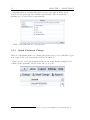
In Networks submenu, you can restrict the user’s network access. Toggle the
available networks for the user in this section. The user gains the permission to
access the networks whose checkboxes are on.
C LogicVein.inc All rights reserved.
Copyrights ⃝
53
CHAPTER 3. BASIC TOOLS
Similarly, when you restrict the user’s access to the custom fields, select
Custom Fields and toggle the available custom fields. The user gain the
permission to see the selected custom fields.
Click on the OK button to save the user.
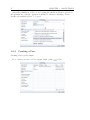
3.2.3
Quick Password Change
There is a shorthand method to change the password if you are currently logged
in as a user (only your own password can be modified.)3
Click on your own login username in the global menu. In the example below,
”admin” is the username, shown on the left of ”Logout”.
3
This feature is not available for users who logged in via RADIUS server authentication.
3.3. TOOLS FOR DEVICES
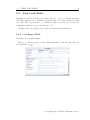
54
Enter the new password in both New Password and Confirm fields. Then click
on Change Password button to save the new password.
3.3
3.3.1
Tools for Devices
Adding Devices
Devices can be added, modified, deleted, backed-up, tagged and searched for, but
the most important feature among these is adding the devices. Just as you have
done in the tutorial, there are two ways to add devices to netLD inventory:
• The Automatic Discovery feature
• Adding devices manually
In order to discover the devices automatically, you have to configure both netLD
and the device itself. If you encounter any trouble, first check Fig. 3.3.1.
Both menus for adding the devices are placed under Inventory → Add section
in the Tools Menu. Add new device is for the manual process and Discover new
devices is for the automated discovery.
C LogicVein.inc All rights reserved.
Copyrights ⃝
55
CHAPTER 3. BASIC TOOLS
Figure 3.3.1: Requirements for Device Discovery.
1. your device is SNMP-compatible, and its SNMP feature is turned on,
2. you have registered all necessary information in the previous section, and
3. you have resolved any port-conflicts between netLD and other firewall/antivirus software in your network. The port usage is listed in the Data section
(Chapter 7)
4. The maximum number of IP addresses discovered is 66,000. We consider this
is a sufficient number because it is clearly a vast IP space for this enterpriseclass software. For instance, 10.2.x.x already contains 65,025 addresses.
Figure 3.3.2: Inventory → Add
3.3. TOOLS FOR DEVICES
3.3.2
56
Discover New Devices
Device Discovery is a wonderful tool as long as your devices follow the conditions
described in Fig. 3.3.1.
During the discovery, netLD first asks each device in the given IP address range
if they made their ports open to netLD so that netLD can make a connection. If the
answer was positive, it makes the device send an SNMP packet to the netLD host
server. The device is then added to the Device View with the SNMP information.
To run the Discovery, open Discover new devices and follow the instruction
below:
Specify all IP addresses or ranges to discover. Enter the IP/ranges in
corresponding menu and click on
. Added elements are listed in the box
located at the bottom of the menu.
Menu Items Example and Description
IP Address/CIDR Enter IP address/CIDR of the network to discover.
(e.g.192.168.0.1/24).
IP Address Range Enter 2 IP addresses to specify the address range to discover.
(e.g. 10.0.0.1-10.0.0.100).
Single IP Address Enter an IP address of the single device to discover. (e.g.
192.168.0.1).
You can also import the range data from a text file (CSV). Write the
discovering addresses or networks in each line.
C LogicVein.inc All rights reserved.
Copyrights ⃝
57
CHAPTER 3. BASIC TOOLS
Descriptions of the other options follows:
Boundary Networks Enter the boundary network addresses to limit the range
of discovery. 10.0.0.0/8, 172.16.0.0/16 and 192.168.0.0/16, FD00::/8 are set
by default, and if you want to extend the search range, add a new address
range in this field.
Crawl the network from the specified addresses Enable this checkbox to recursively crawl and add the neighboring devices to the inventory.
Include existing inventory in addresses to crawl Enable this checkbox to enable crawling on the neighbors of the devices that already exist in the inventory.
Additional SNMP Community String Enter a community string to give prior
use for discovery.
Finally, click on the Run button to start discovery, and the devices are added
to the inventory. Discovery status is going to be show up in the status pane.
†4
Status
Description
Device added.
The device has been successfully discovered and
added to the device inventory.
There was no SNMP response.
The device has responded to Telnet, SSH or ping
but did not respond to SNMP request.
No adapter matches.
The device has responded to SNMP request but
netLD does not have the adapter for the device.
Server protocol settings
for SNMP for this device
are disabled.
SNMP protocol in Inventory→ Protocols settings
is disabled for the network group.
There was no ICMP ping The device did not respond to ICMP ping request.
response.
(only in Single IP Address discovery)
Unable to establish
TCP connection on port
22(Telnet) or 23 (SSH).
netLD failed to connect neither to port 22 nor 23
of the device (only in Single IP Address discovery)
During the discovery, netLD uses SNMP version 1 by default. To change the
setting, use Inventory → Protocols menu and select the proper SNMP option.
4
The discovery result only shows the devices which have responded to the Telnet/SSH/ping.
Details for discovery status follows:
3.3. TOOLS FOR DEVICES
3.3.3
58
Adding Devices Manually
You can also add the devices manually. Go to Inventory → Add New Device and
you can add each device manually.
Menu Items
Description
IP Address
Specify an IP address of the device to add.
Adapter
Select adapter ID from the dropdown list of the device to add.
Alternatively, you can do the same thing by importing a handwritten or the
exported spreadsheet. This is described in Sec. 3.3.6.
We also provide a template spreadsheet to fill in the IP addresses etc. This is
available in Inventory → Save inventory import Excel template.
Open the Inventory submenu and save the template.
Open and edit the exported Excel file. When you finish editing the file, import
it with the Import/Update inventory from XLS file. . . menu and confirm all
devices are added in inventory list.
C LogicVein.inc All rights reserved.
Copyrights ⃝
59
CHAPTER 3. BASIC TOOLS
Figure 3.3.3: Specify the Version via the corresponding pull-down list.
Figure 3.3.4: Enter the IP address and the adapter.
3.3. TOOLS FOR DEVICES
60
Parameter
Description
IP Address (Required)
Specify an IP address of the device to add.
Network (Required)
Enter an existing network group to assign the device.
Adapter ID (Required)
Enter the device adapter ID of the device.
Custom 1˜5
Optional text for the custom field.
Finally, click on the Inventory → Import/update inventory from Excel file. The
same feature can also be accessed from Run Startup Wizard → Import from
Excel.
3.3.4
Editing and Deleting the Devices
Although it is not a common practice, when you want to edit the IP Address,
Hostname, Adapter ID, Network and Custom Fields of the specific device, click
on the row of the device to edit and go to Device → Edit Device properties.
When you delete a set of devices, select the devices and go to Inventory →
Delete device.
3.3.5
Searching Devices
In Device View, netLD provides a flexible search and filter function of the devices.
There are two modes of the search function, Basic and Advanced Search, where
the former is set as the default method. Note that the Filtering is done only within
a same network. To change the current Network, select it in the drop down box
in the global menu.
Basic Search
You can filter devices by just entering an IP address or a hostname in the search
pane. It supports an incremental search feature, so the elements are gradually
filtered as you type.
Figure 3.3.5: Simple-search pane. If you click on a label advanced search, the
advanced search pane will show up.
C LogicVein.inc All rights reserved.
Copyrights ⃝
61
CHAPTER 3. BASIC TOOLS
Advanced Search
Compared to the Basic Search, Advanced Search supports plenty of filters. Turn
on the Advanced Search mode via ”advanced search” button in the Device View.
The search can be done as you type.
Figure 3.3.6: Advanced Search panes.
Names for each custom field may be different if they were changed in Setting
→ Server Settings → Custom Device Fields menu.
IP/CIDR Enter an IP address/CIDR (e.g. 10.0.0.1 or 192.168.0.1/24)
Admin IP Enter an IP address. Note that only the devices already added in
the Inventory are subject to the search.
Hostname Enter a hostname (e.g. J2320 or J23*).
Status Select a backup status from the dropdown list.
Changed Select the time that the last backup was done.
Custom 1 to 5 Enter any text. It matches the custom field of each device (e.g.
lvi, netLD, net, etc.)
Device with tags Select a device tag name from the list. You can use and/or
radio buttons to toggle how queries are combined.
Vendor Select a device vendor name from the dropdown list.
Model Enter a model name to filter devices by model name (e.g. J2320, J23*,
etc.)
• This optional filter is available when the Vendor filter is used.
Version Enter a version number of the devices’ Operation Systems and select an
operator from the dropdown list. (e.g. > 9.2)
• This optional filter is available when the Vendor filter is used.
3.3. TOOLS FOR DEVICES
62
Serial# Enter a serial number in this field to filter devices by serial numbers.
(e.g. 01621220*)
MAC Enter a MAC address (e.g. 000CCEC6EAE0). Only the full match is
available and partial match is not supported right now.
Config Text Config Text search runs a full-text search in the device configurations. For example, if you want to search the configurations that contain
”version” and ”12.1”, enter ”version AND 12.1” in Search field and click on
button. For details about the search query, refer to Query Syntax
located in the right of the query field.
3.3.6
Exporting and Importing the Inventory
You can import and export the current Inventory status in a spreadsheet. These
operations are available in Inventory→ Import/Export section. The form includes
the IP address, the hostname and so on.
Figure 3.3.7: Inventory submenu.
C LogicVein.inc All rights reserved.
Copyrights ⃝
63
CHAPTER 3. BASIC TOOLS
Exporting Inventory in a Spreadsheet
Select some of your devices and click on the Export inventory as Excel file entry,
then you can save the sheet into a .xls file such as netLD-inventory (2014-03-25).xls.
If you export all devices in the inventory, empty the selection and then run the
export.
Similarly, you may also export a ZIP archive containing the data if the sheet
gets too large. This option is available in Export inventory with configurations
as ZIP style file. The output file is named such as ”netLD-configs (date of export).zip”. The files in the archive are organized into subdirectories as follows:
• <filename>.zip
– <network name>
∗
∗
∗
∗
∗
10.0.0.1 (1812J-B)
10.0.0.201 (cisco2500b.intra.dar.co.jp)
10.0.0.203 (cisco2600a.intra.dar.co.jp)
10.0.0.208 (C2801)
...
Importing the Exported File
Also, you can then import(=add) and update(=overwrite) the exported spreadsheets. Click on the Import/update inventory from Excel file entry. It allows you
to add a number of devices at once.
3.4. CONFIGURATION AND BACKUP
3.4
64
Configuration and Backup
Configuration backup of devices are done via a set of commands corresponding
to the model of the device. IOS devices, for example, can be backed up via the
following sequence of commands:
copy
copy
show
show
...
running-config tftp
startup-config tftp
access-lists
diag
What netLD does is to automates these command-line sequences. Since these
commands vary among the vendors, maintenance of large number of devices by
hand is quite inefficient, and there are many reinventions of wheels in each developer’s personal shell scripts.
To take the backups of all the devices in Inventory, simply click on Device
→ Backup without selecting any device. If you want to backup certain devices
only, select the devices prior to clicking the button. Alternatively, you can run the
backup via the right-click menu which shows up when you select the devices and
right-click the selected entries on the Device View.
Figure 3.4.1: Via the menu button
Once the backup is successfully performed, the information in Device View/Inventory
is updated.
C LogicVein.inc All rights reserved.
Copyrights ⃝
65
3.4.1
CHAPTER 3. BASIC TOOLS
Status Summary
Status icons in status pane show the status of the last backup performed. Each
icon means the following:
Status Description
Available Action in Status Summery
Successes w/ Changes
The backup was successful and
more than one change was found
in the configuration.
Success w/o Changes
The backup was successful but
there is no change in the configuration from the last backup.
Invalid Credentials
The icon indicates that the
backup was inhibited during the
authentication, which means the
registered credential set was incorrect. If you click on the row,
the error log shows up in the bottom. If you double-click on the
icon then the Credentials dialog
shows up, which is identical to
what you find in Inventory →
Credentials, and you can check
the current credential information.
Failures
The icon indicates that netLD
has failed to backup the configuration due to the other causes.
If you click on the row, the error log shows up in the bottom.
See Section 10-4 Status after Performing Backup for clearing each
error.
3.4. CONFIGURATION AND BACKUP
3.4.2
66
Status after Performing Backup
Status icons in the leftmost column in the device list show the backup status. You
can see the detail by double-clicking on the icon.
Status Description
Reason
Backed Up
The configuration is backed up successfully.
Configuration Mismatch
The
running-config
startup-config were different.
3.4.6)
Invalid Credential
The credential set for the device was incorrect. If you double-click on the icon,
Backup Error Detail dialog shows up.
Review credential settings in Inventory
→ Credentials menu for the device.
and
(Sec.
Backup Failed
UNAVAILABLE PROTOCOL
netLD could not access devices with certain protocols. Review the configuration
or check the hardware, and also the Ethernet connection.
UNEXPECTED RESPONSE
The unintended answers are returned
from the device. If you still have any
troubles accessing the devices even after checking Credentials and Protocols,
please contact to our support.
DEVICE MEMORY ERROR
The startup-config is missing on the
device.
Compliance
Compliance Warning
The configuration contains a violation
of compliance, which signaled a severity
level Warning. Details are described in
the later sections. (see Sec. 3.10)
Compliance Error
The configuration contains a violation
of compliance, which signaled a severity
level Error.
C LogicVein.inc All rights reserved.
Copyrights ⃝
67
CHAPTER 3. BASIC TOOLS
3.4.3
Restoring the Configuration
netLD allows you to restore the past configuration of a device. double-clicking
on a device in Inventory shows its backup history in the status pane. Select a
configuration to restore and click on Restore the configuration button
.
Once you click on the OK button in the confirmation dialog, it starts restoring
the configuration.
At this point, internally, netLD issues copy tftp startup-config command to
copy the selected configuration to the device’s startup-config. After reloading
the device, restored configuration is applied.
See Also: Sec. 2.3.2
†5
3.4.4
Device Property
Details of device hardware information and configuration backup are available by
double-clicking on the device row. Information included in device property contains information that netLD has collected from the device in the backup and the
neighbor information. Latest information can be obtained explicitly, by performing
the backup or correcting the neighbor information.
5
Uploading a configuration again relies on the protocol settings. Therefore you must specify
the correct protocol to upload the configuration prior to the restoration. (See Sec. 2.3.2 (Protocols) for details.) For example, you need to enable TFTP in Inventory → Protocols menu for
Cisco IOS configuration.
However, if you did not change the protocol from the default settings you do not have to care
much about that because all protocols are enabled in the default Protocol settings.
3.4. CONFIGURATION AND BACKUP
68
Figure 3.4.2: Via the right click
Figure 3.4.3: Opening a device property in the status pane.
C LogicVein.inc All rights reserved.
Copyrights ⃝
69
CHAPTER 3. BASIC TOOLS
General Tab
General tab displays the configurations or specifications of the devices. Note that
information shown in this tab is based on the last backup netLD performed.
Compliance Tab
Compliance tab shows the violation contents if the device has violation against
enabled policy. For more details, please refer to the Compliance section Sec. 3.10,
p.116.
Hardware Tab
Hardware tab shows the hardware information of the device based on the last
backup information.
3.4. CONFIGURATION AND BACKUP
70
Interfaces Tab
Interfaces tab shows the interface status of the devices based on the last backup
information.
ARP/MAC/VLAN Tab
ARP/MAC/VLAN tab shows ARP table, MAC table and VLAN member ports
information of the device. Note that information shown in this tab is based on the
last collect neighbor job netLD performed.
Before collecting the neighbor information, nothing is shown in left subpane.
Click on the Run Neighbor Collection Now to run the neighbor search.
And the result information is shown here.
C LogicVein.inc All rights reserved.
Copyrights ⃝
71
CHAPTER 3. BASIC TOOLS
3.4.5
Comparing the configurations
There are two style of comparison available: comparison among devices or along
the history (the timeline). If you compare the configurations of two devices (in the
different or the same timestamp), then you should initially select two devices. Otherwise, you compare the configurations of single device at the different timestamps
and you should select one device in this case.
While selecting the device/s to compare, click on the Device → Compare configurations or in the right-click menu.
Access this feature via the tools menu.
Alternatively, access the feature using the right-click menu.
Select the configurations to compare and click on the Compare Configuration
button. When you compare the historical configurations, check on Show
historical configurations and the old configurations would appear in the list.
3.4. CONFIGURATION AND BACKUP
72
More conveniently, we can also compare the configurations on the Device
Information. Select two of them in the list and click on the upper-left icon.
Currently we do not provides right-clicks on the device information.
The configuration diff is displayed in colors; red = removed, yellow = modified,
and green = added.
C LogicVein.inc All rights reserved.
Copyrights ⃝
73
CHAPTER 3. BASIC TOOLS
3.4.6
Checking the Mismatch in startup-config and runningconfig
Configuration Mismatch is signaled when you have a device that has two configurations called running-config and startup-config, and the two configurations
differ to each other. startup-config is a configuration that is used when a device
is rebooted, and it is supposed to be used in the regular operations, while the
running-config is a temporary configuration. If someone made changes to the
startup-config but forgot to restart the device, it is highly likely that your network is handled incorrectly. Also, If someone made changes to the running-config
though they think the changes should be permanent, then the changes will be reset
upon startup, and again the network is configured incorrectly.
If the device status indicates the configuration mismatch (
), double-click
on the icon to display configuration comparison in the status pane. Click on the
buttons at the upper right corner of the screen to overwrite the startup configuration with the running configuration, to revert the running configuration to the
startup configuration, or revert the running configuration to the startup configuration using the change adviser.
Figure 3.4.4: Comparison pane of a startup-config and running-config.
6
This feature is not available for all devices because some devices do not have running-config
and startup-config. netLD does not show this icon (
) for some devices even if there is a
compliance violation.
3.5. TOOLS MENU
3.5
74
Tools Menu
Tools in Tools menu check the real-time status of the selected devices. You can
export the accumulated results by clicking on the CSV button ( ) at the upperright corner in the corresponding view in the status pane.
Figure 3.5.1: Tools Menu.
3.5.1
DNS Lookup
It shows the result of DNS name resolution of the devices.
C LogicVein.inc All rights reserved.
Copyrights ⃝
75
CHAPTER 3. BASIC TOOLS
3.5.2
IOS Show Commands
It runs IOS Show commands on the device and shows the results. In the list,
there are several commands you run. Note that this operation is available only on
devices that are Cisco IOS compatible.
Select which command to run on the device. Then click on the Execute button.
An example of running show arp on the selected devices with the IOS Show
Commands.
3.5. TOOLS MENU
3.5.3
76
IP Routing Table
It shows the routing information of the device.
3.5.4
Ping
It sends a ping to the device and shows its response.
C LogicVein.inc All rights reserved.
Copyrights ⃝
77
3.5.5
CHAPTER 3. BASIC TOOLS
SNMP System Info.
It shows the SNMP system information of the devices.
3.5.6
Interface Brief
It shows the IP addresses of the device and UP/DOWN status of the interfaces on
it.
3.5. TOOLS MENU
3.5.7
78
Traceroute
Sends traceroute to the devices and shows the responses.
3.5.8
Port Scan
Shows port usages of the devices.
C LogicVein.inc All rights reserved.
Copyrights ⃝
79
CHAPTER 3. BASIC TOOLS
3.5.9
Live ARP Table
Shows the real-time status of ARP table of the devices.
3.6
Change Menu
(Configuration) Change tools perform operations related to the configuration changes
on the selected devices. They are all located under Change submenu. In this section, we describe each feature in this submenu from the top to the bottom.
Change tools are placed under Change submenu in the tools menu.
3.6. CHANGE MENU
3.6.1
†7
†8
80
Command Runner
Command Runner eases the effort of managing your devices by automating the
iteration over them, e.g. you can schedule the execution of the hundreds of lines
of commands with just one click. Available commands include those for fetching
or pushing the configurations.
After the required fields are filled in, click on the Execute button.
The results are shown in the status pane.
7
Override the default prompt regex specifies the regular expression that matches to a specific
prompt (like PS1 variable on the shell) on the device.
Specifying this field is required if some operation use the special input prompt, e.g. interactive
input might respond with a prefix > on each line while the normal command responds with a
prefix <username>#. In this case, you should specify a regular expression ^< (a line starting
with <). Otherwise, netLD fails to distinguish the command output and the prompt for the next
input.
8
However, you cannot respond to the input query interactively while iterating over the devices.
C LogicVein.inc All rights reserved.
Copyrights ⃝
81
CHAPTER 3. BASIC TOOLS
3.6.2
Enable or Disable Interfaces
It allows you to change the admin status of interfaces of the device.
Select interface/s and select UP or DOWN to change from the dropdown list.
Note that, if the interface which is going to be DOWN is the only interface you
can connect to the device in the network, you no longer connect to that device in
the same measure after that.
3.6.3
Login Banner (MOTD)
Changing the MOTD login banner of the devices.
3.6. CHANGE MENU
3.6.4
82
Name Servers Manager
It allows you to add or delete a name server of the devices.
Menu Items
Description
Name Server Address
Enter IP address of the name server.
Name Server
(add/delete)
Select action for the name server from the dropdown list to add or delete.
Action
Domain Suffix Name
3.6.5
Enter the domain suffix name.
NTP Servers
Adds/removes NTP servers to/from the devices.
Menu Items
Description
NTP servers to add
Enter the IP address of the NTP server to add.
NTP servers to remove Enter the IP address of the NTP server to delete.
C LogicVein.inc All rights reserved.
Copyrights ⃝
83
3.6.6
CHAPTER 3. BASIC TOOLS
Port VLAN Assignment
It allows you to assign VLAN ports to the interfaces of the device.
After selecting one or more interfaces from the Select Interfaces list and the
VLAN name to assign, click on Execute button to run the tool.
3.6. CHANGE MENU
3.6.7
84
SNMP Community String
It allows you to add or delete a SNMP community string for the devices.
Menu Items
Description
Community String Enter SNMP community string to add or delete.
Access Type
3.6.8
Select access type of the community string to add
or delete from the dropdown list.
SNMP Trap Hosts
It allows you to add or delete a SNMP trap host for the devices.
Menu Items
Description
Trap Host Name/Address
Enter the hostname or IP address of the trap host
to add or delete.
Community String
Enter the community string of the trap host.
Action (add/delete)
Select the action from the dropdown list.
C LogicVein.inc All rights reserved.
Copyrights ⃝
85
CHAPTER 3. BASIC TOOLS
3.6.9
Syslog Hosts
It allows you to add or delete a syslog host of the devices.
Menu Items
Description
Logging hosts to add
Enter IP address of the syslog host to add.
Logging hosts to remove Enter IP address of the syslog host to delete.
3.6.10
IOS Software Distribution
netLD is able to distribute IOS software to the devices through the remote network.
IOS images should be saved before using the tool. To save the image, see Sec.
3.6.13.
†9
3.6.11
Manage OS Images
Specify the directory on the server’s file system and search for OS image files in
that directory. The images found in this feature are later available in IOS Software
Distribution(Sec. 3.6.10) and NEC WA Software Distribution(Sec. 3.6.12).
Click on
to add an IOS image files.
9
IOS Software Distribution tool is not available for devices that boot from the flash memory
e.g. Cisco 1600/Cisco 2500/Cisco AS5200.
3.6. CHANGE MENU
86
Figure 3.6.1: IOS Software distribution
Menu Items
Description
Select an IOS image file Click on the . . . button on the right and select
to push. . .
the image in a Browse OS image dialog.
Destination flash location
Specify the name of the drive (e.g.
usbflash0, nvram) on the device.
flash,
Destination flash direc- Enter the directory on the drive where the flash
tory
image is saved. If the directory does not exist, it
will be created.
Destination flash parti- Enter the drive partition. If the partition does
tion
not exist, the distribution fails.
Remove the existing im- –
age from flash
Boot from the new image
–
Reload after image push
Reload the new image after pushing the image.
Minimum DRAM in
Kilobytes (from CCO)
Enter minimum DRAM size (the information is
available at Cisco.com.) This is an optional feature to check if the device has enough space for
the new image.
Perform backup after
tool completes
–
C LogicVein.inc All rights reserved.
Copyrights ⃝
87
CHAPTER 3. BASIC TOOLS
You can add some directories. This can be achieved by click on the
button in the previous figure.
After the image is successfully added to the list, click on the OK button to
finish.
†10
3.6.12
NEC WA Software Distribution
Similar to IOS distribution, netLD is also able to distribute NEC WA software to
the devices through the remote network. The images should be saved before using
the tool. To save the image, see Sec. 3.6.13.
3.6.13
Retrieve OS Image Files
This feature retrieves an IOS image file from the devices and store it internally.
Those images can be used for IOS Software Distribution (Sec. 3.6.10) and NEC
WA Software Distribution (Sec. 3.6.12).
10
The time required to add an image varies. If you wait for a while and the image is not
displayed yet, retry to add the file again.
3.6. CHANGE MENU
88
Figure 3.6.2: NEC WA Software distribution
Menu Items
Description
Select an IOS image file Click on the . . . button on the right and select
to push. . .
the image in a Browse OS image dialog.
Remove the existing im- Enable it to remove the existing image from flash.
age from flash
Boot from the new image
Enable it to boot from the new image.
Reload after image push
Enable it to reload the new image after pushing
the image.
Perform Backup after –
tool completes
C LogicVein.inc All rights reserved.
Copyrights ⃝
89
CHAPTER 3. BASIC TOOLS
3.6.14
Add Static Route
Here, you can add new static routes for the devices. Enter required information
to add a static route and click on the Execute button.
Add Static Route window.
Menu Items
Description
Destination Address (IP Address)
Enter the destination IP address.
Destination Mask (IP Mask)
Enter the destination subnet mask.
Gateway Address (IP Address)
Enter the destination gateway address.
3.6.15
Delete Static Route
Here, you can delete static routes for the devices. Select the static routes to delete
and click on the Execute button.
Delete Static Route window.
3.6. CHANGE MENU
3.6.16
90
Users
It changes the user account and password on the devices.
Change Enable Password
It sets an enable password or an enable secret password for the devices. If both
passwords are configured on the devices, it overwrites the enable secret password
only.
Change VTY Password
It changes the VTY password of the devices.
Delete User Account
It deletes the existing user account on the device.
C LogicVein.inc All rights reserved.
Copyrights ⃝
91
CHAPTER 3. BASIC TOOLS
Add User Account
It adds a user account on the device.
Change Local User Password
It changes the local passwords for the username configured on the devices.
3.7. JOB MANAGEMENT
3.7
92
Job Management
In Jobs Tab, you can create, manage, edit and run the jobs. Jobs are the tasks that
are scheduled to run automatically and periodically. A Trigger for a schedule is
a specifier of the periodical cycles, e.g. once in a day at noon, every five minutes,
every first Monday in a month and so on. Several triggers can be added to one
task, and the triggers define how often the tasks are executed.
Jobs Tab consists of two subtabs, Job History and Job Management. In Job
History subtab, you can see the past results of the jobs, including the ones that
are run automatically. Following buttons are available in the Job History subtab.
Menu Items
Description
Opens the results of the selected job.
Compares the results of the same type of selected jobs.
Cancel the selected job if the job is running.
Job Management subtab is a place you can actually create, manage, edit and
run the jobs. Jobs can be modified by double-clicking on it. Also, several buttons
are provided:
Menu Items
Description
Open the job in the status pane. This has essentially the same effect as double-clicking on the
job.
Delete the selected jobs.
Rename a job.
Execute the selected jobs immediately.
Create a new job. A dropdown list will show up,
and you can further choose which kind of job to
create (Backup, Smart Change, Discovery, Neighbor, Report or Tool).
Add an opt-out filter that can be used while
scheduling a job, called Scheduler Filter. See Sec.
5.1.2 for details.
C LogicVein.inc All rights reserved.
Copyrights ⃝
93
CHAPTER 3. BASIC TOOLS
3.7.1
Creating a New Job
Jobs can be created in New Job submenu. The basic process of creating a job is
shared in all kind of jobs. Whenever you make a job, you are expected to:
1. Set a job name and select a feature,
2. enter the required parameters,
3. select the target devices, and
4. set the triggers (schedule) of the job.
We provide a screen-by-screen instruction now. Click on the New Job → Tool
for example.
Set a Job Name and Select a Feature
First, enter the name and the comment in the fields and select the tool type from
the dropdown list. Almost all tools in Devices Tab → tools menu → Change are
available. Now we choose Change Enable Password for example.
Process 1.
3.7. JOB MANAGEMENT
94
Enter the Required Parameters
Next, enter the required parameters in Input Parameters tab. Since we activated
the Change Enable Password tool in the previous step, parameters fields for new
password and confirmation are displayed.
Process 2.
Select the Target Devices
Next, we proceed to the Process 3. Currently, you are supposed to be opening a
Jobs tab in the main pane and a new job in the status pane, which further opens
Input Parameters subtab. Now, open the Devices subtab in the lower pane. A
view similar to the advanced search pane in the device tab should be displayed in
the status pane. You would also notice that there is an additional radio button,
saying All Devices, Search, Static List.
In Process 3. You would use this default Search option more often. However,
for the sake of beginners, we choose Static List in this instruction. Then the
screen should look like the following:
C LogicVein.inc All rights reserved.
Copyrights ⃝
95
CHAPTER 3. BASIC TOOLS
This is the Static List option in Process 3.
Now, an important technique is introduced here. It might seem a bit
tricky, but once you get accustomed to it, you would soon feel it very
comfortable. We call it a tab-switching technique, which effectively utilize the
nature of the two panes available in the netLD interface, namely main and status
pane.
You can move the upper main pane to the Devices Tab. Now you can choose
the devices that a job is run. Select the devices in the Device View as usual and
click on the Add selected from Device View search button in the lower status
pane.
3.7. JOB MANAGEMENT
96
Or select the radio button Search and use the Search feature in the status
pane. The queries in the Device View (in main pane) can be copied into the
status pane by Use search from Device View.
†11
Adding a Trigger
Finally, we add the triggers (Process 4).
Move to Schedule subtab in the status pane. Click on the bottom-left
add a new trigger.
to
11
If you use Search option while adding the devices to the job, the query is run each time the
job is run, and the search results changes depending on the inventory at the time of the job
to run.
C LogicVein.inc All rights reserved.
Copyrights ⃝
97
CHAPTER 3. BASIC TOOLS
Set a trigger with the date and repetition cycle. Click on the Save button after
all the required information is set.
3.7. JOB MANAGEMENT
98
Name Specify the name of the trigger.
Time Specify the time and date to perform the job.
Schedule Select one of the following scheduling types.
Once the job is scheduled just once.
Daily the job is scheduled to run on every
1+n×k
th day e.g.
n=2
, the job is run on 1st, 3rd, 5th, . . . 31st.
Weekly execute the job every day of the week specified.
Monthly run the job every 1 + n × k months. Many options are available.
Cron to specify the job’s schedule with a cron expression.
• Refer to the Sec. 8.1 for cron configuration.
Timezone Specify the time zone.
Filter Select an opt-out filter applied to the schedule. The job is not executed on
the timing specified by this filter. For further detail, see Sec. 5.1.2.
Do not forget clicking on the
button to save the job. It is in the
upper-right corner of the status pane. If the button is active (red), some changes
are not saved yet.
C LogicVein.inc All rights reserved.
Copyrights ⃝
99
CHAPTER 3. BASIC TOOLS
3.7.2
Status Indicators in Job History Subtab
Here is the list of the status indicators.
Menu Items
Description
netLD performed the job on all devices successfully.
netLD performed the job, but it failed on some devices.
netLD failed to perform the job on all devices.
The Data retention policy of the job history is described in Sec. 5.2.1.
3.8. REPORT
3.8
100
Report
Net LineDancer provides several types of useful and informative reports on the
devices. You can run it from the menu at any time, and it can be scheduled to
run automatically.
Figure 3.8.1: The Report tools are available under Reports submenu.
We provides the following eight types of reports.
Inventory Report shows the hostname, IP address, model, OS version and
serial number of the devices, as well as the date the last backup was performed
on the device.
C LogicVein.inc All rights reserved.
Copyrights ⃝
101
CHAPTER 3. BASIC TOOLS
Configuration Change Report shows change history and details of
configurations changed during specified period for the devices.
Software Summary shows OS information of all devices in Device View.
3.8. REPORT
102
Network Hardware Summary shows pie charts where each color corresponds to
a device hardware vendor and a device type (firewall, router or switch).
Hardware Report shows the hardware chassis information including type, slot,
and serial numbers for the devices.
C LogicVein.inc All rights reserved.
Copyrights ⃝
103
CHAPTER 3. BASIC TOOLS
Hardware Change Report shows the change history and the detailed status of
hardware, whose configuration is changed during the specified period.
Backup Summary shows the backup status summary. Number of successes and
failures are summarized into a pie chart. Simple descriptions of failures are listed
in the bottom of the report if any.
3.8. REPORT
104
Protocol and Credentials shows the summaries of protocols and credentials
used for all the devices in Device View.
C LogicVein.inc All rights reserved.
Copyrights ⃝
105
3.8.1
CHAPTER 3. BASIC TOOLS
Issuing a Report Manually
You can run the tool whenever you would like to issue a report. There are two
kinds of reports, where the former summarizes all devices on the Inventory, while
the latter can be issued on the selected device/s.
Reports summarized on all devices
Reports that can be issued on each device
Network Hardware Summary
Inventory Report
Protocols and Credentials
Configuration Change
Hardware Report
Hardware Change Report
Backup Summary
Software Summary
Assume we are trying to issue an Inventory Report, written in bold in the table
above. Select the devices you want to include in the report in Device View. If you
plan to include all devices, leave everything unselected.
If no devices are selected and the report is designed for summarizing the data
on individual device, the following confirmation pops up. Please be careful when
the number of devices is large, because building a quite large report may require
significant amount of CPU power and the server may hung up.
Select a report format to issue and click on the OK button.
Reporting does not automatically fetch the latest information from the devices.
If you need the latest information to be included, perform a backup prior to the
execution.
3.8. REPORT
3.8.2
106
Scheduling the Reports
netLD has a feature which schedules a periodical report and e-mails the result
to the administrator. The schedule can be configured in Job tab → New Job →
Report.
Now, assume we are trying to issue an Inventory Report.
Create a new report.
Enter the name and the comment of the job, then select the desired report type
from the dropdown list, now it is Inventory Report. Click on the OK button.
C LogicVein.inc All rights reserved.
Copyrights ⃝
107
CHAPTER 3. BASIC TOOLS
A new tab opens in the status pane. In the Email Notification subtab, select
the report format out of HTML and PDF. Enter the recipients in To and Cc
fields. You need to setup an SMTP server to make this feature work. See Sec.
5.2.3 for details.
Using the tab-switching technique (described previously in Sec. 3.7, p.92), add
the devices to the Devices subtab in the status pane.
3.9. SMART CHANGE
108
Set a trigger with the date and repetition cycle to issue the report. Details are
described in Sec. 3.7, p.92.
Finally, do not forget to click on the
button to save the job.
Once saved, reports are e-mailed automatically. See Sec. 3.7, p.92 for more
details about setting the schedules.
3.9
Smart Change
Smart Change feature is similar to Command Runner Tool (Sec. 3.6.1, p.80) but
allows for the more flexibility. It instead runs a command template, on which you
can customize the unique value of each device. For example, the IP Address of
the devices in a same network is always unique, and the Command Runner fails
in this case. It is because they just run a static sequence of commands and do not
send the right command with the right IP address.
In a command template, you can enter the required commands in a template and
set the right value for the corresponding device. In the following sections, we provide a screen-to-screen instruction for making a command template for the Smart
Change jobs. The instruction makes a template for changing the access-list of
Cisco devices.
C LogicVein.inc All rights reserved.
Copyrights ⃝
109
3.9.1
CHAPTER 3. BASIC TOOLS
Creating a Smart Change Job
Smart Change jobs are created in Jobs tab → Job Management subtab → New Job
→ Smart Change. Since the major parts of the procedure are common in any job,
we do not describe the details not specific to the Smart Change feature. (they are
already described in Sec. 3.7, p.92.)
Navigate to the above menu and create a job.
Follow the dialog (process 1). Select either Use the same replacement values for
all devices in the job or Use unique replacement values for each device in the job.
3.9. SMART CHANGE
110
Enter a sequence of ordinary commands in Commands field in the Template
subtab. In the figure below, the commands for changing the access-list settings
are entered. However, the commands are for one specific device only, since some
values (IP address etc.) are specific to one device. We then change these
commands into a template.
After entering the commands, select a portion of the text that should be
replaced with each device-specific value.
Then click on the
to make them into a Replacement. Enter the name of
the replacement and select its type. In the example below, we selected
”lvi-filter”, entered ”access-list name” as the name and selected Text type from
the Type dropdown list. Click on the OK button.
C LogicVein.inc All rights reserved.
Copyrights ⃝
111
CHAPTER 3. BASIC TOOLS
Once the part is set as a replacement, it is highlighted in yellow in the
Commands field. We next select an IP address to make it into a template.
Add a replacement of type IP address with a name ”Source IP” in the same
manner. The IP Address type requires the replacement value (specified later) to
be a valid IP address.
Next we select 172.16.0.1 and add a Choice type replacement with a name
”Web Server”.
3.9. SMART CHANGE
112
Now the replacement have two possible values, each corresponds to the IP
address of the different web server which needs a logging. This can be later
selected for each device in Replacement Values section. This feature is convenient
when the number of choices are limited.
Adding another conditional type replacement with a name ”logging?” for the
log entry.
C LogicVein.inc All rights reserved.
Copyrights ⃝
113
CHAPTER 3. BASIC TOOLS
Setting the Conditional Type replacement for the log entry.
When you reuse the same replacement several times in the different parts of
the text, select each portion of the text and drag-and-drop the replacements in
the list directly onto the Commands field.
If the number of replacements get larger, click on
to add a Replacement
Group. Add some groups and manage the replacements with the arrow buttons.
The navigation would be intuitive enough.
3.9. SMART CHANGE
114
In each dialog, enabling Use selection as default value sets the selected value
in the configuration text area as the default value of the replacement to be made.
In Type dropdown list, you can specify the expected type of the input value.
When you make a Smart Change template, this will not only ease the tasks to edit
each device values, but also ensures that only the correct configurations are sent
to the devices. Below, we show the available types of the replacements:
Text Any text.
Hostname Hostname.
IP address An IP address. It accepts only those texts which conform to the
correct IPv4 and IPv6 format.
IP or Hostname IP address or hostname.
Choice It makes a dropdown list for selection, which means that only the predefined value is accepted.
Conditional It makes a checkbox to enable or disable it. If the checkbox is
disabled on a device, the replacement is simply an empty string.
Now let’s run the Smart Change. In order to add the devices to run the Smart
Change (process 3 in Sec. 3.7, p.92), we use the tab-switching technique, which
we do not describe here (refer to Sec. 3.7, p.92).
C LogicVein.inc All rights reserved.
Copyrights ⃝
115
CHAPTER 3. BASIC TOOLS
Open the Replacement Values subtab in the status pane and assign the
replacement value to each device. The interface is dynamically generated
according to which kind of replacements are included in this Smart Change.
†12
On Schedule tab, add the trigger by clicking
3.7.
. For more details, see Sec.
Finally, do not forget to click on the
button to save the job. Now the
Smart Change jobs are fully setup. Once you click on the Jobs tab → Run Now
button, netLD runs the job immediately.
†13
12
You can import/export the replacement values of IP address for devices in a spreadsheet.
(export) and
(import) in the top-right corner of the status pane.
Click on the
13
You can also run the job from the Devices Tab. Tools menu → Smart Change shows the list
of Smart Change jobs currently available. Click on the one you would like to execute.
3.10. COMPLIANCE
3.10
116
Compliance
If you configure a compliance policy, the administrators are alarmed when some
configuration is missing or invalid. It helps you keep the network stable, safe
and robust. When a violation has occurred, Status Display, Pie Charts and Trap
Handlers are the helpful tools. You can analyze the situation and fix the violation
quickly.
In order to detect the erroneous and unsafe configurations, you have to define
a Compliance Rule. A rule can be defined with four types of atomic matching
query i.e. Stop on match, Stop if not match, Violation on match, Violation if
not match. Each query has one matching string and netLD checks if a given
configuration matches to the string. Once the query matches / does not match
the configuration, above four queries have the following effects:
Violation on match If the query string matches the configuration, then it is a
violation.
Violation if not match If the query string does not matches to any lines of the
configuration, then it is a violation.
Stop on match If the query string matches the configuration, then the configuration is OK regardless of the rest of the queries.
Stop if not match If the query string does not matches to any lines of the configuration, then it is OK regardless of the rest of the queries.
In other words, ”Violation. . . ” act as black lists while ”Stop on. . . ” act as white
lists. You can create, modify and delete these rules.
A set of compliance rules forms a Rule Set. Rule sets can also be created,
modified, copied and deleted. However, you usually do not have to create their
own because many useful rules are already provided by default. Entire default
rules are listed in Data section in Sec. 7.4, p.235.
This is a rules-set provided by default, IOS Interface Auto-Duplex/Speed.
• Violation if the interface settings include the followings:
–
–
–
–
no ip address: Stop on match
shutdown command: Stop on match
duplex auto:Violation if not matched
speed auto: Violation if not matched
Additionally, at a higher level, you can define a Policy, which is what is actually
applied to each device. A policy again consists of many rule sets. However, it also
manages which device belongs to that policy, which kind of severity (error, warning
or info) should a violation be assigned to, as well as current and historical status
of the violations detected on those devices.
C LogicVein.inc All rights reserved.
Copyrights ⃝
117
3.10.1
CHAPTER 3. BASIC TOOLS
Various Rule-related tabs
To define rules, rule sets and policies, you have to open Compliance tab and edit
the elements in each tab. Let’s review those tabs first.
Rule Sets Subtab
Rule Sets subtab (in main pane): contains some rule sets.
Figure 3.10.1: Rule Sets Subtab
3.10. COMPLIANCE
118
Rules Subtab
double-clicking each Rule Set shows a new tab in the status pane. In the new tab,
following subtabs exist:
Figure 3.10.2: Rules subtab (in status pane): contains some rules and provides an
interface to modify them.
The items here have the following functions:
Violation Message The warning message to be seen when a violation is detected.
Start / End This is available only when Apply to blocks rule is selected. If activated, the beginning and the end of the block are searched with pattern
matching, and the violation check is applied only within that block. For
example, the expression below limits the violation check only to the specific
part of the configuration that matches it. Corresponding code snippets are
shown in Fig. 3.10.3.
• Example Start: line VTY ~variable~ (matches line 6)
• End: ! (matches line 9)
Match Expression the main query of the match used to determine the violation.
Action One of the following:
• Stop if not matched
• Stop on match
• Violation if not matched
• Violation on match
Variable Variables between tildes are added into the bottom window and any
value can be entered. Without any filter, it means ”do not care”.
Type One of the four possible type of variables:
C LogicVein.inc All rights reserved.
Copyrights ⃝
119
CHAPTER 3. BASIC TOOLS
• Text
• IP address
• Host name
• Word
Restriction If a violation query matches a line in the configuration, apply a
regular expression filter. If a line matches the violation query but the value of
the variable does not match the filter, then the violation match is withdrawn.
Figure 3.10.3: Example code snippets
1:
banner motd C
2:
Welcome
3:
!
4:
line con 0
5:
line aux 0
6:
line vty 0 4
7:
password lvi
8:
login
9:
!
10:
!
11:
end
; *
; *
3.10. COMPLIANCE
120
General Subtab
General Subtab is meant for writing a documentation for the maintenance. We
strongly suggest that you add a documentation to each rules. Suppose one of your
administrator quit his job and no one can maintain and understand the purpose
of the rules he had written. You would encounter a big problem in this case.
Figure 3.10.4: General tab: you can write a general description and specify some
other attributes.
Items
Description
Description
Giving a neat description is a good practice.
Apply to the whole config
Apply the rules to entire configuration
Apply to blocks
Apply the rules to blocks of configuration divided
Template
Compare the configuration line by line and signals a
violation if there is a difference.
Restrict the visibility of this
rule set to the following networks
Check this and restrict networks under the rule
C LogicVein.inc All rights reserved.
Copyrights ⃝
121
3.10.2
CHAPTER 3. BASIC TOOLS
Creating a New Rule
Here, we provide a screen-by-screen instruction. Now let’s create a rule here that
will generate violation when SNMP community is ”public” in Cisco IOS device
configurations.
Click on
in Compliance → Rule Sets tab.
Enter a name for the rule, select the target adapter (the kind of device model)
and which configuration to apply the rule to (running-config or
startup-config). Click on the OK button.
3.10. COMPLIANCE
122
In the Violation message field, enter the message to be shown when a violation
occurs. The violation message in this example is ”public” is set in SNMP
community. After that, click on the
.
Enter the violation search query in Match Expression and select Violation on
match in Action field.
C LogicVein.inc All rights reserved.
Copyrights ⃝
123
CHAPTER 3. BASIC TOOLS
To test the new rule, click on the select a test config link and select a device in
the inventory.
Select Configuration window lists the devices that match the adapter you have
selected when you created this rule. In this case, only devices with IOS adapter
are present in this list.
3.10. COMPLIANCE
124
Violations are colored in red. Once you are satisfied, make up a policy from
the set of rules in the next section.
C LogicVein.inc All rights reserved.
Copyrights ⃝
125
3.10.3
CHAPTER 3. BASIC TOOLS
Policy tab
Policy tab consists of the following subtabs:
Device subtab allows you to select devices to which you will apply a policy. The
interface is exactly the same as those described in Jobs Management section
(p.92).
Rule Sets subtab register the existing rule sets to the policy in this tab.
Item
Description
All devices
Apply the policy to all devices in the inventory.
Search
Apply the policy to all devices that match the query.
The search is conducted every time the violation check
was triggered.
Static List
Choose a set of devices by switching the main pane
to the device tab, create a static list and the violation
check is applied only to the devices in the list. (tab
switching technique)
Item
Description
Adapter
Specify the target adapter.
Configuration
Choose
from
either
startup-config
or
running-config.
The check is applied to the
specified configuration only.
Rules set
Rules in this policy.
Severity
Either Error or Warning. This results in the different
visual icons when a violation occurred.
3.10. COMPLIANCE
126
Creating a New Policy
Let’s create a policy here that will generate a violation for Cisco IOS device configurations.
Click on
in Compliance → Policy tab.
Enter a policy name, select the target adapter and configuration, then click on
the OK button.
Select Search. Enter a search query which selects the target devices. In this
example, enter *Cisco* in Model filter. As a result, the violation is checked
against only those devices whose name contain a string Cisco.
C LogicVein.inc All rights reserved.
Copyrights ⃝
127
CHAPTER 3. BASIC TOOLS
This process is the same as that has appeared in Sec. 3.7 (Job Management).
Consequently, the same characteristics apply to this device selection: if you define
the target devices via Search, then the search is done in each time the policy is
checked.
Click on
in Rule Sets subtab in the status pane.
Select a rules-set and click on the Add button. In this example, we have
selected IOS Interface Auto-Duplex/Speed & IOS Secure Enable Passwords rules.
3.10. COMPLIANCE
128
†14
Select a Severity for the rule. Here we select different severity for each rule so
that different violation icons will show up.
Click on the select a test config link and select a device to test the policy.
14
IMPORTANT NOTE: The rules that appear in this window is only those rules whose
adapter type matches that of the current policy. If no rule appears in the candidates, then it
means no rules are defined for the adapter which your policy is defined for. Please review the
adapter type setting in your policy or rule-sets.
C LogicVein.inc All rights reserved.
Copyrights ⃝
129
CHAPTER 3. BASIC TOOLS
Select a test config.
Violations are colored in red. The top right number shows the total number of
violations.
When you are satisfied with the test results, you should then activate the
policy. Note that netLD does not run the violation check unless you
activate it.
3.10. COMPLIANCE
130
Activating the Policies
Once a policy was created, you should activate the policy to the devices. Make
sure that the main pane shows Compliance → Policy subtab.
In Policy subtab, select a policy and click on the Enable button. You will see a
pie graph in violation summary on the right.
If any violation was found in the policy, its icon changes. Depending on the
severity, there will be an orange warning icon or a red error icon.
Then double-click on the violation icon. Status subtab opens in the status
pane, showing the detailed information of the violation.
†15
15
Violation icons are also shown in Device View. To see the detailed information of the
violation, double-click on the warning/error icon.
C LogicVein.inc All rights reserved.
Copyrights ⃝
131
3.11
CHAPTER 3. BASIC TOOLS
Draft Configuration
A Draft Configuration is a configuration that are saved independently of the
backup history. It is treated just the same way as the normal configurations
(in the backup snapshots) but it also has several difference: it has a name, it can
be exported to/imported from a plain text files etc. It is useful when you reuse
the same device configuration several times.
Figure 3.11.1: The buttons in the draft configuration pane
3.11.1
Creating a Draft Configuration
Draft configuration can initially be made by copying the existing configuration
snapshot. Firstly, double-click on the target device to make a new draft configuration for the device.
Click on a configuration snapshot to copy from, and then click on
.
Enter the name for the draft configuration and click on the OK button.
3.11. DRAFT CONFIGURATION
132
To modify a draft configuration, double-click on the entry.
Edit the configuration. When finished, save the configuration via
.
Then the timestamp in the Last Edit is refreshed.
3.11.2
Importing Configurations from Plain Texts
To create a new draft configuration from an external text file, double-click on the
target device in Device View and open up the configuration history in the status
pane.
(We assume that you already have a text file containing a configuration.)
Then click on the
.
C LogicVein.inc All rights reserved.
Copyrights ⃝
133
CHAPTER 3. BASIC TOOLS
Select the file to import and click on the Open button just as in usual
Windows software.
Then a new configuration is added to the list of Draft Configurations.
Exporting Drafts
Similarly, click on the
to export the draft into a plain text.
Deleting Drafts
To remove a draft, click on the
.
3.11. DRAFT CONFIGURATION
3.11.3
134
Comparing the Configurations
You can compare the configurations via
button. The methods for getting
the comparison between snapshot-to-snapshot, snapshot-to-draft, and draft-to-draft
are identical. For more information, see Sec. 3.4.5, p.71 (Compare).
Select two configurations for comparison and click on
3.11.4
.
Applying a Draft Configuration to a Device
Similar to the comparison method, applying a draft is almost the same as applying
(restoring) a past configuration snapshot to a device. However, there is a difference
in one point (depending on the device):
Select a draft configuration for a push and click on
.
Choose which configuration to push it to. (Either running-config or
startup-config.) This is the only difference between restoring the configuration
snapshot and uploading a draft configuration.
C LogicVein.inc All rights reserved.
Copyrights ⃝
135
CHAPTER 3. BASIC TOOLS
Click on the OK button to initiate an upload.
3.12
Change Advisor
Change Advisor guesses the needs of the operator and automatically create a helpful advice by comparing the latest configuration with the selected configuration.
Note: This feature is supported only on Cisco IOS and similar operation systems.
Press
to initiate Change Advisor.
1. double-click on a device in Device View.
2. Select a configuration either from draft or snapshot configurations.
3. Click on
.
4. Change Adviser is invoked and suggests some commands in the lower window.
Change Adviser is initiated.
3.12. CHANGE ADVISOR
3.12.1
136
Executing Commands through Change Advisor
You can push the commands provided by Change Advisor into a device. Before
running the command suggested by the advisor, please re-check the generated
commands again. Once you have noticed any unintended suggestion, you can edit
the generated commands directly.
Re-check the generated commands again!
After that, click on Run and then confirm it by clicking on the Yes button to
proceed.
You can see the results of the command executions in CLI as they progress.
The results are also shown in the job history Sec. 3.7.
†16
16
During the configuration recovery and the draft configuration, the primary communication
protocol is TFTP. Therefore, these features are not available in devices with no support for TFTP.
On the other hand, Change Advisor is available in all devices supporting some CLI(telnet/SSH).
C LogicVein.inc All rights reserved.
Copyrights ⃝
137
3.13
CHAPTER 3. BASIC TOOLS
Search Tab
This section describes the various advanced search methods that are accessible in
Search Tab. These methods do NOT have something to do with the device search.
Search Tab consists of two subtabs, switch port search and ARP search.
3.13.1
Switch Port Search
Switch Port Search allows you to search devices by specifying FQDN (Fully Qualified Domain Name), IP address or MAC address of the device. It shows ARP and
NDP of the nodes or the information of the Switch Port. The following example
shows the result for switch port search by specifying an IP address ”10.0.2.254”.
Figure 3.13.1: Port search.
3.13.2
ARP Search
ARP Search searches for any device that has the query IP in its ARP table. In
the example below, we have that the ARP table in a device ”10.0.0.213” contains
the specified IP 10.0.0.254.
3.13. SEARCH TAB
138
Figure 3.13.2: ARP table search.
C LogicVein.inc All rights reserved.
Copyrights ⃝
Chapter 4
Advanced Tools
In this chapter, we describe the tools which are required when you need to manage
the professional and commercial large remote networks under the high availability
constraints and the high maintenance costs that occur when the appropriate tools
are not applied.
Contents
4.1
4.2
4.3
Terminal Proxy Tab . . . . . . . . . . . . . . . . . . . . . 140
4.1.1
Available Commands . . . . . . . . . . . . . . . . . . . . 141
4.1.2
Setup the Terminal Proxy . . . . . . . . . . . . . . . . . 142
4.1.3
Login . . . . . . . . . . . . . . . . . . . . . . . . . . . . 143
4.1.4
Terminal Proxy Log . . . . . . . . . . . . . . . . . . . . 145
4.1.5
Verifying the Log from Change History . . . . . . . . . 146
4.1.6
Exporting the Log Files . . . . . . . . . . . . . . . . . . 147
Cisco Plug and Play (Optional) . . . . . . . . . . . . . . 148
4.2.1
Requirements for Using Cisco PnP Feature . . . . . . . 150
4.2.2
Setting up a DHCP Server . . . . . . . . . . . . . . . . 151
4.2.3
Template-Based Deployment . . . . . . . . . . . . . . . 156
4.2.4
Importing the Replacement Values in Cisco PnP . . . . 161
4.2.5
Cisco PnP Self-Recovery . . . . . . . . . . . . . . . . . . 163
4.2.6
Cisco PnP Specific Device Recovery . . . . . . . . . . . 165
4.2.7
Distributing Configurations via 3G network and VPNcapable Mobile Router . . . . . . . . . . . . . . . . . . . 167
4.2.8
Deploying Configurations Prior to Sending the Devices
to Each Base . . . . . . . . . . . . . . . . . . . . . . . . 169
4.2.9
Deploying a Bootstrap . . . . . . . . . . . . . . . . . . . 170
Smart Bridge (Optional) . . . . . . . . . . . . . . . . . . 171
4.3.1
Installation . . . . . . . . . . . . . . . . . . . . . . . . . 172
4.3.2
Registering Smart Bridges to the Core Server . . . . . . 175
139
4.1. TERMINAL PROXY TAB
4.4
4.5
4.1
140
4.3.3
Adding a Network for a SB . . . . . . . . . . . . . . . . 178
4.3.4
Adding devices to a SB . . . . . . . . . . . . . . . . . . 179
Integration with External Network Management Software . . . . . . . . . . . . . . . . . . . . . . . . . . . . . . 180
4.4.1
Interaction with SNMPc . . . . . . . . . . . . . . . . . . 180
4.4.2
Configuring SNMP Trap Send . . . . . . . . . . . . . . . 183
Real-time Change Detection . . . . . . . . . . . . . . . . 185
4.5.1
Configuring your devices . . . . . . . . . . . . . . . . . . 185
4.5.2
Operation Check . . . . . . . . . . . . . . . . . . . . . . 186
Terminal Proxy Tab
Terminal Proxy feature allows remote clients to log in to the managed devices
through netLD server. One useful aspect of using Terminal Proxy is that you do
not have to input the login information on the console — netLD automatically
feeds the information for you. It also logs all the operation history with various
information that can be later reviewed when something happens.
Also, using this feature results in the more secure network because the password
do not have to be sent through the World Wide Web. Moreover, outsourcing the
management effort is more secure because the operators do not have to know the
actual device password. The outside operators, they just have to know the login
passwords of Net LineDancer instances and NOT the device passwords, avoiding
access to the critical security information in your network.
Consequently, Terminal Proxy provides a centralized management of the devices (even on the devices beyond netLD backup coverage).
Figure 4.1.1: Operation Model of Terminal Proxy
To set up the Terminal Proxy feature, follow these steps described in this
section:
C LogicVein.inc All rights reserved.
Copyrights ⃝
141
4.1.1
CHAPTER 4. ADVANCED TOOLS
Available Commands
Command
Example
Description
connect
(IP
address or host
name)
connect
192.168.10.0;
connect cisco
Connect to devices with either SSH or telnet. (You have to set up the Credentials
prior to the connection.)
connect c
Show the list of upto 20 devices starting
with the character.
device
(IP
address or host
name)
device
192.168.10.0;
device cisco
Show the details of the device.
device (initials)
device c
Show the list in just the same way as
connect command does.
connect
tials)
(ini-
exit
Terminate the SSH session with netLD.
help
Show the list of commands.
network
<network
name>
Switch the current network (in terms of
Sec. 2.5) to the specified one.
version
Show the current version of netLD.
4.1. TERMINAL PROXY TAB
4.1.2
142
Setup the Terminal Proxy
First, since this feature is disabled by default, enable Terminal Proxy in the
settings window. Go to Settings → Network Servers and check on the Enable the
Terminal Server Proxy (SSH). You can change the port that SSH communicate
through with the Terminal Server Proxy SSH Port below. Click on the OK
button to save the change. Remember that you must open the access to
the SSH port in your firewall program!
C LogicVein.inc All rights reserved.
Copyrights ⃝
143
CHAPTER 4. ADVANCED TOOLS
4.1.3
Login
Before trying to log in, take a memo of the netLD server IP address.
First, open and start an SSH client and connect to the netLD server. The
type of the client does not matter – you can use a standard OpenSSH on various
OSes like UNIX, Mac OSX, Linux and Windows machines (additional installation
is required on Windows.) In this example, we assume the server is 192.168.0.77
and the client is bash. Again, remember that you must open the access to
the SSH port in your firewall program!
bash>
Log in to the netLD server as an usual SSH session. The username and password are the same as those used in the usual browser GUI interface login. Note
that you have to specify the appropriate port upon login. On Linux version it is
2222 and on windows version it is 22 (same as what SSH uses by default). Check
the port at Terminal Server Proxy SSH port in Server Settings window → Network
Servers.
bash> ssh [email protected] -p 2222
[email protected]’s password:
Active network: Default
Welcome to Net LineDancer - 2014/03/26 11:33:20 JST
netld#
Connect the IP address of a device with connect <IP address or host name>.
You can automatically login to the devices as an administrator, with already
enabled state, as long as netLD already has the correct credential information
of the device.
netld# connect 10.0.2.2
connect 10.0.2.2
Resolving device 10.0.2.2...
Connecting to device 10.0.2.2...
Warning: skipping login authentication until
an administrative user is added.
NEC Portable Internetwork Core Operating System Software
Copyright Notices:
Copyright (c) NEC Corporation 2001-2010. All rights reserved.
Copyright (c) 1985-1998 OpenROUTE Networks, Inc.
Copyright (c) 1984-1987, 1989 J. Noel Chiappa.
IX2025_LVI# enable-config
Enter configuration commands, one per line. End with CNTL/Z.
IX2025_LVI(config)#
4.1. TERMINAL PROXY TAB
144
†1
When you are done, enter exit several times to go back to the netLD SSH
session. (However the number is device-specific.) The first exit is for exiting the
enabled mode in the device CUI and the second exit is for exiting the session
with the device. Upon logout, netLD takes a backup automatically. Also, when a
configuration change has been detected, the event is automatically stored into the
configuration history.
IX2025_LVI(config)# exit
exit
IX2025_LVI# exit
exit
Connection to 10.0.2.2 closed.
netld#
To exit the netLD session, again hit exit.
netld# exit
exit
Connection to 192.168.0.77 closed.
bash>
Auto completion
During the session with the netLD server, connect c shows the list of top 10 host
names starting with c in your network. Enter the key number of the device, then
hit Enter. It automatically tries to log in, and when successful, the prompt on
the device appears. Also, the auto-completion is available, e.g., connect c <Tab>
shows all host names starting from c. When the target device was not in the
list, you can narrow down the list of the matched devices by entering additional
characters, like cisco <Tab>, and the list contains only the devices starting with
cisco.
1
You cannot login to the devices in the Network which you are not authorized. Without an
authorization, you can login only to the devices in the Default network. To switch the network,
enter network <network name>. More descriptions are available in Sec. 2.5, p.35.
C LogicVein.inc All rights reserved.
Copyrights ⃝
145
4.1.4
CHAPTER 4. ADVANCED TOOLS
Terminal Proxy Log
You can check the terminal proxy history in Terminal Proxy tab. double-click on
a log and you will see the detailed log on the lower pane.
Terminal Proxy log.
Menu Items
Description
Device IP Address
Device IP address you logged in
Device Hostname
Hostname you logged in
Make/Model
Make/Model you logged in
Protocol
Protocol used
User
Login User
Client IP Address
IP address of original client login
Session Start
Time of Session Start
Session End
Time of Session End
4.1. TERMINAL PROXY TAB
146
In terminal log, there are five kinds of searches available.
Search
Description
Device
IP address and hostname you logged in
Text
Searches for the query Texts in the command input and output.
User
Login user of netLD
Client IP
The IP address that the user logged in from.
Session date Specify the range of dates to search.
Tips: Right-click on a device in Device View, then click on the Show Terminal
Proxy Logs. It provides an easy access to the terminal history of the device.
4.1.5
Verifying the Log from Change History
As in the normal backups, if a backup was performed due to the changes made in
the proxy terminal, Configuration Change History shows the change, and you can
check the backup status. Click on the
button while selecting the configuration,
and the change summary tab shows up in the status pane.
Click on the
button while selecting the configuration.
C LogicVein.inc All rights reserved.
Copyrights ⃝
147
CHAPTER 4. ADVANCED TOOLS
The change summary tab shows up in the status pane.
4.1.6
Exporting the Log Files
Clicking the Export button in the Terminal Proxy Tab in the mane pane creates
an zip archive in a specified folder.
The files in the archive are organized into subdirectories as follows:
• <filename>.zip
– <network name>
∗
∗
∗
∗
∗
10.0.0.1 (1812J-B)
10.0.0.201 (cisco2500b.intra.dar.co.jp)
10.0.0.203 (cisco2600a.intra.dar.co.jp)
10.0.0.208 (C2801)
...
4.2. CISCO PLUG AND PLAY (OPTIONAL)
4.2
148
Cisco Plug and Play (Optional)
Cisco Plug and Play(PnP), formerly known as netLD Zero-touch, is a feature that
deploys configurations into remote devices using Cisco IOS Auto Install and Cisco
Networking Services (CNS) feature of the device. The name Cisco PnP is named
after their characteristics which allow the network devices to be automatically
located in a network, ”just like plugging a Plug-and-Play device into a computer.”
As soon as the device is connected to the network, netLD detect it automatically,
sends an appropriate configuration and backup the device.
There are three deployment types for Cisco PnP:
• Template based deployment
• Cisco PnP recovery for the identical device
• Cisco PnP recovery for the alternative device
netLD Cisco PnP distributes the configurations via the following protocols.
• DHCP(Dynamic Host Configuration Protocol)
• DHCP option 150 (Cisco Network Registrar)
• TFTP(Trivial File Transfer Protocol)
• Cisco Auto Install
• Cisco Networking Services (CNS)
C LogicVein.inc All rights reserved.
Copyrights ⃝
149
CHAPTER 4. ADVANCED TOOLS
Figure 4.2.1: Following figure shows the basic flows of Cisco PnP. For simplicity,
DHCP, TFTP and netLD servers are displayed separately, but actually netLD
runs all servers by itself.
Figure 4.2.2: Example of DHCP Relay
4.2. CISCO PLUG AND PLAY (OPTIONAL)
4.2.1
150
Requirements for Using Cisco PnP Feature
To use Cisco PnP feature, make sure the following conditions are met:
• The target device is running IOS 12.2 or later releases with CNS Auto Install.2
• no startup-config - the device should not have a valid startup-config.3
• DHCP Server4 - if you choose to use netLD DHCP Sever feature, the target
device must be in an environment where DHCP server can distribute an IP
address to the device. See Figure 2 for more details.
2
You can check the available features of your IOS device in http://tools.cisco.com/ITDIT/
CFN/jsp/index.jsp
3
Select the option ”without default configuration in nvram” when you order the device. If
you need to delete configurations manually, use erase startup-config or erase nvram command
and make the size of configuration in nvram to 0.
4
If necessary, there is an additional option that you use an external DHCP Server that supports TFTP boot files option. If the target router is not connected directly to broadcast domain
that netLD is locatable, you have to set DHCP relay on the relaying device and send DHCP
requests to netLD.
C LogicVein.inc All rights reserved.
Copyrights ⃝
151
4.2.2
CHAPTER 4. ADVANCED TOOLS
Setting up a DHCP Server
To use netLD DHCP server in netLD later than version 14.06, open Settings window and go to Cisco Plug and Play section.
This is Cisco Plug and Play section in Settings window. Click on
new DHCP pool.
to add a
Menu Items
Description
Enable DHCP Server
Enable this checkbox to use the DHCP server feature in netLD.
Lease Time
Select the lease time from the dropdown list either
5 or 10 minutes.
4.2. CISCO PLUG AND PLAY (OPTIONAL)
152
Enter the required information.
Menu Items
Description
Pool Name
Enter the name of a newly created DHCP pool.
Relay Server CIDR
Enter the range of IP addresses in which DHCP
Relay servers are running.
Address Range
The IP address range to deploy the configuration.
Subnet Mask
The subnet mask for the IP address range.
Gateway (optional)
The gateway address of the device that netLD
should use. netLD executes deployment through
the gateway of DHCP relay agent if this option is
not specified.
DNS Server (optional)
An IP address of the DNS server used for the
name resolution of the server.
The boxes are filled in. Click on the OK button.
C LogicVein.inc All rights reserved.
Copyrights ⃝
153
CHAPTER 4. ADVANCED TOOLS
After that, there should be a new DHCP pool entry in the table.
4.2. CISCO PLUG AND PLAY (OPTIONAL)
154
Prior to netLD 13.08
Prior to netLD 13.08, DHCP server preferences can be configured in Zero-touch
→ Settings subtab. Move to the subtab and enter the required information.
Menu Items
Description
Enable DHCP Server
Enable this checkbox to use the DHCP server feature in netLD.
DHCP Relay CIDR
Enter the range of IP addresses in which DHCP
Relay servers are running.
Address Range
The IP address range to deploy the configuration.
Subnet Mask
The subnet mask for the IP address range.
Gateway (optional)
The gateway address of the device that netLD
should use. netLD executes deployment through
the gateway of DHCP relay agent if this option is
not specified.
TFTP Server (optional)
The IP address of the TFTP server if you use a
TFTP server other than that of netLD.
DNS Server (optional)
An IP address of the DNS server used for the
name resolution of the server.
Lease Time
Select the lease time from the dropdown list either
5 or 10 minutes.
To save the change in DHCP Server settings, Click on Save button in the upper
right corner.
C LogicVein.inc All rights reserved.
Copyrights ⃝
155
CHAPTER 4. ADVANCED TOOLS
Figure 4.2.3: If you are deploying configurations for more than one network segments, add DHCP pools by using
button.
Figure 4.2.4: Adding a template from Cisco PnP Tab → Templates.
4.2. CISCO PLUG AND PLAY (OPTIONAL)
4.2.3
156
Template-Based Deployment
In a large network, sometimes there are many devices with similar configurations
i.e. the difference is limited to the IP address, hostname, DNS or syslog servers.
With aid of Master Configuration template, you can reduce the effort of customizing the configuration files for those devices. We assume you are already familiar
with using a template feature in netLD. If you are not, then we strongly suggest
you to read the Smart Change section p.108 to understand the concept of template
first.
To build a master template, follow the instructions below.
1. Move to Cisco PnP → Template Tab and click on
(Fig. 4.2.4).
to create a template
2. Select CNS Dynamic Configuration for the Template Type and enter the
arbitrary template name in the Template Name field. Add Description if
you want. Click on the OK button to move to the next dialog.
3. Enter a base configuration into the text field on the right. In most cases, the
easiest way to achieve a base configuration is to copy the configuration from
the other device.
4. Finally, follow the instructions in Smart Change section p.108 and make the
configuration into a template.
Figure 4.2.5: When all the required replacements are added, save the template by
clicking on the Save button in upper-right corner of the Configuration Editor.
†5
5
If you do NOT want to save the configuration in the target device when it is deployed, add
no-persist at the end of the cns config initial... sentence Fig. 4.2.6.
C LogicVein.inc All rights reserved.
Copyrights ⃝
157
CHAPTER 4. ADVANCED TOOLS
Figure 4.2.6: No-persist configuration
cns config initial ... no-persist
Registering devices
You have completed the preparation for the template required by Cisco PnP now.
Next, you need to set the target devices and configurations to deploy, and set the
replacement values if necessary.
First, move to Configurations subtab in the main pane, then click on
.
4.2. CISCO PLUG AND PLAY (OPTIONAL)
158
Then fill in the information in the dialog and click on the OK button. Select
the Template in Deployment Type. The table below describes the meaning of
each field.
Menu Items
Description
Device ID
Specify a device ID according to the ID type selected in
the above field.
Deployment
Type
Select Template to deploy the configuration template you
have created.
Template
Specify the template to be deployed.
Target configuration
Specify which configuration netLD should deploy the data
to.
Automatically
add
to
Inventory
and
Backup
after
ZeroTouch
Add the device to the inventory and get its backup configuration after Cisco PnP (Zero-Touch) is run.
Primary
agement
face
Man- Select the management interface to use while adding the
Inter- device. netLD parses the template and automatically infer which interface is available on that device. If no interface description is found in the configuration, then no
item would appear in the list.
C LogicVein.inc All rights reserved.
Copyrights ⃝
159
CHAPTER 4. ADVANCED TOOLS
In the fields to the right, select each template variable and enter the parameter
values for it.
If all the template value is filled in, then the leftmost status icon turns into
.
4.2. CISCO PLUG AND PLAY (OPTIONAL)
160
After connecting the target device to network, turn on the power of the device.
As shown in Fig. 4.2.1, the device shifts to the Auto Install mode and tries to get
an IP address by broadcasting DHCP/BOOTP request. After that, the device
tries to receive a configuration file using TFTP. You can check the deployment
job status in Live Status area.
Live Status shows the current status of the deployment process.
†6
After the deployment is completed, the device reloads automatically and the
deployed configuration is applied. You can see the history of Cisco PnP job in
History tab.
6
The maximum size of the configuration file per device is about 20KB.
C LogicVein.inc All rights reserved.
Copyrights ⃝
161
4.2.4
CHAPTER 4. ADVANCED TOOLS
Importing the Replacement Values in Cisco PnP
This is a new feature introduced in version 11.04. Follow the instruction below.
1. After you have set up the template, click on the Close button.
2. Click on
button and select either Save empty Excel import file or Export
configurations for template to Excel menu.
Showing Save empty Excel import file menu.
Menu Items
Description
Import configurations for template. . .
Import an excel data which contains the
replacement values for the currently selected template.
Save empty Excel import file
Export a template with no value listed.
Export configuration for template to Excel
Export a template with replacement values currently set.
Open the exported file and edit or fill each replacement values. Save the
change after editing the file.
4.2. CISCO PLUG AND PLAY (OPTIONAL)
Back to netLD, click on
template. . . menu.
162
button and select Import configurations for
C LogicVein.inc All rights reserved.
Copyrights ⃝
163
4.2.5
CHAPTER 4. ADVANCED TOOLS
Cisco PnP Self-Recovery
You can recover the configuration that has previously been stored in netLD. This
is effective when, for example, the device configuration was erased by mistake. The
process is almost the same as using Template.
First, move to Configurations subtab in the main pane, then click on
.
4.2. CISCO PLUG AND PLAY (OPTIONAL)
164
Specify the necessary information in Cisco PnP Device Configuration dialog
and click on the OK button. This time, select Self-Recovery option for
Deployment Type.
After that, the configuration data already stored in netLD is restored back to
the device. All remaining processes are the same as in Template-based deployment.
C LogicVein.inc All rights reserved.
Copyrights ⃝
165
CHAPTER 4. ADVANCED TOOLS
4.2.6
Cisco PnP Specific Device Recovery
This feature configures a new device replaced with a certain old device automatically. If the device is malfunctioning in the network, you just replace the device
and run Cisco PnP(zero-touch), then deploy the same configuration as the old one
had.
This is quite effective when a device is malfunctioning in a in a remote environment. Assume you cannot actually touch the device (because the site is in a good
distance from where you are) and also no one in the data center can deal with
the device configuration. With Cisco PnP, you just have to tell someone there
to insert the cable into a replacement device by phone, which obviously does not
require much knowledge, and you just upload the configuration to the new device
remotely.
Again, the processes are almost the same as using Cisco PnP Template feature.
First, move to Configurations subtab in the main pane, then click on
.
4.2. CISCO PLUG AND PLAY (OPTIONAL)
166
Specify the necessary information in Cisco PnP Device Configuration dialog
and click on the OK button. Select Specific Device Recovery option as a
Deployment Type.
Menu Items
Description
Recovery Device ID Similar to Device ID but it should be the ID of
the old device.
†7
After that, the configuration data already stored in netLD is restored back to
the device. All remaining processes are the same as in Template-based deployment.
7
To deploy a configuration from netLD Cisco PnP in a device that will be powered on for the
first time, the device must be dispatched by the vendor without startup-config in its NVRAM
(e.g., CCP-CD-NOCF or CCP-EXPRESS-NOCF option to order devices.)
C LogicVein.inc All rights reserved.
Copyrights ⃝
167
CHAPTER 4. ADVANCED TOOLS
4.2.7
Distributing Configurations via 3G network and VPNcapable Mobile Router
netLD is able to distribute configurations via 3G network.
Sometimes, the device to be deployed should be sent to the remote base where
various base-level services are not available. For instance, the network is not
connected to the World Wide Web. The most reasonable reason is for the security,
so the network may be physically disconnected from the Internet, or virtually, via
firewall program. And if you are serious about security, you would understand the
risk of changing the firewall settings each time the device configurations should
be uploaded. Also, you might not gain access to the DNS, DHCP service in that
network. Everything might be running on fixed IP tables and there might be no
room for additional terminal devices to be inserted into.
These problems occurs mostly when the target network is not your own but
rather a network of your customer, and when you provide a specialized maintenance
service to the customer. In these cases, 3G connection is important because if you
upload the configuration through it, there is no need to use the network in the
remote base.
Other big pros of using 3G network is the following:
• There is no need to set up PPPoE on the remote base thanks to the 3G
network.
• Each 3G mobile router is reusable, so the cost of the router per remote base
is quite limited.
In the following section, we describe how to set up a 3G-based configuration
deployment.
Figure 4.2.7: Concept of 3G-based deployment
1. In Cisco PnP Tab, set up everything needed for the new Cisco device, i.e.
setup the configuration templates and register its serial number in the netLD
GUI.
4.2. CISCO PLUG AND PLAY (OPTIONAL)
168
2. Power on the mobile router and make a VPN connection from netLD to the
data center.
3. Connect a new Cisco device to the mobile router.
4. netLD receives the requests from the Cisco device and distributes the configuration via 3G.
5. Once the deployment is finished, connect the Cisco device to the target
network.
C LogicVein.inc All rights reserved.
Copyrights ⃝
169
4.2.8
CHAPTER 4. ADVANCED TOOLS
Deploying Configurations Prior to Sending the Devices to Each Base
Another way to deploy devices are using the configure-and-deliver strategy. Just
upload the proper configurations with Cisco PnP in your office and send the devices
to the remote bases. The pros of this strategy is its simplicity. However, the devices
should first be at your office, so you cannot deliver the devices directory from the
manufacturer.
Figure 4.2.8: Concept of configure-and-deliver strategy
1. Register the configurations and the serial numbers of the routers to the netLD
server.
2. Power on the Cisco devices and distribute the configurations by netLD, in
your office.
3. Deliver the devices to each base.
Contact LogicVein Technical Support ([email protected]) and we give the
more detailed instruction.
If you need further assistance or technical support about Net LineDancer,
please fell free to contact below. We will be pleased to help you when you find
any errors or ambiguities in this manual, or any questions regarding them as well.
Please note that we are closed on weekends, national holidays, New Year and summer holidays in Japanese time. We accept e-mails for 24 hours but we will only
reply on those business hours. Thank you for your cooperation.
LogicVein, Inc. Technical Support
Mail:
[email protected]
4.2. CISCO PLUG AND PLAY (OPTIONAL)
4.2.9
170
Deploying a Bootstrap
netLD can deploy the configurations to the devices even when the device is in a
network where DHCP is not available, by deploying a bootstrap in advance. The
following is an example bootstrap for netLD Cisco PnP. Substitute <IP> with the
actual IP address of the netLD server. For more information, please contact your
distributors.
cns id hardware-serial
!
cns connect cns-profile ping-interval 10 retries 3 sleep 5
discover interface FastEthernet
template cns-profile
!
cns template connect cns-profile
cli description Basic CNS Initial Template
cli ip address dhcp
cli ip route 0.0.0.0 0.0.0.0 ${interface}
cli no shutdown
exit
!
cns config initial <IP> status http://<IP>/cns/config.asp
!
end
C LogicVein.inc All rights reserved.
Copyrights ⃝
171
4.3
CHAPTER 4. ADVANCED TOOLS
Smart Bridge (Optional)
netLD Smart Bridge (SB) feature allows you to manage the multiple separate
remote networks from a single netLD server. Assume you are managing the devices
in the corporation networks of your customers and those local networks do not
share the local IP namespace. Without SB you had to set up a new netLD server
in each networks, but now you can manage those network via a single terminal!
Figure 4.3.1: Smart Bridge concept
In Sec. 2.5, we described the concepts of Networks as a special terms for a
device grouping method in netLD. (do not confuse with network groups described
in Sec. 3.1). The default network is named as Default while you can name the other
networks as you like. You can also assign privileges to users on those networks.
Each SB-managed remote network is added to the list of networks, and devices
in the remote networks are treated as a member of corresponding networks. You
can manage those devices by simply switching to that network (through the dropdown menu in the global menu in the top-left corner.)
When you switch to a certain network, the graphical interface is identical to
what it used to be - which means any operations described until now is also
available in those remote networks, including credentials, access controls (Sec.
2.4) and so on.
Operating Smart Bridge reduces both the CPU workload on the server and
the network bandwidth usage. Rather than making one netLD server monitors all
devices in one network, you can subdivide a large network into a set of smaller
networks and delegate server’s task to each Smart Bridge. The server only has to
manage the result data sent from each SB and the workload on the server decreases.
Also, on a system with Smart Bridges, the total amount of data communicated
through the global network is significantly reduced because the data sent by each
SB consist only of changes from the previous state.
In the following sections, we describe how to set up Smart Bridge feature into
fully working state.
4.3. SMART BRIDGE (OPTIONAL)
4.3.1
172
Installation
Smart Bridge program is a standalone program that works on the server. You
need to install them in each network segment.
Save the netLD Smart Bridge install program (i.e. netld-Bridge-version-32bit
or 64bit.exe) to the target server and double-click on the program to start.
Select a language to use from the drop-down menu and click on the OK button
to start the Setup wizard.
Click on the Next to go to License Agreement dialog.
C LogicVein.inc All rights reserved.
Copyrights ⃝
173
CHAPTER 4. ADVANCED TOOLS
License Agreement dialog. Press page down key to read the rest of the
agreement and click on the I Agree to continue.
Specify the install directory by clicking on Browse. . . button. Click on the
Next button to continue.
4.3. SMART BRIDGE (OPTIONAL)
174
Installation continues.
Click on the Next button if Installation Complete dialog is displayed.
C LogicVein.inc All rights reserved.
Copyrights ⃝
175
CHAPTER 4. ADVANCED TOOLS
Click on the Finish button to close the setup wizard.
4.3.2
Registering Smart Bridges to the Core Server
You have to register the installed Smart Bridges to the core netLD Server. Go to
the settings window → Smart Bridges.
Click on the
.
4.3. SMART BRIDGE (OPTIONAL)
176
Enter the required information in Bridge Host dialog. Then click on the OK
button to finish.
Menu Items
Description
Name
Enter a name for the Smart Bridge.
Host or IP
Specify a server by hostname or IP address that
the Smart Bridge is installed.
Port
Specify a port that the Smart Bridge uses by the
up and down arrow keys.
Once the Smart Bridge is added to the network list on the core server, you will
be soon able to check the connection status to the Smart Bridge in this dialog.
The icons in the first column indicates the status of the Smart Bridge. Now, the
status is
because the connection is not established.
C LogicVein.inc All rights reserved.
Copyrights ⃝
177
CHAPTER 4. ADVANCED TOOLS
Sooner or later, if the configuration is correct, the icon should turn into
.
If it never do so, review the configuration again. If the problem still exists, please
contact out support.
†8
If you need further assistance or technical support about Net LineDancer,
please fell free to contact below. We will be pleased to help you when you find
any errors or ambiguities in this manual, or any questions regarding them as well.
Please note that we are closed on weekends, national holidays, New Year and summer holidays in Japanese time. We accept e-mails for 24 hours but we will only
reply on those business hours. Thank you for your cooperation.
LogicVein, Inc. Technical Support
Mail:
[email protected]
8
The name of Smart Bridge cannot be modified after it has been registered in the core server.
If you do have to change the name, you have to delete the original one and rerun the entire
registration.
4.3. SMART BRIDGE (OPTIONAL)
4.3.3
178
Adding a Network for a SB
Adding a network is exactly the same as what you do in order to add a local
network, except that you should specify the registered Smart Bridge while adding
it. First, Open Settings window → Networks section.
Click on the
to create a new network.
C LogicVein.inc All rights reserved.
Copyrights ⃝
179
CHAPTER 4. ADVANCED TOOLS
Enter the required information in the dialog. In the Bridge Host field, select a
SB that you have just added in the previous section. Finally, click on the OK
button to save the network.
Menu Items
Description
Name
Enter a name for the new network.
Bridge Host Select a Smart Bridge to use for the network from
the dropdown list.
Once a network is added, it appears in the Network dropdown list in the global
menu. Selecting its entry switches the network.
4.3.4
Adding devices to a SB
Finally, add devices to the SB network. Again, the manipulation required to add
devices, credentials and so on, in the remote network, is nearly exactly the same
as those required in the local network.
The only difference is that you have to switch the current network to the target
remote newtork which was added in the previous section. Once you have switched
to the appropriate network, you can discover, add and change the devices as usual.
Credentials can also be handled just the same way as you did. When you add a
device, it is polled, checked, backed up by the Smart Bridge, instead of the core
netLD server.
For information on adding devices and credentials, see Sec. 3.3.1 and Sec. 3.1.
4.4. INTEGRATION WITH EXTERNAL NETWORK MANAGEMENT
SOFTWARE
4.4
180
Integration with External Network Management Software
In this section, we describe the method to interact with external Network Management Software (NMS) such as SNPMc.
4.4.1
Interaction with SNMPc
After version 10.10 or above, netLD and SNMPc network manager has the improved collaboration. netLD get a device configuration from SNMPc and manages
the configuration history. Follow the instructions below, but we assume a windows
environment.
First, create a following batch script:
------------------------------------------@echo off
@setlocal
set NETLD_SERVER=*********
set NETWORK=Default
for /f "tokens=1,2 delims=+ " %%a in ("%1") do set DEVICE1=%%a&set
DEVICE2=%%b
@set DEVICE1=%DEVICE1%@%NETWORK%
@set DEVICE2=%DEVICE2%@%NETWORK%
@explorer.exe
"https://%NETLD_SERVER%/#username=*****&password=******&random=%R
ANDOM%&action=diff&device=%DEVICE1%+%DEVICE2%"
exit
------------------------------------------However, please note that:
• set NETLD SERVER=******** – fill ***** with the netLD IP address or host
name.
• username=******** – fill ***** with netLD login username.
• password=******** – fill ***** with netLD login password.
Save this batch script with an arbitrary name like ”diff.bat” into SNMPc Network Manager install directory.
C LogicVein.inc All rights reserved.
Copyrights ⃝
181
CHAPTER 4. ADVANCED TOOLS
Second, create a custom menu in SNMPc.
Add the following custom menu by selecting Add Custom Menu in Tool menu.
Here is an example of creating a custom menu to use the above batch script.
Note that when you fill in the Argument field you specify the correct file name
that you have saved the batch file as in the previous instruction.
Menu Name
arbitrary
Type
Run
Arguments
cmd.exe /c diff.bat $A
Use Selected Object checkbox Enable
In order to check the menu behavior, select a map object in SNMPc map and
click on the new custom menu.
4.4. INTEGRATION WITH EXTERNAL NETWORK MANAGEMENT
SOFTWARE
182
netLD config diff screen opens if any object is selected. If you select two
devices, configurations comparison screen of the devices shows up.
†9
9
To use this feature, configurations for the devices must already be stored in netLD by performing backup.
C LogicVein.inc All rights reserved.
Copyrights ⃝
183
CHAPTER 4. ADVANCED TOOLS
4.4.2
Configuring SNMP Trap Send
netLD is able to send a trap to the network managers when:
1. the device configuration changes10
2. a new device was added to/deleted from the netLD inventory
3. netLD fails to run the backup job, and
4. a compliance status changes in some devices.
To set the trap destination, follow the instructions below.
In Settings window → SNMP Traps enable the checkboxes for the conditions
in which netLD sends a trap.
10
Traps are sent only when the configuration differes from the last backup.
4.4. INTEGRATION WITH EXTERNAL NETWORK MANAGEMENT
SOFTWARE
184
Click on the
at the bottom of the Trap receivers list to enter the
hostname and the port of the receiver. Also, enter the name of SNMP trap
community into SNMP community string field. Click on the OK button to add
the receiver to the list.
Confirm the receiver is correctly listed in the receivers list and click on the OK
button to save the change.
C LogicVein.inc All rights reserved.
Copyrights ⃝
185
4.5
CHAPTER 4. ADVANCED TOOLS
Real-time Change Detection
netLD is able to detect the configuration changes made outside of netLD and
perform a backup in real-time. The change is notified from the device via syslog
message.
Figure 4.5.1: Operation Model of Real-time Change Detection
4.5.1
Configuring your devices
In order to activate this feature, you have to add your netLD server to the device
configuration as a syslog recipient. The feature is not available on some devices
depending on the vendor and the model of the device. Also, we provide only a limited instruction to the syslog configuration because the syntax in the configuration
varies among vendors. Please contact the device vendors for further assistance.
Note that if there is another syslog server in your network it might interfere the
logging command sent to netLD server. Contact LogicVein Technical Support
for more details for locating an external syslog server.
Also, if your devices are not able to emit syslog messages, you have to set up
a syslog server manually and independently. In this case too, please contact us
through [email protected].
Now, following examples show the syslog configuration on Cisco and Yamaha
devices, where The IP address of netLD server is 192.168.0.10 .
4.5. REAL-TIME CHANGE DETECTION
186
Cisco 2500
Router# configure terminal
Router(config)# logging 192.168.0.10
Router(config)# logging on
Router(config)# exit
Yamaha RT107
Yamaha# syslog host 192.168.0.10
Yamaha# syslog info on
Yamaha# save
4.5.2
Operation Check
Check netLD server log real-time events to test operations of this feature. netLD
Server log files are saved in netLD install directory with a name netLD.log. When
a change is detected, the following entry is added:
10:35:57 [RealtimeProvider] [Jetty-1] INFO - Added device 10.0.0.152 to real-time batch.
If no such entry is found, check another syslog log file (normally syslog.log
in the same directory) to see if it is receiving any messages from the device.
Again, note that this feature is not available on some devices. It is either due
to the hardware limitation, or because the device is the latest model. However,
in the latter case, a future support is possible if the device has a specific login
and logout events, or a syslog event for configuration change. For this kind of
feature-request, contact LogicVein Technical Support ([email protected]).
If you need further assistance or technical support about Net LineDancer,
please fell free to contact below. We will be pleased to help you when you find
any errors or ambiguities in this manual, or any questions regarding them as well.
Please note that we are closed on weekends, national holidays, New Year and summer holidays in Japanese time. We accept e-mails for 24 hours but we will only
reply on those business hours. Thank you for your cooperation.
LogicVein, Inc. Technical Support
Mail:
[email protected]
C LogicVein.inc All rights reserved.
Copyrights ⃝
Chapter 5
Miscellaneous
In this chapter, we describe various tips that help fine-tune the interface and
the security. We also include some features that are not used so often but are
sometimes essentials.
Contents
5.1
5.2
5.3
5.4
Configurations Related to Devices and Operations . . 188
5.1.1
Modifying the Columns in the Device View . . . . . . . 188
5.1.2
Scheduler Filters . . . . . . . . . . . . . . . . . . . . . . 189
5.1.3
Device Tags . . . . . . . . . . . . . . . . . . . . . . . . . 191
5.1.4
Display Neighbor Information . . . . . . . . . . . . . . . 194
Configurations Available in Settings Window
. . . . . 194
5.2.1
Setting the Data Retention policy . . . . . . . . . . . . 195
5.2.2
System Backup and Restoration . . . . . . . . . . . . . 195
5.2.3
Mail Server . . . . . . . . . . . . . . . . . . . . . . . . . 197
5.2.4
Changing the Data Directory in Operation . . . . . . . 199
5.2.5
netLD RADIUS External Authentication . . . . . . . . 199
5.2.6
Changing the Column Names of Custom Device Fields . 201
5.2.7
Launchers (URL Launchers) . . . . . . . . . . . . . . . . 201
5.2.8
Network Servers . . . . . . . . . . . . . . . . . . . . . . 203
5.2.9
Software Update . . . . . . . . . . . . . . . . . . . . . . 205
Help Menu . . . . . . . . . . . . . . . . . . . . . . . . . . 206
5.3.1
FAQ . . . . . . . . . . . . . . . . . . . . . . . . . . . . . 206
5.3.2
Manual . . . . . . . . . . . . . . . . . . . . . . . . . . . 206
5.3.3
About . . . . . . . . . . . . . . . . . . . . . . . . . . . . 207
Yet Other Miscellaneous Operations . . . . . . . . . . . 209
5.4.1
Security Certificate on Browsers . . . . . . . . . . . . . 209
5.4.2
Software License Key
. . . . . . . . . . . . . . . . . . . 216
187
5.1. CONFIGURATIONS RELATED TO DEVICES AND OPERATIONS 188
5.1
5.1.1
5.4.3
Resetting Client Settings . . . . . . . . . . . . . . . . . 216
5.4.4
Upgrading netLD . . . . . . . . . . . . . . . . . . . . . . 218
5.4.5
Uninstalling netLD . . . . . . . . . . . . . . . . . . . . . 218
Configurations Related to Devices and Operations
Modifying the Columns in the Device View
To modify the columns in the Device View, click on the top-right Select columns
button ( ). The Customization dialog show up, so toggle each entry appropriately.
Click on the
button.
C LogicVein.inc All rights reserved.
Copyrights ⃝
189
CHAPTER 5. MISCELLANEOUS
Toggle the checkboxes.
5.1.2
Scheduler Filters
You can use cron expression filters to set regular-basis job schedules. Added filters
can be reused afterward while making a job schedule.
Select Job Management → Filters.
5.1. CONFIGURATIONS RELATED TO DEVICES AND OPERATIONS 190
Click on
to create a filter.
Enter the required information. Click on the OK button to save the filter.
Field title
Description
Name
Enter a meaningful filter name.
Cron Expression Enter a cron expression.
Timezone
Select the timezone to calculate the event triggering time.
C LogicVein.inc All rights reserved.
Copyrights ⃝
191
CHAPTER 5. MISCELLANEOUS
Confirm if the new filter is added and click on the OK button to finish.
5.1.3
Device Tags
You can group devices in netLD inventory by creating tags for each group. Device
Tags can be used while searching the devices.
Open Inventory → Device Tags menu.
5.1. CONFIGURATIONS RELATED TO DEVICES AND OPERATIONS 192
Enter a name for the tag and click on
Icons
.
Description
Click on this icon to delete the tag.
Click on this icon or double-click on a tag name
in the list to edit the tag.
Select devices in Device View and click on the Associate Tag or Disassociate
tags buttons in the Device tool bar.
C LogicVein.inc All rights reserved.
Copyrights ⃝
193
CHAPTER 5. MISCELLANEOUS
Enable checkboxes for each device tag to associate it with the devices, or leave
checkbox empty (disassociate).
If you are selecting more than one device, tags shared by those devices are
displayed in the list. Finally, click on the OK button to save the change.
5.2. CONFIGURATIONS AVAILABLE IN SETTINGS WINDOW
5.1.4
194
Display Neighbor Information
netLD allows you to check the neighbor information of the device via Display
neighbors in Device menu.
Select Device → Display neighbors.
The new tab appears in the status pane.
5.2
Configurations Available in Settings Window
In this section, we describe the configurations available in (Server) Settings window. It opens when you click on the settings button on the global menu.
C LogicVein.inc All rights reserved.
Copyrights ⃝
195
CHAPTER 5. MISCELLANEOUS
5.2.1
Setting the Data Retention policy
netLD stores all configuration data unless specified. However, it causes the size
of the database to increase in the long run. You can set an expiration period of
the data to avoid this problem. The configuration is available in Data Retention
menu.
In Delete expired data weekly at this time, you can configure which timing you
want to remove the old data. The rest determines just as it says:
• Duration to keep configuration history
• Duration to keep terminal proxy history
• Duration to keep job execution history
5.2.2
System Backup and Restoration
All netLD internal data are saved in derby and lucene subdirectories (and also
pgsql after version 14.06) under the netLD installation directory. netLD provides a
convenient backup & restoration feature for those configurations. System backups
can be scheduled and runs automatically.
†2
In System Backup settings, you can modify the following contents:
Menu Items
Enable
backup
daily
Description
system Enable this checkbox to enable daily system
backup.
Perform the system
backup at this time
Specify the time to perform the system backup.
Number of backups to
keep
Specify the number of backups (7, 14, and 30) to
keep in the local server.
Backup directory
Specify a name of the directory that the back up
files should be saved.
Perform System Backup Click on this button to execute a system backup.
Now
System backup last per- Shows the date and time last system backup was
formed
performed.
Backup data will be saved in a directory named backup yyyy-mm-dd, where
yyyy,mm,dd corresponds to year, month and date, respectively. The default directory is <installdir>/backups, but you can also save the backup into the other
path (e.g. D:¥backups). Backup data can be saved only in the local disks.
1
2
The latest configuration is always kept even if it is older than the duration setting.
These settings are independent of the backup schedule for the device configuration.
5.2. CONFIGURATIONS AVAILABLE IN SETTINGS WINDOW
196
Figure 5.2.1: Data Retention settings menu
Figure 5.2.2: System Backup settings menu
C LogicVein.inc All rights reserved.
Copyrights ⃝
197
CHAPTER 5. MISCELLANEOUS
Restoring the Backup Data
Note that there is no compatibility of the saved data between the different versions
of netLD. This is usually not a problem because, when netLD is upgraded to a
new version and it has some backup data, they are automatically migrated to the
new version.
The problem occurs when you move or store the saved data manually. One
such situation is when you want to migrate the settings to the new machine. In
this case, you should be careful about the compatibility.
To migrate the setting data manually, follow the instruction below:
1. Stop the running netLD service in the new and the old servers.
2. Copy derby and lucene (and pgsql after version 14.06) subdirectories (cf.
Sec. 7.2, p.231) from the old server and save them into the netLD install
directory of the new server.
3. Start netLD service in the new server.
5.2.3
Mail Server
You can set an SMTP server to allow netLD to send E-mails. Following configurations are available.
5.2. CONFIGURATIONS AVAILABLE IN SETTINGS WINDOW
198
Figure 5.2.3: Mail Server section in settings window
Menu Items
Description
Mail server hostname or IP address
The mail server by hostname or IP address.
From email address
The sender email address.
From name
The sender name.
Server requires authentication
Enables the server authentication.
Mail server username
Mail server username for the authentication.
Mail server password
Mail server password for the authentication.
C LogicVein.inc All rights reserved.
Copyrights ⃝
199
CHAPTER 5. MISCELLANEOUS
5.2.4
Changing the Data Directory in Operation
You can customize not only the backup directory but also the current setting
directories, while it requires some amount of operations.
1. Stop the running netLD service (via CLI, Service Manager or Task Tray. see
Sec. 2.6)
2. Copy derby and lucene subdirectories (cf. Sec. 7.2, p.231) to the destination
directory, E://nlddata for example.
3. Open Net LineDancer¥osgi-config¥config.ini and find the following
line:
netld.datadir=
Append the destination directory path to the line:
netld.datadir=E://nlddata
4. Start netLD service in CLI. (e.g., net start netld)
5.2.5
netLD RADIUS External Authentication
netLD provides the ability for users to be authenticated using an external Remote
Access Dial In User Service (RADIUS) server. This guide will explain how to
configure netLD to enable this integration.
Requirements
In order to run the RADIUS integration you must have a RADIUS capable server
like Microsoft Active Directory or FreeRADIUS. The netLD server and RADIUS
server must also be able to communicate using UDP on port 1812.
5.2. CONFIGURATIONS AVAILABLE IN SETTINGS WINDOW
200
Configuring RADIUS
In order for netLD to be able to authenticate, the RADIUS server only needs to be
configured to handle Access-Request packets. After sending an Access-Request to
the RADIUS server, netLD will listen for an Access-Accept response. The response
should contain one or more Filter-Id attributes.
Here is an example configuration for a user named ”jdoe” in FreeRADIUS. . .
yamada Cleartext-Password := "password"
Filter-Id += "role:Administrator",
Filter-Id += "networks:*",
Filter-Id += "customFields:1,2,3,4,5"
This configuration tells FreeRADIUS that for an Access-Request for a user
named ”jdoe” to match the password ”password”. If the password matches an
Access-Accept response will be sent with three Filter-Id attributes set. These
three Filter-Id attributes control the access the user is granted.
Name Required Description
role
Yes
The name of the netLD role to assign to this user.
networks
No
A comma separated list of the managed networks
visible to the user. (Use ”*” to grant access to all
networks)
customFields
No
A comma separated list of the custom fields that
should be visible to the user.
Configuring Net LineDancer
To configure RADIUS authentication you must tell netLD the hostname and
shared secret for communicating with your RADIUS server. The RADIUS configuration settings can be found in the Server Settings window.
Here you can enter the hostname or IP address of the RADIUS server and
the shared secret to use when making requests. You can test if the settings are
correct by entering a test username and password into the Test Authentication
area. Clicking the Test button will cause netLD to attempt an Access-Request
against the specified server.
To enable the RADIUS integration check Allow authentication using an external RADIUS server and click on OK.
C LogicVein.inc All rights reserved.
Copyrights ⃝
201
5.2.6
CHAPTER 5. MISCELLANEOUS
Changing the Column Names of Custom Device Fields
You can add arbitrary texts in the custom fields of the devices. In order to modify
the value of custom field in each device, see Sec. 3.3.4. In this setting section, you
can customize the titles of Custom Device Fields.
5.2.7
Launchers (URL Launchers)
In this setting section, you can create shortcuts to access certain URLs defined by
the device in the right-click menu which appears in the inventory.
If you set a URL Launcher template (IP Address for example), an IP Address
button appears in the right-click menu in Device View. When you click on it, the
template is instantiated with the device information, and the browser opens the
result URL.
To add such a launcher, click on
to insert the entry to the list. The URL
may contain some specific patterns surrounded with braces {} which are
substituted with the actual value of each device.
5.2. CONFIGURATIONS AVAILABLE IN SETTINGS WINDOW
202
Figure 5.2.4: External Authentication section in Server Settings window.
Figure 5.2.5: Custom Device Fields
C LogicVein.inc All rights reserved.
Copyrights ⃝
203
CHAPTER 5. MISCELLANEOUS
For example, if you right-click on a device with IP 10.0.0.1 and click on the
new entry IP Address added in the right-click menu, a pattern
{device.ipAddress} in the URL of that entry is substituted with an actual IP
address 10.0.0.1. Those patterns are added via ← buttons in URL Variables.
5.2.8
Network Servers
In Network Servers, you can modify the settings for Login Idle Timeout and Server
Primary IP Address.
Login Idle Timeout
Login idle timeout for netLD console is set to 30 minutes by default. You can
change it in the Network Servers. Follow the instruction below.
Disabling this feature is not available because it is a bad practice with regard
to the security. If someone get the configuration data while an administrator is
leaving his desk for a while, it causes a serious system abuse. However, if you really
want to do it, you are still able to achieve virtually the same results by setting the
maximum value (526,000).
To change the value, change the number of minutes in User login idle timeout
(minutes) dial box. Click on the OK button to save the value.
5.2. CONFIGURATIONS AVAILABLE IN SETTINGS WINDOW
204
Figure 5.2.6: URL Launchers
Figure 5.2.7: Network Servers
C LogicVein.inc All rights reserved.
Copyrights ⃝
205
CHAPTER 5. MISCELLANEOUS
Changing the Server Primary IP Address (Windows version only)
netLD primary server IP address will be automatically detected when the program
is launched. To change the value, use Server Primary IP Address pull down list
to change the IP address and click on the OK button.
Restart Required dialog will show up. Click on the Yes button to restart the
server and apply changes in the settings.
Changing the HTTPS port (Windows version only)
Enable Host the HTTPS web client on a non-standard port checkbox and change
the port number, and click on the OK button.
Click on the Yes button in Restart Required dialog to restart netLD server.
Reference: Sec. 7.1, p.230
5.2.9
Software Update
netLD automatically checks for updates and notifies if any updates are available,
including adapter or manual updates. Automatic update notification needs an
Internet connection.
Usually you will find the update notified on the top of the screen.
5.3. HELP MENU
206
To update the software explicitly,
1. Click on the Install Update button to update. Click on the Yes button to
confirm starting the update.
2. Download starts automatically. When the update is complete, netLD service
restarts, and then the new login screen appears.
Downloading the updates.
5.3
Help Menu
Help Menu is used to send a log, check the manual/FAQs and so on.
5.3.1
FAQ
Clicking on this menu opens FAQ page in our website.
5.3.2
Manual
Clicking on this menu opens netLD product manual.
C LogicVein.inc All rights reserved.
Copyrights ⃝
207
CHAPTER 5. MISCELLANEOUS
5.3.3
About
There are several features in Help → About and they are useful for debugging. To
use the features in this section, you have to login with Administrator user.
Adapter Logging
Adapter Logging feature in the About menu allows you to issue a log for adapter
operations. It is effective only in 5 minutes and is disabled after that. It is because
this feature is quite CPU intensive, and there may be significant performance
drawback if someone forgot to disable the feature.
To activate the adapter logging feature, first select the About in Help menu.
Then click on the Adapter Logging button.
5.3. HELP MENU
208
Enter an IP address of the target device in IP/CIDR and enable checkbox for
Enable recording of adapter operations.
The log file have a filename much like the following:
C:¥Program Files¥Net LineDancer¥scratch¥logs¥Switch_backup_10.0.2.3.log
Send Log
Send Log feature sends a set of log files to [email protected] when you are
in troubles. The logging feature in netLD is quite exhaustive, e.g. it creates the
logs even while using the Smart Bridge feature.
1. Select the About in the Help menu.
2. Click on the Send Log button.
Enter your E-mail address in Your E-Mail field and click on the OK button to
send the log.
C LogicVein.inc All rights reserved.
Copyrights ⃝
209
5.4
CHAPTER 5. MISCELLANEOUS
Yet Other Miscellaneous Operations
We further describe the other operations hard to categorize.
5.4.1
Security Certificate on Browsers
Since we need to access netLD server with HTTPS, security certification error is
issued on a browser when you access the netLD instance. Ignoring the error and
accessing netLD’s interactive interface via a browser is completely safe, but you
can also issue and install SSL certificate to suppress the error message. While
the operation is instructed with Internet Explorer, the similar method can also be
applied to the other browsers like Google Chrome and Mozilla Firefox.
Installing SSL Certificate
This instruction is for IE only. For the other browsers, refer to the guide provided
by the browser vendor.
Start Internet Explorer browser and connect to netLD server, and select
Continue to this website (not recommended).
5.4. YET OTHER MISCELLANEOUS OPERATIONS
210
Click on the Certificate Error to open the error message and click on View
certificates to start an installation.
Click on the Install Certificate button.
C LogicVein.inc All rights reserved.
Copyrights ⃝
211
CHAPTER 5. MISCELLANEOUS
Click on the Next button
Select Place all certificates in the following store and click on the Browse
button.
5.4. YET OTHER MISCELLANEOUS OPERATIONS
212
Select Trusted Root Certification Authorities and click on the OK button.
Click on the Next button.
C LogicVein.inc All rights reserved.
Copyrights ⃝
213
CHAPTER 5. MISCELLANEOUS
Click on the Finish button to save the change.
Click on the Yes button to install the certificate in Security Warning dialog.
5.4. YET OTHER MISCELLANEOUS OPERATIONS
214
Click on the OK button to finish the wizard.
Click on the OK button to close Certificate dialog.
C LogicVein.inc All rights reserved.
Copyrights ⃝
215
CHAPTER 5. MISCELLANEOUS
Restart Internet Explorer and access the netLD GUI again. Confirm that the
Security Certificate error is not displayed.
Updating SSL Certificate
Follow the following steps to update the SSL Certificate after the netLD installation. These steps are only for updating the SSL Certificate and are not required
while upgrading netLD itself.
1. Change directory to the netLD install directory directory in a command
prompt. e.g. cd c:¥Program Files¥Net LineDancer¥Java¥bin
2. Enter the following commands to delete the existing SSL certificate. keytool
-delete -alias ziptie -keystore ../../osgi-config¥.keystore -storepass
ziptie
3. Issue a new SSL Certificate with the following command. keytool -genkey
-keyalg RSA -dname "CN=netLD-server.logicvein.com, OU=Tech, O=LogicVein,
L=Kawasaki, S=Kanagawa, c=JP" -alias ziptie -keypass ziptie -keystore
"../../osgi-config¥.keystore" -storepass ziptie -validity 3650
4. Finally, restart netLD service with net stop netld and net start netld.
Each key-value pair in the step 3 has the following meaning. Change the value
appropriately.
• CN – Server FQDN (Fully Qualified Domain Name)
• OU – Branch name
• O – Company name
• L – City
• S – Prefecture, State
5.4. YET OTHER MISCELLANEOUS OPERATIONS
5.4.2
216
Software License Key
We do not provide instructions to upgrade a software license key from the evaluation version to the paid full version, or to the superior version (even larger
number of devices can be added) due to the security consideration. We provides
the instruction only from the LogicVein technical support.
If you need further assistance or technical support about Net LineDancer,
please fell free to contact below. We will be pleased to help you when you find
any errors or ambiguities in this manual, or any questions regarding them as well.
Please note that we are closed on weekends, national holidays, New Year and summer holidays in Japanese time. We accept e-mails for 24 hours but we will only
reply on those business hours. Thank you for your cooperation.
LogicVein, Inc. Technical Support
Mail:
5.4.3
[email protected]
Resetting Client Settings
You can reset the client setting. It resets the miscellaneous status such as the
checkboxes in the dialog.
1. Click on the current username located the upper right side of screen.
2. Click on the Reset client settings button and click on the OK button to save
the change.
C LogicVein.inc All rights reserved.
Copyrights ⃝
217
CHAPTER 5. MISCELLANEOUS
Figure 5.2.8: Software Update
Figure 5.4.1: Resetting the client settings.
5.4. YET OTHER MISCELLANEOUS OPERATIONS
5.4.4
218
Upgrading netLD
Also refer to the Sec. 5.2.9, p.205 (automatic update) section for a guide to run
the automatic update via Internet. In this section, instead, we describe how to
update your netLD from a binary installation.
1. Stop the netLD server first. The netLD service can be stopped from the
system tray, Windows’ Service Manager, or via CUI. See Sec. 2.6 for details.
2. Save the latest netLD install program to the target server and double-click
on the program to start. The following procedure is just the same as that of
the initial installation, except for the minor changes:
• License registration does not appear.
• Installation directory is not asked and confirmed.
5.4.5
Uninstalling netLD
To uninstall netLD, follow the instruction below.
In the Windows’ Programs and Features dialog, select Net LineDancer
Enterprise from the Name list and click on the Uninstall button.
Then the following message is displayed to confirm the uninstallation. Click on
the Yes button if you want to keep the configuration data of netLD or click on
the No button if you want to uninstall everything including all configurations.
C LogicVein.inc All rights reserved.
Copyrights ⃝
219
CHAPTER 5. MISCELLANEOUS
If you choose Yes, the configuration is saved in the original installation directory. Moving/copying the directory to the other devices or servers will help you
migrate to the other environment.
After that,
• Click on the Next button.
• Click on the Uninstall button.
• Click on the Next button.
• Select Restart Now option and click on the Finish button to close the uninstallation wizard.
Uninstalling Smart Bridge
The process is straightforward and same as uninstalling netLD.
1. In the Windows Programs and Features dialog, select Net LineDancer Smart
Bridge from the Name list and click on the Uninstall button.
2. Confirm the directory to delete and click on the Uninstall button to start
the uninstallation process.
3. When uninstall process is completed, the following message will be displayed.
Click on the Close button to end this wizard.
Chapter 6
FAQ
In this chapter, we answer the frequently asked question collected from the past
user feedback.
If you need further assistance or technical support about Net LineDancer,
please fell free to contact below. We will be pleased to help you when you find
any errors or ambiguities in this manual, or any questions regarding them as well.
Please note that we are closed on weekends, national holidays, New Year and summer holidays in Japanese time. We accept e-mails for 24 hours but we will only
reply on those business hours. Thank you for your cooperation.
LogicVein, Inc. Technical Support
Mail:
[email protected]
221
6.1. DEVICES ARE NOT SUCCESSFULLY DISCOVERED NOR ADDED
TO THE DEVICE LIST
222
6.1
Devices are not successfully discovered nor
added to the device list
Confirm the followings:
1. SNMP is enabled on each device.
2. SNMP community name of the device is consistent with that of the registered
element in the netLD inventory.
3. No firewall or antivirus software shuts the PING/SNMP access from netLD.
See Also: Sec. 3.3.1 (Adding devices)
6.2
Backup Fails!
Please follow the instruction below precisely:
1. Confirm again the credential information set in netLD (username, password,
community names, etc.) matches the configurations in the device.
2. Confirm again the protocols enabled for the device in netLD are also enabled
on the device.
3. Confirm again firewall/antivirus software does not block the required ports.
4. Confirm again NO TWO network groups share the same IP address.
5. Confirm the cable connection again.
If the backup still fails after all these efforts, get the log files by performing
steps in Adapter Logging (Sec. 5.3.3, p.207) and send it to our technical support
( [email protected] ). Thank you for your patience.
See Also: Sec. 2.3, p.31 (Credentials, Network Groups, Protocols), Sec. 3.1,
p.42 (Credentials), Sec. 2.3.2, p.33 (Protocols), Sec. 5.3.3, p.207 (Adapter Logging)
C LogicVein.inc All rights reserved.
Copyrights ⃝
223
CHAPTER 6. FAQ
6.3
The wrong IP address is displayed during the
discovery
netLD choose one IP address if the device has multiple addresses. Therefore,
the detected address may be different than the one you expected. To use the
other address for the device, add the device manually by using Inventory → Add
New Device. During the discovery, it uses the following algorithm to guess the
management IP address.
1. Runs show interface command on each device and gets the response.
2. Reads the result from the top, and search for the interface description. Once
it finds an interface, it checks if it is a software loopback. If yes, it also reads
the IP address written in the result.
3. Sends a ping to that address.
4. If the device responds, netLD selects the IP address as a management address. End the algorithm.
5. If the device does not respond, netLD goes back to 2 to try another address.
6. If none of the address responds, then pings to the non-loopback interfaces
(similar to 3-5.) and selects the first IP address that responds.
An example of a result of running show Interface command on a device:
FastEthernet0/0 is up, line protocol is up
Hardware is AmdFE, address is 000c.cec6.eae0 (bia 000c.cec6.eae0)
Internet address is 10.0.0.216/24
MTU 1500 bytes, BW 100000 Kbit, DLY 100 usec,
...
FastEthernet0/1 is up, line protocol is up
Hardware is AmdFE, address is 000c.cec6.eae1 (bia 000c.cec6.eae1)
Internet address is 10.0.1.1/24
...
In the case above, since none of the interfaces are loopback interfaces, netLD
jumps to 6, and sends a ping to 10.0.0.216 first. If the device responds, it takes
it as a management address. Otherwise it sends a ping to 10.0.1.1. If 10.0.1.1
does not respond, it means that the IP address has disappeared completely in the
network. Please review the SNMP settings and other configurations on the device
by connecting to the device directly e.g. via the serial port.
6.4. IS IT POSSIBLE TO UPGRADE THE FIRMWARES OF OUR
DEVICES AT ONCE?
6.4
224
Is it possible to upgrade the firmwares of our
devices at once?
Yes. Use Command Runner tool (Sec. 3.6.1, p.80) to run the command for
upgrading the firmware on the target devices. For Cisco devices, Change → IOS
Software Distribution (Sec. 3.6.10, p.85) is convenient. Note that FTP and TFTP
servers are required.
For Cisco devices : Change → IOS Software Distribution
For other devices : Change → Command Runner
C LogicVein.inc All rights reserved.
Copyrights ⃝
225
6.5
CHAPTER 6. FAQ
Is it possible to send a trap when the configurations were changed?
Yes. netLD sends a trap to notify such event as a configuration change. (Sec.
4.4.2, p.183)
The Trap information sent to NMS contains hostname, IP address, and
configuration file name of the device.
6.6. HOW MANY JOBS CAN BE RUN AT THE SAME TIME?
6.6
226
How many jobs can be run at the same time?
netLD runs up to 10 jobs at the same time by default. If the number of the
current jobs exceeds 10, they are handled sequentially. This value is automatically
configured by netLD, by analyzing the system performance of the server. Careful
tuning is required, and so the manual configuration is not available. If you do need
to configure this value, contact the technical support.
Even though the larger number might seem to allow for faster processing,
the actual speed depends on the computational power and the network speed.
Generally the number of jobs should not be too much because too many jobs
would flood the network with lots of packets and consume the bandwidth.
Running a job concurrently and/or in parallel.
C LogicVein.inc All rights reserved.
Copyrights ⃝
227
6.7
CHAPTER 6. FAQ
Error ”No connection-based protocol specified. . . ” occurs when I try to run a change
tool
This error occurs when ”Credential and Protocol cache” was cleared by editing
these settings. To solve this issue, run a backup on the device(s) before running
change tool.
Chapter 7
Data
229
7.1. PORT USAGE
7.1
230
Port Usage
The ports used by netLD are listed below. If you need to access the target devices
through a firewall, configure the transmission policy of the firewall depending on
which protocols to use.
Function
Protocol
Cisco PnP
DHCP
67 UDP
68 UDP
netLD ← dest
netLD → dest
HTTP
TFTP
ICMP
80 TCP
69 UDP
- -
netLD ← dest
netLD ← dest
netLD ← dest
SSH, Telnet 22,23 TCP
SNMP
161 UDP
netLD → dest
netLD → dest
ICMP
netLD → dest
Automatic Discovery
Setting Upload
(restoring configurations)
Setting change tool
1
2
Terminal Log
(Windows version)
3
(Linux version)
Client(Web Browser)
Smart Bridge
4
RADIUS Authentication
1
2
- 69 UDP
netLD ← dest
SSH, Telnet 22,23 TCP
netLD → dest
TFTP
162 UDP
514 UDP
netLD → dest
netLD ← dest
SSH, Telnet 22,23 TCP
netLD → dest
SNMP
TFTP
161 UDP
69 UDP
netLD → dest
netLD ← dest
FTP
21 TCP
netLD ← dest
SSH
22 TCP,UDP netLD ← Client
SSH
2222 TCP,UDP netLD ← Client
Trap sending
SNMP
Real-time change detection Syslog
Backup tool
Port UDP/TCP Direction from netLD
HTTPS
HTTPS
443 TCP
10443 TCP
netLD ← client (GUI)
netLD → Smart Bridge
RADIUS
1812 UDP
netLD ↔ Radius Server
Configured CLI protocols are used.
The appropriate configuration depends on which models of devices are in use. For example,
1. Adapter for IOS: CLI (Telnet, SSH)only, or both CLI and TFTP.
2. Adapter for Alaxala: CLI (Telnet, SSH), FTP or SNMP.
3
On Windows version, the port usage can be modified in Settings window. See Sec. 5.2.8,
p.205.
4
On Windows version, the port usage can be changed in Settings window. See Sec. 5.2.8,
p.205.
C LogicVein.inc All rights reserved.
Copyrights ⃝
231
CHAPTER 7. DATA
7.2
Directories
netLD creates the following directory trees under the installation directory.
Directory Description
adapters
Device interaction adapters.
backups
Automated daily backups.
core
Core service code.
crates
Core service code.
derby
Apache Derby database.
Java7
Java 7 Runtime distribution.
legal
Open Source library licenses and legal acknowledgements.
lucene
Apache Lucene full-text search indexes.
migration Version upgrades scripts.
osgi-config Internal configuration files.
Perl
Perl Runtime distribution.
pgsql
PostgreSQL Database.
real-time
Real-time change detection scripts.
reports
Internal report definition files.
scratch
Internal temporary file storage directory.
sql
Apache Derby database initialization files.
tmp
Java 7 temporary file storage directory.
tools
Device tool scripts.
ui
Core service code.
update
Online update temporary storage directory.
ztwrapper Net LineDancer service executable and configuration.
7.3. PERMISSIONS CONFIGURABLE IN ROLES
7.3
7.3.1
232
Permissions Configurable in Roles
List of Permissions
Here is the list of configurable permissions.
No. Descriptions of permissions
1 view compliance rule sets and policies.
1-1 create/update/delete a compliance policy.
1-2 create/update/delete a compliance rule set.
2 view device configurations.
3 administer credentials and protocols.
4 create/update/delete device information in the inventory.
5 assign names to custom fields.
6 tag/untag in the inventory.
7 administer scheduler filters.
8 run a backup job.
8-1 create/update/delete a backup job.
9 run a device discovery job.
9-1 create/update/delete a device discovery job.
10 run a tool.
10-1 create/update/delete a tool job.
10-2 run a tool which changes a device configuration.
11 run a report.
11-1 create/update/delete a report job.
12 run a restore job.
13 run a neighbor collection job.
13-1 create/update/delete a neighbor collection job.
14 run a Smart Change job.
14-1 create/update/delete a Smart Change job.
15 create/update/delete URL launchers.
16 create/update/delete memos.
17 create/update/delete managed networks.
18 create/update/delete Cisco PnP configurations.
19 create/update/delete Cisco PnP templates.
20 administer security settings.
21 create/update/delete inventory tags.
22 login using the terminal server proxy.
22-1 automatically log in to devices from the terminal server proxy.
23 view other user’s terminal proxy logs.
C LogicVein.inc All rights reserved.
Copyrights ⃝
233
7.3.2
Permission vs Available Operations
1
1-1 1-2 2
Main Menu
Credentials
Protocols
Discover Devices
Add Devices
Device Tags
Scheduler Filters
OS Images
Server Settings
4
5
6
7
8
8-1 9
9-1 10 10-1 10-2 11 11-1 12 13 13-1 14 14-1 15 16 17 18 19 20 21 22 22-1 23
O
O
O
O O
O
O
O
O
O O
O
O
O
O
O
O
O
O O O O O O O O
O O O O O O O O
O O
O
O
O
O
O
O
O
O
O
O
O
O
O
O
O
O
O
O
O
O
O
O
O
O
O
O
O
O
O
O
O
O
O
O
O
O O
O O
O
O
O
O
O
O
O
O
O
O
O
O
O O O O O O O O
O O O O O O O O
O
O
O
O
O
O O O O O O O O
O O O O O O O O
O
O O O O O O O O
O
O
O
O
O
O
O
O
O
O
O
O
O
O
O O
O O
O
O
O
O
O
O
O
O O O O O O O O
O O O O O O O O
O
O
O
O
O
O
O
O
O
O
O
O
O
O O
O
O
O
O O O O O O O O
O
O
O O O O O O O O
O
O
O
O
O
O
O
O
O
O
O
O O
O
O
O
O O O O O O O O
O
O
O
O
O
O
CHAPTER 7. DATA
Devices
Search IP/Hostname
Advanced search
Run Backup
Command runner
Read tool
Change tool
Smart Change
Collect neighbor data
Create a new job
Terminal log
Export Inventory
Export configurations
Display configurations
Display neighbors
Run a report
Compare configurations
Launch a URL
Device IP, Adapter map
Delete the device
Associate tags
Dissociate tags
3
Jobs
Open Results
Compare Results
Open Job
O
Delete Job
Run Now
O
O
New Job
O
O
O
O
O
O
O
O
O
O
O
O
O
O
O
O
O
O
O
O
O
O
O
O
O
Terminal Proxy
Log in
O
Auto log in
O
O
Switch Port Search
ARP Search
O O
O O
O O O O O O O O O
O O O O O O O O O
O O
O
O
O
O O
O O
O
O
O
O
O
O
O
O
O
O
O O
O O
O
O
O
O
O
O
O O O O O O O O
O O O O O O O O
Compliance
R compliance
R/W rules
R/W policies
Cisco PnP
Configurations
Templates
History
Settings(DHCP Server)
O
O
O
O
O
O
O
O O
O
234
C LogicVein.inc All rights reserved.
Copyrights ⃝
Search
Configuration Search
7.3. PERMISSIONS CONFIGURABLE IN ROLES
1 1-1 1-2 2 3 4 5 6 7 8 8-1 9 9-1 10 10-1 10-2 11 11-1 12 13 13-1 14 14-1 15 16 17 18 19 20 21 22 22-1 23
235
7.4
CHAPTER 7. DATA
Compliance Rules Provided by Default
These are the complete set of rules provided by default.
• IOS Interface Auto-Duplex/Speed
– Violation if interface settings include followings:
∗
∗
∗
∗
no ip address: Stop on match
shutdown command: Stop on match
duplex auto:Violation if not matched
speed auto: Violation if not matched
• IOS Secure Enable Passwords
– Violation if not matched.
∗ Service password-encryption:
∗ enable secret: Violation if not matched.
• IOS Telnet Restricted Access
– Violation if line vty setting:
∗ access-class : Violation if no ”variables” matched
• IOS SSH-only Restricted Access
– In line vty settings,
∗ transport input ssh: violation if not matched
∗ transport input telnet: violation on matched
• IOS Disabled Unneeded Service
– Violation if the followings are not matched
∗
∗
∗
∗
∗
∗
∗
no
no
no
no
no
no
no
service tcp-small-servers
service udp-small-servers
ip bootp server
service finger
ip source-route
ip identd
ip http server
• IOS Session Idle Timeout
– line vty Settings
∗ exec-timeout minutes: Violation if no variables matched
7.5. RECOMMENDED SYSTEM REQUIREMENTS
7.5
236
Recommended System Requirements
Minimum Requirements for 3,000 devices:
Operation Systems
Windows(64bit only)
Windows Server 2008 SP2
Windows Server 2008 R2
Windows Server 2012
Linux(64bit only)
Cent OS 5/6
RedHat 5/6 or later
Hardware Requirements
CPU Core
Minimum 4
Memory
Minimum 2GB
HDD
120GB 10K RPM RAID1
Minimum Requirements for 12,000 devices:
Windows(64bit only) Windows Server 2008 SP2
Windows Server 2008 R2
Windows Server 2012
Linux(64bit only)
Cent OS 5/6
RedHat 5/6 or later
CPU Core
Minimum 6
Memory
Minimum 8GB
HDD
300GB 10K RPM RAID1
On the Client side, you can browse Net LineDancer Server with:
• Internet Explorer 7 or later
• FireFox
• Safari
or the other conforming browser implementation.
C LogicVein.inc All rights reserved.
Copyrights ⃝
237
7.6
CHAPTER 7. DATA
Updates in version 13.08
• Draft Configurations Feature:
– Support for creating configuration drafts from existing device configurations, or importing from text files.
– Draft configurations can be edited directly and can then be pushed to
the device (either running or startup configuration).
– Drafts can also be compared to existing configurations to verify that
only the parts you expect to change are affected.
• Change Advisor Feature:
– This is new feature that is unique in the industry.
– The Change Advisor can work with existing configurations or draft
configurations.
• Tera Term Integration
– Working in concert with the Terminal Proxy feature, which allows automated login to devices and capture of terminal sessions, we have added
the ability to simply right-click on a device in the inventory list and
open a Tera Term session that jumps directly into the device – logging
in automatically for you.
• Cisco PnP Feature(optional)
– We added the ability to create run after the Cisco PnP function, to
back up add the inventory automatically.
• Add Supported Operating Systems
– Windows Server 2012
– Linux Cent OS / later than RedHat 5.x/6.x
7.7. THE LIST OF AVAILABLE DEVICE ADAPTERS
7.7
238
The List of Available Device Adapters
Here are the lists of available devices at the time of this document (for different
versions of netLD). If any of your devices are not listed above, please contact the
Sales Team. LogicVein developer team starts the development as soon as possible,
and your devices are supported usually within 3 weeks.
Figure 7.7.1: Supported Device List, version 13.08
Adtran Netvanta
Alcatel-Lucent OmniSwitch
Allied Telesyn Telesis X Series M
Allied Telesis CentreCOM FS917M
Anritsu PureFlow
Apresia
Blue Coat ProxySG
Check Point SecurePlatform
Cisco ACNS Platforms
Cisco CatOS
Cisco CSS/ArrowPoint
Cisco IOS
Cisco Nexus
Cisco Security Appliances
Cisco VxWorks
Cisco WLSE
Dell PowerConnect
Enterasys Matrix
Enterasys SSR
Extreme Extremeware
F5 3DNS/BIG-IP v4
Fortinet Fortigate
Foundry FastIron
H3C
HP ProCurve M
Juniper JUNOS
NEC IX
Nortel BayRS
Nortel Contivity
Nortel Passport-1600
Paloalto PA-500
Yamaha RT/RTX
Alaxala AXS
Allied Telesis 8700SL Series M
Allied Telesyn Switches
Alteon AD3
APC smart-UPS
Aruba ArubaOS
Brocade Silkworm
CheckPoint VPN1 Edge Firewalls
Cisco Airespace Controller
Cisco CS500
Cisco GSS Appliances
Cisco LocalDirector
Cisco SAN-OS
Cisco VPN
Cisco WAAS Platforms
Citrix NetScaler
D-link DGS
Enterasys SecureStack Switches
Enterasys VerticalHorizon
Extreme XOS
F5 BigIP
Foundry EdgeIron
Fujitsu SRS
HP ProCurve
Juniper DX
Juniper ScreenOS
NEC WA1020
Nortel BayStack
Nortel Passport
Nortel Tiara
Vyatta OFR
C LogicVein.inc All rights reserved.
Copyrights ⃝
239
7.7.1
CHAPTER 7. DATA
Supported Device List - version14.06
Figure 7.7.2: Supported Device List, part 1
Vendor
Model/series/Operation System
A10 Networks
ACOS
ADTRAN
Netvanta
ALAXALA Networks AX-S Series
Alcatel-Lucent
OmniSwitch
Allied Telesis
8700SL Series
X Series
FS900M
Allied Telesyn
Switches
Alteon
AD3
Anritsu
PureFlow GS1
APC
Smart-UPS
Aruba Networks
ArubaOS
BlueCoat
ProxySG
Brocade
Fabric OS
Check Point
SecurePlatform
VPN1 Edge Firewalls
7.7. THE LIST OF AVAILABLE DEVICE ADAPTERS
240
Figure 7.7.3: Supported Device List, part 2
Vendor
Model/series/Operation System
Cisco Systems ACNS Platforms
ArrowPoint
CatOS
CS500
GSS Appliances
IOS
Linksys
LocalDirector
MDS Series SAN-OS
Nexus
Security Appliances
VPN 3000 Series
VxWorks
WAAS Platforms
Wireless LAN Controller
WLSE
Citrix Systems NetScaler
Dell
PowerConnect
D-Link
DGS Series
Enterasys
Matrix
SecureStack Switches
SSR
VerticalHorizon
Extreme
Extremeware
XOS
C LogicVein.inc All rights reserved.
Copyrights ⃝
241
CHAPTER 7. DATA
Figure 7.7.4: Supported Device List, part 3
Vendor
Model/series/Operation System
F5 Networks
BIG-IP
3-DNS
Fortinet
FortiGate
Foundry
EdgeIron
FastIron
Fujitsu
SR-S Series/Si-R Series
Furukawa electric
FX Series
H3C
Switches
Hitachi Metals
Apresia
HP
ProCurve M
ProCurve
Huawei
VRP OS
Juniper Networks
DX
Junos
ScreenOS
Wireless LAN Controller
NEC
IX Series
WA Series
Nortel
Accelar
BayRS
BayStack
Contivity
Passport-1600
Passport
Tiara
Palo Alto Networks PA-500 Series
Vyatta
OFR
Yamaha
RT/RTX
7.8. CONTACTS
7.7.2
242
IOS Software Distributing Exception
You can update or distribute Cisco IOS software images to devices by Net LineDancer
except the following devices that are started up with flash. For more information,
please contact [email protected].
• Cisco 1600
• Cisco 2500
• Cisco AS5200
7.7.3
Getting the Latest Adapter Information
Also, the latest information can be obtained in our website. We provide a more
detailed version of the above list, Supported Device and Feature Matrix.
• http://www.logicvein.com/product/device.html
• http://www.logicvein.com/product/pdf/matrix.pdf
7.8
Contacts
If you need further assistance or technical support about Net LineDancer, please
fell free to contact below. We will be pleased to help you when you find any errors
or ambiguities in this manual, or any questions regarding them as well. Please
note that we are closed on weekends, national holidays, New Year and summer
holidays in Japanese time. We accept e-mails for 24 hours but we will only reply
on those business hours. Thank you for your cooperation.
LogicVein, Inc. Technical Support
Mail: [email protected]
C LogicVein.inc All rights reserved.
Copyrights ⃝
Chapter 8
Appendices
In this chapter, we describe:
1. the cron expression language and
2. the guide to set up Windows Active Directory on Windows Server 2012.
8.1
Cron tutorial
This section introduces how to use cron to set job schedule in Net LineDancer.
Most of the contents in this section are quoted from cron4j website (http://www.
sauronsoftware.it/projects/cron4j/).
cron4j is a scheduler for the Java platform which is very similar to the UNIX
cron daemon. With cron4j you can launch, from within your Java applications,
any task you need at the right time, according to some simple rules.
243
8.1. CRON TUTORIAL
8.1.1
244
Scheduling patterns
A UNIX crontab-like pattern is a string split in five space separated parts. Each
part is intended as:
1. Minutes sub-pattern. During which minutes of the hour should the task
been launched. The values range is from 0 to 59.
2. Hours sub-pattern. During which hours of the day should the task been
launched. The values range is from 0 to 23.
3. Days of month sub-pattern. During which days of the month should the
task been launched. The values range is from 1 to 31. The special value ”L”
can be used to recognize the last day of month.
4. Months sub-pattern. During which months of the year should the task been
launched. The values range is from 1 (January) to 12 (December), otherwise
this sub-pattern allows the aliases ”jan”, ”feb”, ”mar”, ”apr”, ”may”, ”jun”,
”jul”, ”aug”, ”sep”, ”oct”, ”nov” and ”dec”.
5. Days of week sub-pattern. During which days of the week should the task
been launched. The values range is from 0 (Sunday) to 6 (Saturday), otherwise this sub-pattern allows the aliases ”sun”, ”mon”, ”tue”, ”wed”, ”thu”,
”fri” and ”sat”. The star wildcard character is also admitted, indicating ”every minute of the hour”, ”every hour of the day”, ”every day of the month”,
”every month of the year” and ”every day of the week”, according to the
sub-pattern in which it is used. Once the scheduler is started, a task will
be launched when the five parts in its scheduling pattern will be true at the
same time.
C LogicVein.inc All rights reserved.
Copyrights ⃝
245
8.1.2
CHAPTER 8. APPENDICES
Some examples:
5 * * * *
This pattern causes a task to be launched once every hour, at the beginning of the
fifth minute (00:05, 01:05, 02:05 etc.).
* * * * *
This pattern causes a task to be launched every minute.
* 12 * * Mon
This pattern causes a task to be launched every minute during the 12th hour of
Monday.
* 12 16 * Mon
This pattern causes a task to be launched every minute during the 12th hour of
Monday, 16th, but only if the day is the 16th of the month. Every sub-pattern
can contain two or more comma separated values.
59 11 * * 1,2,3,4,5
This pattern causes a task to be launched at 11:59AM on Monday, Tuesday,
Wednesday, Thursday and Friday. Values intervals are admitted and defined using
the minus character.
59 11 * * 1-5
This pattern is equivalent to the previous one. The slash character can be used
to identify step values within a range. It can be used both in the form */c and
a-b/c. The subpattern is matched every c values of the range 0,maxvalue or a-b.
*/5 * * * *
This pattern causes a task to be launched every 5 minutes (0:00, 0:05, 0:10, 0:15
and so on).
3-18/5 * * * *
8.1. CRON TUTORIAL
246
This pattern causes a task to be launched every 5 minutes starting from the third
minute of the hour, up to the 18th (0:03, 0:08, 0:13, 0:18, 1:03, 1:08 and so on).
*/15 9-17 * * *
This pattern causes a task to be launched every 15 minutes between the 9th and
17th hour of the day (9:00, 9:15, 9:30, 9:45 and so on. . . note that the last execution
will be at 17:45). All the fresh described syntax rules can be used together.
* 12 10-16/2 * *
This pattern causes a task to be launched every minute during the 12th hour of
the day, but only if the day is the 10th, the 12th, the 14th or the 16th of the
month.
* 12 1-15,17,20-25 * *
This pattern causes a task to be launched every minute during the 12th hour of
the day, but the day of the month must be between the 1st and the 15th, the 17th,
or the 20th and the 25. Finally cron4j lets you combine more scheduling patterns
into one, with the pipe character:
0 5 * * *|8 10 * * *|22 17 * * *
This pattern causes a task to be launched every day at 05:00, 10:08 and 17:22.
C LogicVein.inc All rights reserved.
Copyrights ⃝
247
8.2
CHAPTER 8. APPENDICES
Setting up Active Directory on Windows Server
2012
A RADIUS server can be configured on Windows Server 2012 using Active Directory and Network Policy Server.
8.2.1
Installation
Active Directory and Network Policy Server can be installed by going to the Server
Manager and in the Dashboard and clicking Add roles and features.
8.2. SETTING UP ACTIVE DIRECTORY ON WINDOWS SERVER 2012 248
8.2.2
Configuration
1. Network Policy Server
(a) Top node ”NPS” → Right click → Register server in Active Directory
(b) RADIUS Clients → Right click → New
i.
ii.
iii.
iv.
Friendly name : anything
Address: netLD server IP address
shared secret
OK
(c) Network Policies → Right click → New
i. Policy name: anything
ii. Next
iii. Conditions → Add → User Groups → Add → Add Groups →
Domain Users
iv. Next
v. Permission, leave defaults (Access Granted)
vi. Next
vii. Authentication Methods → check: Unencrypted authentication
viii. Next
ix. Constraints, leave defaults
x. Next
xi. Settings → RADIUS Attributes → Standard → Add. . .
A. Attribute: Filter-Id → Add. . .
B. Attribute Information → Add..
C. String value: ’role:Administrator’
D. OK
xii. OK
(d) Close
2. Next
3. Finish
This configuration allows netLD users to authenticate as a domain user and
will grant the user the Administrator role. You can create any number of Network Policies; each one can represent a different group of users with different
RADIUS attributes applied. For example, if you have two roles, Administrator
and Operator, you can create one Network Policy for each and specify the Filter-Id
appropriately for each.
C LogicVein.inc All rights reserved.
Copyrights ⃝
249
CHAPTER 8. APPENDICES