1
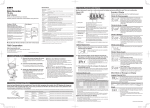
LOCATION MAP
ESO®
Electronic Stake Out®
Active Devices
Direction of Travel/
Speed or Stationary
# of GPS Satellites
Blue highlight
indicates device
showing on map
Devices Set to
Option B or C
Group Device is Assigned To
Current Voltage Red Text Indicates
Low Battery
Time Since Last Data
Point Was Received
How Long Device has Been On
Click for a List of Track Data Points
Quick Reference Guide
Device Name
ON if Charging
Is Device Emitting Beacon Signal?
Device
Time and Date of Data
Max. 10 Fences per Device
Closest Address
Lat/Long Location
How Often Device will Send
New Data During Live Tracking
How Long Device has Been Tracking
Current Firmware Version
Ping/Reset/Chirp Option
Device # & Settings
Hibernate Option
Device Name & Track List
3sitracking.com
3SI Security Systems
101 Lindenwood Drive, Suite 200, Malvern, PA 19355
[email protected] | 3sisecurity.com
THE INFORMATION CONTAINED WITHIN IS FOR EDUCATION/IDENTIFICATION
PURPOSES ONLY. 3SI Security Systems is the rightful owner of the information
and materials, and nothing herein shall grant a license to the information and
materials provided. Any downloading, reproduction or further distribution
without prior written permission of 3SI Security Systems is strictly prohibited.
[email protected]
ESP® Hotline: 888.3SI.TRACK
(888.374.8722)
10/15 66-0100-101
3SI Security Systems
Innovation That Protects
Quick Reference Guide for ESO® GPS Products
Login to access and change Device information
or to track Device at 3sitracking.com.
Device Settings
Select the Device you wish to view/edit either via
A
The Active/Status Device Pane OR
Motion
The Device can be set to track on Motion. When
Motion is selected, the Device will automatically
begin tracking when continuous motion is detected.
Motion Sensitivity
The Device can be set to trigger on a variety of
continuous motion durations depending on how it’s
being used.
No Motion Reset
The Device can be set to stop activation and reset
after it has been motionless for various periods of
time.
B
(Geo) Fencing
A fence is a perimeter around an address. Once the
fence perimeter is broken by a Device entering or
leaving the perimeter, a text or email alert will be
generated.
The Device List/Last Location Fix
Choosing your Device Settings is very important.
Consider how you plan to deploy the Device, who
will be assigned to view information about the
Device and receive Alert Messages, how often
you want to receive information on the Device’s
location, whether it triggers on Motion or Ping,
and how long the battery needs to last.
Real-time Ping
If Real-time Ping is selected, the Device will
respond within moments of the Ping command
being sent. Note that Real-time ping will reduce
battery life.
Ping Reset
Users may Reset the Device via the Reset button on
the Map Page. If the Device is not manually Reset
after being pinged, it will continue tracking until the
battery is depleted.
Chirp
Users may send a command to an active device
causing it to emit a chirp sound. Chirping will
end after 10 minutes or upon the device receiving
a cancel command when the Cancel Chirp button
is clicked.
Beacon
The default setting for the Beacon is ON. If the
Hand Held Beacon Receiver is not required, the
Beacon can be turned off by selecting the Turn
Beacon Off button.
Hibernate
The Hibernate functionality allows the User to
place the Device into a non-responsive mode.
While in Hibernate mode, the Device will not
track on motion, report in for an interval setting,
respond to a ping command, trigger, or report
battery status alerts. Hibernate may be delayed
by scheduling to start at a future date and time.
Device Charging
The Device battery is charged using the charger
shipped with the Device. It takes approximately
two to three hours to fully charge the battery.
Low Battery Alert
The Device will send a low battery text or email
alert to the User designated to receive Device
alerts when the battery is 3.7V or lower.
Please reference the complete ESO User Manual
for detailed instructions.