1
11
9
GAME
SYSTEM SETUP
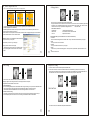
From the main menu, select SETUP and press the MODE button.
From the main menu, select GAME and press the MODE button.
SETUP MENU
Clock
- Here you can set the date and time. Use the Volume controls to scroll between each part
the NEXT/LAST controls to change each field.
LCD set
- Here you can use the NEXT/LAST controls to change the brightness function of the LCD screen.
This also functions as a power saving feature which the user to control the amount of time before
the screen will either dimm or turn off all together. Setting options for timeout are from 0-30 (which
are represented in seconds). Setting the value to 0 will disable the LCD timeout (screen will remain
on permanently).
Language
- Use the NEXT/LAST controls to choose which language you want the player to display.
Power off
- Here you can select the amount of time before the player turns off or falls asleep.
15
Replay Mode
Select whether you want manual or auto replay
16
.
TROUBLE SHOOTING
Online Mode
- Here you can select how you want to divide and protect your player. Choosing multi drive will let you split the player
into different parts, while normal leaves it as just one. Encrypting you player will keep it safe from unwanted users.
* Applies only to Windows 2000 SP2 or older.
** Encryption requires “MP3 Player utilities” software.
d
Memory info
- This will display how much memory you have left and what percent you have currently used up.
No display
No Audio from earphones
Firmware version
- This will display the current firmware version you have installed.
Firmware upgrade
- This will allow you to connect through your computer and download a newer firmware version.
Ear protection
- This will allow you to enable/disable the ear protection option and select between low, medium, and high.
This will protect you from unwanted volume changes.
Exit
- Return to the SETUP menu.
17
1. Check whether the battery has been properly charged.
2. Check if it is powered on.
1.Check if volume is ZERO status or earphone is
connected properly.
2.Make sure the earphone clear.
3. Make sure
is completed and not damaged.
Characters in LCD are corrupted
Make sure you have chosen the correct language
Poor FM reception
1.Adjust the position between earphone and player, or move
the player to another location and try
power equipment nearby
2. Turn
3. Earphone works as antenna
Music download fails
1. Check whether USB cable is damaged and is connected
properly or whether the driver is installed
2. Make sure there are no more than 99 files per folder
3. Check whether the player's memory is full
Play Displays
“Format Error”
1. Unsupported file format, or file is Copy-protected w/DRM.
Make sure file is supported & not DRM protected.
18