1
4.3. Capturing Video
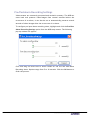
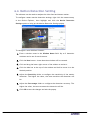
The Surveon Client Station supports capture of both single frames and up to
an hour of AVI video.
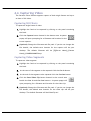
Capturing Still Shots
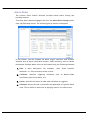
To capture a single frame of video:
1. Highlight the feed to be captured by clicking on the panel containing
the feed.
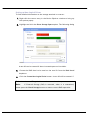
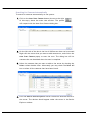
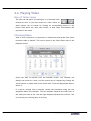
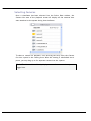
2. Click the Capture button located in the button area. A system
popup will open prompting for a filename and location for the
screen capture.
3. (Optional) Change the filename and file path. If you do not change the
file details, the default save location for the capture will be your
desktop. The default filename will be [P]{Server Name}_{Camera
Name}_YYMMDDHHMMSS.bmp
Capturing Video Segments
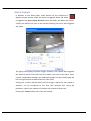
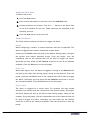
To capture a video segment
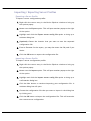
1. Highlight the feed to be captured by clicking on the panel containing
the feed.
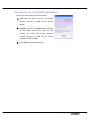
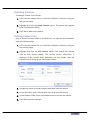
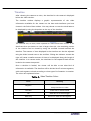
2. At the start of the segment to be captured click the Cue In button.
3. At the end of the segment to be captured click the Cue Out button.
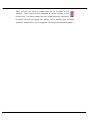
4. Click the Save Video Clip button located in the control area
beside the Cue In and Cue Out buttons. A system popup will
open prompting for a filename and location for the video clip.
5. (Optional) Change the filename and file path. If you do not change the
file details, the default save location for the video clip will be your
desktop. The default filename will be VideoClip.avi
Surveon Client Station Software User Guide
51