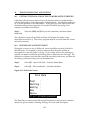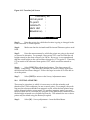
1
11.
DOWNLOADING FILES FROM THE DATA COLLECTOR
Step 1:
Connect the data collector to the computer com ports by using the
long blue connector cable provided with the equipment or something
comparable. The COM port to which the data collector is connected (i.e., COM1
or COM2) must be specified in the TFR-Map program, which is discussed below.
Step 2:
Turn on both the data collector and computer. Then, access the
TFR-Map program on the computer.
Step 2b (OPTIONAL):
If the TFR-Map program must be accessed in MSDOS, then enter the following:
C:\ cd tfrmap
C:\tfrmap\ tfr
Step 3:
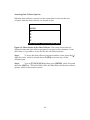
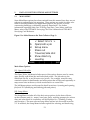
Menu.
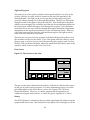
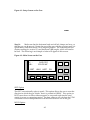
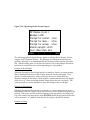
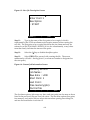
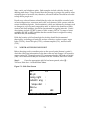
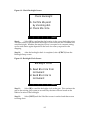
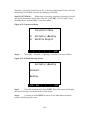
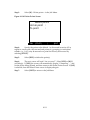
On the data collector, select [S] – File transfer – from the Main
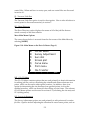
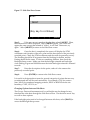
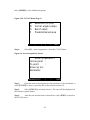
Figure 11-1: File Transfer Screen
File type :
IR/wire :
Baud rate:
Parity:
>CRD
>Wire
>9600
>None
Start pt: 0
End pt: 0
| SEND | RECV | SBLK| GET| MODE|EXIT|
Step 4:
Check all of the options listed. The options shown above are the
default options for transferring files, of which the IR/Wire, Baud Rate, and Parity
options should always be the same. In general, the file type should be coordinate
(CRD), although there also may be contexts in which raw data (RAW) and point
list (PLST) files should be transferred.
Step 5:
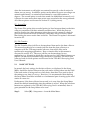
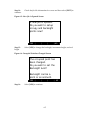
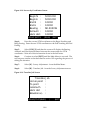
Select [SEND] to select the job file to be transferred. The next
screen will be the directory listing all of the stored job files. Highlight the
appropriate job name, but do not press [SELCT] yet.
Step 6:
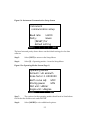
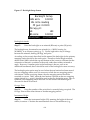
Before selecting the file, and thereby sending it to the computer,
select [ALT] + [T] in the TFR-Map program to access the Transfer menu.
11-1