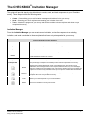
1
Invitation Manager (continued)
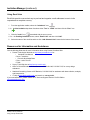
Adding E-mail Addresses
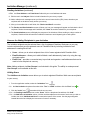
E-mail addresses are added to the recipient list by entering them by hand or by copying them from a list
and then pasting them to the Add Email Addresses screen.
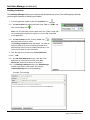
1. From the application toolbar, select the “Invitations” icon (
).
2. In the New Invitation drop-down list select either “Text” or
“HTML” and then click the “Plus” icon (
3. Click the “Invite” icon (
name.
).
) associated with the survey
4. On the Pending Invitations screen, select “Email
Addresses” and then click “Add”.
5. Manually enter each e-mail address in the text box or use
copy and paste to add the addresses.
6. When all of the e-mail addresses have been added, click
“Add Addresses” located at the bottom of the screen.
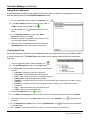
Creating Email Lists
Email Lists are simply collections of e-mail addresses that you create and use to invite recipients to take
a survey anonymously. The Email Lists screen allows you to manage existing Email Lists and create
new ones.
1. From the application toolbar, select the “Users” icon (
).
2. In the User Management screen, select “Email Lists”.
3. The Email Lists screen provides the following information and
controls:
•
•
•
•
•
•
•
•
List Name – display the name of the Email List.
Description – contains details about the Email List.
Users – total number of users that are members of this list.
Date Created – date this Email List was created.
View/Edit – navigates to the Edit List screen for the selected Email List allowing you to add or remove
addresses.
Properties – navigates to the Email List Properties screen, allowing you to edit the list name and
description.
Copy – creates a duplicate of the selected Email List.
Delete – deletes the selected Email List.
4. Click the “New Email List” icon (
).
5. On the Email List Properties screen, enter the list name, a description (optional), and then click “Submit”.
6. The system will return you to the Email Lists screen. Click on the “View/Edit” icon (
Email List.
7. On the Edit Email List: name screen, click the “Add Addresses” icon (
e-mail addresses.
) associated to the
) and enter the desired
8. Click “Submit”, located at the bottom of the screen, to save the changes to the Email List.
4 Miami’s Survey Solutions http://survey.muohio.edu