1
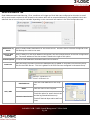
7.4 VIGIL Server Menu / Right Click Menu
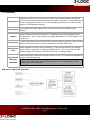
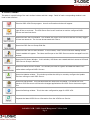
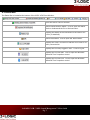
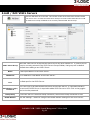
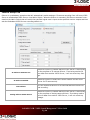
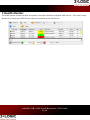
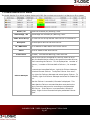
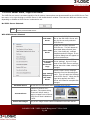
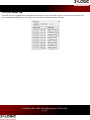
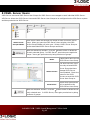
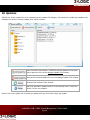
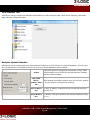
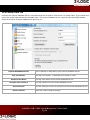
The VIGIL Server menu is a context sensitive list of options, these options can be accessed from the VIGIL Server Toolbar menu, or by right clicking on a VIGIL Server in the Health Monitor window. There are two different context menus,
depending on whether a VIGIL Server is selected or not.
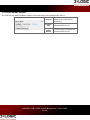
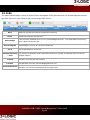
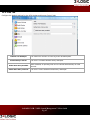
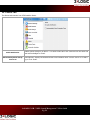
No VIGIL Server Selected:
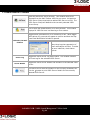
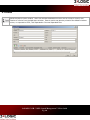
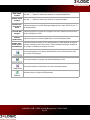
Print
Print VIGIL Server Site Information for the currently selected view, or VIGIL Server Details for the
currently selected VIGIL Server.
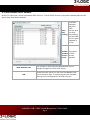
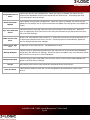
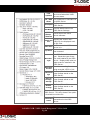
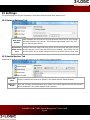
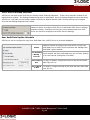
With VIGIL Server Selected:
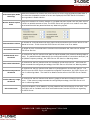
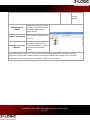
Edit VIGIL
Server
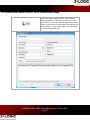
Open the Add VIGIL Server window or the Edit VIGIL Server window for the currently selected
VIGIL Server.
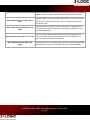
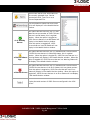
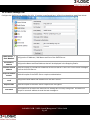
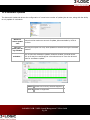
Delete the currently selected
VIGIL Server. This will delete all
associated data collected (AnaDelete VIGIL
lytics, User Audit etc), settings
Server
snapshots and still images. A confirmation dialog box will appear to
confirm the deletion.
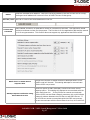
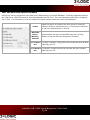
Create a backup of the VIGIL
Take Snapshot
Server settings. Up to 10 Snapof VIGIL
shots of the VIGIL Server settings
Server Setcan be stored to create a history of
tings
changes.
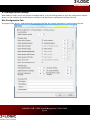
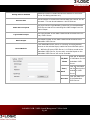
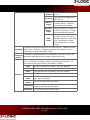
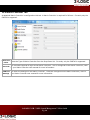
Select a VIGIL Server Settings
Snapshot from the Cascading sub
Apply Settings
menu. This will apply the Settings
Snapshot to
to the VIGIL Server. When the setthis VIGIL
tings have applied, the VIGIL
Server
Server will reboot to complete the
changes.
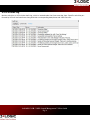
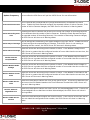
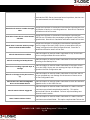
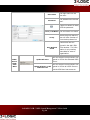
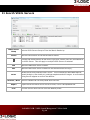
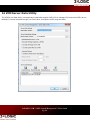
Poll VIGIL Server
Test IP Failover
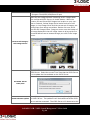
Extract Still Images
Refresh the current status of the selected VIGIL Server.
Tests the IP failover configuration. The system doing
the test will either send or
receive images from a failover
VIGIL Server that is attached
to VCM.
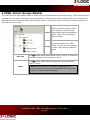
Copy a still image of each camera enabled on the VIGIL Server
3xLOGIC's VCM - VIGIL Central Management 7.1 User Guide
Pg. 28