1
RESCANNING FOR CAMERAS
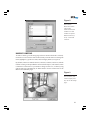
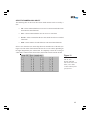
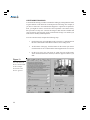
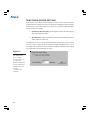
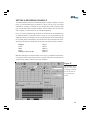
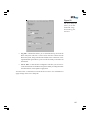
Any time you connect cameras to DVX 500, you must inform MasterControl by
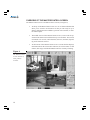
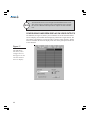
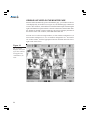
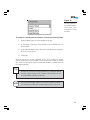
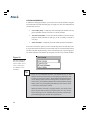
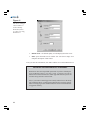
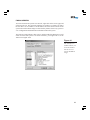
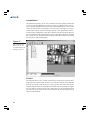
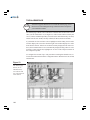
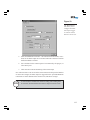
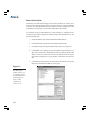
clicking the Camera Detection button on the Hardware tab. When the Camera Detection window appears (see Figure 8), select the input number for the new camera
and click Accept. The camera input is then represented by an active button at the
bottom of the screen, even if no camera is actually hooked up to the input. You
can also have MasterControl search for the new camera by clicking Rescan. When
you disconnect a camera, you can either click Rescan or manually deselect the
camera input from the Camera Detection window.
To have MasterControl recognize a specific camera input combination every time
you start the application, select the appropriate camera inputs and then choose
Use as the Default Configuration. Then MasterControl will skip its scan during
startup and activate all camera inputs you selected. To return to having
MasterControl scan for cameras during startup, deselect Use as the Default Configuration and then click Accept.
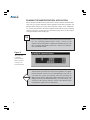
IMPORTANT NOTE ABOUT
DAY/NIGHT (AUTOSWITCHING) CAMERAS
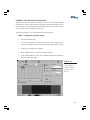
If you connect a day/night camera that automatically switches to blackand-white during hours of low light, you must manually configure the
camera on the Camera Detection page. Failure to do so could interfere
with the proper capture of video from that camera. To configure a day/
night camera, complete the following steps:
1.
2.
3.
4.
5.
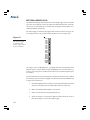
Select the camera in the Camera Detection window.
Select Day/Night from the Camera Type drop-down list.
Repeat for each day/night camera.
Select the Use As the Default Configuration option.
Click Accept.
As long as Use As the Default Configuration is selected, MasterControl
will not try to scan the cameras during startup. If you click Rescan, you
must configure the day/night cameras again using these steps.
20