1
84 FocalPoint
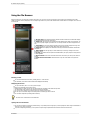
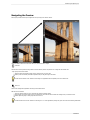
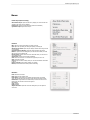
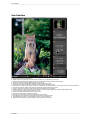
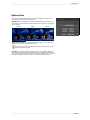
Zoom In: Zooms the preview window in one increment. This will make the preview image
larger.
Zoom Out: Zooms the preview window out one increment. This will make the preview images
smaller.
Fit to Screen: This sets the preview image so that the entire image is on screen at once.
Think of this as an overview of the entire image. This is the setting you will use most of the
time.
Actual Pixels: This sets the preview image so that it zooms to actual pixels, or 1:1. This is
also called 100%. This setting allows you to see every pixel in the image. This is useful when
making precise adjustments.
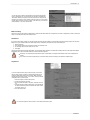
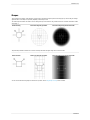
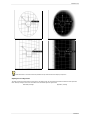
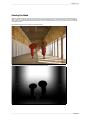
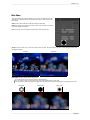
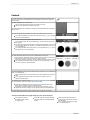
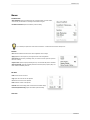
Show/Hide Mask: Toggles the visibility of the black and white mask. This is useful for
seeing the shape of the Focus Bugs as well as your Focus Brush strokes.
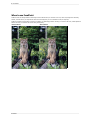
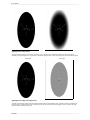
Show/Hide Preview: Toggles the preview of the effect on and off. This is useful for
comparing the results to the original image.
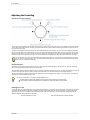
Show/Hide Focus Bug Info: Toggles the visibility of the text tool-tips and amount
readouts on the Focus Bug.
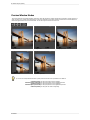
Focus Bug Opacity: Sets the opacity of the Focus Bug control on screen. You can reduce
its opacity if it interferes too much with the image.
Focus Bug Grid: Sets the mode of the Focus Bug Grid; always on, always off, or automatic,
where it only appears when the Focus Bug is being adjusted.
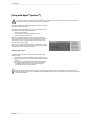
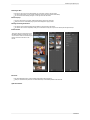
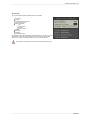
Window Menu
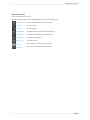
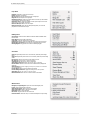
Navigator: Hides or shows the navigator palette.
FocusBug: Hides or shows the FocusBug palette.
Blur: Hides or shows the blur palette.
Options: Hides or shows the options palette.
Vignette: Hides or shows the vignette palette.
FocusBrush: Hides or shows the FocusBrush palette.
Presets: Hides or shows the presets palette.
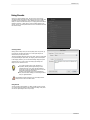
Show Welcome: Opens the Getting Started Dialog which shows basic step-by-step
instructions for using FocalPoint.
Help Menu
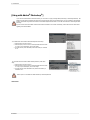
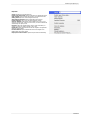
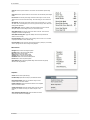
Search: Searches menus (Mac OSX only).
FocalPoint Help: Opens this html help in your default web browser.
Find Tutorials Online: Opens your web browser and goes to the
tutorials section of the onOne website.
Perfect Inspiration: Opens the default web browser to the Inspiration
Section of the onOne website.
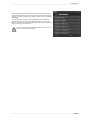
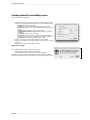
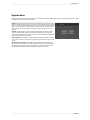
Activate/Deactivate: Opens the activation dialog. These are used to
deactivate your software for moving it to another computer or for a
return.
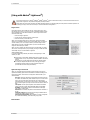
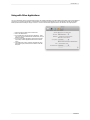
About FocalPoint (Windows Only): Opens the about box with the
version number and license code displayed.
FocalPoint