1
68 FocalPoint
Using Multiple Focus Bugs
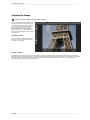
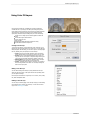
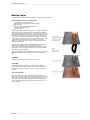
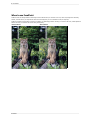
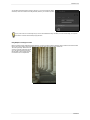
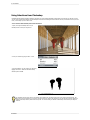
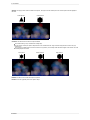
In FocalPoint 2, you can use multiple Focus Bugs to create a complex shaped mask or to focus on multiple subjects. You can use up to six Focus Bugs at a time.
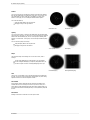
You can mix each bug type as well as all its shape, feather and opacity options. By default you start with a single active Focus Bug.
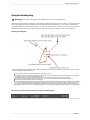
Managing Multiple Focus Bugs
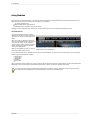
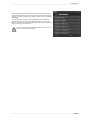
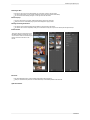
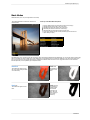
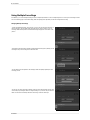
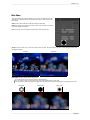
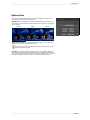
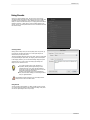
To create an additional Focus Bug, click on the plus [+] icon in the Focus Bug list at the bottom of
the Focus Bug pane. This will create another Focus Bug and you will see it in the list. Your new
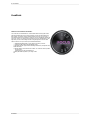
Focus Bug will be selected by default. Unselected Focus Bugs will appear as round markers in the
preview.
You determine which Focus Bug is selected for editing with the Focus Bug tool by selecting it in the
Focus Bug list. Only one Focus Bug can be selected at a time.
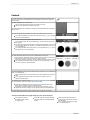
You can adjust the size and position as well as Shape, Feather and Opacity separately for each
Focus Bug you add.
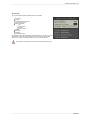
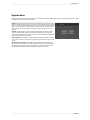
You can turn off or hide a Focus Bug by clicking on the Eye icon for that Focus Bug in the list. This
can be handy for previewing the effect of a single Focus Bug or if you want to only use the Focus
Brush or a selection from Photoshop instead of a Focus Bug to control the sweet-spot.
FocalPoint