1
Chapter 6 - Contacts Area
Overview
The main Contacts tab is where all your contact detail information is stored. A contact is a customer or prospect
that is stored in the system and can be used to relate to an order. This section outlines the basic functionality.
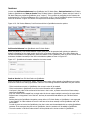
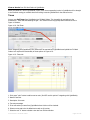
Form View
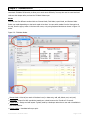
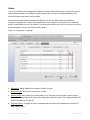
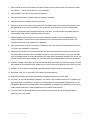
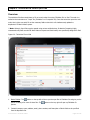
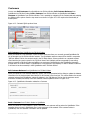
Figure 6.0 - Contacts Tab (Form View)
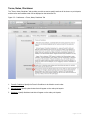
1. Status Toolbar where you can create a new record, delete a record, perform finds, sorts and more. Please
see Chapter 2 - “Status Toolbar Setup” for full functionality.
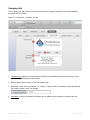
2. Switch between Form and List views with these buttons.
3. Click the Preview button to preview and print the information of all contacts.
4. Unique Contact ID number automatically assigned to each contact record. Enter company name and contact
name in this area. The “QB Cust. Name” is only required if integrating with QuickBooks.
5. Enter contact address, phone number, email, and website in this area.
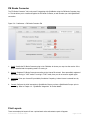
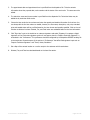
6. When an email address is entered a mail icon will pop up beside the field. Clicking that icon will open up a
blank email document to be completed and sent to that contact. Similarly a globe will pop up beside the
website field. Clicking the globe icon will redirect the user to that website through a default web browser.
7. Enter extra notes for a contact in this area.
8. Insert, Export, or Clear the contact photo using these buttons.
User Manual – FM Work Orders
Page 21 of 36