1
Status Toolbar Setup
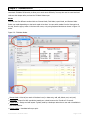
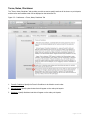
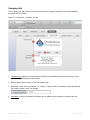
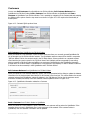
The Status Toolbar plays a vital role in using FM Work Orders. In order to optimize your FM Work Orders
experience we recommend customizing your Status Toolbar. In order to customize your Status Toolbar please
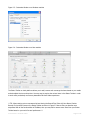
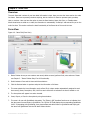
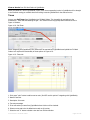
select View > Customize Status Toolbar... from the menu bar at the top as shown in Figure 2.1. You can also
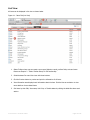
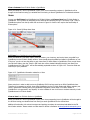
right click on the actual Status Toolbar and select the “Customize...” or “Customize Toolbar...” depending on your
operating system as shown in Figure 2.2.
Figure 2.1 - Accessing Status Toolbar from menu bar at the top
Figure 2.2 - Accessing the Status Toolbar by right-clicking on a Windows or Mac machine
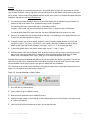
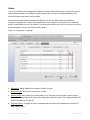
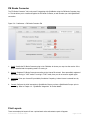
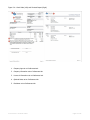
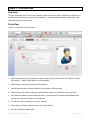
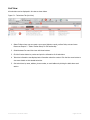
This will open up the customize window to provide you with various options to add a command to your Status
Toolbar. Although the Status Toolbar and the customize window look a little bit different on a Windows and Mac
machine, the functionality of just dragging what you want from the customize window onto the Status Toolbar
or what you do not want off the Status Toolbar is similar on both platforms. The customize window on both
platforms is shown in Figure 2.3 and in Figure 2.4.
User Manual – FM Work Orders
Page 8 of 36