1
Sophos Enterprise Console
■
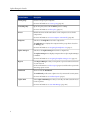
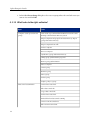
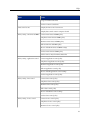
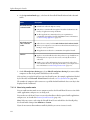
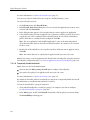
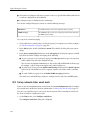
Any USB-based Bluetooth adapters plugged into the computer
7.6.4 Select device types to control
If you use role-based administration:
■
You must have the Policy setting - device control right to edit a device control policy.
■
You cannot edit a policy if it is applied outside your active sub-estate.
For more information, see About roles and sub-estates (page 17).
Important: You should not block Wi-Fi connections on computers that are managed by Enterprise
Console via Wi-Fi.
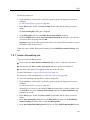
1. Check which device control policy is used by the group(s) of computers you want to configure.
See Check which policies a group uses (page 30).
2. In the Policies pane, double-click Device control. Then double-click the policy you want to
change.
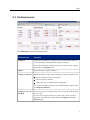
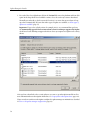
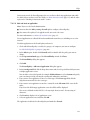
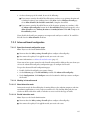
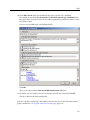
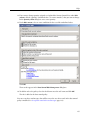
3. In the Device control policy dialog box, on the Configuration tab, under Storage, select the
type of storage device you want to control.
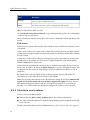
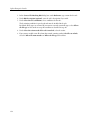
4. Click in the Status column next to the device type, and then click the drop-down arrow that
appears. Select the type of access that you want to allow.
By default, devices have full access. For removable storage devices, optical disk drives and floppy
disk drives, you can change that to “Blocked” or “Read only.” For secure removable storage
devices, you can change that to “Blocked.”
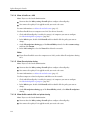
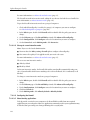
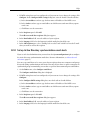
5. Under Network, select the type of network device you want to block.
6. Click in the Status column next to the type of network device, and then click the drop-down
arrow that appears.
■
■
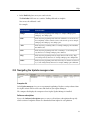
Select “Blocked” if you want to block the device type.
Select “Block bridged” if you want to prevent network bridging between a corporate network
and a non-corporate network. The device type will be blocked when an endpoint is connected
to a physical network (typically through an Ethernet connection). Once the endpoint is
disconnected from the physical network, the device type will be re-enabled.
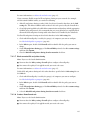
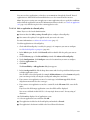
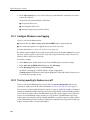
7. Under Short Range, select the type of short-range device you want to block. In the Status
column next to the device type, select “Blocked.”
Click OK.
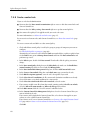
7.6.5 Detect devices without blocking them
If you use role-based administration:
■
166
You must have the Policy setting - device control right to edit a device control policy.