1
INSTALLATION—pCOWeb, pCONet & LonWorks Cards
i.
Re-Setting Factory Defaults: pCOWeb and
pCONet
1.
2.
3.
4.
5.
Restart the software by either turning the unit off then
back on, or by holding the reset button for 5-10 seconds
after releasing the button the status LED will stop
flashing and 15 seconds later the pCONet or pCOWeb
will be restarted.
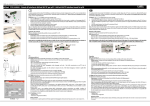
After the card has been restarted, press and hold the
reset button on the card, located on the front left, shown
in Figure 1.1 & Figure 1.2. Keep the reset button
pressed for at least 20 seconds until the status LED
starts to flash red slowly three times. Release the reset
button while the red LED is flashing
If done correctly the status LED will turn green then
quickly flashes red 3 times.
Wait one minute for the card to complete its boot phase.
The factory recall function will not permanently
overwrite previously stored settings, it will only recall
them for the duration of the time the card has power to
it. If the card loses power it will require resetting again
to use the factory settings.
Connecting pCOWeb to a PC
The pCOWeb card connects via Ethernet cable directly from
the Ethernet port to any PC. Configure the PC IP address to
172.16.0.2 to communicate with the card. The factory
default IP address of the pCOWeb card is 172.16.0.1.
BMS Controller Setup
The BMS setup can be done using the display and keypad
located on the controller. The remote display keypad can
also be used to setup the BMS.
1. Turn power on after the interface card is installed.
2. To access the BMS settings from the main screen,
press
button then using the
or
buttons,
scroll through the menu to find the service settings and
press the
button. Inside the service settings menu
scroll to the BMS Config menu selection and press the
ii.
For pCONet, BACnet MSTP setup automatically
pulls the information from the pCONet card,
confirming the values with the values given by the
factory as each card is different. To save
changes to the card, go to the BACnet Read/Write
screen, select “Write” and update to “Yes.”
For pCOWeb, BACnet IP setup will automatically
pull the instance of the pCOWeb card; however
the network information needs to be completed in
order n to successfully communicate with the
network. To save changes to the card if needed,
go to the BACnet Read/Write screen, select
“Write” and change update to “Yes.”
pCONet Setup & Operation
The pCONet cover has two labels for LED’s located on the
card, one labeled status and the other RS485. The status
LED indicates the status of communication with the
controller and the status of the pCONet. The RS485 LED
indicates the status of communication with the BACnet
MS/TP network.
Status LED: During the starting sequence, this LED will
remain off for two seconds, and will then flash red-green-red
two seconds after starting. Five seconds after restarting it
will be a constant green. After 50 seconds normal
operation, these are the possible status indicators:
1. Quick green-OFF-green: This indicates proper
communication with the controller.
2. Slow red-OFF-red: This indicates that there is no
communication with the controller.
3. Green-red-Green: This indicates that the pCONet
detects errors or a temporary lack of response from the
controller.
RS485 LED: During the starting sequence, this LED will
remain off for about 50 seconds then flash green-red-greenred, after this the BACnet will be active. The RS485 will now
indicate the quality of the connection with these possible
statuses:
1. Green with the occasional red flashes: This indicates
communication is ok.
2. Green and Red on together: This indicates that
communication has not been established.
button. NOTE: The default password is “1500.”
3.
Press the
button to select what option you would
like to change and use the
or
buttons to change
the values of a selection. Move the cursor back to the
top to change screens.
4. For each card there is a different process for setup:
i.
For pCOWeb cards change the “BMS CARD
Protocol” to “BACnet IP/Eth.”
ii.
For pCONet cards change the “BMS CARD
Protocol” to “BACnet MSTP.”
iii.
For LonWorks cards change the “BMS CARD
5.
6.
Protocol” to “Lon”. Press the
button to save
the selection and the LonWorks BMS selection is
complete.
For pCOWeb or pCONet, on the next screen the
controller will ask if a card has been installed into the
controller Select “Yes”.
Adjust the following settings:
74-530.0
3