1
Notice
About This Edition
Publication number 453564045041
Edition 7
Printed in the USA
To determine the product level version to which this
guide applies to, refer to the version level on the label of
the User Documentation CD-ROM that accompanied
the device. This information is subject to change without
notice.
Philips shall not be liable for errors contained herein or
for incidental or consequential damages in connection
with the furnishing, performance, or use of this material.
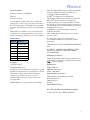
Edition History
Edition Print Date
1
September, 2006
2
February, 2007
3
August, 2007
4
May, 2009
5
October, 2009
6
December, 2011
7
August, 2013
Microstream® and FilterLine® are registered trademarks
of Oridion Medical Ltd. Smart CapnoLine™ is a
trademark of Oridion Medical Ltd.
Q-CPR® is a trademark of Laerdal Medical.
The HeartStart MRx contains an Ezurio PC Card with
Bluetooth® wireless technology. The Bluetooth
wordmark and logos are owned by the Bluetooth SIG,
Inc. and any use of such marks by Ezurio is under license.
Coverage Plus® and Coverage Plus NPD® are registered
trademarks of Steris Corp.
CidexPlus® is a registered trademark of Advanced
Sterilization Products.
Other trademarks and trade names are those of their
respective owners.
Use of supplies or accessories other than those
recommended by Philips may compromise product
performance.
THIS PRODUCT IS NOT INTENDED FOR HOME
USE.
IN THE U.S., FEDERAL LAW RESTRICTS THIS
DEVICE TO SALE ON OR BY THE ORDER
OF A PHYSICIAN.
Medical Device Directive
Copyright
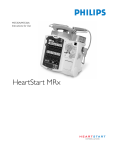
The HeartStart MRx complies with the requirements of
the Medical Device Directive 93/42/EEC and carries the
0123 mark accordingly.
Copyright © 2013
Manufacturer:
Koninklijke Philips N.V.
Philips Healthcare
3000 Minuteman Road
Andover, MA 01810
All rights are reserved. Permission is granted to copy and
distribute this document for your organization’s internal
educational use. Reproduction and/or distribution
outside your organization in whole or in part is
prohibited without the prior written consent of the
copyright holder.
SMART Biphasic is a registered trademark of Philips.
Authorized EU-representative:
Philips Medizin Systeme Böblingen GmbH
Hewlett Packard Str. 2
71034 Böblingen
Germany
Canada EMC:ICES-001
U.S. FCC and Industry Canada Radio Compliance:
Contains FCC ID: PQC-WMTS-MODULE
i